Workstation special report
Winter 2026
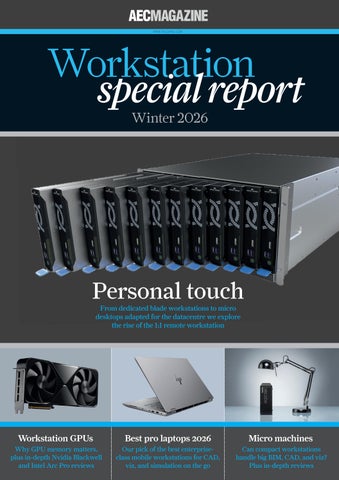

From dedicated blade workstations to micro desktops adapted for the datacentre we explore the rise of the 1:1 remote workstation
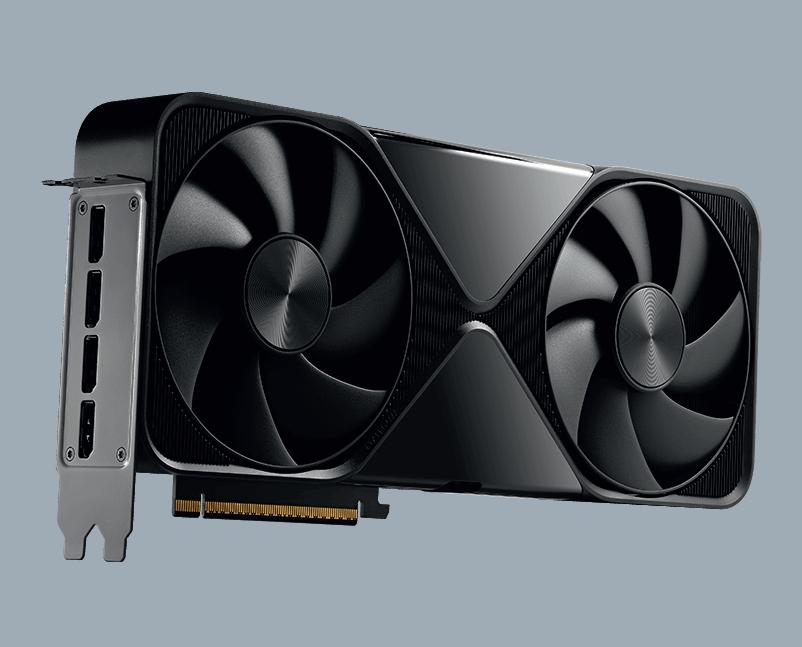
Workstation GPUs
Why GPU memory matters, plus in-depth Nvidia Blackwell and Intel Arc Pro reviews







Our pick of the best enterpriseclass mobile workstations for CAD, viz, and simulation on the go
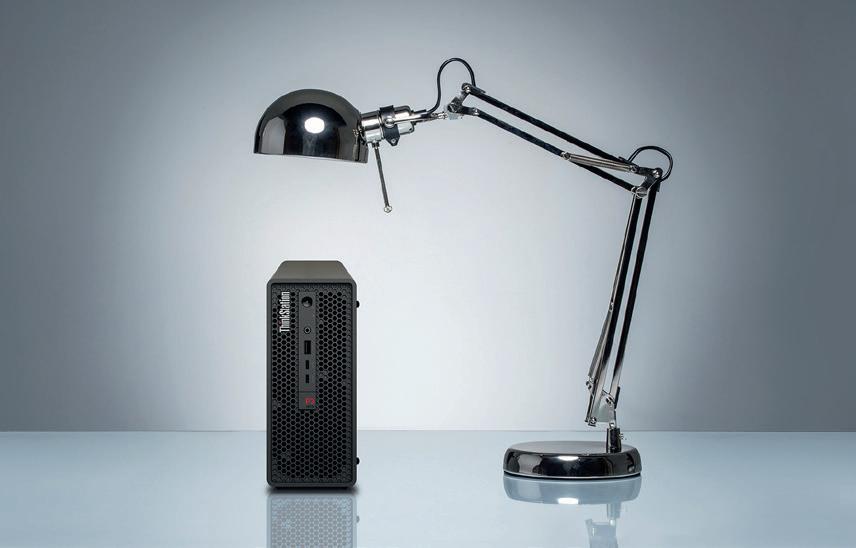
Micro machines
Can compact workstations handle big BIM, CAD, and viz? Plus in-depth reviews









memory
shortages
and rising
prices are reshaping workstation buying. Greg Corke explores how architecture, engineering, design, and manufacturing firms can adapt without panicking
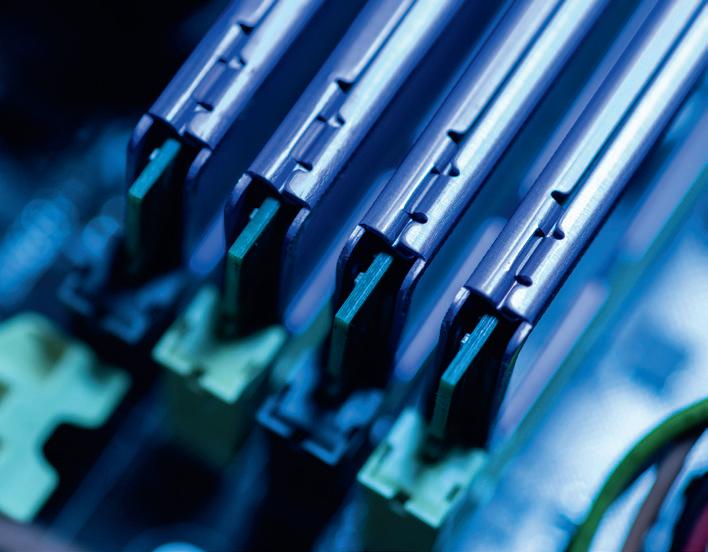
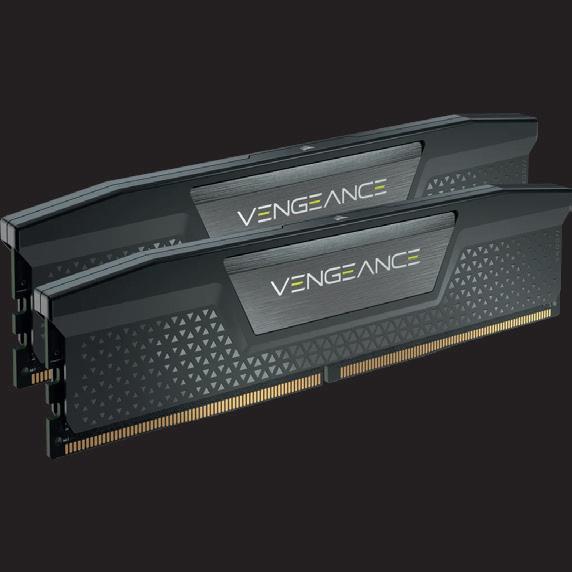
If you’ve priced a new workstation recently, one thing is clear: memory now takes up a much larger slice of the quote than it did just a few months ago. There’s no need to panic quite yet, but this significant change in the IT sector cannot be ignored.
Since October, DDR5 prices have climbed sharply, and for architecture, engineering, design, and manufacturing firms that rely on memoryheavy workstations, this has become a planning and purchasing challenge that demands careful thought.
So why has this happened?









‘‘ Treat memory like you did toilet roll in Spring 2020: buy wisely, stay calm, and you’ll get through the crunch unscathed ’’
The short answer: the AI boom broke the memory market. Samsung, SK Hynix, and Micron have shifted large portions of production to high-bandwidth memory for AI accelerators and datacentres, leaving DDR5 supply for PCs and workstations starved. For some, what used to be a routine workstation purchase now feels more like hunting for toilet roll in the early days of Covid.
Unfortunately, the disruption isn’t temporary. Analysts expect this shortage, and sky-high prices, to continue through mid 2026, with some warning it may extend into 2027 before supply stabilises.
Rising memory costs are already impacting the price of workstations. In just a few months, DDR5 prices have surged — in some cases tripling or quadrupling. A 96 GB kit that cost £200 in July can now command £800, while a 256 GB ECC kit that sold for £1,500 in August may now push £4,000, if it can be sourced at all. Prices remain volatile, dramatically shifting week to week, even overnight.
The memory crunch is also spilling over into other components. SSDs have climbed in price too — not as sharply as DDR5, but enough to notice — because some of their components are made in the
same fabs. Then there are pro GPUs, which demand far more memory than their consumer cousins. Business Insider reports that a 24 GB Nvidia RTX Pro 5000 Blackwell GPU in a Dell mobile workstation now carries a $530 premium.
All of this leaves firms asking a simple question: how do you make sensible workstation purchasing decisions when the market is so unpredictable?
The most obvious tactic is to shop around, though don’t presume prices will stay still for long. Lenovo has been kicking the proverbial DDR5 can down the road by stockpiling memory, but how long will that last? Unfortunately, boutique integrators don’t have the same buying power, and some have even been forced to ration stock.
Consider buying pre-configured workstation SKUs (Stock Keeping Units) already in the channel. You may also find more pricing stability in systems where memory is soldered onto the mainboard. For example, a top-end HP Z2 Mini G1a with 128 GB of memory that cost £2,280 in August 2025 now goes for just £50 more (see review on page WS24)
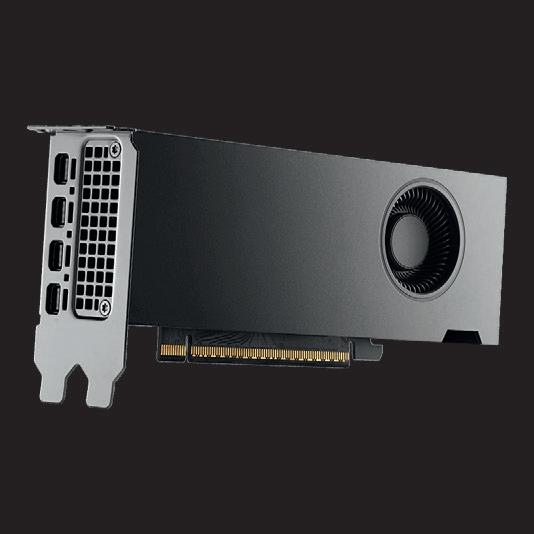
Another approach is to extend the life of what you already have. If your workflows have evolved from pure CAD/BIM to visualisation, upgrading the GPU — for instance, to the Nvidia RTX Pro 2000 Blackwell (see review on page WS44) — can breathe new energy into your workstation. Furthermore, if you’re maxing out the system memory in your current machine and you still have spare DIMM slots, adding a bit more RAM is cheaper than replacing all of your memory modules.
If you must buy new systems, planning for future upgrades is more important than ever. Look for platforms with four or more DIMM slots so you can start with a baseline configuration and add more
memory later when prices come down. Don’t splurge on top-tier modules today — leave some room to grow. This way, you meet your immediate needs without blowing the budget, and you’ll be ready to expand when the market stabilises.
Software and workflow strategies can also stretch existing resources. Optimising projects to reduce memory footprint, closing unnecessary applications, or offloading demanding tasks to the cloud, such as rendering, simulation and reality modelling, can all help ease memory pressure.
Renting cloud workstations is another option. With a 1:1 remote workstation (see page WS6), you get the performance you need without tying up capital in potentially overpriced hardware. Some workstation-as-a-service providers, such as Computle (see page WS10), have even locked in prices across their contracts.
The memory crunch isn’t going anywhere fast, so buying a workstation now requires more thought than usual. Preconfigured SKUs, squeezing more life out of your existing machines, and careful planning upgrades for later all help stretch your budget. Cloud processing and remote workstation subscriptions can also ease some pressure. The market is unpredictable, but firms that mix foresight with flexibility can keep design and engineering teams productive without overpaying. In other words, treat memory like you did toilet roll in Spring 2020: buy wisely, stay calm, and you’ll get through the crunch unscathed.
To help shape our 2026 Workstation Special Report, we surveyed over 200 design professionals on real-world workstation use. Thanks to everyone who took part. Here are some of the results, but how does your setup compare?

What type of workstation do you primarily use?
Desktop towers remain the most widely used form factor, reflecting ongoing demand for maximum performance and expandability. Mobile workstations account for over a third of use, underlining the continued shift toward flexible and hybrid working. Small form factor desktops represent a niche but notable segment, suggesting interest in space-efficient systems. Meanwhile, remote and cloud-based workstations remain a small minority, indicating that they have yet to reach mainstream adoption
Nvidia RTX leads, reflecting its dominance in professional workstations and broad OEM availability. GeForce, primarily a consumer GPU, also has a strong showing, offering good price/performance for visualisation, mainly in specialist systems. It’s not surprising to see Intel integrated’s tiny slice, while for AMD integrated we’ve yet to see the impact of its impressive new ‘Zen 5’ chips, including the Ryzen AI Max Pro, which is currently offered by only a few OEMs, mainly HP

Intel Core continues to dominate, but this is not surprising considering it offers the best performance for CAD. Intel Xeon still plays a role in more enterprisefocused workstations, though its share is relatively small. AMD shows a strong overall presence, with Ryzen accounting for a fifth of systems, despite very limited availability from the major OEMs. Higherend AMD Threadripper (Pro) systems remain niche but important, serving users with extreme compute, memory, and I/O requirements that go beyond mainstream workstation needs

How many CPU cores do you have?
Most respondents use mid-to-high core count CPUs, reflecting the dominance of Intel Core. However, buyers may not be choosing these chips specifically for their cores, as they also deliver the highest clock frequencies, which is critical for CAD. Systems with 6–16 cores remain popular, balancing performance and cost. Very low core counts are rare, likely indicative of ageing workstations, while ultra-high core counts point to specialised use cases such as high-end visualisation and simulation
Dual-monitor setups dominate, supporting workflows like modelling on one screen and reference apps or visualisation on the other. Single-monitor setups remain common, used by nearly a quarter of respondents, while three or more screens indicate more complex or immersive workflows. Very few rely solely on a laptop, showing most professionals prefer larger, dedicated displays for detailed design work
Slow model loading, often dictated by single-threaded CPU performance, is the most common performance bottleneck, affecting over half of respondents. Viewport lag and long rendering times affect around a third and a quarter of users, while network and cloud sync issues impact more than a quarter. Crashes, slow simulations, and storage limitations are less common. Only a small fraction report no issues. Notable “others” include single-core-limited applications, drawing production, and poor interface design
What resolution is your primary monitor?
Monitor resolutions are fairly evenly distributed, with 4K leading slightly, reflecting demand for detailed visualisation and design work. A smaller segment uses resolutions above 4K, likely for specialised workflows requiring extreme detail. Overall, most professionals prioritise clarity and workspace efficiency, though FHD, still common in many laptops, remains widespread



How much system memory do you have?
Most workstations feature 64 GB of RAM, reflecting the growing demands of CAD, visualisation, and simulation workflows. 128 GB or more is used by a surprisingly large minority for highly complex tasks. 16 GB is rare, probably indicative of ageing systems that may well benefit from a RAM upgrade. Our heart goes out to the two respondents who suffer with 8 GB, which is barely enough to load Windows, let alone run CAD. Overall, the data shows design professionals prioritise ample memory to support performance and multitasking





From compact ‘desktops’ to purposebuilt blades, a new wave of dedicated 1:1 datacentre-ready workstations are redefining CAD, BIM, and visualisation workflows — combining the benefits of centralisation with the performance of a dedicated desktop, writes Greg Corke
For more than a decade, Virtual Desktop Infrastructure (VDI) and cloud workstations have promised flexible, centrally managed workstation resources for design and engineering teams that use CAD, BIM and other 3D software. But a parallel trend is now gathering serious momentum: the rise of the 1:1 remote workstation.
In a 1:1 model, each user gets remote access to a dedicated physical workstation with its own CPU, GPU, memory and storage. There is no resource sharing, no slicing of processors, and no contention with other users. In many ways, it combines the performance predictability of a local desktop workstation with many of the management, security and centralised data benefits traditionally associated with VDI.
This shift is being driven by performance demands, changing IT priorities, and the growing maturity of remote access technologies. And it is appearing in several distinct forms.
What is a 1:1 remote workstation?
Unlike VDI or public cloud environments like AWS or Microsoft Azure, where
multiple users typically share CPUs and GPUs through virtualisation, a 1:1 remote workstation assigns an entire machine to a single user. That machine typically sits in racks in a dedicated server room or datacentre, either on-premise or hosted by a third-party service provider. However, it could also sit under a desk, or in the corner of an office.
The user accesses the workstation remotely using high-performance display protocols such as Mechdyne TGX, PCoIP (HP Anyware), NICE DCV (now Amazon DCV), Parsec or Citrix HDX. However, from a compute perspective, it behaves exactly like a local workstation.
How the trend is emerging
1) Compact desktop workstations in the datacentre
One of the most visible indicators of the 1:1 trend, especially for design and engineering teams that use CAD and BIM software, is the relocation of compact desktop workstations into the datacentre.
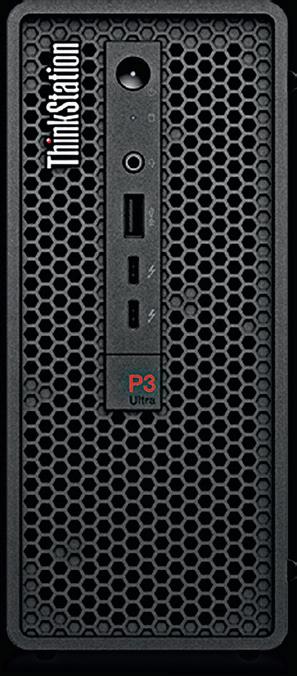
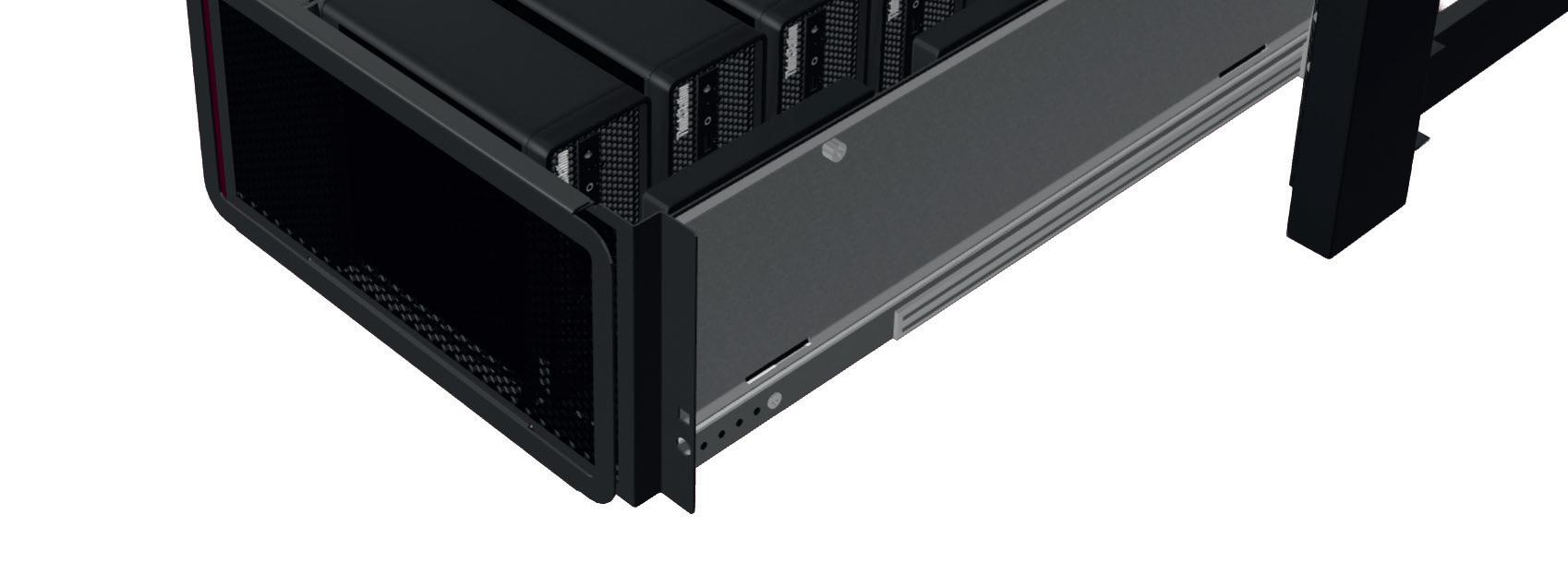
Machines such as the HP Z2 Mini and Lenovo ThinkStation P3 Ultra SFF are increasingly being mounted in racks rather than sitting on desks. Thanks to their small form factors, these systems offer impressive density. With the ThinkStation P3 Ultra SFF, for example, seven individual workstations can be housed in a 5U chassis.
Density matters for several reasons. Higher density reduces rack space requirements, lowers hosting costs, and
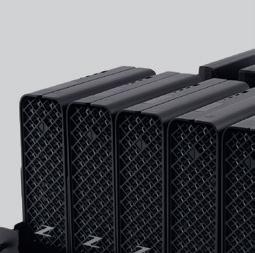
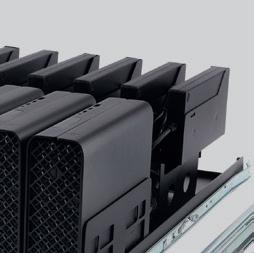
HP’s 1:1 remote workstation spotlight falls on the HP Z2 Mini, a tiny powerhouse that comes in two flavours.
The HP Z2 Mini G1i packs highfrequency Intel Core Ultra CPUs with discrete Nvidia GPUs up to the powerful RTX 4000 SFF, while the HP Z2 Mini G1a runs on the AMD Ryzen AI Max Pro processor with integrated Radeon graphics (see review on page WS24)
Thanks to its smaller processor package and integrated PSU, the G1a offers a slight advantage in terms of rack density, fitting five units in 4U, compared with six G1i units in 5U.
■ www.hp.com
improves energy efficiency per user.
Crucially, these are still true desktop workstations. Users get the same CPU frequencies, GPU options and application performance they would expect from a machine under their desk. Remote management and access capabilities are typically added via specialist add-in cards, enabling IT teams to control and maintain systems centrally.
Compact desktop workstations do have their limitations. While they can offer the highest-frequency CPUs — capable of boosting into Turbo for excellent performance in single-threaded CAD and BIM applications such as Solidworks and Autodesk Revit — they are typically restricted to low-profile GPUs or integrated graphics.
In the past, this confined them largely to traditional CAD and BIM workflows. However, the latest compact models are surprisingly capable, with models including the Nvidia RTX 4000 SFF Ada and Nvidia RTX Pro 4000 Blackwell SFF, having enough graphics horsepower and GPU memory to comfortably handle mainstream visualisation workflows in applications such as Enscape, Twinmotion, KeyShot and Solidworks Visualize.
For more demanding users, high-end desktop tower workstations with high core count CPUs, lots of memory, and one or more exceedingly powerful full height professional GPUs, can also be racked, extending the adapted desktop model
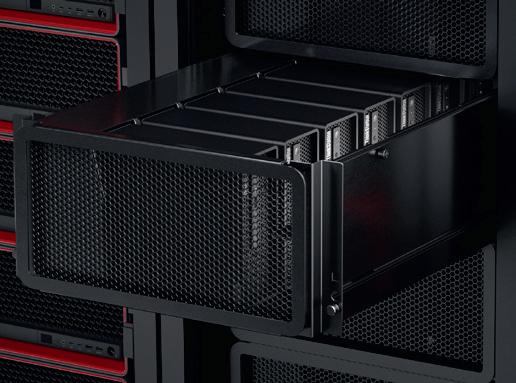
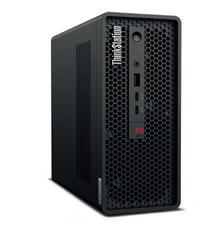
Lenovo’s 1:1 workstation offering centres on the ThinkStation P3 Ultra SFF, a compact system with a BMC card for ‘servergrade’ remote management.
Configurable with Intel Core Ultra (Series 2) CPUs and Nvidia RTX GPUs up to the RTX 4000 SFF, it packs a punch for CAD and viz workflows while delivering good density with up to seven units in a 5U rack space. For even higher density, the ThinkStation P3 Tiny delivers twelve systems in 5U. However, the micro workstation is limited to CAD and BIM workflows, with a narrow range of GPUs up to the Nvidia RTX A1000.
■ www.lenovo.com
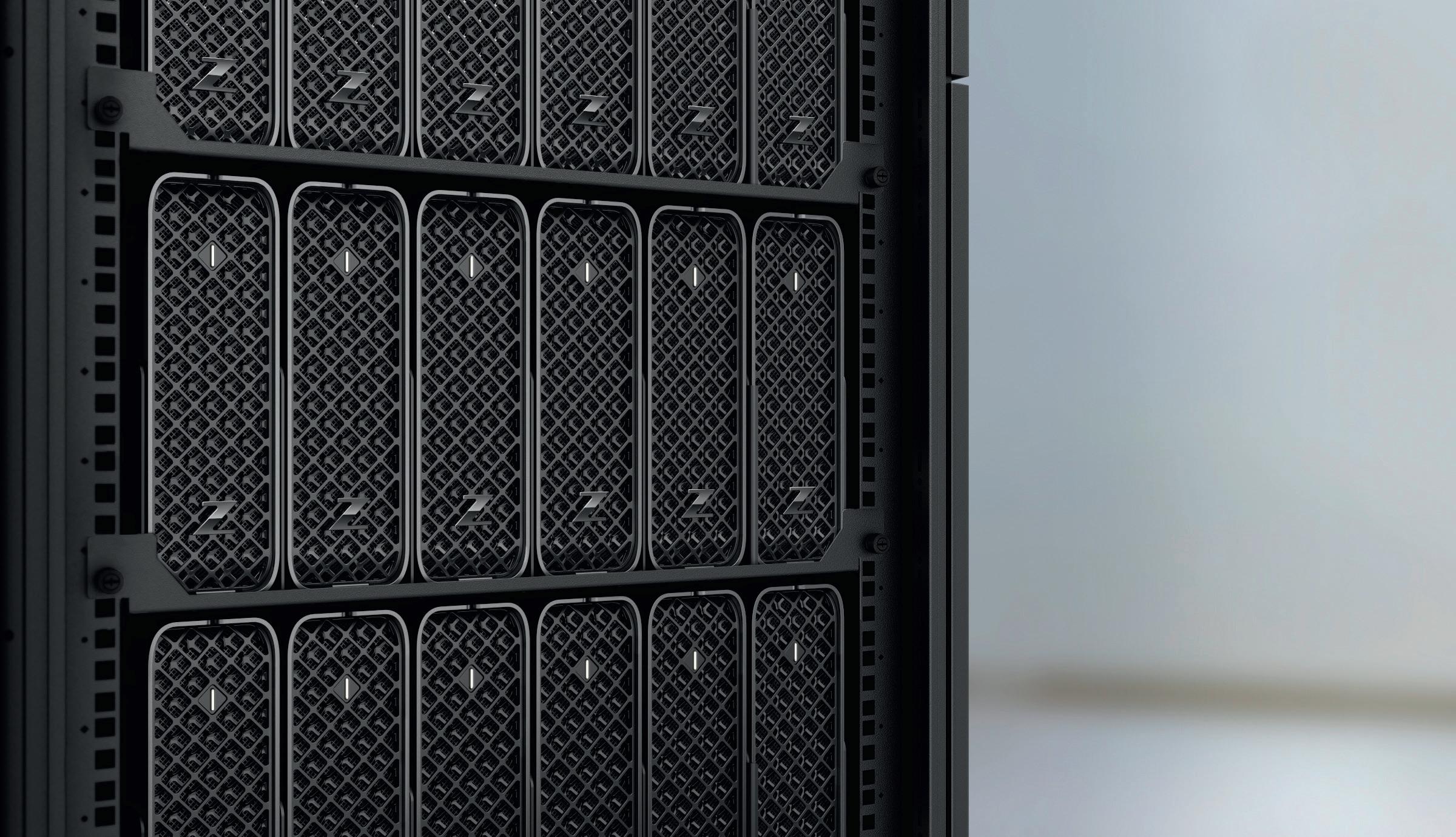
to advanced visualisation, simulation and AI workflows. However, achievable density is massively reduced.
The major workstation players – Dell, HP and Lenovo – design most of their tower systems to be rack mountable, as does Boxx. However, that’s not the case for all systems, especially custom manufacturers that often use consumer gaming chassis.
2) Dedicated rack workstations – blades
Another strand of the trend is the resurgence of the purpose-built workstation blade, a form factor first pioneered by HP in the early 2000s. Each blade is a slender, self-contained 1:1 workstation
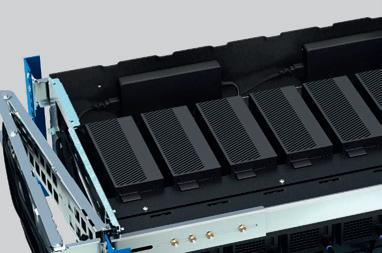


with its own CPU, GPU, memory, and storage, engineered specifically for deployment in the datacentre.
In 2025, new systems have arrived from Amulet Hotkey, while Computle has gone one step further, launching a workstationas-a-service offering built around its own dedicated blade hardware. Established players such as Boxx and ClearCube also continue to offer blade-based workstation platforms.
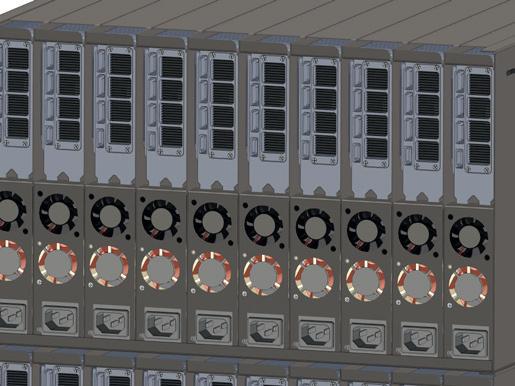
Blades provide a clean, highly modular approach to workstation deployment. The density is impressive with typically around 10 blades slotting into 5U or 6U chassis. Blades also integrate neatly into existing datacentre infrastructure,
Compared with HP and Lenovo, Dell is much less vocal about its 1:1 remote workstation offering, which centres on the Dell Pro Max Micro desktop, which packs seven units into a 5U rack. Unlike the HP Z2 Mini G1i and Lenovo ThinkStation P3 Ultra SFF, which can be configured with 125W Intel Core Ultra 9 285K CPUs, the Dell Pro Max Micro is limited to the 65W Intel Core Ultra 9 285. However, this is unlikely to impact performance in single-threaded CAD and BIM workflows. GPU options include the Nvidia RTX A1000 for CAD and the RTX 4000 SFF Ada for visualisation workloads.
■ www.dell.com
‘‘
The strongest argument for 1:1 remote workstations is performance. Each user gets dedicated CPU, GPU, memory and storage. There is no noisy neighbour effect, no unexpected slowdowns because another user happens to be rendering or running a simulation ’’
relying on centralised and redundant power, which simplifies cabling and makes them inherently well suited to remote-access scenarios.
From a performance perspective, blades are ideal for CAD and BIM workflows, commonly featuring high frequency CPUs and single slot pro GPUs. However, some blades can also support full height, dual slot GPUs, which can push graphics performance into the realms of high-end visualisation, beyond that of the compact desktop workstation.
For organisations standardising on remote-first workflows, blades represent a highly engineered interpretation of the 1:1 workstation concept.
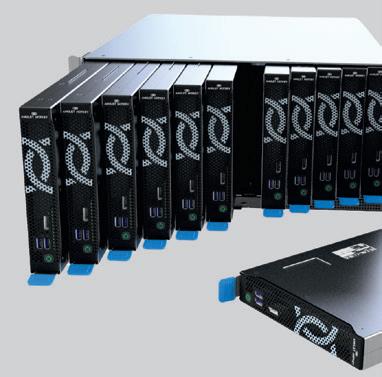

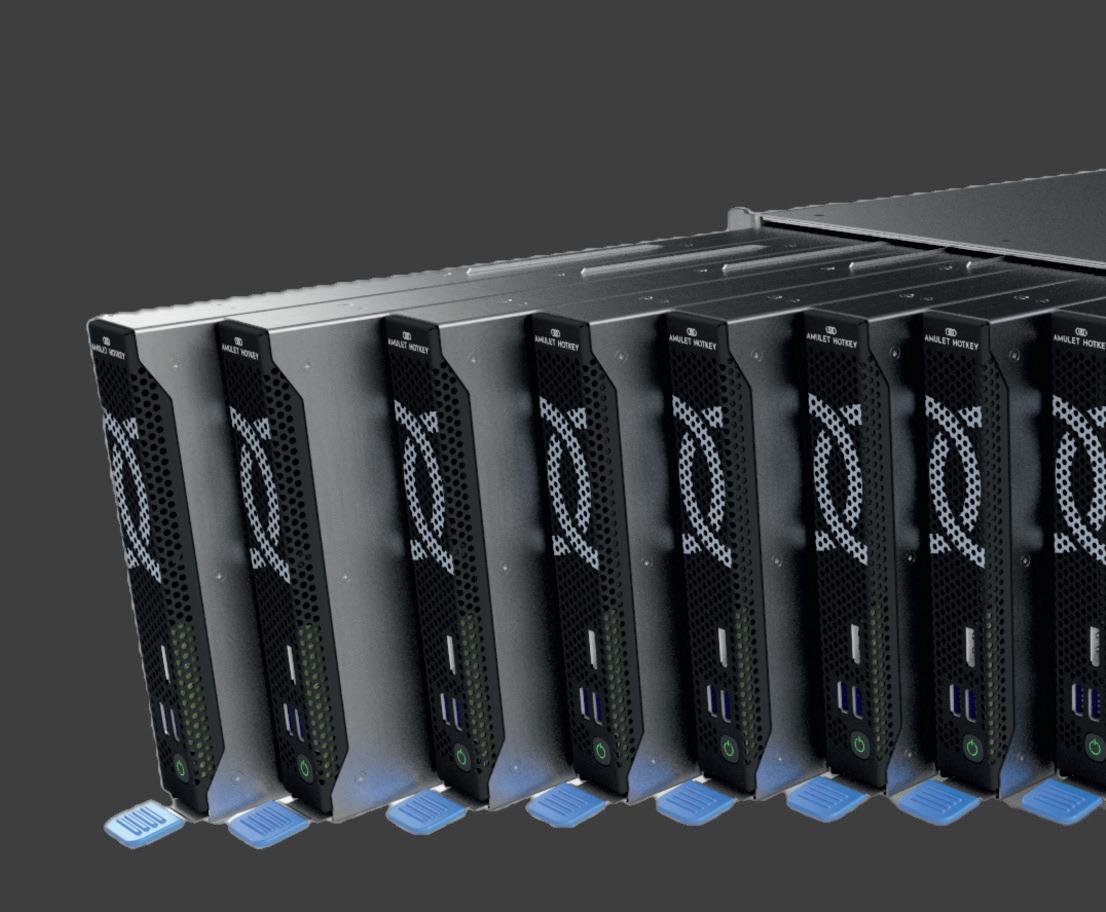
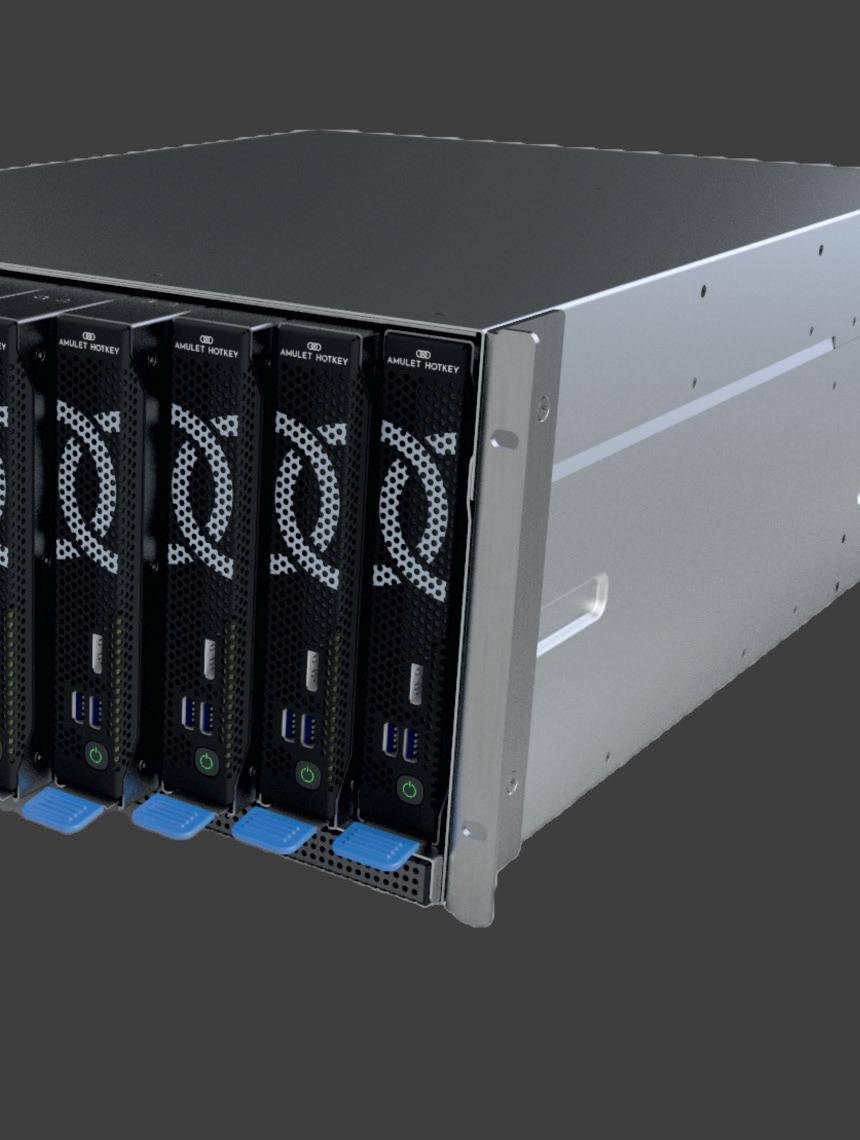
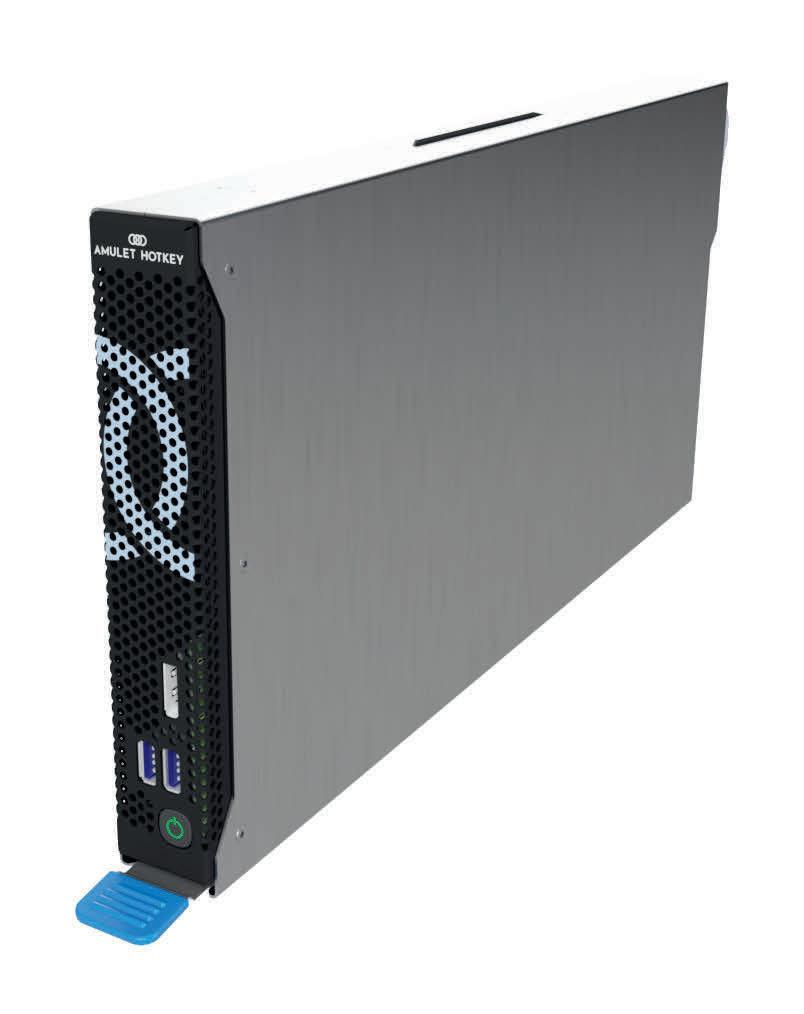
Amulet Hotkey’s CoreStation HX is built for the datacentre combining redundant power and cooling with ‘full remote system management’ via a 5U enclosure that can accommodate up to 12 workstation nodes. The CoreStation HX2000 is built around laptop processors, up to the Intel Core Ultra 9 285H and MXM GPUs up to the CAD-focused Nvidia RTX 2000 Ada. For more demanding workflows, the upcoming CoreStation HX3000 will feature desktop processors up to the Intel Core Ultra 9 285K, paired with low-profile Nvidia RTX and Intel Arc Pro GPUs.
■ www.corestation.com
3) Dedicated rack workstations
– 1U and 2U “pizza boxes”
Sitting alongside blades are 1U, 2U, and 4U rack-mounted workstations, purposebuilt, single-user workstations designed specifically for racks. The ultra-slim 1U systems are sometimes called “pizza boxes”.
Rack workstations appeal to organisations seeking maximum performance, full-size professional GPUs, and good integration with existing server infrastructure — without the need for a blade chassis. Like other 1:1 approaches, they deliver predictable, dedicated performance while avoiding the complexity of heavy virtualisation.
The downside of rack workstations is their low density—particularly for CAD and BIM workflows, where the most suitable graphics cards are often small, entry-level models, leaving much of the large internal space unused.
There’s a tonne of firms that offer dedicated rack workstations, including Armari, PC Specialists, Novatech, BOXX G2 Digital, Exxact, Titan, ACnodes, Puget Systems, and Supermicro. HP and Dell also have rack systems but these are now several years old and, presumably, being phased out in favour of small form factor workstations.
Performance predictability
The strongest argument for 1:1 remote workstations is performance.
Each user gets dedicated CPU, GPU, memory and storage. There is no noisy neighbour effect, no unexpected slowdowns because another user happens to be rendering or running a simulation.
CPUs are typically Intel Core processors, which deliver very high clock frequencies and aggressive Turbo behaviour. This is especially important for CAD and BIM applications, which often rely on single-threaded or lightly threaded performance.
In contrast, VDI and cloud workstations rely on virtualised CPUs, where users receive a fraction of a processor. These virtualised environments often use server-class CPUs such as Intel Xeon or AMD Epyc, which prioritise core count over frequency. Even specialist CADfocused VDI platforms based on AMD Ryzen Threadripper Pro involve CPU virtualisation and typically do not allow the processor to go into Turbo.
And frequency really matters for performance. Even simple tasks, such as opening a model or “syncing to central”, are significantly impacted by low CPU frequency. When working with huge models, this can create a major bottleneck, potentially taking hours of out of the working week.
On the GPU side, 1:1 systems avoid contention entirely. While GPU sharing is rarely a major issue for day-to-day CAD and BIM work, it becomes critical for visualisation and rendering workflows, where the GPU may be driven at 100% utilisation for extended periods. A dedicated GPU ensures consistent, predictable performance.
There’s also the matter of GPU memory to consider. A typical entry-level pro GPU for design viz, such as the Nvidia RTX 2000 Pro Blackwell, comes with 20 GB of memory. To get this amount in a VDI setup would be very expensive. And if you don’t have enough GPU memory to load or render a scene, performance can drop dramatically, or software can even crash.
On-premise or fully managed services
As with VDI, organisations can choose where and how their 1:1 workstations are hosted.
Some firms deploy systems onpremise, purchasing hardware from vendors such as HP, Lenovo, Amulet Hotkey, ClearCube and Boxx. Lenovo,
Computle is a workstationas-a-service offering powered by its own 1:1 custom blade workstations, which are purpose-built for the datacentre. Customers can choose from four standard configurations centred on the Intel Core i714700, with GPU options up to the Nvidia ‘Blackwell’ RTX 5090. For more flexibility, components can be mixed and matched, including the Intel Core i9-14900, AMD Ryzen 9 9950X, or Threadripper Pro processors. Professional GPU options include the CAD-focused Nvidia RTX A2000 and high-end RTX Pro 6000 Blackwell (96 GB).
■ www.computle.com
in particular, is working to simplify deployment through its Lenovo Access Blueprints, which provide reference architectures and guidance.
Others opt for fully managed services, hosting dedicated workstations in third-party datacentres. Providers such as IMSCAD, Computle and Creative ITC deliver managed 1:1 workstation platforms, combining dedicated hardware with subscription-based services.
Interestingly, neither HP nor Lenovo has gone so far as to offer their own workstation-as-a-service platforms directly. Instead, they prefer to work through specialist partners, allowing customers to choose between ownership and service-based consumption models.
VDI’s greatest strength has always been flexibility: the ability to resize virtual machines and dynamically allocate CPU, GPU and memory resources.
A 1:1 workstation is inherently more fixed. You cannot simply dial up more cores or memory on demand. However, organisations can still achieve flexibility by deploying a mixed portfolio of workstation configurations tailored to different user profiles.
Many firms are also adopting hybrid strategies, combining VDI for lighter or more variable workloads with 1:1 remote workstations for power users who demand guaranteed performance.
Not all solutions fit neatly into either camp. Service providers like Inevidesk occupy a middle ground: its vdesk solution virtualises a Threadripper Pro CPU shared among seven users, but each user receives a dedicated GPU.
This approach sacrifices some CPU predictability and frequency but ensures
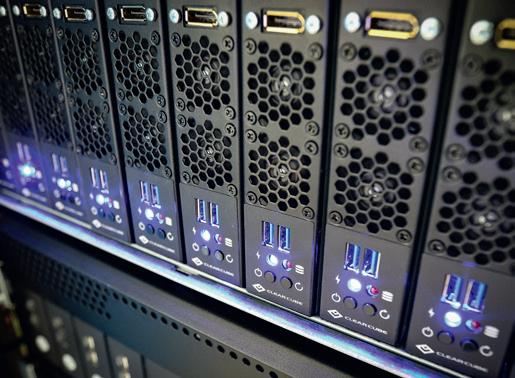
ClearCube stands out for its extremely broad portfolio of 1:1 workstations that are purpose built for the datacentre. At the heart of its range is the CAD Pro, a rack-dense system that fits ten blades in a 6U chassis. The CAD Pro can be configured with a choice of Intel Core CPUs and single-slot Nvidia GPUs, up to the viz-capable RTX Pro 4000 Blackwell, which is more powerful than the SFF variant found in compact 1:1 desktops. For higherend workloads, the CAD Elite line offers dedicated 1U and 2U rack workstations with GPUs up to the RTX Pro 6000 Blackwell Max-Q.
■ www.clearcube.com
‘‘
While GPU sharing is rarely a major issue for day-to-day CAD and BIM work, it becomes critical for visualisation and rendering workflows, where the GPU may be driven at 100% utilisation for extended periods
consistent GPU performance, making it attractive for demanding visualisation tools where GPU contention is the primary concern.
Inevidesk’s approach also offers good flexibility, with the option to quickly reallocate CPU and memory resources to different VMs or pool GPU resources at night for compute intensive workflows such as rendering or AI training.
Energy efficiency is often promoted as a key advantage of VDI, with vendors claiming it has a smaller carbon footprint than maintaining multiple 1:1 workstations. The logic is straightforward: instead of powering and cooling multiple processors, graphics cards, and power supplies, a single shared infrastructure can support many users.
If reducing energy consumption is a priority, it pays to examine the details. Some past carbon comparisons we’ve seen don’t hold up under closer scrutiny, based on maximum power draw rather than typical usage. However, a recent report commissioned by Inevidesk comparing its vdesk platform to a hosted 1:1 desktop workstation, takes a more measured approach and demonstrates tangible energy savings in practice.
That said, 1:1 workstation vendors are also taking energy consumption seriously. Amulet Hotkey, for example, offers lower-
energy laptop processors, HP has machines with the energy-efficient AMD Ryzen AI Max Pro processor with integrated graphics, and Computle is exploring ways to reduce energy use in its blade systems.
1:1 workstations can also offer cost savings, but there are several factors to consider.
On the hardware side, multiple entry-level GPUs — such as the Nvidia RTX A1000 — are often less expensive than a single high-end datacentre GPU used for VDI, like the Nvidia L40, though this depends on how many virtual machines you intend to support. This principle extends to more powerful GPUs as well: some vendors, such as Computle, provide gaming-focused GeForce GPUs instead of the more costly, passively cooled datacentre variants. On the other hand, 1:1 workstations require more individual components, including multiple motherboards, power supplies, fans, and in the case of adapted desktops, aesthetically-pleasing chassis that never see the light of day.
The software stack for 1:1 workstations is also more simple. There is no need for virtualisation software, and GPU licensing is straightforward. For example, slicing a GPU for VDI requires an Nvidia RTX Virtual Workstation (vWS) software license, whereas standard free Nvidia RTX drivers are sufficient for a 1:1 workstation.
There are many compelling reasons why design and engineering firms may favour 1:1 workstations over VDI, with performance chief among them. Time and again, we’ve heard of VDI proof-of-concept projects that fail due to user pushback, particularly when performance falls short of what designers and engineers expect from a CAD workstation. In some organisations, this has become a hard line: firms such as HOK, for example, have stated they will not consider cloud workstations / virtualised server CPUs because of the performance penalties associated with single-threaded workflows. By contrast, 1:1 remote workstations preserve the familiar performance characteristics of a physical desktop. As long as the remote access infrastructure is robust, the transition can be largely transparent to users — delivering high clock speeds, predictable GPU performance, and a consistent experience for demanding CAD, BIM and viz workloads.
That’s not to say VDI doesn’t have its place. Its strengths lie in flexibility, centralised management, and, in the case of public cloud offerings, global availability at scale. But for organisations where performance, user satisfaction, and workflow continuity are paramount, 1:1 remote workstations remain a highly compelling choice for those making the move from desktop to datacentre.
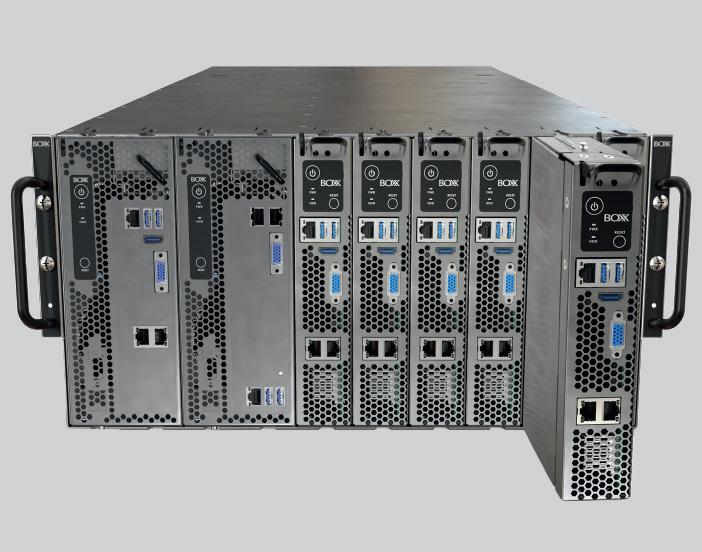
Boxx Flexx is a datacentre–ready 1:1 workstation system, that can support up to ten 1G modules or five 2G modules (or all configurations in between) in a standard 5U rack enclosure.
Boxx Flexx offers an enviable combination of density and performance, with the 1G modules offering liquid-cooled Intel Core Ultra (Series 2) CPUs and one double-width Nvidia GPU, while the 2G modules support two double-width GPUs.
Boxx also offers BoxxCloud, a workstation-as-a-service solution where Flexx workstations are hosted in regional datacentres. ■ www.boxx.com

Inevidesk offers a VDI solution that has some characteristics of a 1:1 remote workstation. Each rack-mounted server or ‘pod’ can host up to seven GPUaccelerated virtual desktops called vdesks.
The Threadripper Pro CPU and memory is virtualised, but each vdesk gets a dedicated GPU, such as the Nvidia RTX 4000 Ada, for predictable graphics performance. Virtual processors and memory can be adjusted, while multiple GPUs can be assigned to a single vdesk to boost performance in GPU rendering or AI workflows.
■ www.inevidesk.com
Blending high-performance 1:1 hardware with streamlined software deployment and smarter energy use, this workstation-as-a-service startup is hard to ignore, writes
In the world of CAD workstations, ‘the cloud’ often comes with compromises: shared virtual GPUs, lower-frequency CPUs, complex licensing, and unpredictable performance. Meanwhile, energy use is hard to understand, let alone control.
Computle is taking a fundamentally different approach. Instead of pooling resources and slicing them up virtually, the UK startup delivers dedicated one-to-one workstations in a fully managed datacentre, built on consumer-grade hardware but delivered as a subscription-based service.
The result, Computle argues, is better performance, lower costs, and a clearer path to energy and cost optimisation — especially for architecture, engineering and construction firms.
Computle’s approach is both economic and technical. On the economics side, there are fewer software licensing costs, which can be significant in traditional virtualised environments.
“If you were taking a traditional graphics card and carving it up, you have to then pay Nvidia virtual workstation licences, whereas because we have dedicated (1:1) graphics cards, there’s no licensing costs associated to that,” explains CEO and founder Jake Elsley.
By leaning on open-source technology, Computle also saves money on the platform side, “Because we can move away from commercial solutions such as VMware, we can essentially use hypervisors built into our free, open-source software stack, so we can get the same performance without all the sort of overhead and costs associated with that, and no noticeable performance impact for the user,” he says.
The net effect is that, instead of each user having a slice of a larger machine, they each get their own dedicated workstation housed in a fully managed datacentre, with monthly billing typically spread over a three-year term.
And because the core components are pretty much the same as those found in a custom desktop workstation, for architecture and engineering firms used to physical machines under desks, this maps neatly to existing expectations.
The hardware setup
Instead of using a high-end server or workstation CPU (such as AMD Epyc or AMD Ryzen Threadripper Pro) and subdividing



its resources through virtualisation, Computle offers individual workstations, each dedicated to a single user.
These custom blades, which slot into a rack, are purpose-built for the datacentre, and come with their own dedicated CPU, GPU, RAM and NVMe SSD storage. Computle primarily uses consumer-grade processors, such as Intel Core, which can reach the high frequencies that CAD workflows demand.
Customers can choose from four standard configurations, each built around the Intel Core i7-14700 CPU (up to 5.4 GHz Turbo), 64 GB RAM, and a 2 TB SSD. GPU options range from the new Nvidia ‘Blackwell’ RTX 5050 (8 GB) up to the RTX 5090 (36 GB). Pricing is aggressive, starting at £123 per month for a 3-year term.
For more flexibility, a full online configurator lets customers mix and match components, including the Intel Core i914900, AMD Ryzen 9 9950X and a choice of AMD Threadripper Pro processors up to the 96-core 7995WX. There’s also a large choice of professional GPUs, such as the CAD-focused Nvidia RTX A2000 or super high-end Nvidia RTX Pro 6000 Blackwell (96 GB), along with options for more memory and expanded storage.
With fixed hardware in each blade, Computle may not offer the same flexibility as a fully virtualised solution, but with the right planning, IT teams can still maintain a good level of adaptability.
Each user can be mapped to one or more specific machines, and organisations can create pools of differently specced workstations for different workflows — say, lighter CAD/BIM-only boxes alongside heavier visualisation rigs.
“We have users that have, for example, a set of [Nvidia RTX] 5090s and then a set of 5080s and a set of 5070s,” says Elsley. “We also have some customers who have a majority of low-end machines, and then a few high specs, so you can fully customise it across each location as required.”
available for Windows and macOS, which wraps and simplifies access to the underlying pixel streaming protocols.
“There’s two options for the customer,” says Elsley. “We have Nice DCV, which is a protocol owned by Amazon, and then we have Mechdyne TGX, which is suitable for dual 5K [monitors], so it comes down to what the customer wants.
“Rather than having the user install multiple applications and set up VPNs, etc., we fully streamlined it [the client application].
“It’s custom coded from the ground up to integrate natively with those two protocols, giving them a much easier connection experience.”
While most remote users connect via their laptops or desktops using Computle’s client software, the company also offers its own thin client devices, preloaded and ready to go.
Meanwhile, for firms with historic investments in platforms like VMware Horizon, Computle can still slot into those environments — but Elsley notes there is a clear trend away from these older stacks towards their native client and DCV/ TGX-based delivery.
He then goes on to reveal that Computle is also developing its own streaming protocol, built to support multiple 5K monitors and multiple connection devices, such as iPads and tablets.
Close to compute, multi-site by design Computle is more than just ‘a workstation in the cloud.’ The company offers a range of storage solutions from enterprise-grade file servers to intelligent caching systems from the likes of LucidLink, Panzura, and Egnyte.
Storage is charged at a flat fee and resides in the same datacentre as the
We took one of Computle’s most powerful cloud workstations for a test drive, connecting from our London office to a datacentre in the North of England using Computle’s Windows-based client and the Nice DCV protocol.
Machine specs
• AMD Ryzen 9950X CPU
• Nvidia RTX 5090 GPU
• 128GB DDR5 RAM
• 2TB NVMe SSD
Running Revit and Twinmotion at 4K, the viewport felt just as responsive as a local desktop. Single-threaded CAD benchmarks matched our fastest liquid-cooled Ryzen 9950X desktop, while multi-threaded performance lagged slightly — 7% slower in V-Ray and 13% slower in Cinebench.
The RTX 5090 topped our charts for GPU rendering in Twinmotion and V-Ray. Overall, a cloud workstation experience that felt every bit as capable as a top-end local rig.
constantly syncing down. Panzura caching nodes can be placed in the same rack as the workstations. “There’s no hidden charges, no bandwidth costs. It’s all just based on the storage consumption,” says Elsley.
For some customers, Computle also serves as an introduction to these technologies. “We recently had a client that had no understanding of cloud storage solutions. We were able to bring in some partner firms to get LucidLink set up for them and then deploy Computle across three locations.” says Elsley.
‘‘ With dedicated 1:1 hardware, featuring highfrequency CPUs and the latest Nvidia Blackwell GPUs, Computle promises cloud workstations that feel just like desktops under the desk
Crucially, Computle also bakes in redundancy at the workstation level, as Elsley explains. “[On request] we provide hot spares, so, if there’s any issues connecting to a machine, you have access to two or three extra devices.”
At the heart of Computle’s user experience is its own custom coded client application,
workstations for fast access. “We offer two tiers — all flash based on NVMe drives, and then a slower archiving tier,” says Elsley. “And what we tend to find is that customers will engage us to do an all-flash setup, one per location.”
Computle deploys its hardware in datacentres across the world. For customers with multiple offices and regions, Computle works with LucidLink and Panzura to offload backend data to AWS or Google Cloud, with data
One of the most distinctive aspects of Computle’s roadmap is its plan to rethink how customers are billed. Today, most cloud workstation providers bundle power costs into a flat monthly fee, based on assumed average usage. Computle aims to change this.
“What we’re planning for next year to really upend the market even further is a move towards consumption-based billing on the electricity side,” says Elsley. “So, moving towards two costs. You have a hardware cost, which is a fixed cost every month, and then a cost based on actual data centre charges.”
In its current model, Computle typically bills for 12 hours of usage a day, but as Elsley explains, for firms that might only be actively working on machines 9-to-5, the
‘‘
[For energy reporting] we’ll be able to give you a graph per user, what they’re doing, etc., and we can really drill down, because that’s what drives decisions Computle CEO and founder Jake Elsley ’’
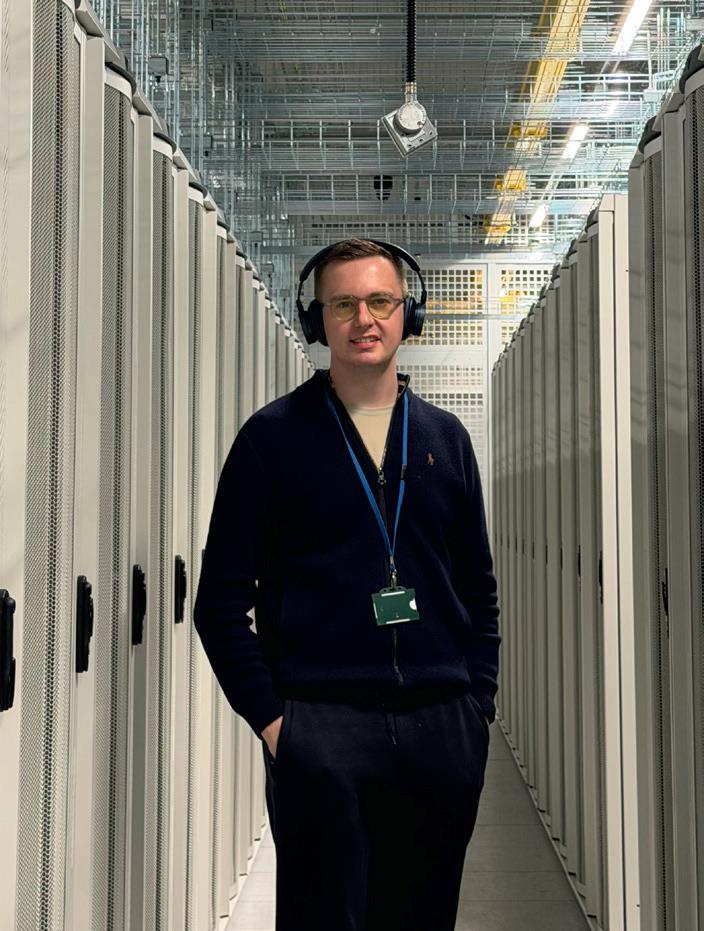
new model could cut costs substantially.
“For the typical architect, they’ll be able to lower their costs probably by 20 to 30%. So, if you have 100 machines with that, that’s going to be a good cost saving.”
Underpinning this is granular control of power states, implemented at the software stack level. For example, Computle can detect when GPU-heavy applications are no longer in focus and drop machines into energy-saving modes or enforce scheduled power throttling overnight. “You have full control of the entire software stack,” says Elsley. “But it’s about giving people choice because some customers like to use it as a render farm overnight.”
Beyond billing, Computle is also looking at energy analytics, so customers can see exactly where power is being consumed and why.
“They’ll be able to see the real time data. We’ll be able to give them a report of how many kilowatts they’re using. We’ll also be able to give them trends. So, we can say ‘OK, you’re using this much overnight, have you considered using our new way to standby your machines overnight?’ So, lots of ways we can help them reduce that down.”
Computle is also exploring energy reporting at a more granular level. “We’re looking at some hardware and software options that give us that per machine level of information,” says Elsley. “So we’ll be able to give you a graph per user, what
they’re doing, etc., and we can really drill down and give that data, because that’s what drives decisions.”
For firms under pressure to reduce reported energy use and emissions — while simultaneously ramping up GPUheavy tasks like real-time visualisation and AI — this kind of visibility could be very important.
Computle is also exploring other ways to bring down costs. In 2026 it will introduce Computle Flex, offering customers the opportunity to save 50% on their idle workstations, as Computle’s Hannah Newbury explains, “A company can reduce their footprint costs by sleeping or suspending their machines during quieter times,” she says. “Credit is then applied to the bill at the end of the term. For example if you have a 50 person firm, you could be spending £7K monthly. If you suspended 50% of them in monthly blocks you would get £1,750 off.”
Estate management: beyond imaging Another area where Computle is investing heavily is in streamlining application deployment and workstation management.
Global footprint, aggressive ambitions
While Computle is still heavily UK-focused, it also operates out of datacentres in New York, Dubai, Hong Kong, and Sydney.
UK capacity is currently in a wholesale datacentre in the North of England, but change is on the horizon.
“We plan to build our own facility, probably in the next one to two years, so we can then get even greater savings for our customers, with the view that this will then get us to our 100 million workstation goal.”
That goal, which Elsley later confirms as 100 million workstations in just ten years, seems overly ambitious, even for a tierone OEM, let alone a startup — especially considering that market research firm IDC (www.idc.com) forecasts total global sales of desktop and mobile workstations will only exceed 8 million by 2026. Even so, Elsley’s bold vision is impossible to ignore.





“One of the things that our customers have struggled with historically is looking after their estate,” says Elsley. “The historical way of doing services would be image-based deployments.



“If you have a 200 person architects they will spend, typically a week or so, updating an image and building it, and then within a month, that image will be out of date.”






Instead of constantly rebuilding and rolling out full images, Computle has plans to introduce its own version of Microsoft Intune, allowing admins to orchestrate CAD application deployment at scale.

With dedicated 1:1 hardware, featuring high-frequency CPUs and the latest Nvidia Blackwell GPUs, Computle promises cloud workstations that feel just like desktops under the desk. But its approach isn’t just about outperforming virtualised machines — the company also deserves much credit for addressing other key challenges, such as smarter energy use and streamlined software deployment



— all combined with aggressive pricing.









While its growth targets are ambitious to say the least, there’s no question that this UK startup is emerging as a credible challenger to established cloud and VDI workstation providers, certainly making it one














time down from many hours to minutes is

Admins upload installers for common CAD, BIM or viz applications once to a central portal, then provision each machine on the fly. “Taking that admin time down from many hours to minutes is our vision, and that’s going to be a free add on for all of our customers,” says Elsley.

“The way it works is, there’s the software









“The way it works is, there’s the software catalogue, where the end user can pick from a curated list of applications, for example, Revit, and then there’s a back end for the admin so they can say, OK, when this machine is built, these are the applications I want to get installed.”





Think remote workstations are complicated? Lenovo begs to differ.
With its new ThinkStation P-Series-based ‘solution blueprints’, the workstation giant is looking to take the mystery — and the headaches — out of deployment, writes Greg Corke
Lenovo workstations have been centralised for years, but a dependable remote workstation solution involves much more than simply putting machines in a server room or datacentre. Traditionally, centralising workstations has been left to experts, given the layers of hardware and software involved to ensure predictable performance and manageability. Lenovo Access aims to change that, providing a framework that makes the deployment of remote workstation environments easier and more accessible to a wider range of IT teams.
Instead of carving up shared servers, Lenovo Access centralises one to one physical desktop workstations – the ThinkStation P series – in racks, then layers on management, monitoring, brokering and remoting protocols. The result is a suite of remote workstation solutions that, to the end user, feel like a powerful local workstation, but behave like a managed solution.
clock, it’s all about instructions per clock, as that’s how you get the performance.”
That’s exactly what you get with Lenovo Access, especially with the ThinkStation P3 Series, which features Intel Core processors with Turbo frequencies of up to 5.8 GHz, significantly more than you get with a typical processor used for Virtual Desktop Infrastructure (VDI) or cloud.
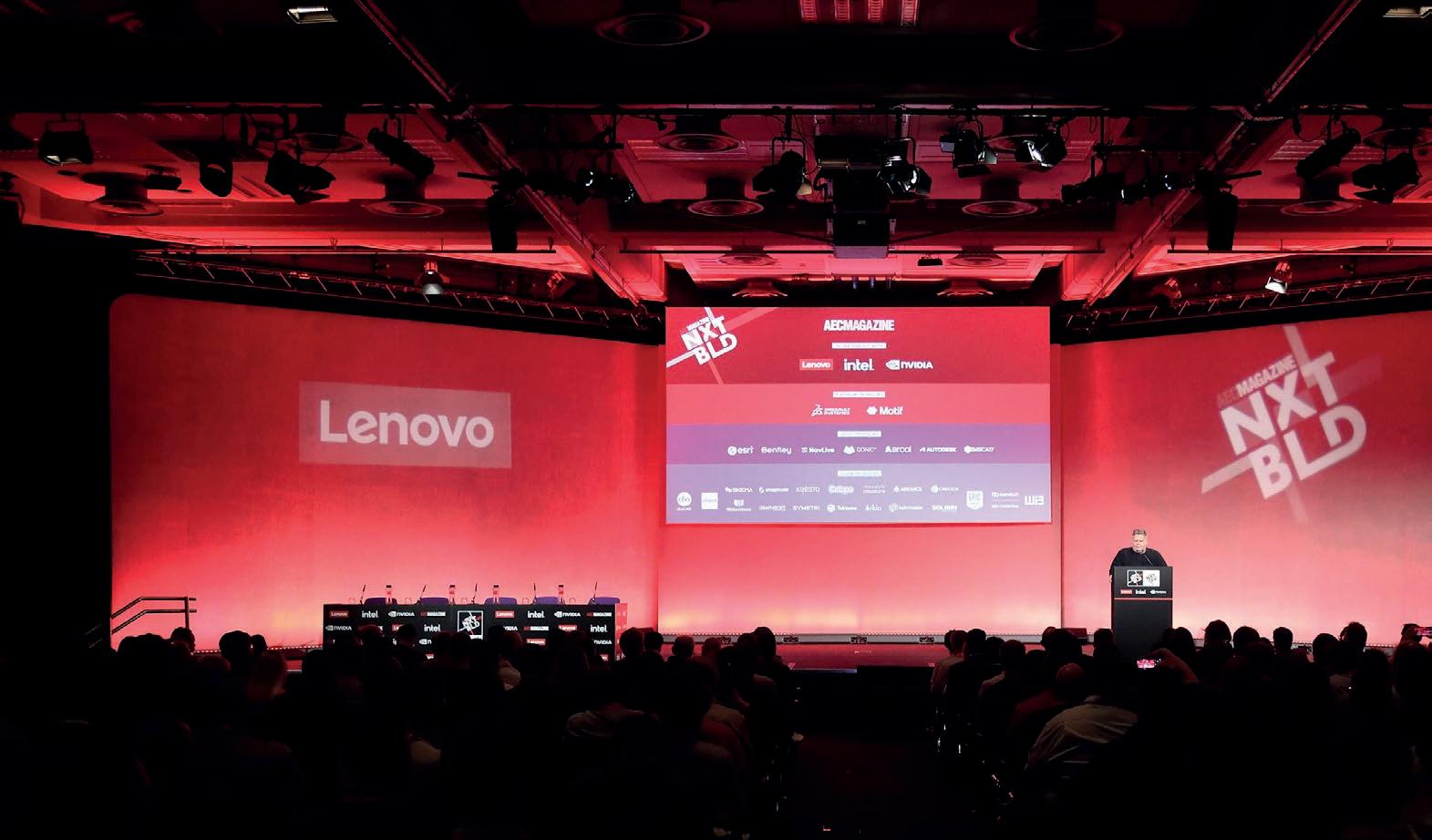
Access didn’t emerge in a vacuum. Lenovo has been iterating this approach in public at NXT BLD, Autodesk University, and Dassault Systèmes 3DExperience World for several years.
‘‘
In many ways, Access serves as a subtle rebuke of traditional VDI for design workloads. Rather than virtualising a graphics server to behave like multiple CAD boxes, it starts with actual workstations and exposes them remotely.
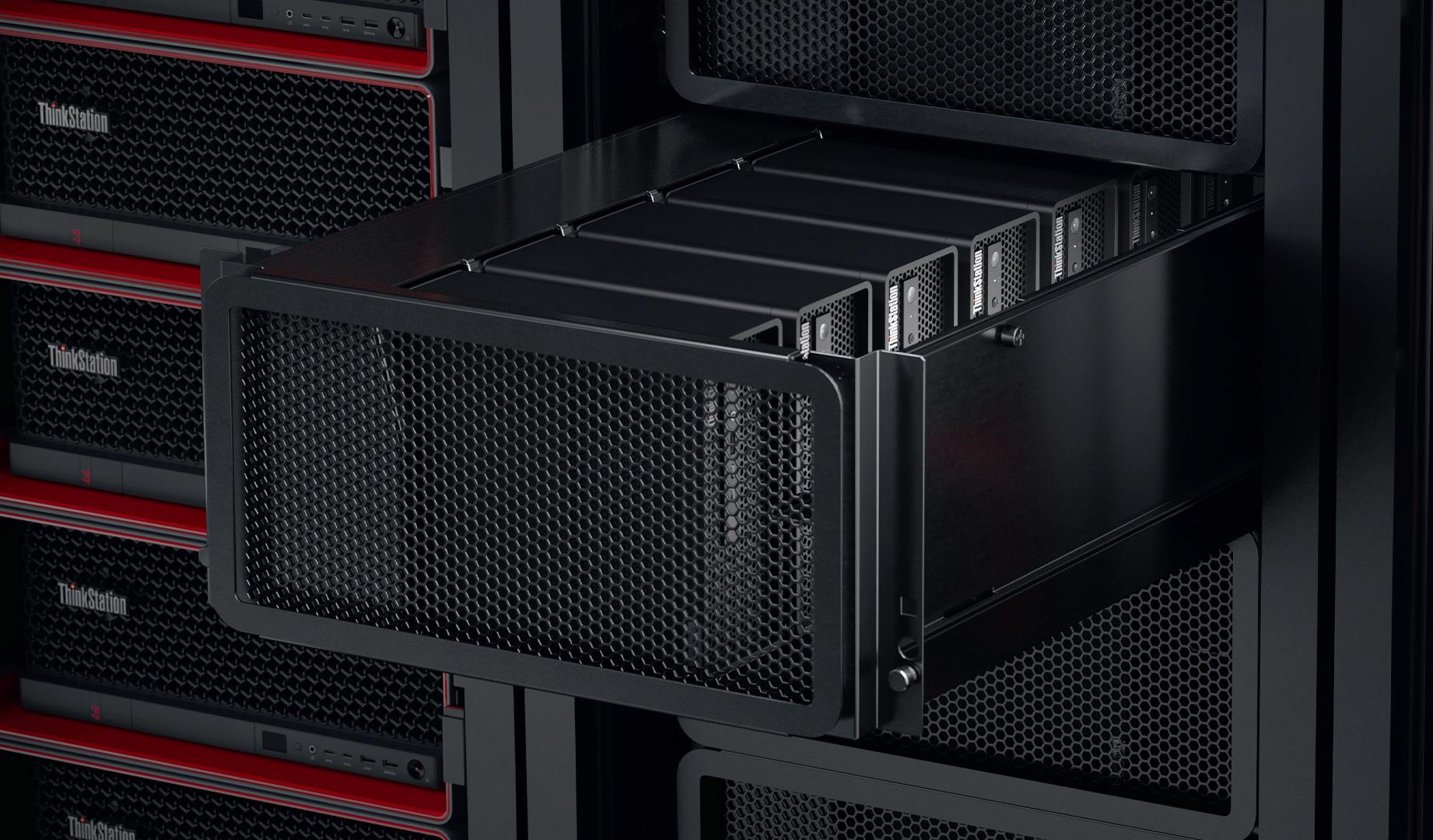
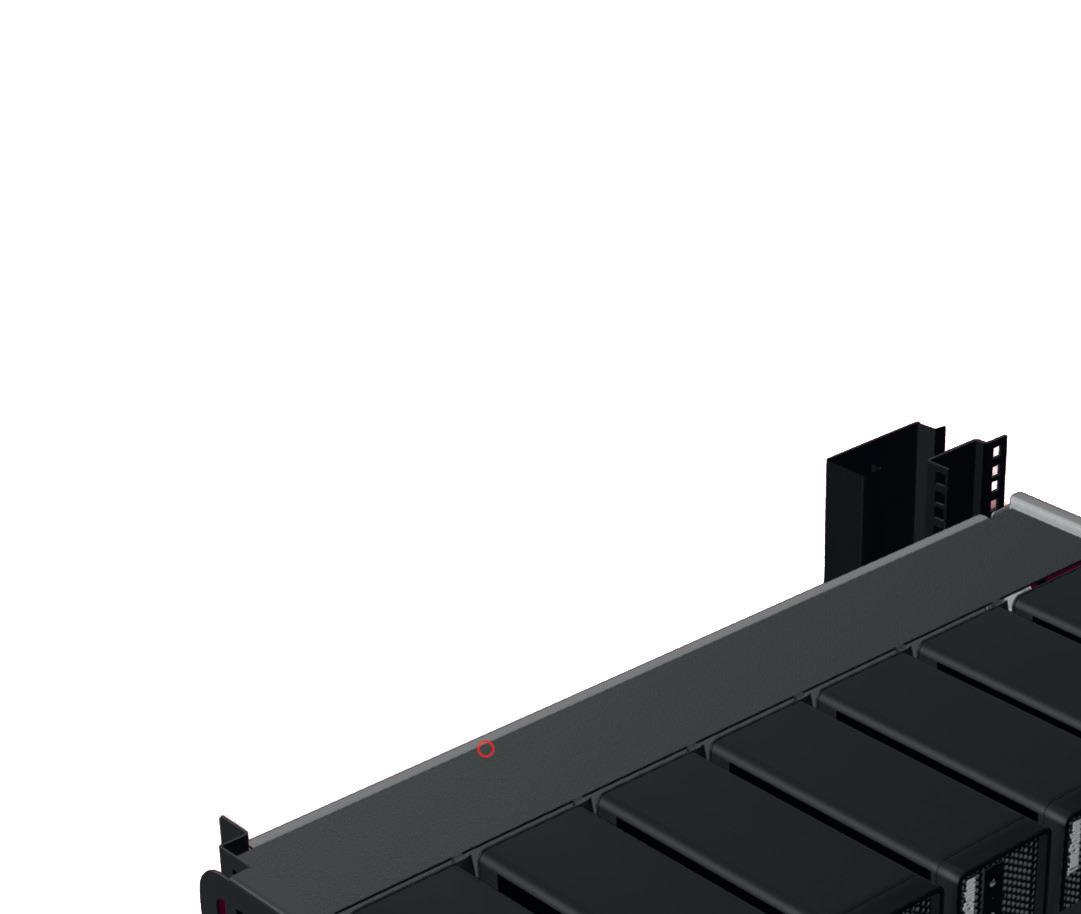
The Access story begins with the ThinkStation P3 Ultra SFF, where up to seven of the small form factor workstations are housed in a 5U ‘HyperShelf’, a custom tray developed by RackSolutions. That concept has now expanded with the ThinkStation P3 Tiny, which offers even greater density — up to twelve ultracompact workstations in the same 5U space.
Rather than virtualising a graphics server to behave like multiple CAD boxes, Lenovo Access starts with actual workstations and exposes them remotely
But customer priorities shifted sharply during and, especially, after the pandemic.
At its core is a big emphasis on user experience, and performance, something that’s incredibly important to architecture, engineering or construction firms. As Mark Hirst, Lenovo’s worldwide workstation solutions manager — remote and hybrid, puts it, when you look at typical AECO applications, “It’s all about hitting that turbo
According to Chris Ruffo, worldwide segment lead for AEC and product development in the Lenovo workstations group, the moment came when firms realised remote work wasn’t a short term exception but the new baseline. Many customers, he recalls, said they needed “to deliver a consistent compute experience, a consistent BIM / CAD experience, no matter where they work — at home, in the office, on the job site, in the boardroom.”
The ThinkStation P3 Ultra SFF has some clear technical benefits over the ThinkStation P3 Tiny, including a choice of more powerful GPUs up to the Nvidia RTX 4000 SFF Ada Generation, and support for a dedicated Baseboard Management Controller (BMC) PCIe card for out of band management. The Tiny lacks a PCIe slot for that, instead relying on Intel vPro and tools such as Lenovo Device Orchestration.
IT admins don’t get the same level of hardware level control, acknowledges Hirst, but you gain higher density and lower cost. Many customers, he says, “just
want the basic functionality” and already “have ways of managing their devices.”
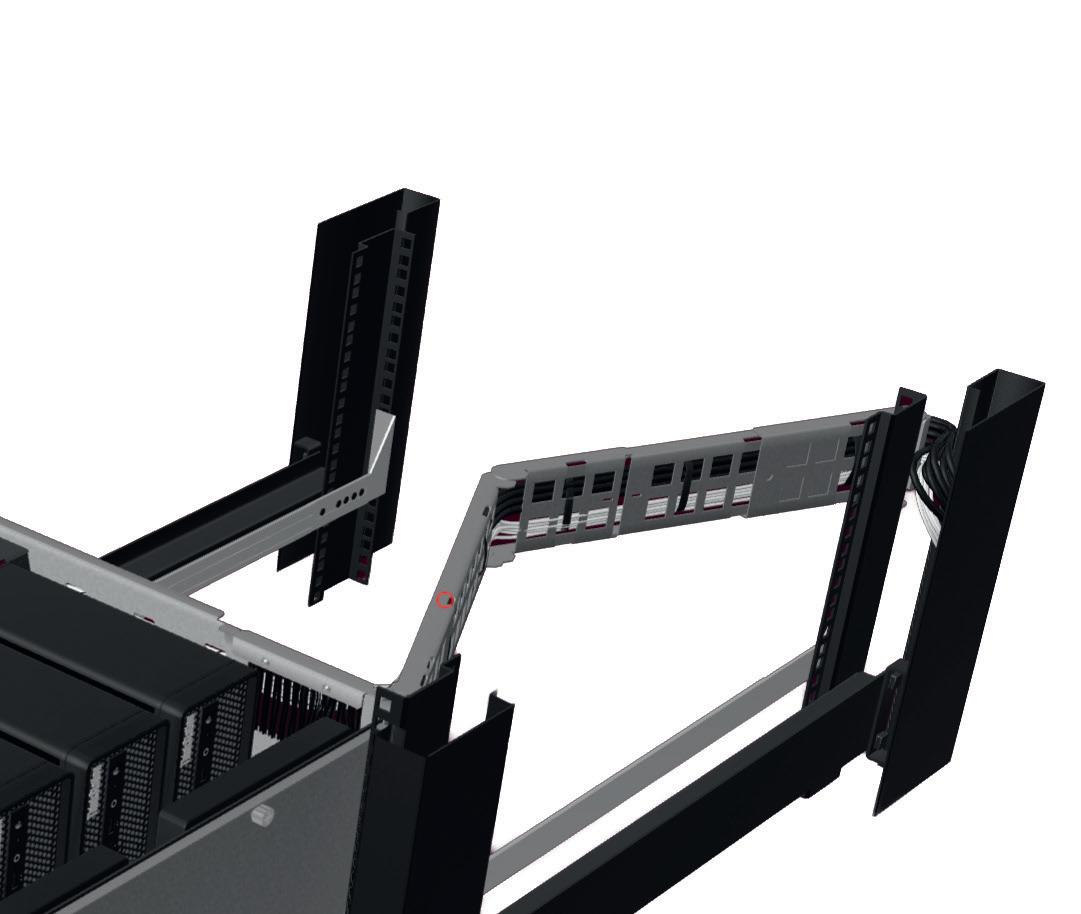
The mechanical design of the HyperShelf itself has evolved too. The original design simply let the external power supplies hang lose to the side, but in the case of maintenance or failure, customers found it too easy to pull out the wrong cable. A new Gen 2 release makes cable management simpler, and each PSU now sits vertically in a cradle and clearly corresponds to a specific workstation.
Given the density — seven Ultras or twelve Tinys per 5U shelf — thermal behaviour is critical. Hirst stresses that Lenovo and RackSolutions “put it through some pretty rigorous tests to make sure that we’re not going to throttle performance” The shelf relies on front to back airflow with an exhaust fan at the rear.
From a purchasing standpoint, customers can still treat this as a standard Lenovo order. The shelf and supporting parts are available through Lenovo, and as an extension of that, through Lenovo partners.
Lenovo Access isn’t limited to the CAD-focused ThinkStation P3 Series — it also extends to Lenovo’s large tower workstations: the Threadripper Pro-based P8 and Intel Xeon-based P7 and PX. This gives customers a choice of multi-core, multi-GPU, high-memory powerhouses capable of handling the most demanding workflows, albeit at a much lower density.
Of course, there’s also a hard headed economic side. Hirst is very explicit that
Access has to be financially competitive: “If it doesn’t come in less expensive than the competition, than the cloud or VDI, then nobody’s going to adopt it.” He argues that the current Access model “checked all those boxes” — strong user experience, manageable administration at scale, and “saving the customer money as well.”
Then there’s the certification angle. Some software developers, such as Dassault Systèmes and Catia, still certify hardware at the workstation level. “Where that workstation sits, is not critical,” says Hirst, , meaning Lenovo can draw on the same rigorous testing and certification process it has relied on for its desktops for decades.
Blueprints: modular “cookbooks”
Access is not a single appliance or rigid reference design. Lenovo describes it as a set of Blueprints: validated combinations of hardware, remote protocols like Mechdyne TGX or Microsoft RDP, connection brokers like LeoStream, and management tools that partners and customers can adapt.
Specialist partners such as IMSCAD and Creative ITC already have mature stacks of their own. In that context, Lenovo’s job is to evaluate and document what works well on ThinkStation, not dictate a single stack.
Each blueprint comes with a bill of materials and installation guide. For example, the P3 Ultra + TGX + LeoStream
design includes step by step instructions for installing each module. Hirst frames it quite literally as following a recipe.
Collaboration beyond screen sharing Lenovo’s preferred remoting protocol in many Access Blueprints is Mechdyne TGX. It’s chosen partly for efficiency at high resolutions, but perhaps more importantly for how it handles collaboration.
For design teams, high definition, multi monitor setups are becoming standard. Hirst notes that “everyone seems like they’ve got 4K displays on their desks nowadays. The more pixels you send, the harder it is”. TGX, he says, is “very efficient in what it does,” and “very good at matching to whatever your local configuration is” – whether that’s two displays mirrored from the remote workstation while keeping a third display local, or other layouts.
Where it really stands out, though, is multi user sessions. TGX allows multiple collaborators to connect to the same remote workstation, and any user can be handed control. That makes it ideal for design reviews or training: one user can drive Revit or a visualisation tool while a senior architect or engineer “connect[s] to that same session at the same time, sharing keyboard and mouse control.”
Unlike typical meeting tools, Hirst notes that TGX avoids dropping to the “lowest common denominator” connection. Many protocols, he says, will “dumb
‘‘
Instead
of carving up shared servers, Lenovo Access centralises one to one physical desktop workstations – the ThinkStation P series – in racks, then layers on management, monitoring, brokering and remoting protocols
’’
everything down to the lowest network configuration,” giving everyone the worst experience. TGX instead maintains “a separate stream for each collaborator,” so each participant gets a “super high, responsive, interactive experience, full fidelity, full colour.”
Audio and video conference tools still have their place — collaborators typically use it alongside Microsoft Teams, keeping voice and video there while TGX handles the heavy graphics. Under the hood, TGX offloads encoding to Nvidia NVENC on the workstation GPU — “you need to have an Nvidia GPU on the sender at a minimum” for the best experience, notes Hirst — and can decode efficiently on the client using Nvidia or Intel integrated graphics. The Intel decode path, Hirst notes, has improved to the point where “the difference is pretty minimal,” enabling much lighter, cheaper client devices than before.
Proof before commitment
To make these concepts tangible, Lenovo has built a Centre of Excellence for Access. Initially set up in Lenovo’s HQ in Raleigh, North Carolina, it now extends via environments hosted by partners such as IMSCAD and Creative ITC in London, with a new deployment underway at Lenovo’s Milan headquarters and plans for Asia Pacific.
The idea is straightforward: customers can test real workloads on real Access Blueprints without touching their own firewall or infrastructure. They can “just come and access our environment” to see how a P3 Ultra plus TGX plus LeoStream behaves with their tools and data.

And yes, that’s what our customers are trying to do.”
Now that the centre is mature, it doubles as an adoption engine. The conversion rate from VDI/cloud to one to one workstations is striking: he estimates that “eight out of ten” organisations that try the Centre of Excellence and compare it with their existing setups end up “converting,” because “there’s a noticeable difference.”
Access is also reshaping Lenovo’s relationships with partners. Some of the companies now building Accessbased offerings were originally VDI specialists. Hirst notes that customers frustrated with VDI performance are starting to look to private cloud and as a service offerings anchored on one to one workstations instead.
Hirst points out that for standard resellers, competition “really comes down to price,” with “margins… squeezed” and “no way to differentiate” beyond discounting. Solutions like Access let them “talk about solutions in different ways,” focusing on solving customer problems — remote user experience, manageability, data locality and cost — instead of battling solely on unit price.
As remote and hybrid work starts to become the default, the choice for design centric firms is no longer between “old school” desk side workstations and virtualised cloud desktops. Lenovo Access argues for a third path: keep physical, ISV-certified workstations close to your data, manage them like a shared service, and deliver them securely to any location — with high frequency CPU clocks and dedicated GPUs still working exactly as the applications expect. ■ www.lenovoworkstations.com/ar/lenovoaccess/


Hirst notes that this originated as an internal initiative at Lenovo: “We’ve gone from proof of concept to deployment.



Hirst sees strong interest in this route, especially from firms wary of putting IP entirely in public clouds: organisations are “shifting more towards that private environment,” keeping some workflows in the public domain but moving “confidential IP… in a private environment”. For many, the answer is not to run their own datacentre but to work with partners like Creative ITC or IMSCAD “in order to manage that as a
Turn to page WS30 for a full review of the Lenovo ThinkStation P3 Ultra SFF, plus details
not to run their own datacentre but to
IMSCAD “in order to manage that as a service for them.”
At the same time, large generalist



about how design and engineering firms are deploying P3 Ultra-based rack solutions

resellers such as CDW are looking for ways to move beyond pure box shifting.


Performance of a dedicated workstation with the features of a data center platform
CoreStation HX provides a bare-metal alternative to virtualization, ensuring your power users can access the resources they need from any location. Housing 12 workstations in just 5U, complete with redundant power and out-of-band management, it is engineered with Intel® Core™ Ultra processors and optional NVIDIA® RTX series GPUs to provide the performance you need to ensure the best possible user experience.
Discover the Bare-Metal Advantage at corestation.com/aec
This London-based firm is now taking a hybrid approach to remote workstations blending virtualisation with 1:1 access, giving AEC firms flexible desktops that balance cost, performance, and global access, writes Greg Corke
Creative ITC has earned its reputation by focusing deeply on the complex needs of the AEC sector — something that many IT providers only claim to do. Its founders know these challenges well, having spent large parts of their careers at global engineering and design consultancy Arup.
That key sector focus has helped shape Creative ITC’s evolution from value added reseller into a leading provider of high-performance Virtual Desktop Infrastructure (VDI) solutions – installed on-premise or delivered as a fully managed cloud service through a global network of Equinix data centres.
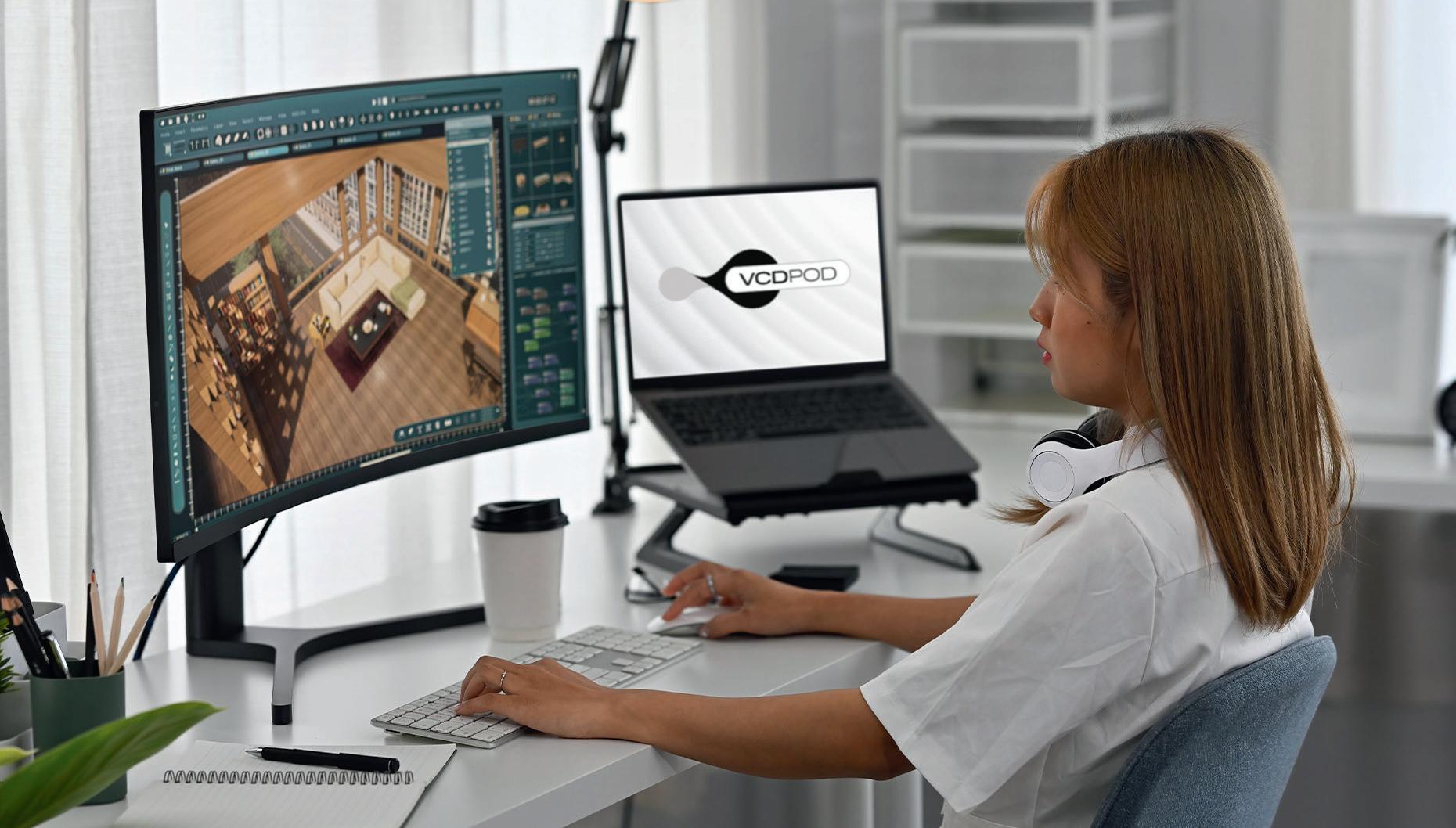
Over the past 18 months in particular, the company has doubled down on its desktop as a service (DaaS) strategy, refining its established VDIPod platform and, crucially in Autumn 2025, adding VCDPod, a complementary layer of dedicated one-to-one remote workstations for the most challenging workloads.
VCDPod was born out of the demands of high-end practices like Zaha Hadid Architects and Foster + Partners, where huge models, intensive visualisation, and increasingly complex workflows exposed the limits of a purely virtualised workstation strategy.
Far from it, it simply adds choice.
In a large engineering firm where single-threaded bottlenecks aren’t a major concern, “Your use case absolutely would be VDI, 100% across the board,” says Dawson. “There would be no real need to have any VCD.”
At the opposite extreme, for a high-end architectural practice, “Where you are battering every application and product, you’re probably a pure VCD play,” he adds.
Most AEC organisations fall somewhere in between. In this “middle ground” for practices such as Populous, WilkinsonEyre, or Scott Brownrigg, Dawson envisions “a little bit of both,” with an “80/20 rule” applying in many architectural and construction firms. One 500-seat customer, he notes, is buying just 20–30 VCDPods alongside 470 VDI desktops.
A single portal
While Creative now offers two distinct technology platforms, for customers that straddle both, the user experience remains consistent. “The ability to log into the
‘‘
exact same physical workstations typically found on desktops. Creative ITC has chosen the Lenovo ThinkStation P3 Ultra SFF as its current VCDPod workhorse, which speaks to the balancing act between performance, density and manageability.
“We can put seven [P3 Ultras] in a 5U space in a rack,” says Adamson. “We found with some of the competitors we could maybe get six. By the time you scale that into hundreds across the datacentre footprint, that’s [a saving] worth having.”
Equally important is the quality of Lenovo’s out of band management. “What Lenovo have done really well is deliver a desktop form factor PC with almost a kind of server grade management tool in their BMC [card],” says Adamson.
“Essentially, they’ve taken their Xclarity platform, which is what they use for their server management, and produced an appropriately cut down version for desktop, which works really well in our experience.”
Creative ITC’s goal is not to position VDI or physical 1:1 remote workstations as inherently “right” or “wrong,” but to align each workload, user group, and region with the most appropriate mix at any given time
Creative ITC found that while VDI can offer high-performance GPUs for graphics-intensive workloads, the cost escalates quickly. “When you breach the top end of our [vGPU] profiling, it becomes very expensive,” admits Creative ITC’s John Dawson.
However, delivering better price–performance on GPUs is not the only appeal. As more customers learned of VCDPod, it quickly attracted a second audience: those running single-threaded applications such as Autodesk Revit, where high CPU clock speeds are critical to performance.
The introduction of VCDPod does not signal the end of VDIPod at Creative ITC.
same system, access data, applications in a consistent way, that was a major goal for us,” says Creative ITC’s Dave Adamson.
In practice, that means users continue to launch via the Omnissa Horizon client. On login, “They’ll just see the eligible types of desktop experience that they can access, which could be one or multiple flavours of VDI and indeed, VCD,” he says.
A BIM generalist might see only a standard VDI desktop; a senior visualiser could see both a VDI desktop for everyday work and a VCDPod for heavy Enscape sessions or end of project crunch.
Flexibility through choice
For the launch of VCDPod, Creative ITC has partnered with Lenovo, using the
Crucially, though, Creative ITC is not committing itself to one chassis or provider in the long term. The VCDPod platform has been architected for flexibility, as Adamson explains. “Should we choose to bring in another form factor in the future, be it a larger PC, be it a 1U pizza box server type approach, we’ll just be able to drop it in.”
Where workstations live
All of this sits against a backdrop of where AEC firms want to locate their workstations. Dawson sees some trends emerging. “The middle ground or lower tier enterprises are quite happy to get out of their datacentres and move away”, he says. By contrast, other organisations “have made large investments and [are] quite happy on prem.”
A common pattern is hybrid. For UK firms, infrastructure stays on prem, while offices in the Far East, North America or elsewhere come into Creative ITC’s hosted environment.
From the end user’s point of view, location is irrelevant. A machine could be on prem in London or in an Equinix cage in Amsterdam; the user simply sees a desktop in Horizon and can request or be assigned either on prem or hosted capacity as the business requires.
For multi site deployments across continents, however, fully hosted often wins out. With Panzura backed ‘file as a service’ and virtual desktops co located in Equinix, Creative ITC can better guarantee datacentre to datacentre bandwidth, place data close to users and avoid the challenges that often surround office-to-office links.
Security is another differentiator. Creative ITC holds multiple ISO certifications and a high level Cloud Controls Matrix (CCM) accreditation that Dawson says places the company “four tiers above” what most of its customers could realistically achieve internally. That really matters in an industry where IT departments are often under funded and overstretched.
“There are some customers we see that scare the living hell out of me, that do it themselves,” admits Dawson. “They are unfortunately ripe for cyber breaches and cyber attacks.”
From a commercial standpoint, Creative mirrors the reservation based economics of the hyperscalers. Customers can opt for pay as you go or commit to one , three or five year terms. “I would be honest, the majority are three years, because to get the TCO and the value,” Dawson says. Many mix commitments, reserving a core
of seats on three year terms while placing additional users on one year or pay-asyou-go contracts to cover project peaks.
Creative ITC is still finalising the details for VCDPod, but it expects the platform to be somewhat more rigid at launch. “I think it will start as standard three years, with the option of a fourth year,” notes Dawson, with more flexibility likely as the installed base grows. Underpinning that stance is confidence that the current generation of VCDPod hardware will remain fit for purpose for at least three to four years in most AEC environments.
It is encouraging to see Creative ITC, a long-time proponent of VDI, expand its workstation portfolio in response to evolving AEC workloads. The goal is not to position VDI or physical 1:1 remote workstations as inherently “right” or “wrong,” but to align each workload, user group, and region with the most appropriate mix at any given time, while maintaining a consistent user experience as those balances evolve.
Viewed through that lens, the combination of VDIPod and VCDPod, unified through a single portal, feels like a coherent strategy for the next phase of remote workstations for AEC: continue to virtualise where it makes sense; deploy dedicated GPU and high-frequency CPU capacity where it doesn’t; and abstract that complexity behind a single, clouddelivered, fully managed service.
■ www.creative-itc.com
For our testing Creative ITC provisioned a pair of VDIPod virtual machines (VMs), based on a virtualised “Zen 3” AMD Ryzen Threadripper Pro 5965WX CPU and a virtualised “Ada Generation” Nvidia L40 GPU. The systems were accessed via the Omnissa Horizon client using the Horizon Blast protocol, with both the client and datacentre located in the London area. Each VM was configured with a different vGPU profile. Creative ITC recommends the Nvidia L40 8Q profile for CAD and BIM workflows, and in our testing the viewport was perfectly responsive, delivering a desktop-like experience in Autodesk Revit. By contrast, the Nvidia L40 24Q profile which is better suited to visualisation, offered a fluid experience in Twinmotion with performance broadly comparable to a desktop Nvidia RTX 5000 or RTX 6000 Ada Generation GPU.
Basic lightly threaded CPU tests showed both VMs to be around 42% slower when opening a Revit file and 65% slower when exporting a PDF compared with one of the fastest liquid-cooled desktop workstations we’ve tested, based on a “Zen 5” AMD Ryzen 9950X processor. However, given the two-generation gap between the CPUs and the fact that the Threadripper Pro does not boost into turbo, this is to be expected.
For customers where single-threaded workflows represent a significant bottleneck, Creative ITC recommends VCDPod, where the latest Intel Core processors in the Lenovo ThinkStation P3 Ultra SFF boast superior Instructions Per Clock (IPC) and can sustain high turbo clock speeds.
Our top picks for enterprise-class mobile workstations — from lightweight 14-inch models to take CAD and BIM on the road to 18-inch powerhouses to power the most demanding, visualisation, simulation, reality modelling and AI workloads
18-inch
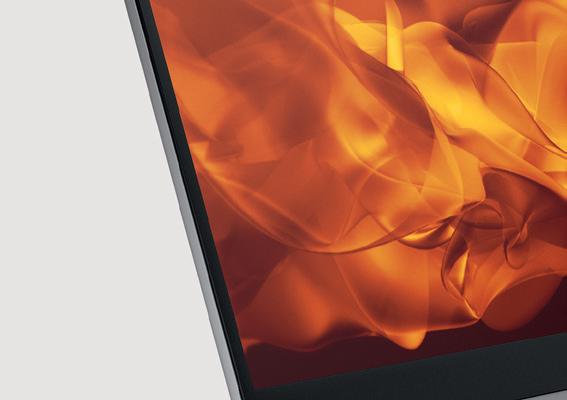
HP’s top-end mobile workstation, the 18-inch ZBook Fury G1i, is unapologetically focused on performance. The specs may look familiar — Intel Core Ultra 200HX series processors and Nvidia laptop GPUs up to the RTX Pro 5000 Blackwell (24 GB) — but with a 200W TDP, it extracts more sustained performance from those components than any other major OEM.
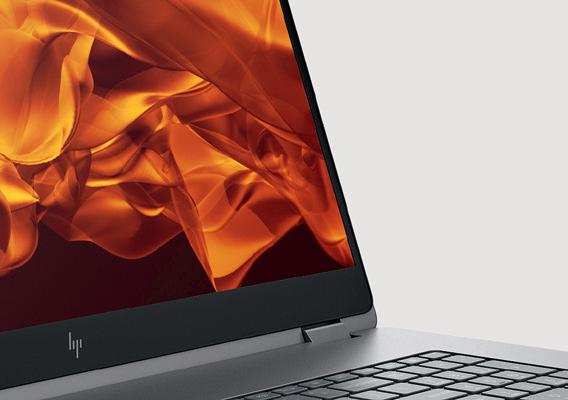
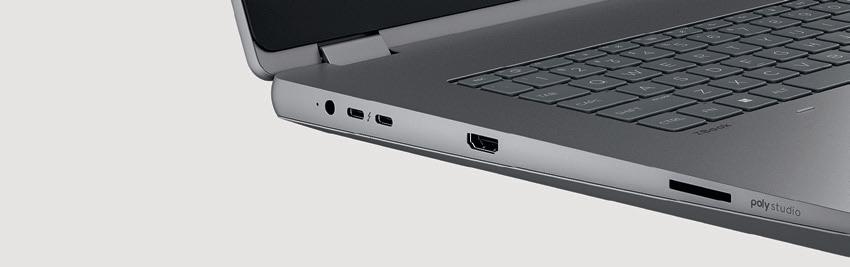


While that’s a key differentiator, it may still lag behind some gaming-inspired laptops, where combined CPU/GPU power can reach as high as 270W. Yet the ZBook Fury G1i is a true enterpriseclass machine, designed with fleet management in mind and carefully balancing performance, thermals, acoustics, and reliability. HP’s new hybrid turbo-bladed triple-fan cooling system helps maintain that equilibrium.
The 18-inch display is limited to WQXGA (2,560 x 1,600) LED, but delivers 500 nits, 100% DCI-P3, and a superfast 165 Hz refresh rate. The HP Lumen RGB Z Keyboard also takes a professional-focused approach, with per-key LED backlighting that can highlight only the keys relevant to specific tasks, preloaded with default lighting profiles for applications such as Solidworks, AutoCAD, and Photoshop.
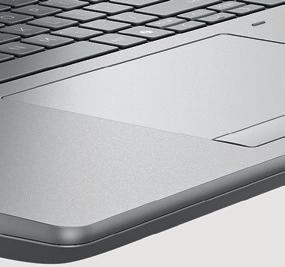
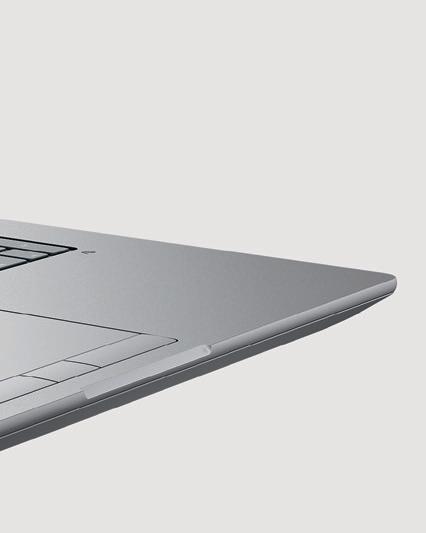
Overall, the HP ZBook Fury G1i is unparalleled in performance, but it’s important to remember that it’s not meant for long stretches away from the desk. Its size and power draw make it best suited to designers, engineers, and visualisers who simply need to move work between office and home, while battery life and portability take a back seat. ■ www.hp.com

14-inch
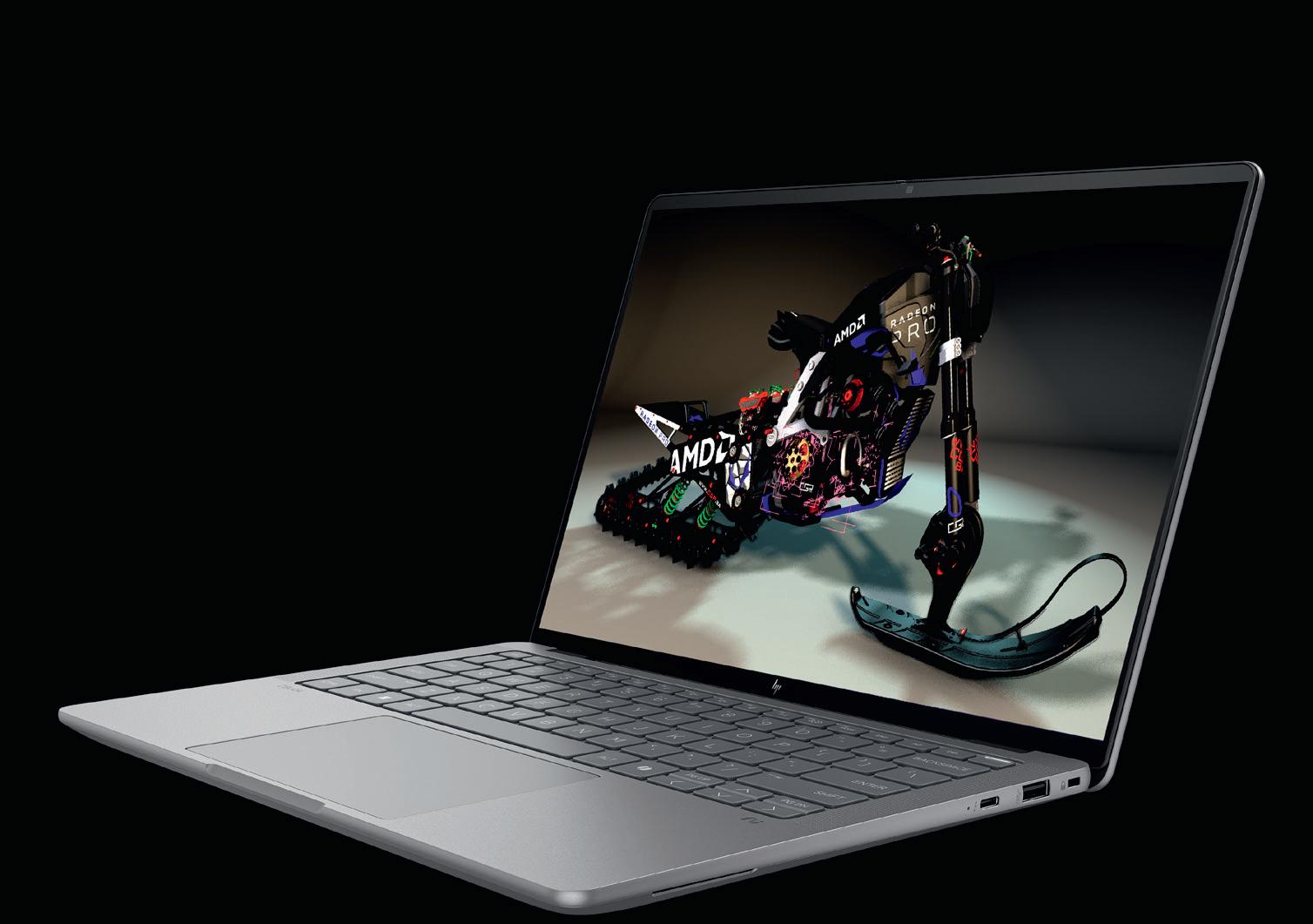
The HP ZBook Ultra G1a represents a major breakthrough in mobile workstations, redefining what can be achieved with a 14-inch laptop. Powered by the “Strix Halo” AMD Ryzen AI Max+ Pro 395 processor with 16 highperformance ‘Zen 5’ cores and a remarkably powerful integrated Radeon 8060S GPU, it delivers performance typically expected only from larger laptops — making it a genuine powerhouse in a truly portable form factor.
A standout feature is the unified memory architecture. Unlike traditional discrete GPUs with fixed VRAM, the ZBook Ultra can allocate up to 96 GB of high-speed system memory to the integrated Radeon GPU, dramatically boosting its ability to handle large datasets. While it can’t match the computational power of a high-end Nvidia GPU, this innovative approach eliminates the memory bottlenecks that can slow or crash lesser machines, in some cases setting a new benchmark for memory-intensive visualisation and AI workflows. Beyond raw performance, the ZBook Ultra G1a impresses with its slim, lightweight chassis (1.57 kg, 18.1 mm), excellent build quality, and premium display options, including a 2.8K OLED touchscreen. Meanwhile, its advanced cooling system keeps temperatures in check even under heavy loads.
For architects, engineers, and designers seeking desktop-class capabilities in an ultra-compact laptop, the ZBook Ultra G1a is a stand out example. Software support is still catching up compared to workstations with Nvidia GPUs, but with viz tools like V-Ray, KeyShot, and Solidworks Visualize recently adding AMD support, this gap is rapidly closing. Read our in-depth review - www.tinyurl.com/UltraG1a
■ www.hp.com
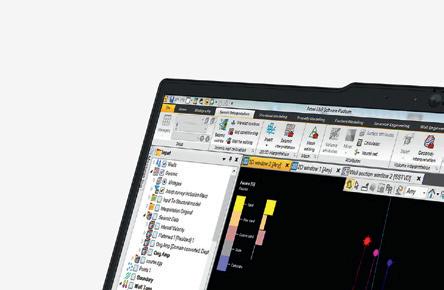
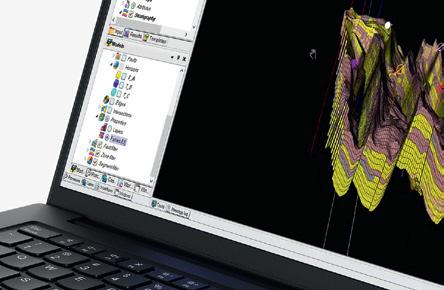
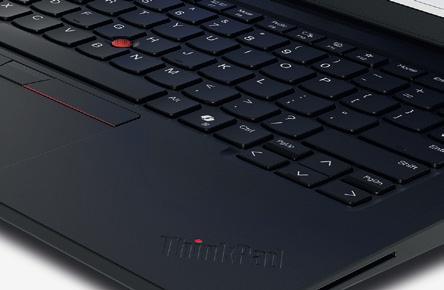
The Lenovo ThinkPad P14s Gen6 is available in both AMD and Intel variants, but it’s the model powered by the “Strix Point” AMD Ryzen AI processor that really stands out, making this compact 14-inch workstation an excellent choice for CAD and BIM on the go.

In multi-threaded CPU and GPU-intensive operations, the ThinkPad P14s Gen 6 AMD might lag behind the “Strix Halo” HP ZBook Ultra G1a. However, for CAD and BIM workloads, the di erence is negligible — both machines will handle typical assemblies and models with ease.
The ThinkPad’s “Strix Point” AMD Ryzen AI 9 HX 370 processor can match the ZBook’s “Strix Halo” Ryzen AI Max+ Pro 395 processor single-core boost frequencies, while the integrated Radeon 890M GPU delivers more than enough performance to smoothly navigate all but the most demanding CAD and BIM models.
Unlike the Dell Pro Max 14, which uses the same chassis for both AMD and Intel variants, the ThinkPad P14s Gen 6 has separate designs. As there is no need to accommodate a discrete Nvidia GPU, this allows the AMD version to be smaller and lighter, starting at just 1.39 kg. The trade-o is a single-fan cooling system, but this is unlikely to impact most CAD and BIM workloads, which rarely push the CPU and GPU to their limits.

Overall, the ThinkPad P14s Gen 6 AMD is a compelling, highly portable mobile workstation that also earns a special mention for its serviceability, as the entire device can be disassembled and reassembled with basic tools. Finally, for those seeking a bit more screen space, the 16-inch ThinkPad P16s o ers identical specs and starts at 1.71 kg. ■ www.lenovo.com/workstations




16-inch

For the latest incarnation of its flagship mobile workstation, Lenovo has completely redesigned the chassis. The ThinkPad P16 Gen 3 is thinner, lighter, and more power-e cient than its Gen 2 predecessor, making it more of a true day-to-day laptop without compromising its workstation capabilities. It packs the latest ‘Arrow Lake’ Intel Core Ultra 200HX series processors (up to 24 cores and 5.5 GHz), a choice of Nvidia laptop GPUs up to the RTX Pro 5000 Blackwell (24 GB), and supports up to 192 GB of RAM.

While these are top-end specs, the smaller 180 W power supply — down from 230 W in the previous generation — suggests that some peak performance may be left on the table. This is particularly relevant when configured with the RTX Pro 5000 Blackwell GPU, which alone can draw up to 175 W. That said, since all processors and GPUs show diminishing returns at higher power levels, the impact on real-world performance might be relatively modest.

Ultimately, the ThinkPad P16 Gen 3 is all about balancing performance and portability. With practical features such as USB-C charging and a compact versatile chassis, it’s an excellent choice for professionals on the move, capable of handling a wide range of workflows — from CAD and BIM to visualisation, simulation, and reality modelling — without being tethered to a desk.

■ www.lenovo.com/workstations
Last year, Dell retired its long-standing Precision workstation brand in favour of Dell Pro Max. One of the standout models is the Dell Pro Max 16 Premium, which replaces the Precision 5690 as Dell’s thinnest, lightest and most stylish 16-inch mobile workstation. While the Dell Pro Max 16 Premium gives you faster processors, you get less choice over GPUs. It tops out at Nvidia’s 3000 class, whereas the 5690 offered up to the 5000 class. This could be seen as a step backward, but given the thermal/power constraints of the slender 20mm laptop and its 64 GB memory limit, pairing it with the 12 GB Nvidia RTX Pro 3000 Blackwell feels like a more realistic and balanced choice than trying to shoehorn in the 24 GB RTX Pro 5000 Blackwell. Plus, it’s still one class above rival machines like the HP ZBook X G1i and Lenovo ThinkStation P1 Gen 8.

To get the most from the Pro Max 16 Premium, it should be fully configured: a 45 W Intel Core Ultra 9 285H vPro processor, 64 GB of RAM, and the 12 GB Nvidia RTX Pro 3000 Blackwell. This setup puts it squarely in the category of entry-level design visualisation, where the extra 4 GB over the 8 GB RTX Pro 2000 Blackwell is money well spent. For more demanding workloads, the Dell Pro Max 16 Plus is the far better, but heftier, option — supporting 55W Intel Core Ultra 200HX CPUs, Nvidia RTX Pro 5000 Blackwell GPU, and up to 256 GB of memory.
Overall, the Dell Pro Max 16 Premium is an extremely well built pro laptop that delivers a strong balance of performance and portability. Finally, for those still mourning the death of Precision, Dell has confirmed the brand will return later this year as Dell Pro Precision. ■ www.dell.com





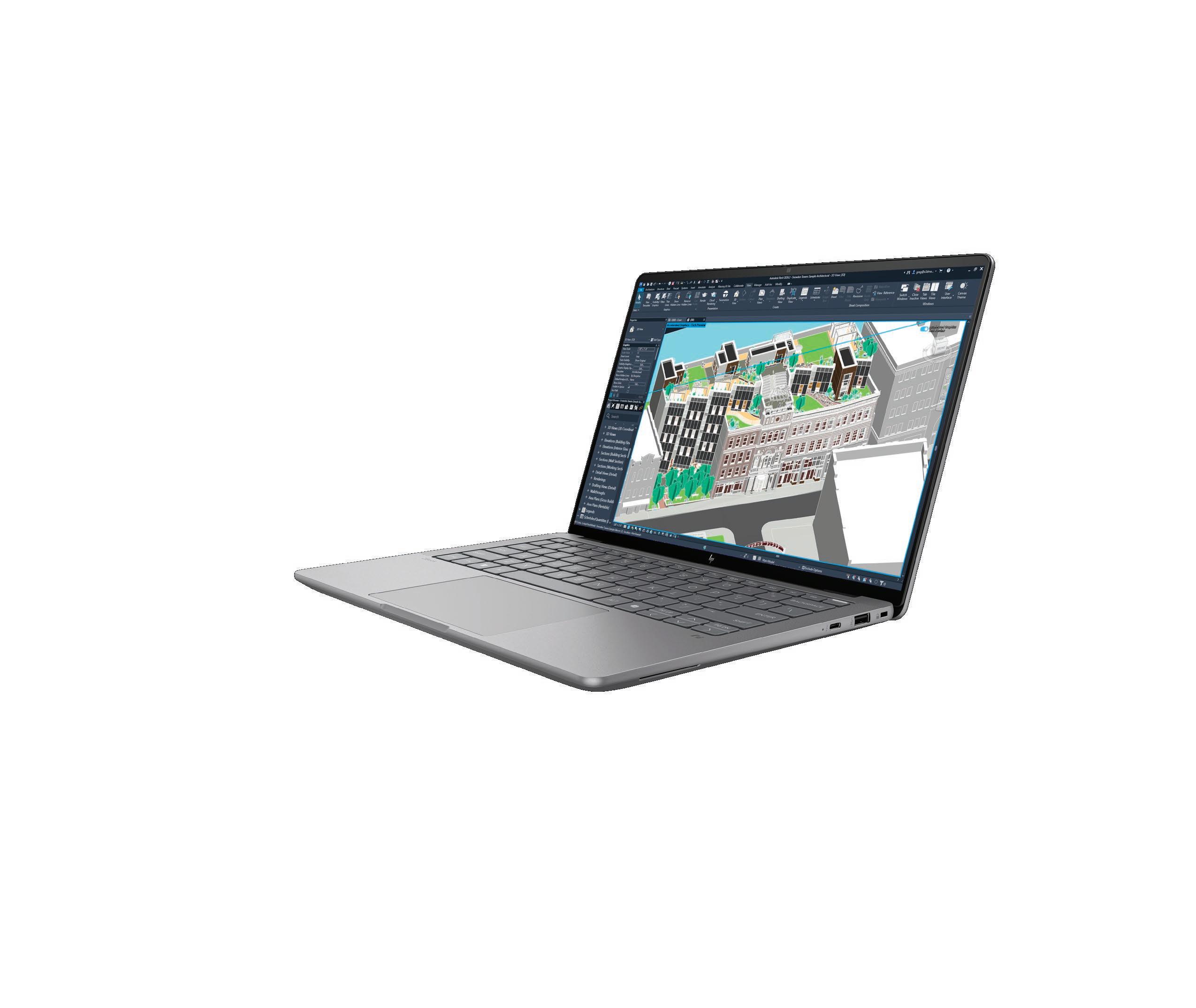
Powered by the AMD Ryzen AI Max PRO processor, the HP ZBook Ultra G1a laptop and HP Z2 Mini G1a desktop workstations are well positioned to maximise the benefits of Revit 2026 and its next-gen graphics engine — delivering a significant performance boost, particularly when navigating complex BIM models
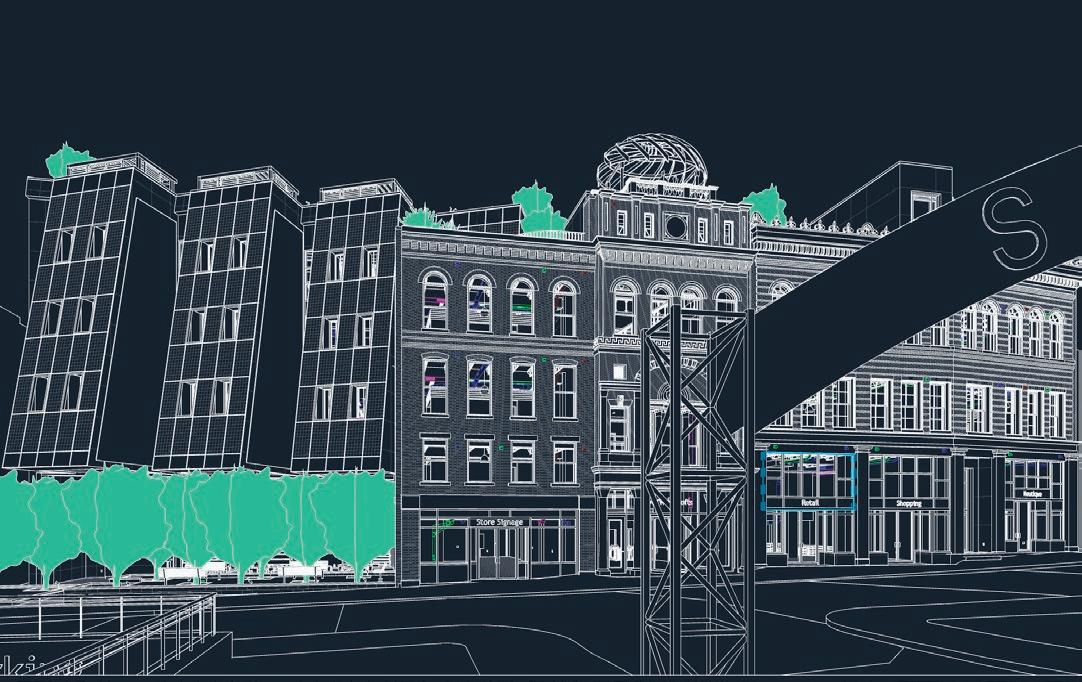
Revit 2026 introduces a new graphics technology designed to significantly improve performance in both 3D and 2D views. The ‘Accelerated Graphics Tech Preview’, which is still in development, delivers smoother, more responsive model navigation when panning, orbiting, or zooming. Those working with particularly complex Revit models should experience the most noticeable performance benefit.
To unlock these performance gains, the Revit development team is harnessing the latest technology in both software and hardware. This includes Universal Scene Description (USD) — an XML framework born out of Pixar® but increasingly used in AEC for data exchange and collaboration. However, Revit uses USD in a different way. In the ‘Accelerated Graphics Tech Preview’ it’s employed solely to draw the graphics on screen, faster. A direct export of Revit models to USD is not currently on Autodesk’s roadmap.
The ‘Accelerated Graphics Tech Preview’
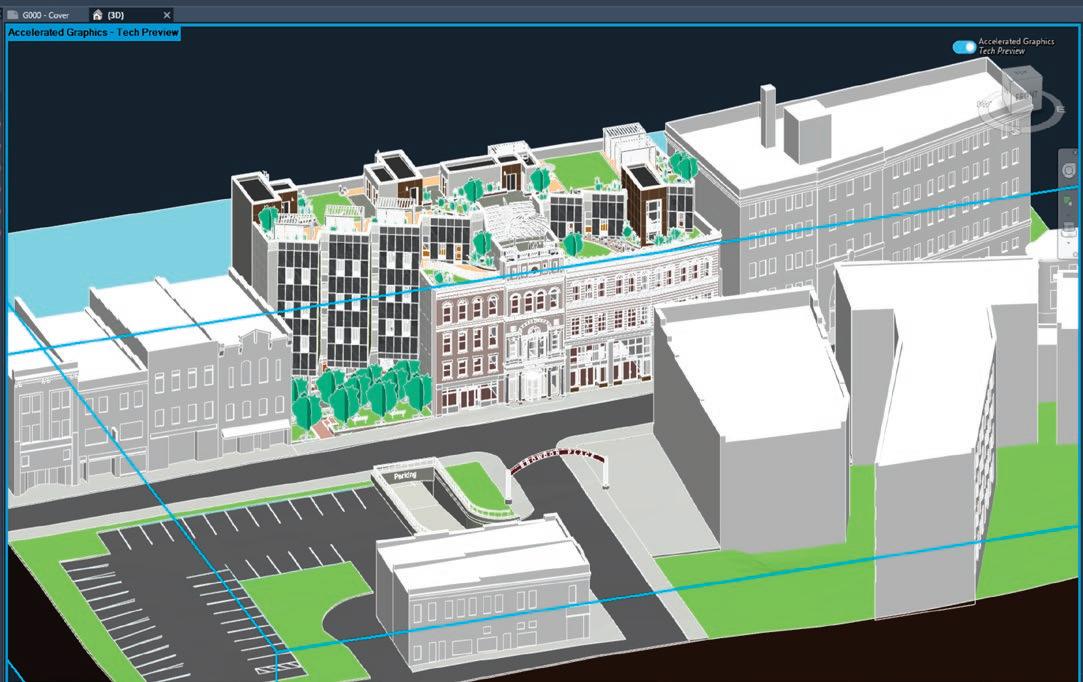
also makes much better use of modern GPUs — processors that are well-suited for graphics rendering. By offloading more of the graphics workload to the GPU, visual performance is significantly improved while also freeing up the CPU to handle other tasks — helping boost overall system performance.
The ‘Accelerated Graphics Tech Preview’ currently supports popular display styles such as ‘shaded’ and ‘hidden line’. It can be toggled on or off at any time, giving users flexibility to choose the best mode for their current workflow. As the technology matures, expect to see support for other display styles such as ‘realistic’, along with ‘shadows’, ‘sketchy lines’, and ‘transparency’.
The ultimate goal is to replace Revit’s entire graphics engine, making ‘Accelerated Graphics’ the default experience without the need for manual activation.
To get the best performance Autodesk recommends a workstation with at least 64 GB of RAM and a GPU with at least
8 GB. In the past, this would have meant a workstation with a discrete GPU. However, with the new AMD Ryzen AI Max PRO processor — featured in the HP ZBook Ultra G1a laptop and HP Z2 Mini G1a desktop workstations — users now have access to an integrated AMD Radeon GPU with the equivalent performance of a mid-range discrete GPU. Coupled with up to 128 GB of system memory, of which up to 96 GB can be assigned to the GPU, the chip is fully capable of handling Revit’s new graphics demands. When running Revit’s Snowdon Tower sample project on the HP ZBook Ultra G1a with an AMD Ryzen AI Max+ PRO 395 processor, the viewport feels significantly more responsive compared to the traditional graphics engine. Model navigation is silky smooth, and the model is not simplified in any way — a technique often used to maintain full interactivity with larger models. As shown in our benchmarks below, performance (measured in frames per second) was approximately 2.5 to 3 times faster.
Bring your BIM models to life with advanced real-time visualisation

Twinmotion for Revit by Epic Games, included with select Revit subscriptions, brings high-quality, real-time visualisation directly into your BIM workflow. The software is GPU-accelerated, and the AMD Ryzen AI Max PRO processor is well suited to handling mainstream visualisation tasks. A key advantage is the ability to directly allocate up to 96 GB of system memory to the processor’s integrated Radeon GPU — far more than most discrete GPUs with comparable performance.
On test with the HP ZBook Ultra G1a, powered by the AMD Ryzen AI Max+ PRO 395 processor, the Revit Snowdon Tower sample project consumes 8.1 GB of GPU memory on load. This increases to 14.2 GB when rendering at 4K and 35.1 GB when rendering at 8K. With the test machine configured with 128 GB of system memory, of which 64 GB is allocated to the GPU, the system maintains ample headroom throughout.
In contrast, when a discrete GPU runs out of dedicated memory, it must offload data to system memory — a process that can introduce latency, slow performance, and significantly increase render times.
AutoCAD 2026 feels faster and smoother when navigating 3D models, thanks to Graphics System Fabric (GSF), a powerful graphics engine built on DirectX 12 that harnesses the power of modern GPUs
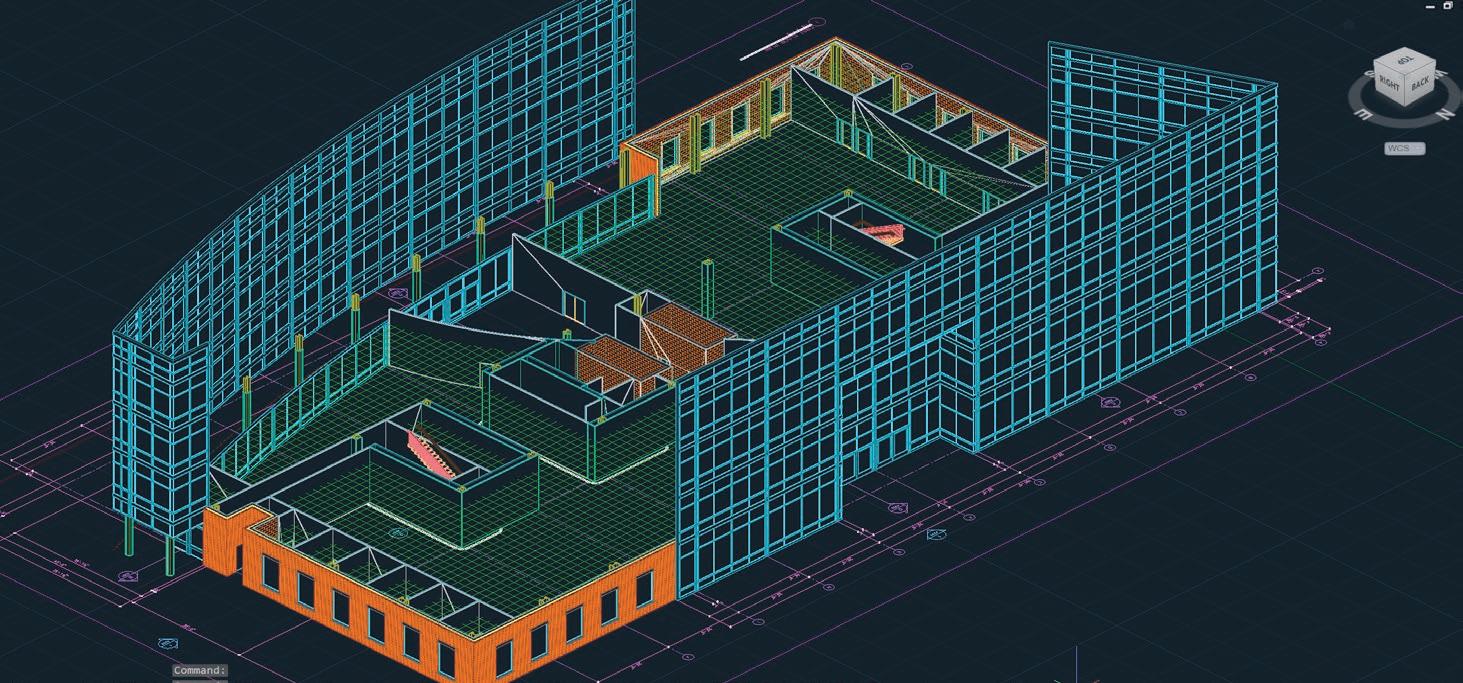
According to Autodesk, AutoCAD 2026 delivers major performance improvements over the 2025 release, including file open times up to 11x faster and application launch speeds up to 4x faster.
One of the most impactful — yet less talked about — enhancements lies in the graphics pipeline. Users can expect noticeably smoother navigation of 3D models and a significantly more responsive design experience when using wireframe, conceptual,
visual styles. These improvements are enabled by the latest enhancements to Graphics System Fabric (GSF), a next-gen graphics engine built on Microsoft that optimises GPU utilisation. GSF offloads more graphics processing from the CPU to the GPU and caches more data in GPU memory, allowing for faster access and better real-time performance.

with integrated graphics. Historically, integrated GPUs often lacked sufficient memory to be supported by GSF, which typically requires between 4 GB and 8 GB of dedicated GPU memory.
That limitation is effectively removed with the AMD Ryzen AI Max PRO processor, which can allocate up to 96 GB of system memory to its integrated Radeon GPU — far exceeding the capacity of most discrete GPUs in its class.
In real-world testing on an HP ZBook
forward for AutoCAD, but it is still under development. Certain visual styles — such as realistic — are not yet supported, so AutoCAD will automatically switch between GSF and the previous Graphics System One (GS1) engine, based on the active view or model requirements.
Another key advancement in AutoCAD 2026 is improved support for processors
in AutoCAD 2026 with no loss of detail. In contrast, there is a noticeable lag in AutoCAD 2025: mouse movements lead to delayed on-screen responses, as the software must first lower model detail in order to maintain interactivity, before restoring full detail once movement stops.
Integrated graphics just got serious. Powered by AMD’s Ryzen AI Max PRO, the HP ZBook Ultra G1a and HP Z2 Mini G1a deliver impressive performance for CAD, viz and AI – without the need for a discrete GPU
For CAD and BIM workflows, architects and engineers have traditionally relied on workstations with separate CPUs and discrete GPUs. Processors with integrated graphics have often fallen short — lacking the 3D performance, application-specific optimisations, and software certifications required for professional use.
But the AMD Ryzen AI Max PRO processor at the heart of the new HP ZBook Ultra G1a mobile workstation and HP Z2 Mini G1a desktop workstation is redefining what’s possible with integrated graphics.
At the top of the range, the AMD Ryzen AI Max+ PRO 395 features a powerful AMD Radeon 8060S GPU, delivering performance that rivals that of a mid-range discrete GPU. It enables smooth, responsive viewports in Revit and AutoCAD, even when working with large models, and
can also handle real-time visualisation workflows in Twinmotion for small to medium-sized projects.
This leap in capability is powered not only by AMD’s RDNA 3.5 graphics architecture, but also the ability to allocate large amounts of system memory to the GPU — far more than the fixed on-board memory of most comparable discrete GPUs.
In the BIOS, users can choose from 512 MB, 4 GB, 8 GB, all the way up to 96 GB. However, dedicating large amounts of memory to the GPU isn’t always necessary. In some workflows the GPU can dynamically borrow additional memory from the system when needed, without the severe performance penalties that occur when discrete GPUs exceed their onboard memory and must fall back on slower system RAM.
The processor’s large memory pool also unlocks new possibilities in AI workloads. When the system is configured with 128 GB,
HP ZBook Ultra G1a — slimline 14-inch mobile workstation
The HP ZBook Ultra G1a with Ryzen AI Max PRO processor is an extremely powerful 14-inch mobile workstation. It offers noteworthy upgrades over other 14-inch models, including significantly more high-performance cores (up to 16) and substantially improved graphics.
It’s not just about performance. It’s the thinnest ZBook ever, just 18.5mm in profile and weighing as little as 1.50kg. The HP Vaporforce thermal system keeps it running cool and there is very little fan noise even
when the processor is running flat out.
The power efficient laptop is paired with either a 100 W or 140 W USB Type-C slim adapter for charging. For video conferencing, there’s a 5 MP IR camera with AutoFrame, Spotlight, Background Blur, and virtual backgrounds all powered by the 50 TOPS NPU. Additional highlights include a top-tier 2,880 x 1,800 OLED panel (400 nits), up to 4 TB of NVMe TLC SSD storage, and support for Wi-Fi 7.
Despite it diminutive form factor, the HP Z2 Mini G1a is a very powerful desktop workstation.
Like its laptop sibling, it features the same AMD Ryzen AI Max PRO processor. However, with a 300W internal power supply, the ultra compact desktop workstation can deliver significantly more sustained power to the processor, resulting in superior performance in multi-threaded CPU and graphicsintensive workflows.
One of the most compelling use cases for the Z2 Mini G1a is in rack-mounted deployments, where multiple units serve as a centralised remote workstation resource managed by HP Anyware. Each architect or engineer connects to their own dedicated workstation via a 1:1 session, ensuring both simplicity in deployment and predictable, high-performance access. Up to five workstations can be installed side by side in a 4U rack space, offering impressive density and scalability for teams.
the GPU can run colossal 128B parameter Large Language Models (LLMs) – roughly the size of Chat GPT 3.0 – well beyond the limits of most fixed-memory GPUs.
For architects and designers, more memory also unlocks practical creative advantages in other AI-driven workflows. Text-to-image tools like Stable Diffusion, which are increasingly used for early-stage visualisation, can benefit directly. With fast, direct access to a large pool of GPU memory, it becomes feasible to generate high-resolution images — far beyond the practical pixel limits imposed by GPUs with restricted memory.
Finally, the Ryzen AI Max+ PRO 395 also comes with a Neural Processing Unit (NPU), which is designed to handle mainstream AI tasks very efficiently. It
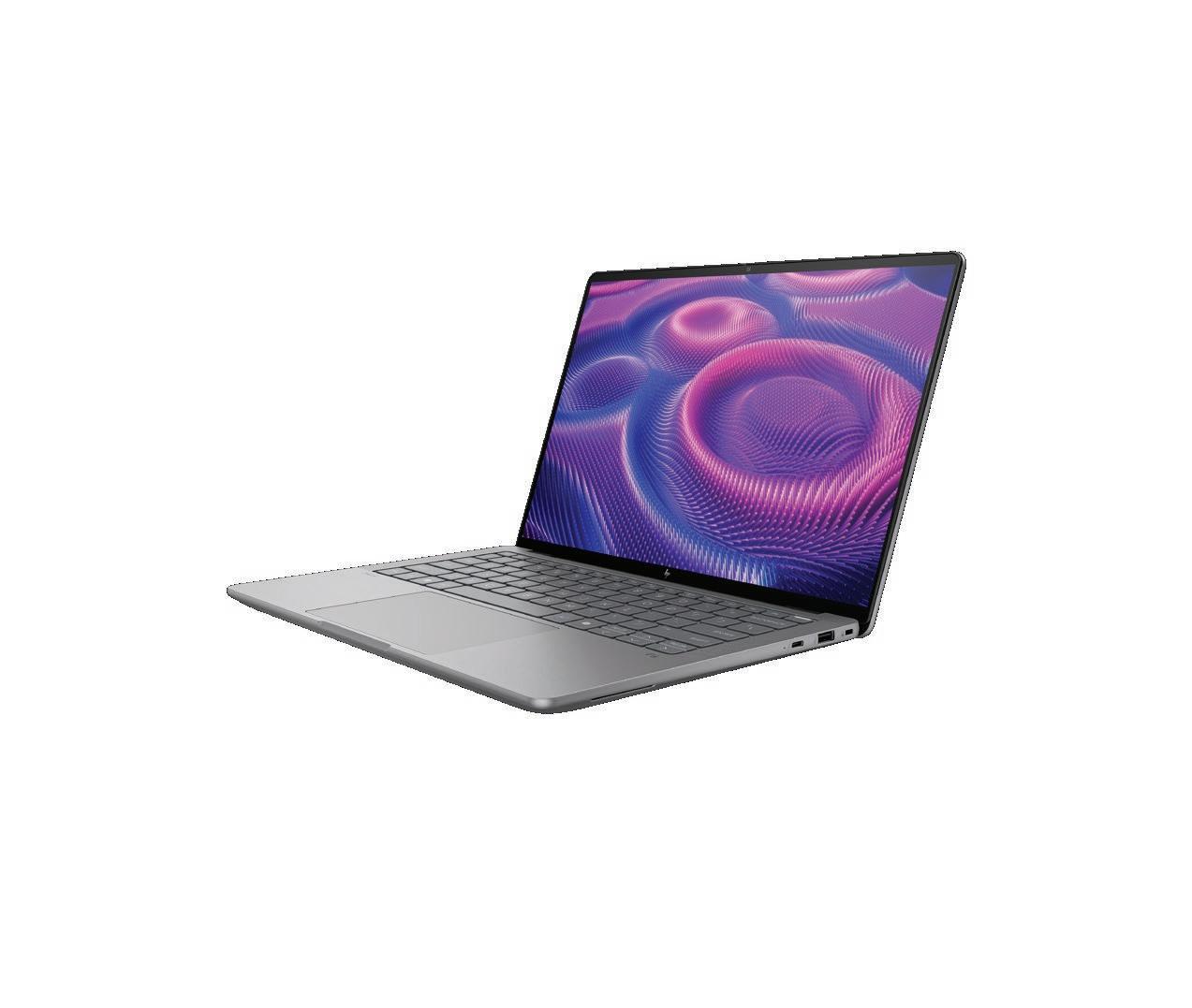
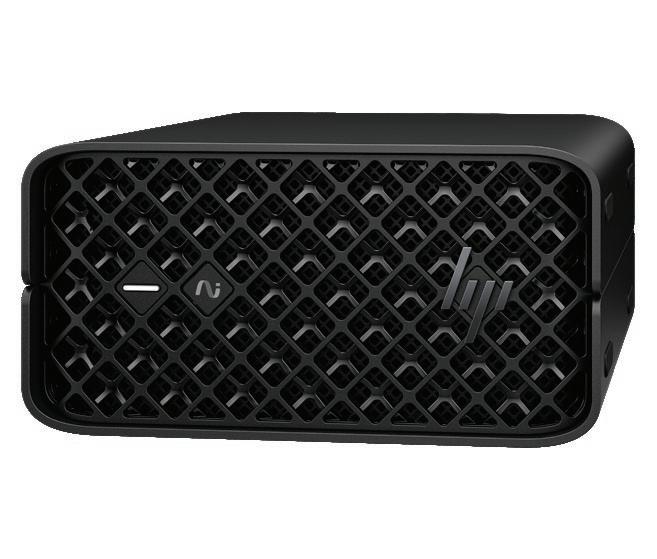
Choosing between a tower and a compact workstation can be confusing, especially when they share the same components. Greg Corke explores where small systems shine, where their limitations lie, and when a traditional tower still makes more sense
Compact workstations are big news right now. And not just because they free up valuable desk space.
Machines such as the HP Z2 Mini and Lenovo ThinkStation P3 Ultra SFF are increasingly finding themselves at the heart of modern workstation strategies, including centralised rack deployments where density matters just as much as performance.
But shrinking down a workstation to the size of a lunchbox does not come without compromise. When you cram high-performance CPUs, GPUs, memory and storage into a very small chassis, you quickly run up against the same fundamental constraints that mobile workstations have wrestled with for years: power delivery, cooling and sustained performance.
So the real question is not whether compact workstations are capable — they clearly are — but where their strengths lie, and where a traditional tower workstation still makes far more sense. Let’s break it down by component.
a level playing field. In practice, however, the realities of power delivery quickly create an imbalance. While the processor has a base power of 125W and can boost up to 250W under Turbo, the P3 Ultra SFF is constrained by its thermals and a 330W power supply. Meanwhile, the more spacious P3 Tower has bigger fans, better airflow and can be equipped with a 1,100W PSU. All of this can have a profound impact on sustained CPU performance.
But there’s no sign of imbalance under single or lightly threaded workloads, which describes the vast majority of CAD and BIM tasks. When modelling in Revit or Solidworks the difference between the two machines is negligible. Most workflows within these applications engage one or
simply cannot dissipate that amount of heat and CPU power will likely peak at around 125W. The result is much lower all-core frequencies and, inevitably, lower performance in sustained multi-threaded workloads.
Meanwhile, Dell provides much more obvious boundaries between its different Dell Pro Max desktop workstations. The super compact “Micro” model only supports 65W CPUs, up to the Intel Core Ultra 9 285, but claims to run this up to 85W. Meanwhile, it’s only the larger “SFF” and “Tower” models that come with the 125W Intel Core Ultra 9 285K.
Graphics is one area where compact workstations have traditionally been seen as compromised — but that perception is increasingly outdated
two CPU cores, allowing the processor to boost to its highest Turbo frequencies. In this scenario, both the compact P3 Ultra SFF and the P3 Tower will deliver very similar performance.
CPU: peak vs sustained performance
Arguably the biggest challenge for any modern compact workstation is the CPU, which can consume a lot of power. But when you look at the specs things can get confusing. Lenovo’s ThinkStation P3 Gen 2 range illustrates this perfectly. Both the P3 Ultra SFF (read our review on page WS30) and the larger P3 Tower can be configured with the same top-end processor, the Intel Core Ultra 9 285K. On paper, that suggests
The picture changes dramatically when all 24 cores are brought into play. In heavily multi-threaded workflows such as CPU rendering or simulation, sustained power becomes critical. The P3 Tower has the thermal and electrical headroom to feed the CPU closer to its 250 W Turbo limit, keeping all cores running at significantly higher frequencies for extended periods.
By contrast, the compact P3 Ultra SFF
GPU: smaller doesn’t mean weak Graphics is another area where compact workstations have traditionally been seen as compromised — but that perception is increasingly outdated. In a compact workstation, you are usually limited to low-profile GPUs with a max Thermal Design Power (TDP) of around 70W. The latest options include the Nvidia RTX Pro 2000 Blackwell and RTX Pro 4000 SFF Blackwell. Meanwhile, in a tower — even an entry level tower — you can step all the way up to a 300W GPU, such as the Nvidia RTX Pro 5000 or 6000 Blackwell which come with a whopping 48 GB and 96 GB of GPU memory respectively.
A few years ago, the performance and feature gap between a “2000-class” and “6000-class” GPU was substantial. Today, thanks to rapid advances in GPU architecture, and a trickling down of Nvidia RTX technology with RT cores for
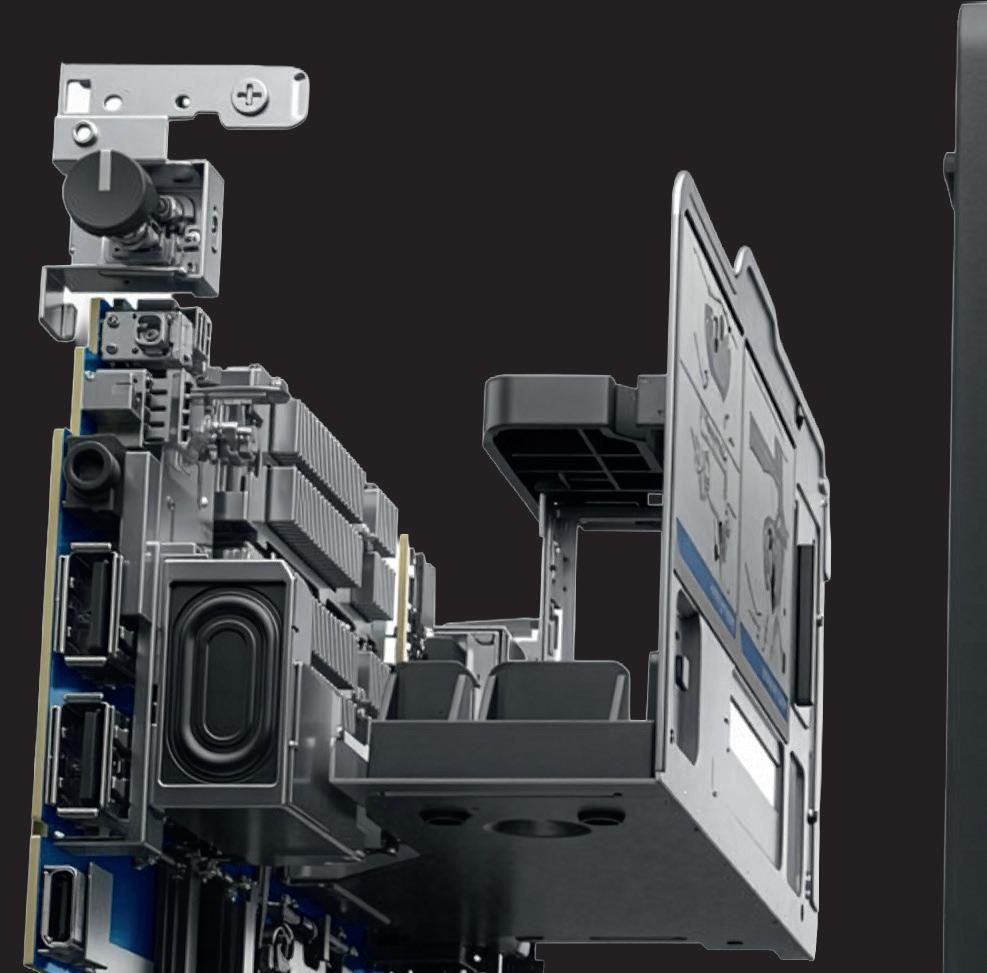
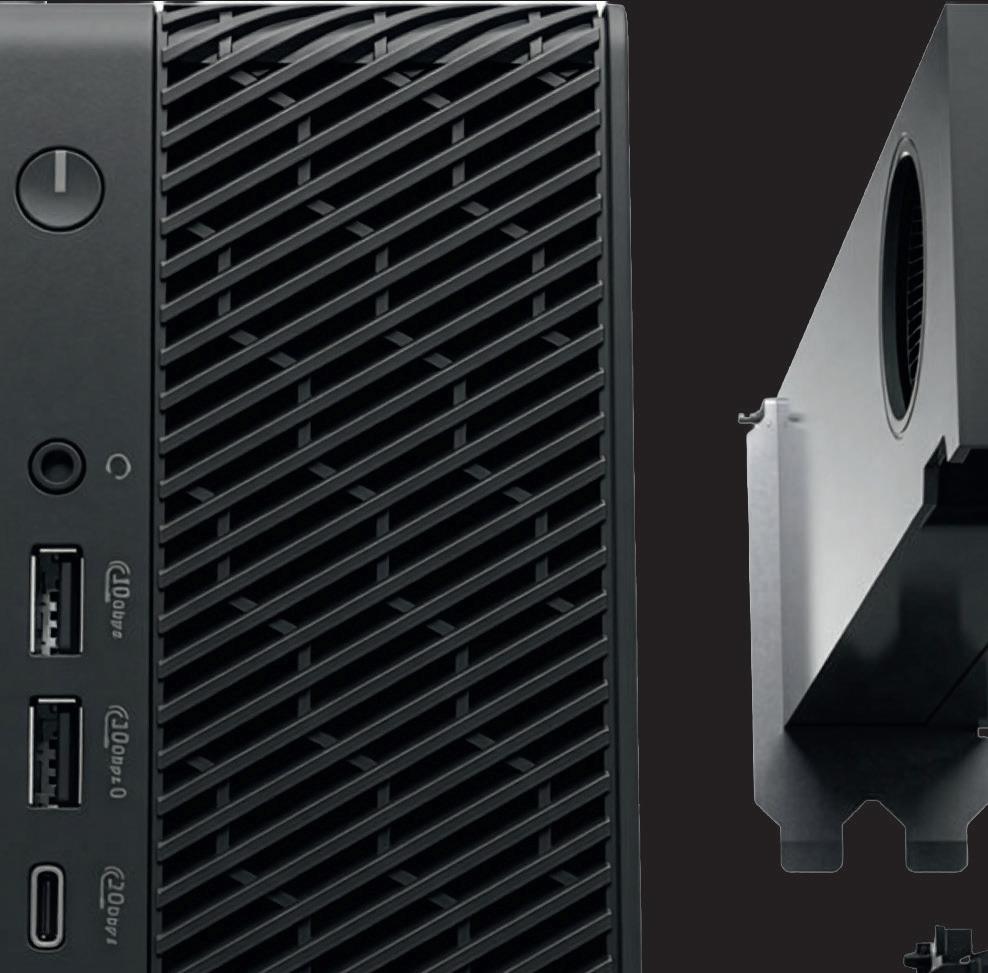
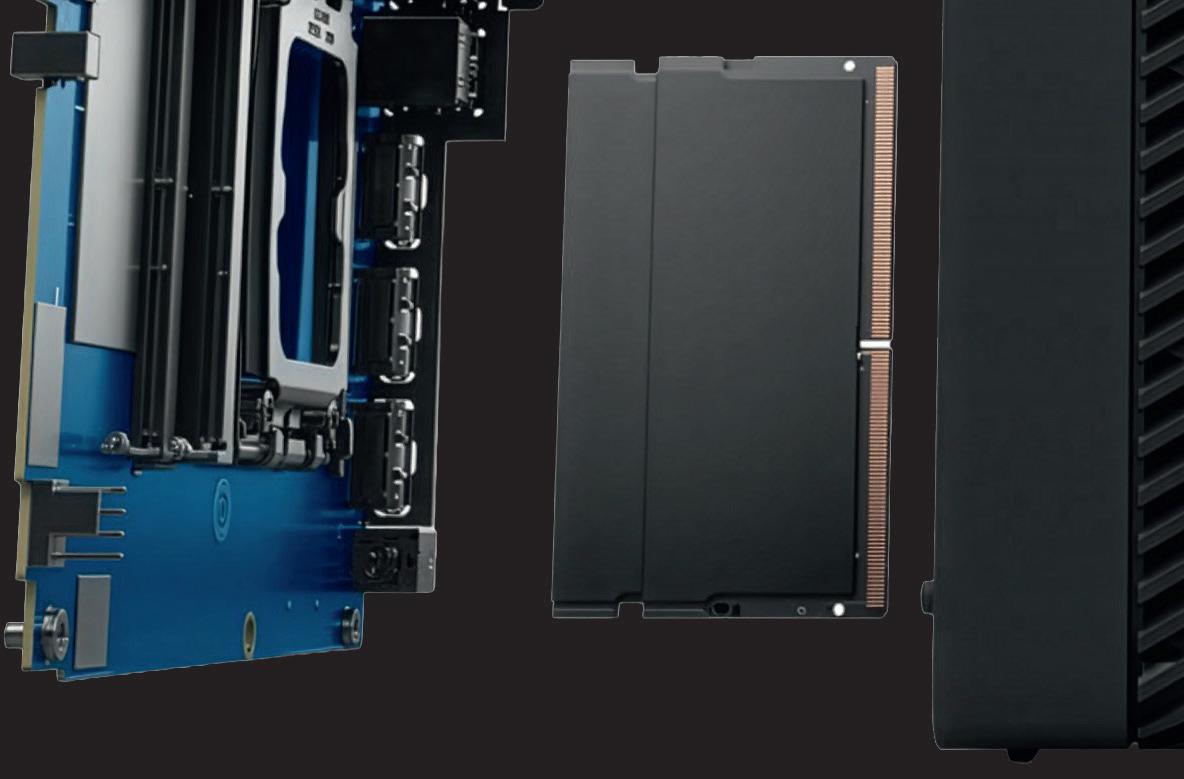
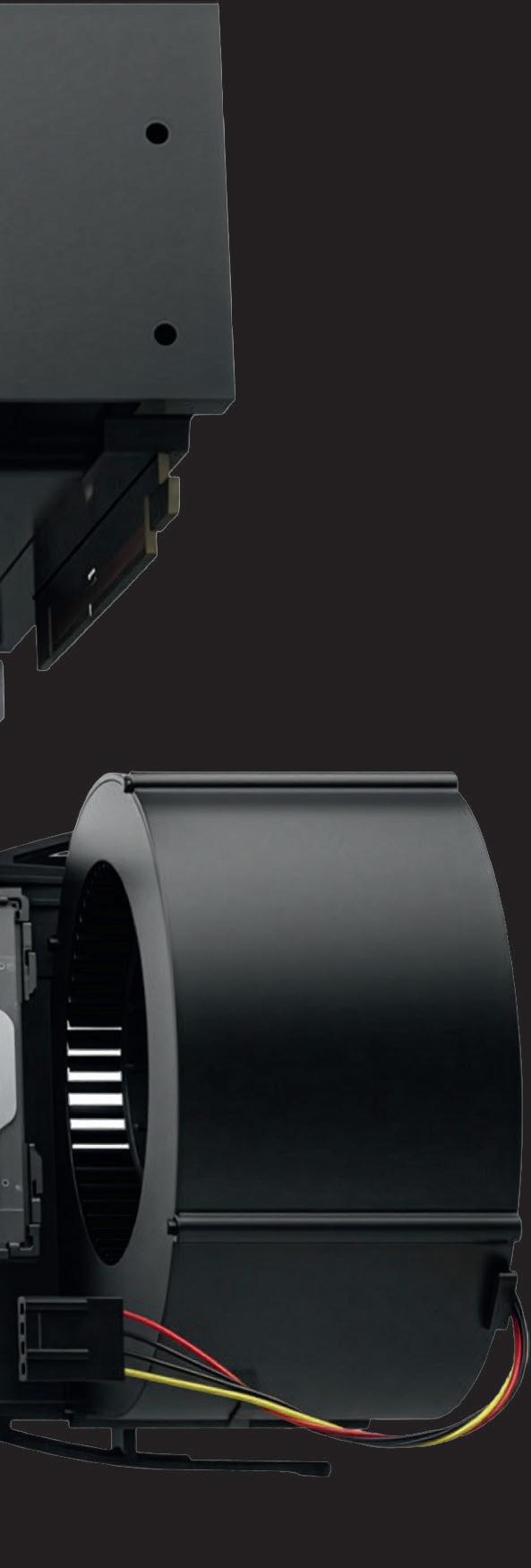
ray tracing and tensor cores for AI, the story is far more nuanced.
Cards like the RTX Pro 2000 Blackwell and RTX Pro 4000 SFF Blackwell are not only more than capable of handling the most demanding CAD and BIM workflows, but can deliver smooth, responsive viewports and fast rendering in design viz tools like KeyShot, Enscape and Twinmotion. Importantly, these cards ship with 16 GB and 20 GB of GPU memory respectively, which is ample for many real-world design datasets.
Integrated graphics has also taken a significant leap forward. The AMD Radeon 8060S GPU built into the HP Z2 Mini G1a’s AMD Ryzen AI Max+ Pro 395 processor, can comfortably handle CAD, BIM and entry-level visualisation workflows. Furthermore, thanks to fast, direct access to up to 96 GB of system memory, it also has a surprising advantage when working with extremely large datasets that might otherwise exceed the limits of discrete GPU memory.
All considered, there are still clear boundaries between workstation form factors. If your workflows are heavily focused on GPU-accelerated visualisation, simulation, or AI, a tower workstation
remains the obvious choice. The ability to install a high-wattage GPU with massive onboard memory is something most compact systems simply cannot match.
Where limits become visible
Modern design workflows are rarely single-task affairs. It’s increasingly common to use CAD or BIM alongside other tools such as visualisation, simulation or reality modelling.
For CAD-centric hybrid workflows, compact workstations generally cope fairly well. Running a GPU render in the background while continuing to model is usually fine, especially if the CPU load remains relatively light. However, problems arise when both the CPU and GPU are pushed hard at the same time.
If you kick off a heavily multi-threaded CPU task while simultaneously running a GPU-intensive workload, a compact workstation will almost certainly struggle. Limited thermal and power headroom could mean one or both components throttle, leading to noticeable slowdowns across the system.
Tower workstations, by contrast, are designed for exactly this kind of concurrent workload. With far greater cooling
capacity and higher sustained power delivery, they should do a much better job of keeping both CPU and GPU operating at high performance levels simultaneously.
Choosing the right tool for the job
Compact workstations have come a long way. For CAD or BIM professionals focused on 3D modelling and lighter viz workloads, they can deliver outstanding performance in an impressively small footprint. They are energy-efficient, and increasingly powerful, especially when paired with modern GPUs. And, of course, the space-saving design brings huge benefits to desktops and datacentres alike.
But physics still applies. When workflows demand sustained multithreaded CPU performance, top-tier GPU power, or heavy concurrent workloads, the limitations of a small chassis become apparent. In those scenarios, a traditional tower workstation remains the undisputed performance leader.
The good news is that this is no longer a question of “can a compact workstation do the job?” but rather “which job is it best suited for?” Choose wisely, and a small workstation can punch well above its modest weight.
With an integrated graphics processor with fast access to more memory than any other GPU in its class, HP is rewriting the rulebook for compact workstations, writes Greg Corke
When the HP Z2 Mini first launched in 2017 it redefined the desktop workstation. By delivering solid performance in an exceedingly compact, monitor-mountable form factor, HP created a new niche — a workstation ideal for space-constrained environments.
Fast forward several generations, and the Z2 Mini has evolved significantly. It’s no longer just a standalone desktop — it’s become a key component of HP’s datacentre workstation ecosystem, providing each worker with remote access to a dedicated workstation over a 1:1 connection.
With the latest model, the Z2 Mini G1a, HP introduces something new: an AMD processor at the heart of the machine, denoted by the ‘a’ suffix in its product name. This is the first time the Z2 Mini has featured AMD silicon, and the results are impressive.
The processor in question is the AMD Ryzen AI Max Pro, the same chip found in the impressive HP ZBook Ultra G1a 14-inch mobile workstation, which we reviewed last year (www.tinyurl.com/UltraG1a).
Unlike traditional processors, this groundbreaking chip features an integrated GPU with performance on par with a mid-range discrete graphics card. Crucially, the GPU can also be configured with up to 96 GB of system memory. This far exceeds the memory ceiling of most discrete GPUs in its class and unlocks new possibilities for memory-intensive workloads, including AI.
While the ZBook Ultra G1a mobile workstation runs the Ryzen AI Max Pro within a 70W thermal design power (TDP), the Z2 Mini G1a desktop cranks that up significantly — more than doubling the power budget to 150W.
This allows the chip to maintain higher clock speeds for longer, delivering more performance in both multi-threaded CPU workflows like rendering, simulation and reality modelling, as well as GPUintensive tasks such as realtime visualisation and AI.
That said, doubling the power doesn’t double the performance. As with most processors, the Ryzen AI Max Pro reaches a point of diminishing returns, where additional wattage yields increasingly modest improvements. However, for compute-intensive workflows, that extra headroom can still deliver a meaningful advantage.
■ AMD Ryzen AI Max+ Pro 395 processor (3.0 GHz, 5.1 GHz boost) (16 cores, 32 Threads)
■ Integrated Radeon 8060S Graphics
■ 128 GB
LPDDR5X-8533 MT/s ECC memory
■ 2 TB HP Z Turbo Drive PCIe Gen4 TLC M.2 SSD
■ 300 W internal power adapter, up to 92% efficiency
■ Size (W x D x H) 85.5 x 168 x 200 mm
■ Weight starting at 2.3 kg
■ Microsoft Windows 11 Pro 64-bit
■ 1 year (1/1/1) limited warranty includes 1 year of parts, labour and on-site repair
The Z2 Mini G1a debuts with a brand-new chassis that’s even more compact than its Intelbased sibling, the Z2 Mini G1i. The smaller footprint is hardly surprising, given the AMD-based model doesn’t need to leave space for a discrete GPU — unlike the Intel version, which currently supports options up to the double-height, low-profile Nvidia RTX 4000 SFF Ada Generation.
■ £2,330 Ex VAT ■ hp.com
But what’s really clever is that HP’s engineers have also squeezed the power supply inside the machine. That might not seem like a big deal for desktops, but for datacentre deployments, where external power bricks and excess cabling can create clutter, interfere with airflow, and complicate rack management, it’s a significant improvement. Unfortunately, the HP Remote System Controller, which provides out-of-band management, is still external.
The chassis is divided into two sections, separated by the system board. The top twothirds house the key components, fans and heatsink, while the bottom third is reserved mostly for the 300W power supply.
Despite its compact form factor, the Z2 Mini G1a doesn’t skimp on connectivity. At the rear you’ll find two Thunderbolt 4 ports (USB-C, 40Gbps), two USB Type-A
(480Mbps), two USB Type-A (10Gbps), two Mini DisplayPort 2.1, and a 2.5GbE LAN. For easy access on the side, there’s an additional USB Type-C (10Gbps) and USB Type-A (10Gbps).
Serviceability is limited, as the processor and system memory are soldered on to the motherboard, leaving no scope for major upgrades. It’s therefore crucial to select the right specifications at time of purchase (more on this later). The two M.2 NVMe SSDs and several smaller components, however, are easily replaceable, and two Flex I/O ports allow for additional USB connections or a 10GbE LAN upgrade.
The AMD Ryzen AI Max Pro processor is a powerful all-inone chip that combines a highperformance multi-core CPU, with a remarkably capable integrated GPU and a dedicated Neural Processing Unit (NPU) for AI.
While the spotlight is understandably on the flagship model, the AMD Ryzen AI Max+ Pro 395, with a considerable 16 CPU cores and Radeon 8060S graphics capable of handling entry-level to mainstream visualisation, the other processor options shouldn’t be overlooked. With fewer cores and less powerful GPUs, they should still offer more than enough performance for typical CAD and BIM workflows.
The standout feature of the AMD Ryzen AI Max Pro is its memory architecture, and how it gives the GPU direct and fast access to a large, unified pool of system RAM. This is in contrast to discrete GPUs, such as Nvidia RTX, which have a fixed amount of on-board memory.
The integrated Radeon GPU can use up to 75% of the system’s total RAM, allowing for up to 96 GB of GPU memory when the Z2 Mini G1a is configured with its maximum 128 GB.
This means the workstation can handle
The HP Z2 Mini G1a represents a major step forward for compact workstations, delivering strong performance and enabling new workflows in a datacentre-ready form factor

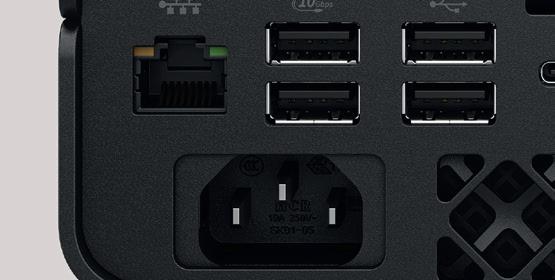

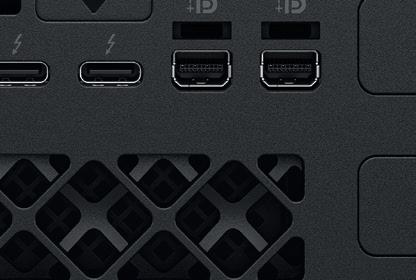

certain workloads that simply aren’t possible with other GPUs in its class.
When a discrete GPU runs out of memory, it has to ‘borrow’ from system memory. Because this data transfer occurs over the PCIe bus, it is highly inefficient. Depending on how much memory is borrowed, performance can drop sharply: renders can take much longer, frame rates can fall from double digits to low single digits, and navigating models or scenes can become nearly impossible. In extreme cases, the software may even crash.
The Z2 Mini G1a allows users to control how much memory is allocated to the GPU. In the BIOS, simply choose a profile – from 512 MB, 4 GB, 8 GB, all the way up to 96 GB (should you have 128 GB of RAM to play with). Of course, the larger the profile, the more it eats into your system memory, so it’s important to strike a balance.
The amazing thing about AMD’s technology is that should the GPU run out of its ringfenced memory, in many cases it can seamlessly borrow more from system memory, if available, temporarily expanding its capacity. Since this memory resides in the same physical location, access remains very fast.
Even with the smallest 512 MB profile, borrowing 10 GB for CAD software Solidworks caused only a slight drop in 3D performance, maintaining that allimportant smooth experience within the viewport. This means that if system memory is in short supply, opting for a smaller GPU memory profile can offer more flexibility by freeing up RAM for other tasks.



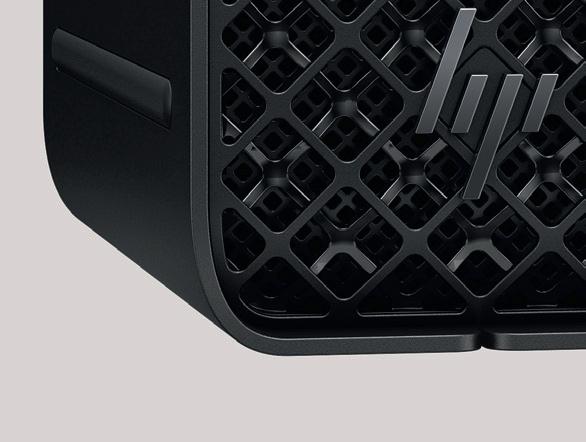



Of course, because memory is fixed in
Of course, because memory is fixed in the Z2 Mini G1a, and cannot be upgraded, you must choose very wisely at time of purchase. For CAD/BIM workflows, we recommend 64 GB as the entry-point with 128 GB giving more flexibility for the future, especially as AI workflows evolve (more on that later).
We put the Z2 Mini G1a to work in a variety of real-world CAD, visualisation, simulation and reality modelling applications. Our test machine was fully loaded with the top-end AMD Ryzen AI Max+ Pro 395 and 128 GB of system memory, of which 32 GB was allocated to the AMD Radeon 8060S GPU. All testing was done at 4K resolution.
We compared the Z2 Mini G1a with an identically configured HP ZBook Ultra G1a, primarily to assess how its 150W TDP stacks up against the laptop’s more constrained 70W. For broader context, we also benchmarked it against a range of desktop tower workstation CPUs and GPUs.
CPU tests
In single threaded workloads, we saw very little difference between the Z2 Mini G1a and ZBook Ultra G1a laptop. That’s because the power draw of a single CPU core remains well below 70W so there is no benefit from a larger TDP.
Both machines delivered very similar performance in both single threaded and lightly threaded tasks in Solidworks (CAD), laser scan import in Capturing
Reality and the single core test in rendering benchmark Cinebench.
It was only in multi-threaded tests where we started to see a difference and that’s because the Z2 Mini G1a pushes the AMD Ryzen AI Max+ Pro 395 processor much closer to 150W. When rendering – a highly multi-threaded process that makes full use of all cores – the Z2 Mini G1a was around 16-17% faster in Corona Render 10, V-Ray 6.0, and Cinebench 2024. Meanwhile, when aligning images and laser scans in Capturing Reality, it was around 11% faster. And in select simulation workflows in both SPECwpc benchmarks, the performance increase was as high as 82%!
But how does the Z2 Mini G1a stack up against larger desktop towers? AMD’s top-tier mainstream desktop processor, the Ryzen 9 9950X, shares the same Zen 5 architecture as the Ryzen AI Max+ Pro, but delivers significantly better performance. It’s 22% faster in Cinebench, 18% faster in Capturing Reality, and 15–33% faster in Solidworks. But that’s hardly surprising, given it draws up to 230W, as tested in a Scan 3XS tower workstation with a liquid cooler and heatsink roughly the size of the entire Z2 Mini G1a!
We saw similar from Intel’s flagship Core Ultra 9 285K in a Scan 3XS tower, which pushes power even further to 253W. While this Intel chip is technically available as an option in the HP Z2 Mini G1a’s Intel-based sibling, the HP Z2 Mini G1i, it would almost certainly perform well
‘‘
The Ryzen AI Max Pro is no silver bullet. While the 16-core chip delivers impressive computational performance, AMD faces tough competition from Nvidia on the graphics front – both in terms of hardware and software compatibility
below its full potential due to the power and thermal limits of the compact chassis.
The Z2 Mini G1a’s 150W TDP also pushes the Radeon 8060S GPU harder, outperforming the ZBook Ultra G1a in several demanding graphics workloads.
The Z2 Mini G1a impressed in D5 Render, completing scenes 15% faster and delivering a 39% boost in real-time viewport frame rates. Twinmotion also saw a notable 22% faster raster render time, though in Lumion, performance remained unchanged.
The biggest leap came in AI image generation. In the Procyon AI benchmark, the Z2 Mini G1a was 50% faster than the ZBook Ultra G1a in Stable Diffusion 1.5 and an impressive 118% faster in Stable Diffusion XL.
But how does the Radeon 8060S compare with discrete desktop GPUs like the lowprofile Nvidia RTX A1000 (8 GB) and RTX 2000 Ada Generation (16 GB), popular options in the Intel-based Z2 Mini G1i?
In the D5 Render benchmark, which only requires 4 GB of GPU memory, the Radeon 8060S edged ahead of the RTX A1000 but lagged behind the RTX 2000 Ada Generation.
Its real advantage appears when
memory demands grow: with 32 GB available, the Radeon 8060S can handle larger datasets that overwhelm the RTX A1000 (8 GB) and even challenge the RTX 2000 Ada Generation (16 GB) in our Twinmotion raster rendering test. Path tracing in Twinmotion, however, caused the AMD GPU to crash, highlighting some of the broader software compatibility challenges faced by AMD, which we explore in our ZBook Ultra G1a review (www.tinyurl.com/UltraG1a)
Meanwhile, in our Lumion test, which only needs 11 GB for efficient rendering at FHD resolution, the RTX 2000 Ada Generation (16 GB) demonstrated a clear performance advantage.
Of course, while the Radeon 8060S allows large models to be loaded into memory, it’s still an entry-level GPU in terms of raw performance and complex viz scenes may stutter to a few frames per second. To designers and architects, waiting for renders may be acceptable, but laggy viewport navigation is not.
Overall, the Radeon 8060S shines when memory capacity is the limiting factor, but it cannot match higher-end discrete GPUs in sustained rendering performance. For more on these tradeoffs, see our review of the HP ZBook Ultra G1a (www.tinyurl.com/UltraG1a) .
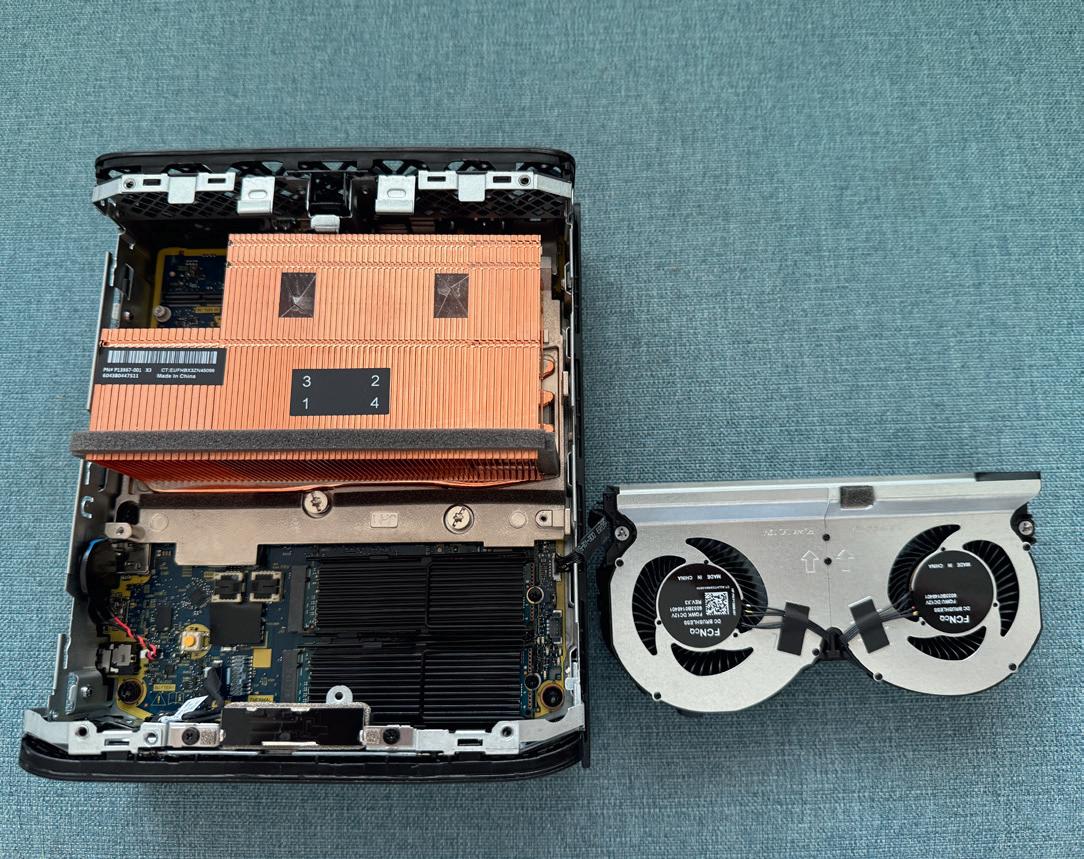
Out of the box, the Z2 Mini G1a is impressively quiet when running CAD and BIM software. Fan noise becomes much more noticeable under multithreaded CPU workloads and, to a lesser extent, GPU-intensive tasks. The good news is that this can be easily managed without significantly impacting performance: in the BIOS, users can select from four performance modes — ‘highperformance,’ ‘performance,’ ‘quiet,’ and ‘rack’ — which operate independently of the standard Windows power settings.
The HP Z2 Mini G1a ships with ‘high performance’ mode enabled by default, allowing the processor to run at its full 150W TDP. In V-Ray rendering, it maintains an impressive all-core frequency of 4.6 GHz, although the fans ramp up noticeably after a minute or so.
Switching to Quiet Mode (after a reboot) prioritises acoustics over raw performance. The CPU automatically downclocks, and fan noise becomes barely audible — even during extended V-Ray renders. For short bursts, such as a oneminute render, the system still delivers 140W with a minimal frequency drop. Over a one-hour batch render, however, power levels dipped to 120W, and clock speeds averaged around 4.35 GHz.
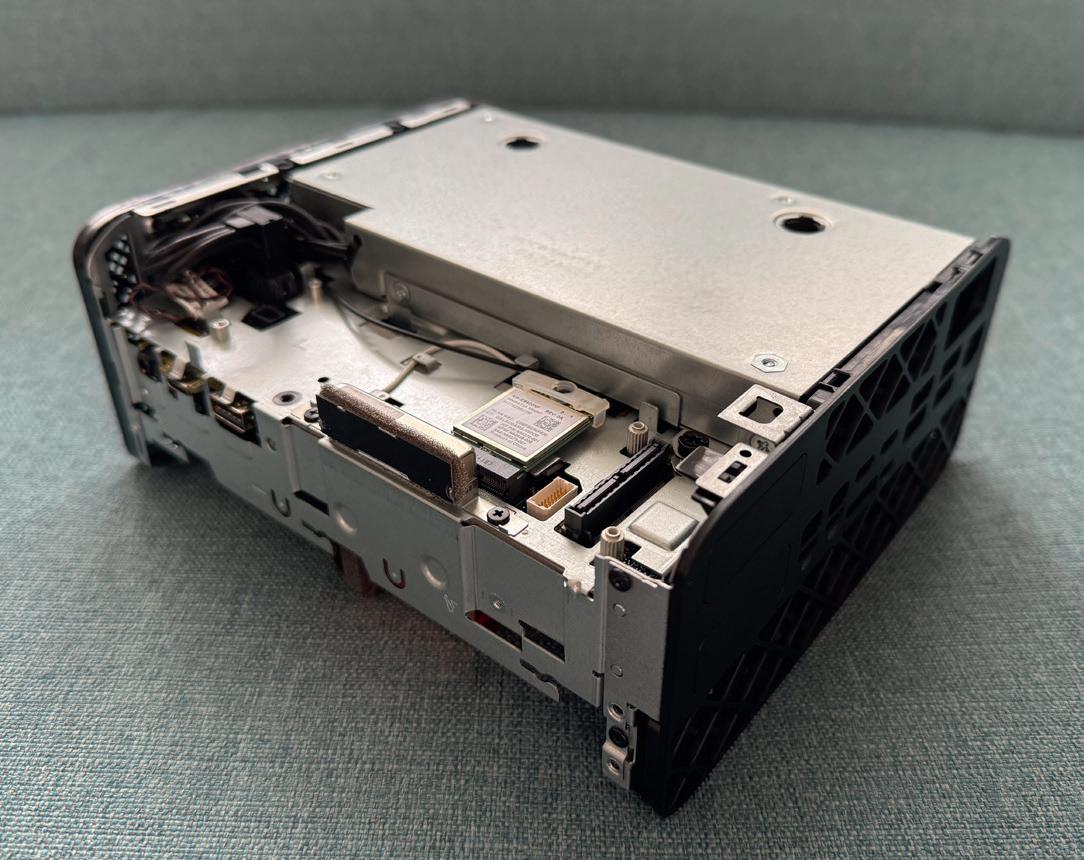
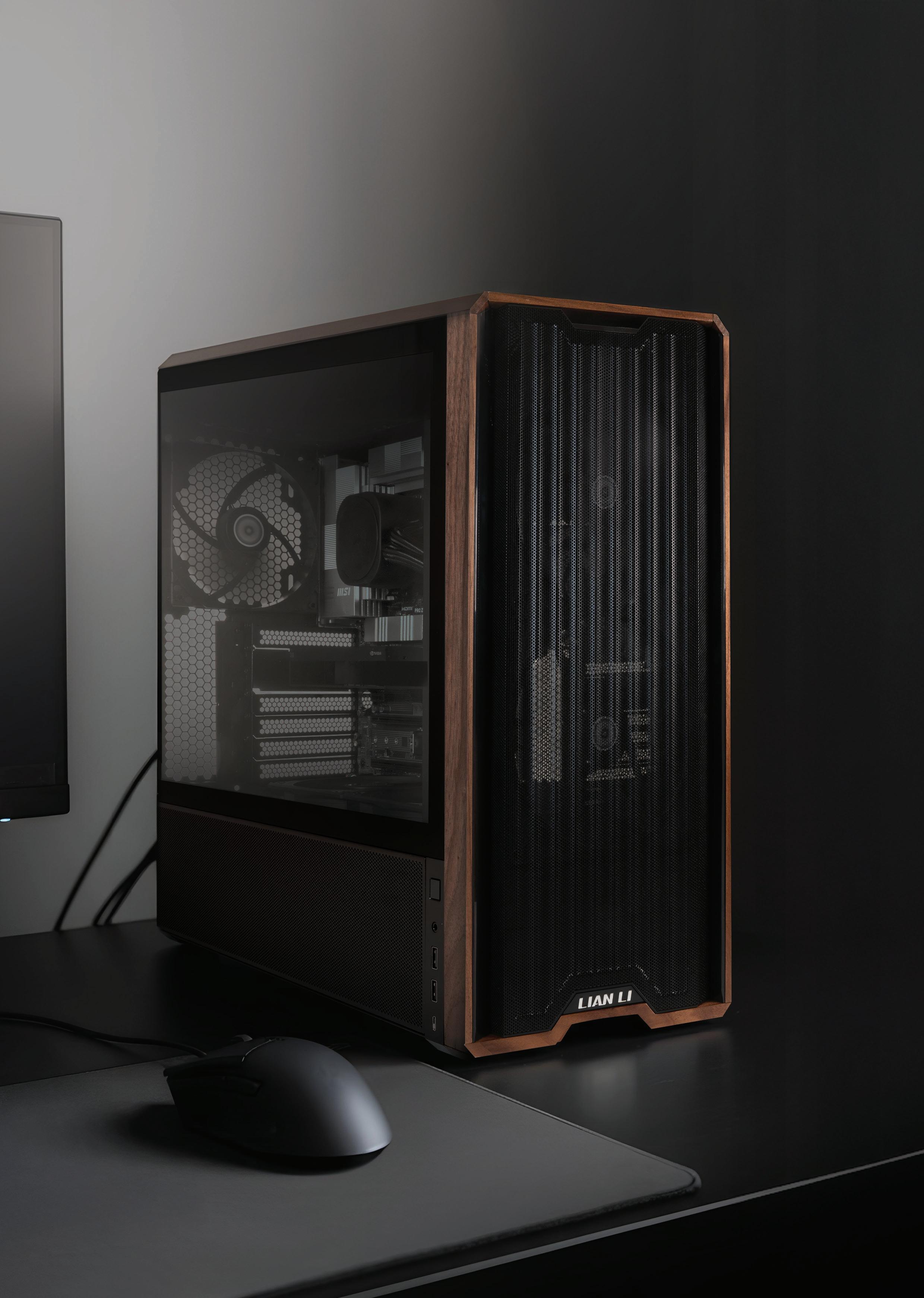

The good news: this appeared to have negligible impact on performance, with V-Ray benchmark scores falling by just 1% compared to High Performance mode. In short, Quiet Mode looks to be more than sufficient for most workflows, offering near-peak performance with significantly reduced fan noise.
Finally, Rack Mode prioritises reliability over acoustics. Fans run consistently fast — even at idle — to ensure thermal stability in densely packed datacentre deployments.
Most AEC firms will use the Z2 Mini G1a for everyday tasks — your typical CAD, BIM, and visualisation workflows. But thanks to the way the GPU has access to a large pool of system memory, it also opens the door to some interesting AI possibilities.
With 96 GB to play with the Z2 Mini G1a can take on much bigger AI models than a typical discrete GPU with fixed memory. In fact, AMD recently reported that the Ryzen AI Max Pro can now support LLMs with up to 128 billion parameters — about the same size as Chat GPT 3.0.
This could be a big deal for some design firms. Previously, running models of this scale required cloud infrastructure and dedicated datacentre GPUs. Now, they could run entirely on local workstation hardware. AMD goes into more detail in this blog post (www.tinyurl.com/AI-Max-LLM) and FAQ (www.tinyurl.com/AMD-LLM).
Of course, the AMD Ryzen AI Max Pro won’t even get close to matching the performance of a high-end Nvidia GPU, especially one in the cloud. But in addition to cost, the big attraction is that you could run AI locally, under your full control, with no data ever leaving your network.
On a more practical level for design
firms experimenting with text-to-image AI for early-stage design, AMD also explains that the Ryzen AI Max+ can handle text-to-image models with up to 12 billion parameters, like FLUX Schnell in FP16. This could make it attractive for those wanting more compelling, higher resolution visuals, if they are willing to wait for the results.
Finally, thanks to the Ryzen AI Max Pro’s built-in NPU, there’s also dedicated AI hardware for efficient local inference as well. And at 50 TOPS the NPU is more powerful than other desktop workstation NPUs, and the only one we know that meets Microsoft’s requirements for a CoPilot+ PC.
The HP Z2 Mini G1a represents a major step forward for compact workstations, delivering strong performance and enabling new workflows in a datacentre-ready form factor.
The HP ZBook Ultra G1a has the exact same core specs as the HP Z2 G1a, but in a mobile workstation form factor.
Read our in-depth review from 2025 to find out more about the capabilities (and limitations) of the AMD Ryzen AI Max+ processor.
■ tinyurl.com/UltraG1a
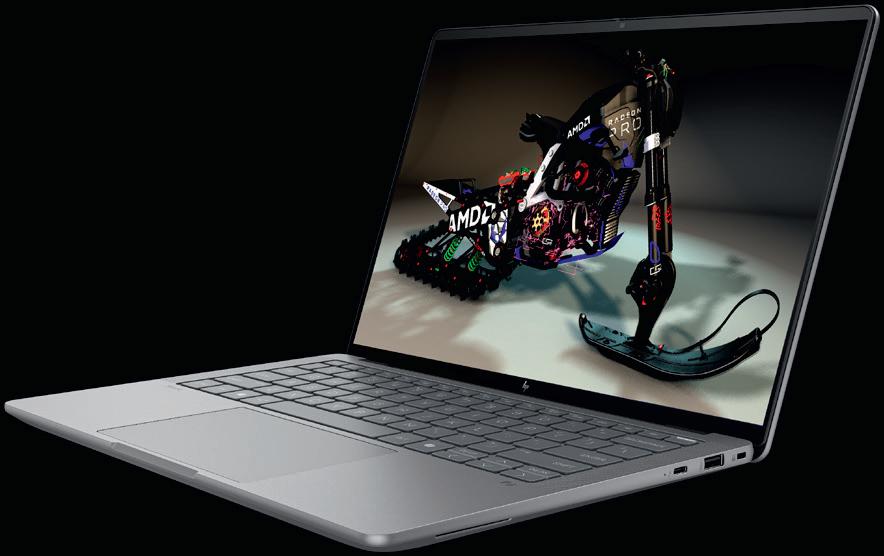
At its heart the AMD Ryzen AI Max Pro processor not only delivers a powerful multi-core CPU and remarkably capable integrated GPU, but an advanced memory architecture as well that allows the GPU to tap directly into a large pool of system memory — up to 96 GB.
This makes the Z2 Mini G1a stand out from traditional discrete GPU-based workstations — even some with much larger chassis — by offering an advantage in select memory-intensive workloads, from visualisation to advanced AI.
Of course, the Ryzen AI Max Pro is no silver bullet. While the 16-core chip delivers impressive computational performance, AMD faces tough competition from Nvidia on the graphics front – both in terms of hardware and software compatibility.
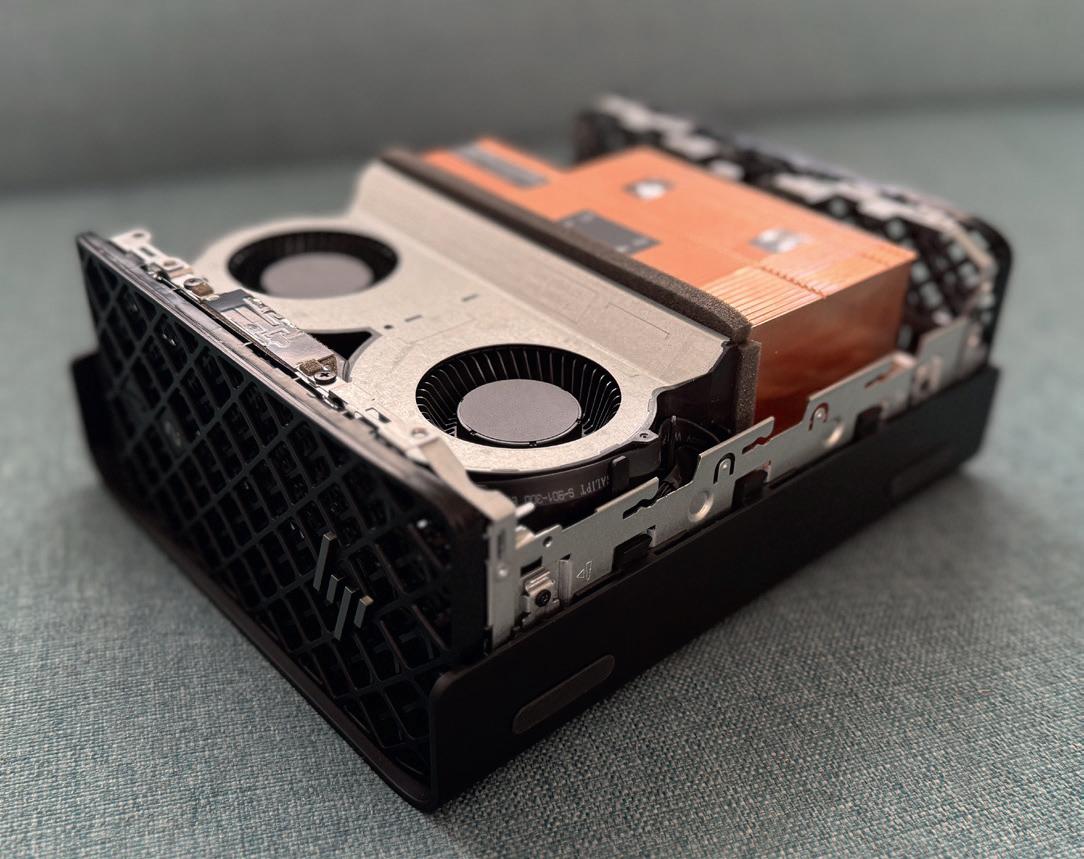
Nvidia’s latest low-profile Blackwell GPUs offer improved performance and more memory (up to 24 GB) (see review on page WS44) and are expected to debut soon in the HP Z2 Mini G1i.
As reviewed, the Z2 Mini G1a with the AMD Ryzen AI Max+ Pro 395, 128 GB RAM and 2 TB SSD is priced at £2,330 + VAT, while a lower-spec model with the Ryzen AI Max Pro 390, 64 GB RAM (our recommended minimum) and 1 TB SSD comes in at £1,650 + VAT.
This feels very competitive, especially given the performance and workflow potential on offer and the recent RAM price hikes. More than anything, the HP Z2 Mini G1a shows how far compact workstations have come — delivering desktop and datacentre power in a form factor that was once considered a compromise.
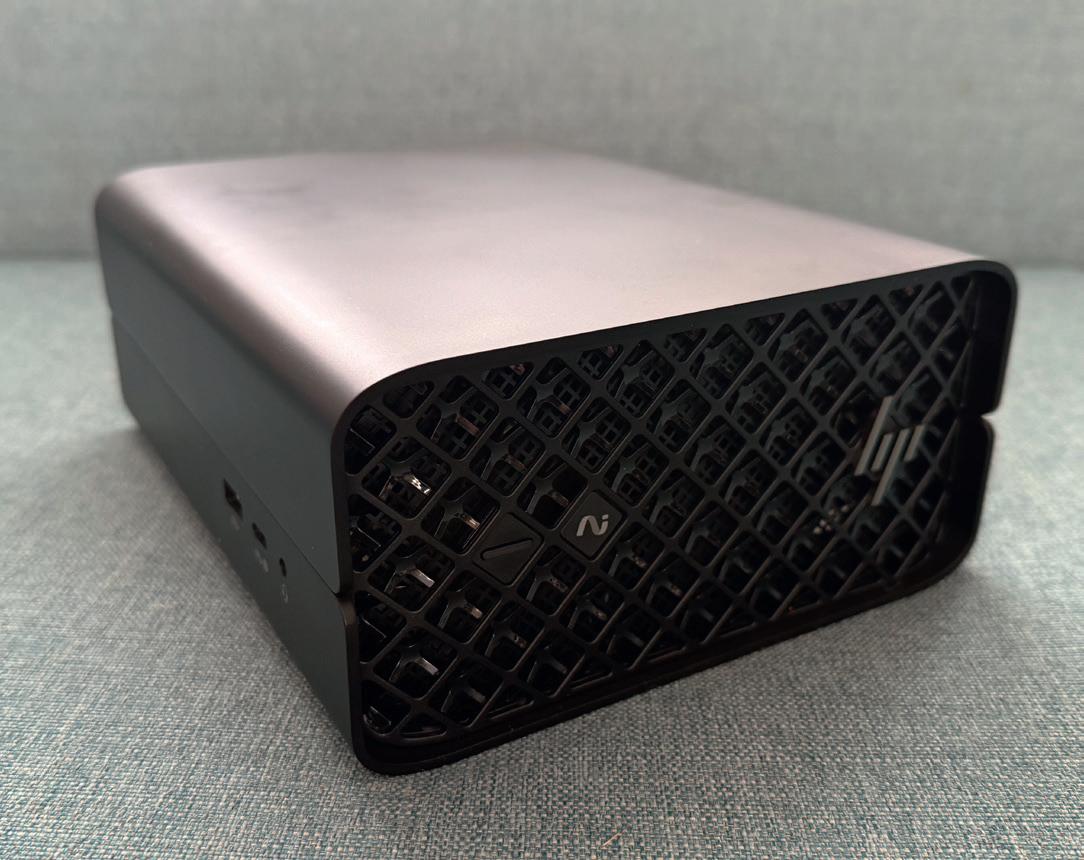

64 GB (2 × 32 GB) of DDR5-6400 RAM, and is priced at £2,980.
Lenovo’s compact workstation blends desktop performance with datacentre flexibility, delivering a great all rounder for mainstream CAD and visualisation workflows, writes Greg Corke
The Lenovo ThinkStation P3
Ultra SFF Gen 2 occupies an increasingly important space in Lenovo’s workstation lineup. Sitting between the diminutive P3 Tiny micro workstation and the full-size P3 Tower, this Small Form Factor machine delivers serious professional performance in a chassis compact enough for the desk, yet flexible enough for the datacentre.
On the surface, it resembles a compact desktop workstation, with a 3.9 litre chassis measuring 87 × 223 × 202 mm. However, as we explore in our Lenovo Access feature on page WS14, the P3 Ultra can also be deployed at scale in a dedicated 5U rack enclosure that holds up to seven units. For design and engineering firms looking to centralise compute resources, this versatility is a big plus. This is not just a small workstation – it’s a building block for high-density remote workstation environments.
A familiar, well-engineered chassis
The ThinkStation P3 Ultra SFF Gen 2 is effectively the third generation of a chassis first introduced in 2022 under the ThinkStation P360 Ultra brand. Its standout feature is the well-thought-out dual-chamber layout. Unlike most desktop workstations, where components are clustered on one side, the P3 Ultra divides the interior into two zones by positioning the motherboard slightly off-centre.
On one side sit the CPU, GPU, and secondary storage; on the other, the primary SSD, system memory, and one additional PCIe card. This separation improves thermals and simplifies servicing. The CPU is cooled by a dedicated shroud and fan that exhausts directly out the rear, keeping it thermally isolated from the GPU – a smart approach in such a confined space.
At its heart, the P3 Ultra SFF Gen 2 is built around an Intel Core Ultra (Series 2) processor, paired with a low-profile Nvidia RTX Ada Generation GPU and up to 128 GB of DDR5 memory. Our review machine featured the Intel Core Ultra 9 285, Nvidia RTX 4000 SFF Ada (20 GB), and
Lenovo offers a wide choice of CPUs, with ten different models spanning 35 W, 65 W, and 125 W variants. Our review system hit the sweet spot with the 65 W Intel Core Ultra 9 285, featuring 8 Performance Cores and 16 Efficient Cores.
For just £17 more, the 125 W Core Ultra 9 285K retains the same core count but offers slightly higher turbo frequencies. In theory, this chip could deliver a tiny boost in singlethreaded CAD applications and additional headroom for multi-threaded workloads, though its performance will still be constrained by the chassis’ power and thermal limits.
Real-world performance
■ Intel Core Ultra 9
285 processor (2.5 GHz, 5.6 GHz Turbo) (8 P-cores, 16 E-Cores)
■ Nvidia RTX 4000 SFF Ada (20 GB) GPU
■ 64 GB (2 × 32 GB) DDR5-6400 memory
■ 1 TB SSD M.2 2280
PCIe Gen5 TLC Opal SSD
■ External 330 W 90% efficiency PSU
■ Size (W x D x H)
87 × 223 × 202 mm
■ Weight 3.6 kg
■ Microsoft Windows 11 Pro 64-bit
■ 3 year Premier Support Warranty
■ £2,980 (Ex VAT)
■ lenovo.com
In practice, the test system delivered excellent performance in typical 3D CAD / BIM tools, including Solidworks and Revit, which rely heavily on single-threaded performance. In these applications, the P3 Ultra SFF was only marginally slower than a fullyfledged liquid-cooled tower workstation running the flagship Core Ultra 9 285K – an impressive result for such a compact machine, although not unexpected.
However, physics inevitably catches up when workloads scale across many cores. In our V-Ray CPU rendering test, the limitations of the small chassis became more apparent. Under sustained load, the liquid-cooled 285K tower was up to 45% faster – hardly surprising given it has the thermal headroom to draw the full 250W and maintain all-core frequencies around 4.86 GHz.
By comparison, the P3 Ultra initially ran at 125W and 3.8 GHz, but after around five minutes of rendering settled at approximately 80W and 3.35 GHz.
Temperatures dropped from an initial peak of 97°C to a comfortable 78°C. This conservative tuning makes sense for acoustics and longevity, but it does mean you can’t extract the full potential of Intel’s top-end CPUs in this chassis.
Testing the 125 W Ultra 9 285K in this platform could reveal
some additional headroom, though it would never approach its theoretical 250 W turbo power – especially given the system’s 330 W PSU. Some extra performance might be possible if Lenovo allowed higher sustained power limits. However, in saying that, even the 65W Core Ultra 9 285 doesn’t get close to its theoretical max of 182 W.
Whisper quiet in everyday use
One area where the P3 Ultra SFF truly shines is acoustics. During single-threaded or lightly threaded CAD workflows the system was almost silent. Even when pushed hard with CPU rendering, together with GPUintensive tasks such as AI image generation in Stable Diffusion, fan noise remained remarkably restrained. For users who value a quiet office environment, this is a major win.
Graphics options
Lenovo offers a choice of four low-profile professional GPUs: the single slot 50W Nvidia RTX A400 (4 GB) and RTX A1000 (8 GB), and dual slot 70W RTX 2000 Ada Generation (16 GB) and RTX 4000 SFF Ada Generation (20 GB).
Our review machine featured the topend RTX 4000 SFF Ada – an excellent choice for mainstream visualisation. It delivered strong results in Twinmotion, V-Ray, D5 Render, Stable Diffusion and other GPU tests, making it a great allrounder for architects and designers.
However, there are significant savings to be had. Dropping down to the RTX A1000 saves around £1,075, bringing the system cost under £2,000, and is perfectly adequate for most CAD workflows. The RTX 2000 Ada provides a capable entry point for visualisation at a £758 reduction. Two points are worth noting. First, these are Ada Generation GPUs, not the very latest Blackwell models reviewed on page WS44 We expect Lenovo will introduce Blackwell GPUs later this year in any future P3 Ultra SFF revision.
Second, GPU choice has been dramatically streamlined. The Gen 1 model offered up to ten options, including several high-power laptop GPUs such as the 125 W Nvidia RTX
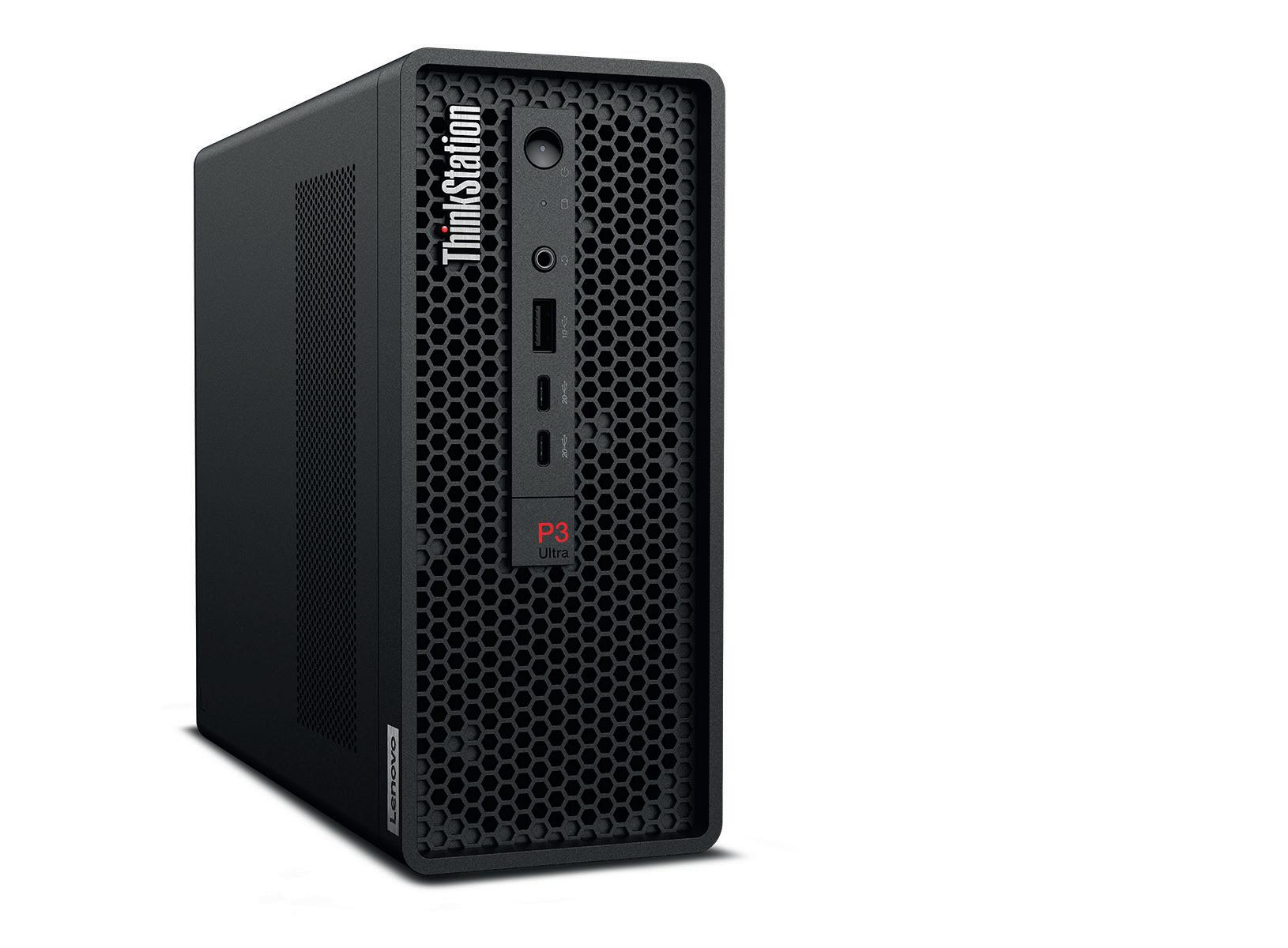
A5500 (16 GB). This reduction is likely due to a combination of cost (developing custom laptop GPU boards), customer demand, and thermal realities.
Changes from Gen 1
Not all updates are forward steps. The most significant regression is maximum memory capacity: the Gen 2 model has just two DIMM slots, limiting maximum RAM to 128 GB, compared with 192 GB (via four SODIMMs) in the previous generation. For most users, this will be sufficient, but those working with extremely large datasets may feel constrained.
Networking has also been trimmed back: standard Ethernet drops from 2.5 GbE to 1 GbE. On the flip side, there’s now an optional 25 GbE upgrade – a big leap from the previous 10 GbE maximum upgrade. This could be particularly relevant to centralised deployments, as could support for an optional Baseboard Management Controller (BMC) PCIe card, which further underlines Lenovo’s datacentre ambitions for this machine.
Storage also gets a welcome boost. The system now supports up to three on-board M.2 SSDs, including one PCIe Gen 5. Curiously, Lenovo also offers an option for a 3.5-inch HDD, which sacrifices an M.2 slot. In an era when most workstations are moving entirely to solid-state storage, or at the very least 2.5-inch HDDs, this seems somewhat unusual, likely catering to a niche workflow or specific customer request.
The Lenovo ThinkStation P3 Ultra SFF Gen 2 is an impressive piece of engineering, packing strong professional performance into a remarkably small footprint while offering excellent acoustics, smart internal design, and genuine versatility.
For mainstream CAD and visualisation workflows, it hits a near-perfect balance. However, the compact chassis inevitably imposes limits in sustained multi-threaded CPU workloads, where larger tower workstations retain the advantage.
Compared to the Gen 1 model, there are a few regressions – fewer GPU options, reduced maximum memory, and slower standard networking – but these are likely to affect only a small subset of users.
Most importantly, the P3 Ultra should not be viewed purely as a desktop machine. Its ability to be deployed densely in racks and used as a 1:1 remote workstation makes it a compelling option for modern, flexible IT infrastructures.
If you need serious workstation performance without the bulk – whether on the desk or in the datacentre – the Lenovo ThinkStation P3 Ultra SFF Gen 2 deserves to be high on your shortlist.
Deploying the ThinkStation P3 Ultra SFF in the datacentre
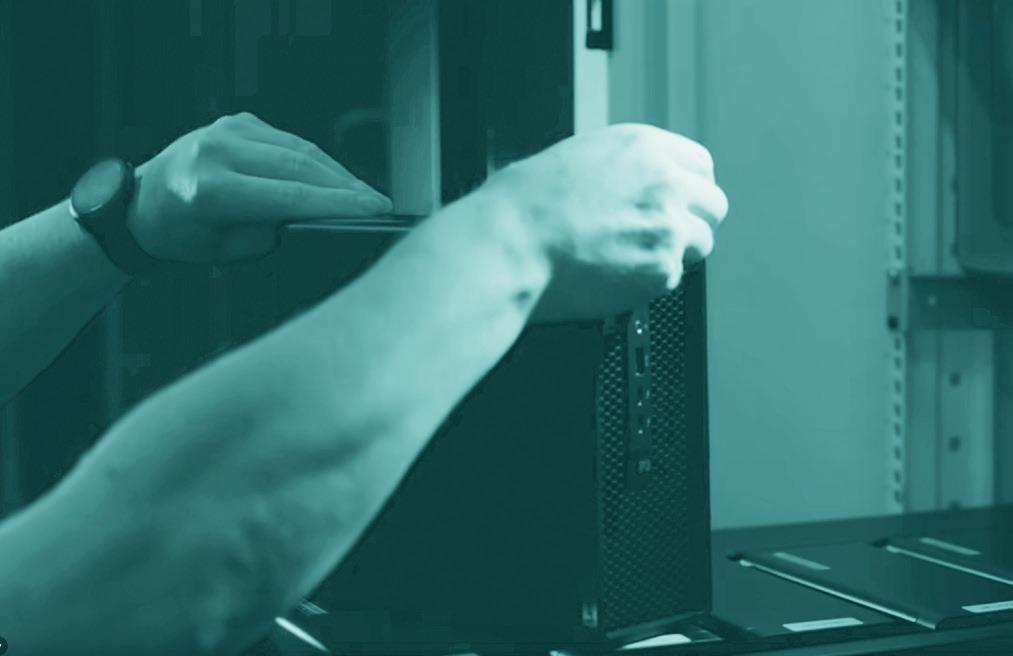
IMSCAD is a leading specialist in remote workstation solutions and a pioneer in the use of cloud and Virtual Desktop Infrastructure (VDI) for CAD and 3D applications. In recent years, however, the company has increasingly focused on solutions built around compact desktop workstations in the datacentre.
CEO Adam Jull believes this oneto-one approach — particularly using systems such as the Lenovo ThinkStation P3 Ultra SFF — is set to “kill” the heavy mobile workstation for many firms.
For Jull, the core value proposition is simple: put small physical desktop workstations in the datacentre, configure them with high frequency processors and dedicated GPUs to deliver top-end performance, remove the complexities and cost of virtualisation, and access them remotely using mature remoting technologies like Mechdyne TGX or Citrix. That way, users can swap heavy, GPU class laptops for lightweight devices, while improving connectivity to cloud services such as Autodesk Construction Cloud.
IMSCAD’s approach is deliberately flexible. Some firms run the P3 Ultras in their own datacentres, others host everything with IMSCAD in facilities around the world, for a true Workstationas-a-Service (WaaS) solution.
IMSCAD is currently working on deployments with two very different types of design firms — one large US engineering firm and one small London architectural practice.
The US firm has roughly 1,000 employees with around 600 BIM users, which have historically used powerful mobile workstations. IMSCAD is now working on a proof of concept (POC) based around 49 Lenovo ThinkStation P3 Ultras, hosted as a private cloud in the firm’s own datacentre.
The P3 Ultras are dedicated mainly to Revit and AutoCAD workflows. Each system uses an Nvidia RTX A1000 (8GB) GPU, providing solid 3D performance in a compact, rackable chassis. Following the POC the firm plans to introduce more P3 Ultras with heavier duty GPUs, such as the RTX 2000 Series, to lift certain users up to more demanding
visualisation workflows.
The second deployment is a small London-based architectural practice with around 30 users that need powerful workstations. Here, IMSCAD has implemented a hybrid solution comprising VDI and one-to-one Lenovo P3 Ultra workstations .
“They’ve got 20 Revit users and eight visualisation guys that use Enscape and various other tools,” says Jull. The Revit users are served through VDI using a 4GB vGPU profile, while the viz users are relying on P3 Ultras equipped with 16 GB RTX 2000 class GPUs to give them the performance they need for real time visualisation. “You can’t do that [give users 16 GB of graphics memory] very economically in VDI,” he notes.
All of these systems – VDI and P3 Ultras – are hosted in an Equinix data centre in Wembley, with IMSCAD managing the whole environment, from GPUs and hypervisors through to remoting protocols (Leostream, Mechdyne TGX) and user access.
On pricing, Jull positions hosted P3 Ultras as comparable to VDI at the low end, and cheaper than VDI for higher end GPU needs. “It’s about £150 to £200 a month, depending on the spec,” he says, including hosting and software stack. Contracts can be weekly, monthly or multi year.
Resilience can be built in with spare P3 Ultras following an n+1 model: buy one extra unit for every small pool, or a handful of spares for larger estates. This, combined with Lenovo Premier support, helps ensure rapid recovery if a node fails, says Jull.
Importantly, many customers now buy the workstations themselves, while IMSCAD provides the service layer –hosting, configuration, monitoring and support. “You can buy them yourself and own them, and we’ll host them for you, with prices starting from as little as £50 per month,” Jull explains. This reassures firms they’re not overpaying for hardware, while still gaining the operational and mobility advantages of a professionally managed, remote P3 Ultra environment. “We even allow customers to ship us their own existing on-premise workstations and servers too,” he adds. ■ www.imscadservices.com


With a thoughtful combination of hardware, this tower handles CAD, BIM, and viz tasks efficiently while staying price-conscious, writes Greg Corke
The UK arm of CyberPowerPC, a brand long associated with highperformance gaming rigs, is now spreading its wings into the workstation sector. Operating under the name NXPower, the business is now 20 years old, having grown from a startup into a sizeable operation producing around 65,000 systems each year.
Unlike its US counterpart, which is heavily focused on high-volume prebuilt machines and retail channels, CyberPowerPC UK has carved out a business around custom configurations and direct customer relationships. That background makes a deeper focus on pro workstations a logical next step. Years of building high-end gaming PCs has given the team deep experience in component selection, thermals and system balance — skills that translate well to CAD, BIM and visualisation workloads.
Sleek, professional aesthetic
would be black. Overall, it’s a well-judged enclosure that suits an office or studio without drifting into blandness.
Well-balanced components
Our review system is clearly aimed at the volume end of the workstation market, targeting CAD, BIM and entry-level visualisation workflows. At its heart is Intel’s Core Ultra 7 265KF processor, paired with PNY’s Nvidia RTX Pro 2000 Blackwell GPU. It’s a refreshingly realistic configuration. The temptation for system builders is often to spec the very top-end processors in review machines, but that doesn’t necessarily reflect what design and engineering professionals actually buy — or need.
■ Intel Core Ultra 7 265KF processor (3.9 GHz, 5.5 GHz turbo) (8 P-cores, 12 E-cores, 20 Threads)
■ PNY Nvidia RTX
Pro 2000 Blackwell (16 GB) GPU
■ 64 GB (2 x 32 GB)
DDR5 6400 MHz Corsair Vengeance memory
■ 2 TB Kingston Fury Renegade G5 Gen5 NVMe SSD
■ MSI Pro Z890-P WiFi mainboard
■ Corsair Nautilus 360 RS AIO CPU cooler
■ Corsair RM850X 850W 80Plus PSU
■ Lian Li Lancool
217 Black case 482mm (L) x 238mm (W) x 503mm (H)
■ Microsoft Windows
11 Home Advanced
inch or 3.5-inch drives.
On the graphics side, many designers now rely heavily on GPU-accelerated rendering and real-time viz tools – such as Enscape and Twinmotion for AEC and KeyShot and Solidworks Visualize for product development. In this context, the RTX Pro 2000 Blackwell (16 GB) has plenty of punch for its class, as detailed in our review on page WS44. For users who need more grunt, the system is fully configurable and can scale all the way up to an RTX 5000 Pro Blackwell (or higher with a larger PSU).
■ 2 year return to base warranty (upgrades available for longer periods and on-site)
■ £2,200 (Ex VAT)
■ cyberpowersystem.co.uk
The Lian Li Lancool 217 chassis comes with five pre-installed fans: two large 170 mm front intake fans, a single 140 mm rear exhaust, and two 120 mm bottom fans drawing cool air in through side perforations — combined with the three fans on the Corsair AIO, that brings the total to eight. Acoustics are generally good, with a gentle, consistent hum that only rises slightly under sustained rendering loads, allowing the system to blend fairly unobtrusively into a working environment.


In practice, the Core Ultra 7 265KF delivers very similar performance to Intel’s flagship Core Ultra 9 285KF in most modelling workflows, despite costing around 60% less. It runs at slightly lower boost clocks (up to 5.5GHz) and has fewer cores (8 P-cores and 12 E-cores), which means it falls behind in heavily multi-threaded workloads. In our testing, it was around 16–22% slower when rendering across V-Ray, Corona and Cinebench. However, in everyday CAD, BIM and reality modelling workflows, the difference was negligible.
Thermally, the workstation performs well. Even during extended rendering sessions lasting several hours, the CPU maintained a consistent all-core frequency of around 4.82 GHz. Thermals are handled by a Corsair Nautilus 360 RS AIO liquid cooler and a Thermal Grizzly Kryosheet (instead of standard thermal paste), which means it comfortably handles the CPU that rarely exceeds 200W, contributing to stable performance and low noise levels.


For its AEC debut, CyberPowerPC has deliberately taken one step away from its gaming roots. The familiar glow of neon fans gives way to “dark walnut” accents on the Lian Li Lancool 217 chassis, creating an understated, professionallook. The detailing strips are flushfitted, giving the system a subtle, crafted feel rather than a token eco statement. However, CyberPowerPC can’t quite let go of its gaming DNA, with RGB-lit memory modules visible through the glass side panel — though, according to the company, this is down to availability (see page WS3). Under normal circumstances, the modules













Memory is sensibly specified at 64 GB of DDR5, using two 32 GB Corsair Vengeance RGB modules running at 6,400 MHz. 64 GB is a sweet spot for most CAD, BIM and entry-level visualisation workloads without pushing costs unnecessarily high.
At 503mm in height, the case is arguably larger than necessary for a system housing a low profile 70 W GPU, but the extra space provides airflow headroom and upgrade flexibility. There are also some thoughtful design touches. For optimal airflow, there are no USB ports on the front or top — just a power button. Instead, connectivity is tucked away on the lower front-left side, offering two USB-A ports, one USB-C, a microphone jack and a second power button. That second button is unusual, but potentially useful if the chassis is placed on a desk.

and entry-level visualisation workloads without pushing costs unnecessarily high.






Kingston Fury Renegade G5 Gen5




At the rear, the MSI Pro Z890-P WiFi motherboard provides four USB 2.0, two USB 5 Gbps Type-A, one USB 10 Gbps Type-A, and one USB 10 Gbps Type-C, with 5 Gbps LAN and Intel Wi-Fi 7 completing the connectivity.

sequential and random performance. For fast primary drive like this provides






Storage comes in the form of a 2 TB Kingston Fury Renegade G5 Gen5 NVMe SSD, which delivers excellent sequential and random performance. For most designers and engineers, a single fast primary drive like this provides a responsive experience across OS, applications and active project data, with plenty of capacity before secondary storage becomes necessary — although should that be required there plenty of room for 2.5-




Overall, this is a well-balanced and thoughtfully built workstation tailored for CAD, BIM and visualisation — and at £2,200, it represents excellent value. It prioritises real-world workflows over headline specs and that bodes well for what comes next from CyberPowerPC UK.


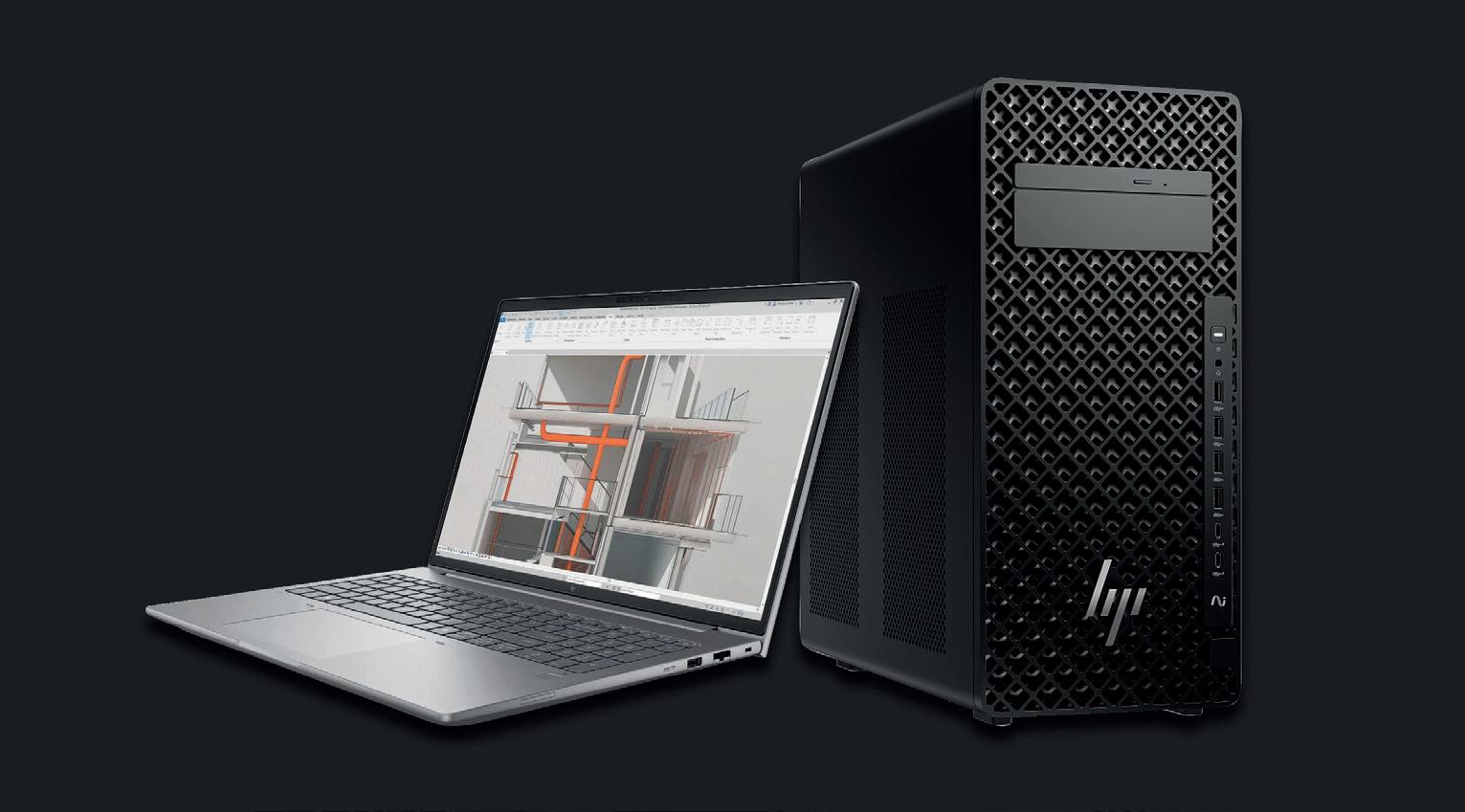

AMD does it again, delivering extreme high-end workstation performance for demanding workloads — including rendering, simulation, and reality modelling — with flexible options for cores, memory, and cost, writes Greg Corke
AMD Ryzen Threadripper has become the processor of choice for high-end workstations.
Originally a niche product for specialist system builders, Threadripper quickly attracted the attention of major OEMs, including Lenovo, HP, and Dell. Eight years since it first launched, Threadripper now dominates the highend workstation market. Intel currently has nothing that comes close.
Threadripper processors are all about scale, combining massive core counts with the ability to push a handful of cores to blistering speeds. While peak frequencies don’t quite match mainstream AMD Ryzen or Intel Core chips, they come remarkably close — and when paired with high-bandwidth DDR5 memory and large caches, the new 9000 Series delivers workstation performance that would have been unthinkable just a few years ago.
The 9000 Series Threadrippers build on the previous 7000 Series. While core counts, base clocks, and the 350W Thermal Design Power (TDP) remain unchanged, AMD has refined nearly every other aspect.
Boost speeds are slightly higher, supported DDR5 memory now runs at 6,400 MT/s, and the new Zen 5 architecture delivers a 16% uplift in Instructions Per Clock (IPC) over Zen 4, along with improved power efficiency.
Zen 5 also brings enhanced AVX-512 support, helping ensure performance improvements in professional simulation applications, such as Altair Radioss, Simulia Abaqus, and Ansys Mechanical extend beyond IPC alone.
Simultaneous Multi-Threading (SMT) continues to allow each core to handle two threads simultaneously.
While this can significantly accelerate heavily threaded tasks like ray-traced rendering, in some workflows — including certain simulation and reality modelling tasks — SMT may actually reduce performance.
The 9000 Series is available in two variants: the high-end desktop (HEDT) Ryzen Threadripper 9000 and the enterprise-focused Threadripper Pro 9000 WX-Series. The Pro chips push boundaries with up to 96 cores, eight memory channels, support for up to 2 TB
of memory, additional PCIe lanes for multiple GPUs, and enterprise-grade security and manageability. These latter two features are particularly important for OEMs like Dell, Lenovo and HP.
Specialist builders often prefer the standard HEDT processors, which offer up to 64 cores. While they have fewer memory channels (four), and lower memory capacity (up to 1 TB), they still deliver exceptional performance at a lower cost. For many workloads, such as rendering, the extra memory bandwidth and capacity of the Pro variants are rarely required.
The Threadripper 9000 Series is broad enough to accommodate nearly any professional workload. HEDT options range from 24 to 64 cores, while the Pro WX-Series spans 12 to 96 cores, offering visualisers, engineers, and simulation specialists the flexibility to match raw computing power to their workflows and budget. The full lineup is shown in the table across the page.
To evaluate the new platform, we tested two systems supplied by specialist UK workstation builders, Armari and Scan, each featuring flagship processors from their respective HEDT and Pro lineups. The Armari system was equipped with the AMD Ryzen Threadripper 9980X with 64 cores, while the Scan workstation featured the AMD Ryzen Threadripper Pro 9995WX, with 96 cores.
Threadripper 9000 workstation Armari Magnetar
• CPU: Threadripper 9980X (64 cores)
• Motherboard: Gigabyte TRX50 Aero D
• Memory: 128GB (4 x 32GB) Gskill
T5 Neo DDR5-6400
• Cooling: SilverStone XE360-TR5
All-In-One (AIO) liquid cooler.
• Chassis: Antec Flux SE mid Tower

Threadripper Pro 9000 workstation
Scan 3XS GWP-B1-TR192 (see review page WS38)
• CPU: Threadripper Pro 9995WX (96 cores)
• Motherboard: Asus WRX90E-SAGE
• Memory: 256 GB (8 x 32 GB) Micron DDR5 6400 ECC (running at 6,000 MT/sec)
• Cooling: ThermalTake AW360 All-In-One (AIO) liquid cooler
• Chassis: Fractal North XL: Momentum Edition
Putting power in perspective
All AMD Ryzen Threadripper 9000 Series processors share a 350W Thermal Design Power (TDP), representing the maximum power the CPU draws regardless of core count. Consequently, higher-core-count chips operate at lower
all-core frequencies to remain within this power envelope.
AMD also allows Threadripper to exceed its standard power limits through Precision Boost Overdrive (PBO). Unlike traditional overclocking, which requires manual adjustments of frequencies and voltages, PBO automates the process, supplying the CPU with additional power while maintaining stability. Enabling PBO is as simple as flipping a switch in the motherboard BIOS, assuming the cooling solution can handle the increased load.
In the past we’ve seen some extraordinary examples of PBO in action. For instance, in 2024 we reviewed a Threadripper Pro 7000 Series workstation from Armari that sustained around 700W under PBO, while in 2025 Comino supplied a fully liquid-cooled system capable of
pushing as high as 900W.
Pumping more power into the CPU allows all-core frequencies to stay higher for longer, unlocking significantly more performance from the same silicon — all without thermal throttling. However, it’s important to note there are diminishing returns. A Threadripper processor running at 700W is not going to deliver anywhere near twice the performance of the same processor running at 350W.
The greatest gains from PBO occur in heavily threaded workloads, such as rendering, where all cores are engaged simultaneously, with more limited benefits in simulation.
For this review, both of our test machines were evaluated at stock 350W settings. However, as they could both run a very demanding V-Ray render at


a cool 60°C, this suggests that their AIO liquid coolers could likely handle more power. However, we didn’t push them beyond stock, and such experimentation may void warranties, so always check with your workstation provider. It’s also worth noting that Tier One OEMs ship workstations with PBO disabled, always relying on the processor’s stock TDP.
We have loosely divided our testing into two categories: ray-trace rendering and simulation. For comparison, we have included results from a range of desktop workstations, including the previous-generation Threadripper 7000 Series, as well as the fastest current mainstream Intel Core and AMD Ryzen desktop processors. All workstations have different motherboard, memory and Windows configurations, so some variation is to be expected.
Some of the Threadripper 7000 Series workstations were tested with Precision Boost Overdrive (PBO) enabled, so it’s important to understand that when looking at the performance charts, it’s not a like-for-like comparison.
Rendering is an area where Threadripper has always excelled. Performance scales extremely well with core count, and with the ‘Zen 5’ architecture’s superior IPC, the 9000 Series builds directly on the strengths of the ‘Zen 4’ 7000 Series.
In Cinebench 2024, the 64-core Threadripper 9980X delivers a 17% uplift over its 7000 Series predecessor, the 7780X, while the 96-core Threadripper Pro 9995WX posts a 25% gain over its ‘Zen 4’ equivalent, the Pro 7995WX.

When the Pro 7995WX is pushed to 900W in the Comino Grando workstation, it retains a commanding lead. However, this is hardly surprising, given it sustains much higher frequencies across all 96 cores thanks to a very advanced custom liquid-cooling system.
Interestingly, despite having 50% more cores, the 96-core Pro 9995WX was only 14% faster than the 64-core 9980X. There are two key reasons for this. First, both processors operate within a 350W TDP, allowing the 64-core chip to sustain much higher all core frequencies. Second, Cinebench — like many renderers — is not particularly memory-intensive, so it does not benefit from the higher memory bandwidth offered by Threadripper Pro’s 8-channel memory architecture.
We observed similar behaviour in V-Ray. Here, the Pro 9995WX showed a 22% lead over the Pro 7995WX, yet the
overclocked 900W Pro 7995WX still topped the charts, maintaining a 10% advantage over the 350W Pro 9995WX. Meanwhile, the Pro 9995WX, running all 96 cores at 3.1 GHz, was only 19% faster than the 64-core 9980X, which sustained 4.0 GHz across all cores.
In CoronaRender, the Pro vs HEDT results were more striking: the 96-core Pro 9995WX was just 1.5% faster than the 64-core 9980X. Unfortunately, we don’t have Threadripper 7000 Series data for a gen-on-gen comparison.
Finally, we ran Cinebench 2024 in single-core mode. While this has little relevance to real-world rendering workflows, it provides a useful indication of single-threaded performance. Here, the 9980X was only 12% slower than the fastest current mainstream desktop processor, the Intel Core Ultra 9 285K, and just 4% behind AMD’s Ryzen 9 9950X. The Pro 9995WX was not far behind.
Simulation - CFD and FEA
Simulation workloads are far more difficult to evaluate, as both Finite Element Analysis (FEA) and Computational Fluid Dynamics (CFD) rely on a wide range of solvers, each of which can also behave differently depending on the dataset. In general, CFD workloads scale very well with more CPU cores and can also benefit significantly from higher memory bandwidth, as data can be fed to each core more quickly. This is an area where the Threadripper Pro 9000 WX-Series holds a clear advantage over the ‘HEDT’ Threadripper 9000 Series, thanks to support for eight-channel memory versus four-channel.
For testing, we selected three simulation workloads from the SPECworkstation 3.1 benchmark: two CFD tests — Rodinia (compressible flow) and WPCcfd (combustion and turbulence) — and one FEA test, CalculiX, which models a jet engine turbine’s internal temperature.
The WPCcfd benchmark is particularly sensitive to memory bandwidth. As a result, the 96-core Pro 9995WX, equipped with eight channels of memory running at 6,000 MT/sec delivered an 85% performance advantage over the 64-core
The Threadripper Pro 9000 WX-Series can be an excellent partner for simulation tools like Ansys Fluent
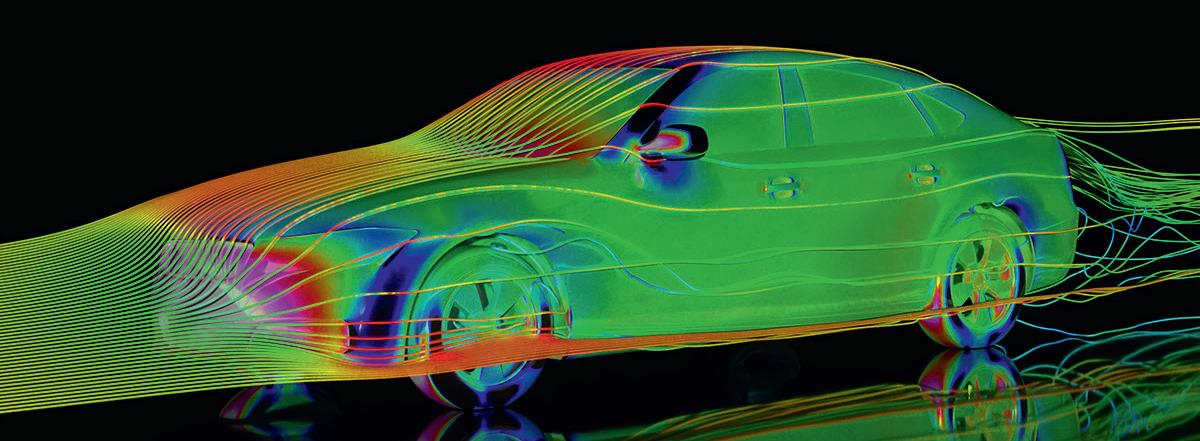
9980X, which is limited to four channels of 6,400 MT/sec memory. Faster memory also appears to play a role in the advantage the Pro 9995WX has over the Pro 7995WX running at 900 W. While that system also supports eight channels, it was populated with much slower 4,800 MT/sec memory.
It’s also worth highlighting historical data from the 32-core Pro 7975WX. Despite having just one-third the core count of the 96-core Pro 9995WX, and running with eight-channel 5,200 MT/s memory, it was only around 55% slower. With faster 6,400 MT/sec memory, the performance gap between the newer ‘Zen 5’ 32-core Pro 9975WX and the 96-core Pro 9995WX would likely narrow considerably. This could make a compelling case for more costeffective, lower core-count Threadripper Pro processors in simulation workflows where memory bandwidth has a greater impact on performance than core count.
Conversely, memory bandwidth has very little influence on the CalculiX (FEA) benchmark, where performance is driven primarily by core count and IPC. Here, the 96-core Pro 9995WX was 13% faster than its Pro 7995WX predecessor at 350W but was edged out by the same processor running at 900W. That said, PBO has a smaller impact in this workload, as the benchmark does not stress the CPU to anyway near the same extent as ray-trace rendering.
The Threadripper 9000 Series is a solid step forward for AMD’s high-
‘‘
end workstation processors. Deciding between HEDT and Pro models really comes down to workflows, budget and whether your firm only buys workstations from a major OEM.
For rendering-heavy tasks, the highercore-count HEDT chips usually give the best value. The lower-core-count models come up against mainstream Ryzen 9 9950X chips, which are much cheaper, though with less memory capacity.
For most visualisation workloads, the extra memory bandwidth from the Pro models doesn’t add much, and the jump from a 64-core HEDT to a 96-core Pro is only 14–19% faster, even though it costs more than twice as much.
On the flip side, for workloads like simulation, where memory bandwidth really matters, the Threadripper Pro with its eight memory channels and up to 2 TB of capacity can handle much more complex datasets faster. And in workflows where memory is a bottleneck, even the lower-core-count Pro chips can be an excellent choice.
If you want to squeeze even more performance out of these chips, Precision Boost Overdrive (PBO) is worth considering — especially for heavily threaded workloads like rendering. Just bear in mind, there can be diminishing returns and more power increases running costs and carbon footprint.
In summary, the 9000 Series offers plenty of flexibility to balance cores, memory, and cost with your workload — all while delivering top-end performance. It’s no wonder Threadripper still sets the standard for high-end workstations.
The 9000 Series offers plenty of flexibility to balance cores, memory, and cost with your workload — all while delivering top-end performance. It’s no wonder Threadripper still sets the standard for high-end workstations
This super high-end desktop pairs AMD’s 96-core Threadripper Pro chip with a 96 GB Nvidia Blackwell GPU to tackle the most demanding workloads confidently, writes Greg Corke
High-end workstations tend to fall into two camps: those tailored to specific tasks, and uncompromising systems built to deliver maximum performance across almost every conceivable workflow. The Scan 3XS GWP-B1-TR192 sits squarely in the latter category.
This sizeable desktop is aimed at users with the most demanding workloads — from advanced visualisation and engineering simulation to large-scale reality modelling and AI. With a price tag of £23,333 ex VAT, it is very much a premium proposition, but the specification leaves no doubt about its intentions.
Searching for bottlenecks
At the heart of the machine is the 96-core AMD Ryzen Threadripper Pro 9995WX processor (see review on page WS34), paired with 256 GB of Micron DDR5-6400 ECC memory and the 96 GB PNY Nvidia RTX Pro 6000 Blackwell Workstation Edition GPU (see review on page WS44). On paper, it’s about as powerful a desktop configuration as you can currently buy without going down the multi-GPU route.
This combination means strong performance regardless of whether applications rely on multi-threaded CPU horsepower, GPU acceleration, or a mixture of both.
The memory configuration is particularly well thought out. The 256 GB of DDR5-6400 ECC RAM is spread across eight 32 GB DIMMs, taking full advantage of Threadripper Pro’s eight-channel architecture to maximise bandwidth. This is especially important in engineering simulation, particularly computational fluid dynamics (CFD).
For stability, Scan runs the memory at 6,000 MHz rather than its rated maximum of 6,400 MHz — a pragmatic decision for a professional system where reliability matters more than squeezing out the last few percentage points of performance.
■ AMD Ryzen Threadripper Pro 9995WX processor (2.5 GHz, 5.4 GHz boost) (96 cores, 192 Threads)
■ PNY Nvidia RTX Pro 6000 Blackwell Workstation Edition GPU (96 GB)
■ 256 GB (8 x 32 GB) Micron DDR5-6400 ECC memory
■ 4 TB Samsung 9100 Pro PCIe 5.0 SSD + 8 TB RAID 0 (Asus Hyper M.2 PCIe 5.0 card, with 4 x 2 TB Samsung 9100 Pro SSDs)
■ Asus WRX90ESAGE motherboard
■ Corsair WS3000 ATX 3.1 PSU
■ Fractal North XL: Momentum Edition chassis (L x W x H) 503 x 240 x 509 mm
■ Microsoft Windows 11 Pro 64-bit
■ 3 Years warranty –1st Year Onsite, 2nd and 3rd Year RTB (Parts and Labour)
Thermals are well considered too. Each bank of four DIMMs has its own custom three-fan Scan 3XS cooling solution to keep temperatures under control during sustained workloads.
■ £23,333 (ex VAT)
■ scan.co.uk/3xs
Of course, in today’s market, a large amount of high-performance ECC memory doesn’t come cheap. The system RAM alone adds around £3,700 ex VAT to the bill – roughly one sixth of the total system cost — but for those working with colossal design, engineering or viz datasets, it’s an essential investment.
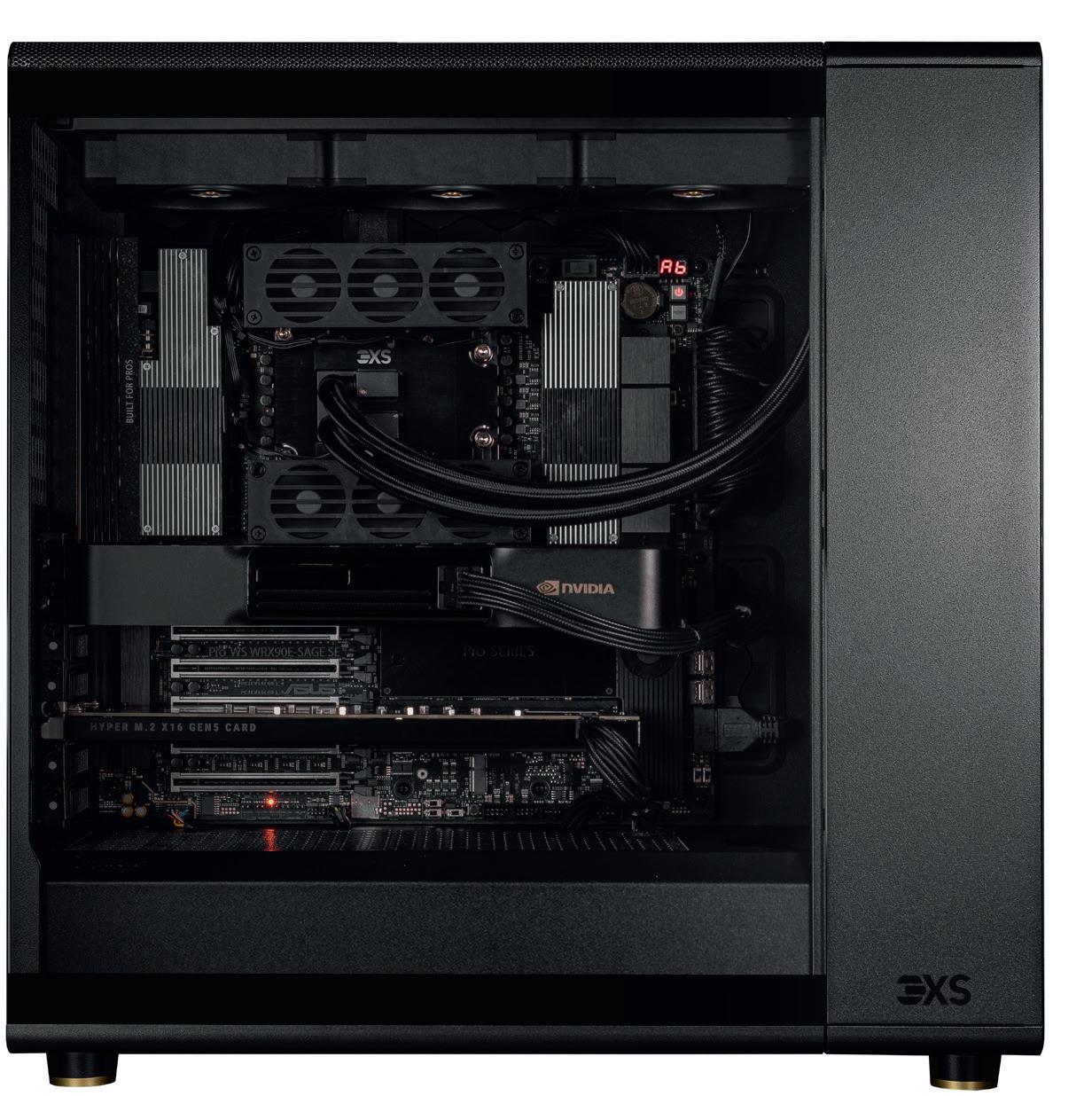
1 ThermalTake AW360 AIO liquid cooler radiator and fans
2 Bank of four DDR5 memory modules with custom Scan 3XS cooling solution
3 AMD Ryzen Threadripper Pro 9995WX processor
4 PNY Nvidia RTX Pro 6000 Blackwell Workstation Edition GPU with custom Stealth GPU bracket
5 Asus Hyper M.2 PCIe 5.0 card, with four
2 TB Samsung 9100 Pro SSD
96 cores under control
Cooling a 96-core, 350W processor is no trivial task. Scan uses the ThermalTake AW360 AIO liquid cooler, an all-in-one unit with a 360 mm radiator and three built-in fans that exhaust warm air directly out of the top of the chassis.
In practice, it does an excellent job. During extended CPU rendering tests in V-Ray, with all 96 cores fully taxed for more than two hours, temperatures never exceeded 55°C – an impressively low figure for such a high-end chip. We did see occasional 69°C spikes during certain stages of our Finite Element Analysis (FEA) simulation benchmark, as it uses fewer CPU cores at higher frequencies, concentrating heat into a smaller section of the chip. But 69°C is still nowhere close to the processor’s rated 95°C maximum, a temperature we’ve seen reached with some aircooled Threadripper Pro 7000 Series workstations.
Power draw peaks at the CPU’s stock 350W, exactly as expected, although it feels like this could be pushed higher, as we’ve seen in the past with some Threadripper Pro 7000 Series workstations.
Acoustically, the machine is also well behaved. There is a gentle, constant fan noise at idle, but it’s not intrusive. More notably, that noise level barely changes under heavy load, and the fans only really ramp up during certain phases of our FEA benchmark. Even when rendering for long periods in V-Ray, the system remains remarkably consistent and controlled.
If the Threadripper Pro processor is demanding, the Nvidia RTX Pro 6000 Blackwell Workstation Edition GPU is on another level entirely. With 96 GB of onboard memory and a 600W power rating, it presents serious thermal and power challenges.
Given the size and weight of the card, Scan fits a custom Stealth GPU bracket to keep it level and secure in the chassis – a sensible addition, particularly during delivery.
The cooling design of the Blackwell card is also different from that of traditional workstation GPUs. Instead of a blower-style fan that exhausts hot air directly out of the rear, it draws air from underneath and vents it out of the top of the card. This approach helps keep
the GPU itself cooler under sustained heavy workloads but inevitably increases temperatures inside the chassis.
In testing, the setup proved effective. During more than an hour of GPU rendering in V-Ray, the card barely reached 70°C, with only a very small increase in fan noise.
To push things further, we ran several tests in combination – on the GPU, rendering in V-Ray and generating images in Stable Diffusion, while on the CPU, rendering in Cinebench and simulating in rodiniaCFD. Under this extreme, if not entirely realistic, multi-tasking workload, the processors drew close to 1,000W, but temperatures peaked at 75°C on the CPU and 72°C on the GPU, while the machine remained responsive and no louder than before.
Performance
As you’d expect, performance is first-class. In CPU rendering the Scan 3XS sits at the very top of our charts, surpassed only by the Comino Grando workstation RM we reviewed last year, which pushed the 96-core Threadripper Pro 7995WX to its absolute 800W limits using an extreme custom liquid-cooling system.
that depend on sustained read/write performance, such as simulation, reality modelling, and video editing.
The RAID 0 array is built using an Asus Hyper M.2 PCIe 5.0 add-in card, populated with four 2 TB Samsung 9100 Pro SSDs. At around £70
space on the Asus WRX90E-SAGE motherboard for more GPUs, adding a second Nvidia RTX Pro 6000 Blackwell Workstation Edition would probably present some serious thermal challenges.
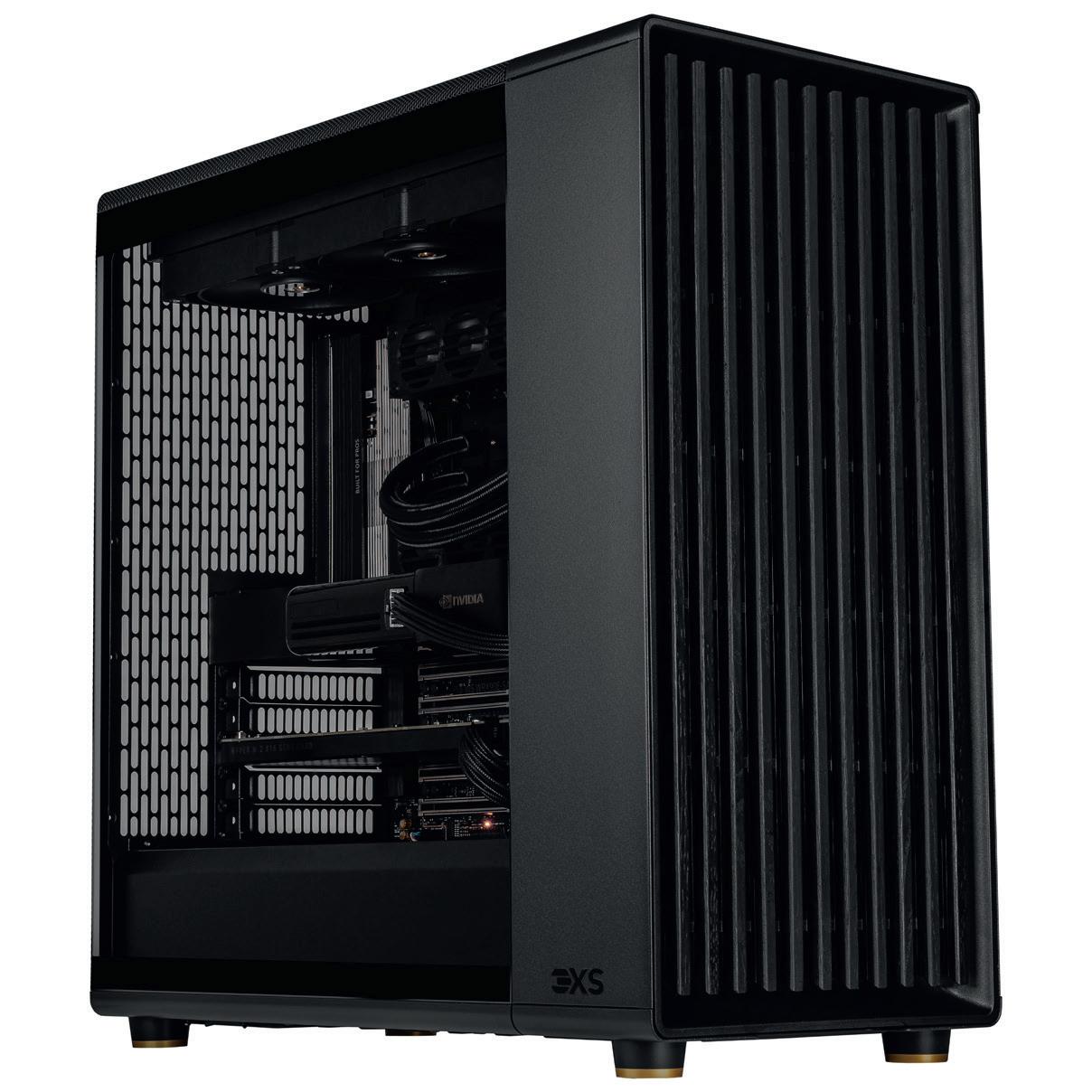
In single-threaded workflows, the picture is more nuanced. The system is between 0–17% slower than the fastest Intel Core Ultra 9 285K-based workstation we’ve tested, and 8–13% behind the quickest AMD Ryzen 9 9950X-based machines. However, considering this workstation is built around a 96-core processor optimised for massively parallel workloads, that’s an incredibly impressive result. For a deeper dive, see our full Threadripper 9000 review on page WS34
On the GPU front, however, the 3XS GWP-B1-TR192 has no real peers. Compared to the previous-generation RTX 6000 Ada Generation, the new RTX Pro 6000 Blackwell Workstation Edition is around 1.5× faster in many ray tracing workflows and up to 2× faster in some AI workloads. See full benchmark details in our dedicated review on page WS44
The Scan 3XS doesn’t just rely on immense CPU and GPU power – it’s also engineered to keep those processors fed with data at high speed. Alongside a single 4 TB Samsung 9100 Pro PCIe 5.0 SSD for the operating system and applications, Scan includes an ultra-fast RAID 0 striped array for secondary storage. RAID 0 can be particularly beneficial for workflows
for the card, it’s an extremely costeffective way to achieve multi-drive NVMe performance. However, it lacks the enterprise-class credentials of a dedicated hardware RAID solution from a specialist such as HighPoint.
Unlike the Asus card, which relies on CPU-based software RAID, HighPoint controllers feature a built-in hardware RAID engine, making them arguably better suited to a workstation at this level.
Even so, the performance of the Asus setup is impressive. In CrystalDiskMark, the RAID array delivered 36,216 MB/sec read and 51,110 MB/sec write, comfortably outpacing the single 4 TB Samsung 9100 Pro, which achieved 14,536 MB/sec read and 13,388 MB/sec write. However, when all 96 CPU cores were fully taxed during V-Ray rendering, throughput dropped significantly to 9,616 MB/sec read and 8,602 MB/sec write. This kind of performance reduction is less likely with a dedicated HighPoint card, thanks to its onboard RAID processing that operates independently of the CPU.
The whole system is powered by a 3,000W Corsair WS3000 ATX 3.1 PSU, providing stable and reliable power across the high-end components. In theory this gives plenty of power headroom for upgrades, but even though there’s
All of this hardware is housed in the brand new Fractal North XL: Momentum Edition chassis. The case has a sophisticated, understated look, with distinctive brown/ black wooden strips on the front panel – a refreshing contrast to the aggressive styling often seen on highperformance systems.
The front and top I/O includes a single USB 3.2 Gen 2x2 Type-C port (20 Gbps), two USB 3.0 Type-A ports, and separate audio and microphone jacks. There are plenty more USB ports on the rear, along with superfast dual 10Gb Intel Ethernet.
More importantly, the chassis delivers excellent front-to-back airflow thanks to three large low duty Momentum fans, which is essential when cooling components capable of drawing close to a kilowatt of power.
Few AEC or product development professionals genuinely need this level of performance, and fewer still will have the budget for it. But for those working with complex simulations, huge reality models, high-end visualisation or AI development, training or inferencing, the Scan 3XS GWP-B1-TR192 provides an enormous amount of compute power in a single, well-engineered box.
What’s impressive is not just the raw specification, but how controlled and stable it remains under load. Despite the extreme hardware inside, it runs cool, stays relatively quiet, and never feels stressed – except in CPU workflows when there is no core prioritisation or pinning and applications end up fighting for resources.
For organisations and professionals that require this level of capability, it represents a carefully assembled, thoroughly engineered solution – albeit one with a price tag to match.
However, as with all Scan workstations, it’s fully customisable, and depending on your workloads there are many ways to bring down the price.
Even the fastest GPU can stall if it runs out of memory. CAD, BIM visualisation, and AI workflows often demand more than you think, and it all adds up when multi-tasking, writes Greg Corke
When people talk about GPUs, they usually focus on cores, clock speeds, or ray-tracing performance. But if you’ve ever watched your 3D model or architectural scene grind to a crawl — or crash mid-render — the real culprit is often GPU memory, or more specifically, running out of it.
GPU memory is where your graphics card stores all the geometry, textures, lighting, and other data it needs to display or compute your 3D model / scene. If it runs out, your workstation must start paging data to system RAM, which is far slower and can turn an otherwise smooth workflow into a frustrating slog.
This is why professional GPUs usually come with more memory than consumer cards. Real-world CAD, BIM, visualisation, and AI workflows demand it. Large
assemblies, high-resolution textures, and complex lighting can quickly fill memory. Once GPU memory is exhausted, frame rates can collapse, and renders lag. Extra GPU memory ensures everything stays on the card, keeping workflows smooth and responsive.
GPU memory isn’t a luxury — it can make or break a workflow. A fast GPU may crunch geometry or trace light rays quickly, but if it can’t hold everything it needs, that speed is wasted. Even the most powerful GPU can feel practically useless if it’s constantly starved for memory.
CAD and BIM: quiet consumers
In CAD software like Solidworks or BIM software such as Autodesk Revit, GPU memory is rarely a major bottleneck. Most 3D models, particularly when viewed in the standard shaded display mode, will
Keeping an eye on GPU memory usage is important as it lets you see exactly how much your applications and active datasets are consuming at any given moment, rather than relying on guesswork or system slowdowns as a warning sign. It also makes it possible to see the immediate impact of closing an application, unloading a large model, or switching projects,
helping you understand which tasks are placing the greatest demands on your hardware. This insight allows you to plan your workflow more effectively, avoiding situations where memory pressure leads to reduced performance, stuttering viewports, or crashes. It can also inform purchasing and configuration decisions, such as whether you need a higher-end
GPU with more memory, or simply better task management. Monitoring can be done through a dedicated app like GPU-Z or simply through Windows Task Manager. To access, right click on the Windows taskbar, launch Task Manager, then select the Performance tab at the top. Finally click GPU in the left-hand column and you’ll see all the important stats at the bottom
comfortably fit within a modest 8 GB professional GPU, such as the Nvidia RTX A1000. However, it’s still important to understand how CAD and BIM workflows impact overall GPU memory — each application and dataset contributes to the total, and it soon adds up.
Memory demands rise with model complexity and display resolution. The same model viewed on a 4K (3,840 × 2,160) display uses more memory than when viewed on FHD (1,920 × 1,080). Realism also has an impact: enabling RealView in Solidworks or turning on realistic mode in Revit consumes more memory than a simple shaded view.
Looking ahead, as CAD and BIM software evolves with the addition of modern graphics APIs, and viewport realism goes up with more advanced materials, lighting, and even ray tracing,
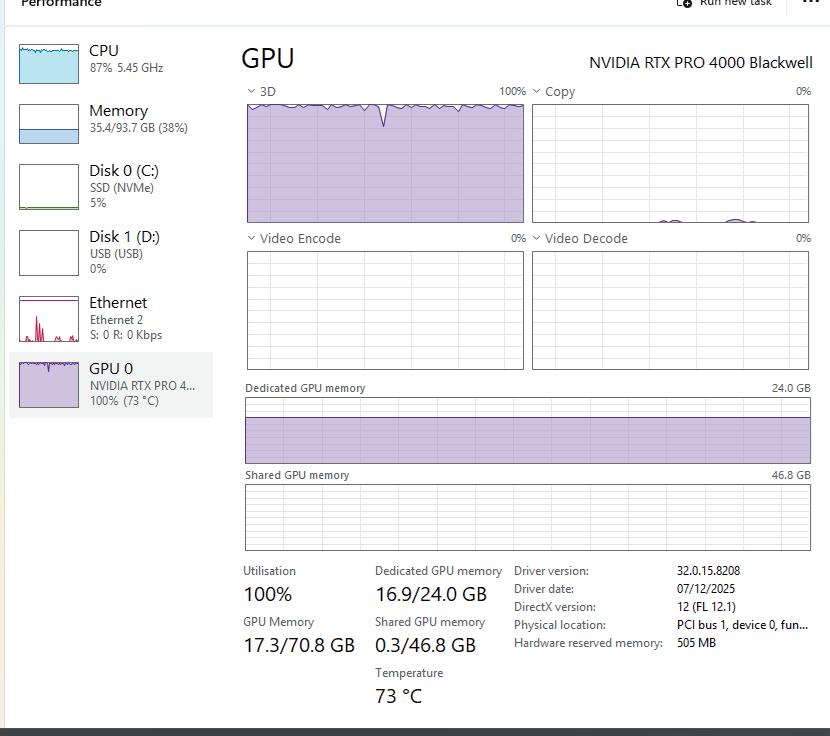
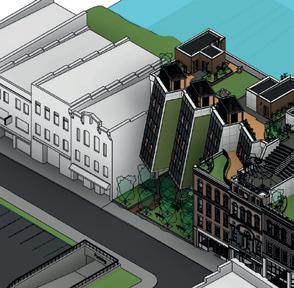












memory requirements will increase. At that point, 8 GB GPUs will probably start to show their limitations, so when considering any purchase it’s prudent to plan for the future.
Visualisation: memory can explode
GPU-accelerated visualisation tools like Twinmotion, D5 Render, Enscape, KeyShot, Lumion, and Unreal Engine are where memory demands really spike. Every texture, vertex, and light source must reside in GPU memory for optimal performance.
High-resolution materials, dynamic shadows, reflections, and complex vegetation can quickly push memory usage upward.
scales with scene complexity. A small residential building might need 4–6 GB, but a large urban environment with trees, vehicles, and complex lighting can easily consume 20 GB or more.
Exporting final stills and videos pushes memory demands even higher. A scene that loads and navigates smoothly can still exceed the GPU’s capacity once rendering begins. Often there’s no obvious warning — renders may just take much longer as data is offloaded to system RAM. The
slowdowns — which can be more severe than running out of memory in a ray-trace renderer. According to Nvidia, the Flux. dev AI image-generation model requires over 23 GB to run fully in GPU memory.
Everything adds up
The biggest drain on GPU memory comes when multi-tasking. Few designers work in a single application in isolation — CAD, BIM, visualisation, and simulation tools all compete for memory. Even lighter apps, like browsers or Microsoft Teams, contribute. Everything adds up.
‘‘ GPU memory is just as important as cores or clocks in professional workflows, and unlike CPU memory, it’s unforgiving — there’s no graceful degradation ’’
As with CAD, display resolution also has a significant impact on GPU memory load.
Running out of GPU memory in real-time visualisation software can be brutal. Frame rates don’t gradually decline — they plummet. A smooth 30–60 frames per second (FPS) viewport can drop to 1–2 FPS, making navigation impossible, and in the worst cases, the software may crash entirely. This is why professional GPUs aimed at design visualisation, such as the RTX Pro 2000 or 4000 Blackwell series, come with 16 GB, 24 GB, or even more memory. Having a cushion of memory allows designers to push realism without worrying about performance cliffs.
In real-world projects, memory usage
more memory that’s borrowed, the slower the process becomes, and by the time you notice, it may already be too late: the software has crashed.
AI: memory gets even hotter AI image generators, such as Stable Diffusion and Flux, place a completely new kind of demand on GPU memory. The models themselves, along with the data they generate during inferencing, all need to live on the graphics card. Larger models, higher-resolution outputs, or batch processing require even more memory.
If the GPU runs out, AI workloads either crash, or slow dramatically as data is paged to system RAM. Even small amounts of paging can cause significant

Running out of GPU memory can be catastrophic, and the impact is often far more severe than many users expect. Our testing highlights just how dramatic the consequences can be across two different workflows - AI image generation and realtime visualisation.
In the Procyon AI Image
Generator benchmark, based on Stable Diffusion XL, we compared an 8 GB Nvidia RTX A1000 with several GPUs offering larger memory capacities. On paper, the RTX A1000 is only around 2 GB short of the 10 GB required for the benchmark’s dataset to reside entirely in GPU memory. In practice, that small deficit
caused performance to fall off a cliff. The RTX A1000 took a staggering 23.5 times longer to generate a single image than the RTX A4000 — far beyond what its relative compute specifications would suggest. With 16 GB of memory, the RTX A4000 can keep the entire AI model resident in GPU memory, avoiding costly paging to system
The GPU doesn’t necessarily need to have everything loaded at once, but even when it appears to have a little spare capacity, you can notice brief slowdowns as data is shuffled in and out of memory. When bringing a new app to the foreground, the viewport can initially feel laggy, only reaching full performance seconds later.
Modern GPUs handle multi-tasking better than older cards, but if you’re running a GPU render in the background while modelling in CAD, you definitely need enough memory to handle both. Otherwise, frame rates drop, viewports freeze and rendering pipelines choke.
Different graphics APIs can complicate matters further. OpenGL-based CAD programs and DirectX-based visualisation tools don’t always share memory efficiently.
RAM and delivering consistent performance. A similar pattern emerged in Twinmotion. Using an older Nvidia Quadro RTX 4000 with 8 GB, we loaded the Snowdon Tower Sample project, which requires around 7.2 GB at 4K resolution. When run in isolation, the scene fit comfortably in GPU memory, delivering smooth
real-time performance at around 20 frames per second (FPS). However, by simultaneously loading a complex 7 GB CAD model in Solidworks, we forced the GPU into a memoryconstrained state. Twinmotion’s viewport performance collapsed to just 4 FPS, before recovering to 20 FPS once memory was eventually reclaimed.
Keeping your memory in check
You can take several steps to help avoid running out of GPU memory. Close any applications you’re not actively using, and reboot occasionally — memory isn’t always fully freed up when datasets or programs are closed.
Understanding how different workflows and applications impact memory usage helps, too. You can track this in Windows Task Manager (see box out on previous page) or with a dedicated tool like GPU-Z.
Practical strategies also help reduce memory load. In visualisation software, avoid high-polygon assets where they add little visual value, use optimised textures appropriate to the resolution of the scene, and take advantage of levelof-detail technologies such as Nanite in Twinmotion and Unreal Engine. Even in CAD and BIM software, limiting unnecessary realism during navigation can help keep memory usage within bounds. And do you really need to model every nut and bolt?
The bottom line
GPU memory is just as important as cores or clocks in professional workflows, and unlike CPU memory, it’s unforgiving — there’s no graceful degradation. CAD and BIM may not be massive memory hogs, but they all contribute to the load. Visualisation demands far more, AI workflows can push requirements even higher, and multi-tasking compounds the problem.
Professional add-in graphics cards with large memory pools give designers, engineers, and visualisation professionals the headroom needed to work without hitting sudden performance cliffs.
Meanwhile, new-generation processors with advanced integrated graphics, offer a different proposition. The AMD Ryzen AI Max Pro for example, gives the GPU fast, direct access to a large pool of system memory — up to 96 GB. This allows very large datasets to be loaded, and renders to be attempted, that would be impossible on a GPU with limited fixed memory.
However, as datasets grow, don’t expect performance to scale in the same way. One must not forget that the GPUs in these new all-in-one processors are still very much entry-level, so renders and AI tasks will take longer and navigating large, complex viz models can quickly become impractical due to low frame rates.
Ultimately, understanding how GPU memory is consumed — and planning for it — will help avoid slowdowns, crashes, and frustration, ensuring workflows stay fast, responsive, predictable, and frustration-free.
















































Nvidia’s new workstation-class GPUs deliver huge gains in AI, ray tracing, and memory, redefining workstation performance, multitasking, and professional visualization workflows for demanding users,, writes Greg Corke
Given how much GPUs have evolved over the years, they really need a new name. The term “Graphics Processing Unit” simply doesn’t cut it anymore. Today’s workstation-class GPUs do far more than display pixels or accelerate 3D viewports — they now handle massive computational workloads, including ray trace rendering, simulation, reality modelling, and, of course AI. These tasks place huge demands on the cards, which require raw compute power, large amounts of superfast memory, and efficient cooling, all while maintaining stability for hours, even days.
based on the Ampere architecture, which is now two generations behind Blackwell.
For this review, we got our hands on three of the new cards — the RTX Pro 2000, 4000, and 6000 — and evaluated their performance across several real-world design, visualisation, and AI workflows.
exhaust hot air directly out of the rear of the workstation, the RTX Pro 6000 Blackwell Workstation Edition adopts a different approach. It draws air in from beneath the card and vents it out of the top. This helps keep the GPU cooler under sustained heavy workloads, but it also raises internal chassis temperatures, making overall thermal management more complex. The issue becomes more pronounced if multiple GPUs are installed close together, as hot air from one card can be pulled straight into the next.




Nvidia’s new RTX Pro Blackwell family delivers exactly that. Compared to the previous Ada generation, the new workstation cards promise major gains, particularly in ray tracing and AI workloads, thanks to fourth-generation RT Cores, fifth-generation Tensor Cores, and faster, higher-capacity GDDR7 memory.


At the top of the range sits the RTX Pro 6000 Blackwell Workstation Edition, which Nvidia bills as the most powerful desktop GPU ever created. On paper, it even edges ahead of the 32 GB GeForce RTX 5090, offering higher single-precision performance along with faster AI and raytracing capabilities. This marks a shift from Nvidia’s traditional approach, where workstation GPUs typically ran at lower
clocks than their GeForce counterparts to





The good news is Nvidia also offers a “Max-Q” version of the RTX Pro 6000 Blackwell. This model uses a traditional blower-style fan and has a far more manageable 300W TDP, making it easier to integrate, particularly in multi-GPU workstations. We expect the Max-Q variant will be the default option from the major workstation OEMs.


They also introduce support for new software technologies, most notably Nvidia DLSS 4.0, which uses AI to boost frame rates in supported real-time applications.
The new ‘Pro’ generation
Ever since Nvidia retired the Quadro brand, distinguishing professional workstation GPUs from consumerfocused GeForce cards has become more difficult. With Blackwell, Nvidia aims to address this by adding a clear “Pro” suffix to its workstation lineup.
blower-style fan and has a far more version
Crucially, half the power does not mean half the performance. As with all processors, there are diminishing returns as power draw increases, and on paper the Max-Q version delivers only around 12% lower performance across CUDA, AI, and ray-tracing workloads compared with the full 600W model.

So far, seven RTX Pro Blackwell desktop workstation boards have been announced, replacing the Ada generation across the range. These span from the super high-end RTX Pro 6000 Blackwell Workstation Edition down to the mainstream RTX Pro 2000 Blackwell (see table right for the full line up).
Meanwhile, for entry-level CAD and visualisation, Nvidia continues to offer the RTX A1000 and RTX A400, both
prioritise power efficiency, thermals, and
long-term reliability.
The Nvidia RTX Pro 6000 Blackwell Workstation Edition consumes a crazy amount of energy. It draws up to 600W, double that of its predecessor, the RTX 6000 Ada Generation (300W) and slightly more than the GeForce RTX 5090 (575W). While this enables extreme performance, it also limits where the card can be deployed. Some workstation chassis will struggle to accommodate its physical size, thermal output, and power requirements. Few will be able to support multiple cards, and even if they do, it will probably just be a maximum of two.
Unlike most professional GPUs, which use blower-style coolers to

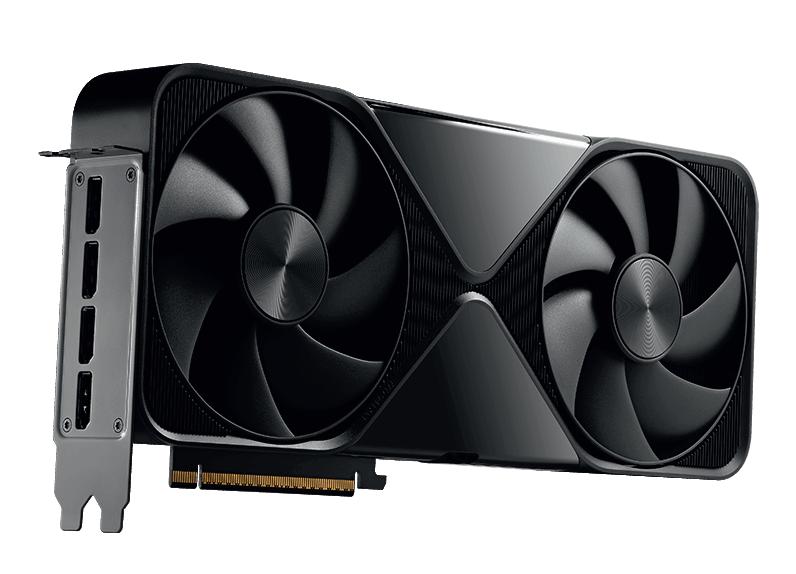
For the rest of the Pro Blackwell lineup, Nvidia has largely followed the blueprint of the Ada generation. In fact, many of the cards are visually identical.
The RTX Pro 5000 (300W) and 4500 (200W) are dual-slot, full-length boards, while the RTX Pro 4000 (140W) is singleslot. Meanwhile, the RTX Pro 4000 SFF and 2000 (both 70W) are low-profile, dual-slot cards designed for compact workstations such as the HP Z2 Mini and Lenovo ThinkStation P3 Ultra SFF (see review on page WS30). With an optional full height bracket, both cards will technically fit inside a standard tower, but it doesn’t make much sense to do that with the 4000 SFF. Despite having the same core specifications as the full-size 4000, its lower 70W TDP reduces performance,
while the price remains the same.
All Blackwell cards feature 4 x DisplayPort 2.1 (or MiniDP 2.1 for SFF models), supporting very high-resolution displays at very high refresh rates — up to 8K (7,680 × 4,320) at 165 Hz. The RTX Pro 4000 and above require a PCIe CEM5 16-pin cable, though adapters are available for power supplies with older 6-pin and 8-pin PCIe connectors.
Memory is a major focus for RTX Pro Blackwell, both in terms of capacity and bandwidth. Larger VRAM allows massive datasets to stay entirely on the GPU, avoiding slow CPU–GPU transfers, compromises to workflows, or application crashes. We cover this in more detail on page WS40
Meanwhile, high bandwidth GDDR7 memory helps ensure GPU cores remain fully fed and can operate at peak efficiency. Workloads where this is particularly important include AI training and inferencing (such as image and video generation or large language models), engineering simulation like computational fluid dynamics (CFD), and reality modelling tasks such as rendering 3D Gaussian Splats.
At the top end, both RTX Pro 6000 Blackwell GPUs double their VRAM from 48 GB on the previous RTX 6000 Ada generation to 96 GB and deliver an impressive 1,792 GB/s of memory
bandwidth, nearly twice the 960 GB/s of the Ada generation. The RTX Pro 5000 also receives a massive upgrade, now available in 48 GB and 72 GB variants with 1,344 GB/s of bandwidth, up from 32 GB and 576 GB/s. Memory improvements are more modest on the lower-end cards, while the RTX 2000 remains at 16 GB, with no increase over its predecessor.
We tested the RTX Pro 6000, 4000 and 2000 Blackwell GPUs inside two Scan 3XS workstations. The RTX Pro 6000 in the AMD Threadripper Pro 9995WXbased machine (see page WS38 for full review) and the other two cards in the AMD Ryzen 9 9950X-based Scan 3XS GWPA1-R32 workstation, as reviewed in our 2025 Workstation Special Report (www.tinyurl.com/WSR-25)
We used a spread of visualisation tools — D5 Render, Lumion, Twinmotion, V-Ray, and KeyShot — as well as the AI image generator Stable Diffusion. These results were compared with Nvidia’s previousgeneration Ada cards, older Nvidia Ampere GPUs, and entry-level professional GPUs from the competition, including the Intel Arc Pro B50 (see review page WS48) and the AMD Ryzen AI Max Pro with integrated Radeon 8060S GPU (see page WS24)
Performance gains of Blackwell were most pronounced in ray tracing and AI workflows. In Chaos V-Ray RTX
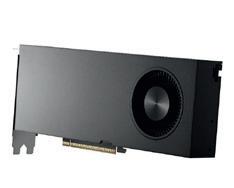
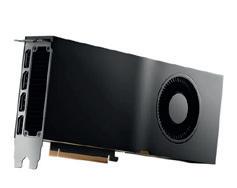
rendering, the RTX Pro 6000 Blackwell was 1.47× faster, the RTX Pro 4000 1.71× faster, and the RTX Pro 2000 1.49× faster than their Ada-generation counterparts. In Twinmotion Path Tracing, the improvements were even more striking: the RTX 6000 was 1.6× faster, the RTX 4000 2.6× faster, and the RTX 2000 1.9× faster.
To put all of this into perspective, we tested the RTX Pro 6000 Blackwell in KeyShot 2025 using an enormous multiroom supermarket model supplied by Kesseböhmer Ladenbau (see figure 2) Simply loading the scene consumed 18.1 GB of GPU memory. The model contains 447 million triangles, 2,228 physical lights and 237,382 highly detailed parts, from chiller cabinets and cereal boxes to 3D fruit and vegetables. Remarkably, the GPU rendered the entire scene in just 69 seconds at 4K with 128 samples per pixel. Only a few years ago, tackling a model of this complexity on a single GPU would have been unthinkable.
Of course, AI performance also receives a substantial boost, with the RTX Pro 6000 Blackwell Workstation Edition delivering the largest gains — not only from its 5th-generation Tensor cores, but also from its ability to feed those cores data more efficiently, thanks to significantly higher memory bandwidth.
In the Procyon AI Image Generation Benchmark, which uses Stable Diffusion 1.5 and XL, and leans heavily on the Tensor cores, it delivered a 1.93–2.03× performance
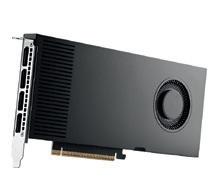
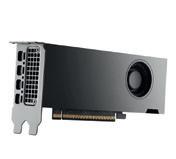
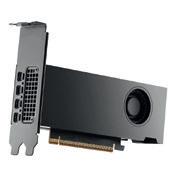



increase over its Ada-gen equivalent, producing an image in SD XL every 5.46 seconds! Meanwhile, the RTX Pro 4000 was 1.42–1.46× faster, and the RTX Pro 2000 was 1.44–1.55× faster.
Pushing the 6000 to its limits
With 96 GB of VRAM to play with we wanted to see just how far the RTX Pro 6000 Blackwell could be pushed. Rather than focusing on a single massive task — such as fine-tuning an LLM or generating high-resolution AI imagery — we set out to discover how many simultaneous workloads it could handle, before throwing in the towel.
We piled on job after job, eventually consuming 49 GB of GPU memory, yet nothing seemed to phase it. In the background we generated images in Stable Diffusion, ran renders in V-Ray, output videos in KeyShot all at the same time, and were still able to navigate a large scene in Twinmotion smoothly. The whole system remained very responsive.
Naturally, running everything in parallel meant each individual task took longer, but the key point here is that we barely noticed anything happening behind the scenes. For sheer multitasking firepower, it’s genuinely breathtaking.



AI frame generation Blackwell isn’t just about throwing more compute power and memory at problems — it’s also about doing things smarter.
1
1 Large D5 Render interior scene
2 With DLSS 4.0 Multi Frame Generation this huge D5 Render scene rose from 11 to 41 FPS. However, user experience didn’t follow suit
3 In KeyShot, this giant supermarket scene with 447m triangles, 2,228 lights and 237k parts rendered at 4K resolution in 69 secs

2






With significantly improved AI Tensor core performance, all new Blackwell GPUs support more advanced neural rendering technologies, delivered through DLSS 4.0.
DLSS 3.0, which launched with the Ada Generation, introduced a technology called Frame Generation, designed to boost real-time performance.
With Frame Generation the GPU renders frames in the traditional way, but AI creates additional “in-between” frames to make motion smoother and increase frames per second (FPS). This gives the impression of much higher performance without the heavy computational cost of fully rendering every frame.
With DLSS 3.0, one AI-generated frame was created for every traditionally rendered frame. With Blackwell and DLSS 4.0, up to three additional AI frames can now be generated.


3
In the world of visualisation software, DLSS 4.0 is currently supported in Twinmotion 2025 and D5 Render 3.0.
In D5 Render, our frame-recording software showed a huge uplift: on the RTX Pro 4000 Blackwell, frame rates in a colossal town scene (see figure 1) jumped from 11 FPS to 41 FPS — a near fourfold increase. However, user experience was less convincing than the raw numbers suggest. Multi-frame generation does not appear to reduce latency, as we noticed a similar delay between moving the mouse and the model responding on screen — just like you would expect with a model rendering at 11 FPS. Visual artifacts were also evident: for example, a church steeple in the scene visibly wobbled amid the surrounding vegetation. An interior
scene (see figure 1) fared better visually, but latency remained an issue.
Overall, Frame Generation shows promise, but we’re not convinced of its real-world benefits. When models are large and frame rates are low, don’t expect it to transform a stuttering viewport into one that’s silky smooth.
The RTX Pro Blackwell generation represents a major leap forward for workstation GPUs. Across the board, the new cards deliver substantial gains in ray tracing, AI, and general compute performance, backed by much faster GDDR7 memory and — at the top end — truly vast VRAM capacities.
For demanding professional workflows — from visualisation and simulation to reality modelling and AI — the improvements over the Ada generation are both measurable and meaningful.
The standout is undoubtedly the RTX Pro 6000 Blackwell Workstation Edition. With 96 GB of memory and unprecedented bandwidth, it enables workloads that simply weren’t practical before, while delivering exceptional performance in rendering and AI tasks. It is, however, a specialist tool: its 600W power draw and unconventional (for workstations) cooling design mean careful consideration is required around chassis, thermals, and multi-GPU configurations. For many organisations, the more efficient Max-Q variant is likely to be the more practical option – and if Nvidia’s figures are anything to go by it’s probably not that much slower.
Further down the range, the RTX Pro 4000 Blackwell and RTX Pro 2000 Blackwell offer compelling upgrades for mainstream users, bringing tangible performance benefits at more manageable power levels. Meanwhile, new software features such as DLSS 4.0 hint at how AI will increasingly shape real-time workflows — though the jury’s still out.
Ultimately, Blackwell reinforces the reality that modern GPUs are no longer mere graphics accelerators. They are highperformance compute engines capable of driving everything from photorealistic rendering to advanced AI pipelines — and, crucially, handling multiple demanding workloads simultaneously. The multitasking potential for the 96 GB RTX Pro 6000 Blackwell is simply breathtaking. It’s hard to imagine a CPU coping with the same combination of tasks without careful manual intervention, such as pinning processes to specific cores or managing priorities. But Nvidia’s monster GPU just takes everything in its stride.
With 16 GB of onboard memory — double that of comparable discrete GPUs — this entry-level professional graphics card makes a strong first impression, but lingering software compatibility issues temper its appeal, writes Greg Corke
Intel’s move into discrete professional graphics has been a slow burner. After launching the Alchemistbased Intel Arc Pro A40 (6 GB) and A50 (6 GB) graphics cards in 2022, it’s taken the company three years to deliver its second generation.

That next step arrived last summer with the Arc Pro B50 (16 GB) and Arc Pro B60 (24 GB), both built on Intel’s Xe2 ‘Battlemage’ architecture. While the new cards bring an expected uplift in performance and a move from PCIe 4.0 to PCIe 5.0, what makes them really stand out is the amount of on-board memory.

the performance and a move from PCIe CAD
With 16 GB and 24 GB respectively the B50 and B60 go beyond the realms of CAD - the natural stomping ground of the Arc Pro A40 and A50 - and firmly enter design viz and AI territory.
The Arc Pro B50, which is the focus of this review, makes a particularly big impression, sporting double the amount of memory as its Nvidia counterpart, the RTX A1000 (8 GB). Available for around £300 + VAT, the B50 holds a slight pricing advantage, although with a little shopping around the RTX A1000 can be found at a similar cost.
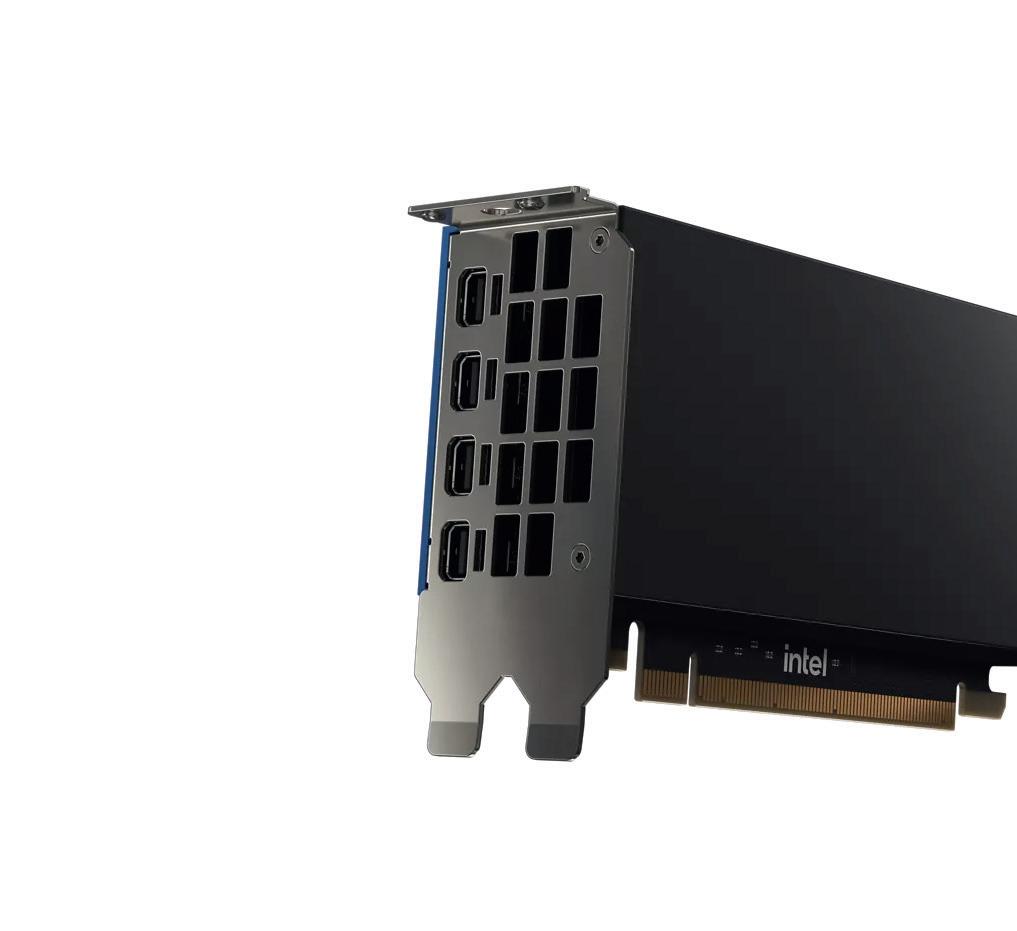

side, the B50’s
The Arc Pro B50 also faces competition from AMD — but not from where you might expect. Rather than a discrete GPU, it comes in the form of the AMD Ryzen AI Max+ Pro processor, whose integrated Radeon GPU delivers strong performance and, crucially, direct, high-bandwidth access to up to 96 GB of system memory. In that context, the B50’s 16 GB of onboard memory begins to look modest by comparison.
generous 16 GB of GPU memory gives it a clear advantage over the Nvidia RTX A1000, pushing it beyond traditional CAD and firmly into visualisation and AI-adjacent workflows
time of writing none of

The Arc Pro B50 is a low-profile, dual-slot graphics card with a total board power of 70W, so draws all of its power from the:PCIe slot. This makes it compatible with small form factor (SFF) and micro workstations such as the HP Z2 Mini, Lenovo ThinkStation P3 Ultra SFF and Dell Pro Max Micro, although at time of writing none of these major
by 62% in raster rendering and 56% in path-traced rendering. This is because the A1000 is forced to offload large amounts of data to system memory — a far slower process — giving the B50 a clear advantage
in memory-hungry workloads.

workstation OEMs offered the card as a stock option. But the B50 is not limited to super compact workstations. It also comes with a full height I/O bracket, so can be fitted to standard towers as well. Connectivity is handled via four Mini DisplayPort outputs, enabling support for multiple highresolution displays.
The memory advantage
The strengths of the Arc Pro B50 are most evident in workflows that demand large amounts of GPU memory, such as visualisation and AI. In design viz software Twinmotion, for instance, our Snowdon Tower Sample Project scene consumes 18 GB or more when producing final 4K renders.
On test, this meant the Arc Pro B50 was able to outperform the Nvidia RTX A1000

the HP Z2 Mini G1a WS24), it comfortably outpaced the B50 by keeping the entire 18 GB dataset resident GPU caused the software to crash. Diffusion.
Amazingly, AMD’s Ryzen AI Max+ Pro 395 trumps this. In our testing with (see our review on page , it comfortably outpaced the B50 by keeping the entire 18 GB dataset resident in memory during raster rendering, eliminating the need for any swapping altogether. When path tracing in Twinmotion, however, the AMD GPU caused the software to crash. Elsewhere, the Arc Pro B50 potentially offers significant benefits for AI image generators like Stable Diffusion. As we found with the Nvidia RTX A1000 performance can fall off a cliff when GPU memory gets maxed out (learn
more www.tinyurl.com/SD-RTX).
While direct comparisons between the Nvidia RTX A1000 and Arc Pro B50 aren’t possible, as running Stable Diffusion on Intel requires an entirely different software stack, it stands to reason that having double the amount of memory could deliver a significant performance boost.
But the benefits of the Arc Pro B50 go beyond memory. The GPU also shows an advantage over the RTX A1000 in workflows where memory isn’t a limiting factor. In the D5 Render 2.9 benchmark, for example, the scene uses less than 8 GB of GPU memory — well within the capacity of both the B50 and A1000 — yet the Intel GPU still outpaced the Nvidia card by around 20 to 23%. Meanwhile the AMD Ryzen AI Max+ Pro 395 was around 6% faster than the B50.
Software hurdles
The Arc Pro B50 is not without its challenges. In a market dominated by Nvidia, Intel faces many of the same hurdles that AMD has encountered around professional graphics software compatibility. While AMD has made








significant strides in recent times — with several major visualisation tools, including V-Ray, KeyShot, and Solidworks Visualize, now well on the way to fully supporting AMD GPUs — Intel has yet to build comparable momentum.
The verdict
There is also competition from an unexpected direction. AMD’s Ryzen AI Max+ Pro 395, with its integrated Radeon GPU and access to vast pools of system memory, presents a compelling alternative — albeit one that requires an entirely new system, such as the HP Z2 Mini G1a.
In short, the Arc Pro B50 is an intriguing option for memory-heavy workflows, but its appeal is tempered by lingering software compatibility concerns and strong alternatives elsewhere in the market.
www.intel.com


We have mixed feelings about the Intel Arc Pro B50. On the hardware side, its generous 16 GB of GPU memory gives it a clear advantage over the Nvidia RTX A1000, pushing it beyond traditional CAD and firmly into visualisation and AI-adjacent workflows. In practice, that memory advantage should deliver tangible benefits in applications such as Twinmotion and D5 Render. However, software compatibility remains a key concern. While the B50 performs well in some tools, it struggles in others — including Lumion and certain display modes in Solidworks — making it essential to check support for your preferred applications before committing.
Even in applications where one would expect broad compatibility, we encountered issues. With arch viz software Lumion for example, the 2024 release would not even launch while in the 2025 version, some scenes did not render correctly. Meanwhile, in Solidworks CAD, we experienced 3D performance issues when viewing models in the popular “shaded with edges” display mode. While viewport performance was acceptable for smaller assemblies, it soon became a problem as model complexity increased.



For instance, the Maunakea Spectroscopic Explorer model — a massive telescope assembly with over 8,000 components and 59 million triangles — it dropped to 1.57 frames per second (FPS), making it essentially unusable. By contrast, with the Nvidia RTX A1000, model navigation was perfectly smooth and seamless, with 8 GB being plenty for almost all CAD and BIM workflows.

visualisation. As scene complexity




Revit, for example, the Arc Pro B50
However, issues like the one we encountered in Solidworks shouldn’t be assumed across all CAD and BIM software. In our tests with Autodesk Revit, for example, the Arc Pro B50 performed flawlessly.
RTX Pro 2000 Blackwell come into play WS44) it offers the same 16 GB memory capacity but delivers significantly with faster render times and much higher frame rates.
Where the B50 does work well, the extra memory translates into a clear performance uplift, particularly when producing final highresolution renders. That said, it is best regarded as a GPU for entry-level visualisation. As scene complexity increases, real-time performance begins to tail off, at which point more powerful options such as the Nvidia RTX Pro 2000 Blackwell come (see review on page . Priced at £580 + VAT, it offers the same 16 GB memory capacity but delivers significantly higher overall performance, with faster render times and much higher frame rates.