The Salvation Army - Eastern Territory


The Salvation Army - Eastern Territory
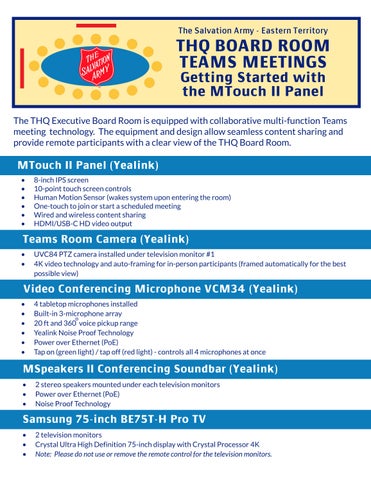
TheTHQ ExecutiveBoardRoomisequippedwithcollaborativemulti-functionTeams meeting technology. Theequipment anddesignallow seamlesscontent sharingand provideremoteparticipantswithaclear view of theTHQ BoardRoom.
- 8-inchIPSscreen
- 10-point touchscreencontrols
- HumanMotionSensor (wakessystemuponenteringtheroom)
- One-touchtojoinor start ascheduled meeting
- Wiredandwirelesscontent sharing
- HDMI/USB-CHD videooutput
- UVC84 PTZcamerainstalledunder televisionmonitor #1
- 4K videotechnology andauto-framingfor in-personparticipants(framedautomatically for thebest possibleview)
Video Conferencing M icrophone VCM 34 (Yealink)
- 4 tabletopmicrophonesinstalled
- Built-in3-microphonearray
- 20 ft and360 voicepickuprange
- Yealink NoiseProof Technology
- Power over Ethernet (PoE)
- Tapon(greenlight)/ tapoff (redlight)- controlsall 4 microphonesat once
- 2 stereospeakersmountedunder eachtelevisionmonitors
- Power over Ethernet (PoE)
- NoiseProof Technology
Samsung 75-inch BE75T-H Pro TV
- 2 televisionmonitors
- Crystal UltraHighDefinition75-inchdisplay withCrystal Processor 4K
- Note: Pleasedonot useorremovetheremotecontrolforthetelevisionmonitors.



WhenaTeamsmeetingisscheduledintheTHQ BoardRoom,the meeting(s)for theday (24 hour period)display ontheMTouchII Panel screen.Joinandstart themeetingwithoneclick! Tap Join.
IMPORTANT TIPS!
- Meetings in the THQ Board Room must be scheduled asa Teams Meeting.

- THQ Board Room must be added asa required attendee/participant in the meeting invite.

Similar totheTeamsMeetingdisplay onyour laptop,MTouchII Panel listsTHQ Board Room andparticipants. Additional attendeesmay be addedby searchingby nameor enteringatelephonenumber.




TIPS TO AVOID ECHO
In person participants must mute microphones in 2 location to avoid an echo:



1. on tool bar on laptop - and-



2. in the TeamsMeeting

Userscanchoosehow participantsappear andhow sharedcontent appearsonthetwotelevisionmonitors(screens).

Gallery,Large Gallery,Together mode and Front Row areoptionsfor arrangingandviewingparticipants.(Gallery view isthedefault.)
Swap Screens: Thedefault televisionmonitor arrangement is:

Screen#1: Participants
Screen#2:Content

Usethe Swap ScreensoptiontoswitchScreen#1 andScreen#2.

DON'T FORGET!
- Meetings in the THQ Board Room must be scheduled asa Teams Meeting. - THQ Board Room must be added asa required attendee/participant in the meeting invite.

Select the More option(threedots/ellipsis)toadjust settingsand optionsfor livecaptions,roomcontrols,chat bubble,incomingvideo, roomremote,andtoreport aproblem. Turn on live captionsallows theuserstoenablecaptionsandselect thelanguageinwhichthe captionsappear.


Select the Microphone icontoturnonandoff themicrophoneinthe THQ BoardRoomsoparticipantsjoiningremotely
hear the audioof in-personparticipants.(Thedefault isthemicrophoneison.)
A meetingparticipant (i.e.,outsidevendor)whoisphysically present but not loggedontotheTeamsmeetingmay sharecontent fromtheir device.Select the Share iconandinsert theYealink dongleintothe MTouchII Panel.A greenlight appearsonthedonglewhenit isready tobeinsertedintothedevicethat issharingcontent.AnHDMI cable isalsoavailablefor hard-wiredsharingaswell asadapters.
HOW TO USE DONGLE
1. Plug dongle into the right side of the MTouch II Panel and wait for green light to appear (on dongle).

2. Insert dongle into the device that is sharing content.


Toendthemeeting,select thered Phone iconat thebottomright of theMTouchII Panel.
NOTE!
- The system will enter sleep mode when the THQ Board Room isempty. Do not turn off or shut down the equipment.
- Do not remove or use the television monitor remote(s).
Q: Why isn't my meeting listed on the MTouch II Panel?
A: For ameetingtoappear ontheMTouchII Panel,themeetinginvitemust:
1.) bescheduledasaTeamsMeeting -and-
2.) have THQ Board Room addedasarequiredattendee/participant
If themeetingisstill not visibleontheMTouchII Panel after checkingthat it is scheduledasaTeamsmeetingand THQ Board Room isaddedasaparticipant,call theHelpDesk at 845-620-7767 (973-930-9837 mobile).
Q: How do I start a scheduled Teams meeting from the MTouch II Panel?
A: WhenTeamsmeetingarescheduledintheTHQ BoardRoom,themeeting(s)for theday (24 hour period)display ontheMTouchII Panel screen.Joinandstart the meetingwithoneclick! Tap Join.
Q: Why am I hearing an echo in the meeting?
A: In-personparticipantsmust mutetheir microphonesintwolocations:
1)on their laptoptoolbar -and-


2)ontheir Teamsmeetingscreen
Q: Why can't I see the some participantson the meeting screen but they have joined the Teams meeting?
A: Theparticipantswhoarenot visiblemust logout of Teams Next,they must sign back intoTeamsandrejointhemeeting.(Thisactionwill updatetheir versionof Teams,andtheparticipant shouldbevisible.)
Q: How do I swap the television monitors(participantsand content)?
A: Select the Gallery Optionsand Screen Arrangement andselect Swap Screens.
Q: How do I mute the table top microphonesso remote participantscannot hear the audio in the THQ Board Room?
A: Thetabletopmicrophonesmay bemutedby physically tappingthetopof one microphone(all 4 microphoneswill bemuted)or by selectingtheMicrophone icon ontheMTouchII Panel Tapor click againtounmute

Q. My meeting hasended. Why are the television monitorsstill on?
A: Thetelevisionmonitorsand theMTouchII Panel will automatically enter sleep modeoncetheTHQ BoardRoomisempty for 15 minutesandnomovement is detected Pleasedonot useor removethetelevisionmonitor remotes