The Salvation Army - Eastern Territory GETTING STARTED W ITH TEAM S M EETINGS
TheSalvation Army existsto meet human need wherever,whenever,and however wecan.Technology and effectivecommunication play akey rolein carryingout themission of TheSalvation Army.
Since2020,Teamshasrevolutionized theway our organization communicates and collaborates.Theimplementation of Microsoft Teamshasenabled The Salvation Army to further realizeour goalsby bringingthelatest technology into theterritory.

TheEastern Territory Information Technology Department isdedicated to providingresponsive,timely,and consistent support to every employeeand officer.

TEAM S M EETINGS GUIDESECTIONS
Thisguidecontains5 sections:
Schedule a Meeting Before the Meeting Join a Meeting During the Meeting After the Meeting TIP! Your calendar inTeamsisconnectedtoyour Outlook calendar.Thismeansthat whenyouscheduleameetinginTeams,it will show upinOutlook ,andviceversa.
TABLEOF CONTENTS (clickable)
Schedule a Meeting
Outlook (1)
Outlook(Schedule a Meetingfor Someone Else) (2) (2b)
Outlook Meet Now (3)
Portal.Office.com (4)
Teams Calendar (5)
Teams Chat (6)
Teams Meet Now (3)
Other Scheduling Tips
Assign and Delegate Calendar Access (2)
Delegate Scheduling Meetingsinoutlook (2b)
Scheduling Assistant (7)

Before the Meeting
Add a Person (8)
All Meetings Teams Meetings (9)
Audio Visual Options/Device Settings (10)
Bluetooth Headphones (11)
Co-Organizer (12)
Meeting Options (Change/Set) (13)
Profile Picture (14)
Recurring Teams Meeting: create (15)
Recurring Teams Meeting: cancel/Edit (16)
Show as Status (17)
Speakers(External) (10)
Test Call (18)
Join a Meeting
Join a Meeting from Outlook (19)
Join a Meeting from Teams Calendar (19)
Join a Meeting with Call-In Feature (19)
During the Meeting
Add a Person (20)
Camera Options: On/Off (21)
Device Settings/Audio Visual (22)
Live Captioning (23)
Meeting Icons (24)
Microphone Options: On/Off(Mute) (25)
More... Tab (26)
Record a Meeting (27)
Recording(Find) (27) (32)
Share Your Screen (28)
Teams Meeting Reactions (29)
Transcription of a Teams Meeting (30)
Transfer a Meeting to Another Device (31)
After the Meeting
Find a Recorded Meeting (32)
Share a Recorded Meeting (33)
Visit Microsoft Support for how-to articles, videos and training materials. support.microsoft.com
OUTLOOK: SCHEDULEA TEAM S M EETING
1. InOutlook,select the Calendar iconinthe left sidemenu

2. Select New TeamsMeetingtab.
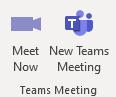
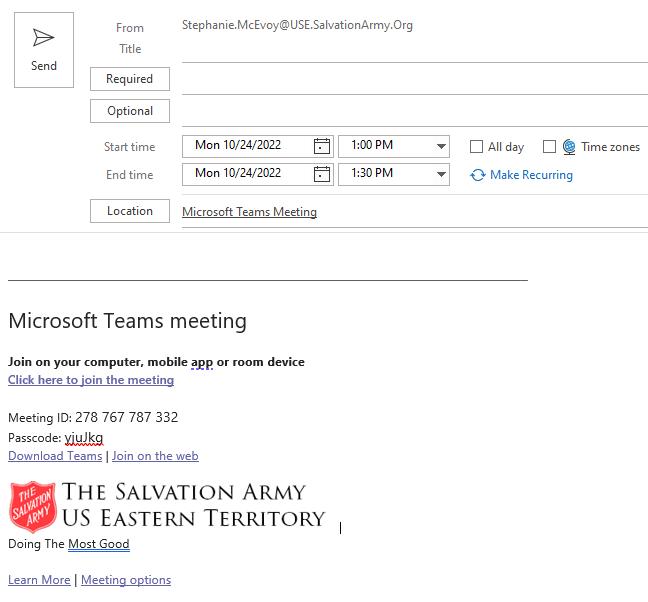
3. A Meetingemail will open. Enter thedetailsof your meeting: a.Title;
b.Required Attendees;c.OptionalAttendees;
d.Date;e.Start Time;f.EndTime;f.Recurring;h.Details andMessagetoRecipient(s).
4. After youhaveenteredall thedetails,select Send.
William Booth@USESalvationArmy org
a. Add Title
b. Add Required Attendees
1
4

d. Date
c. Add Optional Attendees
e. Start Time
f. End Time
h. Add Detailsand Message to Recipient(s)
g. MakeRecurring
NOTE:
You can invite entire contact groups (formerlyreferred to asdistribution lists)!
2.
1 TIP!
can also meet immediately using the Meet Now options TeamsMeetingscan alsobescheduledin theOutlook Office Portal: Portal Office Com
3.
You
OUTLOOK: SCHEDULEA M
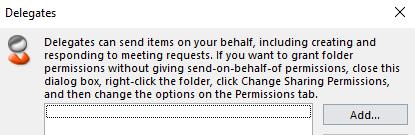
Set thePermissions: Youcangiveanyonewithinyour organizationeditor or delegateaccesstoyour calendar.Editorscanbeassignedtoyour primary calendar (named"Calendar")or toany additional calendarsthat youcreated.Delegatescan only beassignedtoyour primary calendar.Note:Youcan't haveeditor or delegate accesstopeopleoutsideyour organization. Thedelegateisn't grantedpermission toreadother messagesinyour Inbox.
1. Click the Filetab.
2. Click Account Settings,andthenselect DelegateAccess.
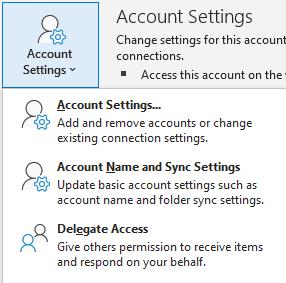
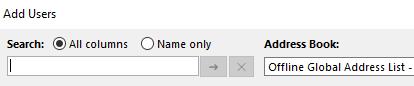
3. Click Add.
4. Typethenameof thepersonyouwant to designateasyour delegate,or searchfor and thenclick thenameinthesearchresultslist.
5. Click Add,and thenclick OK.
6. Inthe DelegatePermissionsdialogbox, accept thedefault permissionsettings or select customaccesslevelsfor Exchangefolders.If adelegateneedspermissiontowork only withmeetingrequestsandresponses,thedefault permission settings,Delegatereceivescopiesof meeting-relatedmessages sent tome,issufficient.Youcanleavethe Inbox permissionsettingat None. Meetingrequestsandresponseswill godirectly tothedelegate'sInbox.
Note:Bydefault,thedelegateisgrantedEditor permission(canread, create,and modifyitems)toyour Calendar folder.Whenthedelegaterespondstoameetingon yourbehalf,it isautomaticallyaddedtoyour Calendar folder.
7. Tosendamessagetonotify thedelegateof thechangedpermissions,select the Automaticallysenda messagetodelegatesummarizingthesepermissions check box.
8. If youwant,select the Delegatecanseemyprivateitemscheck box.
Important:Thissettingaffectsall Exchangefolders.Thisincludesall Mail,

EETING (DELEGATE) FOR SOM EONEELSE
2
Contacts, Calendar, Tasks, Notes, and Journalfolders. (Privateitemscannot beaccessed.)
9. Click OK.
Note: Messages sent withSendon Behalfpermissions includeboth the delegate's and your names next to From. When amessage issent withSendAspermissions, only the your name appears.
Once you add someone as a delegate, they can addyour Exchange mailbox to their Outlookprofile.
OUTLOOK: SCHEDULE A TEAMS MEETING AS A DELEGATE Part 2 0
ScheduleaTeams Meetingas a Delegate: To scheduleameeting, the delegatewill need to accessthecalendar (atleastas Editor permissions) inorderto schedulea Teamsmeetingon behalfofsomeoneelse. (Previous Instructions Part 1.)
1. Ifyouarethe delegate, selectthe Calendar iconin Outlook.

2. Open theappropriatecalendar.
2. Selectthe dateandtimeyou want toschedule themeeting.
•••
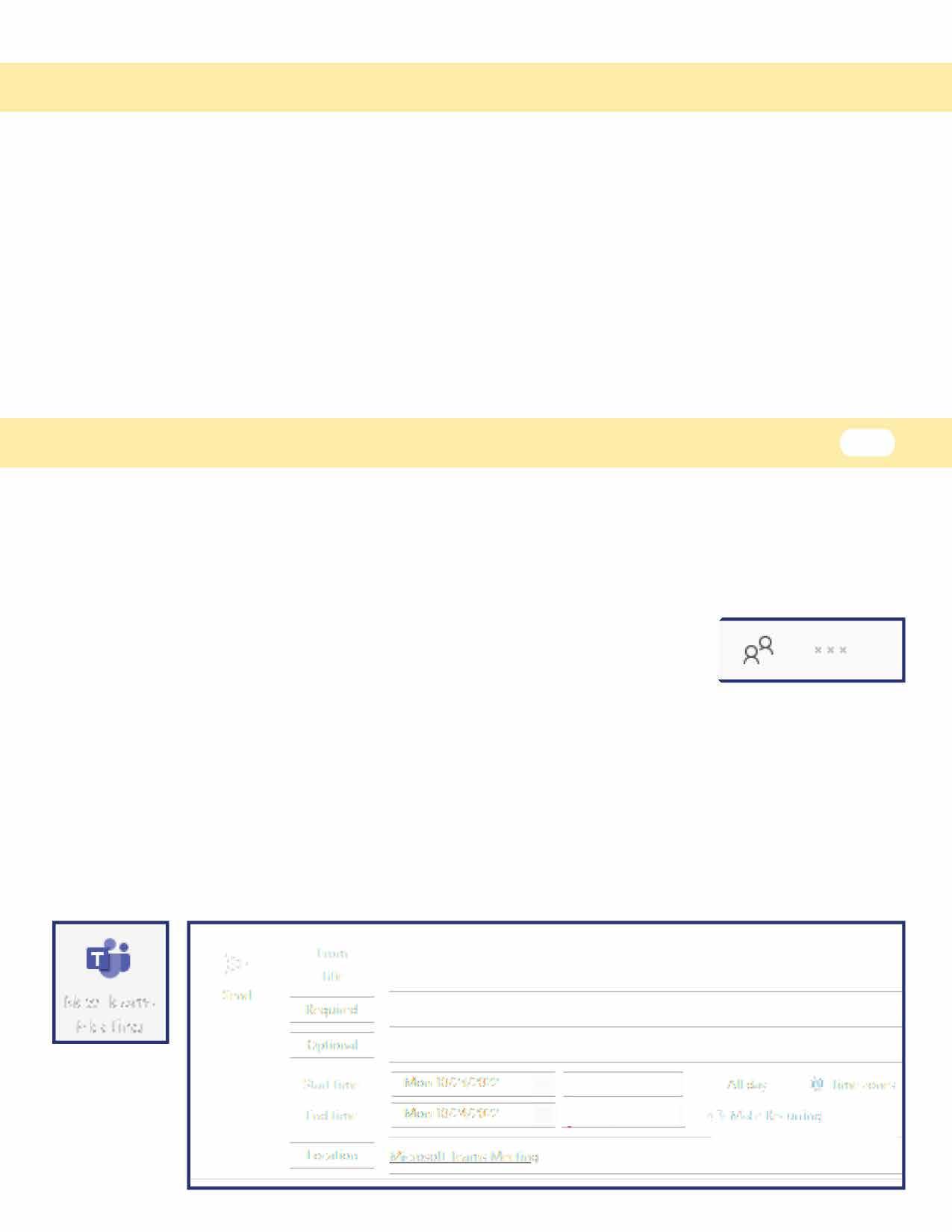
3. Clickon the New Teams Meetingicon at the topof theappropriate calendarto schedule the meeting. The Fromfieldwill auto-populate with the email address/name of the calendar owner. Fillin the details including the Title, Required, Dateand Timefields. ClickSend.
OUTLOOK: Continued
NewTea1ms Meeting � d. Date I I I From Title Required I Optional I Start time End time Location I William Booth@USE.SalvationArmy.org a. Add Title b. Add RequiredAttendees c. Add OptionalAttendees I Mon 10/24/2022 EjlI e. Start Time I □ Allday D I Time zones I Mon 10/24/2022 Ej11 f. End Time ·I 0 Make Recurring g. Make Recurring Micro.soft Teams Meeting
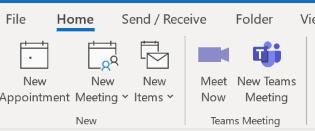
Toscheduleameetingimmediately,usethe Meet now featureinOutlook and TeamsCalendar.
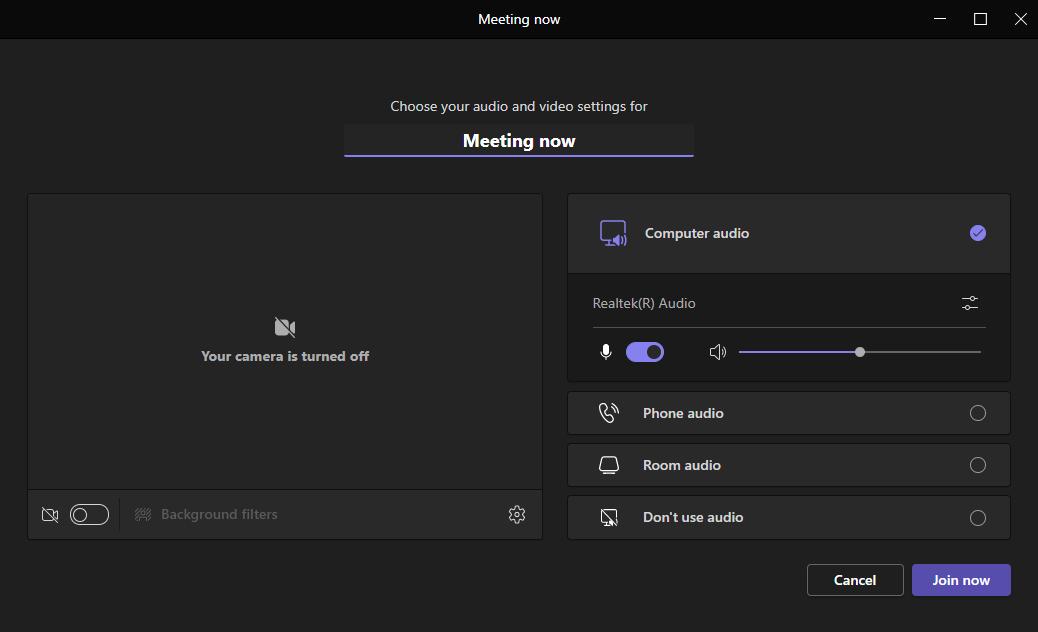
In Outlook Calendar:



In TeamsCalendar:

M EET NOW
1. Select the Calendar iconinOutlook.
2. Select Meet now optionat thetopof thenew window.
3. Select Joinnow.
3 1 2
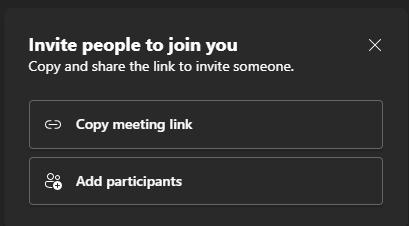
4. Select Addparticipants(or theoptiontocopy themeetinglink).
3.
4
5.
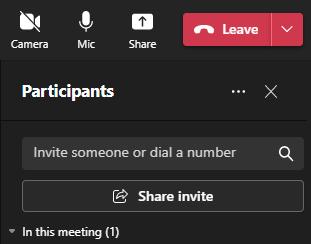
5. Select Invitesomeoneor dial a number.
6 Typethenameandselect Request tojoin
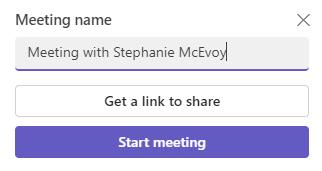
a. Select the Calendar iconinTeams.
b Select Meet now optionat thetop of thenew window.
c. Select Start meeting.
d Follow steps#3 - 6 above.
6
c d
a.
William Booth
Evangeline Booth
1. Inyour webbrowser,visit Portal.Office.com.

2. Select Outlook icon(topleft).
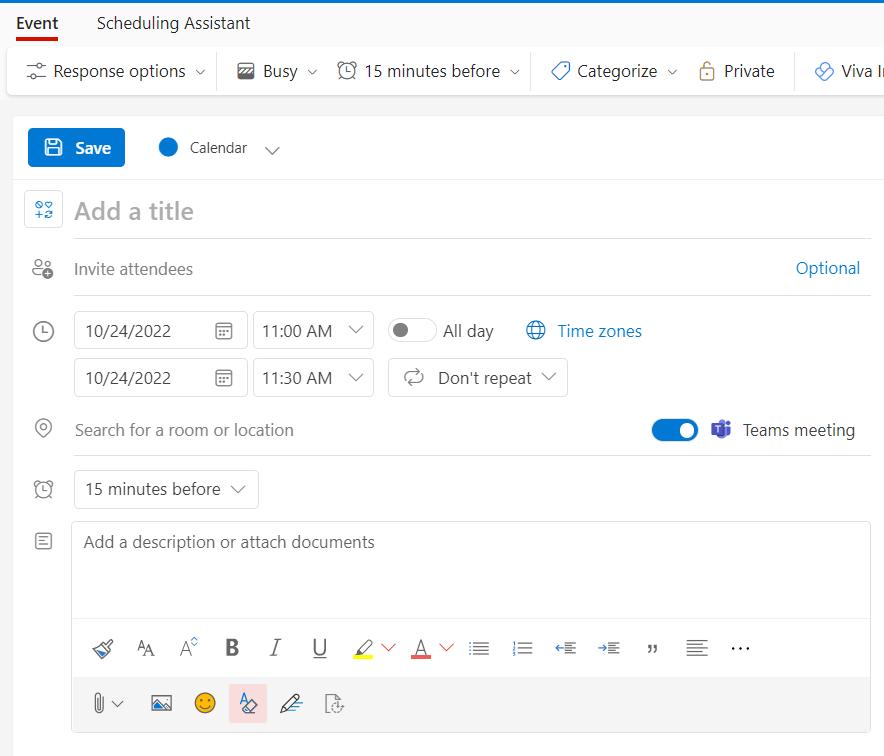

3. Select the Calendar icon(topleft).

4. Select New Event buttonand Event from thedrop-downmenu.

5. The Event screenwill open.Enter the detailsof your meeting: a.AddTitle;
b.InviteAttendees(andOptionalAttendees);
c.Date;d.Start Time/EndTime;e.Repeat/Don't Repeat?; f.TeamsMeetingOption;g.AddDescription orAttachDocuments.
6. After youhave enteredall the details,select Save.
6 a. Add Title
b. InviteAttendees (and Optional Attendees)
c. Date d. Start Time/End Time
e. Repeat/Don't Repeat
f. TeamsMeetingOption
g. Add Description or Attach Documents
IMPORTANT!
Don't forget to select the Teamsmeeting toggle button!
PORTAL.OFFICE.COM : SCHEDULEA M EETING
1.
3
4. 5
2.
4
TEAM S CALENDAR: SCHEDULEA M EETING
1. IntheTeamsmenuontheleft of your screen, select the Calendar icon.
2. Select New meeting(topright).
3. The New meetingscreenwill open.Enter thedetailsof your meeting: a.Add Title;b.AddRequiredAttendees(andOptionalAttendees);c.Date;d.Start Time;e. EndTime/Duration; f.Select:DoesNot Repeat/EveryWeekDay/Daily,Weekly,etc. g.AddDetails.

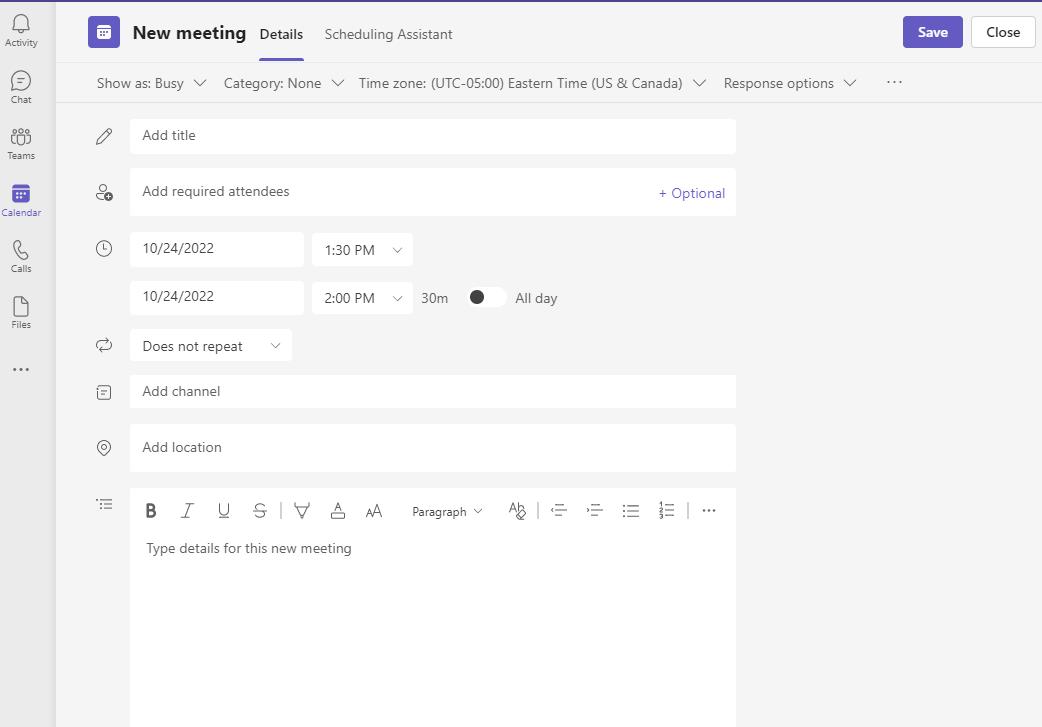
4. After youhaveentered all thedetails,select Save. 4
a. Add Title
b. Add Required Attendees (and Optional Attendees)
d. Start Time
c. Date
e. End Time/Duration
f. Select:DoesNot Repeat/EveryWeekDay/Daily, Weekly, etc.
g. Add Details
1.
2.
5 Youcan also adda Teams Channel if appropriate
3.
TEAM S CHAT: SCHEDULEA M EETING
1. If youarechattingwithsomeoneandrealizethat hoppingonaquick meeting wouldbemoreproductiveand time-saving,select the Calendar iconat the bottomof your chat.

William Boot h 2/01/2022 3:01 PM


You cannot warm the hearts of people with God's love if they have an empty stomach and cold feet.
Type a new message.
3. After youhave enteredall thedetails,select Send.
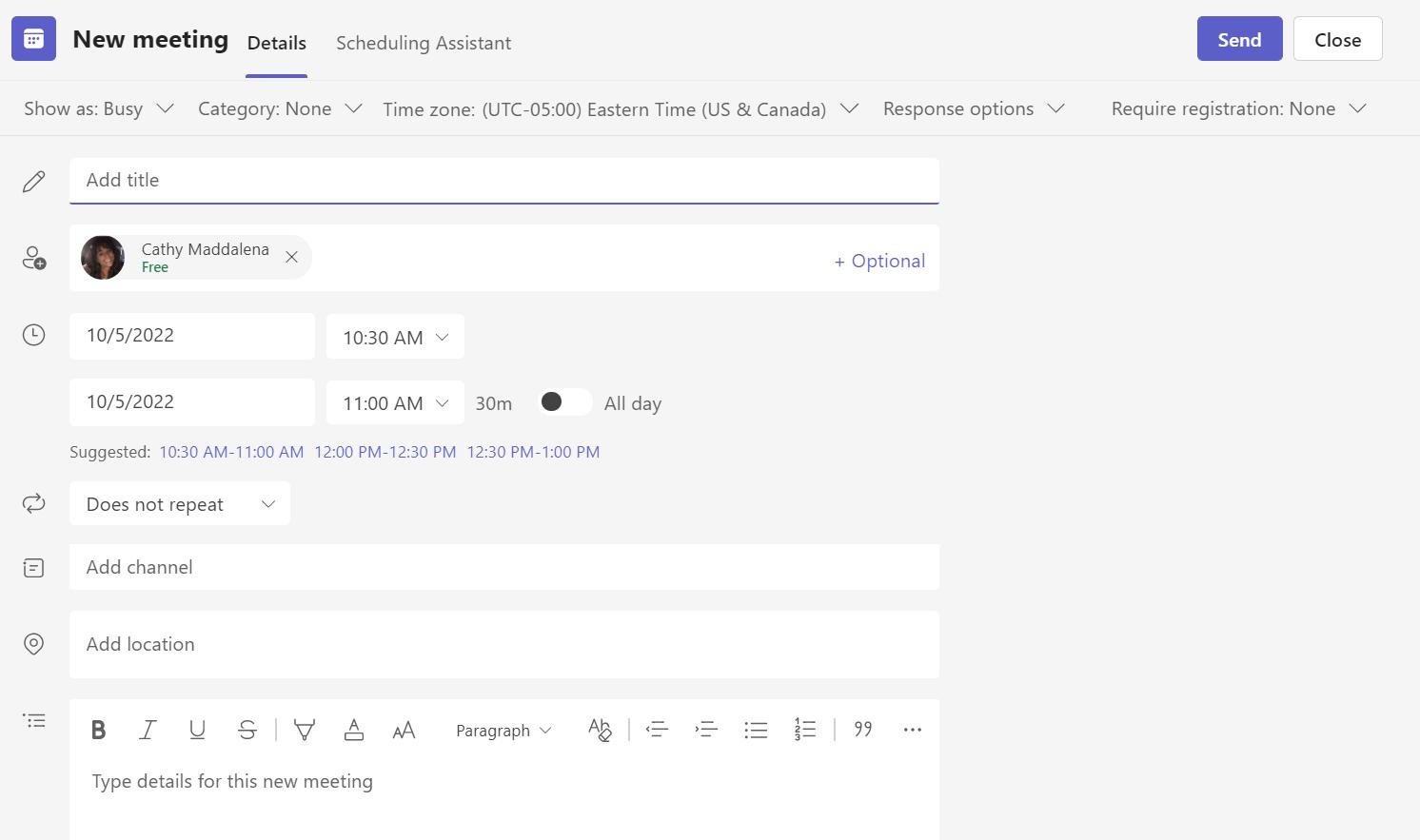

a. Add Title
2. The New meetingwindow will open.Enter thedetailsof your meeting: a.Add Title;b.Optional(toaddmoreattendees);c.Date;d.Start Time;e.End Time/Duration; William
c. Date
d. Start Time
b. Add Optional Attendees
e. End Time/Duration
f. Doesnot repeat/EveryWeekDay/Daily, Weekly, etc.
1
Boot h
3.
2 6 Youcan also adda Teams Channel if appropriate
WiththeSchedulingAssistant,youcan easily seeyour coworkers' availability andfindatimethat worksfor all meeting attendees.
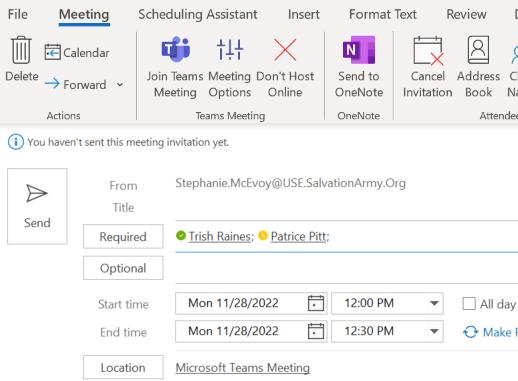
1. Onceyou'vecreatedameeting event fromyour calendar and added your coworkerstothe Required field,select SchedulingAssistant tab at thetop.Youcannow seethe attendees' availability.Unlessyou clickedonthedateyouwant the meetingtobe,it willdefault tothe timenearest tothecurrent time.
2. Choosethetime(anddate)for the meetingby selectingoneof the suggested times,usingthestart andendtimedrop-downmenus,or select directly onfromthescreen.
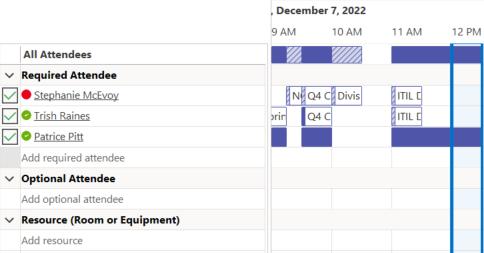
3. Whenyouhavemadeyour selections,click Sendbuttonandthemeeting invitationwill besent totheattendees.Thedateand timewill bedisplayedas Start timeand Endtime.
NOTE:Privacy! It isimportant toconsider whohasaccesstoview thedetail of your calendar toensurethat youare not sharingpersonal data It maybeappropriatetomakeaspecificappointment private,whichwill hidethedetails of theappointment but still show thespaceinyour calendar asbusy Thiscan bedoneby selectingthe privatebutton onthe Appointment tab
6. Theattendeecanchooseto accept,tentativelyaccept,or declinethemeeting invite.They canalso tentativelyaccept but propose a new time,or decline themeetingand suggest a new time.Witheither of theseoptionsthe schedulingassistant will appear for themtofindanew time/date.The originator of themeetingwill receivetherequest andcanaccept or declineit.
SCHEDULING ASSISTANT 7
ADD A PERSON TO A SCHEDULED TEAM S M EETING
Youcanaddanother attendeetoanexistingTeamsmeeting
If you are the meeting owner:
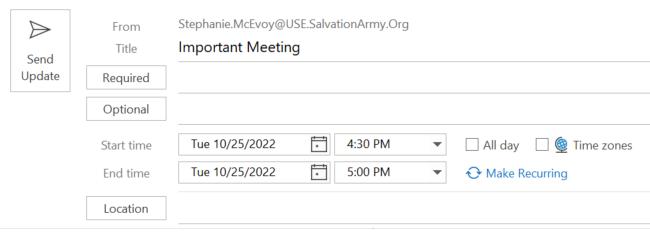
1. Openyour scheduledmeetingonyour calendar inTeamsor Outlook.
William Booth is calling you
2. Inthe Requiredfield,enter or searchfor thepersonyouwant toadd.
3. Select SendUpdate.
William Booth@USESalvationArmy org
Evangeline Booth@USESalvationArmy org
William|
If you are NOT the meeting owner:
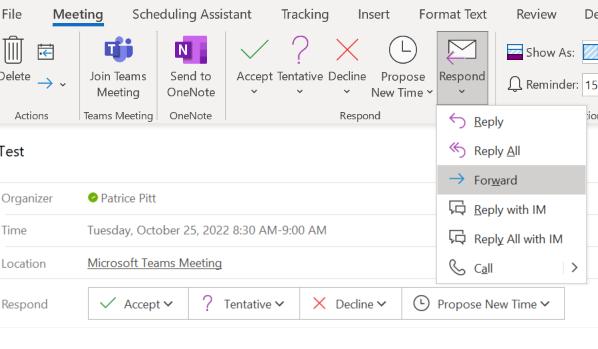
1. Openthemeetingrequest.
2. Inthetopribbonselect the Respondtab.
3. Select Forwardfromthedrop-downmenu.
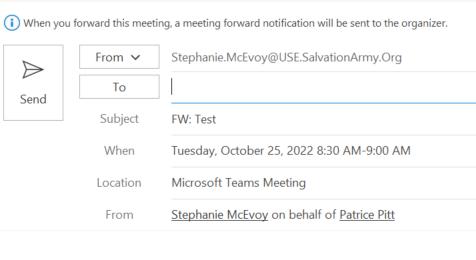
4. Enter thenameof theattendee(s)youwant toaddtothemeetingrequest.
5. Select Send.Themeetingowner will receiveanotificationthat youhave forwardedthemeetingrequest toanother person.
Evangeline Booth@USESalvationArmy org
William Bamford@USESalvationArmy org
William Booth@USESalvationArmy org
Im port ant Meet ing
Important Meeting Evangeline Booth on behalf of William Booth Microsoft Teams Meeting Microsoft Teams Meeting 2 3 2 2 3 4. 5 1 1 8
FW:
M AKEALL M EETINGS TEAM S M EETINGS (DEFAULT)
YoucanturnonaCalendar optionsoall themeetings youschedulefromOutlook (includingOutlook onthe webandmobile)will beheld onlinewithTeams.
William Booth is calling you
1. At theleft topof Outlook,select?File.


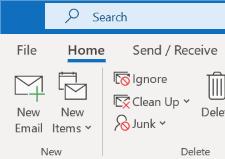
2. Select?Options(bottomleft).
3. OntheOutlook Optionsscreen,select?Calendar? (top left.)
4. Under?Calendar options,select?Addonlinemeetingtoall meetings.
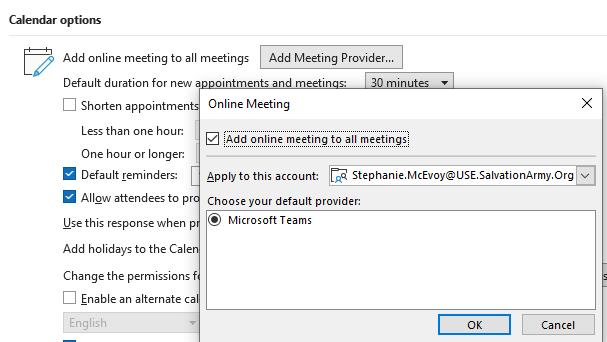
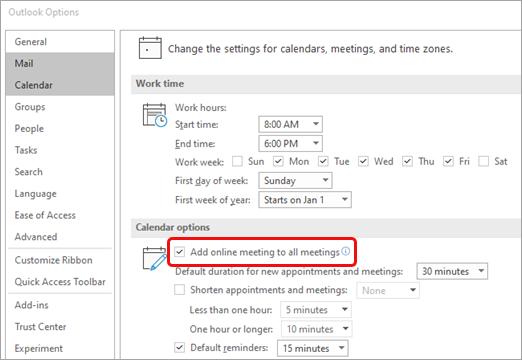
5. Select OKtosave.
5
Dependingonyour version (update)of M365,your Calendar optionsmayappear withthe AddMeetingProvider options.
3.
1.
2.
9
4.
AUDIO VISUAL OPTIONS/DEVICESETTINGS(BEFOREMEETING)GD

Dependingonyourcomputer'ssetup, youmay havemorethanonemicrophoneor camera. Youcanswitch betweenthesedevicespriortothe meeting orduringthe meeting.
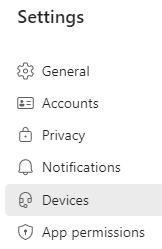
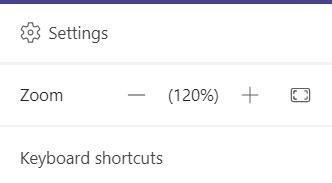
1. InTeams, click theellipsis(threedots■) totheleftofyourprofile picture(located toprightofyourTeamsscreen).
2.


3. SelectSettings. Select Devices.
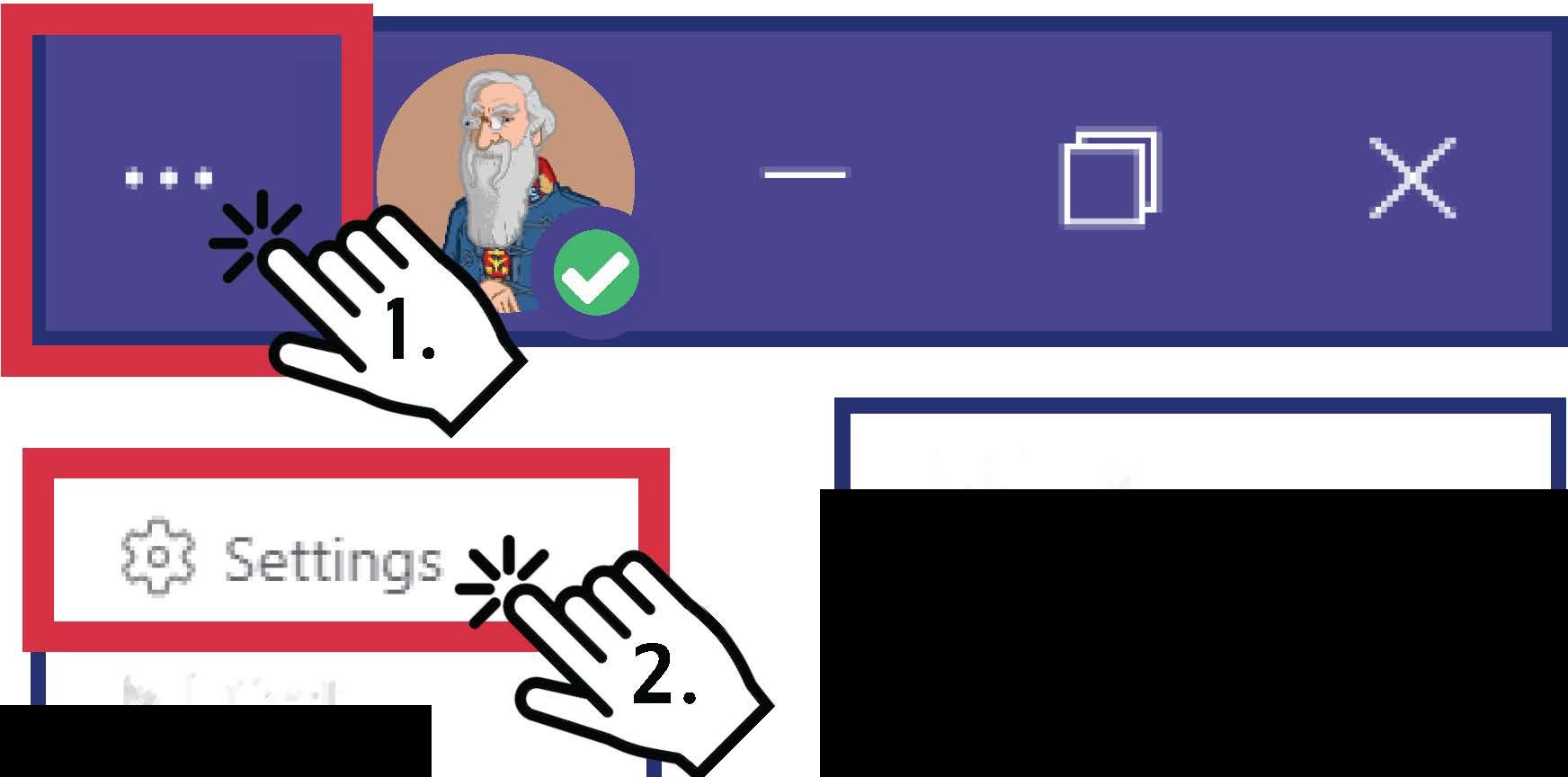
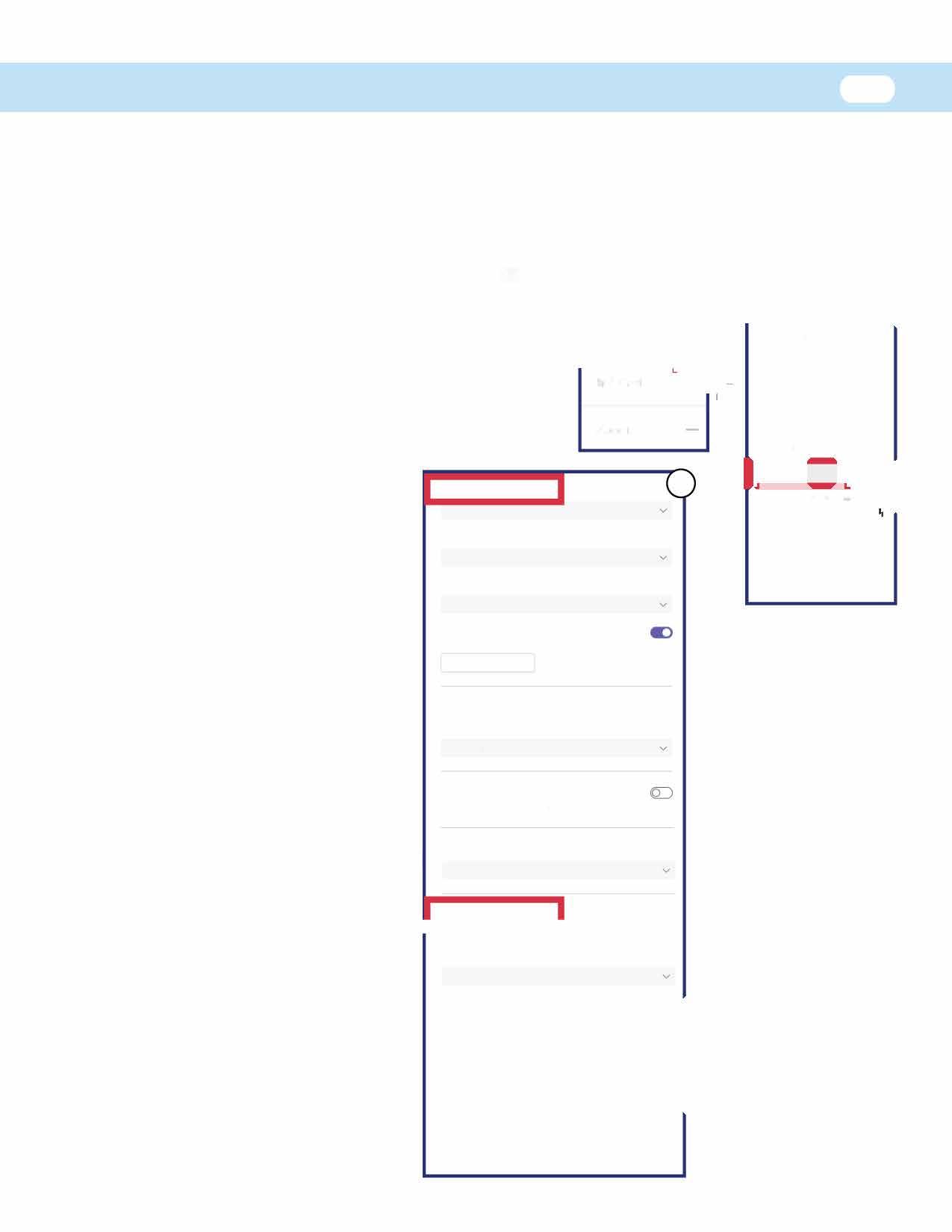
4. Thedevicesettingspane opensandyoucanseeand changeyouraudio visual options. Thespeakerand microphonethatyou are currentlyusingwill belisted undertheAudio devices heading. Underthe
Camera headingyoucansee thecurrentcamerayou are using.
5. Maketheappropriate updatestoyoursettings andthechangesyoumake toyouraudioandcamera deviceswilltake effect immediately.
Refer toAudio Visual/Device Settings During MeetingSection #10 for more information.
Audio devices Realtek(R)Audio Speaker Headphones(Realtek(R)Audio) Microphone ExternalMicrophone(Realtek(R)Audio) Automatically adjust mic sensitivity (!) Makeatestcall Noise suppression (D � Cast Zoom
Choose low if you want others to hear music Learn more. Auto(Default) High fidelity music mode 4. Show the opt on in meetings to deliver high fidelity sound. Learn more
Secondary ringer None Camera �""""'""""'""""'""""""'°ontrols Opencamerasettings 0 USBVideoDevice Adjust brightness (D Soft focus. 0 Q) Q) Settings 0 General IE) Accounts � Privacy 0 Notifications 0 Apppermissio @ Captionsandtranscripts ['.) Files 11:, Calls
BLUETOOTH HEADPHONES
When connecting Bluetooth headphones (like earbuds), makesure your Bluetooth settings are enabled inWindows. Open Windows Settings > Devices > Bluetooth and otherdevices. Make sure the Bluetoothtogglebar is enabled and thensearch foryour bluetooth device to pair and enable.
ADD A CO-ORGANIZER
After you've invited people to your meeting, you can add up to 10 co-organizers to help manage your Teams meeting. Note: Beforeadding co-organizers, makesure your co-organizersarealreadyaddedasrequiredattendees.


Open your scheduled meeting on your calendar in Teams or Outlook. Scroll down to the meeting infosection. Select Meetingoptions at the bottom.
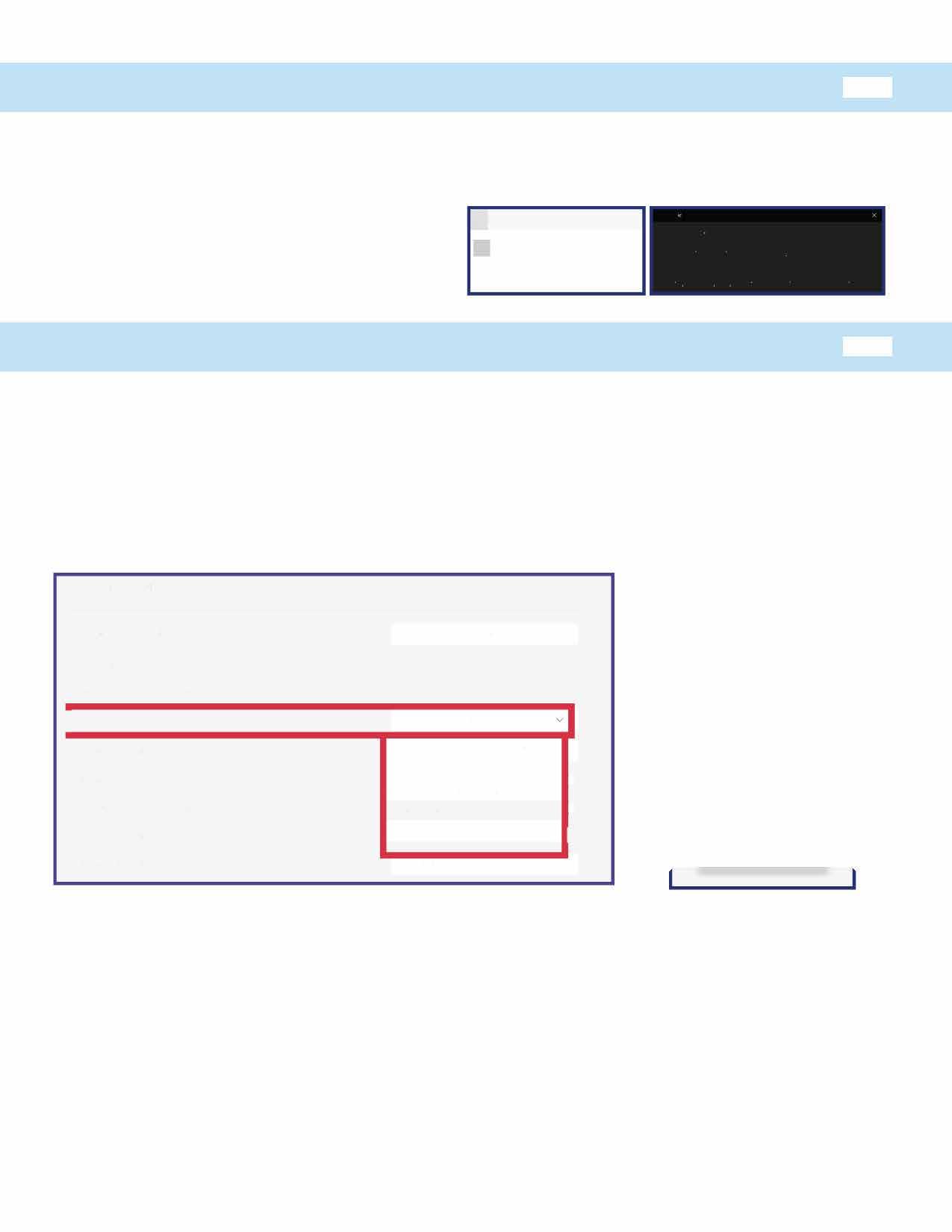
In the Meetingoptions window, navigate to Chooseco-organizersand select the down arrow. Choose the name of the co-organizer(s).

Co- organizers can:
• Access and change meeting options
• Becomea breakoutroom manager
• Bypass the lobby
• Admit peoplefromthe lobby duringa meeting
• Lock themeeting
• Presentcontent
• Changeanother participants meeting role
• End the meetingfor all
• Changemeetingoption during channel meetings
• Manage themeetingrecording
• Removeor changethe meeting organizer's role
Gl Bluetooth & other devices + Add Bluetooth or other device Bluetooth a) Oo fddad"' e Add a device Choosethekind ofdevJCeyouwanttoadd ;:t Bluetooth Mica lmybo.ards pens or audioand other kinds of Bluetooth devices
Meeting options Who can bypass the lobby? People invite (Tum offAllow For v
Always letcallers bypass the lobby Announce when callersjoin or leave f:hoose co-organizers: Search for participants No {Q) No (Q) Who can present? People n my organization and gu v Allow mic for attendees? Everyone ) AndSave. People in my organization and guests Allow camera forattendees? Specific people Record automatically Only me and co-organizers Allow meeting chat
Enabled
) - ) V
Co- organizers cannot:
After youscheduleameeting,youcan changeor set your MeetingOptions.
1. Openyour scheduledmeetingonyour calendar inTeamsor Outlook.Scroll down tothemeetinginfosection.
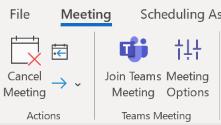
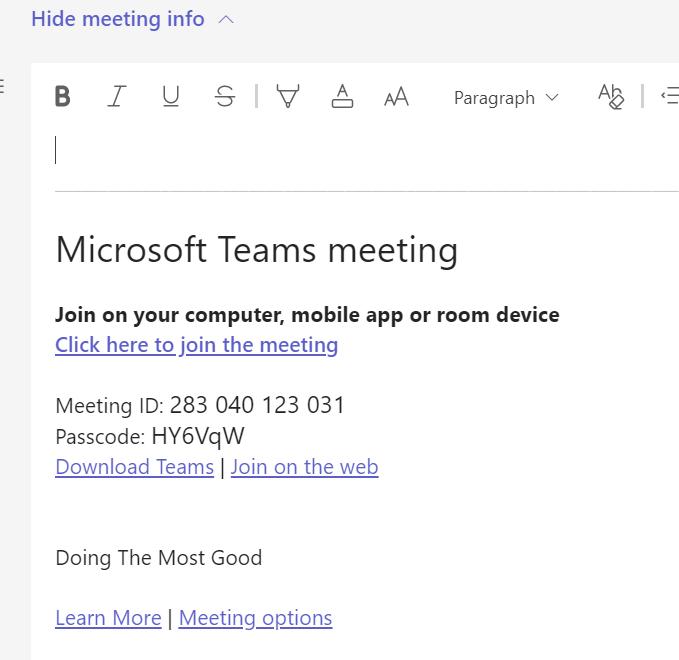
2. Select Meetingoptionsat thebottom.
3. Select andchangetheoptionsfor your meeting. Select Save. (Seeoptionsbelow.)
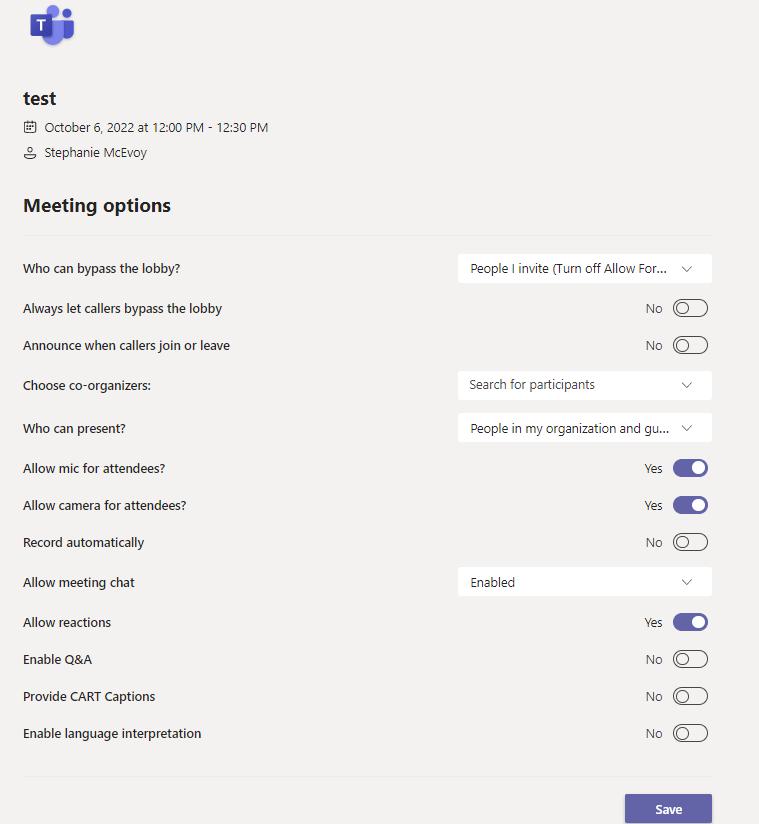
OutlookNote: YoucanalsoquicklyaccessTeamsMeetingoptions inOutlookusingthetopribbonandMeetingOptionstab.
CHANGE/ SET M EETING
OPTIONS
3
2.
O P T I O N S 1 13 Important optionto review Important optionto review
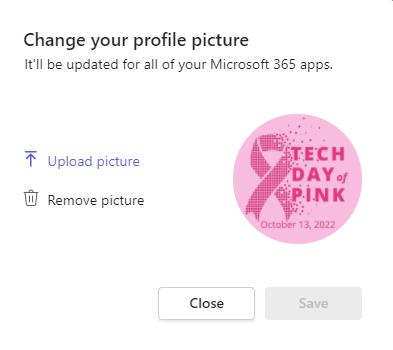
Tochangeyour profilepicture,click your current profilecircleat thetopright of thescreen Hover over your current profilepictureand thenclick thecameraiconthat appears Fromthemenu that appears,click Uploadpicturetoaccessthe filesonyour computer andchoosethephoto Click Openandthenselect Save.

CREATERECURRING M EETINGS IN TEAM
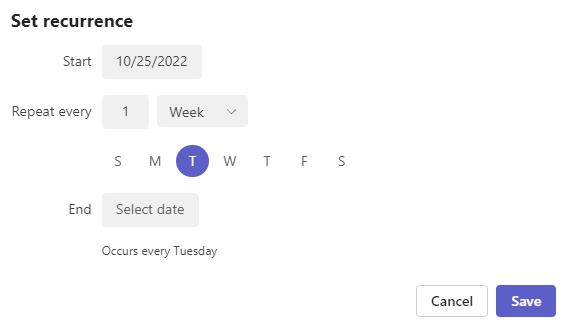


S APP


CHANGEPROFILEPICTURE
14
1. InTeamsCalendar,select New meeting (topright).
2 Addtitlefor your recurringmeeting andaddall attendees.
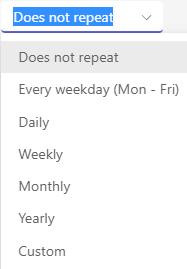
3. Select recurringmeetingdrop-down menuand choosetheappropriate settings.
1 2
4. Select thedateandfrequency for the first andlast occurrenceof your recurringmeeting. Select frequency.
3.
4 5 15
5. Addany additional detailsandselect Save.
1. InTeamsCalendar, click on the recurringmeetingyouwant tocancel or edit.

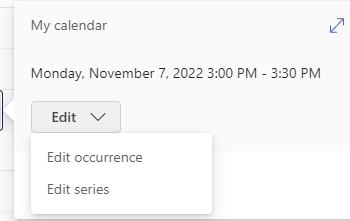
2. Select Edit occurrence from the drop-downmenuand follow the promptstoadjust themeetings. Remember toselect Sendupdatewith your changes.
SET YOUR SHOW AS STATUS
Asanorganizer,youcanset the Show Asstatusof themeetinginthe?actionbar. WhenparticipantsRSVP,their?statuswill automatically reflect thestatusthe organizer set ?
Asaparticipant,youcanchooseto set your individual statusfor the meetingthrough Show As, independent of thestatusset by the organizer.Theupdatedstatuswill reflect onyour calendar.The default Show Asvaluefor all the meetingsanorganizer schedules?is?
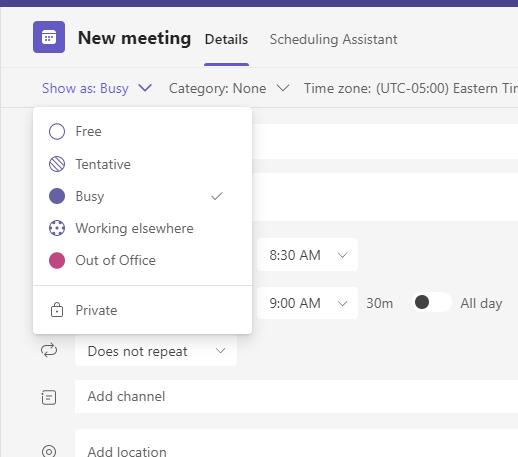
Busy.
Youcanalsoset your?own Show As statusontheDetailstabof your TeamsMeeting.
CANCEL &
M EETING in TEAM S APP
EDIT A RECURRING
16
3.
17
InTeamsapp,click theellipsis ...........(threedots )totheleft of your profilepicture(located topright of your Teamsscreen).

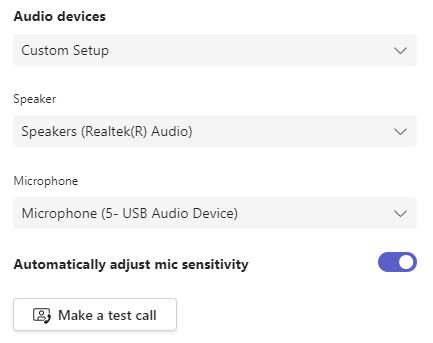

M AKEA TEST CALL TO TEST THEQUALITY OF YOUR AUDIO/VISUAL
4.
3.
1.
2. Select Settings.
3. Select Devices.
18
4. Select Makea test call.
1
QUESTIONS? Email the Help Desk Team at: UseHelpDesk@use.salvationarmy.org Visit M icrosoft Support for how -to articles, videos and training materials. support.microsoft.com
2.
Teamsmeetingsarebest whenyoujointhemfromtheTeamsappbut thereother waystojoin! Youcanjoinby link,fromyour calendar,achat or channel,andmore. Let'slook at afew options.
Join a TeamsMeeting from Outlook Calendar:

Option1: Click Joinonlinenow link inthemeetingrequest
Option2: Inthemeetingreminder,click Joinonline.
Join a TeamsMeeting from Teams Calendar:

1. OpentheTeamsapp,andselect Calendar iconlocatedon theleft sideinthenavigational sidebar.
2. Select themeetinginviteinyour calendar. Younow have twooptionstojointhemeeting:
Option1: Inthemeetinginvite,click thelink Click heretojointhemeeting
Option2: Select the Joinbuttonlocatedonthetopright sideof the screen.
Join a TeamsMeeting by Call In (Audio Only): If you'reunabletousetheTeamsappor Teamsontheweb,youcanjoinmeetingsby callingaphonenumber.If there'saphonenumber andconferenceID inthemeeting invite,just dial thenumber tojoin.
Visit
JOIN A M EETING 19
M icrosoft Support for how -to articles, videos and training materials. support.microsoft.com
ADD A PERSON TO TEAM S M EETING IN PROGRESS
Youcanaddanother attendeetoanexisitngTeamsmeeting.
If you are the meeting owner:
1 Openyour scheduledmeetingonyour calendar inTeamsor Outlook
William Booth is calling you
2. Inthe Requiredfield,enter or searchfor thepersonyouwant toadd.
3 Select SendUpdate
William Booth@USESalvationArmy org
Evangeline.Booth@USE.SalvationArmy.org
William|
If you are NOT the meeting owner:
1. Openthemeetingrequest.
2. Inthetopribbonselect the Respondtab.
3. Select Forwardfromthedrop-downmenu.
4. Enter thenameof theattendee(s)youwant toaddtothemeetingrequest.
5. Select Send.Themeetingowner will receiveanotificationthat youhave forwardedthemeetingrequest toanother person.
Evangeline Booth@USESalvationArmy org
William Bamford@USESalvationArmy org
William Booth@USESalvationArmy org
Im port ant Meet ing
Important Meeting Evangeline Booth on behalf of William Booth Microsoft Teams Meeting Microsoft Teams Meeting 2 3 2 2 3 4. 5 1 1 20
FW:
CAM ERA ON/OFF
Duringameeting, youmay want to turnyour video (camera)onand off at different times duringthemeeting.
1. Inyour Teamsmeeting,click the More...tablocated top of your Teamsscreen).
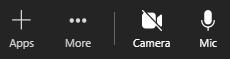
2. Select Devicesettings.
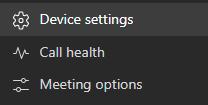
3. Devicesettingsscreenwithopen displayingcurrent devicesandsettings. Select/changeyour preferencesin:
Audio devices
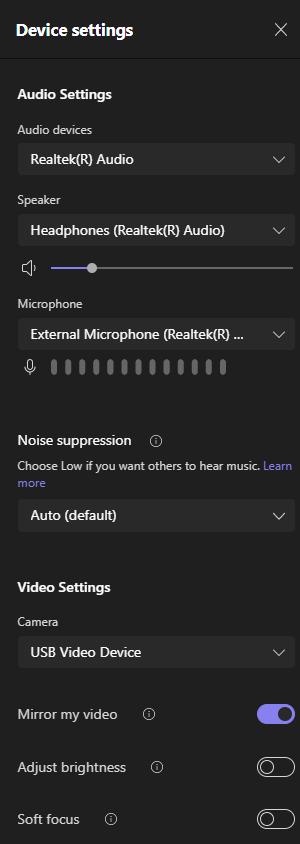
- Speaker
- Microphone
- Noisesuppression
Video Settings
- Camera
- Adjust brightness
- Soft focus
For example,if you'dprefer peopleonly seeyouwhileyou'retalking,gotothe meetingcontrolsand click the Camera icontoturnyour cameraonandoff. Visit
DEVICESETTINGS W HEN IN A M EETING 22
21
M icrosoft Support for how -to articles, videos and training materials. support.microsoft.com 1
2. 3
3.
TURN ON/OFF LIVECAPTIONING
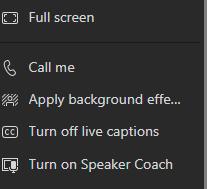
Teamshasbuilt-inclosedcaptioningyoucanturnonfromthemeetingcontrols.
1. Inameeting,click theellipsis(threedots/More)topright.
2. Select Turnonlivecaptions.
3. Select languagepreference.
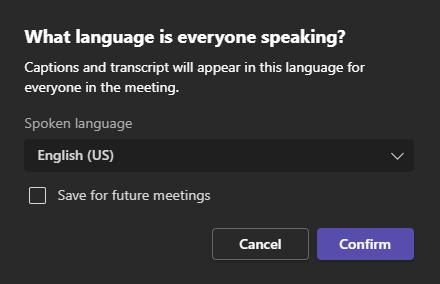
4. Click Confirm.
5. Toturnoff closedcaptioning,click theellipsis(threedots/More)topright. Select Turnoff livecaptions.

4 2 5
3
23
1.
WhenyouareinaTeamsmeeting,several meetingoptions(icons)appear across thetopof themeetingscreen(aswell additional optionsthat canbeaccessedusing the More... tab.(Refer to More...inSection#26 for moreinformation.)
People: Providesa)alist of peoplewhoareinthemeeting,b)alist of people invitedbut not yet inthemeeting,andamechanismtoenter apersonor dial a phonenumber tobringthat personintothemeeting,c)a?shareinvite?link which providesalink that canbeemailedor chattedtosomeone.
Chat:Providesamechanismfor userstocommunicatewitheachother either throughacomment,attachment,formattedtext,or reaction.Thesechatscanbe viewedby othersduringandafter themeeting.
Reactions:Allowstheuser toraisetheir handor provideavisual reactiontothe teamschat for all tosee(thumbsup,heart,clap,laugh,surprisedface).(Refer to TeamsMeetingReactionsinSection#29 for moreinformation.)
Rooms:Allowsthemeetingorganizer tocreateadditional breakout rooms.
+Apps:Allowstheuserstoaddadditional Microsoft-approvedappstothemeeting (i.e.,polls)whichthenbecomesanother meetingoptionat thetopof thisparticular meeting.
More...:(Refer to More...inSection#26 for moreinformation.)
Camera: Allowstheuser totogglebetweentheir camerabeingonand off.
Mic: Allowstheuser totogglebetweenmutedandunmuted.
Share: Allowstheuser tosharetheir screen. (Refer to ShareYour ScreeninSection #28 for moreinformation.)
SHAREYOUR SCREEN 26 M EETING ICONS 24
Duringameeting,you may want toturnyour microphoneonandoff at different times duringthemeeting Perhapsyouwould prefer peopleonly hear you whileyou'retalkingandnot hear your backgroundnoisethroughout themeeting.
Gotothemeetingcontrolsat thetopof your screenandclick the Micicontoturnyour cameraon andoff.
TIP! A slashmark will appear throughthemicrophoneiconwhenyour microphoneismuted (turnedoff).
M ORE... TAB
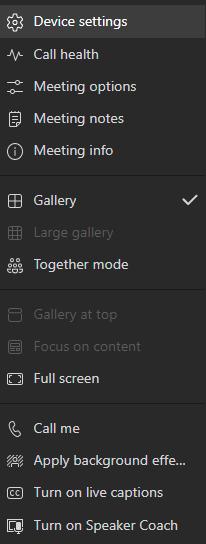
Device settings: Allowstheuserstoadjust audio, noisesuppressionandvideosettings.
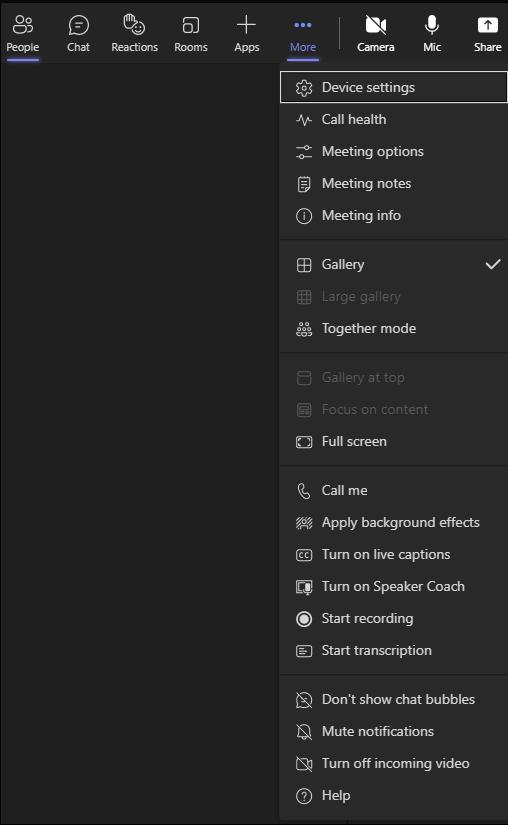
Call health: Providestechnical informationonyour call details.(Ifyouhavedifficultieswithyourmeeting quality,submit aHelpDeskTicket to usehelpdesk@use.salvationarmy.org.)
Meeting options: Makeschangesduringthemeeting Refer to MeetingOptions(Change/Set)inSection#13.
Meeting notes: Addsameetingnotestabtoyour meetingwhereyoucantakenotesavailableduring andafter themeeting.
Meeting info: Providesthetime,date,andcall-in informationfor thecall. Youcancopy theinformation tosharewithothersviaemail or chat.
M ICROPHONEON/OFF (M UTE) DURING A M EETING 25
26
M ORE... TAB (con't)
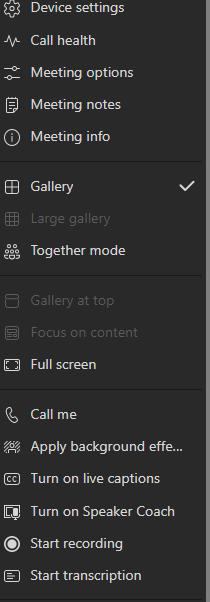
Gallery / Together mode: Providesavisual of your participantsthat only youcansee(or othersif youarepresenting)
Full screen: Allowsfor your content tobeonafull screen.(Uncheckthesameoptionto revert back.)
Call me: Allowsauser toenter aphonenumber if they want themeetingtocall themona separatephonenumber.
Apply background effects:Allowstheuserstoselect adifferent background. Hint!Click Previewtotryit out beforeothersseeit.
Turn on live captions: Allowstheuserstoselect thelanguageinwhichthecaptionsand transcriptionsappear (samefor everyone). Click ?Savefor futuremeetings?when needed
Turn on Speaker Coach: Allowsa?coach?tolistentoyour speechandprovidefeedback privately toyou.
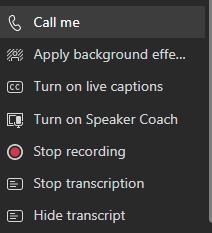
Start recording: Startstherecording.Patricipantsreceiveanotificationbanner alerting that themeetingisbeingrecorded.(By default,themeetingwill betranscribed.)
Start transcription: Startsthetranscription(if not beingrecordedbothwill start when youchoose?start recording?).
Show/hide transcript: Controlswhether thetranscript boxshowsontheright.
Show/don? t Show chat bubbles:Controlswhether bubblesappear whenyouget new messages.
Allow/Mute Notifications:Turnsoff/onnotifications.(Thedefault isMuteNotifications.)
Turn on/off incoming video:Turnsvideoon/off.(Thedefault isTurnoff incomingvideo.)
Help:TakesyoutoMicrosoft support.(Link)
QUESTIONS?
Email the Help Desk Team at: UseHelpDesk@use.salvationarmy.org
Visit M icrosoft Support for how -to articles, videos and training materials. support.microsoft.com
Pleasenote:Whenyoustart recordingaTeamsmeeting,livetranscriptionsis automatically enabled.
Therecordinglink will be inthemeetingchat after themeetinghadended. Select themeeting recording,thenselect Moreoptions( )> Get link tofindtherecordinglink.
Refer
SHAREA MEETING RECORDING
Meetingrecordingswill automatically beavailableto everyoneinvitedtothemeeting.Youcanalsosharethe recordinglink withpeoplewithinour organizationwho weren't intheoriginal meeting
Tosharethelink toyour meetingrecording andset viewingpermissions: IntheTeamschat,findtherecordingandselect Moreoptions(...)> Open Oncethemeetingrecordingopensinyour browser,select Share.
Refer to Sharea RecordedMeetinginSection#33.
RECORD A TEAM S M EETING
1
2.
1. Inameeting,click theellipsis(threedots/More)topright.
2 Select Start recording
3 27
3. Tostoprecording,click theellipsis(threedots/More)topright.Select Stop recording.
FIND A MEETING RECORDING
to Finda Recorded MeetinginSection#32
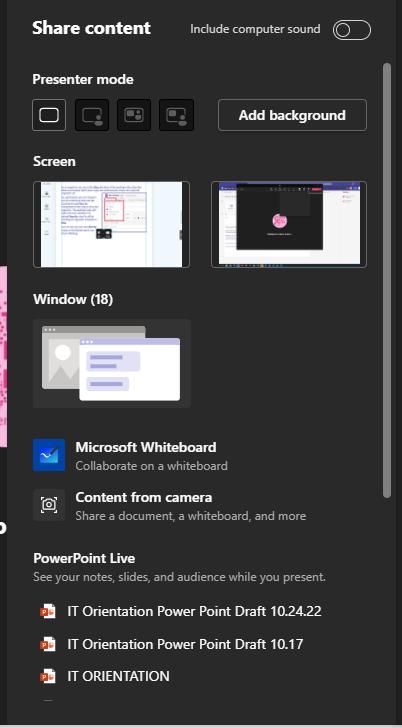
1 After youhavejoinedaTeamsmeeting,select the Shareicon (topright)

2. Sharecontent boxwill appear.Select what youwant toshare.

Duringyour meeting,select Reactionsinmeeting controlsat theupper-right areaof thescreento expressyour reactiontowhat'sbeingshared.
Choosefromarangeof livereactions:

- Applause -
- Love
The Raiseyour handreactionisusedwhena particpant isrequestingtospeak or hasaquestion.
SHAREYOUR SCREEN 26 SHAREYOUR SCREEN
1. 28
2
TEAM S M EETING REACTIONS
Laugh - Surprise 29
- Raise your hand - Like
Youcanshareyour Screen or youcansharea Window.
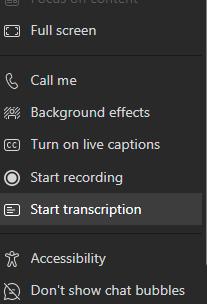
Duringany Teamsmeeting,youcanstart alivetranscription.Thetext appears alongsidethemeetingvideoor audioinreal time,includingthespeaker'sname (unlesstheychosetohideit)andatimestamp.
1. Inameeting,click theellipsis(threedots/More)topright.
2. Select Start transcription.
3. Select thepreferredlanguagefromthedrop-downmenuand click Confirm.
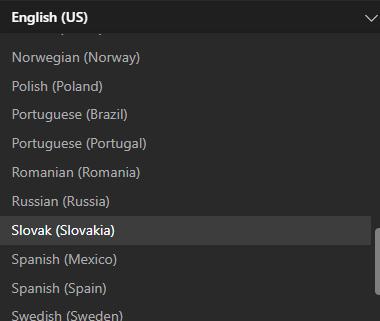
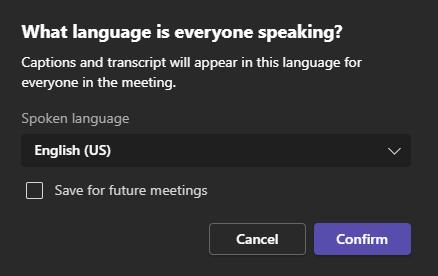
4. Tostoprecording,click theellipsis(threedots/More)topright.Select Stop transcription.
TRANSCRIPTION OF A TEAM S M EETING 30
1.
4 2
3.
If you'vejoinedameetingononedevice,youcanjoinit onanother deviceat the sametime.For example,if you'realready inameetingonyour laptop,youcanalso joinonyour phonetosharelivevideo,control apresentationwithyour phone,and muchmore. Youcaneither transfer themeetingtotheseconddeviceor keepboth devicesinthemeeting.
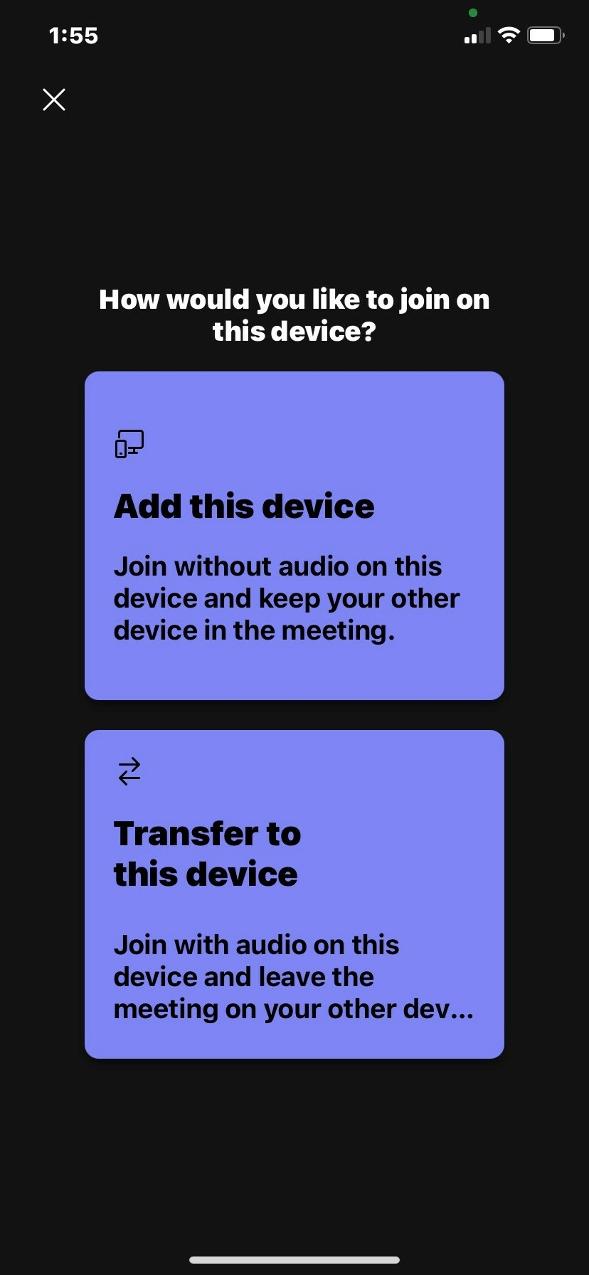

Transfer:
1. Whileyou'reinameetingononedevice, openTeamsonthesecondone(the device youwant totransfer themeetingto).
2. Fromthenew device,select Join.
3. Select Transfer tothisdevice.
4. Youcanset your audioandvideopreferences for themeetingonthenew device,thenselect Join.
Addaseconddevicetoameeting:
1. Whileyou'reinameetingononedevice, openTeamsontheseconddevice andselect Join.
2. Select Addthisdevice.
TIP! Toprevent anechoeffect,Teamswill automatically turnoff thecameraandmicon theseconddevicebeforeit entersthemeeting Onceit'sjoined,youwill beableto turnthemicandcameraonor off asneeded. Withbothdevicesinthemeeting,youcan sharecontent fromeither one.
TRANSFER A M EETING TO ANOTHER DEVICE 31 QUESTIONS? Email the Help Desk Team at: UseHelpDesk@use.salvationarmy.org Visit M icrosoft Support for how -to articles, videos and training materials. support.microsoft.com
Therecordinglink will beintheTeams meeting Chat tabafter themeetinghad ended.
TIP! Recordingsandtranscripts expireafter 30 days.Download thefileif youwant tosaveit for futurereference.
Meetingrecordingsareautomatically availableto everyoneinvitedtothemeeting.Youcansharethe recordinglink withpeople whoweren't inthe original meeting.Tosharethelink toyour meeting recording:
1. Click onthemeeting Chat tab.

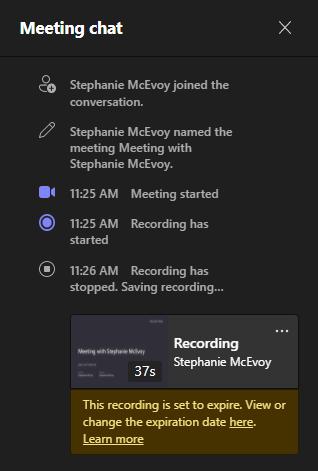
2. Next torecording,select Moreoptions(...).
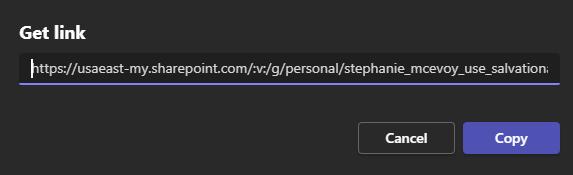
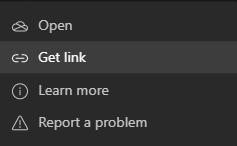
3. Select Get link.
4. Select Copytocopy the recordinglink you want toshare.
TIP! Youcanalsoaccessthemeetingrecording that wassavedinSharePoint.
Click onthemeeting Chat tab>
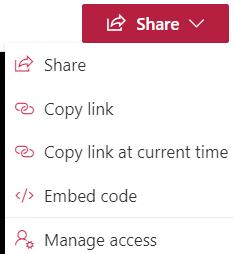
Select MoreOptions(...) > Select Open
Youwill beredirected toaSharePoint site whereyoucan Share, Copylink,Copylink at current time,Embed codeand Manageaccess.
(Recordingsandtranscripts expireafter 30 days. Downloadthefileif youwant tosaveit for future reference)
FIND M EETING RECORDING FILES & TRANSCRIPTS 32
SHAREA M EETING RECORDING LINK 33
2 1
4.
3.
NOTES:
NOTES: QUESTIONS? Email: UseHelpDesk@use.salvationarmy.org Visit M icrosoft Support for how -to articles, videos and training materials. support.microsoft.com 2/2022