

Robots are used in many different applications. One of the many applications is inside a hospital to either deliver medications or supplies to a nurse’s station, or to sanitize the facility during nightly routines. In both cases the robot must navigate hallways and floors while avoiding obstacles; and in the case of medication delivery, it must arrive at the intended location.
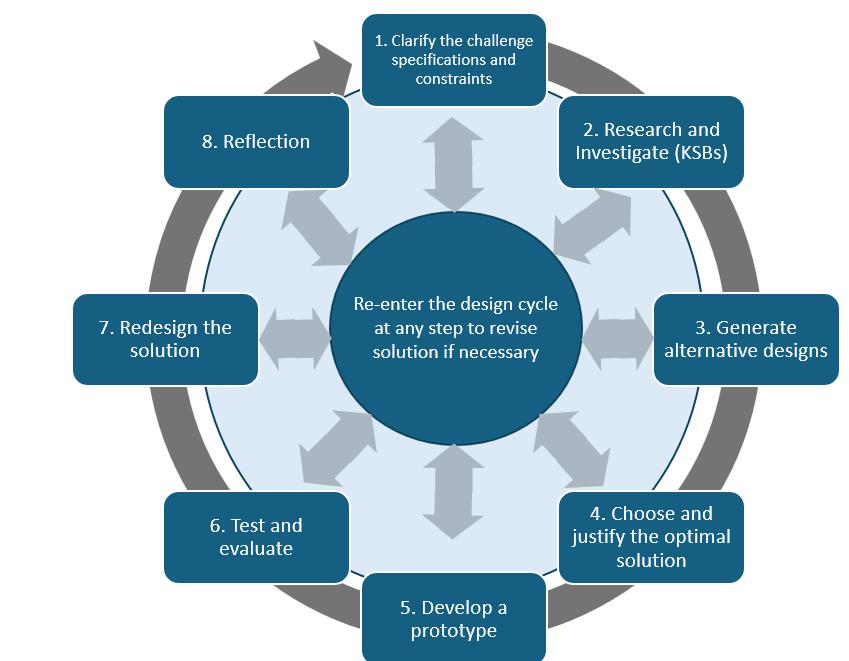
Specifications (what does the design have to do)
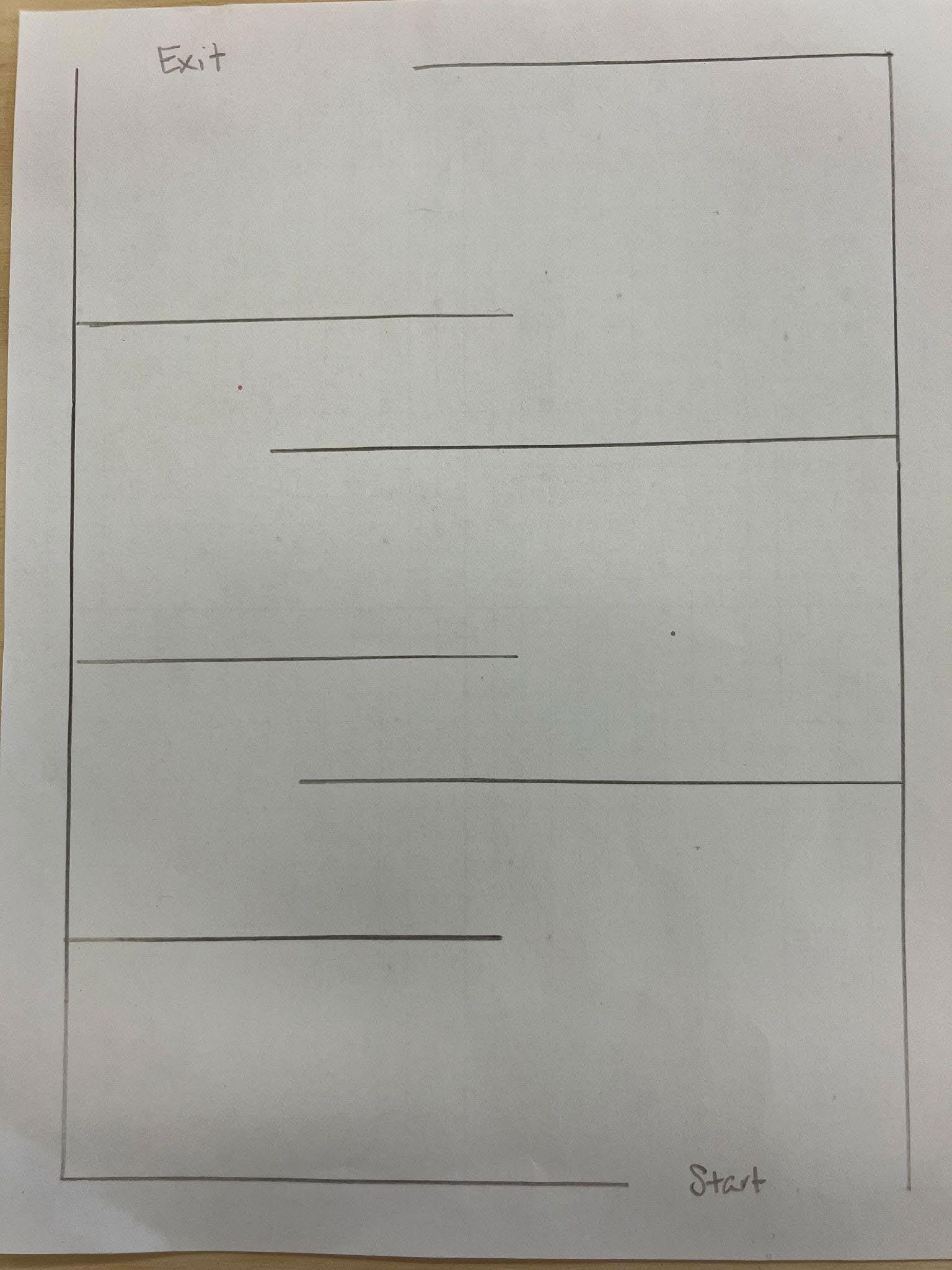
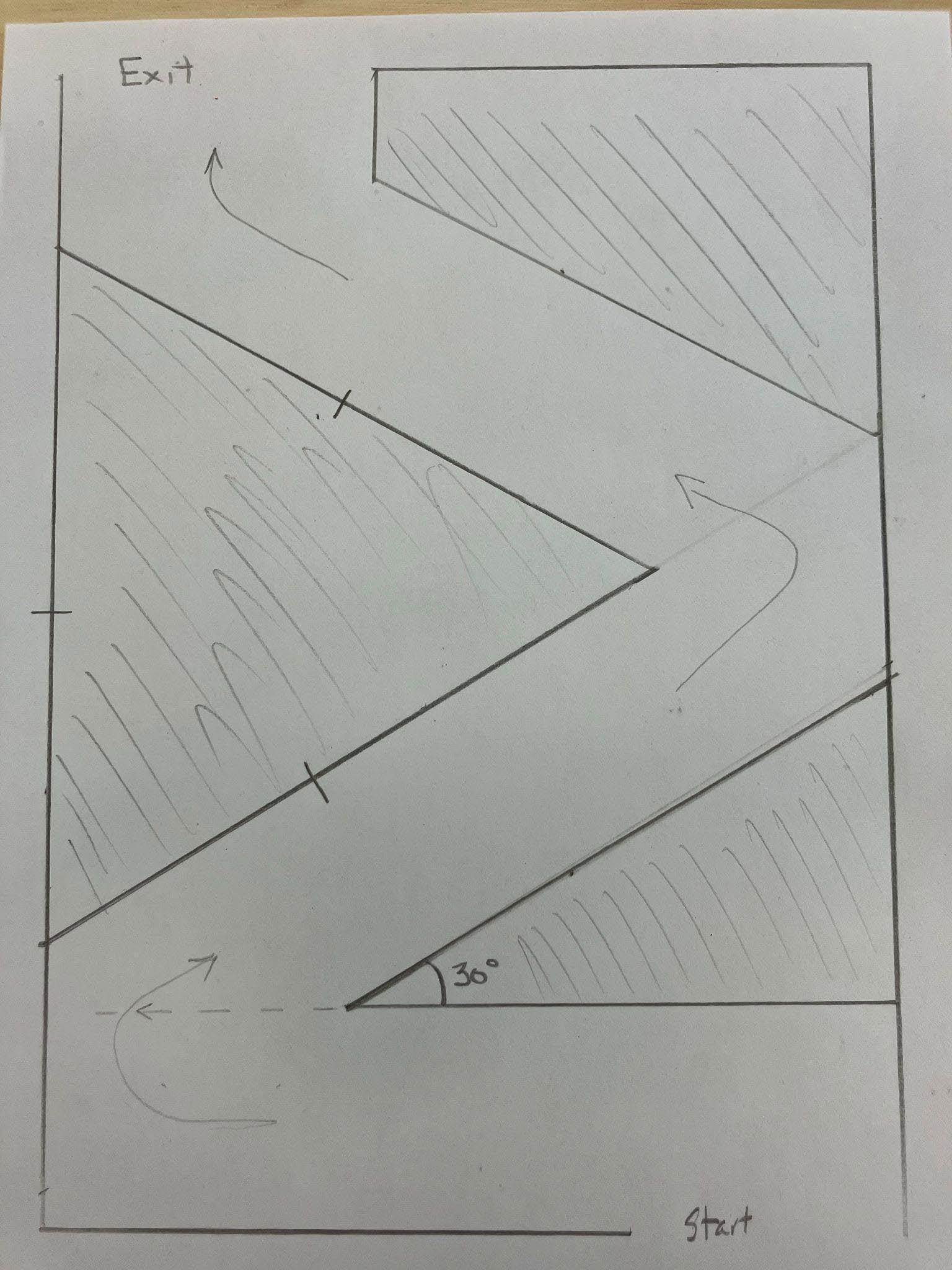
You and your team have been asked to design a robot that will independently navigate through a maze. The robot will be equipped with up to two rotation servos and a distance sensor. Prior to programming your robot, you will be provided with the maze’s ”floor plan.” The maze will be constructed using cardboard or scrap 2x4 to form its walls. Your robot will start at a designated starting point and successfully navigate to the exit.
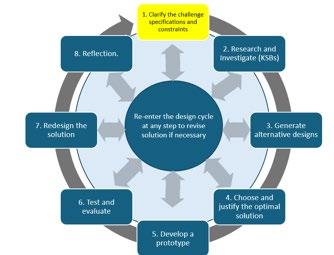
Constraints (things that limit your solution)
The maze will consist of “passageways” that are no wider than one foot.
Materials
Cardboard
Tape
Hummingbird Micro:bit Controller
Battery Pack with 4 AA batteries
Hummingbird rotation sensors (up to 2) and servo hardware
Hummingbird distance sensors (up to 2)
Two wheels
Ping pong ball (used as a third leg/swivel wheel for stability and turning.
Markers and art supplies to decorate the robot
Glue gun
Scissors etc.
Materials for the Maze: scrap 2x4s to form walls of the maze
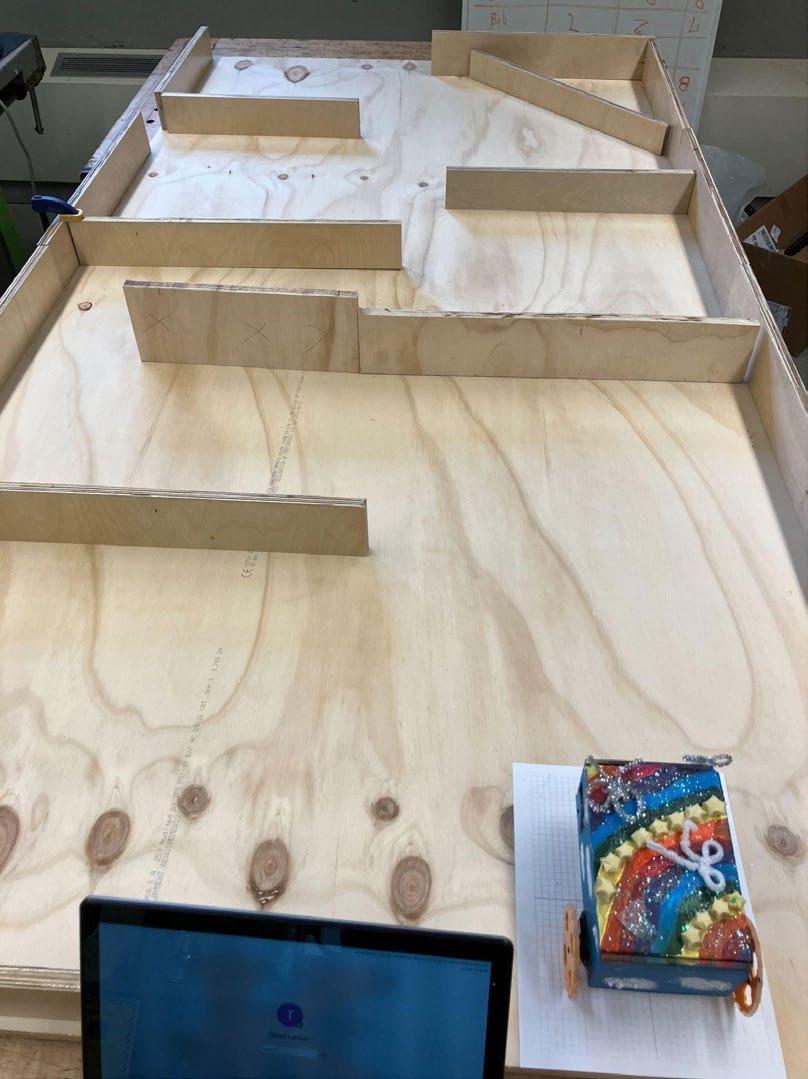
Pictured to the right is an example maze built from scrap 2x4” and a sheet of plywood.
Assessment
Criteria 1 2 3
Alternative Designs
Servo Operation Code
Describes one design idea. No explanation of how or why it was chosen.
Uploaded code moves one servo with basic functionality.
Sensor Operation Code
Final Design and Documentation
Uploaded code uses the distance sensor to detect obstacles.
Describes two design options and provides one reason for selecting the preferred design (e.g., simpler to build).
Uploaded code allows the robot to move forward and backward using two servos.
Uploaded code integrates distance sensor data with servo responses (e.g., stopping or reversing).
Includes a photo and code only. No explanation of function.
Testing and Evaluation
Reflection on Learning
Little or no testing. No explanation of how the robot performed.
Includes one vague statement about learning (e.g., 'I learned to code.').
Knowledge and Skill Builders (KSBs)
KSB 1 Building a Mobile Robot
Includes a photo and a brief written explanation of the robot's movements or response to input.
Tests whether the robot meets basic goals (e.g., can move or detect objects). Explains one outcome.
Identifies two skills or concepts learned with brief examples.
Describes three or more design options and justifies the chosen design using multiple criteria (e.g., accuracy, efficiency, ease of coding).
Uploaded code includes forward, backward, left, and right movement. Code is clearly commented to explain servo control.
Uploaded code integrates sensor and servo operations with conditional logic and includes comments for readability.
Includes a photo, annotated code, and a detailed explanation of the robot's movement, input response, and any changes made.
Conducts structured testing. Documents multiple outcomes and explains what changes were made or should be made.
Provides detailed reflection on learning, including technical skills, problem-solving strategies, and project challenges.
Here is an example of a simple robot from BirdBrain Technologies: My First Rover
Here is a link to a tutorial on how to build a simple Box Rover:
https://learn.birdbraintechnologies.com/hummingbirdbit/build/rover/1-1
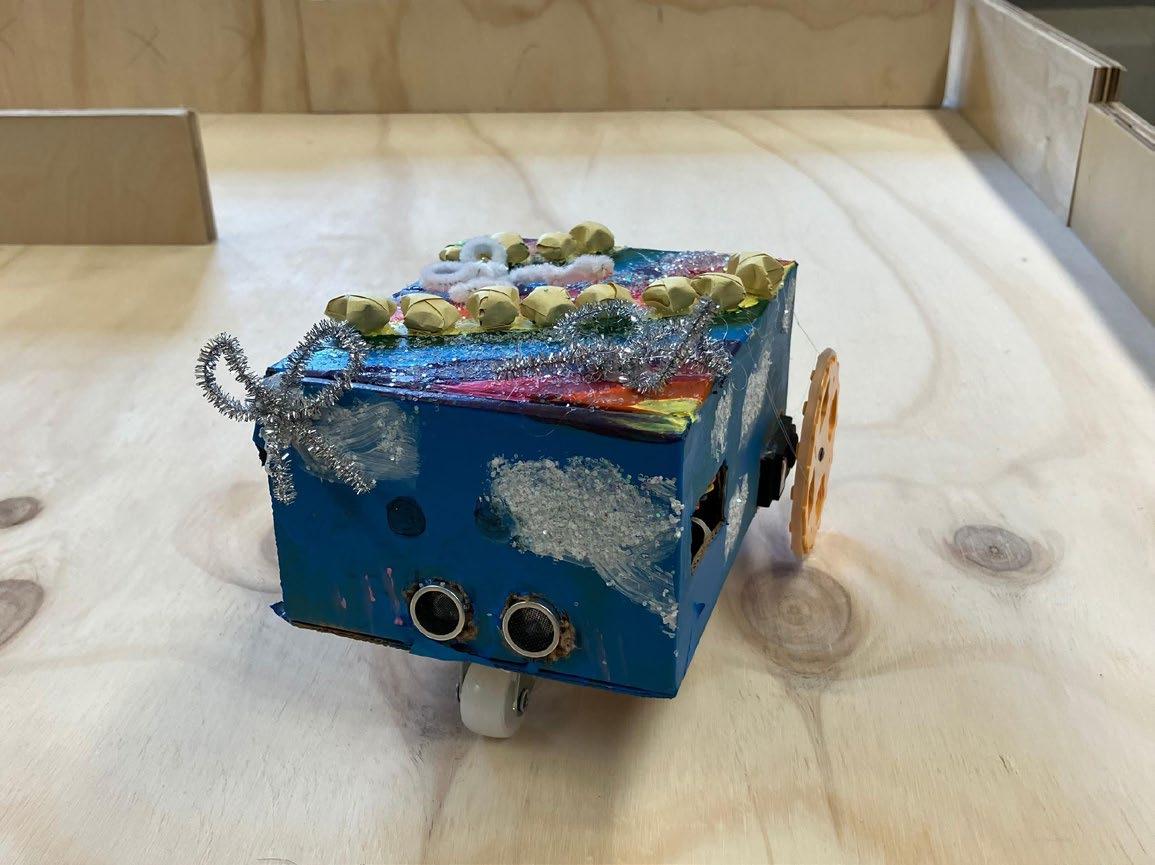
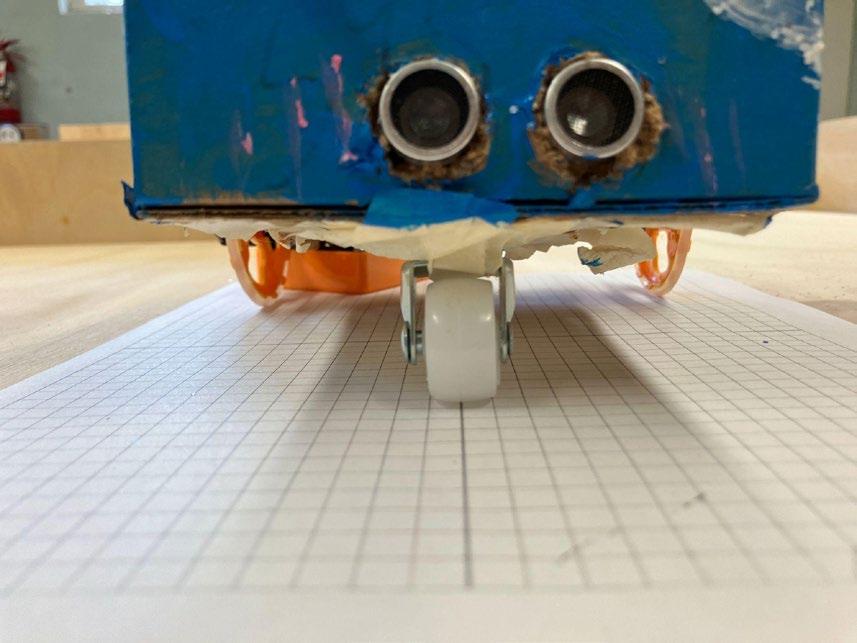
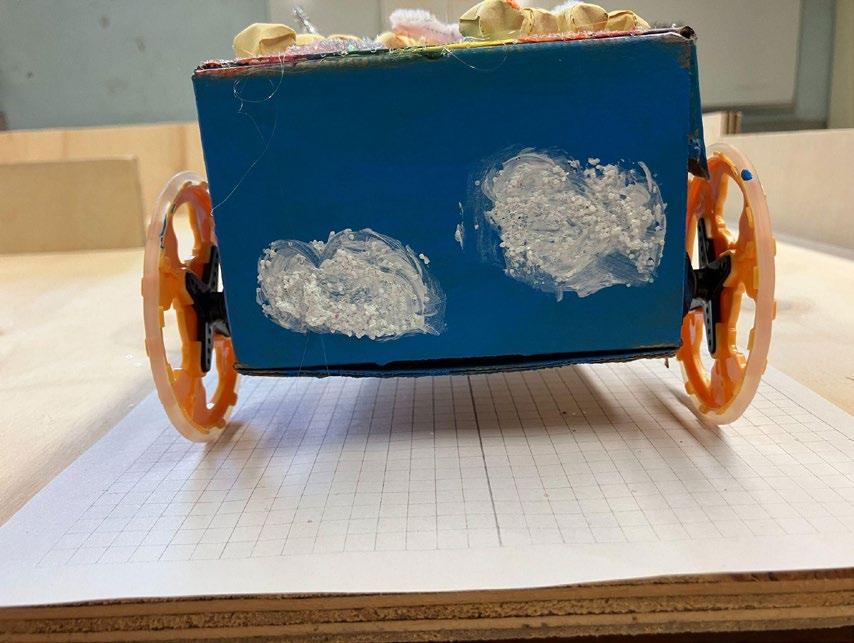
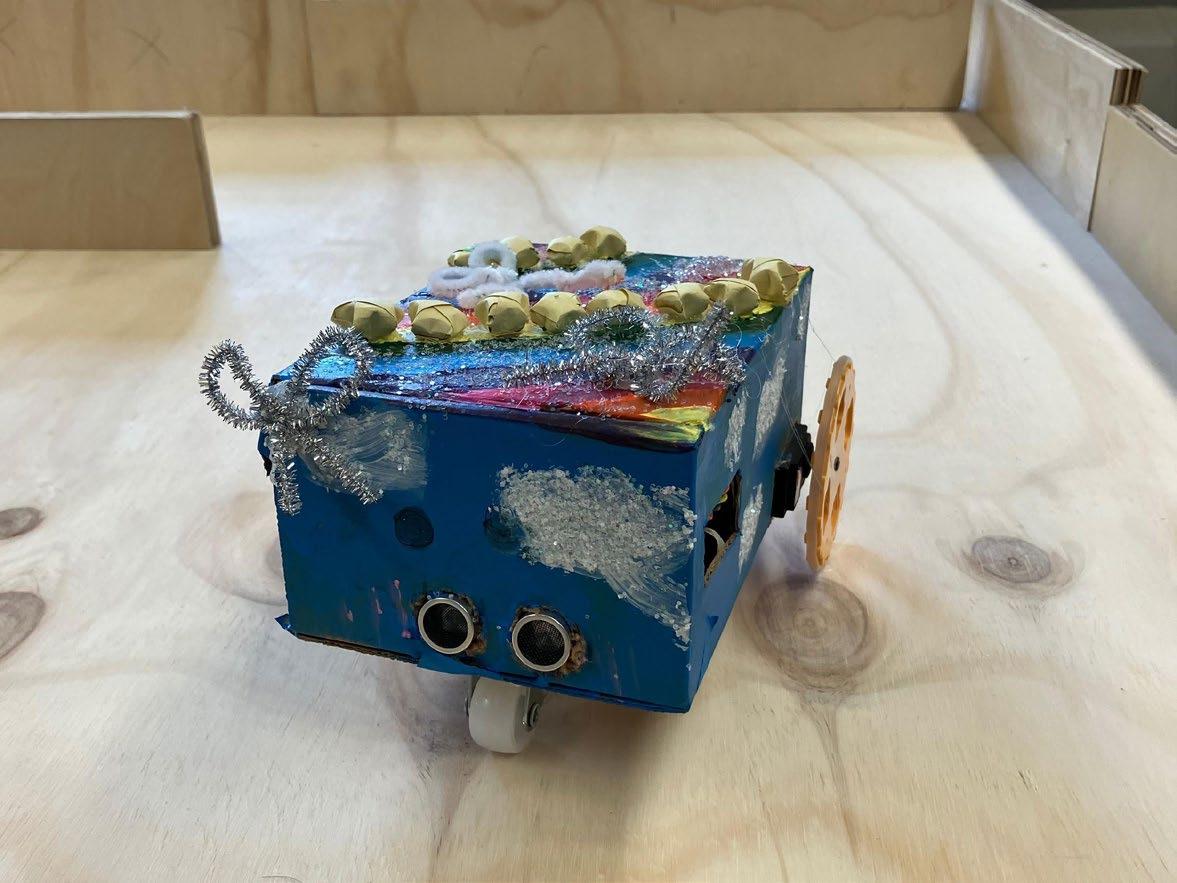
Pictures of a possible robot build:
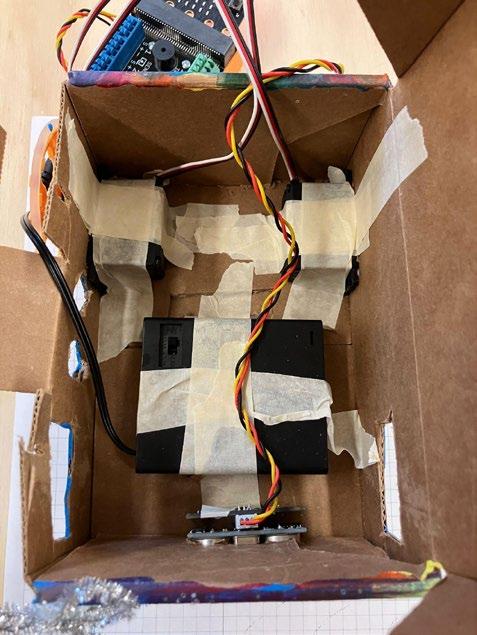
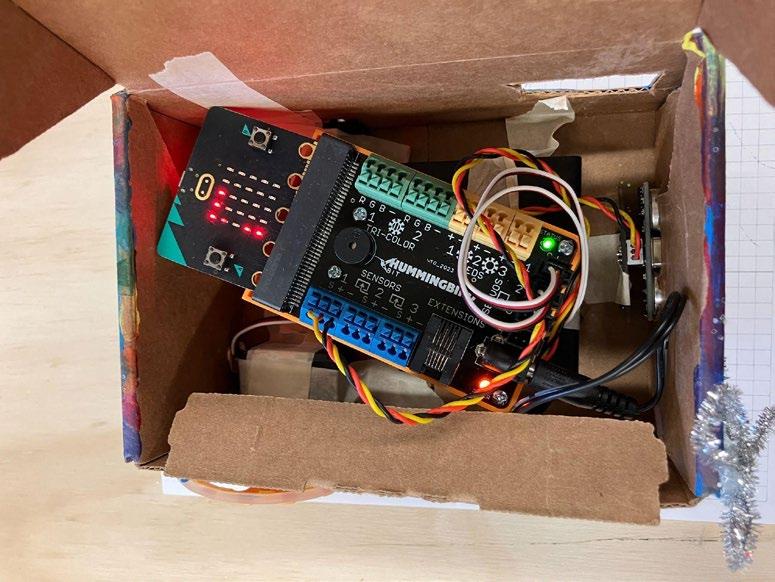
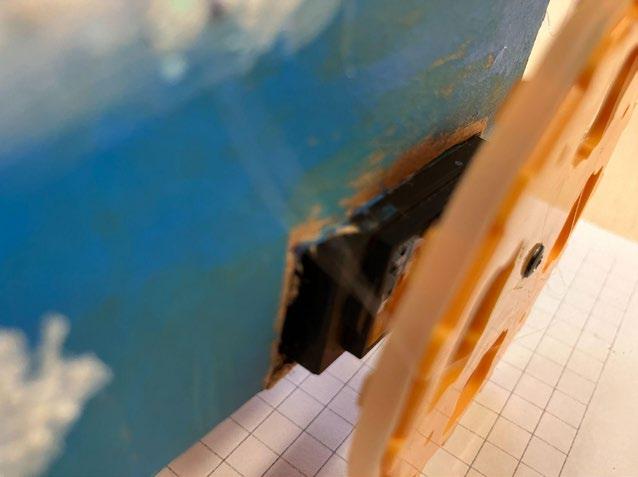
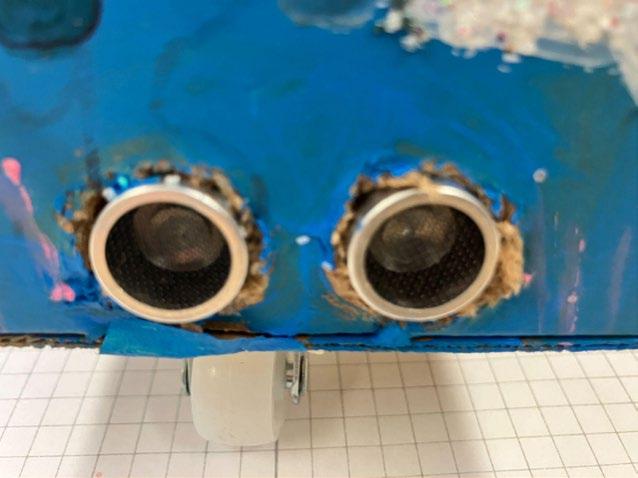
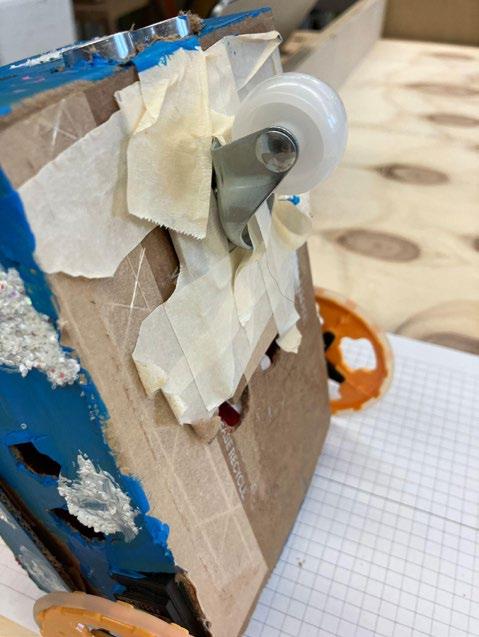
A rotation servo is a motor that can rotate at different speeds.
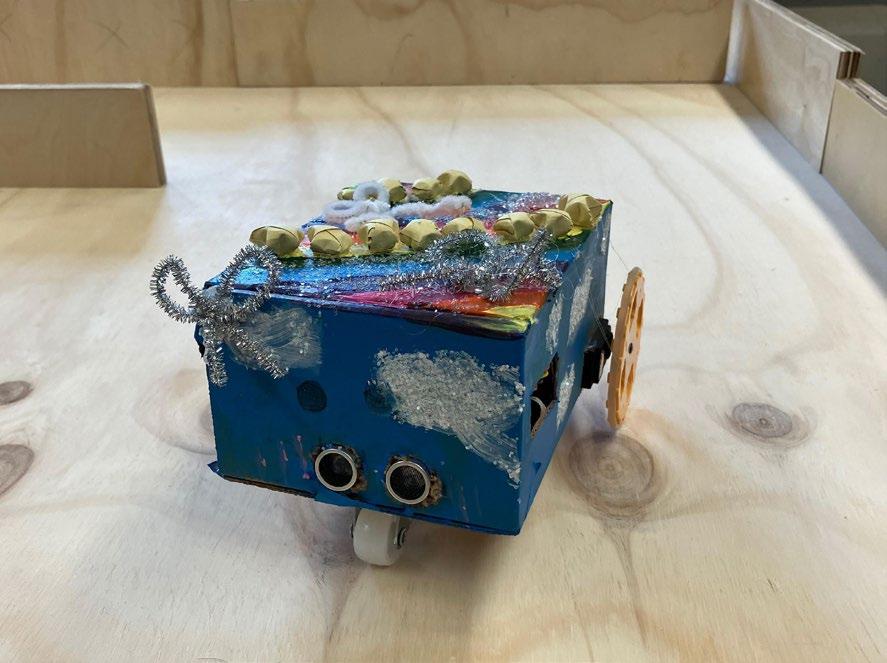
Here is a link to a tutorial on how to use and program the rotation servo found in the Hummingbird Kit:
https://learn.birdbraintechnologies.com/hummingbirdbit/snap/program/10-1
Follow the directions for programming the rotation servo. Try adding a second rotation servo.
Picture of example code:
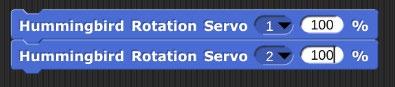
To stop the rotation servos, you must set the speed to 0:
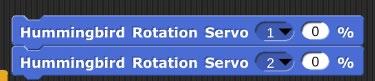
A distance sensor is a component that collects data based on your distance from the sensor. The detection range of the Hummingbird distance sensor is 1 to 260 cm.
Here is a link to a tutorial on how to use and program the distance sensor in the Hummingbird kit.
https://learn.birdbraintechnologies.com/hummingbirdbit/snap/program/15-1
Follow the directions for programming the distance sensor and have the Hummingbird play a sound when an object is detected at a specified distance away (i.e., <10 cm).
Picture of example code:
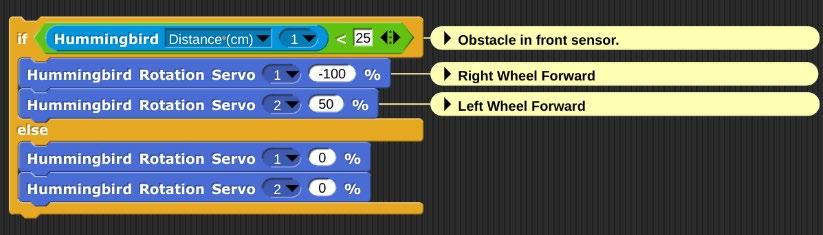
Note:
- To add a comment in Snap!, right click (or two finger press on the mouse pad of Chromebook) anywhere on the workspace,and then choose “Add Comment”. Attach the comment to any block or group of blocks to which the comment refers.
-
- In this particular robot build, Servo 1 rotates much more slowly than Servo 2, which requires setting unequal percentage values for speed in order to keep the robot moving forward in a straight line.
-
- In the picture to the right, the black wire is plugged into the “-” port while the orange is plugged into the “+” port. The yellow wire is plugged into the “S” port.
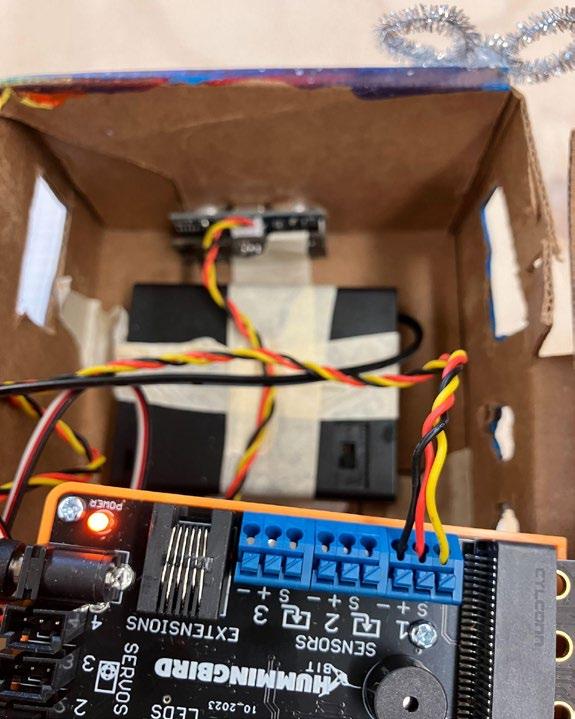
If you have not yet built your robot, do so now. You will need a swivel wheel or half a ping pong ball to serve as the third “leg” which will enable the robot to easily turn. Once you have built your robot, you are ready to code the Hummingbird to make the robot move forward and backward.
You will need two rotation servo blocks set at a percentage greater than 0.
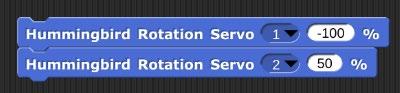
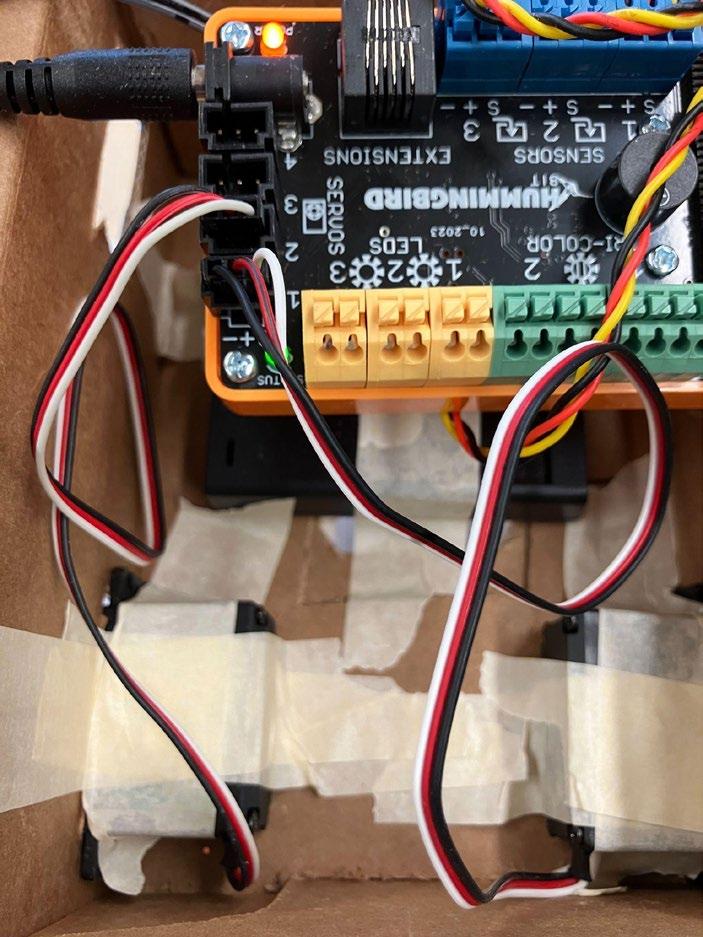
In the picture below, please note:
1) The black wire of the servo is plugged into the “-” side of the port while the white wire is plugged into the “S” side of the port.
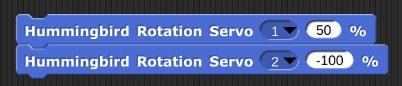
2) Hummingbird Rotation Servo 1 is the right wheel of the robot and turns clockwise when the speed is negative, moving the robot forward.
3) Hummingbird Rotation Servo 2 is the left wheel of the robot and turns counterclockwise when the speed is positive, moving the robot forward.
Experiment with these two blocks. Fill in the table below, then answer the questions that follow. Pay close attention to the direction in which the wheel is moving (i.e., does the right wheel rotate so that the top of the wheel moves forward?)
Here are a few notes regarding the Hummingbird Servos:
- Not all servos work equally well. For example, one servo will spin faster than the other when set at equal “speeds” (i.e., both at 100%).
- If a wheel is rubbing against the side of the robot, the speed and direction will be affected.
- If the servos are not securely fastened allowing any “play” in the black box their speed and angle of rotation may be affected. If the servos are mounted on unequal planes, the robot will have a tilt, which will affect the direction of the robot.
Student answers will vary depending on the robot build and the individual servos.
Robot spins in a circle in a clockwise direction (turning right). Both wheels are moving.
Robot does nothing or stops.
Robot spins in a circle in a counterclockwise direction (turning left). Both wheels are moving.
Robot spins in a circle in a clockwise direction (turning right).
Right wheel moving Left wheel not. Smoother turn than when both wheels are moving.
Robot spins in a circle in a clockwise direction (turning right).
Left wheel moving Right wheel not. Left wheel tends to slip on the
50
50
-50
50
surface making the turn a bit “jumpy” and not as smooth.
Robot spins in a circle in a clockwise direction (turning right). Both wheels are moving. Fast and smooth turn.
Both wheels are moving forward but the Left wheel is moving faster than the Right wheel causing the robot to turn Right.
Which wheel does the Rotation Servo #1 control? __Right____________(Right or Left)
Which wheel does the Rotation Servo #2 control? _ Left_____________(Right or Left)
What does the negative sign in front of the speed do to the rotation of the servo?
The negative sign reverses the polarity of the motor and therefore reverses the direction of the servo.
What happens when both speeds are positive?
The robot spins clockwise (turning right) in a circle when both speeds are positive.
What happens when both speeds are negative?
The robot spins counterclockwise (turning left) in a circle when both speeds are negative.
What happens when one speed is positive and the other is negative?
The robot moves forward in a straight line when one servo is positive and the other is negative.
What happens when the speeds have different absolute values? (i.e., 40 and 60 or -35 and 70)?
The servos turn at different speeds when the absolute values are different. In some instances, the servos may turn at the same speed even though the absolute values are different because the servos are not exactly the same.
Complete the table below for each scenario based on your findings above:
What are some variables that affect how your robot moves forward in a straight line?
Variables that might affect the robot moving forward in a straight line are the servo's speed and direction, the surface (smooth vs. rough, allowing for more or less friction), and whether or not the wheels are pointing straight forward.
Note:
In a two-wheeled robot, if you are using individual motors to drive each wheel and you want the robot to move forward, the direction in which each motor turns depends on the orientation of the motors and the wheels.
Assume that:
- The robot has two wheels: a left wheel and a right wheel.
- Each wheel is driven by a separate motor.
For the robot to move forward:
1. **Left Motor:** The left wheel needs to rotate such that the top of the wheel moves forward. To achieve this, the left motor should turn counterclockwise when viewed from the left side of the robot.
2. **Right Motor:** The right wheel needs to rotate such that the top of the wheel moves forward. To achieve this, the right motor should turn clockwise when viewed from the right side of the robot.
This ensures that both wheels propel the robot forward.
Now you are ready to code the Hummingbird so that the robot turns left or right.
There are several ways to make this happen:
1) One wheel is turning.
a) Set one servo to turn for an amount of time such that it turns 90 degrees. One example of code is:

Note: The above code worked with a particular set of rotation servos assembled in a particular way. The above code may need to be adjusted depending on your rotation servos and how your robot is built and assembled.
2) Both wheels are turning.
a) How can you change the code from part A to include the second rotation servo?
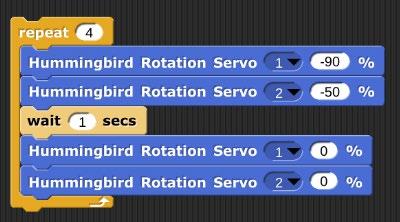
b) Why would two wheels be better/worse than one wheel turning?
Two wheels might provide a faster, smoother turn depending on the servos and the surface.
c) Which method do you prefer? One wheel turning or two? Why?
Student answers will vary here depending on the student’s preference.
You will need to experiment with your particular robot to determine the correct speed and duration needed for your robot to make a 90-degree turn.
What are some variables that affect how your robot turns?
Variables that might affect the robot's ability to turn are the servo speed and direction, the surface texture (smooth vs. rough, allowing for more or less friction), and the type of front “leg”. A ping pong ball cut in half may provide a smoother turn compared to a swivel wheel or a fixed wheel.
Can you control any of those variables? If so, what controls did you introduce?
Student answers will vary depending on the robot build. There is not much control over the servo performance. However, switching out the front “leg” or changing the surface on which the robot is turning (i.e., adding a rubber band to the wheel to create more friction).
Here is a link to a tutorial on how to program your robot to drive forward and avoid obstacles:
https://learn.birdbraintechnologies.com/hummingbirdbit/snap/program/23-1
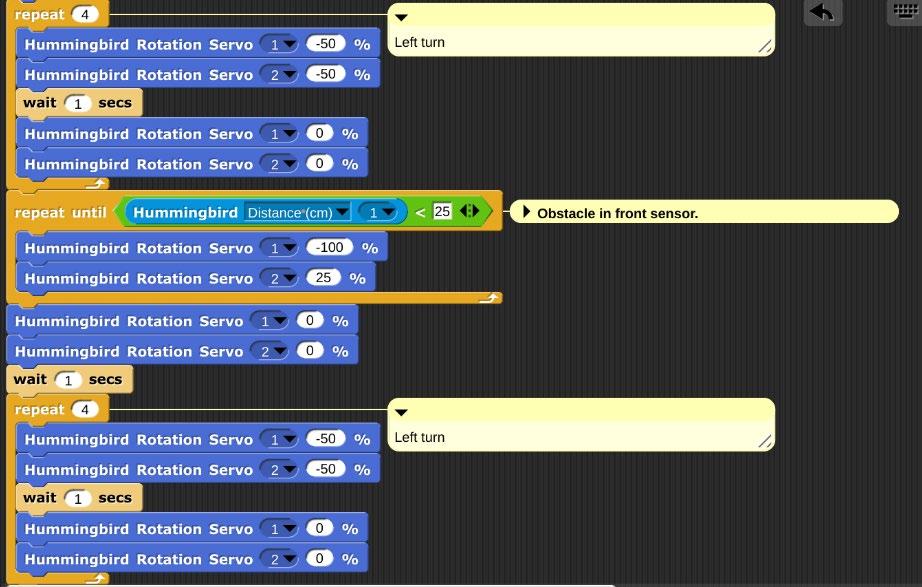
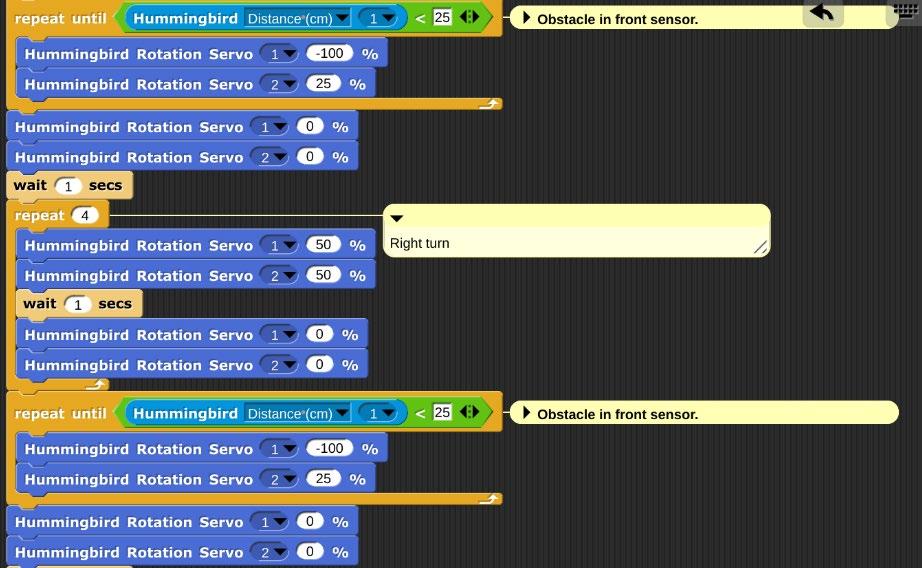
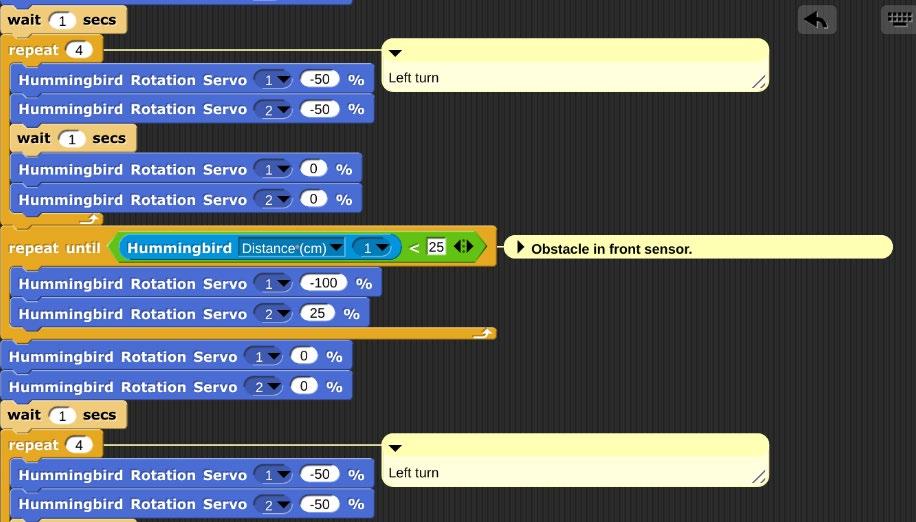
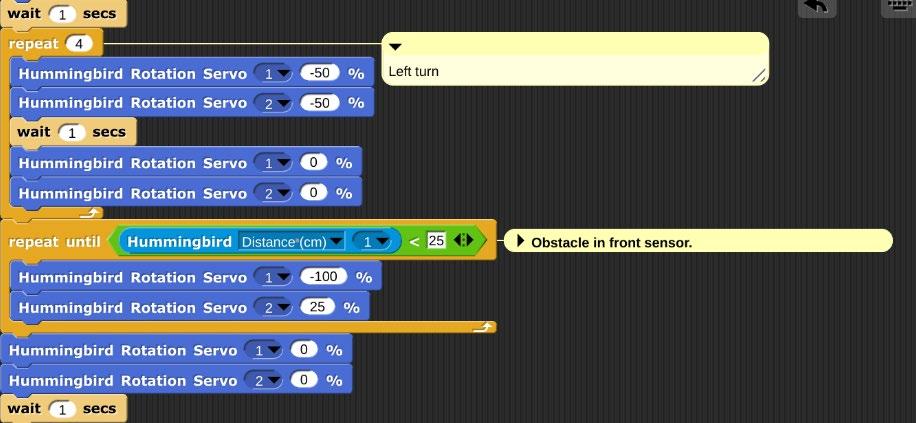
Now create code that moves your robot forward until an obstacle is detected in front.
Pictures of example code:
Moving forward:
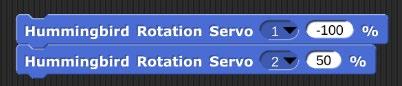
Moving backward:
Computers are controlled by code; in this case, the computer program you create will independently navigate a robot through a maze without hitting any obstacles. This is similar to you walking through a crowded room or changing classrooms between class periods. You must avoid the people standing in front of you and turn corners to get to your next classroom. When you see a person in front of you, what do you do? Your brain tells your body to stop, you scan the area for a way around the person, and then your brain instructs your legs to turn left or right to move a step or two, turn again, and then move forward around the person. You must program your robot to behave in a similar way when it detects an obstacle.
Think about what you want to happen step by step. This is how the computer reads the directions you give it through the code that you write. Go back to the challenge statement and review what is supposed to happen.
Pseudocode is a description of the steps in an algorithm using a mix of programming language and informal self self-explanatory notations of actions and conditions. Using pseudocode, indicate the sequence of events below.
Example pseudocode:
1) Move forward until an obstacle is detected 20 cm away.
2) Turn left 90 degrees
3) Move forward until an obstacle is detected 20 cm away.
4) Turn right 90 degrees
5) Move forward until an obstacle is detected 20 cm away.
6) Turn left 90 degrees
7) Move forward until an obstacle is detected 20 cm away.
8) Turn left 90 degrees
9) Move forward until an obstacle is detected 20 cm away.
10) Turn right 90 degrees
11) Move forward 100 cm to the exit
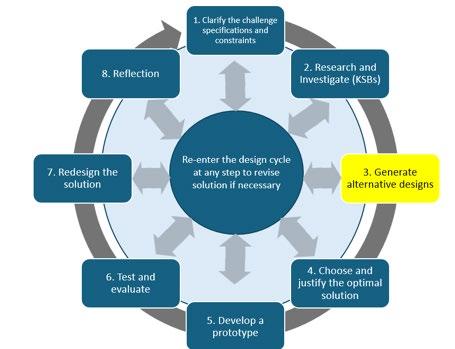
You need to build a robot that can independently navigate a maze. You will be using cardboard to make the robot’s body. Create several designs, taking the time to sketch out your ideas, and include a brief explanation of each design. This type of brainstorming and planning is beneficial in the long run, enhancing your overall efficiency.
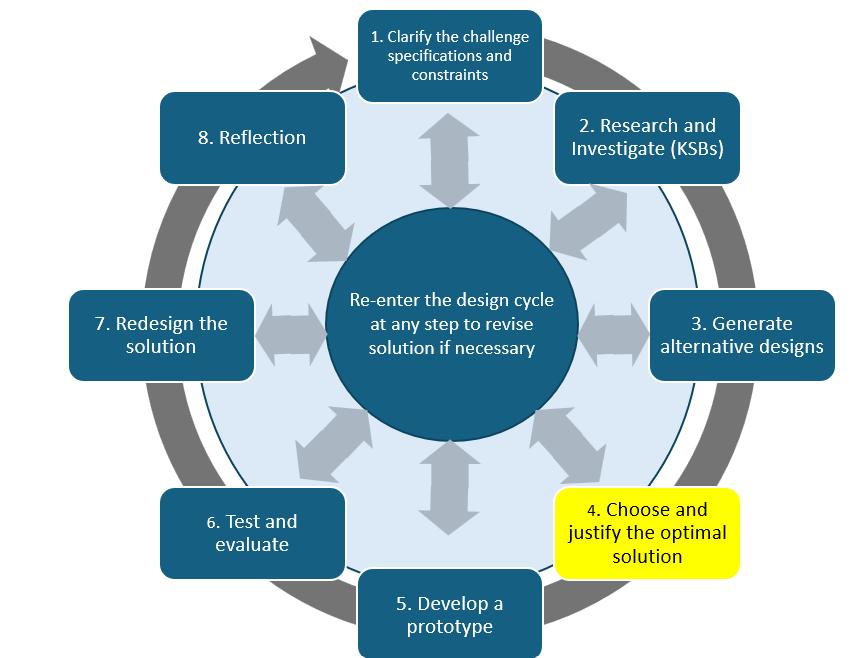
Choose the design that will satisfy all the specifications within the constraints and give you the best outcome. This is the optimal design. Explain why you think this design is a better choice than the alternatives. Take a picture of your final solution and paste it here.
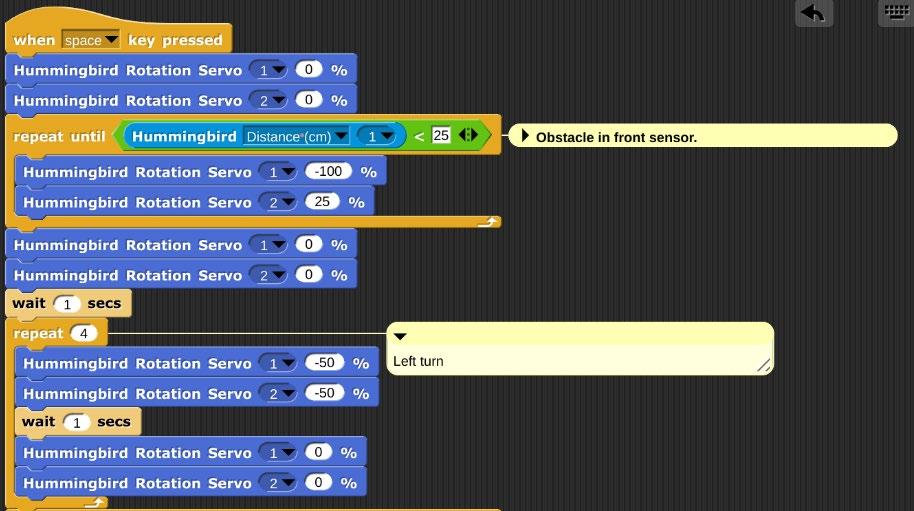
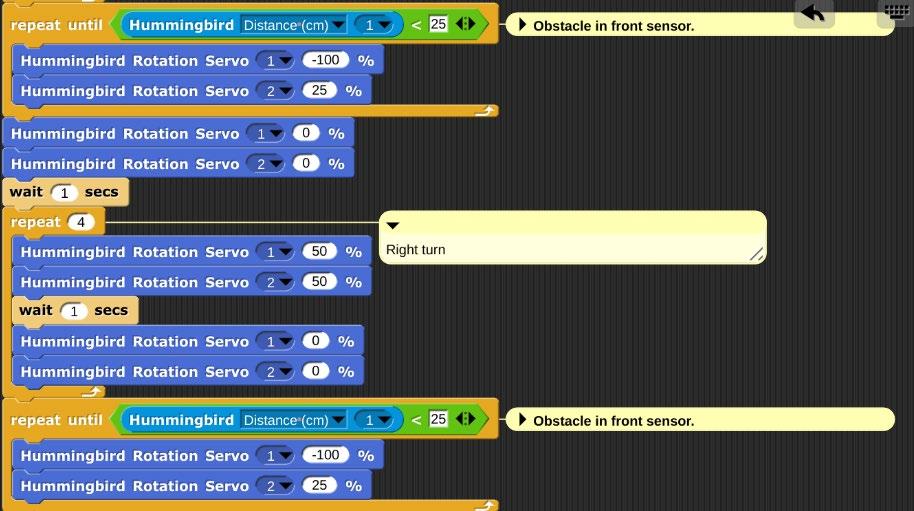
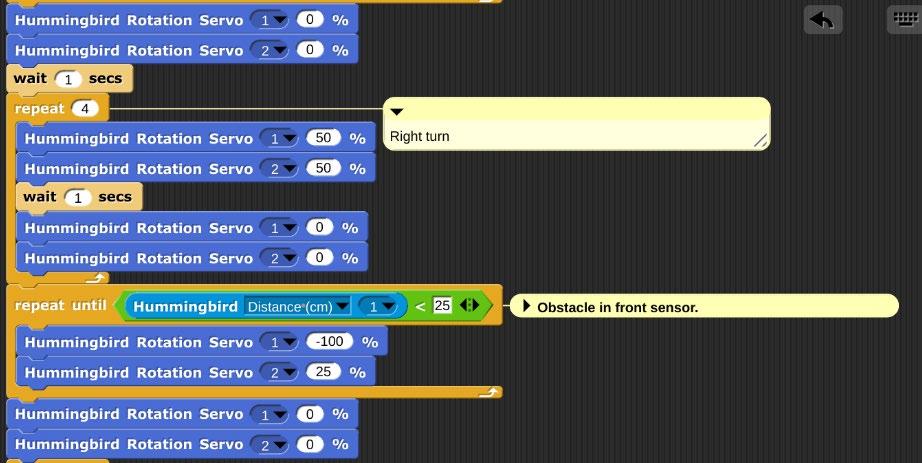
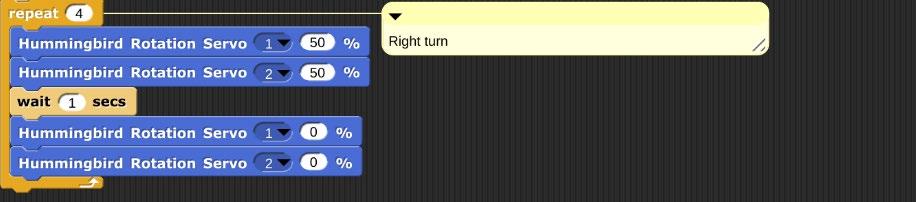
Now you need to put everything together and create code that will allow your robot to successfully navigate the maze while avoiding all obstacles. Programmers and engineers often build a prototype that is not the final solution. As you write and test your code, you will need to make changes. This process of refining and improving your work is called iteration and it’s a normal and essential part of engineering and problem-solving. Picture of example code:
Now, take a picture of your final code solution that works and paste that here.
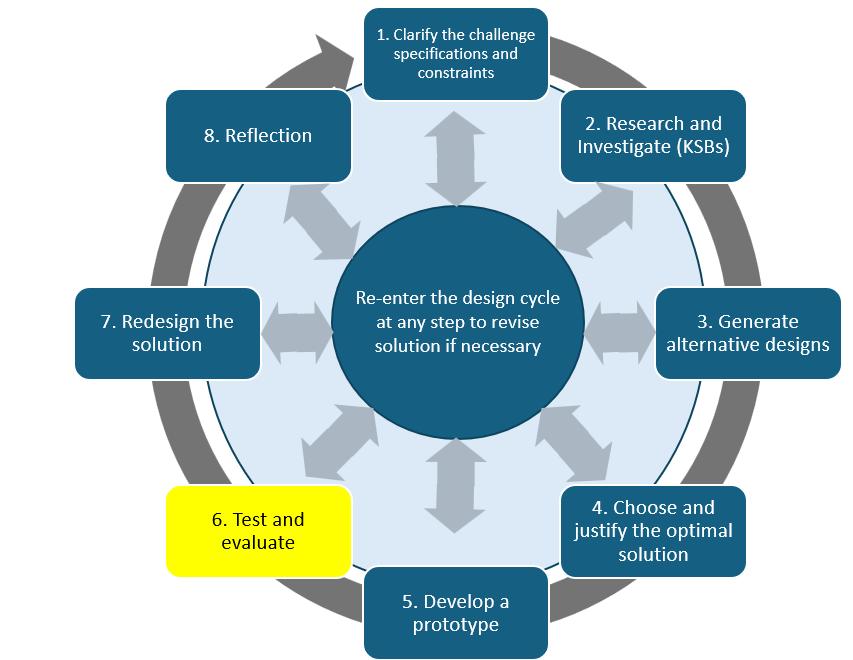
Think back over the coding process. Why did you change the code?
Did your solution work and meet the design specifications? Briefly explain why it did or did not.
You can include a photo of your code and your robot here.
Redesign your solution
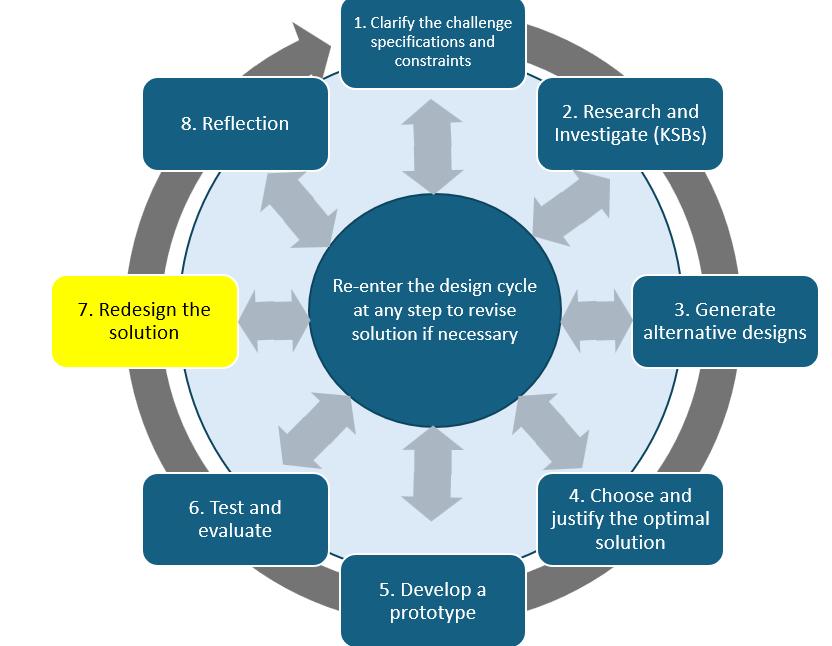
Engineers do not usually stick with their first design. Theyoften go back and redesign their initial solution to make it better, more efficient, make it perform more effecively, or address a specification that was added after the start of the design process.
What are your ideas as to how you would improve your design?
Reflection
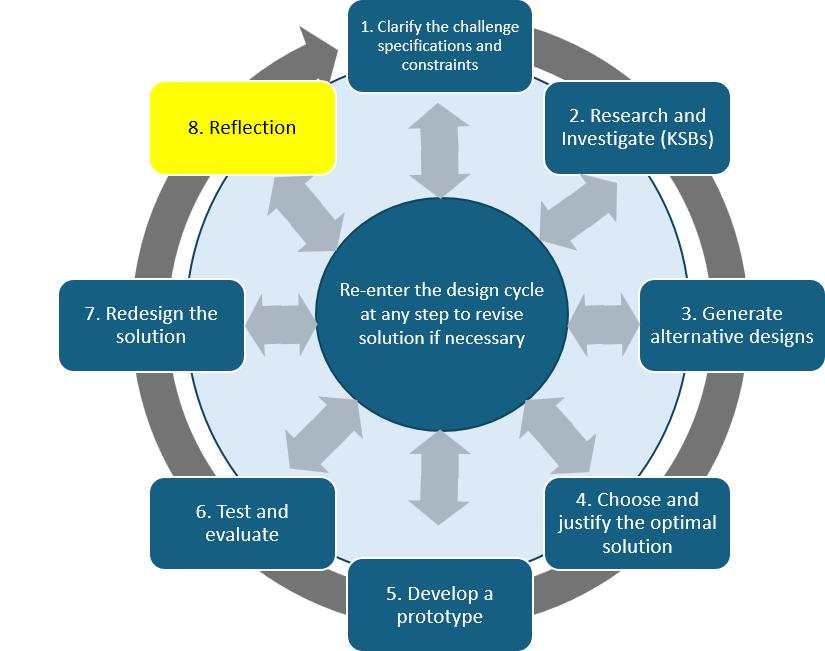
What were two things you learned about coding from this activity? Mention things you know now that you did not know when you started.
1)________________________________________________
2)________________________________________________
Criteria 1 2 3
Alternative Designs
Servo Operation Code
Describes one design idea. No explanation of how or why it was chosen.
Uploaded code moves one servo with basic functionality.
Sensor Operation Code
Final Design and Documentation
Uploaded code uses the distance sensor to detect obstacles.
Describes two design options and provides one reason for selecting the preferred design (e.g., simpler to build).
Uploaded code allows the robot to move forward and backward using two servos.
Uploaded code integrates distance sensor data with servo responses (e.g., stopping or reversing).
Includes a photo and code only. No explanation of function.
Testing and Evaluation
Reflection on Learning
Little or no testing. No explanation of how the robot performed.
Includes one vague statement about learning (e.g., 'I learned to code.').
Includes a photo and a brief written explanation of the robot's movements or response to input.
Tests whether the robot meets basic goals (e.g., can move or detect objects). Explains one outcome.
Identifies two skills or concepts learned with brief examples.
Describes three or more design options and justifies the chosen design using multiple criteria (e.g., accuracy, efficiency, ease of coding).
Uploaded code includes forward, backward, left, and right movement. Code is clearly commented to explain servo control.
Uploaded code integrates sensor and servo operations with conditional logic and includes comments for readability.
Includes a photo, annotated code, and a detailed explanation of the robot's movement, input response, and any changes made.
Conducts structured testing. Documents multiple outcomes and explains what changes were made or should be made.
Provides detailed reflection on learning, including technical skills, problem-solving strategies, and project challenges.
1) Real World Applications:
a) Cleaning Robots Reduce Infections in Hospitals and Public Spaces
b) Robotic Technologies: Cleaning Trends for Healthcare Facilities
2) Maze configurations for different math and science concepts:
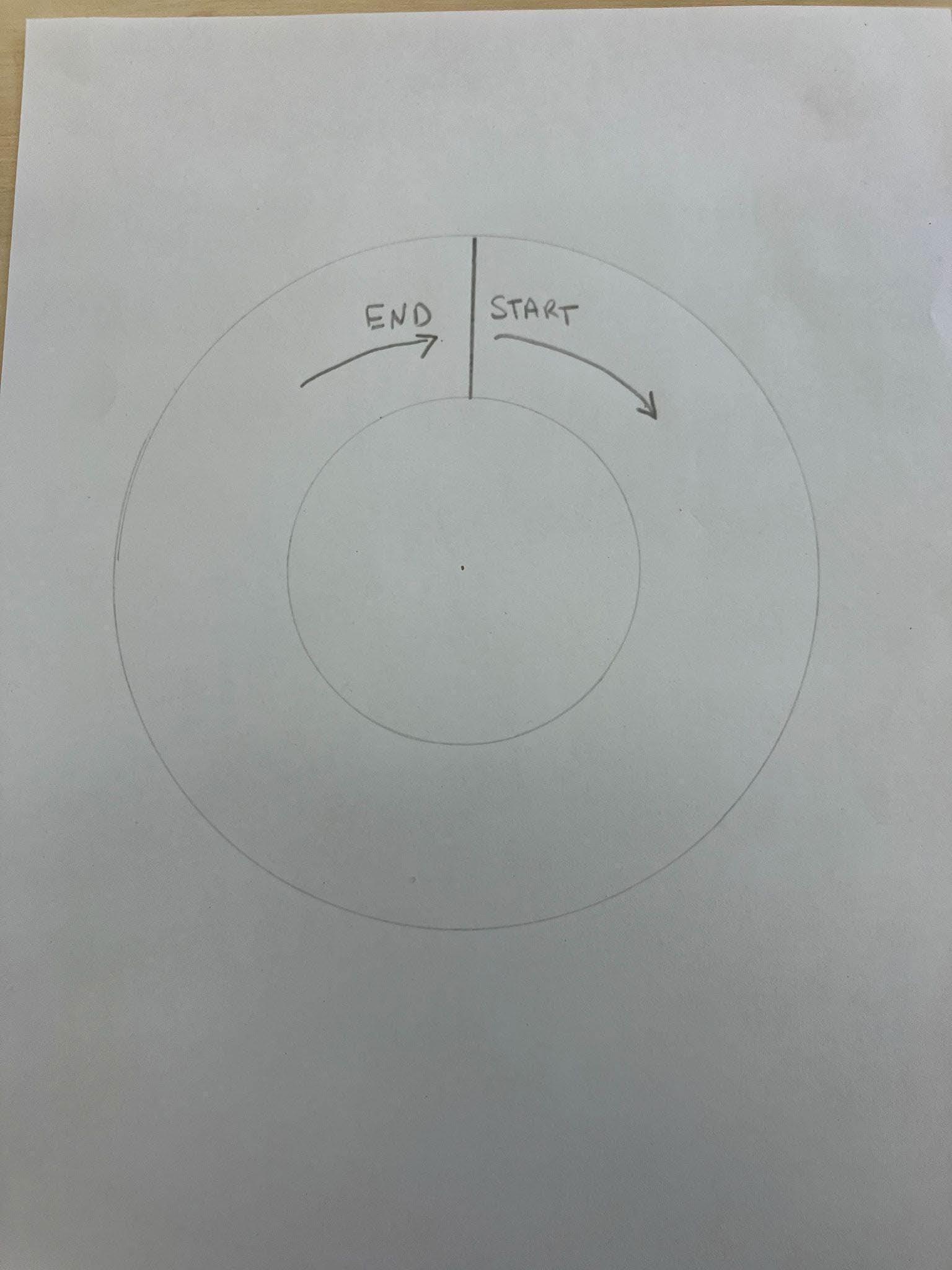
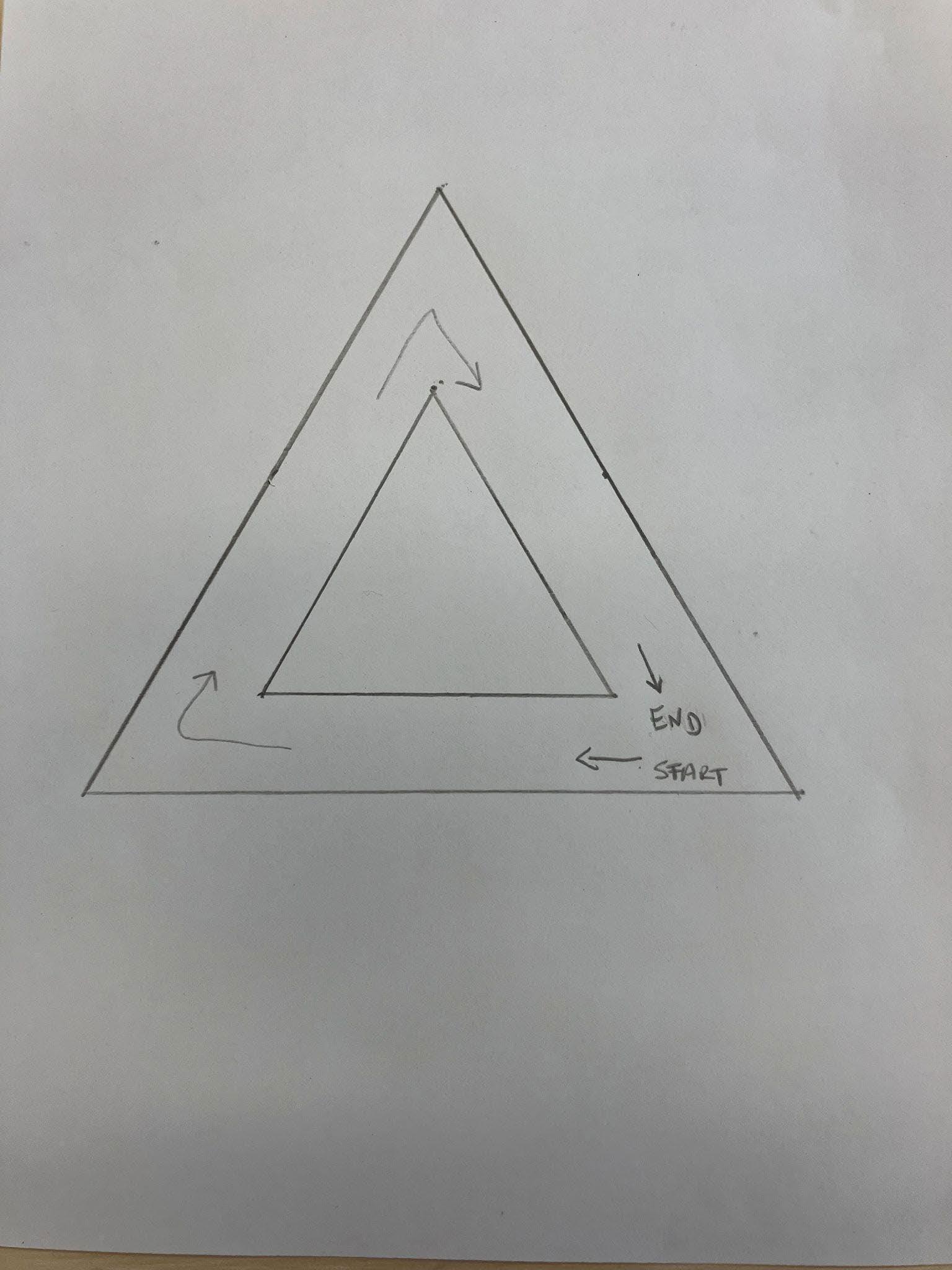
a) Geometry: external angle calculations, circumference, and distance
b) Physics/Physical Sciences: circumference and distance, speed
Maze
Equilateral Triangle Maze
90 degree Right or Left hand Turn Maze