Setting up your iPhone to access daa
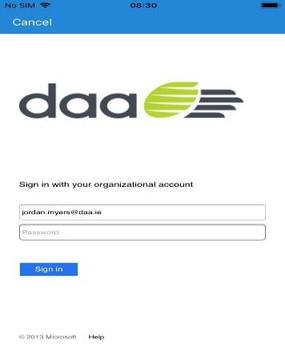
4. Enter your daa password and press Sign In. (If you are unsure of your password, contact IT Service Desk @ 01-94 40800 ) For Android Guide - Go to page 5
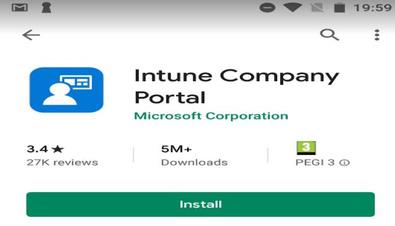
1. Open the App Store and download the Intune Company Portal app.
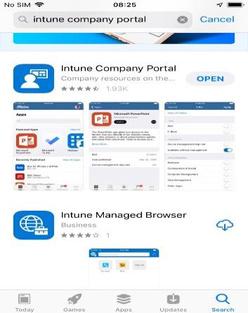
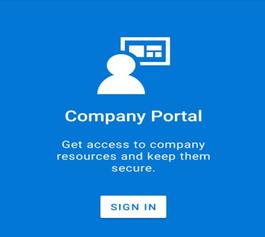
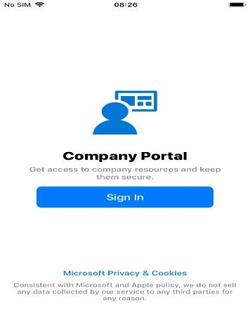
2. Open the Intune Company Portal app and press Sign In.
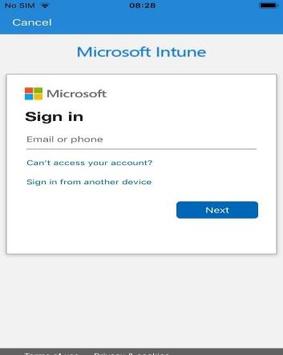
3. Enter your daa email address and press Next.
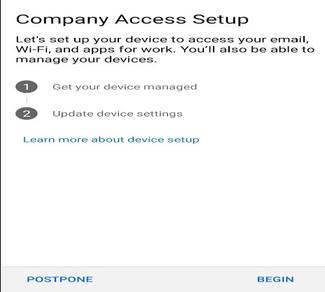
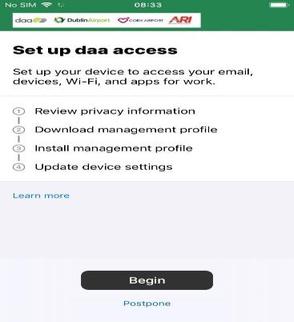
5. The Set up daa access page will appear. Press Begin.
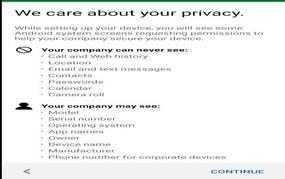
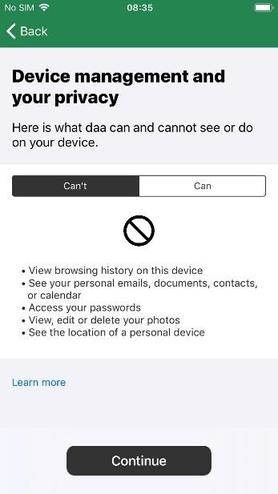
6. Press Continue.
Use the Online Portal to raise and track all your requests: https://daa.landesk.com 24/7 Phone Support: 01 94 40800, ext : 4080
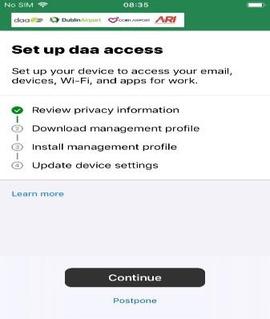
7. Press Continue.
8. Enter your password again and press Sign In.
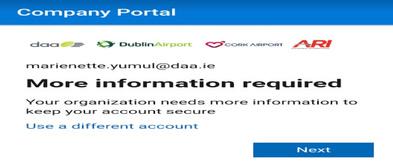
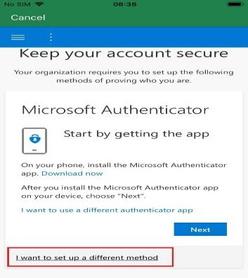
9. You will be asked to enter more information to keep your account secure Press Next.
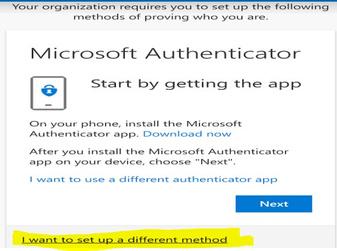
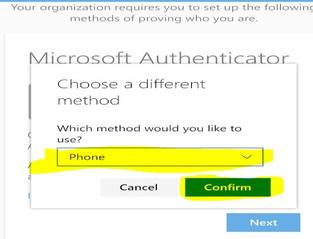
10. Press I want to set up a different method at the bottom of the screen.
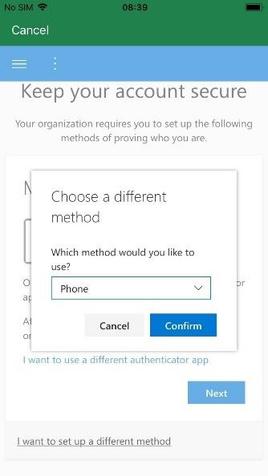
11. Select Phone from the dropdown list and press Confirm.
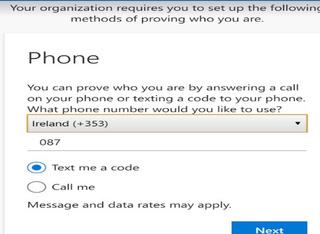
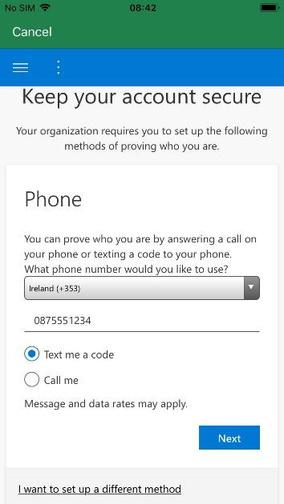
12. Enter your mobile number (select country code from the dropdown list), select Text me a code and press Next.
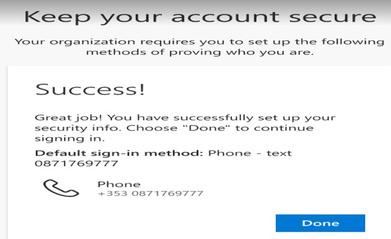
13. You will receive a code by text Enter the code and press Next.
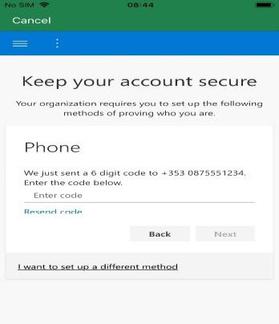
Press Next.
16. You will receive another code by text. Enter the code and press Verify.
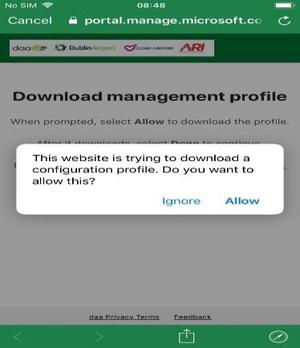
17. Press Allow to download configuration profile.
18 Press Continue now
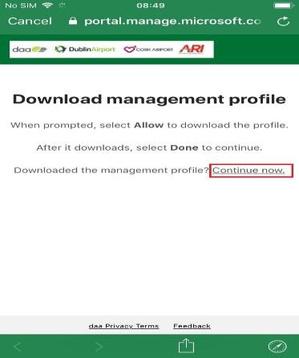
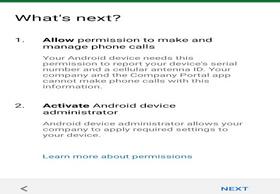
19. Press Continue.
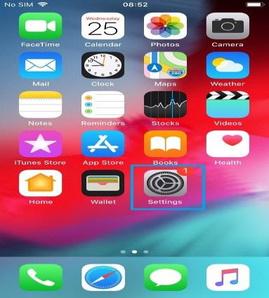
20. Go to the home screen and open the Settings app.
21. Scroll down and select General
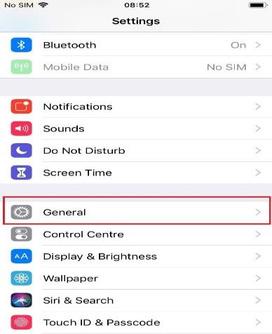
22. Scroll down and select Profile.
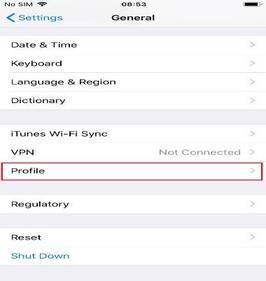
23 Select Management Profile and press Install.
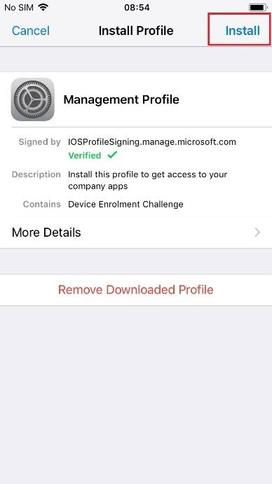
24. Enter the passcode for your phone and press Install.
25. A warning will appear - press Install.
26. Press Trust.
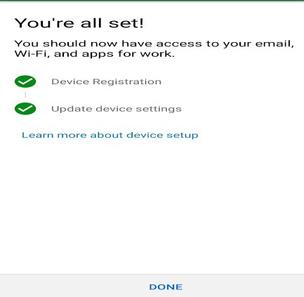
27. Press Done and return to the Intune Company Portal app.
28. If prompted, press Yes, I have installed profile Press Done
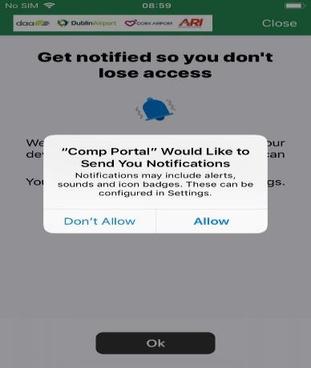
29. Press Ok, followed by Allow.
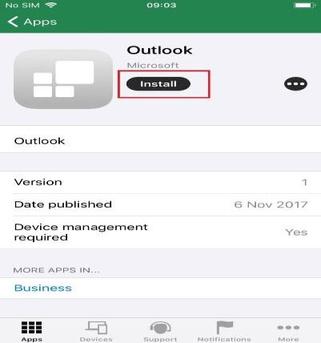
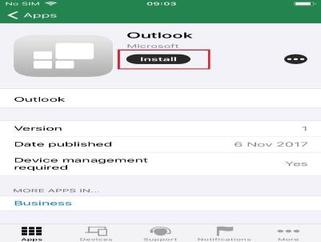
30. Under Featured Apps, scroll across and select Outlook.
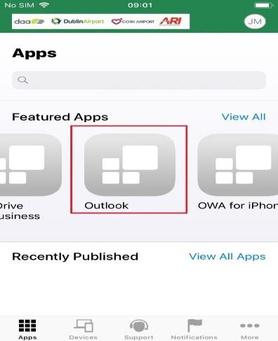
31. Press Install.
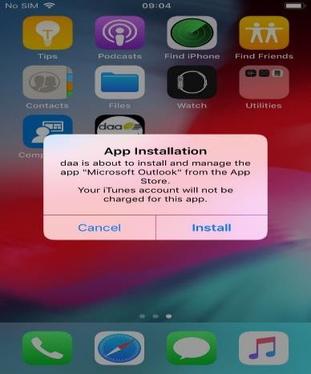
33. Go to the home screen and open the Outlook app once it finishes downloading.
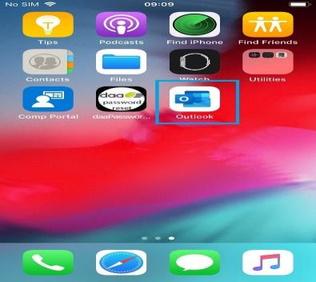
34. Enter your daa email address and press Add Account.
35. Enter your daa password and press Sign in.
36. If prompted to add another account, press Maybe Later.
37. A notification to restart the app will appear Press OK
38. Open the Outlook app again.
39. If prompted to enable notifications, press Turn On followed by Allow.
Use the Online Portal to raise and track all your requests: https://daa.landesk.com 24/7 Phone Support: 01 94 40800, ext : 4080