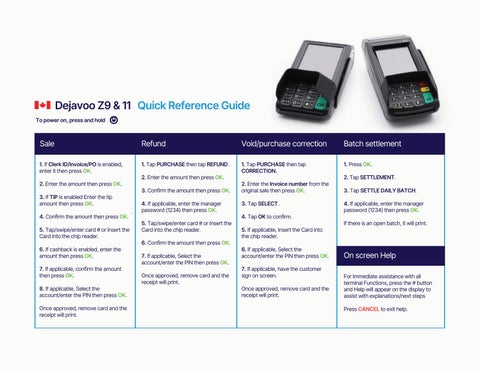
Dejavoo Z9 & 11 Quick Reference Guide To power on, press and hold
Sale
Refund
Void/purchase correction
Batch settlement
1. If Clerk ID/Invoice/PO is enabled, enter it then press OK.
1. Tap PURCHASE then tap REFUND .
1. Tap PURCHASE then tap CORRECTION.
1. Press OK.
2. Enter the amount then press OK.
2. Enter the amount then press OK.
3. Confirm the amount then press OK.
3. If TIP is enabled Enter the tip amount then press OK. 4. Confirm the amount then press OK. 5. Tap/swipe/enter card # or Insert the Card into the chip reader. 6. If cashback is enabled, enter the amount then press OK. 7. If applicable, confirm the amount then press OK. 8. If applicable, Select the account/enter the PIN then press OK. Once approved, remove card and the receipt will print.
.
4. If applicable, enter the manager password (1234) then press OK. 5. Tap/swipe/enter card # or Insert the Card into the chip reader. 6. Confirm the amount then press OK. 7. If applicable, Select the account/enter the PIN then press OK. Once approved, remove card and the receipt will print.
2. Enter the Invoice number from the original sale then press OK. 3. Tap SELECT . 4. Tap OK to confirm. 5. If applicable, Insert the Card into the chip reader. 6. If applicable, Select the account/enter the PIN then press OK. 7. If applicable, have the customer sign on screen. Once approved, remove card and the receipt will print.
2. Tap SETTLEMENT. 3. Tap SETTLE DAILY BATCH. 4. If applicable, enter the manager password (1234) then press OK. If there is an open batch, it will print.
On screen Help For Immediate assistance with all terminal Functions, press the # button and Help will appear on the display to assist with explanations/next steps Press CANCEL to exit help.
Dejavoo Z9 & 11 Quick Reference Guide Default manager password: 1234
Credit pre-authorization
Pre-authorization completion
My favorites
1. Tap PURCHASE then tap PRE-AUTH.
1. Tap PURCHASE then tap COMPLETION
2. If Clerk ID/Invoice/PO is enabled, enter it then press OK.
2. Enter the Invoice number from the original pre-auth then press OK.
3. Enter the amount then press OK.
3. Tap SELECT.
Adding Favorites 1. Highlight the menu item you wish to save to favorites. 2. Press 3. Tap YES. 4. Tap the menu placement to assign favorite to. 5. Press OK.
4. If applicable, enter the manager password (1234) then press OK.
4. Tap COMPLETION.
5. Tap/swipe/enter card # or Insert the Card into the chip reader. 6. If applicable, enter the PIN then press OK. 7. If applicable, have the customer sign on screen. Once approved, remove card and the receipt will print.
5. Enter the amount then press OK. 6. If applicable, enter the manager password (1234) then press OK. 7. If applicable, have the customer sign on screen. Once approved, remove card and the receipt will print.
Managing Favorites 1. Press OK. 2. Tap UTILITY. 3. If applicable, enter the manager password (1234) then press OK. 4. Tap FAVORITES. 5. Tap the desired option to edit. Accessing Favorites 1. Tap 2.Tap the desired option from the list of favorites.