
Mastering Excel for Attendance Tracking
Agenda
• Introduction to Attendance Tracking in Excel
• Step-by-Step Guide to Creating an Attendance Tracker
• Detailed Steps for Creating an Attendance Tracker
• Advanced Excel Techniques for Attendance Tracking
• Workstatus: Your Ultimate Attendance Solution
• Workstatus Key Features and Benefits
• Free Tools by Workstatus
• Conclusion: Moving Beyond Excel
Introduction to Attendance Tracking in Excel
Accurate attendance tracking is vital for organizations to maintain productivity and accountability among employees. It helps identify patterns of absenteeism, ensures compliance with labor regulations, and aids in payroll processing. Excel serves as a powerful tool for attendance tracking due to its user-friendly interface and robust features. By utilizing Excel, organizations can easily create customizable attendance trackers, implement data validation for accurate entries, and utilize formulas for efficient calculations. This flexibility makes Excel not only cost-effective but also a practical choice for businesses of all sizes looking to streamline their attendance management processes.
Step-by-Step Guide to Creating an Attendance Tracker
Create Spreadsheet Set Up Headers
Open Excel and create a new spreadsheet. Set up columns for each date of the month to track employee attendance. This serves as the foundation of your tracker.
In the first row, define headers to organize data. Typical headers include Employee Names and each date of the month. This structure enables clear attendance recording.
Weekends Implement Validation
Apply formatting to distinguish weekends and holidays from regular workdays. Use fill colors for Saturdays, Sundays, and a different color for public holidays.
Use Data Validation to enforce rules for attendance entries. Set keywords like Present, Absent, and Half Day to ensure data consistency.
Detailed Steps for Creating an Attendance Tracker
Create a New Spreadsheet Set Up Column Headers
Begin by opening Excel and creating a new spreadsheet. Set up the layout with enough columns to cover each day of the month.
In the first row, add headers such as 'Employee Name', followed by columns for each date. This organizes data for clarity.
Highlight Weekends and Holidays
Use Excel's fill color feature to highlight weekends and public holidays. This visual distinction helps quickly identify nonworking days.
Implement Data Validation
Access the Data Validation feature in Excel.
Set rules to restrict data entries to terms like 'Present', 'Absent', or 'Half Day'.
Lock Input Cells
Protect the spreadsheet by locking cells that shouldn’t be edited. This ensures only designated cells for attendance input are accessible.
Calculate Absences and Presents
Use formulas like COUNTIF to automatically tally absences and presents. This simplifies the tracking process and reduces manual errors.
Advanced Excel Techniques for Attendance Tracking
Calculating Absences and Presents Use the COUNTIF formula to calculate absences and presents. For instance, =COUNTIF(B3:L3, "Absent") counts the number of absences for an employee.
Creating Monthly Summaries Set up a summary sheet that uses functions like SUM and AVERAGE to consolidate data. This provides an overview of total working days, absences, and presents for each employee.
Yearly Attendance Tracking To track attendance annually, replicate the monthly structure in separate sheets. Ensure consistent formatting and formulas for easier comparison of attendance trends throughout the year.
Attendance Management
Workstatus: Your Ultimate Attendance Solution
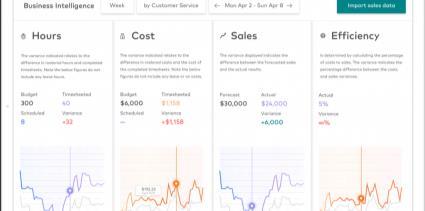


Real-Time Tracking
Monitor employee attendance instantly regardless of location, ensuring accurate records and accountability.
Selfie Validation
Utilizes biometric facial recognition to authenticate employees during clock-in/out, reducing attendance fraud.
Geofencing
Defines virtual boundaries to ensure employees are in designated areas when clocking in or out, enhancing security.
Workstatus
Workstatus Key Features and Benefits
Free Tools by Workstatus
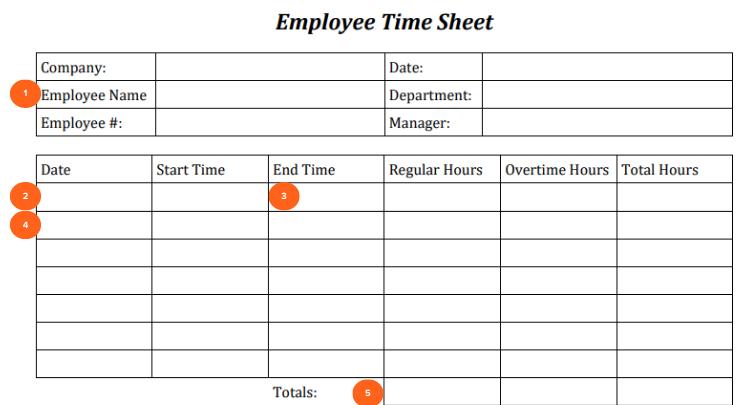
Conclusion: Moving Beyond Excel
Limitations of Excel and Advantages of Workstatus
● Excel requires manual data entry, which increases the risk of errors and inconsistencies in attendance records.
● Limited automation in Excel can lead to increased administrative overhead and time consumption when tracking employee attendance.
● As organizations grow, Excel can become cumbersome, making it difficult to manage large volumes of data efficiently.
● Workstatus offers real-time attendance tracking, significantly improving accuracy and accountability compared to traditional Excel methods.
● Advanced features like geofencing and selfie validation in Workstatus enhance security and reduce fraudulent attendance practices.