How to Login and Authenticate
Quick Start Guide Overview
•
On occasion it may be necessary to access services or • resources that require authentication.
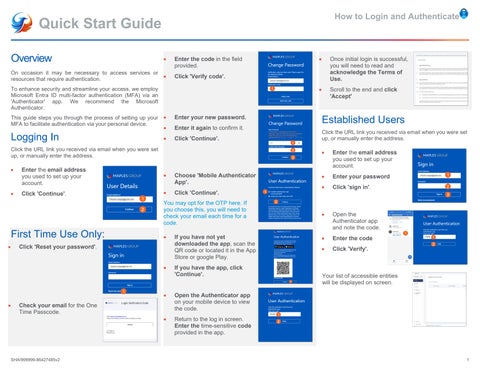
Enter the code in the field provided.
Logging In
Enter your new password.
•
Enter it again to confirm it.
•
Click 'Continue'.
Click the URL link you received via email when you were set up, or manually enter the address.
•
Enter the email address you used to set up your account.
•
Choose 'Mobile Authenticator App'.
•
Click 'Continue'.
•
Click 'Continue'.
You may opt for the OTP here. If you choose this, you will need to check your email each time for a code.
First Time Use Only: •
•
Click 'Reset your password'. •
•
Check your email for the One Time Passcode.
SHA/999999-86427485v2
Once initial login is successful, you will need to read and acknowledge the Terms of Use.
•
Scroll to the end and click 'Accept'
Click 'Verify code'.
To enhance security and streamline your access, we employ Microsoft Entra ID multi-factor authentication (MFA) via an 'Authenticator' app. We recommend the Microsoft Authenticator. This guide steps you through the process of setting up your • MFA to facilitate authentication via your personal device.
•
If you have not yet downloaded the app, scan the QR code or located it in the App Store or google Play. If you have the app, click 'Continue'.
•
Open the Authenticator app on your mobile device to view the code.
•
Return to the log in screen. Enter the time-sensitive code provided in the app.
Established Users Click the URL link you received via email when you were set up, or manually enter the address.
•
Enter the email address you used to set up your account.
•
Enter your password
•
Click 'sign in'.
•
Open the Authenticator app and note the code.
•
Enter the code
•
Click 'Verify'.
Your list of accessible entities will be displayed on screen.
1