
QSG - Phoenix - Logging in and Authenticating (with Traditional and Simplified Chinese Translations)

Page 1


Quick Start Guide

Overview

On occasion it may be necessary to access services or resources that require authentication.

To enhance security and streamline your access, we employ Microsoft Entra ID multi-factor authentication (MFA) via the 'Authenticator' app.

This guide steps you through the process of setting up your MFA to facilitate authentication via your personal device.

Loging In

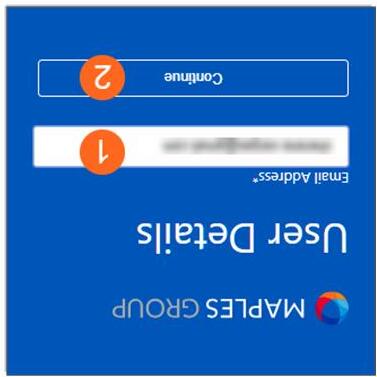
Click the URL link you received via email when you were set up, or manually enter the address.

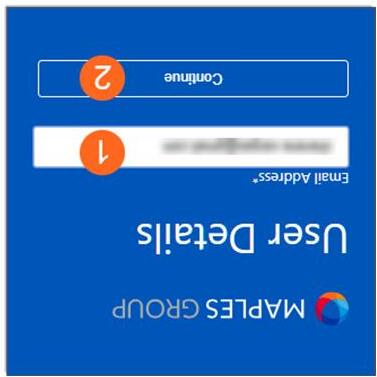
 Enter the email address you used to set up your account.

 Click 'Continue'.

First Time Use Only:

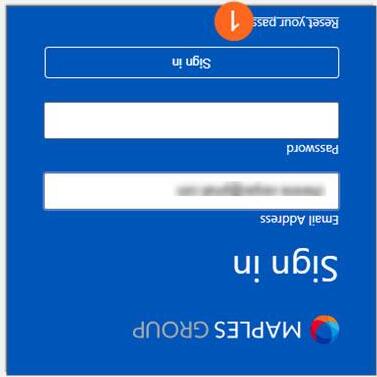
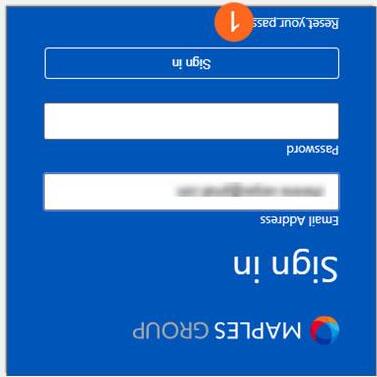
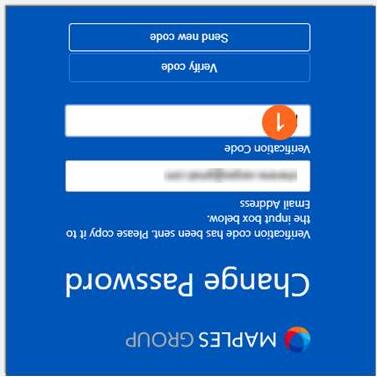
 Click 'Reset your password'

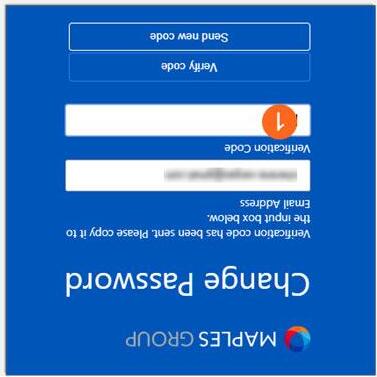
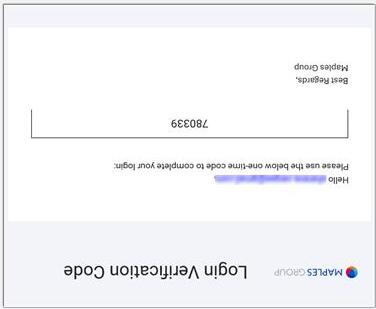
 Check your email for the One Time Passcode.

 Enter the code in the field provided.

 Click 'Verify code'.

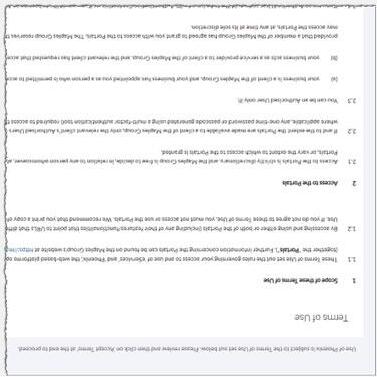
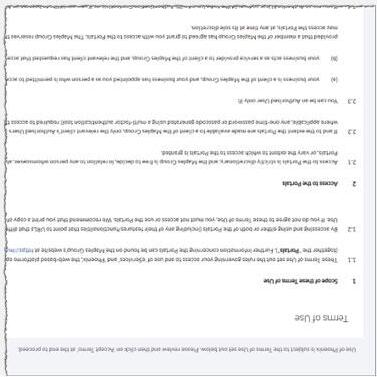
 Once initial login is successful, you will need to read and acknowledge the Terms of Use.

 Scroll to the end and click 'Accept'

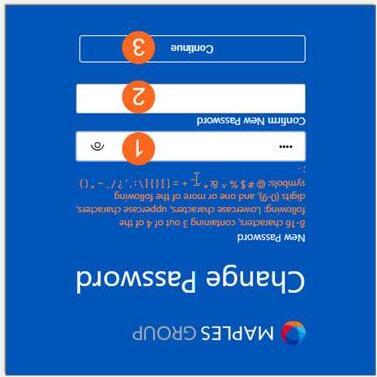
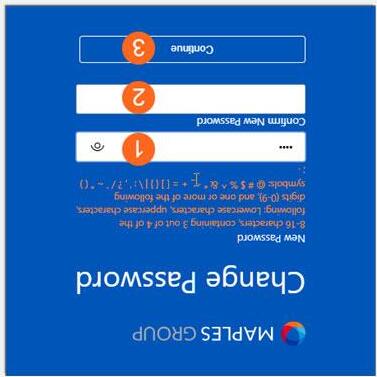
 Enter your new password.

 Enter it again to confirm it.

 Click 'Continue'.

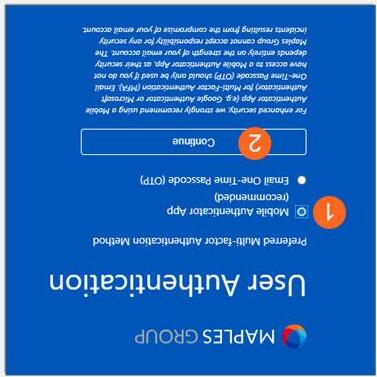
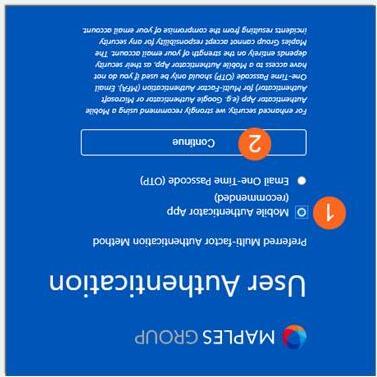
 Choose 'Mobile Authenticator App'.

 Click 'Continue'.

You may opt for the OTP here. If you choose this, you will need to check your email each time for a code.

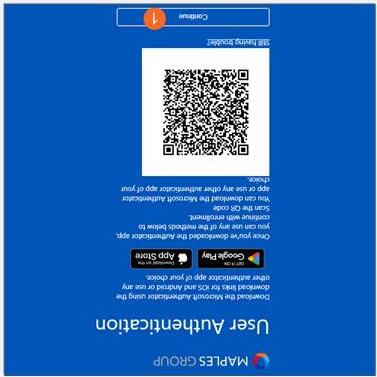
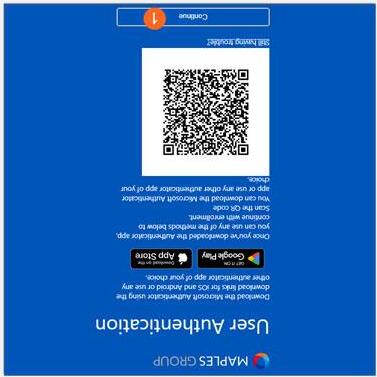
 If you have not yet downloaded the app, scan the QR code or located it in the App Store or google Play.

 If you have the app, click 'Continue'.

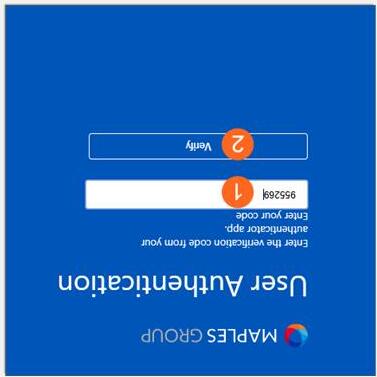
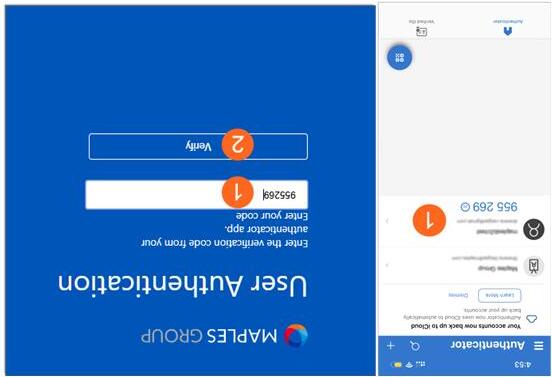
 Open the Authenticator app on your mobile device to view the code.

 Return to the log in screen. Enter the time-sensitive code provided in the app.

Established Users

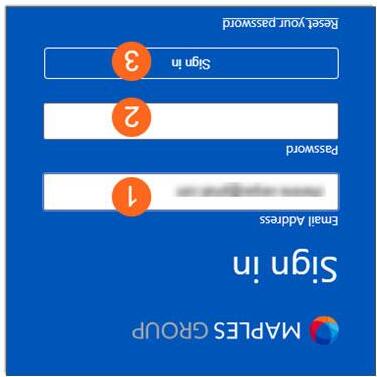
Click the URL link you received via email when you were set up, or manually enter the address.

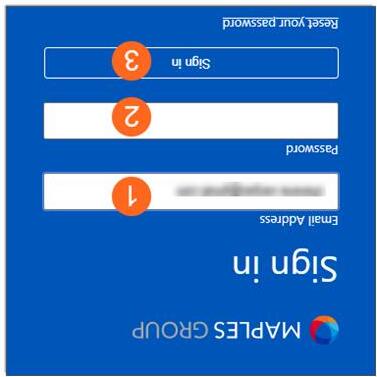
 Enter the email address you used to set up your account.

 Enter your password

 Click 'sign in'.

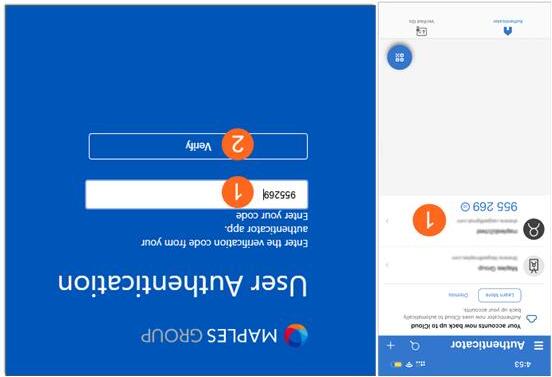
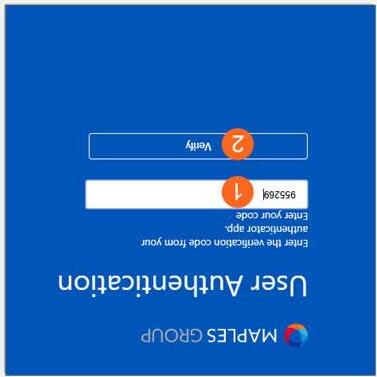
 Open the Authenticator app and note the code.

 Enter the code

 Click 'Verify'.

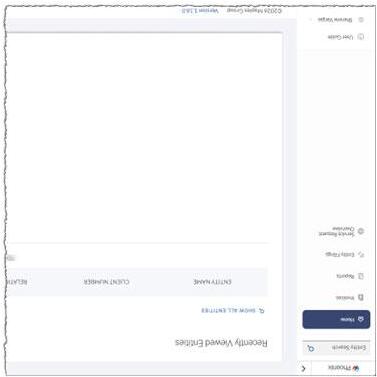
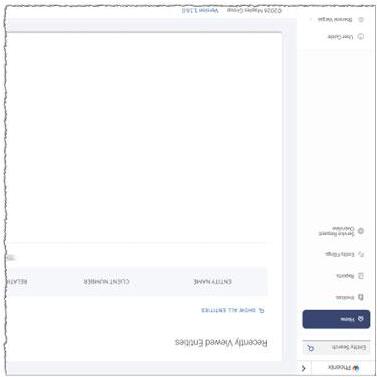
Your list of accessible entities will be displayed on screen.

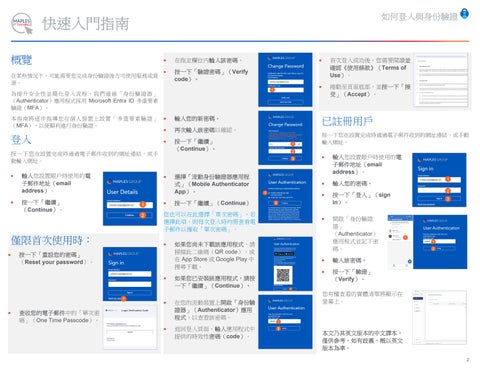
快速入門指南

概覽

在某些情況下,可能需要您完成身份驗證後方可使用服務或資 源。

為提升安全性並簡化登入流程,我們通過「身份驗證器」

(Authenticator)應用程式採用 Microsoft Entra ID 多重要素 驗證(MFA)。

本指南將逐步指導您在個人裝置上設置「多重要素驗證」

(MFA),以便順利進行身份驗證。

登入

按一下您 在設置完成時通過電子郵件收到的網址連結,或手 動輸入網址。

 輸入您設置賬戶時使用的電 子郵件地址(email address)。

 按一下「繼續」 (Continue)。

僅限首次使用時:

 按一下「重設您的密碼」 (Reset your password)。

 查收您的電子郵件中的「單次密 碼」(One Time Passcode)。
 在指定欄位內輸入該密碼。

 按一下「驗證密碼」(Verify code)。

 首次登入成功後,您需要閱讀並 確認《使用條款》(Terms of Use)。

 捲動至頁面底部,並按一下「接 受」(Accept)。

 輸入您的新密碼。

 再次輸入該密碼以確認。

 按一下「繼續」 (Continue)。

 選擇「流動身份驗證器應用程 式」(Mobile Authenticator App)。

 按一下「繼續」(Continue)

您也可以在此選擇「單次密碼」。若

選擇此項,則每次登入時均需查看電 子郵件以獲取「單次密碼」。

 如果您尚未下載該應用程式,請 掃描此二維碼(QR code),或 在 App Store 或 Google Play 中 搜尋下載。

 如果您已安裝該應用程式,請按 一下「繼續」(Continue)。

 在您的流動裝置上開啟「身份驗 證器」(Authenticator)應用 程式,以查看該密碼。

 返回登入頁面。輸入應用程式中 提供的時效性密碼(code)。

已註冊用戶

按一下您在設置完成時通過電子郵件收到的網址連結,或手動 輸入網址。

 輸入您設置賬戶時使用的電 子郵件地址(email address)。

 輸入您的密碼。

 按一下「登入」(sign in)。

 開啟「身份驗證 器」

(Authenticator) 應用程式並記下密 碼。

 輸入該密碼。

 按一下「驗證」 (Verify)。

您有權查看的實體清單將顯示在 螢幕上。

本文乃其英文版本的中文譯本, 僅供參考,如有歧義,概以英文 版本為準。
快速入门指南

概览

在某些情况下,可能需要您完成身份验证后方可使用服务或资 源。

为提升安全性并简化登录流程,我们通过“身份验证器” (Authenticator)应用采用 Microsoft Entra ID 多重身份验证 (MFA)。

本指南将逐步指导您在个人设备上设置“多重身份验证” (MFA),以便顺利进行身份验证。

登录

点击您 在设置完成时通过电子邮件收到的网址链接,或手动 输入网址。

 输入您设置账户时使用的电 子邮件地址(email address)。

 点击“继续” (Continue)。

仅限首次使用时:

 点击“重置您的密码”(Reset your password)。

 查收您的电子邮件中的“一次性 密码”(One Time Passcode)。
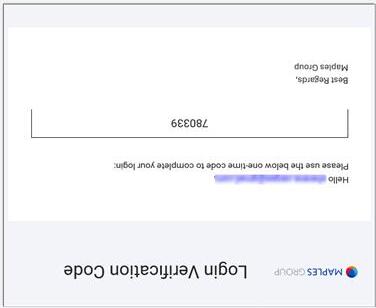
 在指定字段内输入该密码。

 点击“验证密码”(Verify code)。

 首次登录成功后,您需要阅读并 确认《使用条款》(Terms of Use)。

 滚动至页面底部,并点击“接 受”(Accept)。

 输入您的新密码。

 再次输入该密码以确认。

 点击“继续”(Continue)。

 选择“移动身份验证器应用” (Mobile Authenticator App)。

 点击“继续”(Continue)

您也可以在此选择“一次性密码”。

若选择此项,则每次登录时均需查看 电子邮件以获取“一次性密码”。

 如果您尚未下载该应用,请扫描 此二维码(QR code),或在 App Store 或 Google Play 中搜 索下载。

 如果您已安装该应用,请点击 “继续”(Continue)。

 在您的移动设备上打开“身份验 证器”(Authenticator)应 用,以查看该密码。

 返回登录页面。输入应用中提供 的时效性密码(code)。

已注册用户

点击您在设置完成时通过电子邮件收到的网址链接,或手动 输入网址。

 输入您设置账户时使用的电 子邮件地址(email address)。

 输入您的密码。

 点击“登录”(sign in)。

 打开“身份验证 器”

(Authenticator) 应用并记下密码。

 输入该密码。

 点击“验证” (Verify)。

您有权查看的实体列表将显示在 屏幕上。

本文乃其英文版本的中文译本,仅供参考,如有歧义,概 以英文版本为准。

Turn static files into dynamic content formats.

Create a flipbook
Issuu converts static files into: digital portfolios, online yearbooks, online catalogs, digital photo albums and more. Sign up and create your flipbook.