



One of the incredible tasks when it is about Configuration Management is SCCM Inventory Report Creation. It offers value to both SCCM installation and adds visibility to your efforts towards management.
• Data is the crucial component of all your reports. You must include the right SQL views into the SCCM database. If you’re reflecting the wrong information, your reportwillbevague.
• Constructing an effective SQL query is the most complicated part of report creation. Without adequate SQL proficiency, it will be difficult to get what you desire---but you can learn it.
2. Visually Compelling
• A report with correct data is useful, but if it is presented poorly, the readers won’t be interested in it.
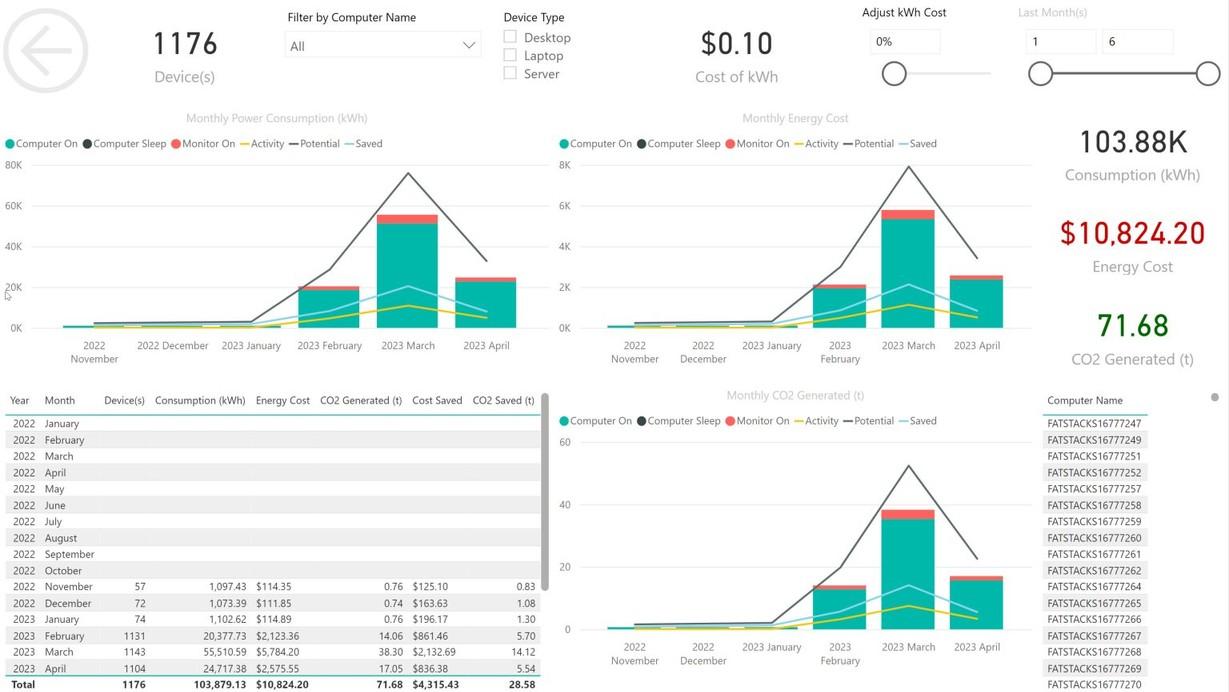
• Keep it neat and clean: Include pie charts and graphs if necessary. Microsoft models this by using their cutting-edge Software Update dashboard and Office 365 dashboard.
3. The minute details
• Incorporate links between your report to take your readers in the correct direction.
• Include tooltips to demonstrate the shown data.
• Open the SCCM console and navigate Monitoring/Overview/ Reporting
• Right-click on Reports and choose Create Reports
• Choose type SQL-based Report, located on the Created Report Wizard
• Add the name of the report Office 365 Inventory
• Include a report description if required
• Browse and choose the folder where you can save the report
• Go to Next
Follow the crucial steps to create an SCCM Reports.