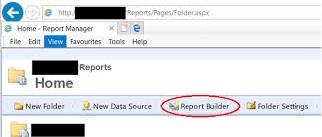



One of the incredible tasks when it is about Configuration Management is SCCM Inventory Report Creation. It offers value to both SCCM installation and adds visibility to your efforts towards management. Without SCCM reporting, this massive management tool works effectively on all your devices, but you’re experiencing all benefits.
SCCM REPORT CREATION

To develop SCCM inventory report, follow the steps below:
• Open the SCCM console and navigate Monitoring/Overview/ Reporting
• Right-click on Reports and choose Create Reports
• Choose type SQL-based Report, located on the Created Report Wizard
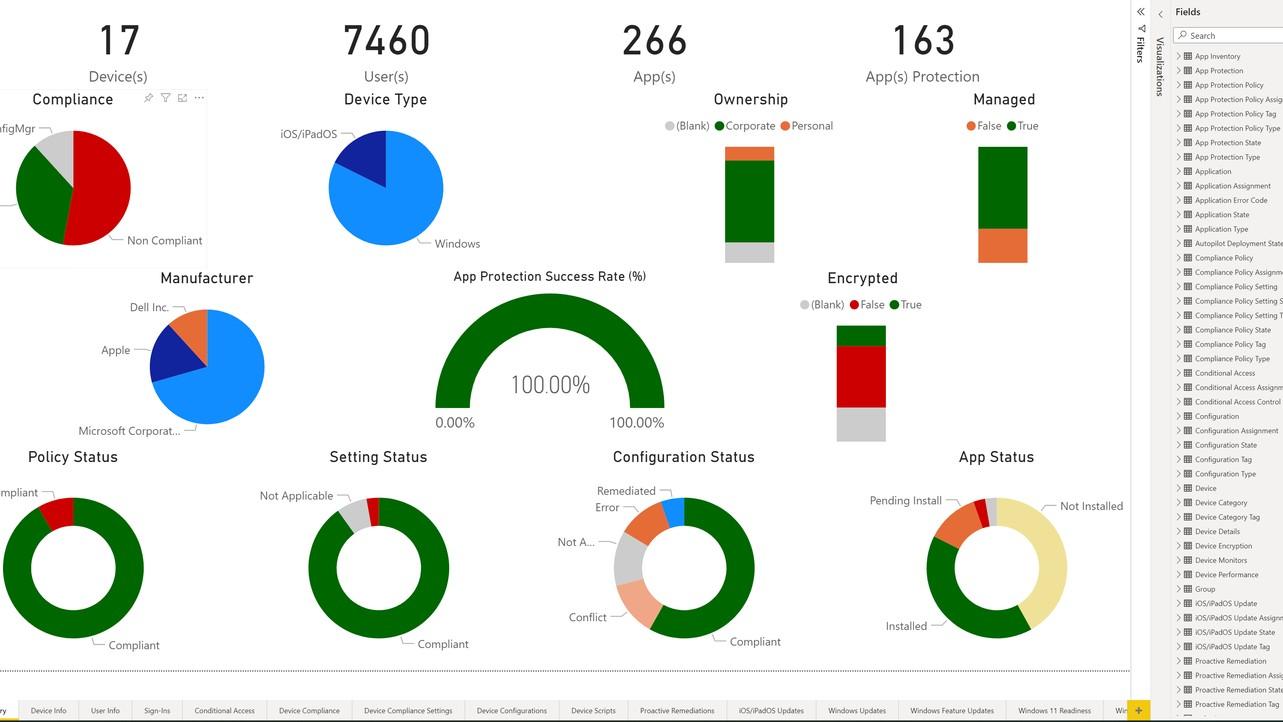
• Add the name of the report Office 365 Inventory
• Include a report description if required
• Browse and choose the folder where you can save the report
• Go to Next
• Firstly, connect to the SCCM database:
• Right-Click on Data Sources in Report Data on the left side of the panel and choose Add Data Source.
• Enter the name for your data source in the General tab.
• Choose Use a shared connection or report model
• Click Browse
• Browse till the end and choose SCCM database GUID and click Open