Aspire 4937 Series Laptop Service Guide Manual -PDF DOWNLOAD

Page 21

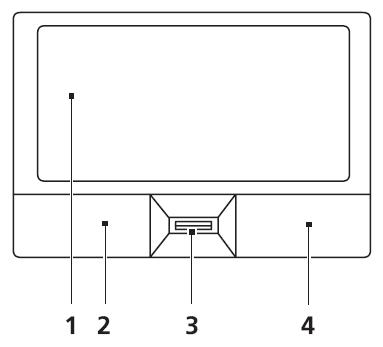
Touchpad Basics (with fingerprint reader) The following items show you how to use the touchpad with Acer Bio-Protection fingerprint reader:

Move your finger across the touchpad (1) to move the cursor.

Press the left (2) and right (4) buttons located beneath the touchpad to perform selection and execution functions. These two buttons are similar to the left and right buttons on a mouse. Tapping on the touchpad is the same as clicking the left button.

Use Acer Bio-Protection fingerprint reader (3) supporting Acer FingerNav 4-way control function (only for certain models) or the 4-way scroll (3) button (only for certain models) to scroll up or down and move left or right a page. This fingerprint reader or button mimics your cursor pressing on the right scroll bar of Windows applications.

Function Execute

Left Button (2)

Right Button (4)

Quickly click twice.

Main touchpad (1) Tap twice (at the same speed as double-clicking a mouse button).

Select

Click once.

Tap once.

Drag

Click and hold, then use finger on the touchpad to drag the cursor.

Tap twice (at the same speed as double-clicking a mouse button); rest your finger on the touchpad on the second tap and drag the cursor.

Access context menu

Click once.

NOTE: When using the touchpad, keep it - and your fingers - dry and clean. The touchpad is sensitive to finger movement; hence, the lighter the touch, the better the response. Tapping too hard will not increase the touchpad’s responsiveness.

Chapter 1

11


Turn static files into dynamic content formats.

Create a flipbook

Articles inside

BIOS Recovery by Crisis Disk

2min
pages 182-183

Screw List

1min
pages 192-193

Each SmmDriver entry point used in 80_PORT

1min
page 178

BDS & Specific action

1min
page 174

ODD Failure

5min
pages 164-166

Power On Issue

1min
page 156

Replacing the ODD Module

1min
page 150

No Display Issue

1min
page 157

HDD Not Operating Correctly

1min
page 163

Internal Microphone Failure

1min
page 162

Random Loss of BIOS Settings

2min
page 158

Replacing the Hinge Covers

1min
page 149

Common Problems

1min
page 155

Replacing the Mainboard

1min
page 131

Replacing the LCD Module

1min
pages 140-143

Replacing the Speaker Module

1min
page 144

Replacing the Switch Cover

1min
pages 147-148

Replacing the Keyboard

1min
page 146

Replacing the Function Board

1min
page 145

Replacing the Finger Print Reader

1min
page 136

Replacing the RJ-11 Port

1min
pages 129-130

Removing the MIC Module

1min
page 118

Replacing the LCD Bezel

1min
page 126

Replacing the Camera Module

1min
page 125

Replacing the Antennas

1min
pages 120-122

Replacing the LCD Panel

1min
pages 123-124

Removing the Antennas

1min
page 117

Removing the LCD Brackets and FPC Cable

1min
page 116

Removing the LCD Bezel

1min
pages 111-112

Removing the Camera Module

1min
page 113

Removing the Bluetooth Module

1min
page 102

Removing the CPU

1min
page 109

Removing the RJ-11 Port

1min
pages 105-106

Removing the Modem Module

1min
page 101

Removing the Media Board

1min
pages 97-98

Removing the Keyboard

1min
page 80

Removing the Switch Cover

1min
pages 78-79

Remove HDD/BIOS Password Utilities

1min
pages 55-57

Removing the Hinge Covers

1min
page 77

Removing the Battery Pack

1min
page 64

Disassembly Requirements

1min
page 61

WinFlash Utility

1min
page 54

BIOS Flash Utilities

1min
page 52

DOS Flash Utility

1min
page 53

Boot

1min
page 50

Power

1min
pages 48-49

Security

3min
pages 45-47

Exit

1min
page 51

Main

1min
page 41

Information

1min
page 40

Special Key

1min
page 25

Features

2min
pages 11-13

Hardware Specifications and Configurations

8min
pages 28-38

Windows Keys

1min
page 23

Closed Front View

1min
page 16

Touchpad Basics (with fingerprint reader

1min
page 21

Bottom View

1min
page 19

Hot Keys

1min
page 24
Issuu converts static files into: digital portfolios, online yearbooks, online catalogs, digital photo albums and more. Sign up and create your flipbook.