1 minute read
Identify an Individual on the AIR

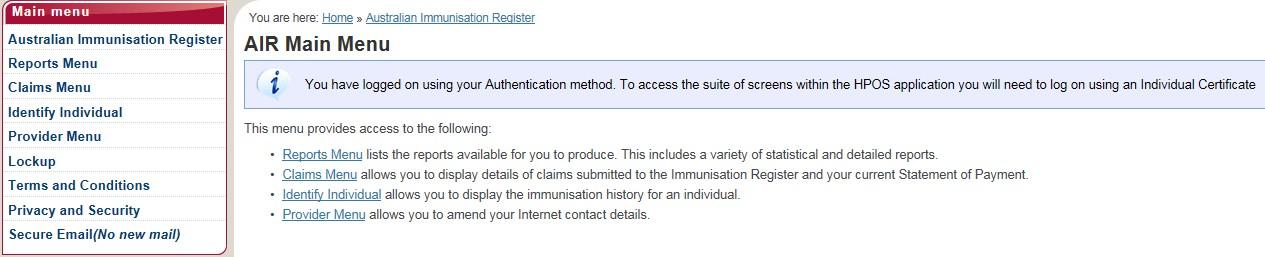
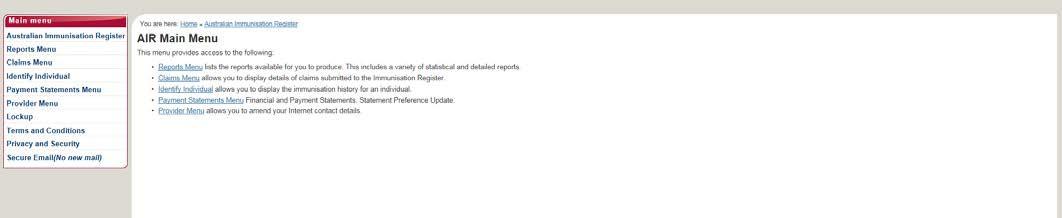
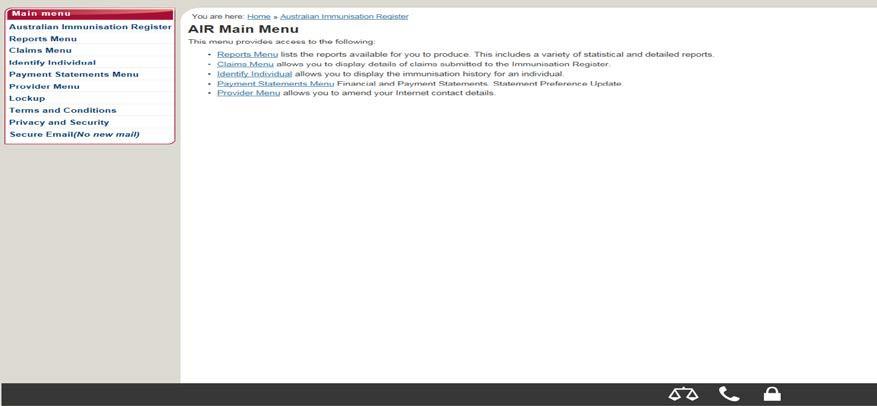
Once logged onto the AIR, select Identify Individual from the options listed on the AIR Main Menu page.
The site will be directed to the Identify Individual page as shown below.
Advertisement
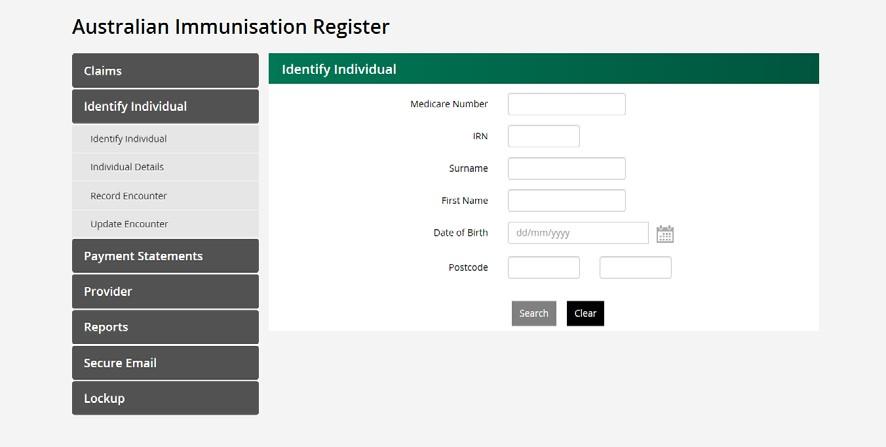
(NB. Please note that the claims, payment statements, provider details and secure email as outlined on previous page can also be accessed from the Identify Individual page as well as the AIR main menu page)
If the individual is registered with Medicare, they will have an AIR record. If the individual is not registered with Medicare (e.g. 457 or student visa) you can create a new record for the individual.
Medicare number and Individual Reference Number (IRN) Medicare number, surname and first name surname, first name and date of birth surname, first name, date of birth and postcode Only a unique match will display an individual’s AIR record.
Match Found:
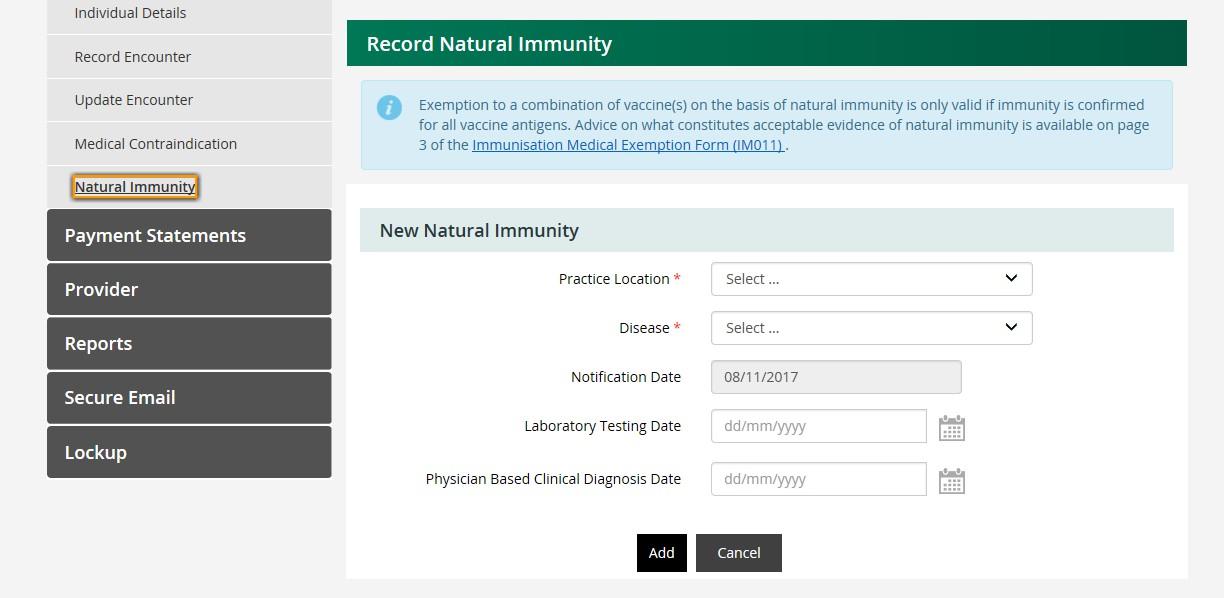
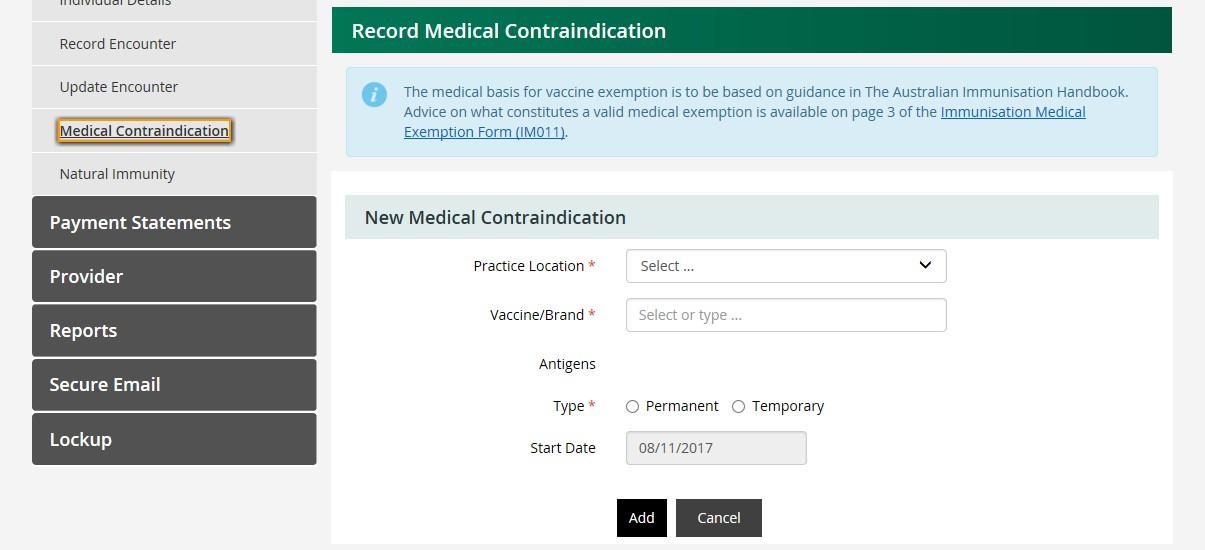
If a match is found, the Individual details page will display due details for vaccinations due as well as immunisation details. A single or double upward arrow in the banners indicates there’s information such as immunisation due details, immunisation history, medical contraindication, or natural immunity. Select anywhere in the banner to expand and view this information.
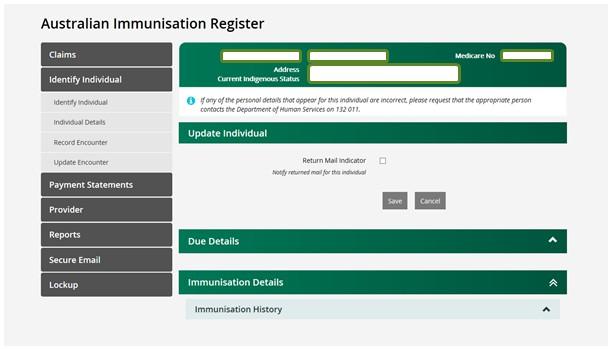
If a match is not found the below screen will display with the message:
Individual not found. Please check keying, correct any details, or include extra details and select the Search again button to perform a new search, or record an encounter by selecting the Record Encounter button.
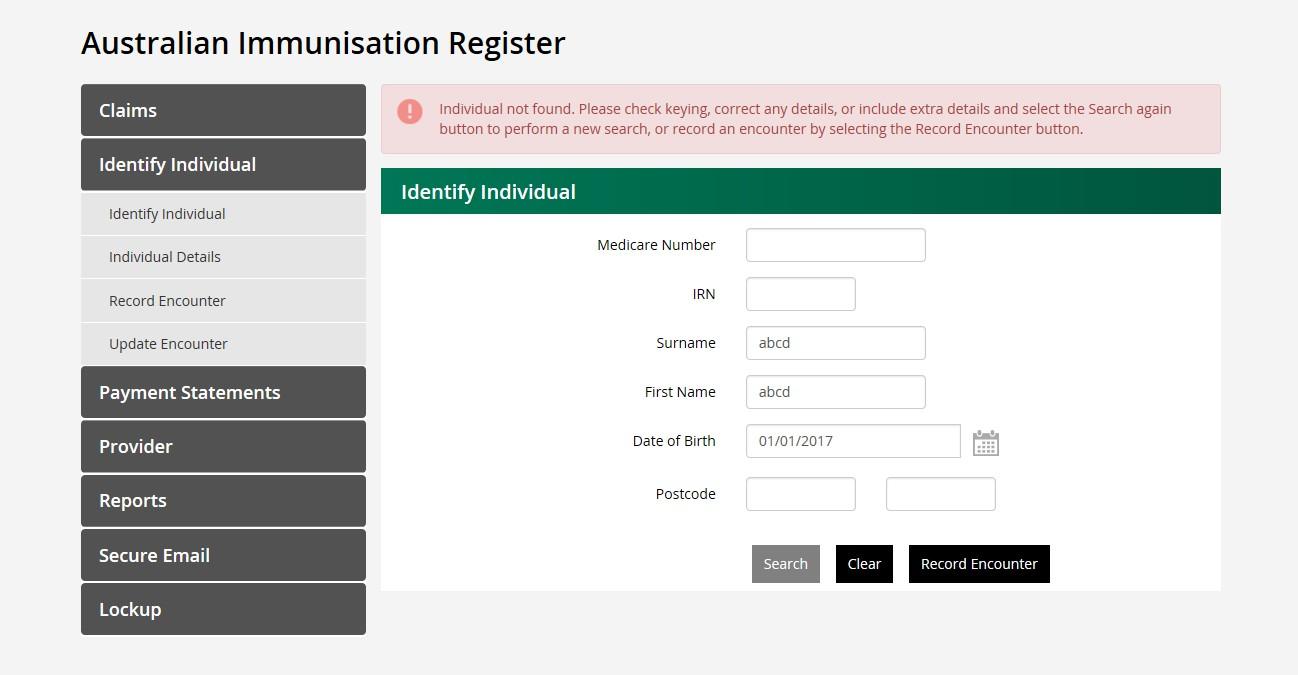
If a match still is not found, you can create a new record by selecting the Record Encounter button.
Note: It is important to ensure the individual does not have an existing AIR record prior to creating one. If a duplicate record is created, family assistance payments may be affected until the record can be matched.
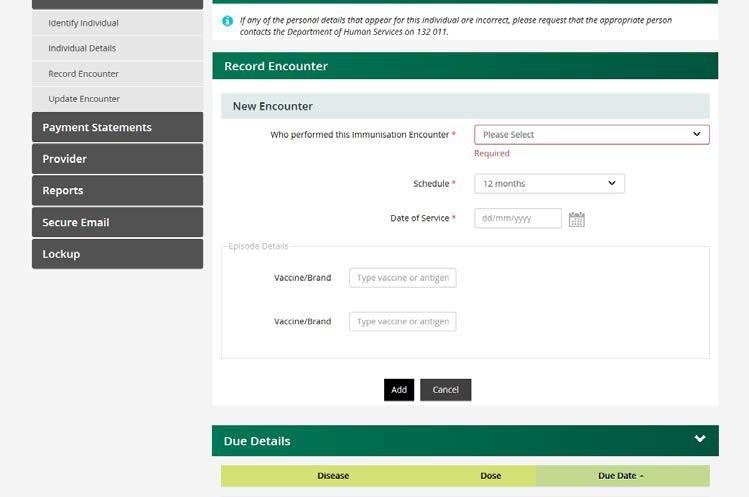
Once the individual has been identified, you can record an encounter or update a previous encounter. To do this select the Record Encounter or Update Encounter options in the left-hand menu.