

GLOBALPAY EXPRESS
USER MANUAL
Version 1 1
VERSION CONTROL
This document is subject to version control to ensure that all updates and changes are accurately recorded and tracked
Version Date
Author Changes Made
1.0 2024-08-20 Bessie Galimba Creation of the draft.
1.1 2024-09-20 Bessie Galimba Formatting and style aligned to other SFC documents.
I. INTRODUCTION
This user manual is designed to guide both customers and website administrators and ensure a seamless experience through the GlobalPay Express platform It covers two key areas:
1 Customer Payment Process - This section outlines the steps customers need to follow to successfully complete payments using the available payment methods on the GlobalPay Express website
2. Admin Panel Instructions - This section provides administrators with detailed instructions on how to manage transactions and generate reports with the admin panel.
FAQs are included at the end of each section to address common concerns and provide quick solutions to potential issues that may arise during the use of the platform.
II. PAYMENT PROCEDURES
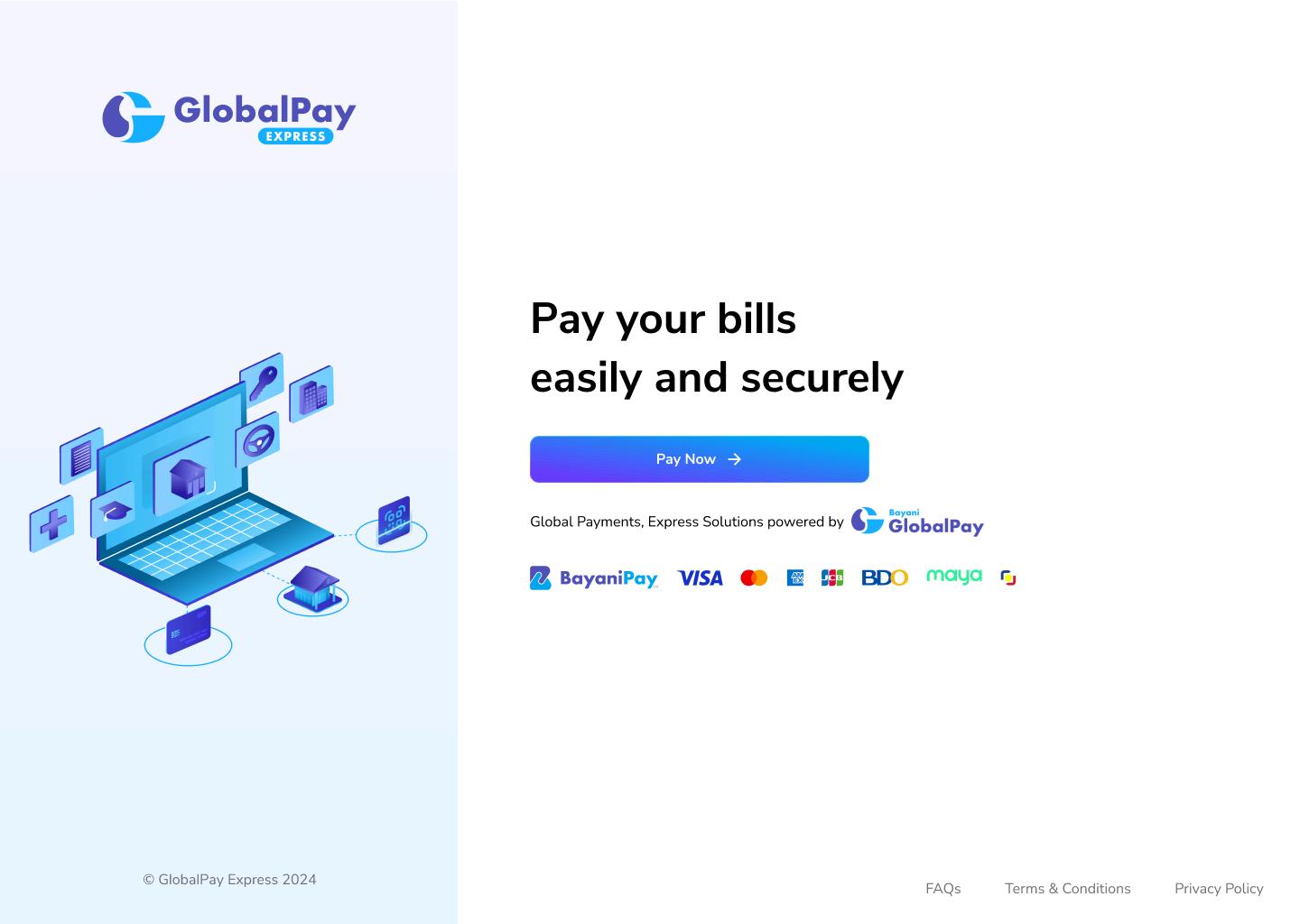
1 Open the GlobalPay Express Website
2 Select “Pay Now” to proceed
3 Input the required account information, then click “Next” to continue
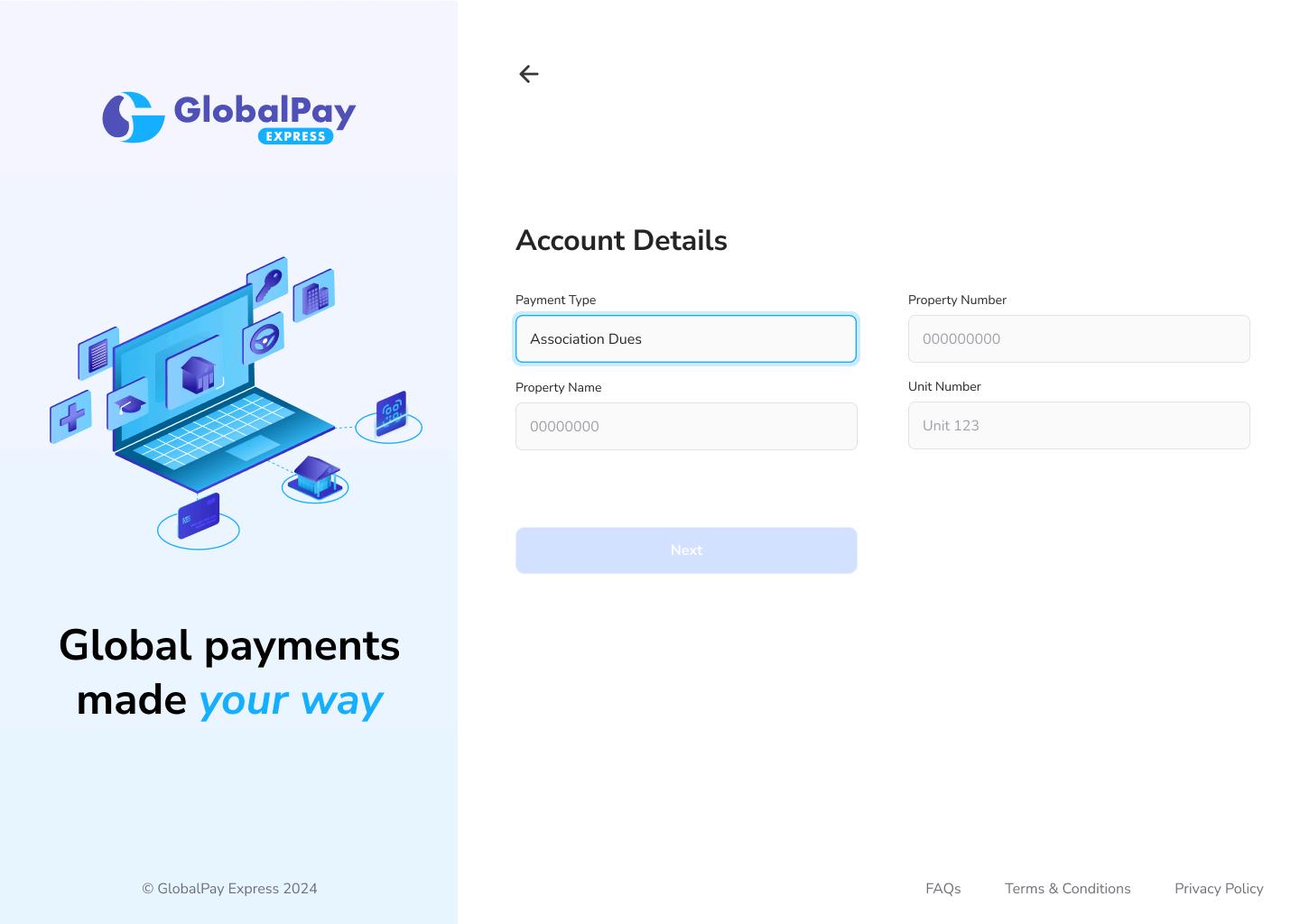
Note: The Account Details page is where all the required fields for your payment transaction will be displayed. Input fields for Account or reference numbers, payment types, ID numbers, etc can be added in this page.
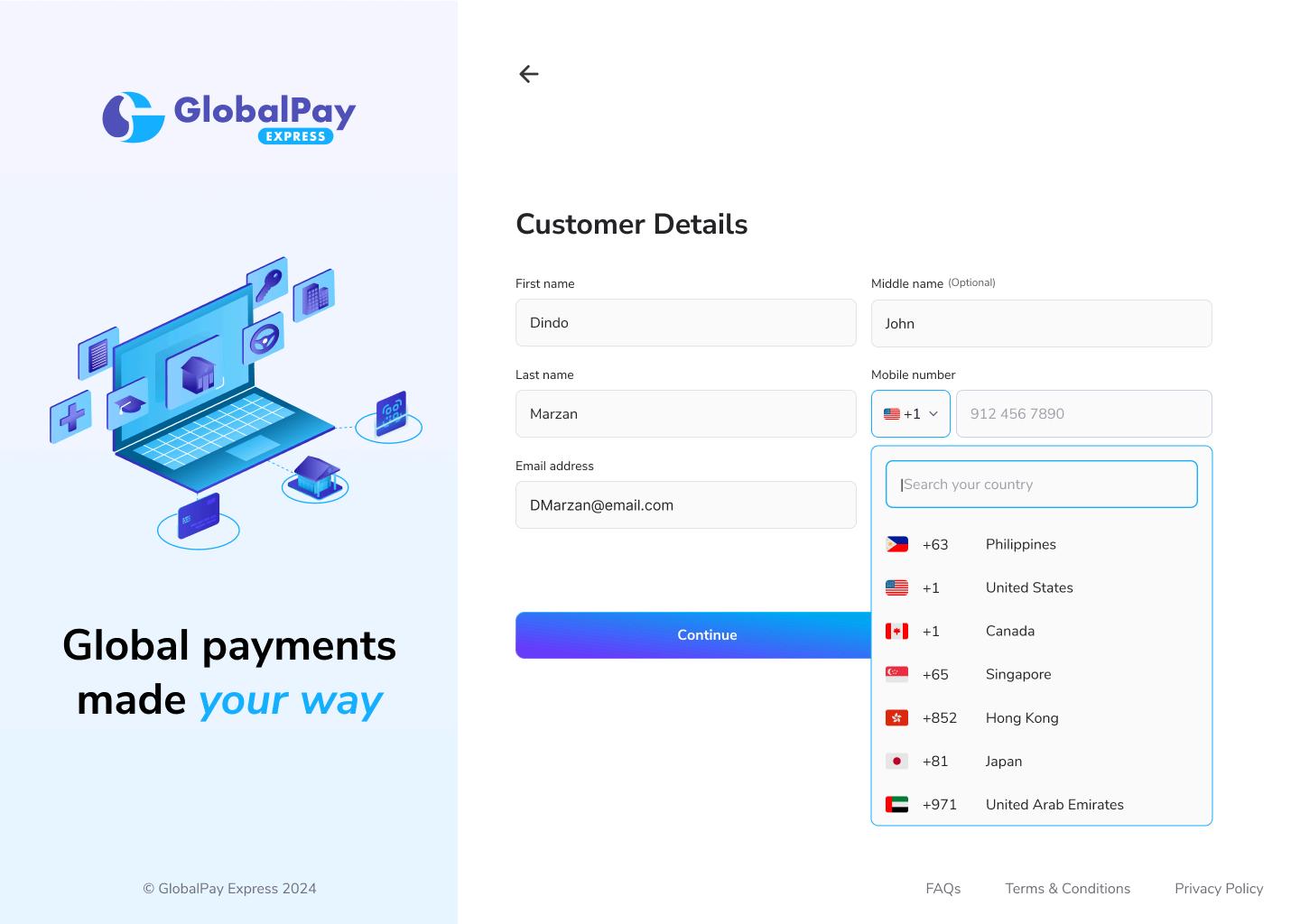
4 Enter the customer details, then click “Continue.”
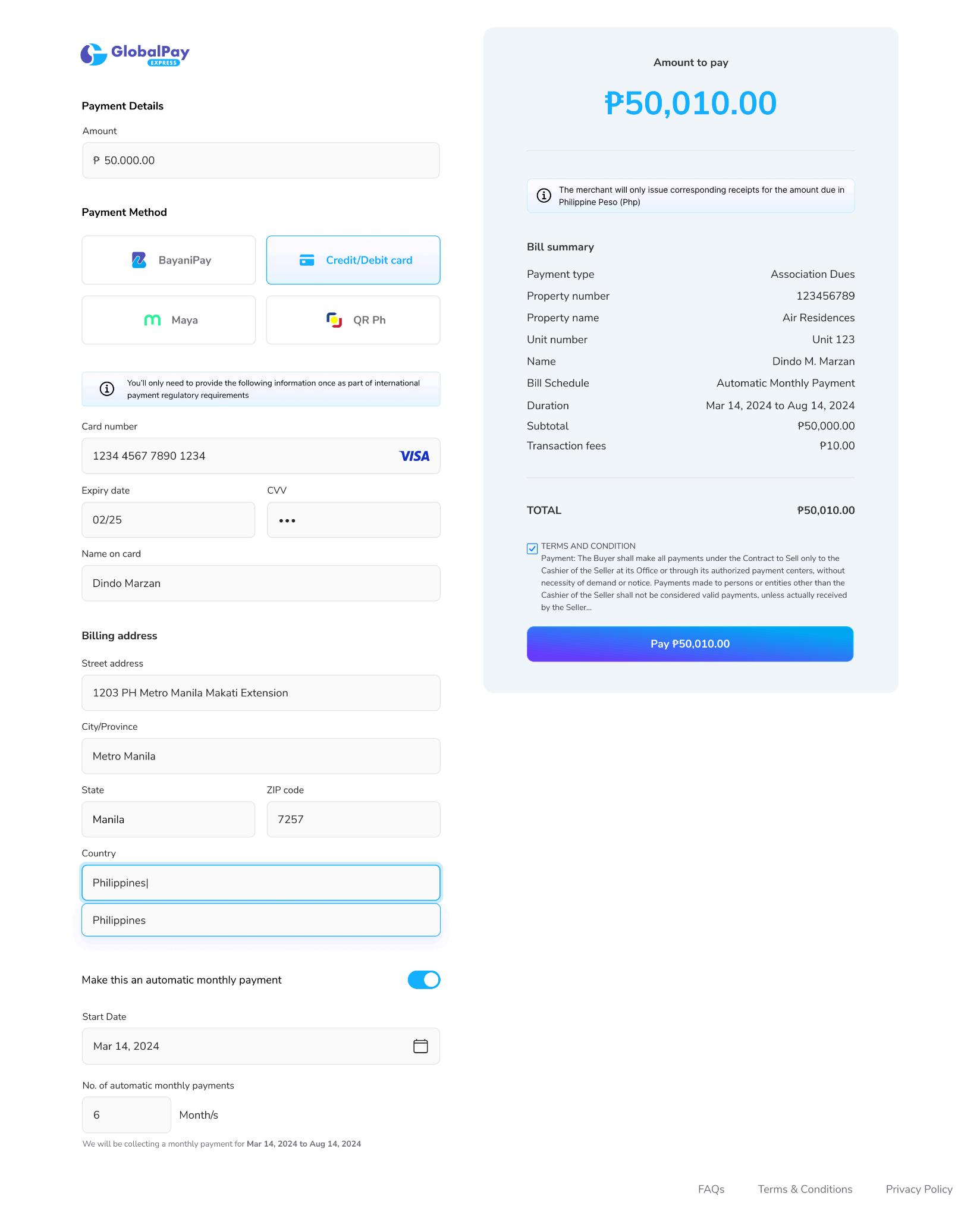
5 You will be directed to the Payment Details page
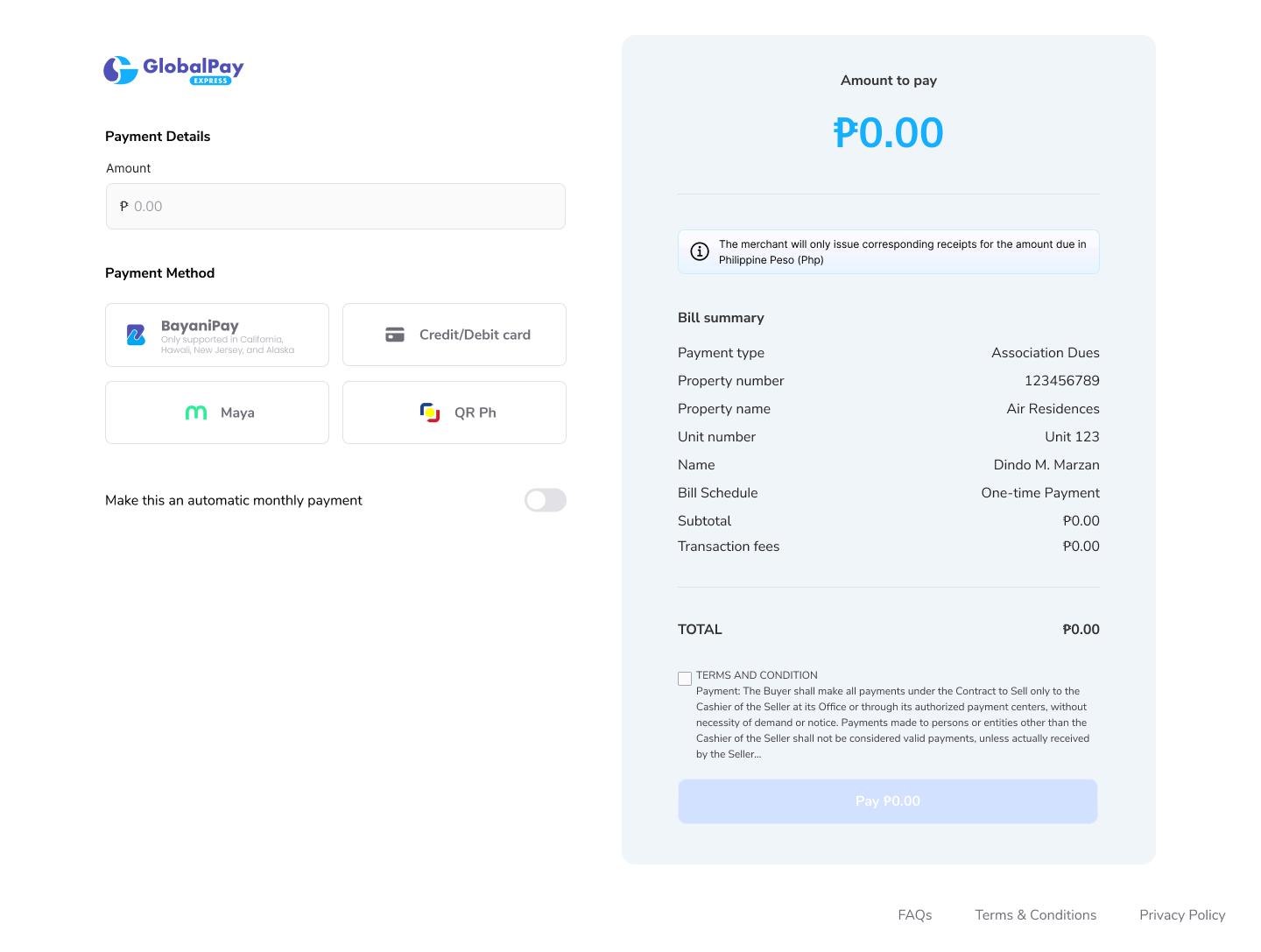
6 Enter the amount to be paid on the provided text box under “Amount”
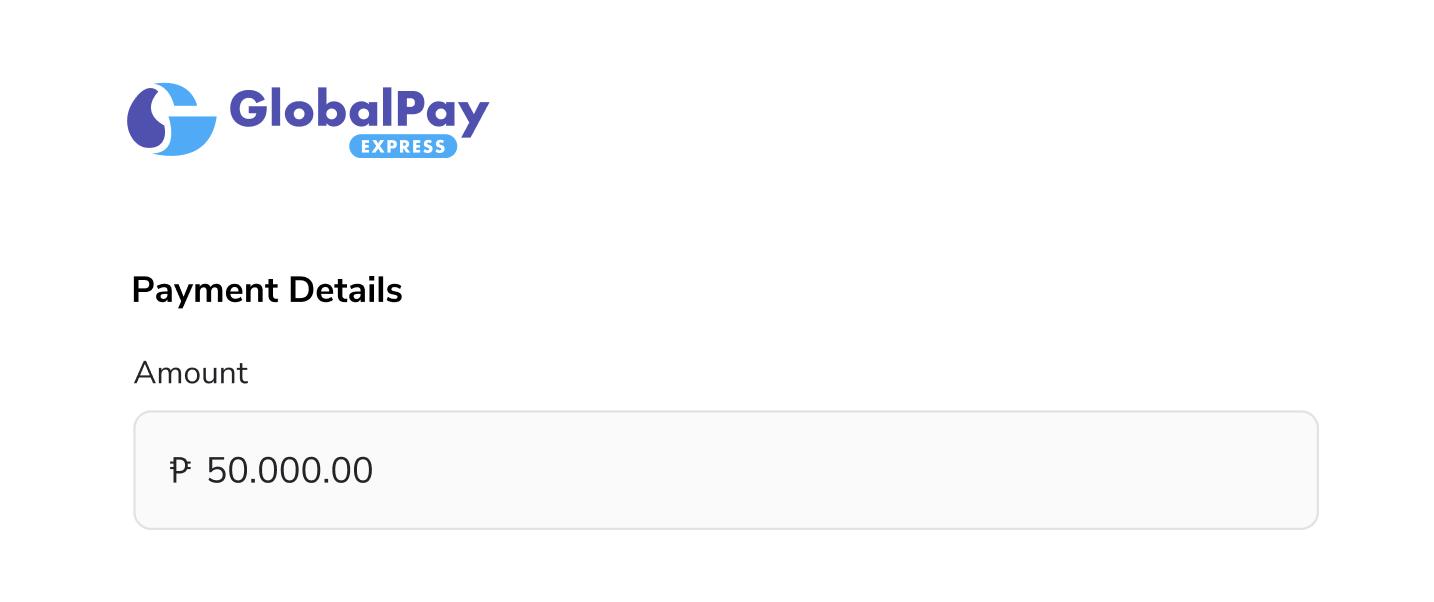
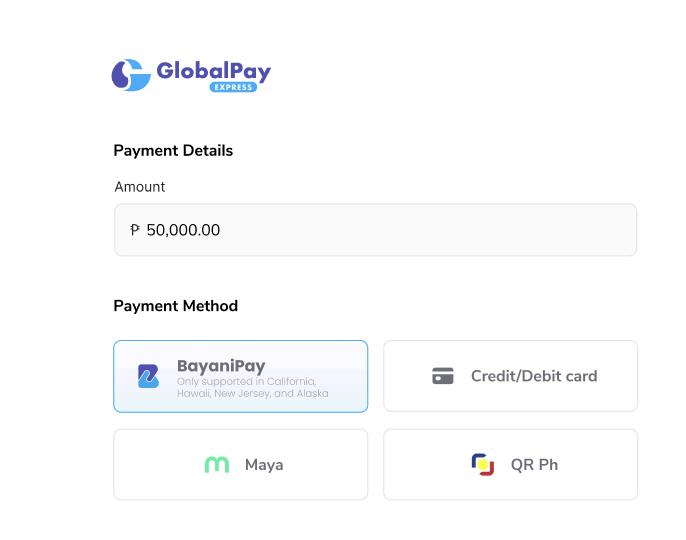
7. In the "Payment Method" section, select a payment method from the options provided. Refer to the PAYMENT METHODS section for the specific procedures for each payment option.
i. BayaniPay
ii. Credit/Debit Card
iii. Maya
iv. QRPH
8 On the right side of the Payment Details screen, the payment summary is displayed This panel automatically updates as you change the amount and payment details
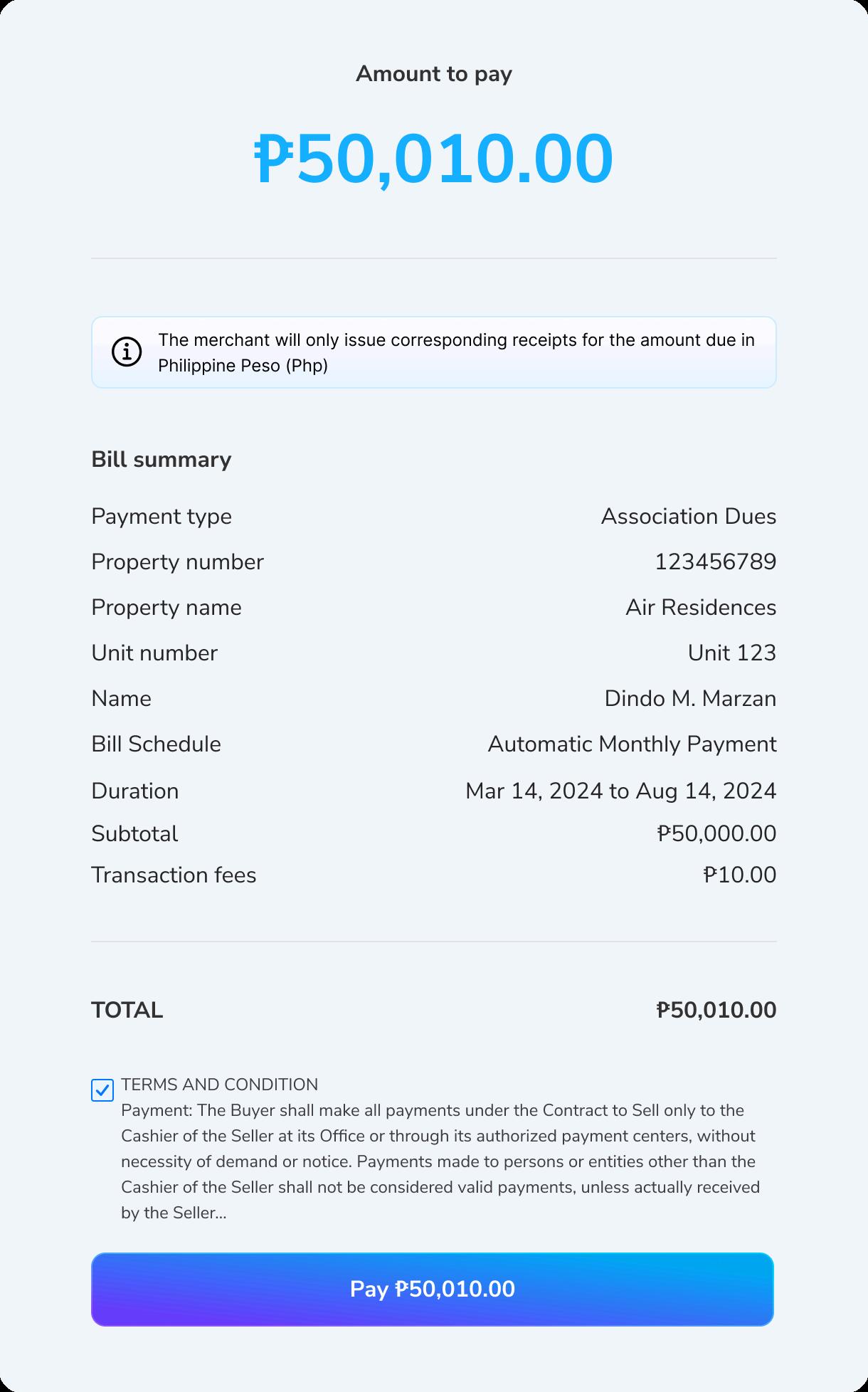
9 Once com ated under the Payment
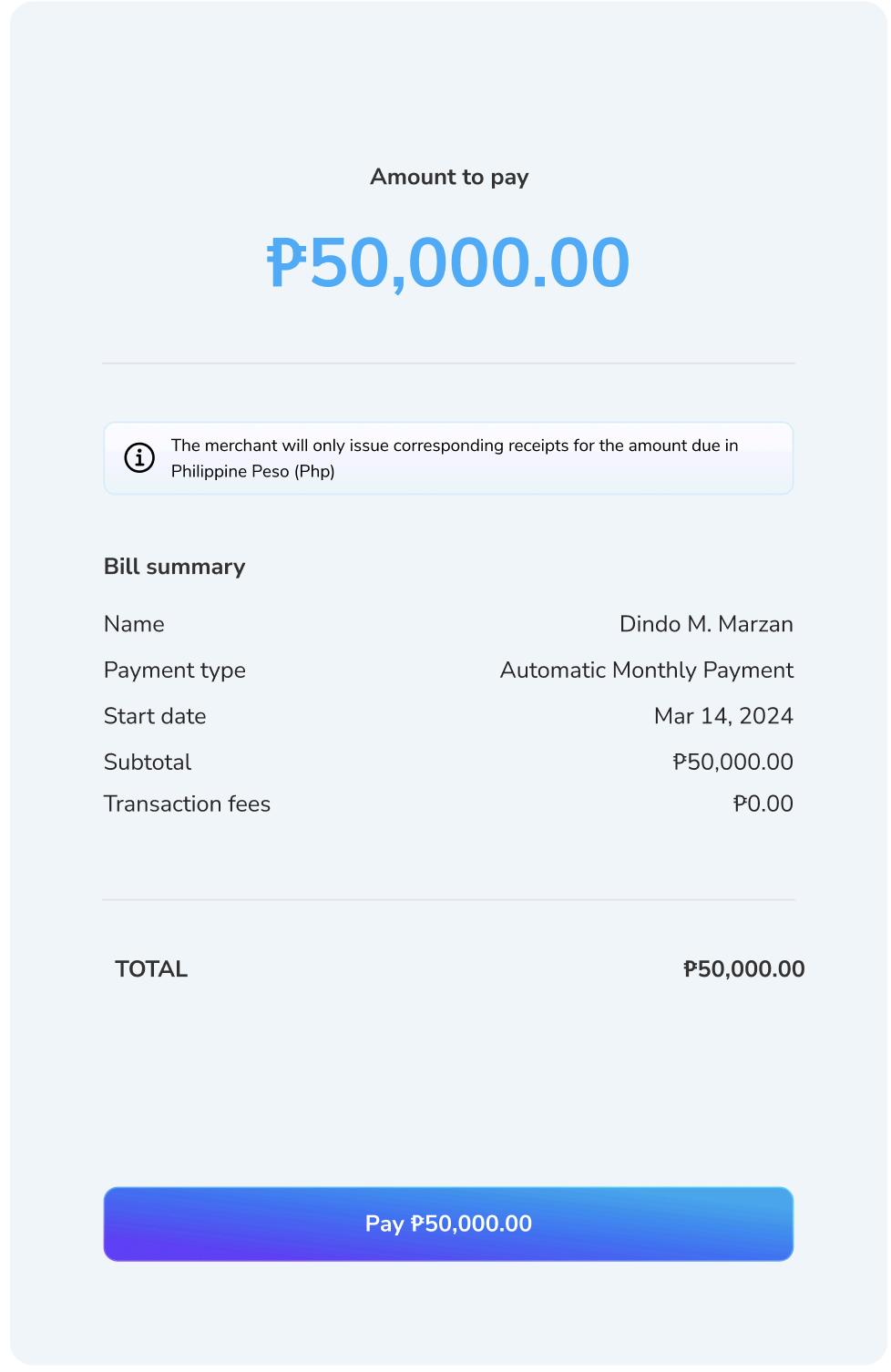
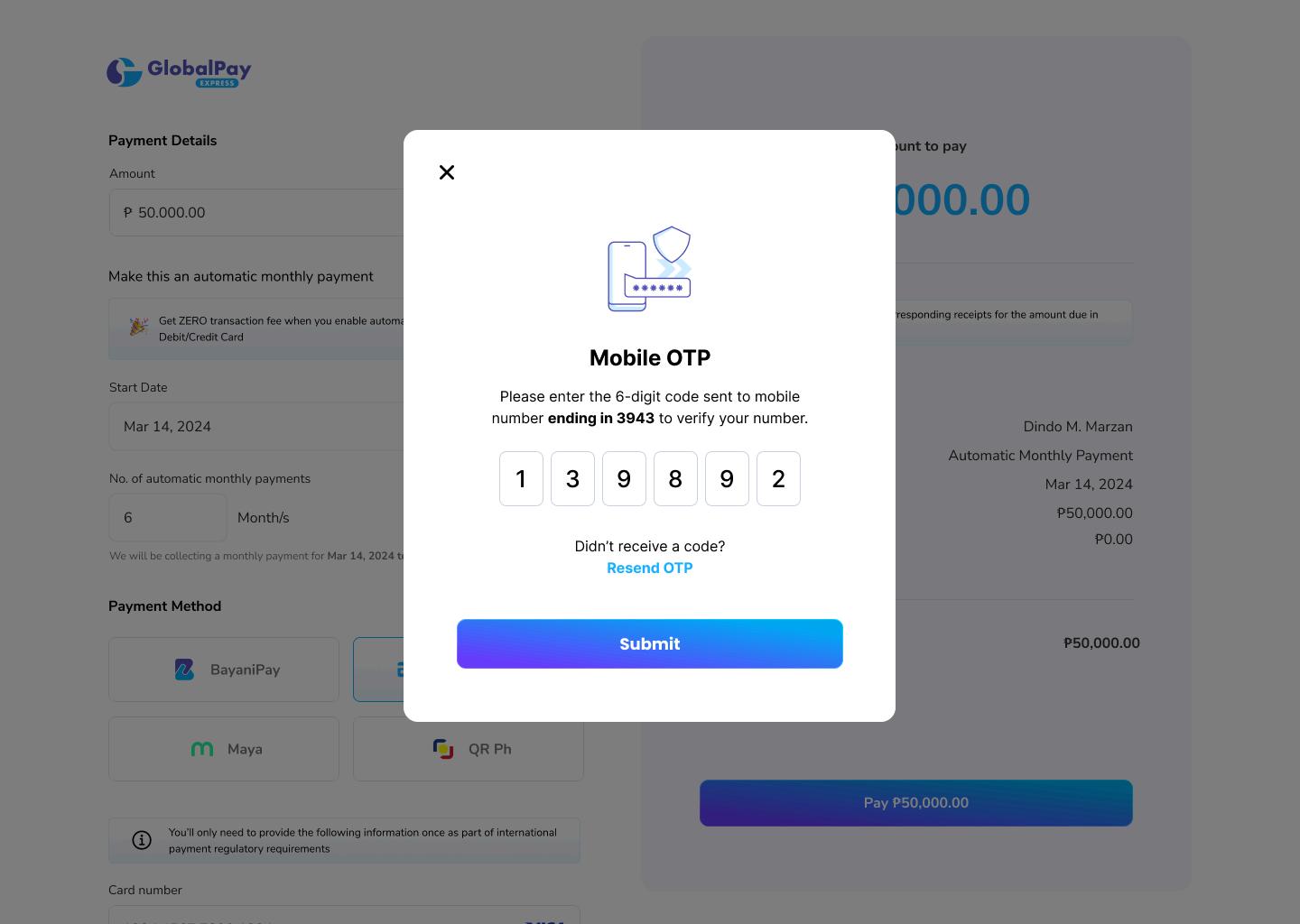
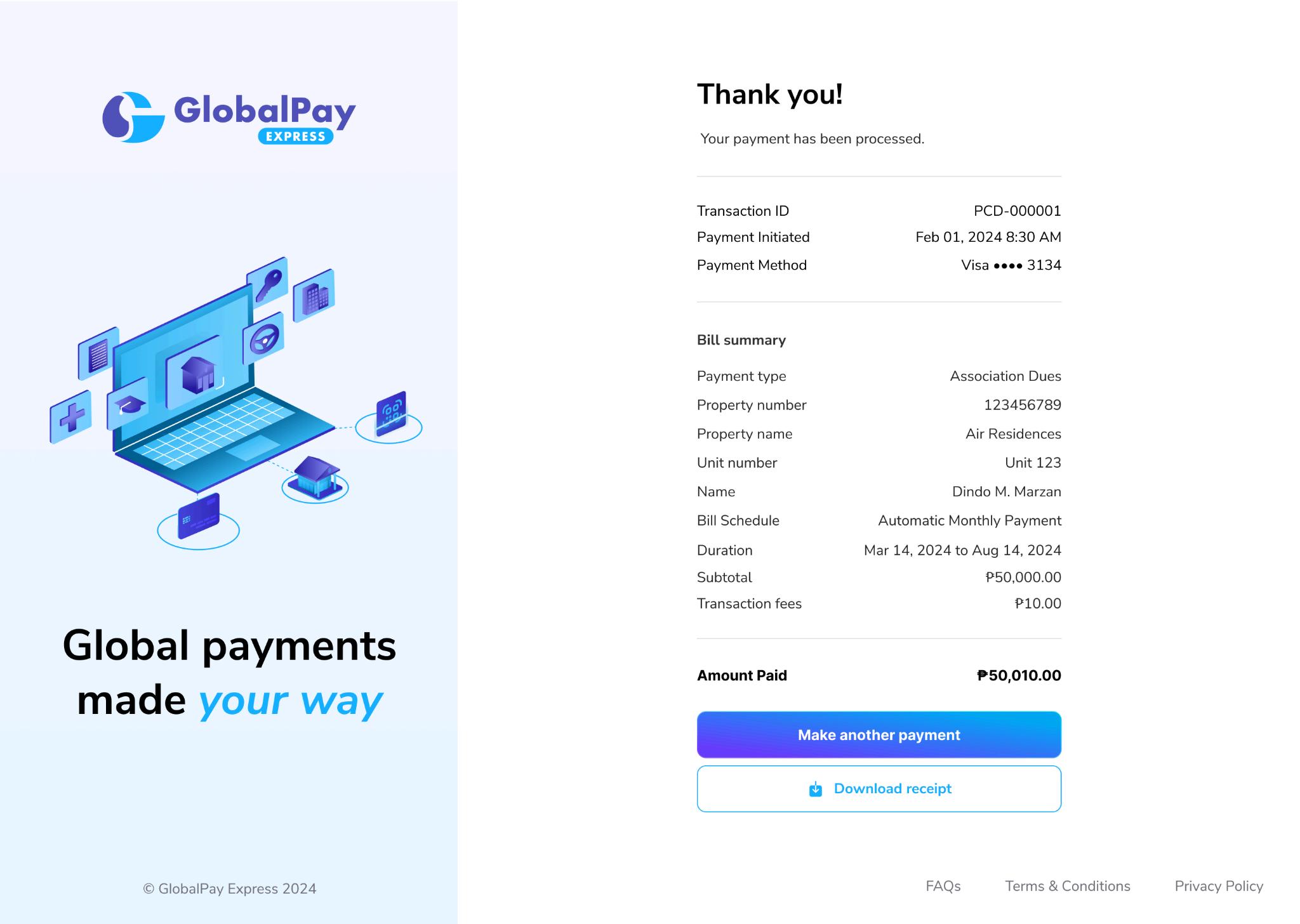
12. To make another payment, click “Make another payment.”
III. PAYMENT METHODS
A. BayaniPay
1. Select “BayaniPay”. You will be directed to the BayaniPay site.
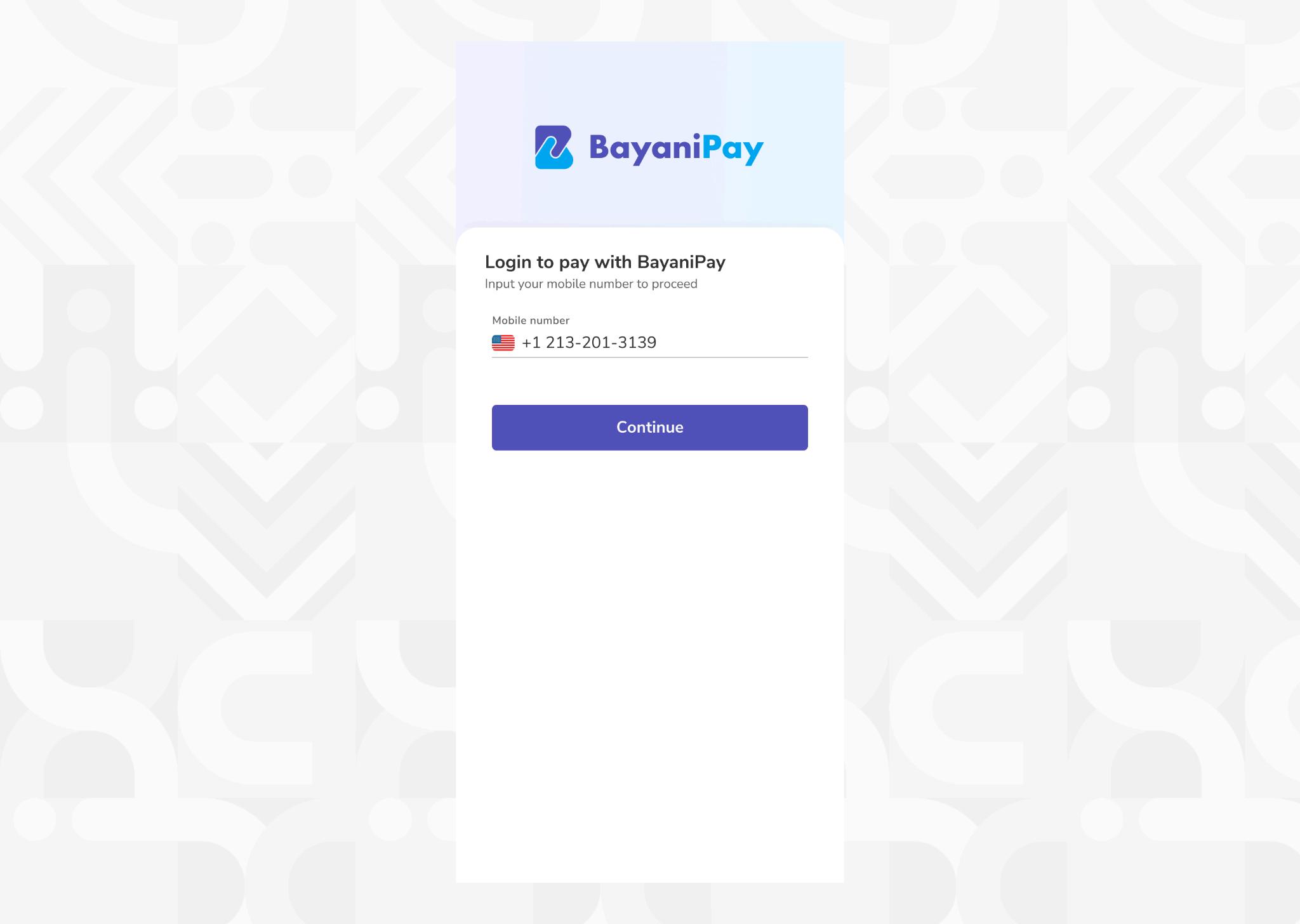
2 Enter your mobile number to login into BayaniPay, then click “Continue”
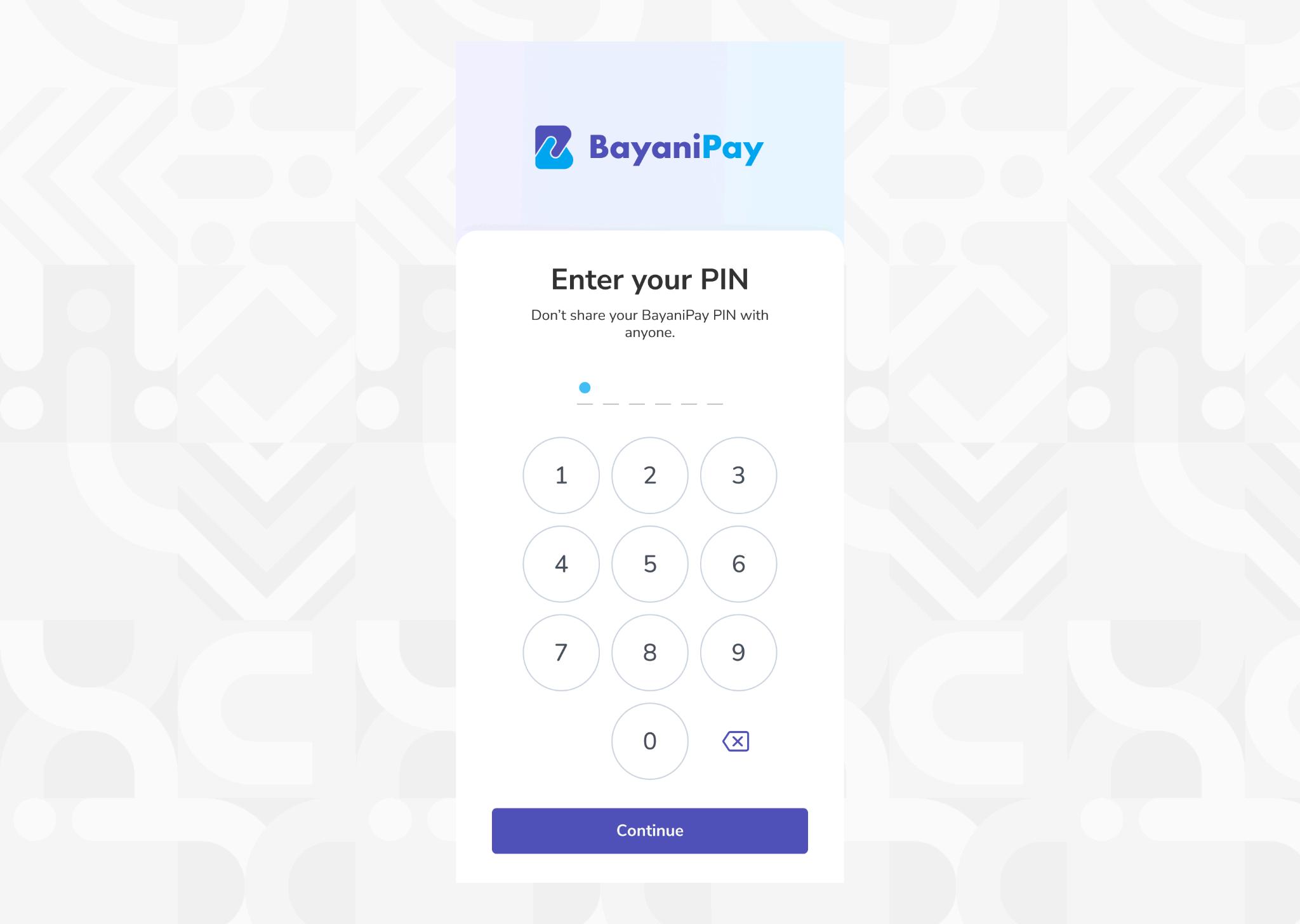
3 Enter your BayaniPay PIN
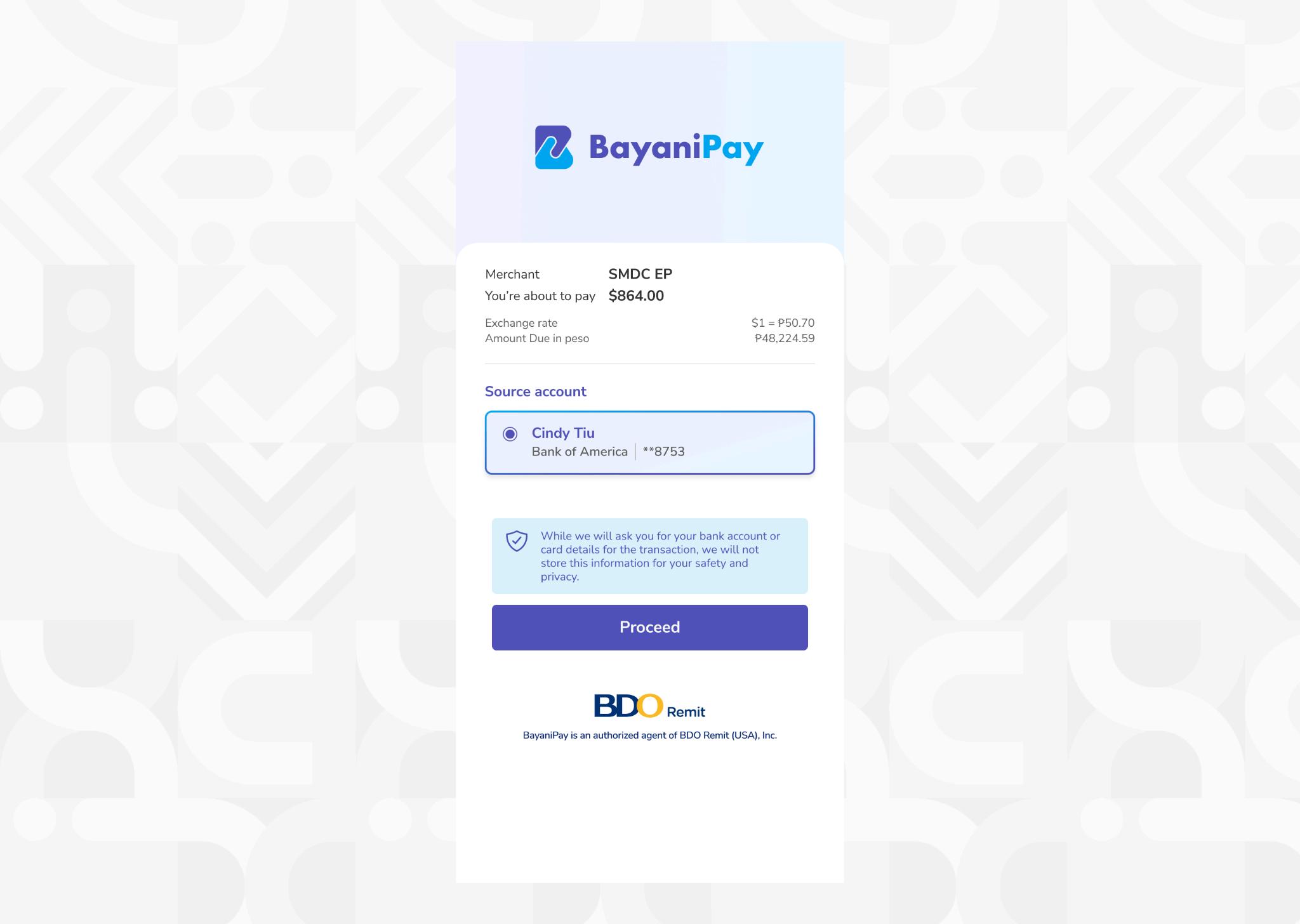
4 Review the payment details and source account, then click “Proceed”
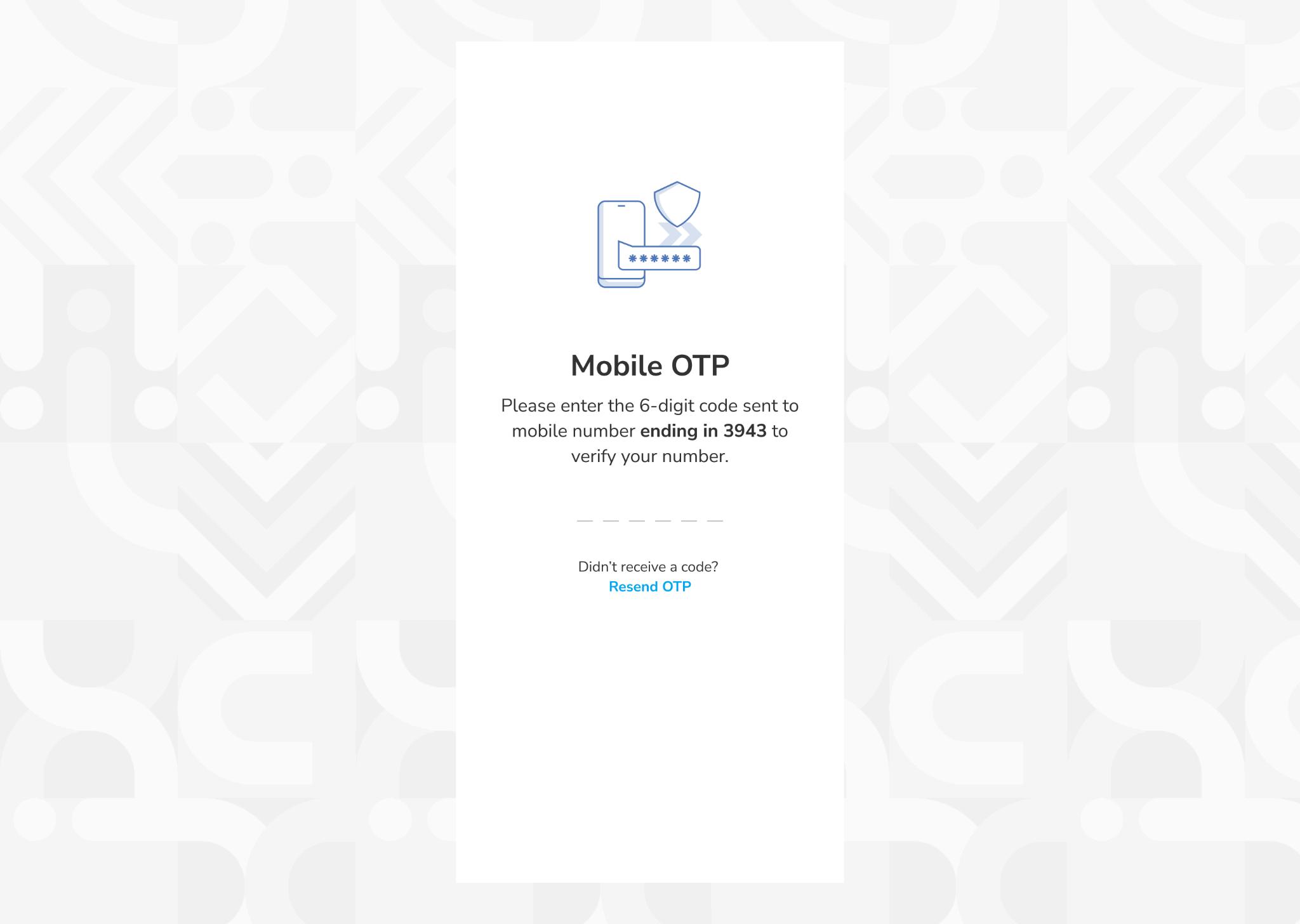
5 Enter the OTP sent to your registered mobile number
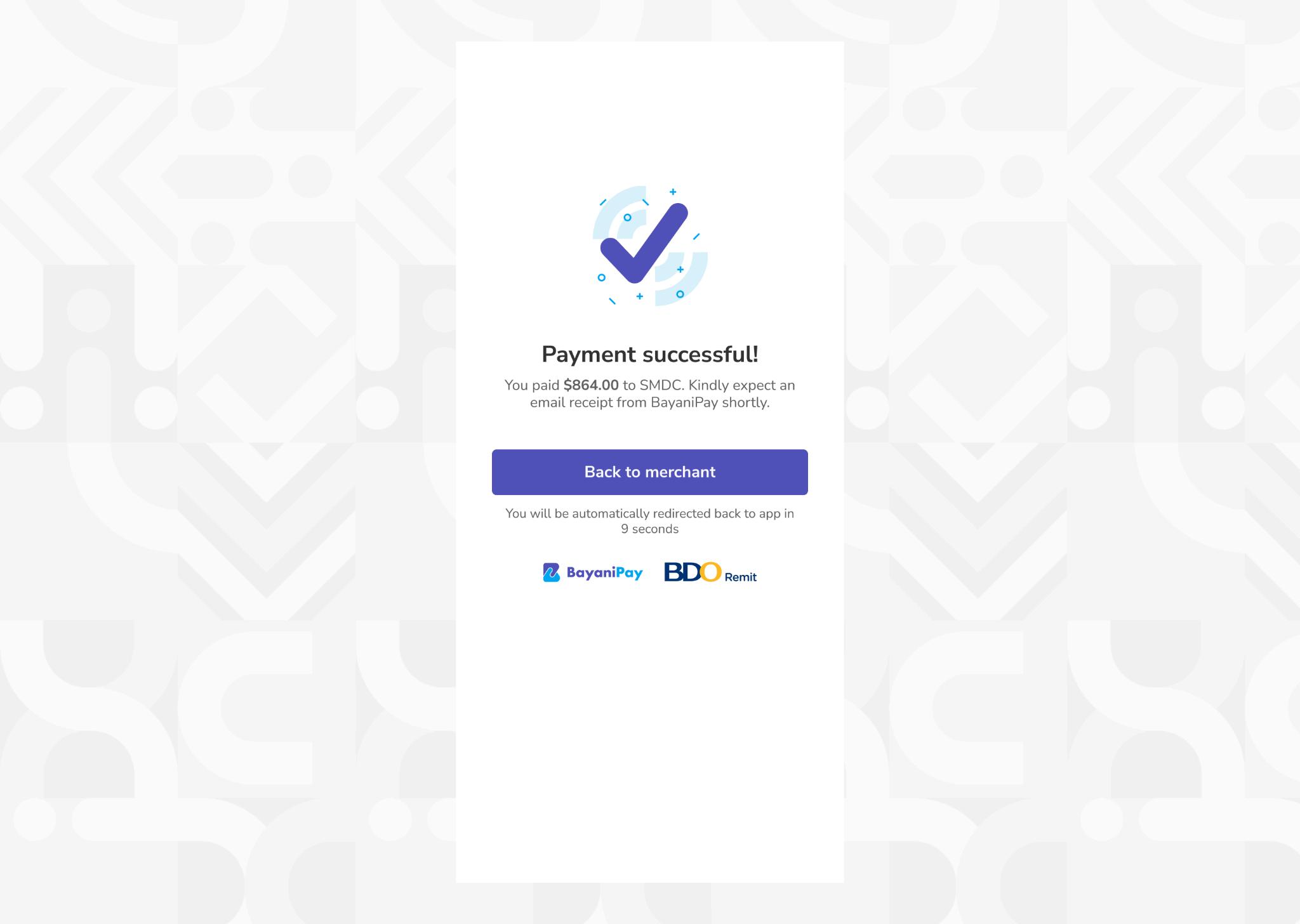
6 A success page will open to confirm your payment
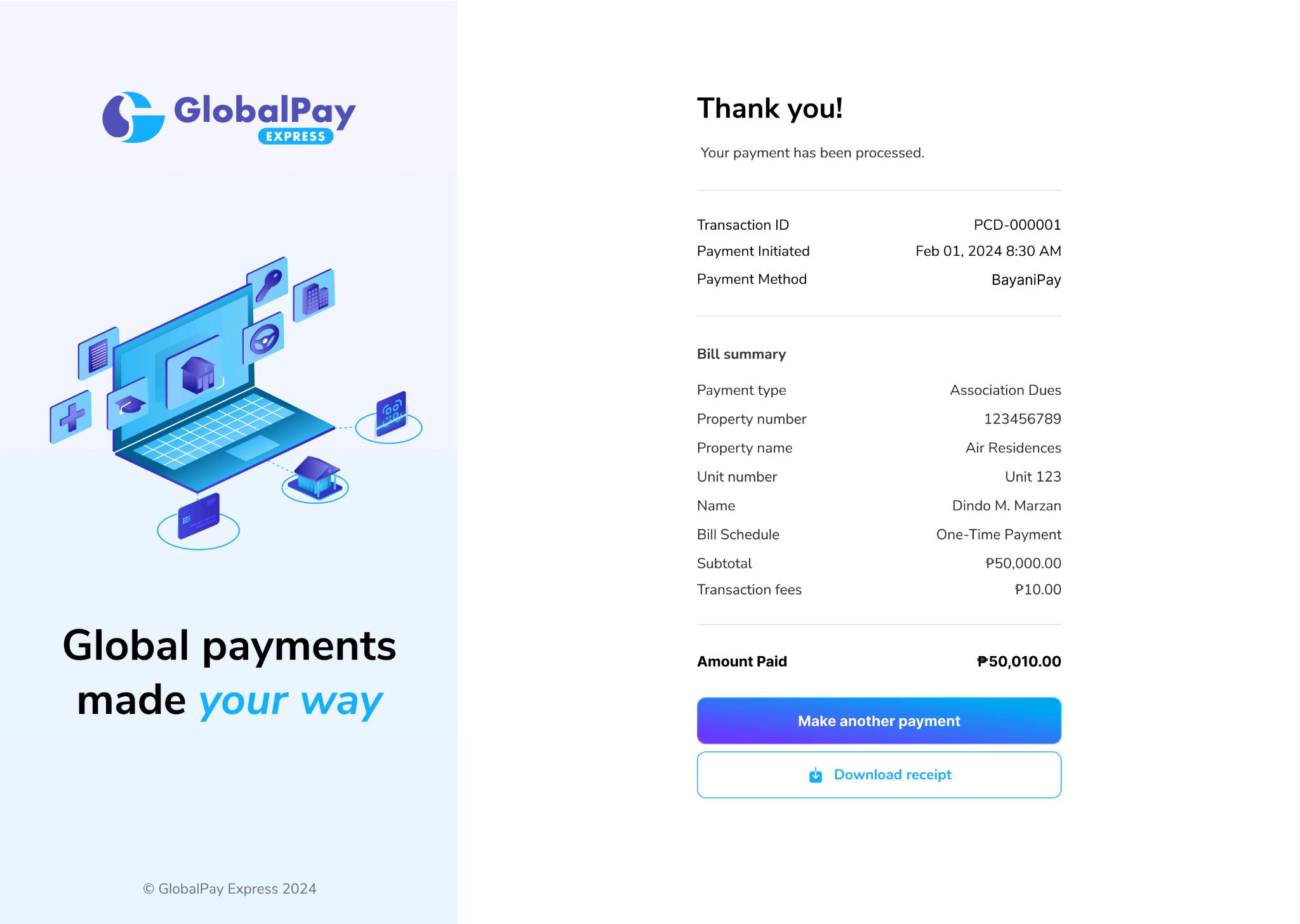
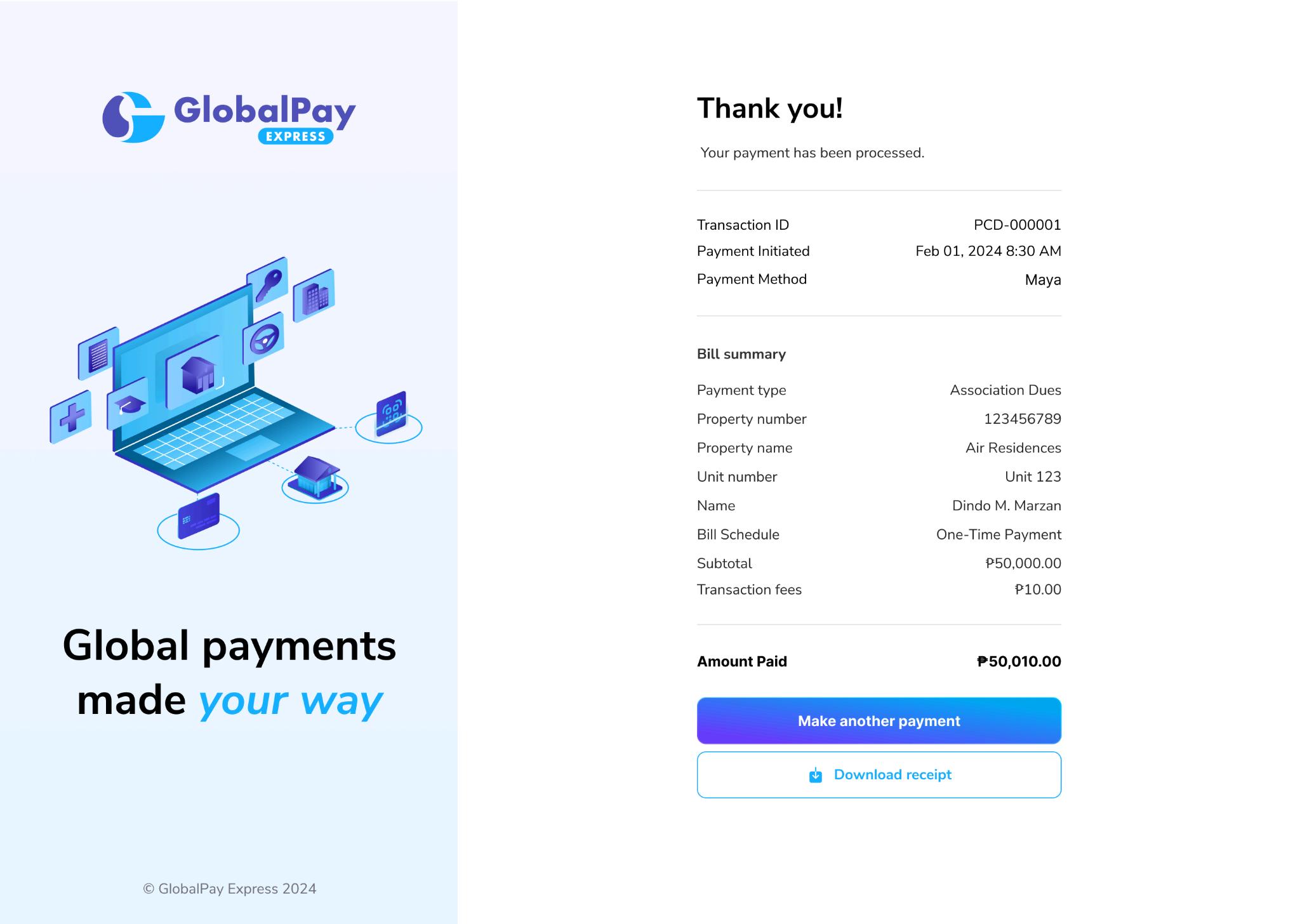
7 You will be redirected to the GlobalPayExpress A confirmation page will appear, indicating that your payment was successful
2 Input you
3 Confirm your details on the right
C. Maya Payment
1. Select Maya. You will be redirected to the Maya website.
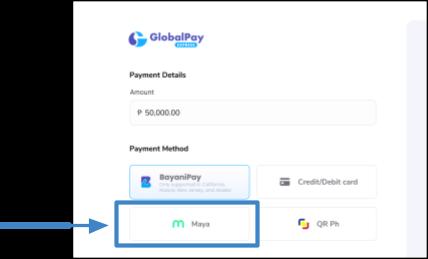
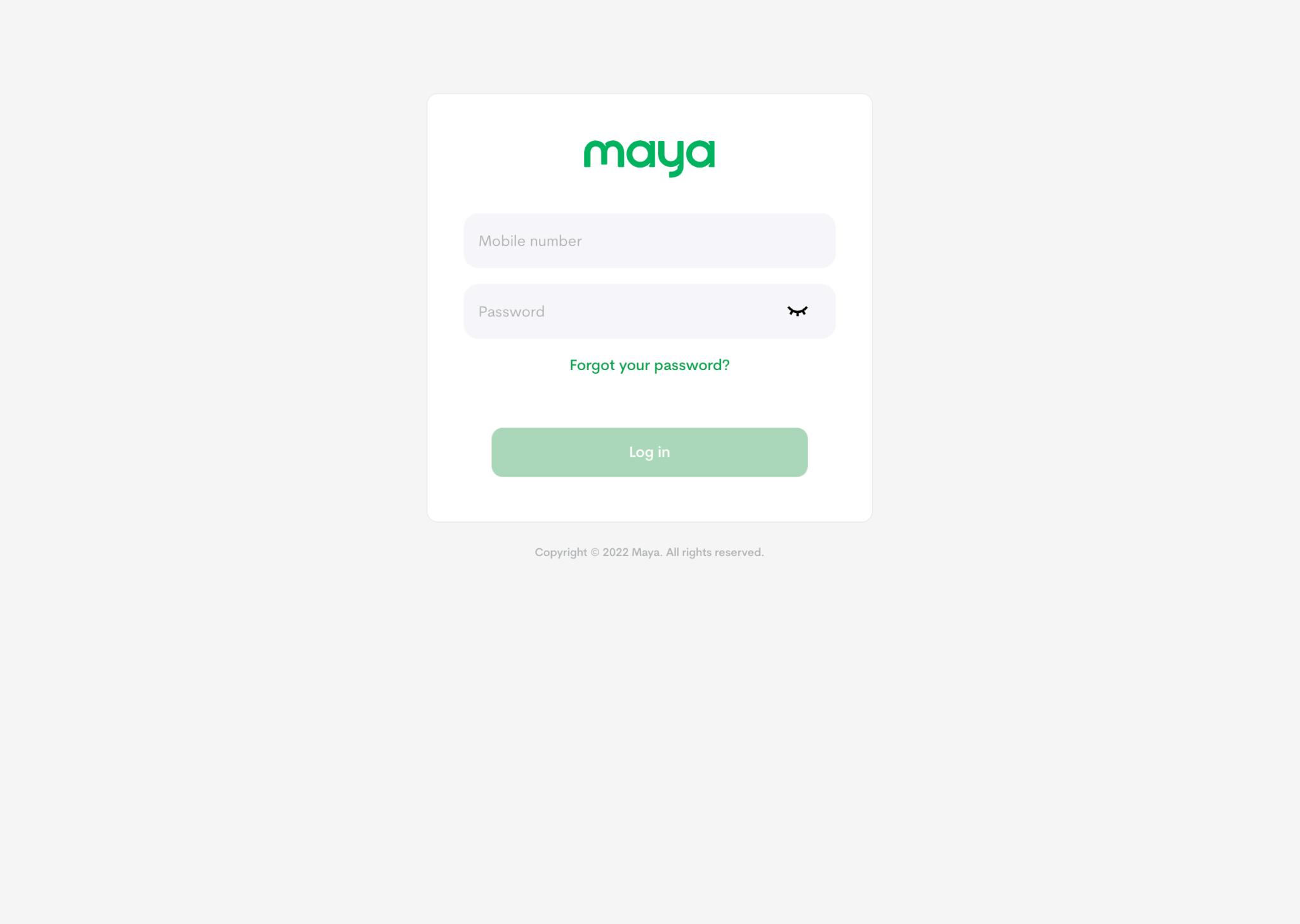
2 Enter your mobile number and password
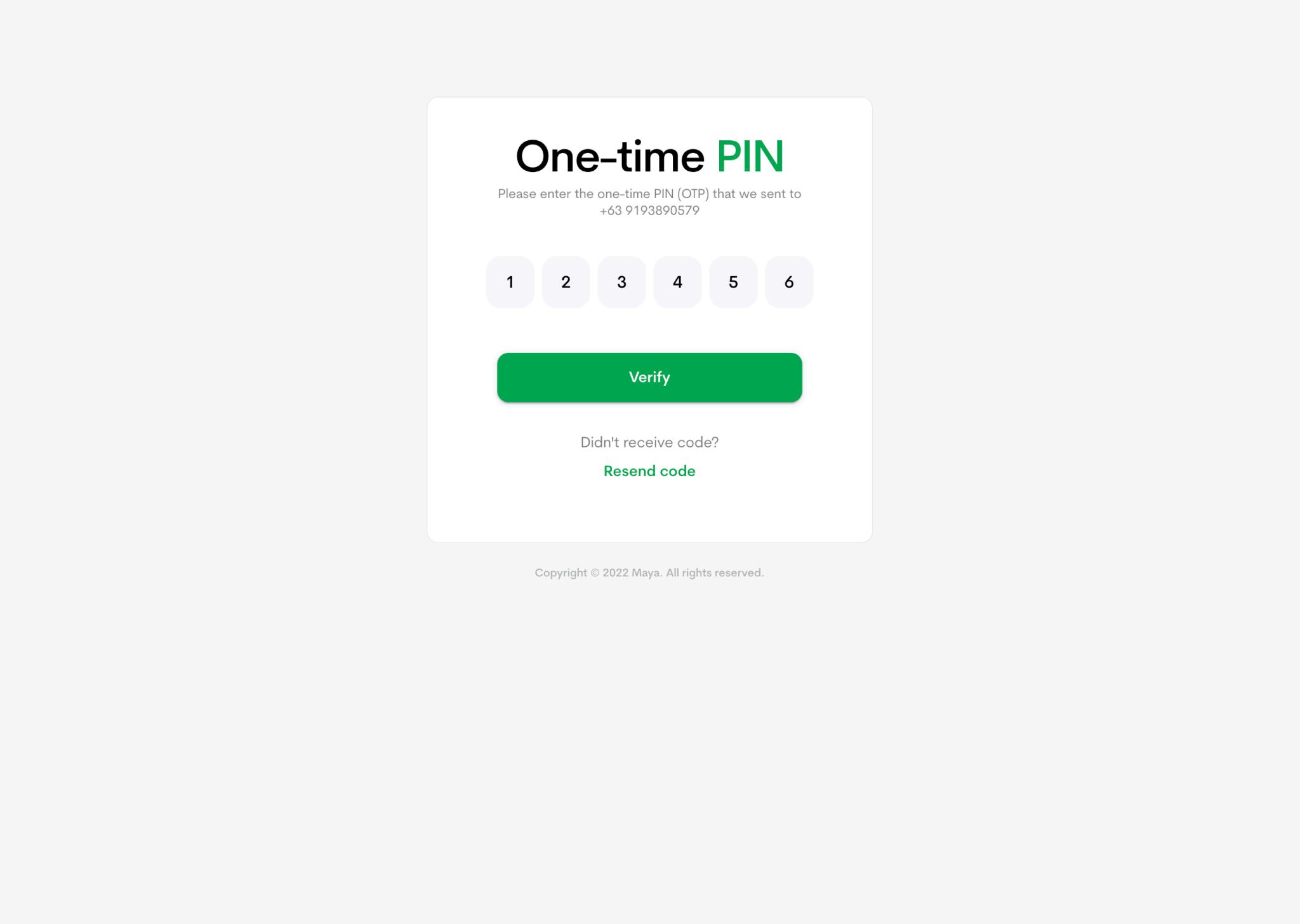
4 Review the purchase details, then click “Confirm to Pay”
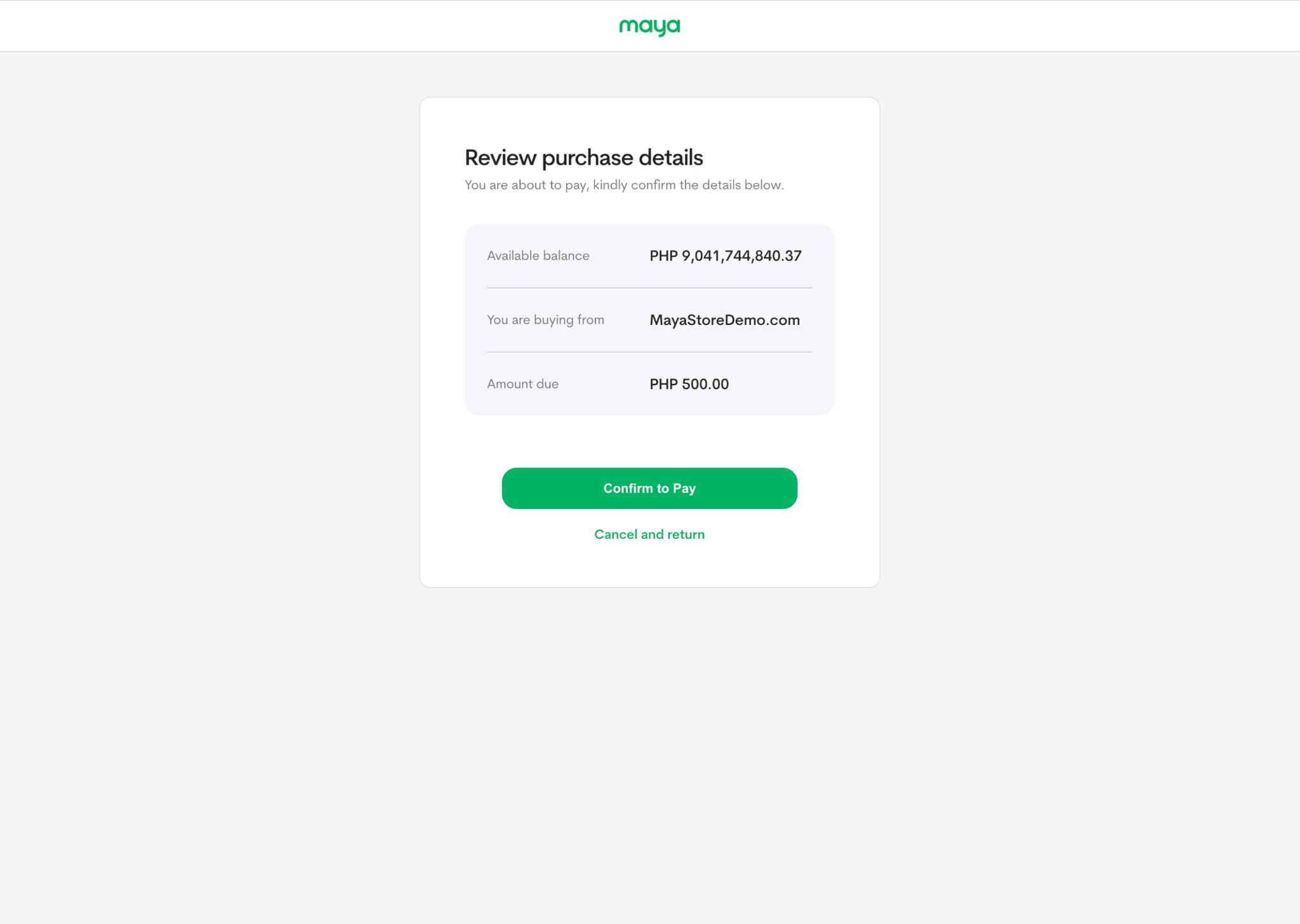
5. press
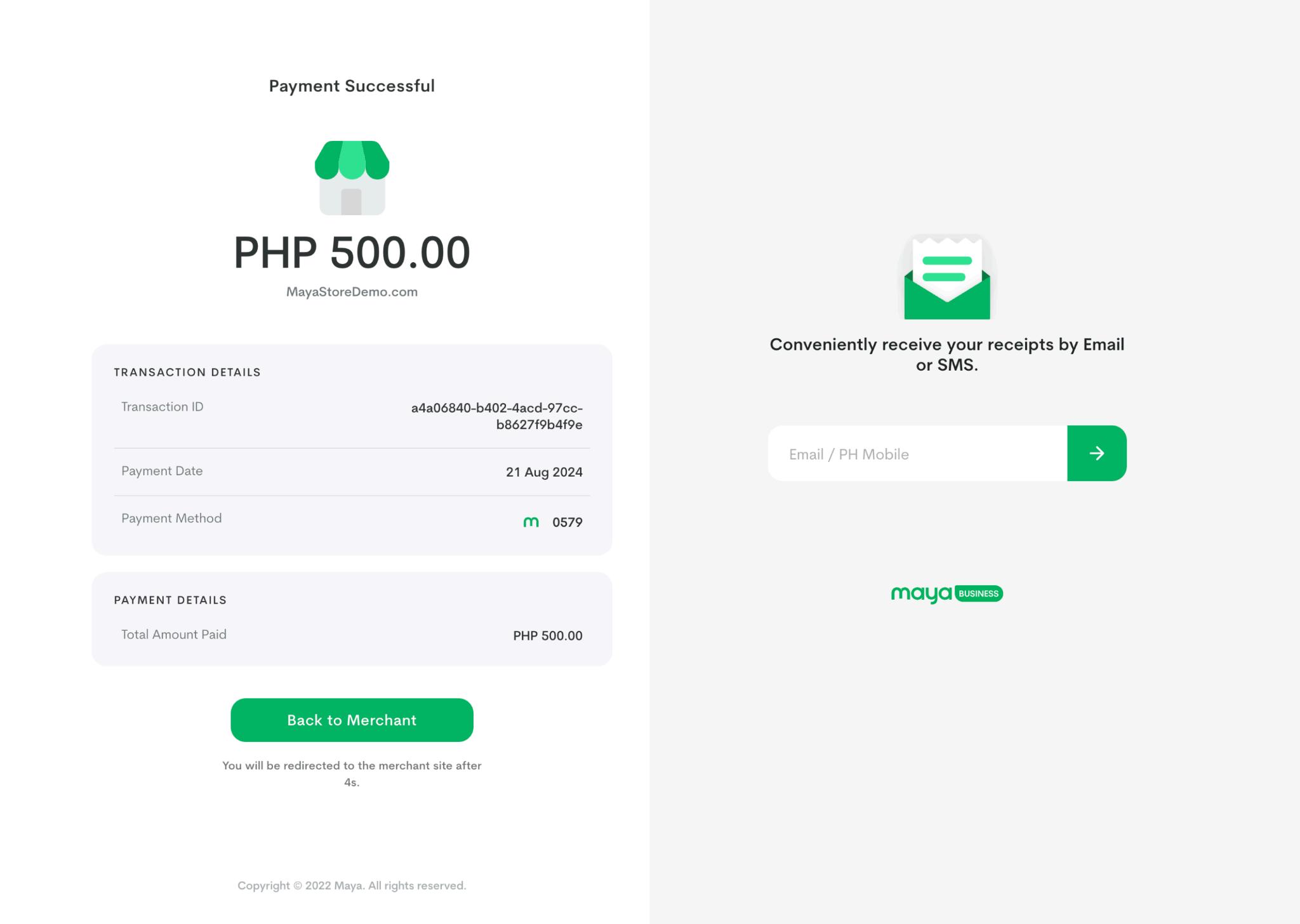
6 GlobalPay Express verifies that your payment has been processed successfully
D. QRPH
1 Select QRPH
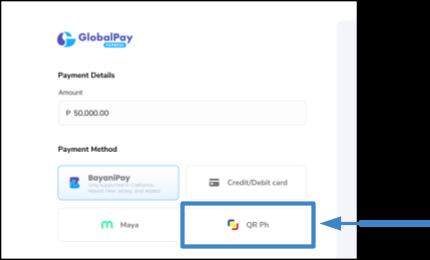
2 You will be directed to the QR page
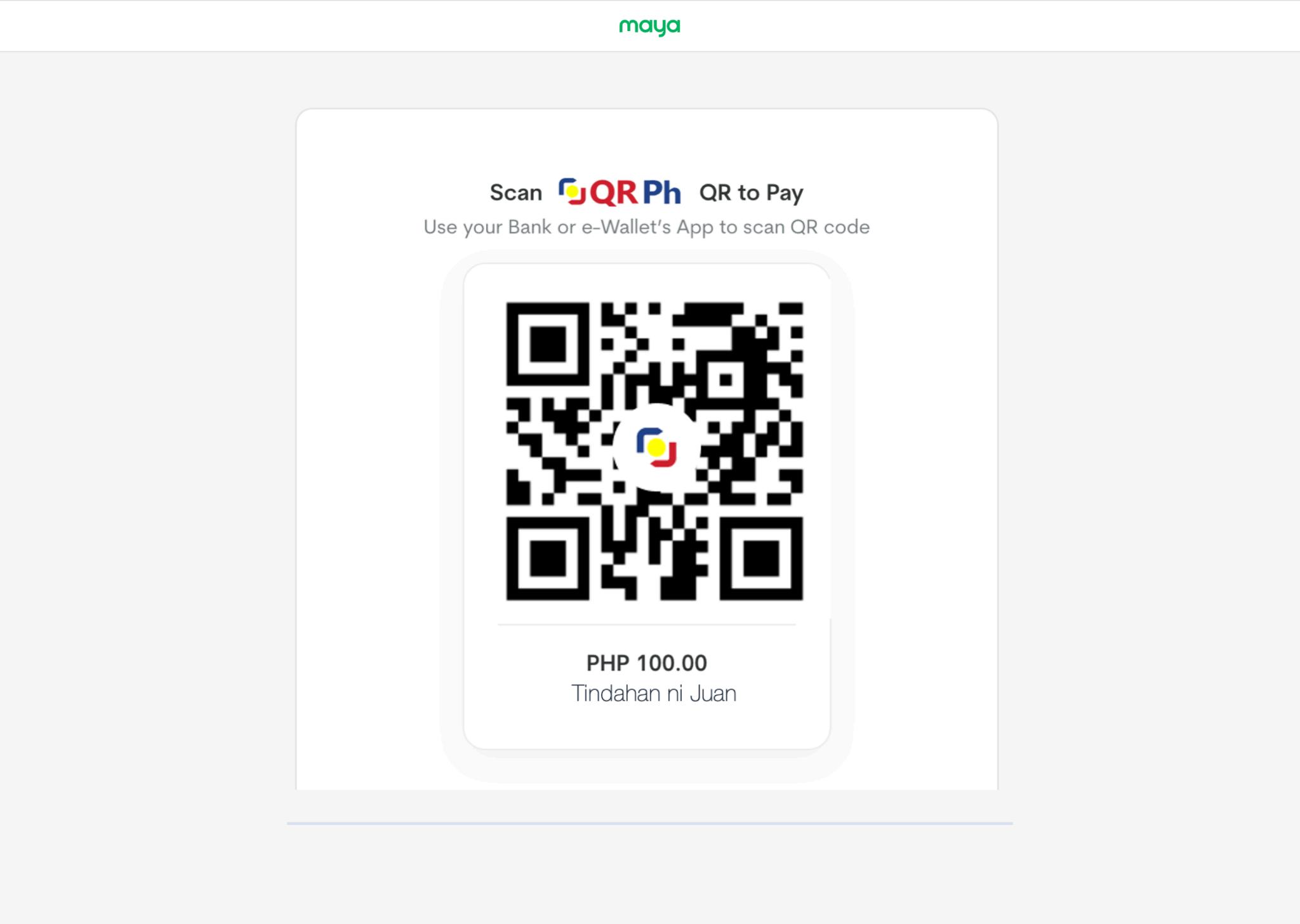
3 Use your application to scan the QR code Select “Pay Now”
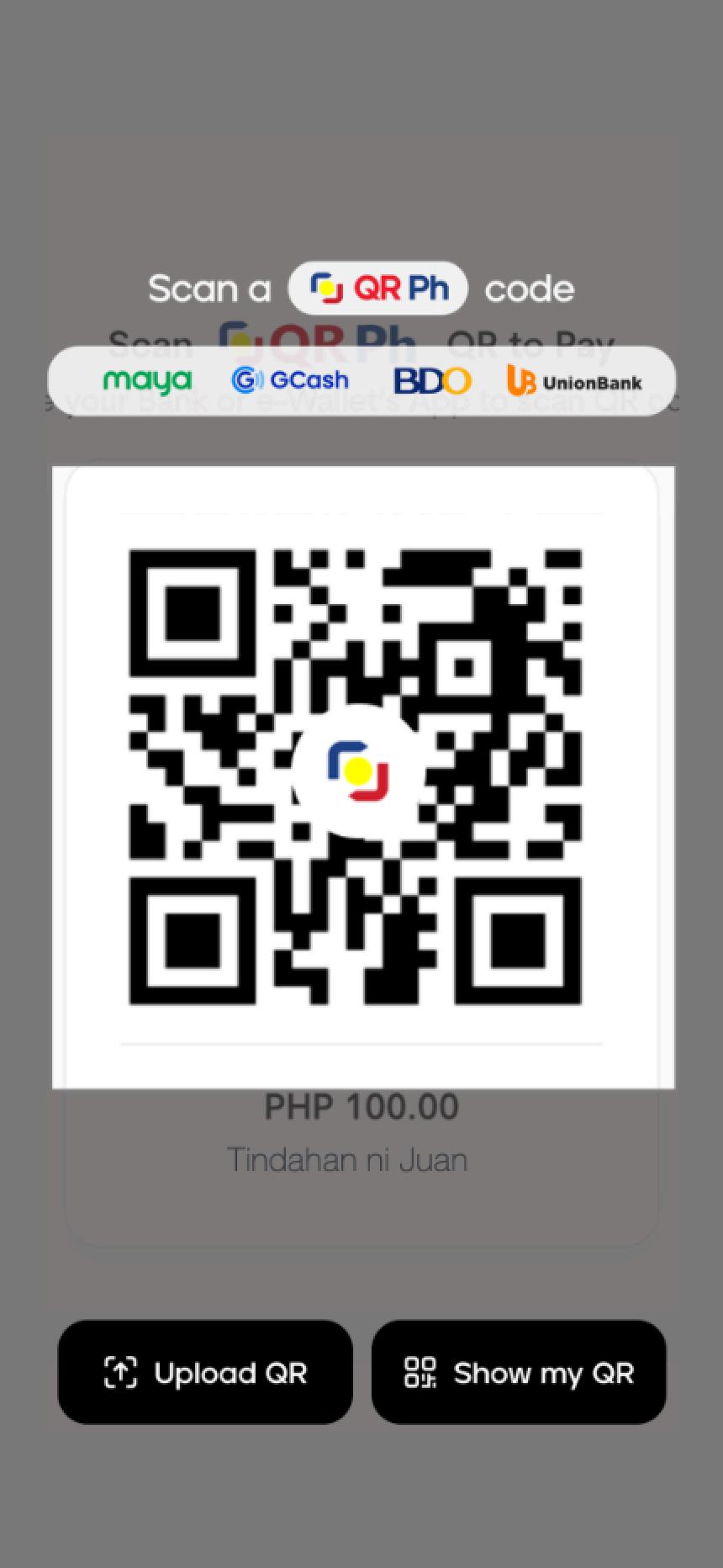
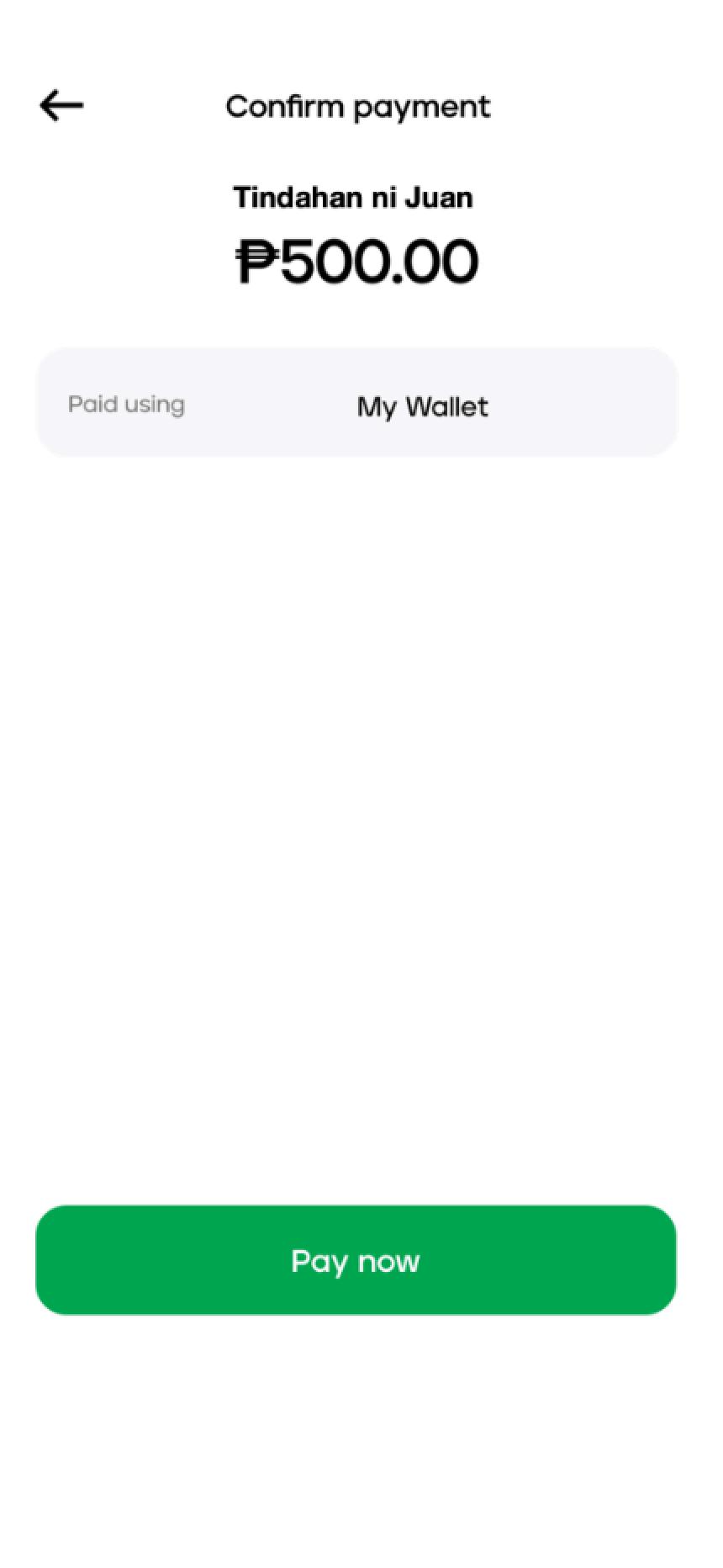
4 The application will confirm your payment
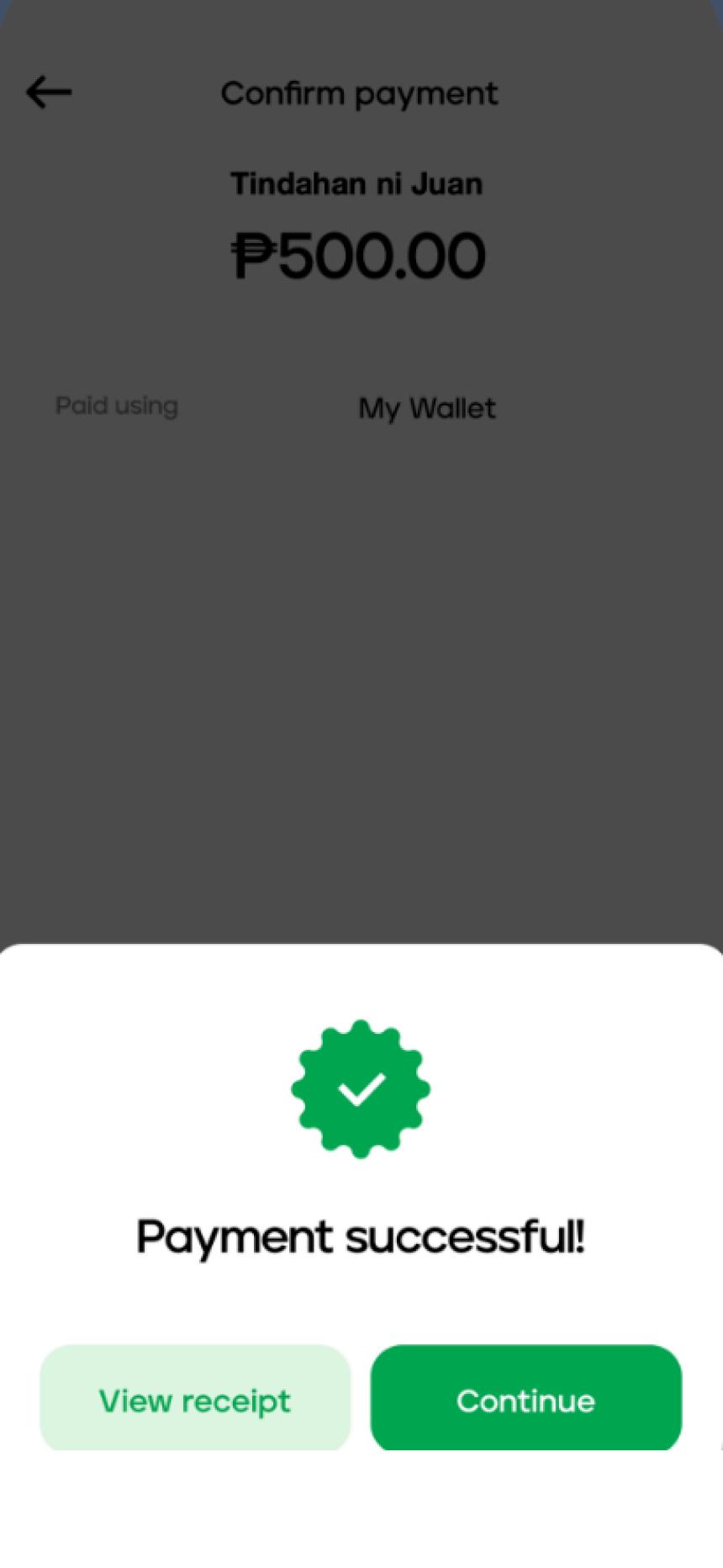
5. You will then be redirected back to GlobalPay Express to confirm that your payment has been processed successfully.
IV. PAYMENT FAQ
1. How do I make a payment?
○ To make a payment, open the GlobalPay Express website, select “Pay Now,” enter your account information, and follow the prompts to enter your payment details
2. What payment methods are supported in GlobalPay Express Pay?
○ You can use the following payment methods
■ BayaniPay
■ CreditDebit Card
■ Maya
■ QR PH
3. How will I know if my payment was successful?
○ After completing your payment, you will be directed to the Payment Confirmation screen, where you can confirm that your transaction was successful.
4. What should I do if I encounter an error during payment?
○ If you encounter an error during payment, please double-check your information and try again If the problem persists, contact customer support for assistance
5. How can I reach out to GlobalPay Express Support for any questions or concerns?
○ For any questions / concerns, please reach out to GlobalPay Express support via their Contact Us page: https://wwwbayaniglobal com/express
○ Email: support@bayaniglobal com
V. ADMIN PANEL INSTRUCTIONS
A. Accessing the Admin Panel
1 Open the Admin Panel of GlobalPay Express
2 Log in using the credentials provided by the Project team
B. Dashboard Overview
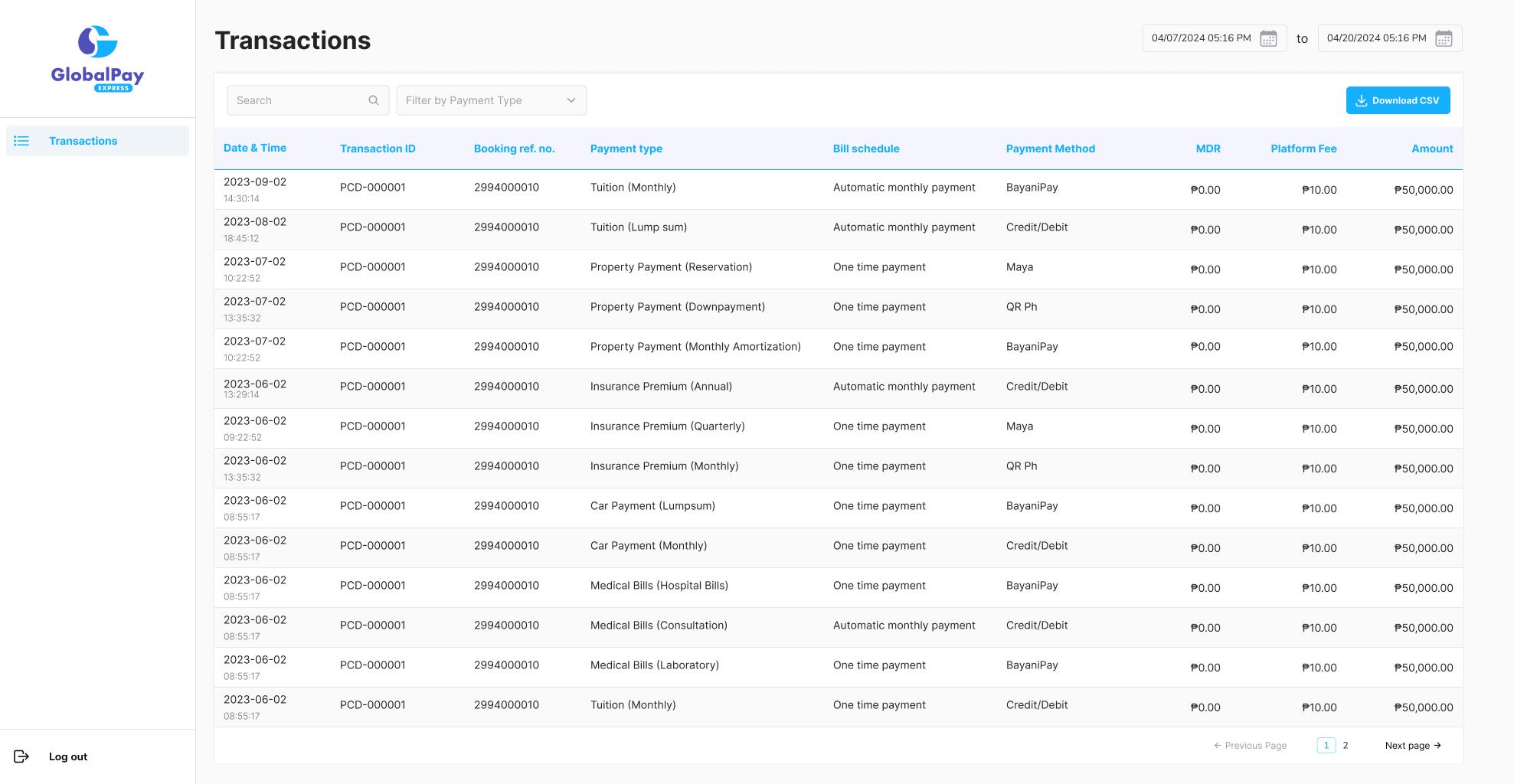
Upon login, you will see the transactions table, which displays the following information about each transaction.
○ Date & Time
○ Transaction ID
○ Booking Reference Number
○ Payment Type
○ Bill Schedule
○ Payment Method
○ MDR
○ Platform Fee
○ Amount [Paid]
C. Searching Transactions
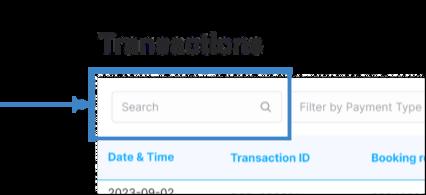
● Locate the Search bar at the top left of the Admin Panel.
● Enter relevant search terms to find specific transactions.
D. Filtering by Date
1 In the top-right corner of the Transactions table, you will find a date range picker.
2. Click on the date picker to select a specific date range.
3. Transactions within the chosen date range will be displayed.
4. By default, the date range shows transactions from the most recent two (2) weeks.
E. Filtering by Payment Type
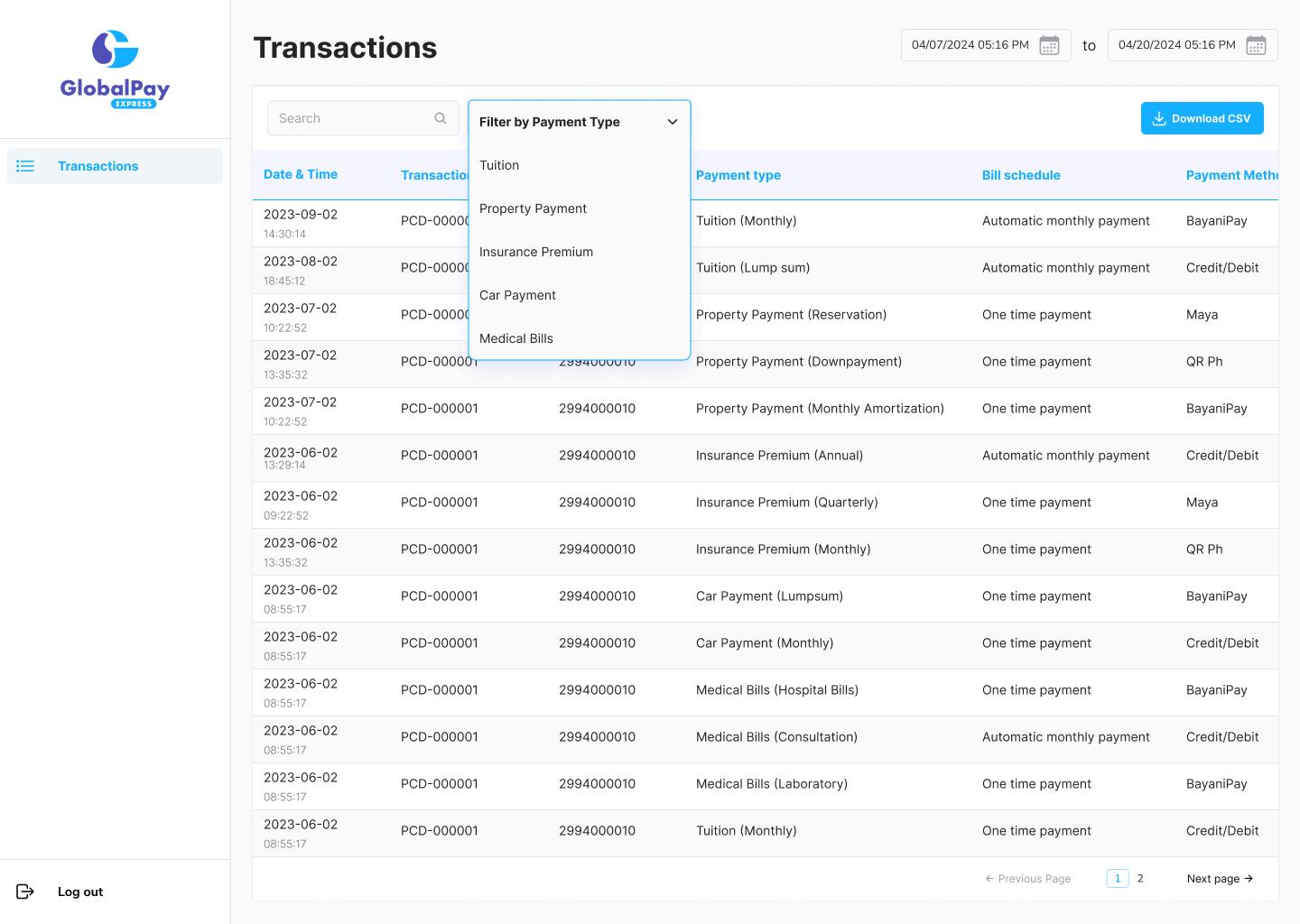
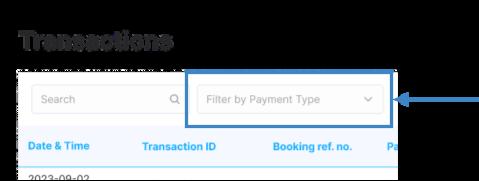
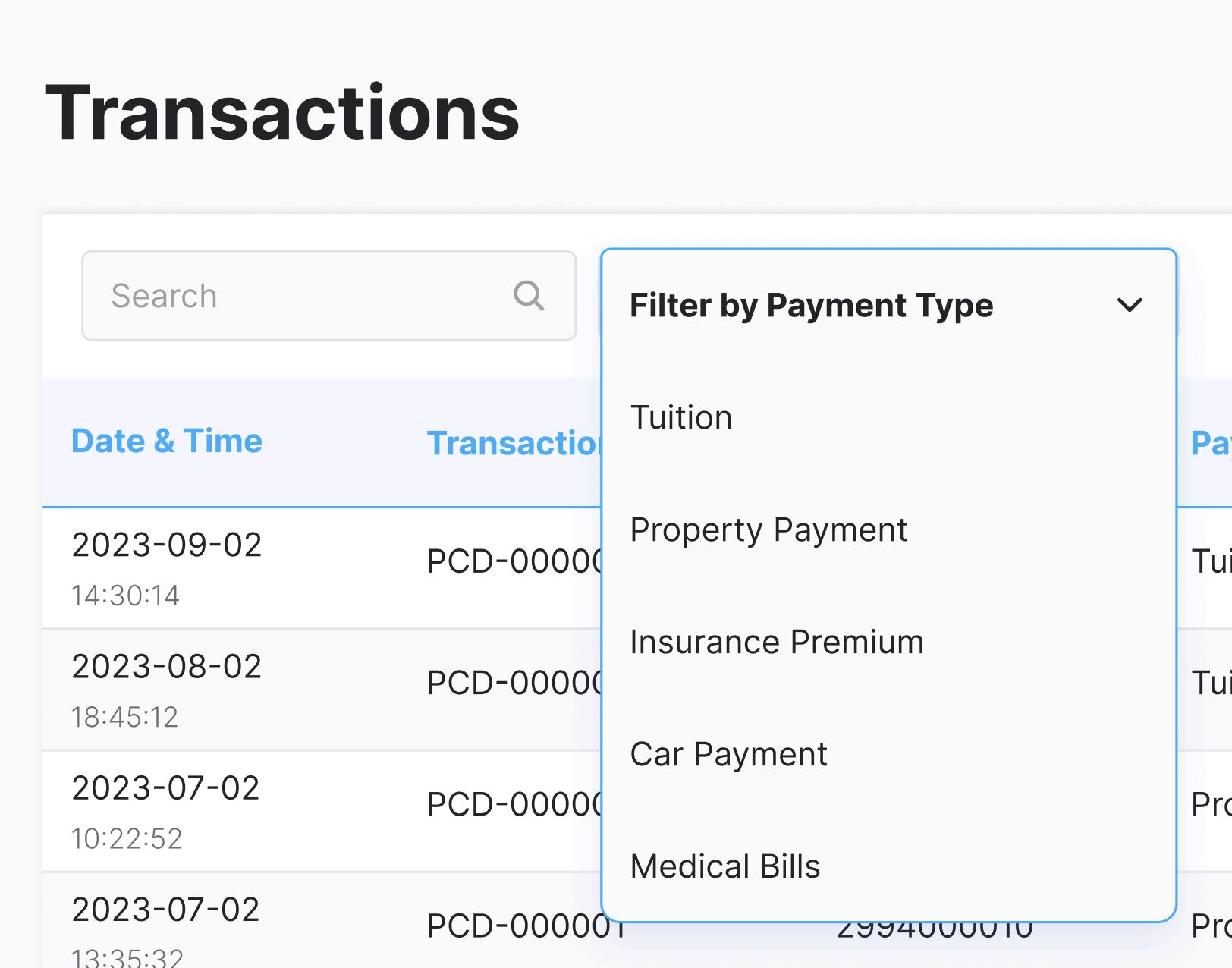
Beside the Search bar, a dropdown menu allows you to filter transactions.
1. Click the dropdown menu to choose a specific payment type.
2. The table will update to show relevant transactions based on your selection.
F. Viewing a Specific Transaction
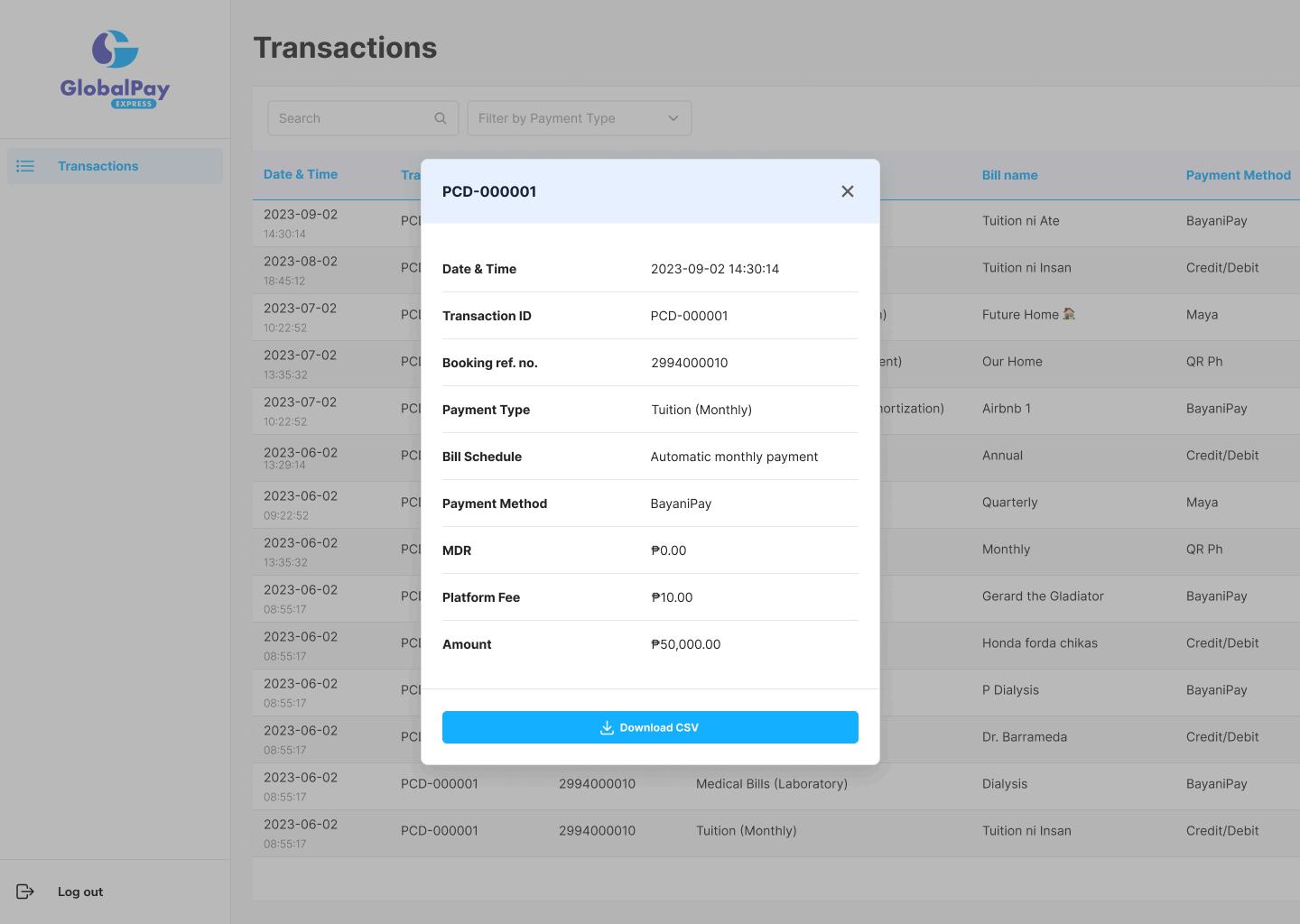
1. Click on a specific transaction line item in the transactions table.
2. A popup window will appear, displaying the summary of the selected transaction.
G. Downloading CSV All Transactions
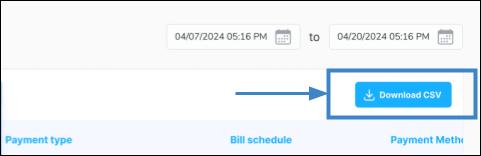
1 Click on the “Download CSV” button located in the top-right corner of the page
2 This action will download a CSV file containing all transactions that match the current user’s filters.
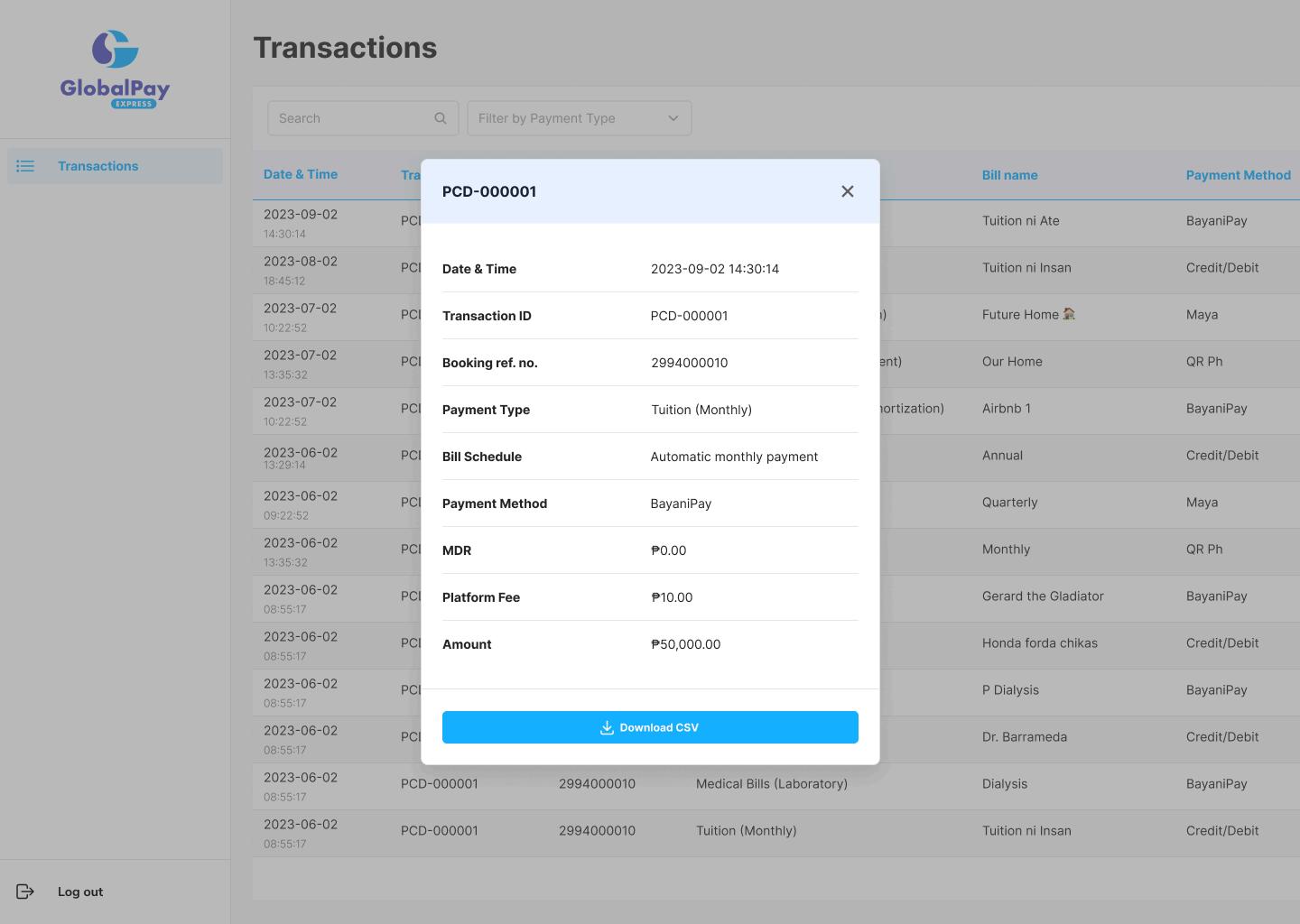
H. Download CSV - Specific Transaction Only
To download a CSV file for a specific transaction:
VI. ADMIN PANEL FAQ
1. Where can I get the login credentials for the GlobalPay Express Pay - Admin Panel?
○ The login credentials are provided by the GlobalPay Express team and will reach out to you to provide this information
2. Can I download transaction data?
○ Yes, you can download transaction data as a CSV file You can download all transactions or specific transactions by clicking the “Download CSV” button in the appropriate section.
3. How do I view the details of a specific transaction?
○ To view the details of a specific transaction, click on the transaction line item in the transactions table. A pop-up window will appear displaying the summary of the selected transaction.
4. How can I search for specific transactions?
○ You can use the Search bar located at the top left of the Admin Panel Enter relevant search terms such as a buyer’s name or transaction ID to locate specific transactions
5. Who should we contact for higher-level troubleshooting?
○ For all Level 3 concerns, reach out to the GlobalPay support team at support@bayaniglobal com
VII. GLOSSARY
Term Definition
Admin Panel
Amount Paid
Booking Reference Number
Date & Time
Download CSV
MDR (Merchant Discount Rate)
Payment Method
Payment Summary
OTP (One-Time Password)
Platform Fee
Transaction ID
Transaction Table
The backend interface of GlobalPay Express where administrators manage transactions and user accounts
The total sum of money that has been paid for a transaction
A unique identifier assigned to a specific transaction for tracking purposes.
The timestamp indicating when a transaction was completed
An option to export transaction data into a CSV (Comma-Separated Values) file for further analysis.
The fee charged to a merchant by a payment processor for each transaction processed
The method used to complete a payment, such as credit/debit card, BayaniPay, Maya, or QR PH.
A summary displaying the details of the payment, including the amount and selected payment method
A temporary password sent to a user’s registered mobile number for verifying transactions.
The fee charged by the GlobalPay Express platform for processing transactions
A unique identifier assigned to each transaction for tracking and reference.
A table in the Admin Panel that lists all transactions with relevant details such as date, amount, and status