RESIDENT RESOURCE GUIDE
Elevating the Everyday
01
WEBSITE AND MOBILE APP
Before you log in for the first time, you must first validate your membership. Email williamsislandclub@williamsislandclub.com with your member number and you will receive an email with your username, temporary password, and instructions on how to change your temporary password if you desire to do so.
MOBILE APP
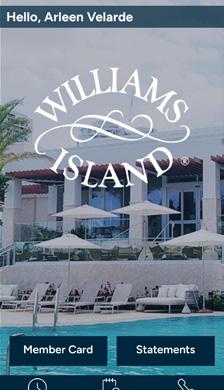

The mobile app is available in your App store for download. DELETE ANY OLD WILLIAMS ISLAND APPS THAT YOU MAY HAVE ON YOUR PHONE. Search Williams Island and download the free mobile app.

WEBSITE



Once you have created your username and password, it can be used for the website and the mobile app. Our website is: www.williamsislandclub.com

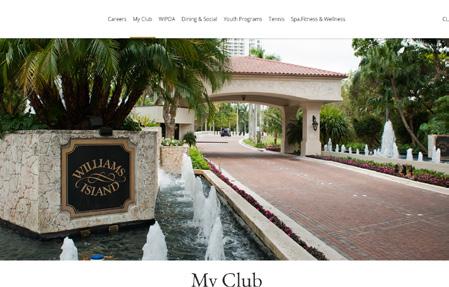


02 WILLIAMS ISLAND WEBSITE REGISTRATION, LOGIN AND FORGOT PASSWORD
Stay connected by registering for our Website and Mobile App! Once you create your account, you’ll receive the latest news, event updates, and important community information right at your fingertips. It’s the easiest way to stay informed and never miss out on what’s happening. The same login created for the website can be used for the Mobile App.
Where Community Meets Luxury
Registration and Login Process First Time Log In
Member Registration
Member Validation
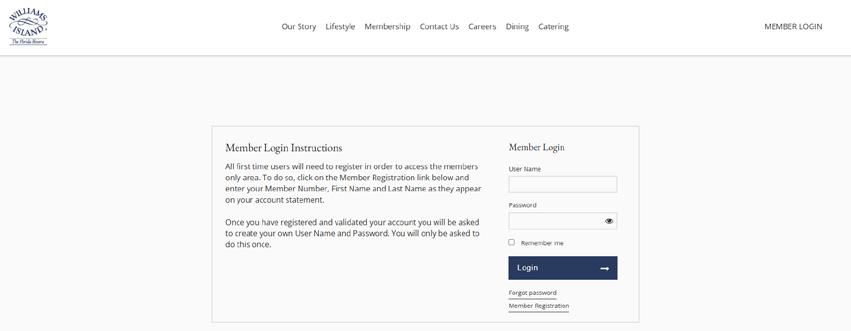
Go to www.williamsislandclub.com. Click on Member Registration.
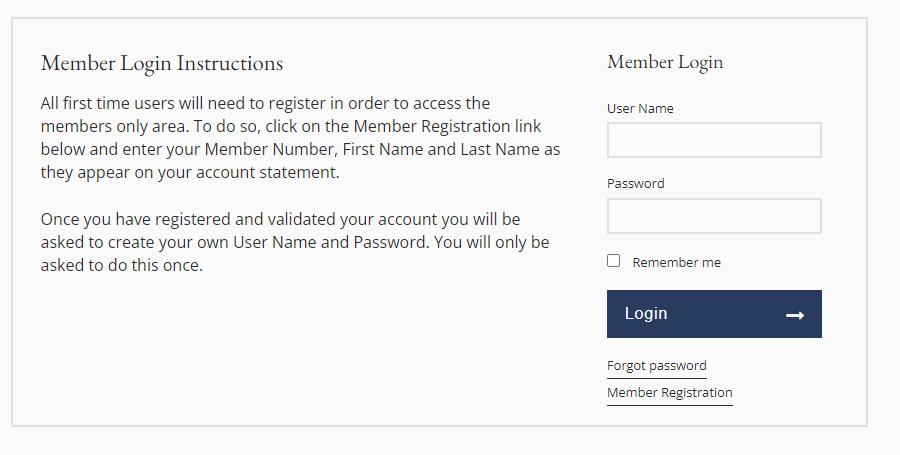
It will then take you to the Member Validation page.
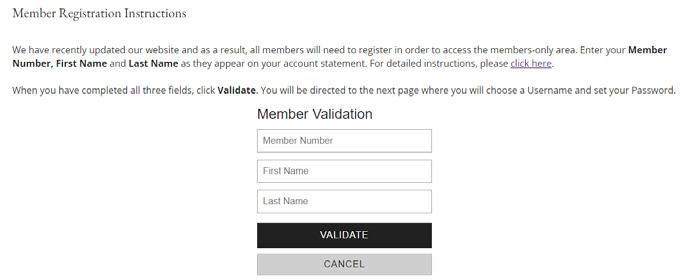
Enter your Member Number, First Name and Last Name exactly as they appear on your last statement and click Validate
Example: if your name appears as Joshua on your statement, you cannot create your account using Josh, you must enter Joshua.
The system will then validate whether the information entered is correct.
Setup Username and Password
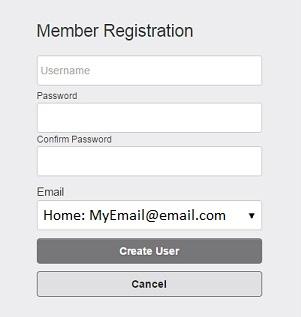
Once your information has been validated, you will be taken to the Member Registration page to set your Username, Password and Email Address (so that you can receive important communications from the POA).
You can select your Username and Password on this screen. Usernames are not case sensitive, however Passwords are case sensitive.
Once all fields are filled out, click on Create User to complete the registration process.
Email Confirmation
Upon successful registration, an email message will be sent to the email address entered during the registration process.
Login to the Club Website
Enter the username and password you’ve created in the registration process. When finished, click Log On. Login, Log Off &
Navigate to your www.williamsislandclub.com by clicking on the Member Login link/button, or on the link/button usually located in the top right-hand corner of the page.
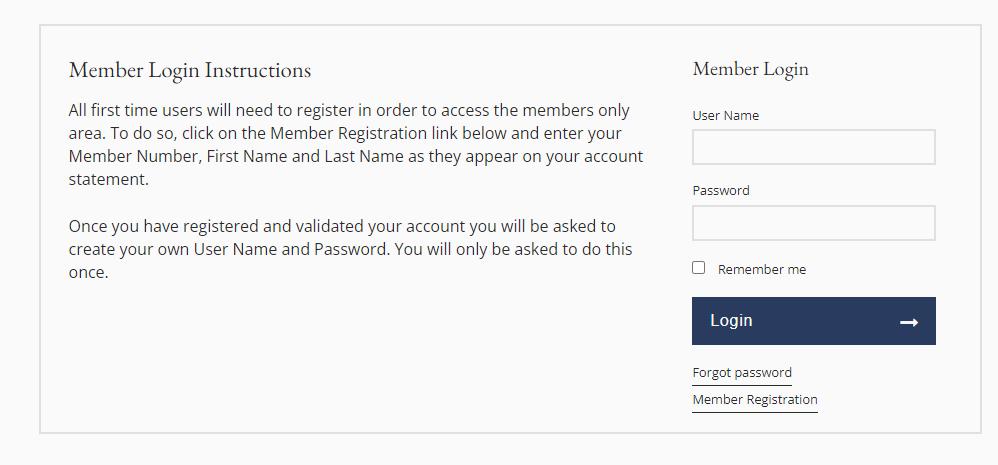
Forgot Password
If at some point in the future you should forget your password, you can retrieve it by clicking on the Forgot Password link within the Member Login area.
From there, you will be required to enter the email address you provided during the registration process and click Reset Password. An email will be sent to you including a link by which you can reset your password.
03 GATE ACCESS
Make welcoming your guests easier than ever with our Gate Access App. Simply enter your guest list in advance, and they’ll be able to move smoothly through the resident gate without delay. The app allows you to manage visitors quickly, securely, and from anywhere, ensuring a seamless experience for both you and your guests.

How to download and sign in to the ABDI Gate Access App
If you have any problems getting into your account, contact Security at (305)466-3561 for assistance. If the phone is not answered, please leave a message and an alert will be sent to our security office and they will know to answer the voicemail.
Download the ABDI Gate Access
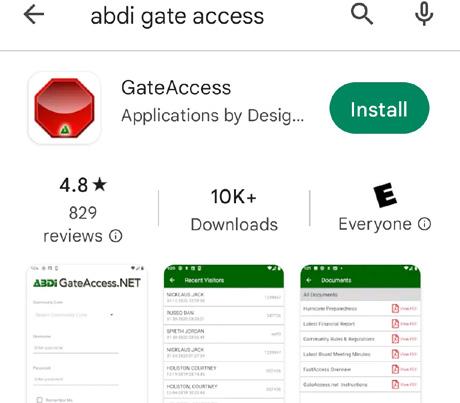
Once installed, open app. You will be greeted with this page.
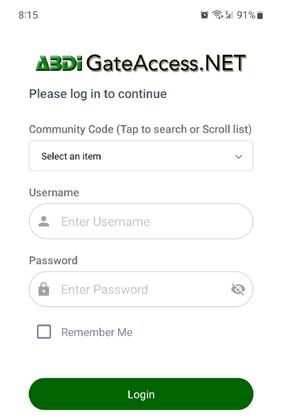
Community Code is: WI
Username: (Will be your email address)
Password: (Will be your home phone number without dashes or brackets)
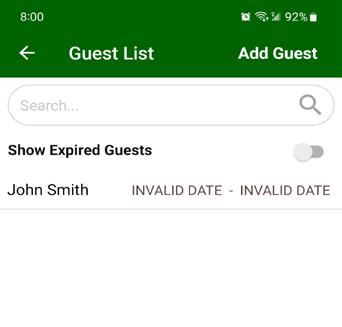
Once you log in, this is your home page. To ADD GUEST, select Guest List.
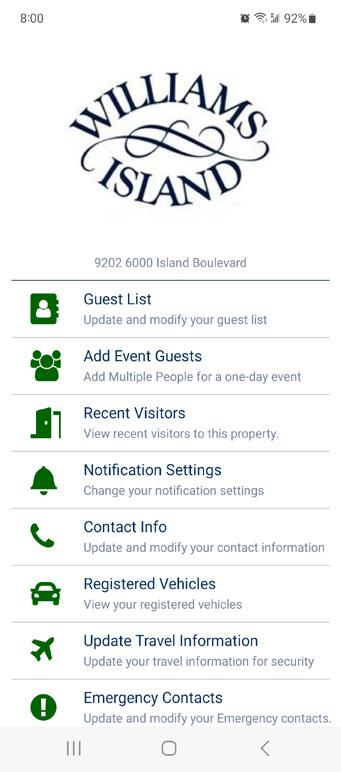
Select ADD GUEST.
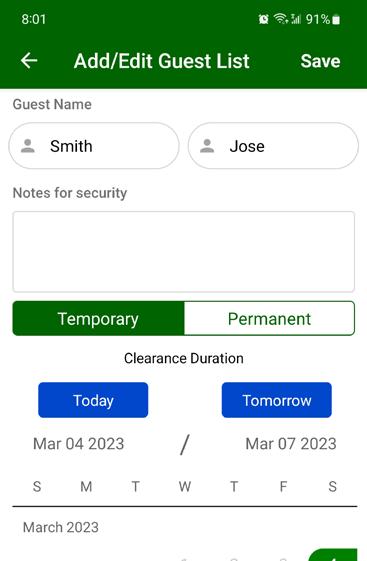
Specify Name, if guest is Permanent or Temporary and Duration of stay.
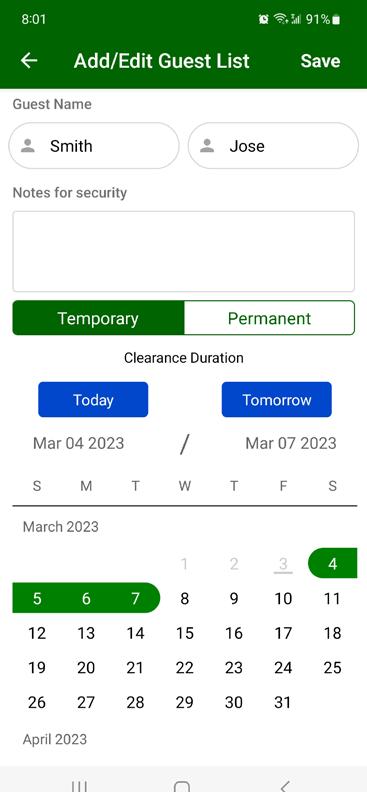
Then select Save.
How to give your guest a FAST ACCESS PASS
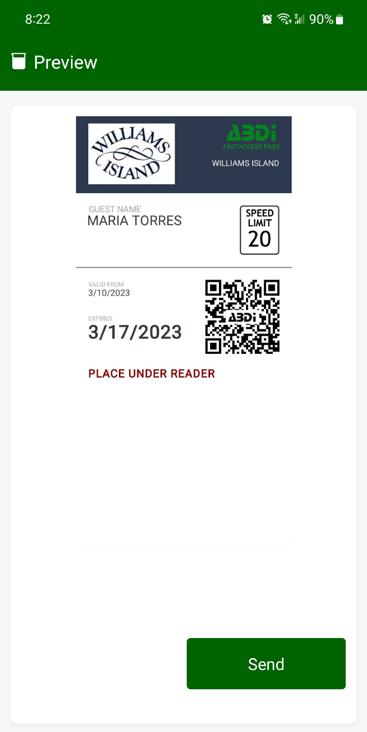
You will then be given the option of sending your guest a FASTACCESS PASS. If you select NO, you are done.
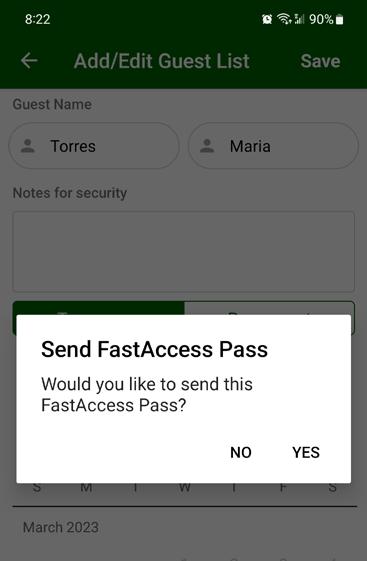
If you select YES, you will see this screen. CLICK SEND and you will then select the method to send the FAST ACCESS PASS to your guest.
Once you log in, this is your home page. To ADD GUEST, select Guest List.
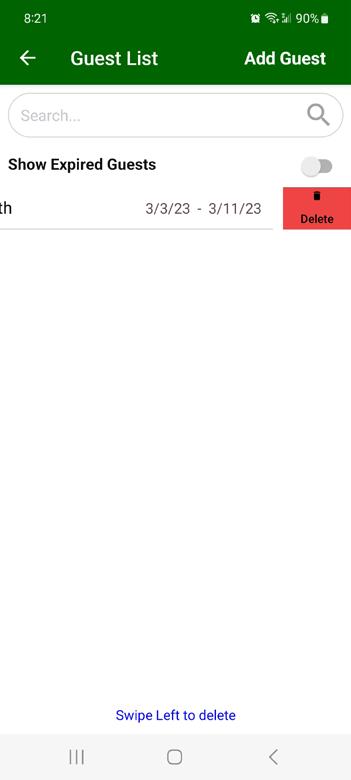
SELECT Name and swipe left. Select DELETE.
04 TECHNOGYM APP
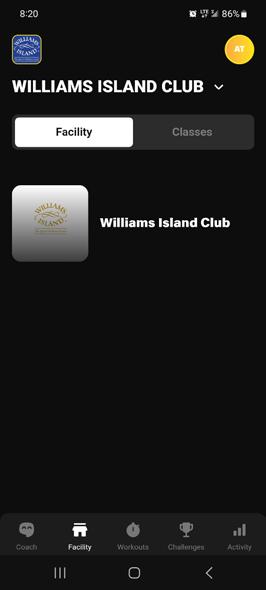
Our Spa uses the TechnoGym app to make booking your fitness classes easier than ever. Simply download the app from your app store, stop by the Spa Concierge to create your account, and reserve your spot in any class with just a few taps. Stay on schedule, explore new workouts, and enjoy a smoother, more convenient way to manage your wellness routine.


Use this QR Code to access the Technogym app and log in as you would on the MyWellness app.
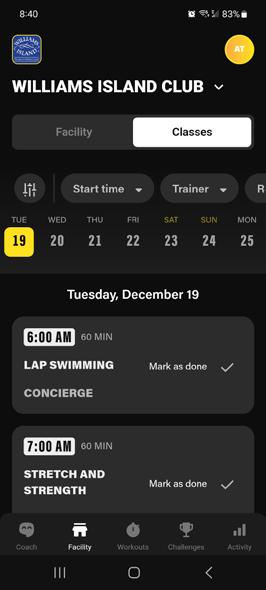
Once logged in, be sure to click the CLASSES tab to access the fitness classes.
05 COURT RESERVE APP
Our Racquets Department uses Court Reserve for all racquets reservations. With this easy-to-use platform, you can book courts, register for clinics, and manage your schedule in just a few clicks. Stay organized and enjoy seamless access to all your racquets activities through Court Reserve.

Williams Island Tennis uses Court Reserve for court reservations. You can access Court Reserve on a desktop or laptop computer at www.courtreserve.com or you can download their mobile app.
An account must be created in Court Reserve on your behalf. You should receive an email with your login information within a week of receiving your member number from our Membership department. If you do not receive this email, contact witennis@ williamsislandclub.com with your name and member number. Once your profile is created, you will receive your login creditials via email.
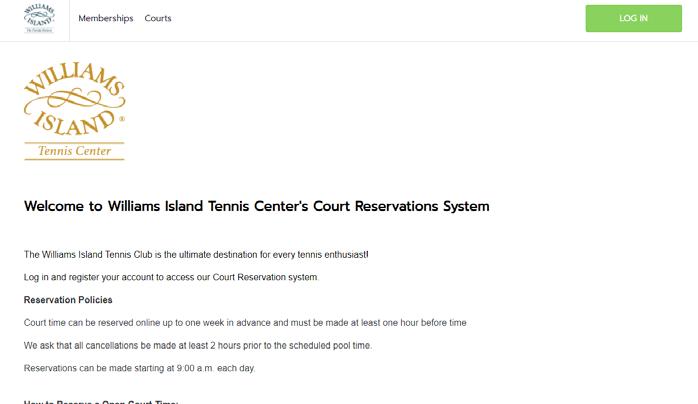
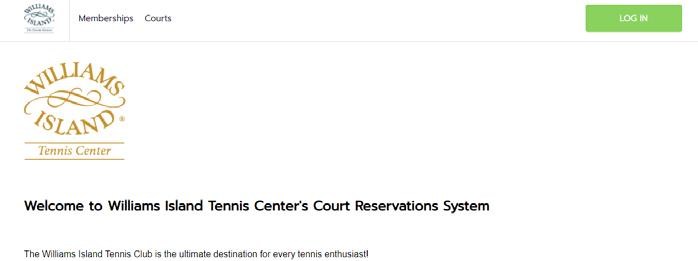
Log on to our Williams Island website and navigate to the TENNIS page. Click on BOOK A COURT or go directly to CourtReserve.com or download their app.

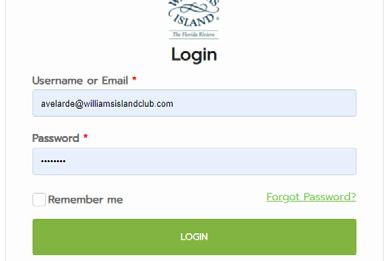
Click on the LOG IN button in the upper right hand corner to log in once you have your login information. You can save the password so you don’t have to log in everytime.
If you want to change any of your personal information, click on your NAME in the upper right hand corner and the click on PERSONAL INFORMATION. There you can change your user name if you wish.
Booking a Court on a Computer (continued)
Use your log in information to log in.
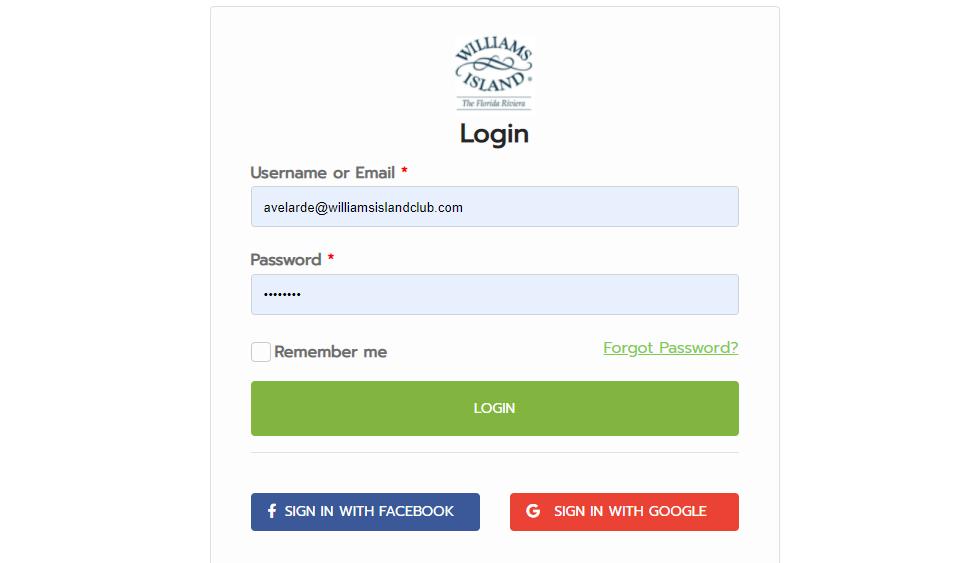
Click on RESERVATIONS. Choose what you want to reserve for.
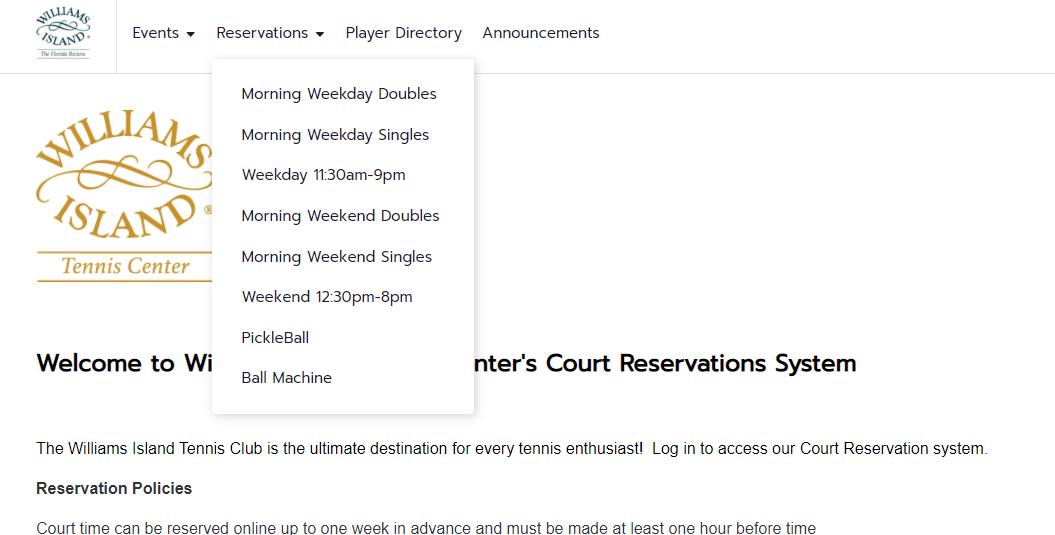
Booking a Court on a Computer (continued)
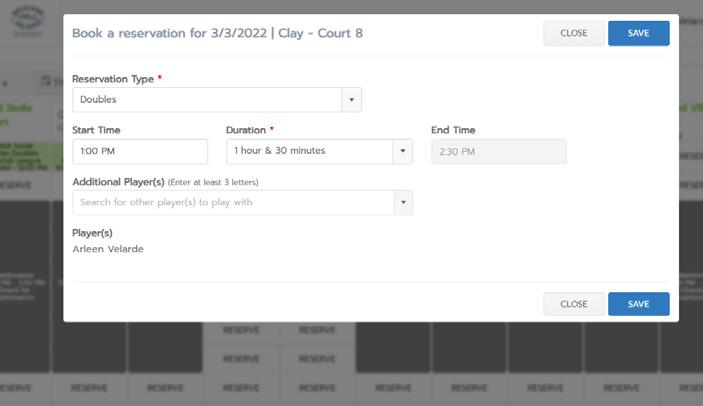
Choose your court and time.
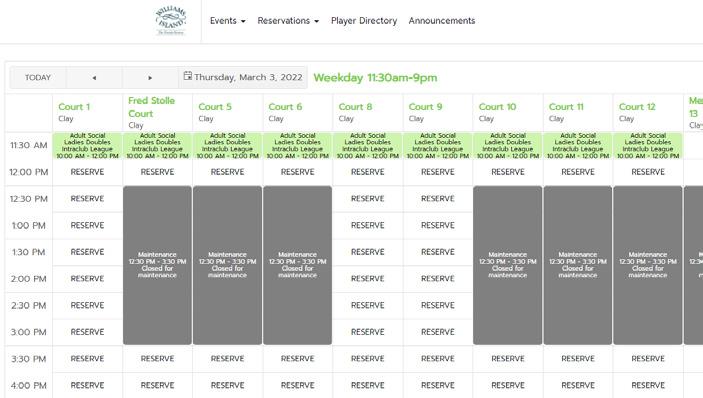
Fill out the information and click save.
Booking a Court on a Modile Device Go to your Google Play or Apple Store and search for COURT RESERVE. Download the FREE app. You will have to log on for the first time on a computer.
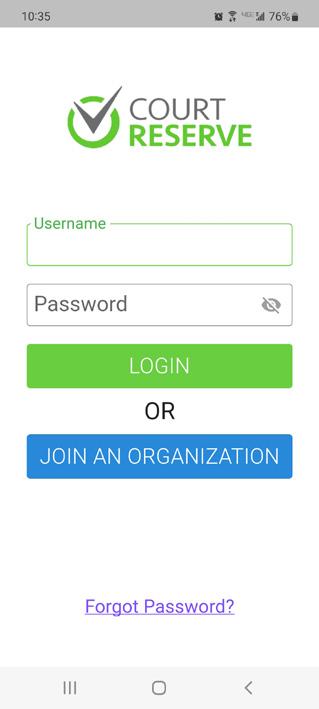
Once you set your user name and your password on your computer, you can use the same information to log in on the app.
Once you log in you will be at the Member Dashboard. Click on RESERVATIONS.
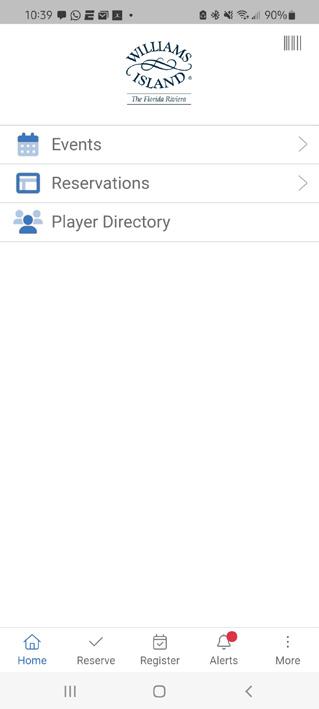
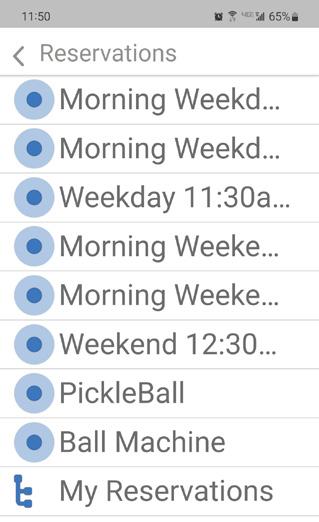
Choose the time you would like to reserve.
Choose the date, time and court.
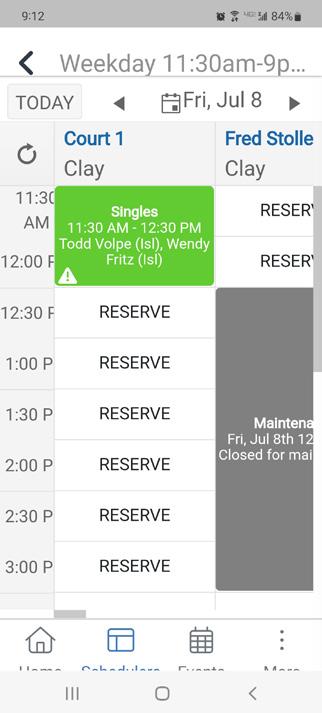
Booking a Court on a Modile Device (continued)
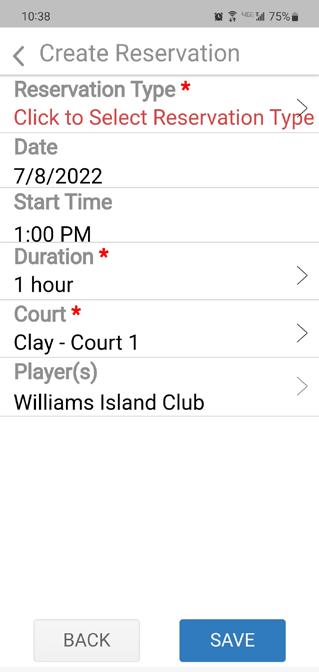
Fill out all the information and click SAVE at the bottom of the screen.
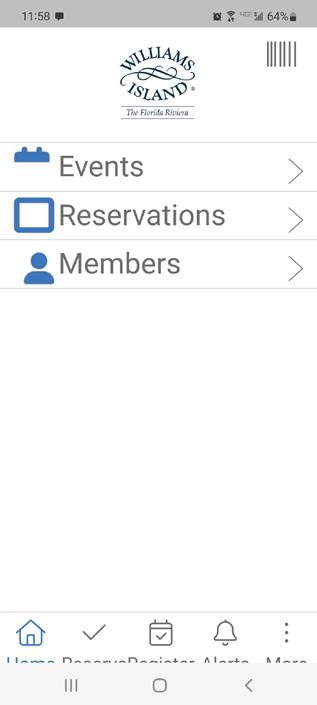
Click MEMBERS.
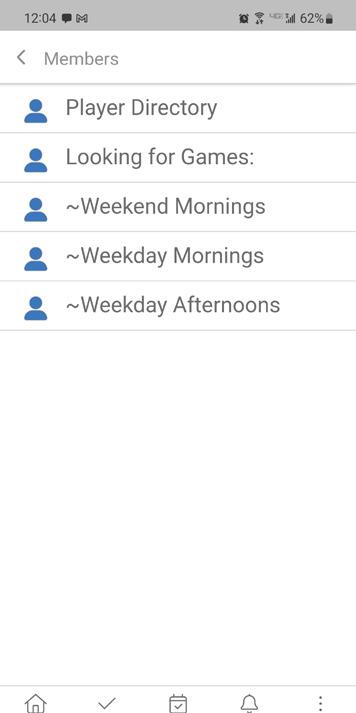
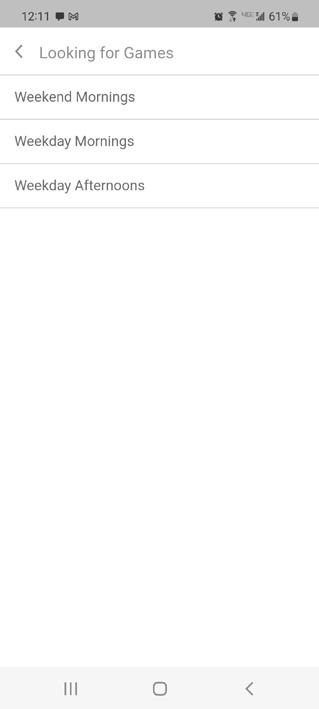
Select the time of day you are looking to play.
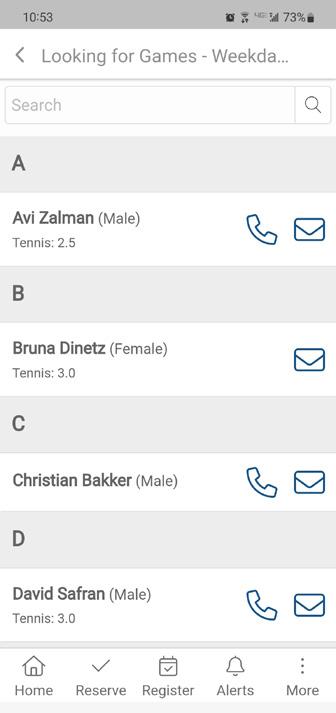
Find the person you would like to play with and you can contact them by choosing the phone icon to call or the envelope icon to email them.
Each player has their rating listed underneath their name. This will make it easier for you to choose a player of similar level.
If you need assistance, call our Pro Shop at 305.937.7850.
How to Use the Match Making Feature on Court Reserve on a Desktop
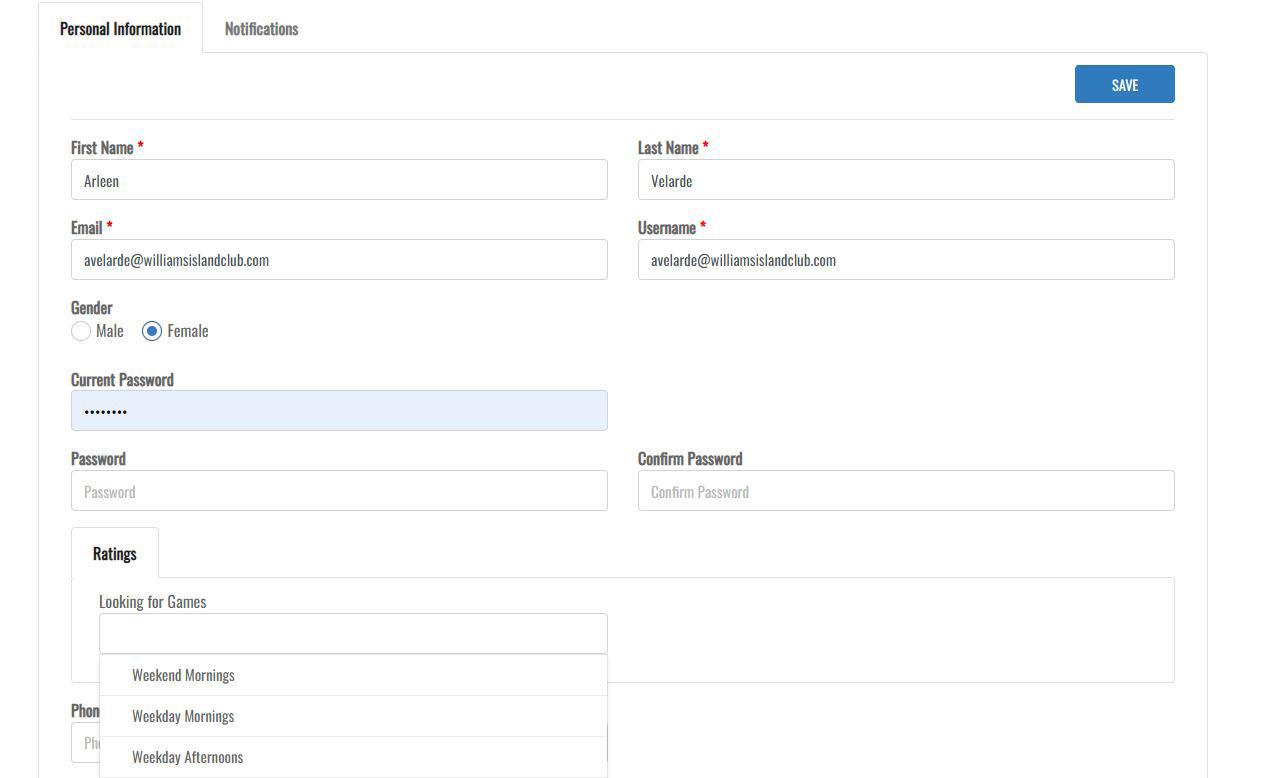
Click on your name in the upper right hand corner and click PERSONAL INFORMATION
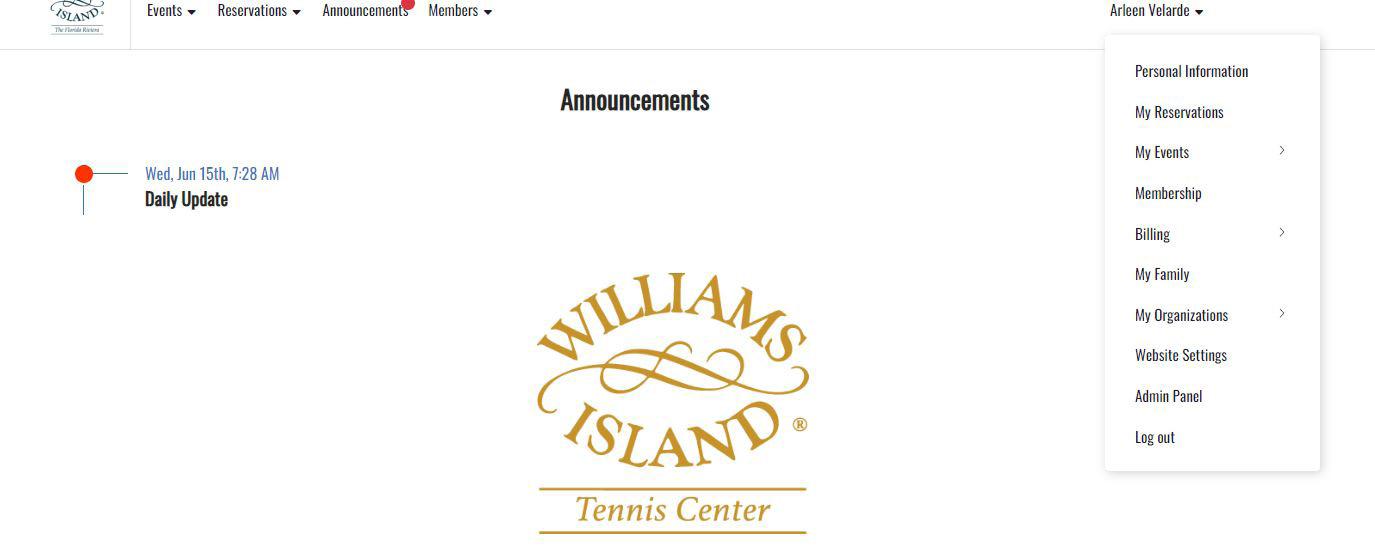
Go to RATINGS and click for a DROP DOWN MENU under LOOKING FOR GAMES and choose the TIME OF DAY when you would like your name to be listed and click SAVE.
#1
#2
How to Use the Match Making Feature on Court Reserve on the Mobile App
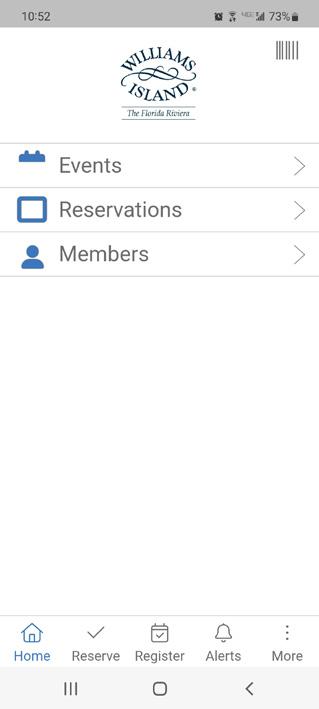
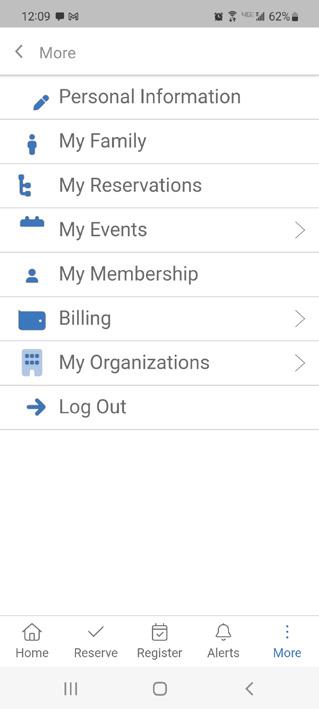
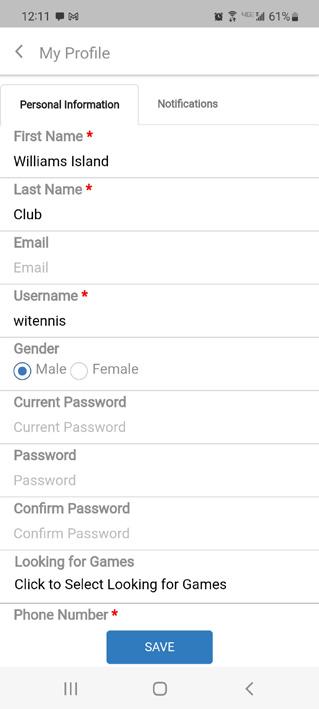
How to Use the Match Making Feature on Court Reserve on a Mobile App (continued)
Click on LOOKING FOR GAMES. Select the time then hit the back arrow then click SAVE.
06 RESERVATIONS
Please remember to make your reservations in advance to ensure availability for our programs, amenities, and events. If your plans change, we kindly ask that you cancel your reservation as soon as possible so we can offer the spot to another resident. Timely cancellations help us keep activities running smoothly and ensure everyone has the opportunity to participate.
Making Dining/Event Reservations with Open Table
If the event flyer indicates that reservations are required through OpenTable, YOU MUST USE THE OPENTABLE LOCATED ON THE ISLAND GRILLE AND OLEA PAGES OF OUR WEBSITE OR MOBILE APP, to ensure your reservation is properly linked to the Williams Island event. This link directs your booking specifically to our event reservation system. Please note that reservations cannot be made on the regular OpenTable app.
VIA Website: Log into our website at www.williamsislandclub.com.
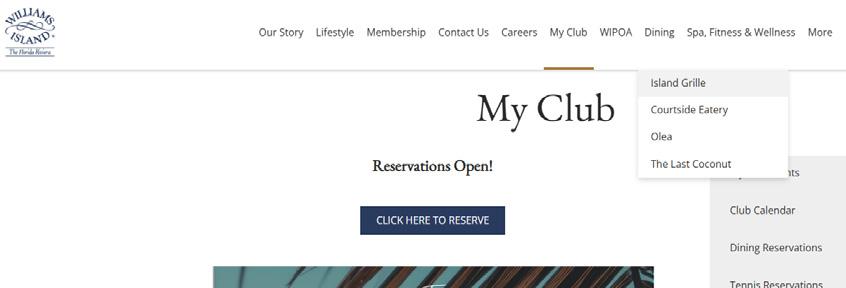
Go to the DINING TAB and click ISLAND GRILLE or OLEA in the drop down menu.
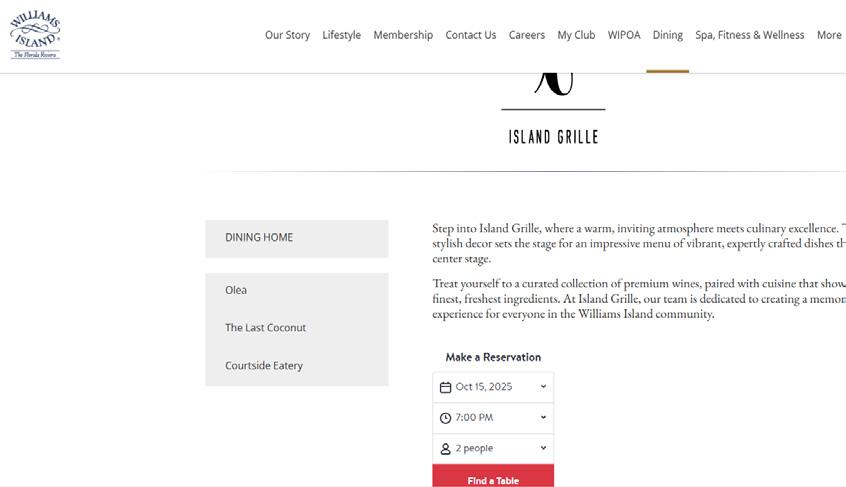
Locate the Open Table widget, select the date of the event, your preferred time and how many people in the reservation.
Confirm the time is available, if it’s not choose an alternate time.
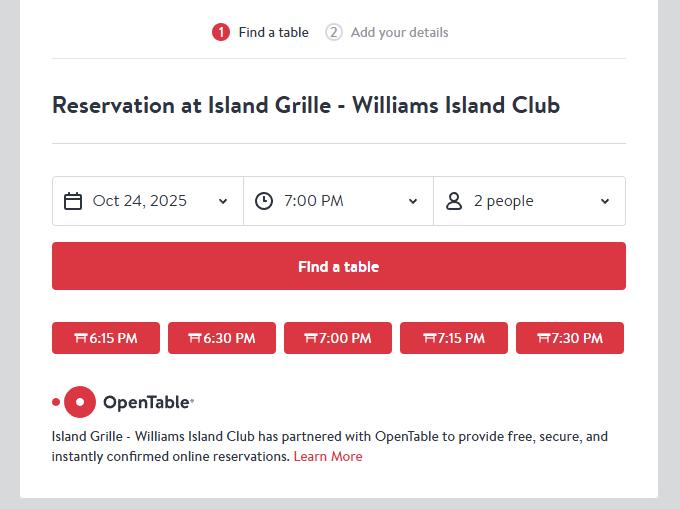
Choose seating preference.
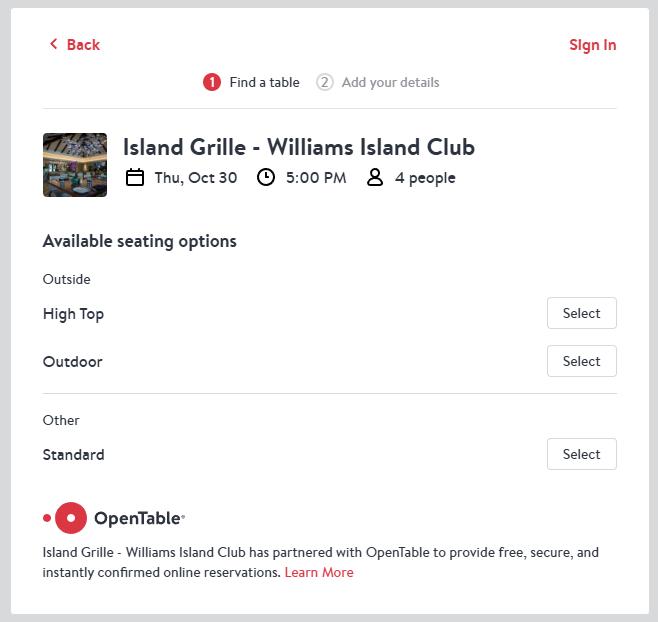
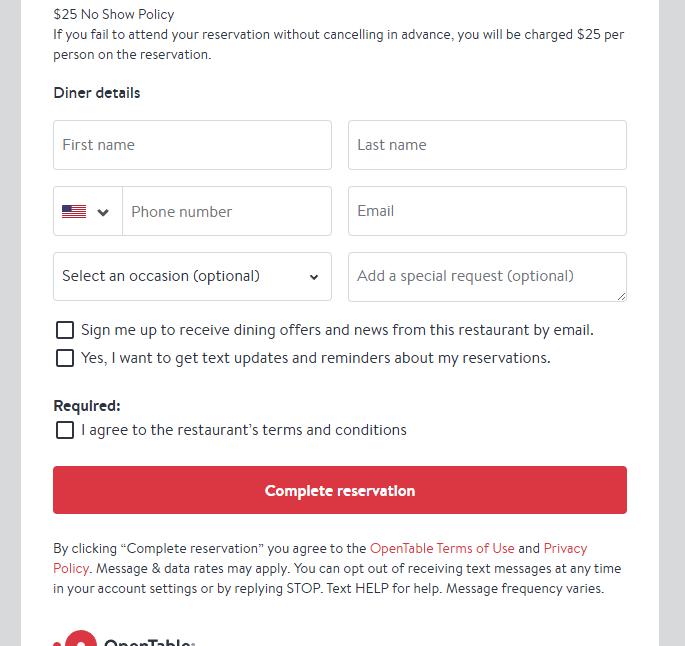
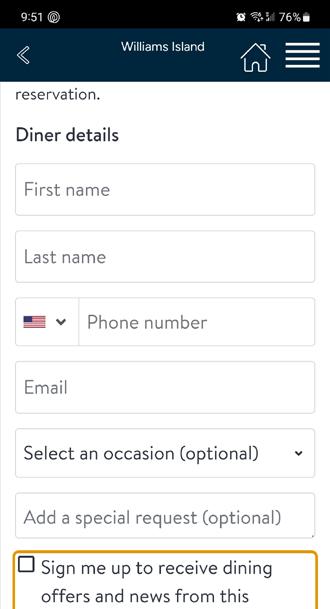
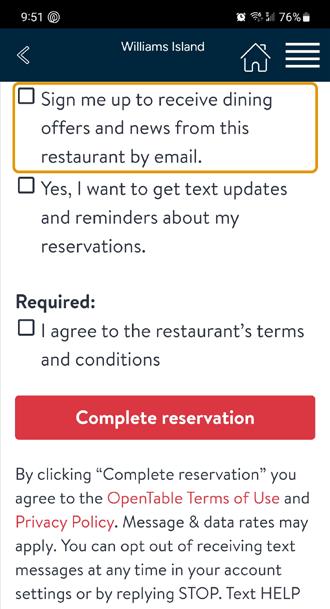
Confirm date, time and number of guests, then scroll down and enter member information and check off that you agree to the restaurant’s terms and conditions then click COMPLETE RESERVATION.
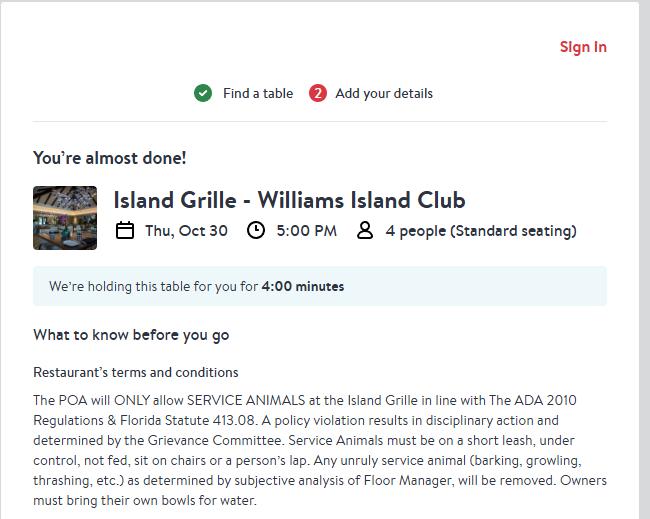
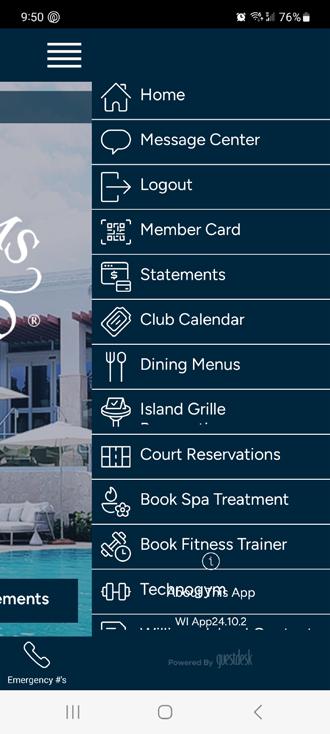
Log into our mobile app and click on the upper right hand corner menu.
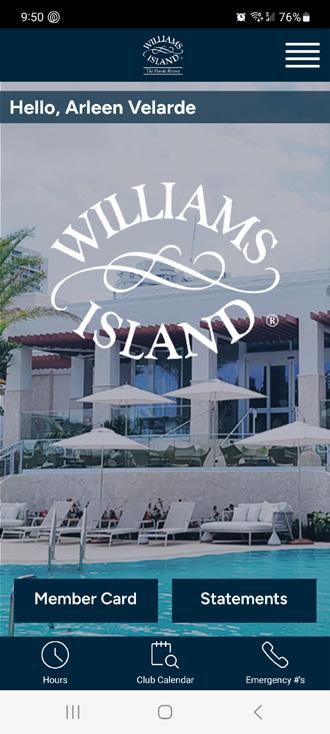
Select Island Grille or Olea depending on where you want to make the reservation.
Select the event date, desired time and the number of guests.
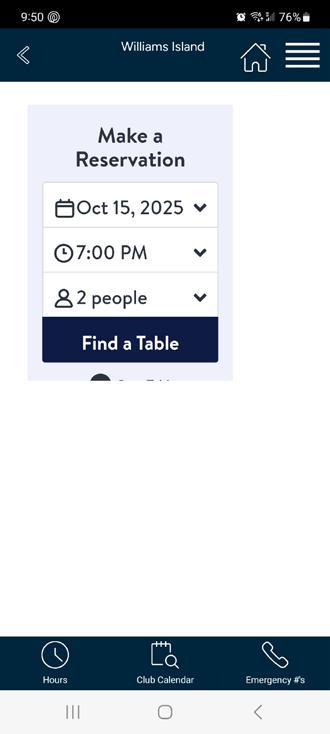
Confirm date, time and number of guests.
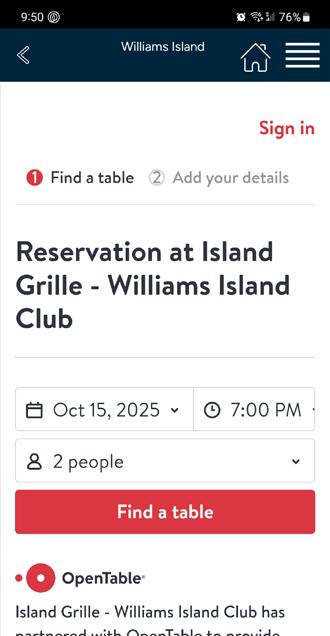
If the time chosen isn’t available, choose an alternate time.
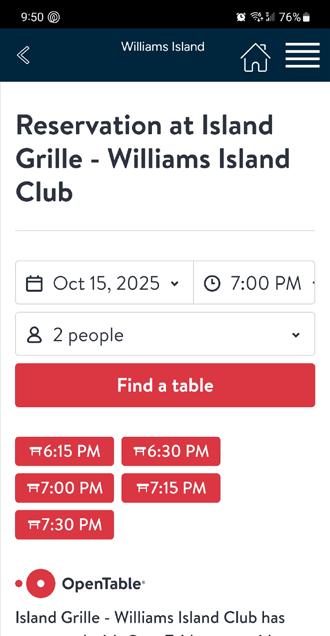
Select the preferred seating.
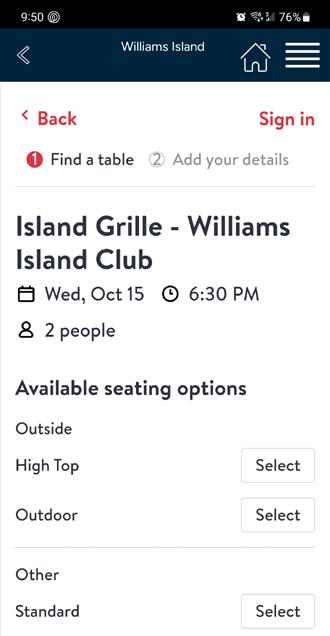
Confirm date, time and number of guests.
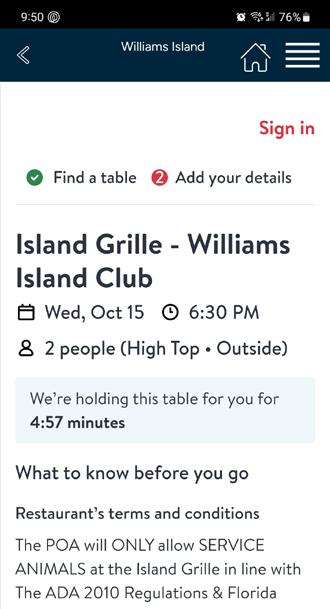
Fill out the member information. Agree to the terms and conditions and complete reservation.
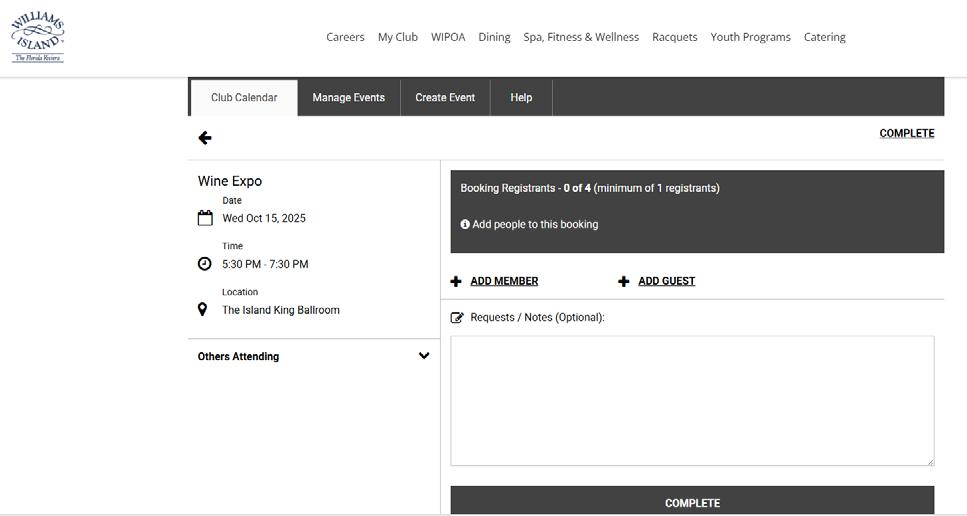
Making Event Reservations with THE
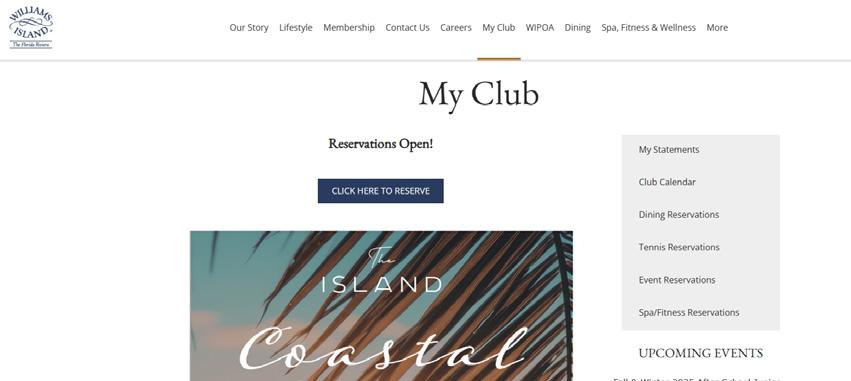
CALENDAR Log into our website at www.williamsislandclub.com.
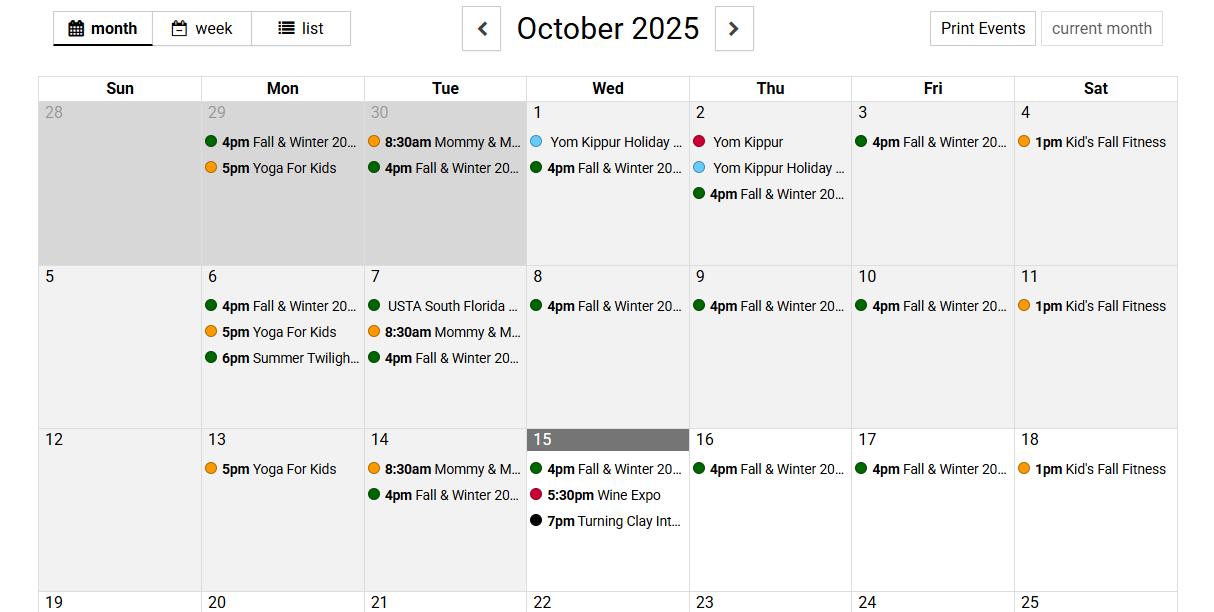
Select event.
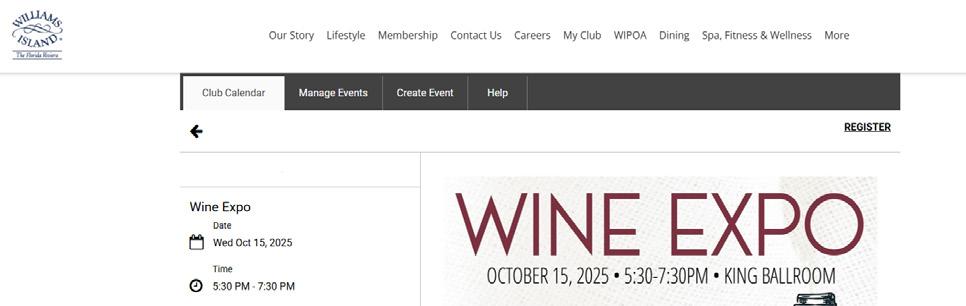
Add you and your guests (if the event allows guests). Notice that it will indicate HERE how many people you have in the reservation. Click COMPLETE.
CANCELLATION POLICIES
We want to ensure that all of our members clearly understand our cancellation policies. To help avoid any confusion and provide transparency, we’ve outlined the details below. Please take a moment to review this information so you’re familiar with how cancellations are handled for reservations and events.
7-Day Cancellation Policy (Holidays and Season Opening/Closing Events):
Cancellations must be made at least 7 days prior to the event date. Charges will be applied 5 days before the event, in accordance with Section 13.6 of the Rules & Regulations. Any cancellations made after that time will result in the full event amount being charged.
72-Hour Cancellation Policy:
Cancellations must be made at least 72 hours prior to the event date. Any cancellations made after that period will result in the full event amount being charged. Charges are processed on the day of the event.
48-Hour Cancellation Policy:
Cancellations must be made at least 48 hours prior to the event date. Any cancellations made after that period will result in the full event amount being charged. Charges are processed on the day of the event.
24-Hour Cancellation Policy:
Cancellations must be made at least 24 hours prior to the event date. Any cancellations made after that period will result in the full event amount being charged. Charges are processed on the day of the event.
07 GETTING IN THE KNOW
Staying in the know is the best way for our members to enjoy everything happening on Williams Island. With so many exceptional events, programs, and activities throughout the year, we encourage everyone to stay connected through our communication channels. Join our WhatsApp groups, follow us on social media, check the online calendar regularly, and read our Monday newsletter. Printed flyers around the Island also highlight upcoming experiences. By being proactive and reviewing these resources often, you won’t miss a single opportunity to enjoy all that life on the Island has to offer.



Social Media
WhatsApp Groups
WI Calendar
08
HOTWIRE EDUCATIONAL RESOURCES
Williams Island is proud to partner with Hotwire, a team dedicated to delivering exceptional service to our community. Whether you need assistance, have questions, or want to learn something new, Hotwire provides easy access to helpful resources and educational videos right at your fingertips. Their commitment to quality and support ensures that every resident has the tools and guidance they need to make the most of their service experience.

Below is a YouTube link with a helpful video on getting started with FTV+: https://www.youtube.com/watch?v=5C31tjVLbYM
Residents can also access all of these videos ad-free, along with documented FAQs, directly through the Support tab in their portal on the Hotwire Fision app.
Hotwire Resource Guide
09 RULES AND REGULATIONS
Williams Island is committed to maintaining a beautiful, safe, and harmonious community for all residents and members. Our Rules and Regulations are designed to protect the quality of life, amenities, and shared spaces that make Williams Island so special. We encourage all members to become familiar with these guidelines to ensure a respectful and enjoyable environment for everyone.
Rules & Regulations

Welcome to the Best of Every Day
POOL CHAIR POLICY
1. Member must be present to get chairs and towels by checking in at the towel stand.
2. No reservations; pool lounge furniture is available on a first come, first served basis.
3. Guest must be accompanied by member to access the pool and lounge chairs unless they have a guest pass issued by the membership department.
4. 2 chairs given per member present, two guests allowed per membership.
5. No reserving chairs.
6. If chairs are vacant for more than 45 minutes - we sweep the chairs and put them back in circulation, unless member is dining at the restaurant.
7. During peak holidays we may have additional or modified rules and restrict the number of chairs per member
POOL POLICY
1. No Diving.
2. Swim at Your Own Risk - No lifeguard is on duty.
3. Children Under 12 Must Be Supervised - Children must have an adult (18+) with them at all times.
4. No Bicycles, Scooters, or Skateboards allowed on bridge or pool deck.
5. No Running - Walk, don’t run, on the pool deck to avoid slips and falls.
6. Shower Before Swimming - Rinse off before entering the pool.
7. Proper Swim Attire Required - Swimsuits designed for pool use ONLY.
8. No Outside Food or Beverages Allowed – No coolers, glass containers, etc. (Exception for baby food and beverage).
9. No Food, Gum or Drinks in the pool or on the edge of the pool - Keep eating & drinking to the deck area lounge chairs.
10. Limit Pool Toys; No ball playing in pool or on the deck. Large rafts, inflatables, water guns are not permitted.
11. No Smoking or Vaping.
12. No Rough Play - No pushing, dunking, or horseplay permitted.
13. Report Spills or Hazards - Tell staff immediately about anything that could cause slips or injuries. No water balloons permitted & no cups allowed in the pool.
14. Follow Staff Instructions - WI staff have the final say on pool use and behavior.
15. No Dogs are Permitted on Pool Deck - Except as required by Florida law under the Americans with Disabilities Act (ADA). Per these regulations, only service animals are allowed. See 19.2 of WI Rules & Regulations.
PUTTING GREEN
1. PUTTERS ONLY! No chipping allowed!
2. Respect other residents & members; wait your turn.
3. Keep noise to a minimum; golf is a quiet game.
4. Limit play to one hour during busy times.
5. Children 12 & under must be supervised by an adult.
6. No running or horseplay allowed.
7. No smoking or alcohol allowed.
8. No dogs allowed.
9. No glass allowed.
10. No golf spikes allowed.
SPORTS COURT
1. Open 8:00am to dusk.
2. Respect other residents & members; wait your turn.
2. Limit play to one hour during busy times.
3. No horseplay allowed.
4. No smoking or alcohol allowed.
5. No dogs allowed.
6. No glass allowed.
7. No cleats allowed.
KAYAK LIFT
1. Lift Position – The kayak lift must always be left fully lowered in the water when not actively being used, so individuals returning to their vessels can safely exit the water.
2. Use at Your Own Risk – The kayak lift is used entirely at the user’s own risk. Williams Island and Marina Management assume no responsibility for accidents, injuries, or damage.
3. Yield to Boat Traffic – Kayaks and users must always yield to all motorized vessels. Pay close attention to surrounding boat traffic and navigational conditions at all times.
4. Keep Area Clear – Do not loiter, store equipment, or block access to the lift or surrounding dock area. Clear access must be maintained for others.
5. Active Awareness – Users must remain alert to waterway conditions, tides, weather, and nearby marine activity while entering or exiting the lift.
6. One User at a Time – Only one kayak and user should utilize the lift at a time unless otherwise posted.
7. No Modifications or Adjustments – Do not tamper with, adjust, or modify the lift in any way.
8. Respect Other Users – Be courteous and efficient so others may safely and promptly use the lift.
9. Report Issues – Any damage, malfunction, or safety concern should be reported immediately to Williams Island Security at 305-937-7845. Failure to comply with these rules may result in loss of privileges.
10
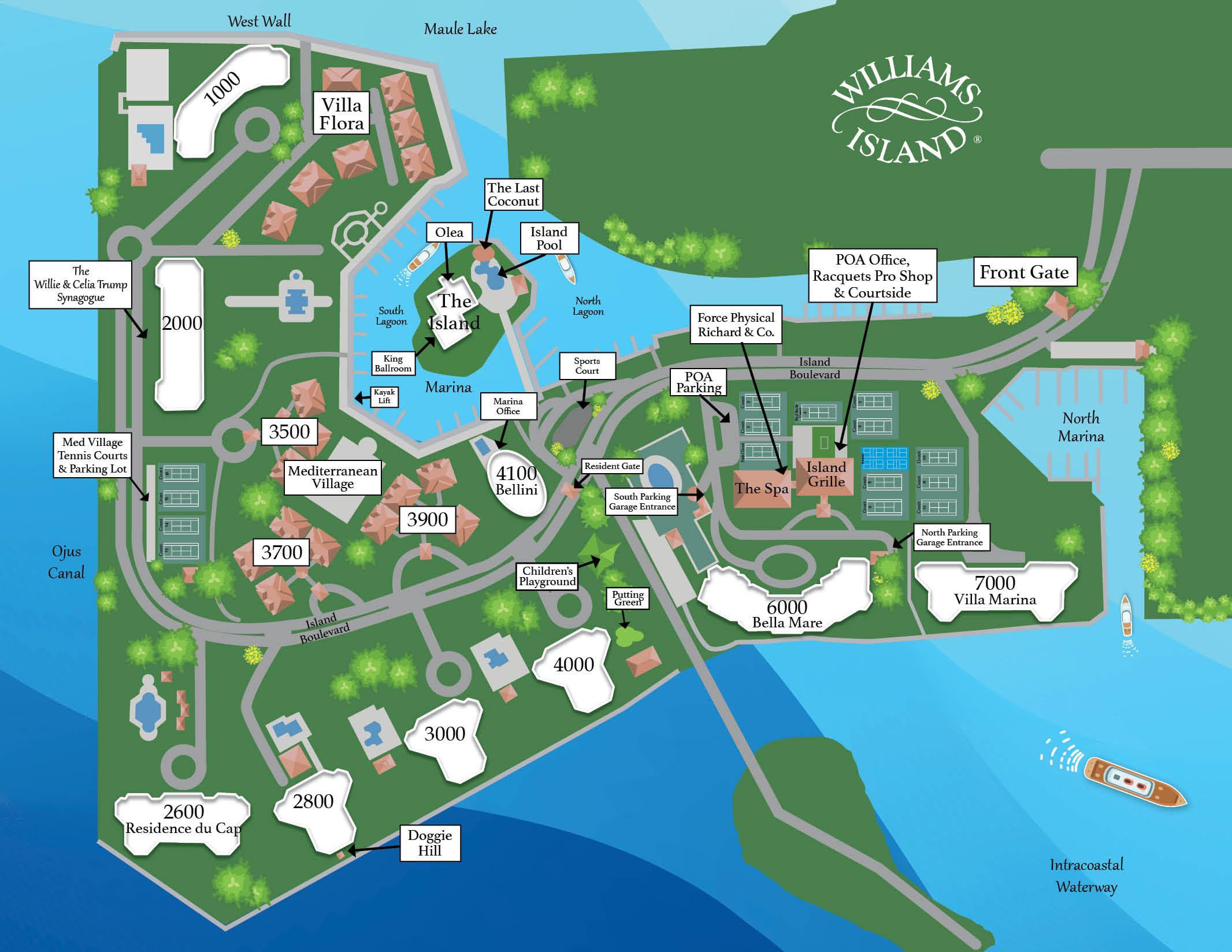
WILLIAMS ISLAND MAP
This is a detailed map of Williams Island designed to help you navigate our beautiful community with ease. The map highlights amenities, dining venues, recreational facilities, and the marinas, so you can quickly find exactly what you need. Whether you are exploring for the first time or rediscovering familiar favorites, this convenient guide puts the best of Williams Island right at your fingertips.
Elevating the Everyday