
Academic Authors: Neha Verma, Ayushi Jain
Creative Directors: Bhavna Tripathi, Mangal Singh Rana, Satish
Book Production: Rakesh Kumar Singh, Tauheed Danish
Project Lead: Jatinder Kaur
VP, Learning: Abhishek Bhatnagar
All products and brand names used in this book are trademarks, registered trademarks or trade names of their respective owners.
© Uolo EdTech Private Limited
First edition 2026
This book is sold subject to the condition that it shall not by way of trade or otherwise, be lent, resold, hired out, or otherwise circulated without the publisher’s prior written consent in any form of binding or cover other than that in which it is published and without a similar condition including this condition being imposed on the subsequent purchaser and without limiting the rights under copyright reserved above, no part of this publication may be reproduced, stored in or introduced into a retrieval system, or transmitted in any form or by any means, electronic, mechanical, photocopying, recording or otherwise, without the prior written permission of both the copyright owner and the above-mentioned publisher of this book.
Book Title: Tekie.AI Advanced Robotics 7
ISBN: 978-93-89789-89-8
Published by Uolo EdTech Private Limited
Corporate Office Address:
91Springboard, 3rd Floor
145, Sector 44, Gurugram, Haryana 122003
CIN: U74999DL2017PTC322986
Printed by: Printpro Solutions
Illustrations and images: www.shutterstock.com, www.stock.adobe.com and www.freepik.com
All suggested use of the internet should be under adult supervision.
Robotics is the study and creation of robots. Robots are machines that can perform various tasks. They are built using parts like metal, wires, and circuits, and programmed with special instructions to tell them what to do.
Some robots look like humans, while others are designed to work in specific places, like factories, hospitals, or even outer space! For example, a robot might assemble cars in a factory or explore the surface of Mars where humans cannot go easily.
Robots can sense their surroundings using sensors. These sensors act like the robot’s eyes, ears, and hands, helping it understand distance, temperature, or touch. Once the robot knows its surroundings, it can make decisions based on its programming.
The field of robotics combines science, technology, engineering, and mathematics (STEM) to solve problems and create amazing inventions. It is an exciting way to bring creativity and technology together!
Robots are made up of different parts that work together to help them move, sense, and do tasks. These parts are grouped into three main types: mechanical, electronic, and coding interface. Let us learn about them.
Mechanical parts are like the bones and muscles of a robot. They include wheels, gears, motors, and arms. These parts help the robot move, pick up things, or spin. For example, wheels let a robot roll around, and motors make robots move by turning wheels, spinning gears, or lifting arms.
The electronic parts are like the robot’s brain and nerves. They include circuits, sensors, and batteries. These parts help the robot think and sense its surroundings. Sensors act like eyes, ears, or even a nose for the robot, allowing it to detect light, sound, or obstacles. The battery gives the robot the power it needs to work.
Coding is how we talk to robots and tell them what to do. Coding means writing instructions for them to follow. The coding interface is the program or app used to give these instructions. Once coded, the robot can move in a specific direction, stop when it sees something, or even dance.
By combining these three parts—mechanical, electronic, and coding—robots come to life and do amazing things.













































































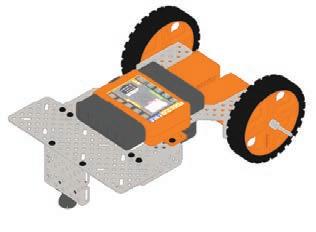












The Robotics Advanced Kit (RAK) is a comprehensive tool for young innovators who are curious to explore the subject of robotics. It features the Robotics FULL 2.0 BLE Brain, which powers the kit’s projects. The kit also includes exciting projects, encouraging creativity and problem-solving in students. With hands-on components and coding opportunities, RAK makes robotics fun-filled and accessible, inspiring students to think critically about robotics and innovate its programming. Let us explore its various components.
Electronics Parts


9.
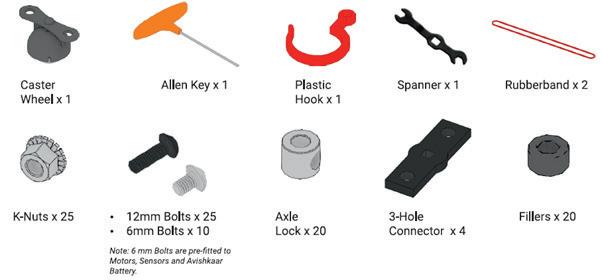
• Long Connecting Cable × 1
• USB Cable × 1
Construction Parts
Plastic Parts


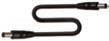


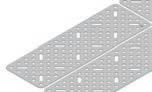
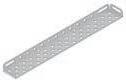
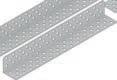

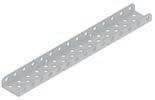
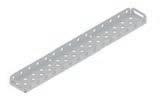
A comprehensive metal design system allows you to make from easy to complex mechanical bot designs.




Let’s understand how the motors work.
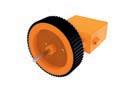
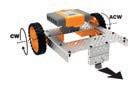
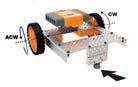
Robots move in different directions by the combination of the rotation from each wheel. For example: Robot Movement
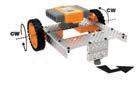

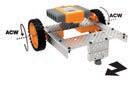
Let’s understand some basics of building:
Tightening Screws:


Tightening Axle Lock:


Tightening a Motor to a Plate:


Tighten (Rotate Clockwise)
Loosen (Rotate Anti-Clockwise)
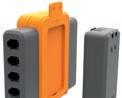
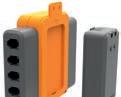
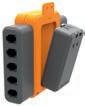



Tighten (Rotate Clockwise)


Loosen (Rotate Anti-Clockwise)

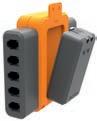
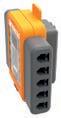
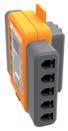
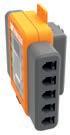
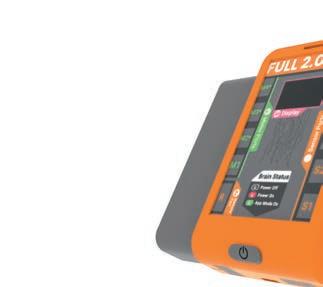
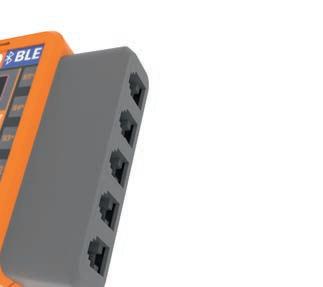
Let’s understand how the Full 2.0 Brain works.
Let’s understand how the Full 2.0 BLE Brain works.
1 Insert the axle lock and the 3.5" axles into the high-speed motors, as shown.
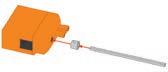
2 After attaching the axles to both motors, screw them to the chassis using the 6mm bolts, as shown.
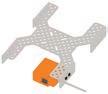
3 Repeat the previous step to attach the second high-speed motor to the other side of the chassis.
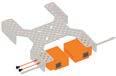
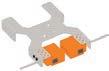
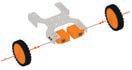
4 Add a filler to the axle, then add the wheel and at last add another axle lock. Do this for both axles.

5
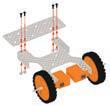
Screw a 7.5 inch rectangular plate using 12 mm bolts with the first two holes of both the right and left sides of the chassis.
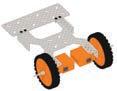
6 Attach two U-Beams, one on top of the other using 6mm bolts. Then, screw the Caster wheel to both U-Beams using 2 K-nuts and 6mm bolts, as shown below.
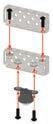

7 Attach the previous assembly to the chassis as shown, with 12 mm bolts.
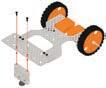
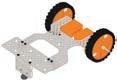
8 Screw the Battery at the bottom of the chassis using 6mm bolts as shown.
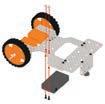
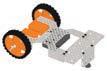
9
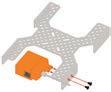
Screw the Brain to the chassis using 6mm bolts. Connect the Brain to the Battery using Male to Male DC Jack wire
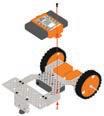
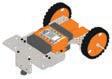
10
Connect the left motor to the "M4" port and the right motor to the "M3" port of the Brain using the short connecting cables
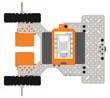
The coding interface serves as the central hub for your kit, acting as an Integrated Development Environment (IDE) that enables you to write code for all of your experiments. This code is then transferred to the hardware.
The coding interface consists of the following components:
1. Workspace Area: This is where you drag blocks for the code you want to write.
2. Blocks Panel: The blocks from the Blocks Panel help make your code.
3. Share Code: The Share Code option in the File drop-down menu generates a link for the project to share with others.
4. Control Buttons: The Control Buttons consist of Save, Compile, and Connect buttons.
• Save Button: The Save button helps save your code.
• Compile Button: The Compile button helps compile your code.
• Connect Button: The Connect button helps burn your code to the hardware.
5. Arena: This is where you can see the output.
6. Buttons: The buttons help move the bot front, back, left, or right. The buttons also help rotate the bot clockwise and anticlockwise in the virtual arena.
7. Play Button: The Play button runs the code.
8. Reset Button: The Reset button resets the arena.
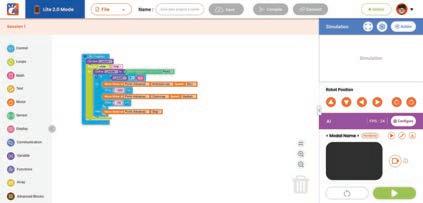
Burning means loading your code into the hardware. This process, mainly, has the phases as shown:
Arrange the blocks to create the code Save the code
Compile the code Burn the code
In case of error, recheck the code.
1. Once you have completed your experiment, connect the bot to a PC/Laptop using a USB cable or Bluetooth.
2. Save and compile your code by clicking on the Save and Compile buttons, respectively.
3. Now, click on Connect
4. Click on the USB Connect option or the BLE Connect (Bluetooth) option.
5. Click on the Connect Device button, and a small window will appear. Thereafter, select your connected device, and then click on Connect
6. Now click on Burn to write your program into the bot.
7. You have successfully written your code into the hardware. Now you can experiment on the bot.
Learn how to control a robot by making it move forward, backwards, left, and right using motors. This helps in understanding the basics of how robots work and is a great start to learning robotics!
In this experiment, the concept of time delay is used to suspend the execution of a program for a particular time. Let us understand this by looking at the process of cooking a dish in the microwave. Start
Put the dish in the microwave.
Set the timer of the microwave.
Take the dish out. Wait for the buzzer to beep.
Let’s Code
1. Click on the Control category from the Blocks panel.
2. Drag the My Program block to the workspace to begin your program.
3. Move the Bot Forward
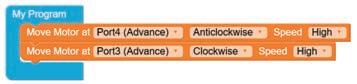
• Drag the Move Motor at block from the Motor category and drop it inside the My Program block.
• Configure the motor at Port4 (Advance) as anticlockwise by selecting the Anticlockwise option from the drop-down.
• Select the speed of the motor as High, Medium, or Slow from the Speed drop-down.

• Similarly, drag another Move Motor at block and drop it below the previous block.
• Select the Port3 (Advance) option from the drop-down menu.
• Configure the motor at Port3 as clockwise by selecting the Clockwise option from the drop-down menu
• Select the speed of your choice from the Speed drop-down menu.
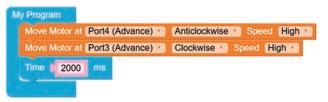
• Drag the Time block from the Control category and drop it below the second Move Motor at block.
• Type "2000" in the value box of the block. This will allow the forward movement of the motor for 2000 milliseconds or 2 seconds.
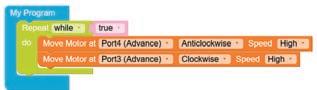
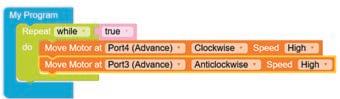
• To move the bot forward for infinite time, use the Repeat while block from the Loops category with the Move Motor at blocks.
4. Move the Bot Backward
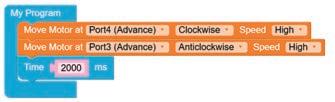
• Similarly, to turn the bot backwards, configure the motor at Port4 as Clockwise and Port3 as Anticlockwise by making the respective selections from the drop-down menus.
• To move the bot backwards for infinite time, use the Repeat while block from the Loops category with the Move Motor at blocks.
5. Move the Bot Right
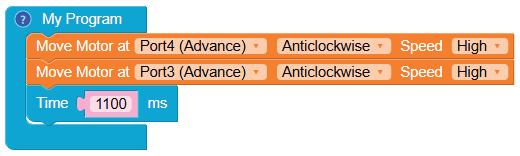
• To turn the bot to the right, configure the motor at Port4 and Port3 as Anticlockwise and add a delay of 1100 ms by adding a Time block.
6. Move the Bot Left
• To turn the bot to the left, configure the motor at Port4 as Clockwise and Port3 as Clockwise too.
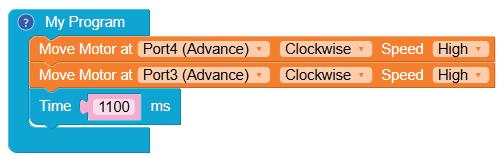
Note: When you turn the bot left or right, the time value may vary from system to system. Therefore, to make a 90 degree turn, you can configure the time value accordingly.
7. Give a name to your program, save it, and then compile it.
8. Now, the program is ready to burn on the RAK.
Scan QR code to view output
A. Tick () the Correct Option.
1 Which block is used to start your program?
a My Program
c Begin Program
2 The execution of all the blocks in a code occur
a timely
c in a loop
b Start Program
d Your Program
b step by step
d with delay
3 In which direction should the motors rotate to turn the robot to the left?
a Both motors clockwise
c Left motor clockwise, right motor anticlockwise
B. Answer the Following.
b Both motors anticlockwise
d Left motor anticlockwise, right motor clockwise
1 How should the motors be configured to move the robot in the right direction?
2 What is the use of the "Repeat while" block?
C. Apply Your Learning.
1 Where can you see the applications of a moving robot in daily life?
2 What will happen in your project if you don’t use the "Repeat while" block?
Using IR sensors, students will program their robots to smartly detect and avoid the edges of elevated platforms. This activity strengthens their understanding of sensor-based navigation while promoting problemsolving skills in practical scenarios.
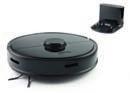
The concept of edge avoider is mostly used in the automatic vacuum cleaners.
In this experiment, the following concepts are used:
1. Variables
• Variables are used to store information to be referenced and manipulated in a computer program.
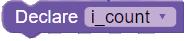
• Variables in coding are not just static values; they also provide a way of labelling data with a descriptive name, so our programs can be understood more clearly. This data can then be used throughout your program. For example, i_count is the name of a variable.


2. Conditionals
Used to declare a variable
Used to modify/change the value of a variable
Used to store a value in a variable
• Human beings (and other animals) make decisions all the time that affect their lives, for eg. a. "Should I eat one cookie or two?" b. "Should I play cricket or badminton?"
• Similarly, to make decisions and carry out actions accordingly, in our code, we use conditionals.
3. If block
• Conditional blocks have conditions, and the program’s flow is based on whether the condition is true or false.
• To apply conditions in code, use the if block. The if block has else if and else blocks.
• If the condition given in the if block is true, then the set of code is executed; otherwise, the code given in or else block is executed. If there are multiple conditions to check then else if block will be used.
4. IR Sensor
• An infrared (IR) sensor is an electronic device that measures and detects infrared radiation in its surrounding environment. Everything around us, including our bodies and objects, gives off heat in the form of infrared radiation. Warmer objects emit more infrared radiation than cooler ones.
• In the IR sensor, the sensor state is high when a reflective object is in front of it. Black or dark-coloured objects do not reflect the IR rays.
After creating the RC car, follow the given steps to create your Edge Avoider robot:
1 Connect the 7.5" U-Beam to the 2.5" U-Beam in the RC Car assembly using 12mm Bolts and K-Nuts.
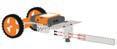
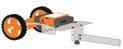
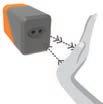
2 Connect the IR Sensor to the 7.5" U-Beam using a Bolt.
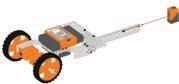
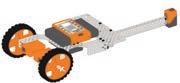
3 Finally, the assembly for the Edge Avoider robot looks like the one shown below:
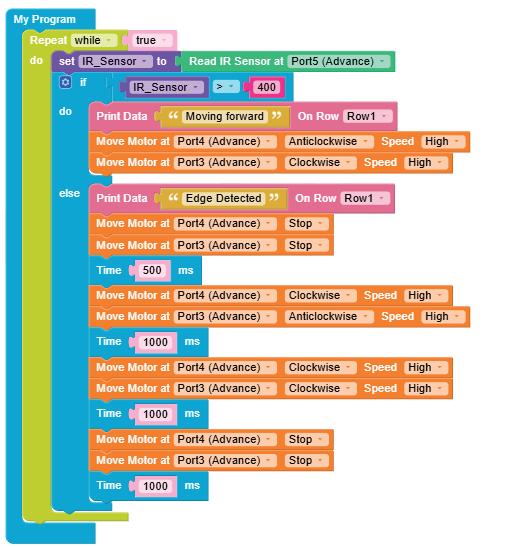
1. Click on the Control category from the Blocks panel.
2. Drag the My Program block to the workspace to begin your program. The execution of all the blocks inside this occurs step by step.
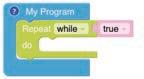
3. Drag the Repeat while block from the Loops category and drop it inside the My Program block to begin the infinite loop. By default, the loop value is set as true.
4. Click on the Variables category.
5. Click on the Create Variable button. A pop-up box appears.
• Enter a suitable variable name in the New variable name box like IR_Sensor
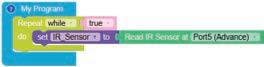
• Click on the OK button. This will create a variable to store the data of the IR sensor value received from the sensor.
6. Drag and drop the set to block from the Variables category and place it inside the Repeat while block.
7. Then drag the Read IR Sensor at block from the Sensor category and place it next to the set to block. Set the value of the Read IR Sensor at block as Port5 (Advance).
8. Drag the if block from the Control category and place it below the set to block.
9. Click on the settings icon of the if block. A pop-up box appears.
10. Drag the else block and place it below the if block in the pop-up box (refer to the image below).
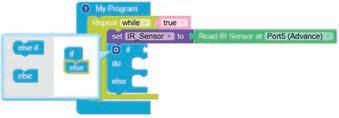
11. Again, click on the settings icon to hide the pop-up box.
12. Define the condition for the if block using the block from the Control category.

13. Drag the IR_Sensor block from the Variables category and drop it in the left value box of the block.
14. Select the '>' sign from the drop-down list of the block.

15. Drag the block from the Math category and drop it inside the right value box.
16. Type '400' in place of 0. If the value of the IR_Sensor variable is greater than 400, i.e., the IR Sensor senses the ground/floor blocks under the if block will be executed, otherwise the blocks under the else block will be executed.
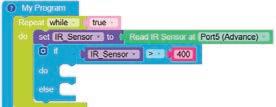
17. Drag and drop the Print Data block in the do part of the if block. Drag the empty Text Box block from the Text category and drop it inside the Print Data block. Type "Moving forward" in the Text Box block.
18. Now, we have to set both the motors to move in the forward direction when there is a surface below. For this, drag and drop two Move Motor at blocks from the Motor category. Configure the Motor at Port4 (Advance) as Anticlockwise and Port3 (Advance) as Clockwise.
19. Set the speed of both the motors to High.
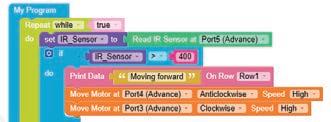
20. For the else part, drag and drop the Print Data block in the do part of the if block. Drag the empty Text Box block from the Text category and drop it inside the Print Data block. Type "Edge Detected" in the Text Box block.
21. Set both motors to Stop by dragging and dropping the Move Motor at blocks.
22. Also drag and drop the Time block from the Control category to instruct the bot to stop for 500 milliseconds when there is no object or surface detected below.
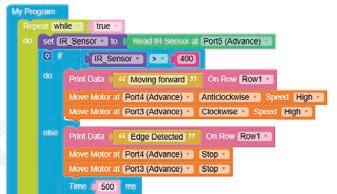
23. Set both motors to move backwards followed by the left direction (you can turn the bot to any direction as you wish). This will instruct the bot to move back and then left when no object or surface is detected. Adjust the value in the Time block as shown.
24. Now, set both the motors to Stop
25. Give a name to your program, save and then compile it.
26. Now, the program is ready to burn on the RAK.
Scan QR code to view output
A. Tick () the Correct Option.
1 What is the main purpose of using IR sensors in this experiment?
a To avoid obstacles on the ground
b To detect edges of raised platforms
c To control the speed of the motors
d To change LED colours
2 What does an IR sensor do when a reflective object is close to it?
a Changes the LED to red b Stops the motor
c Sets the sensor state to HIGH d Starts the program
3 Which block is used to apply conditions in code?
a Repeat while block b Move Motor block
c if block d My Program block
B. Answer the Following.
1 What are variables used for in a program?
2 How does the "if" block help in decision-making in code?
C. Apply Your Learning.
1 Imagine you are programming a robot to avoid puddles on the floor. Describe how you would use an IR sensor to detect puddles and make the robot change direction.
2 If your robot’s IR sensor detects an edge, how would you program it to stop and turn safely?
Objective
To demonstrate a lifting mechanism that lifts objects using a hook attached to a gear combination powered by a high-torque motor.
Simple cranes are often used in construction projects and for lifting heavy objects.
Crane Machines
Let’s Build
1 Connect the Touch Sensor to the 7.5" Rectangle in the RC Car assembly using 12 mm Bolts.
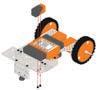
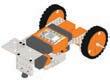
2 Connect the 7.5" U-Beam to the 7.5" Rectangle using 12 mm Bolts and K-Nuts.
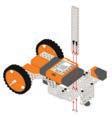
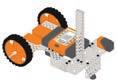
3 Connect the High Torque Motor to the 7.5" U-Beam using a 3.5" Axle, Axle Lock and Bolts as shown.
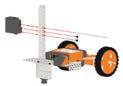
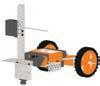
4 Connect the Small Spur Gear to the Axle using a Filler and an Axle Lock.
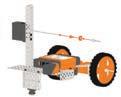
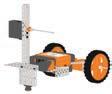
5 Connect the Axle to the U-Beam using an Axle Lock.
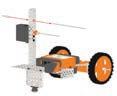
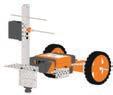
6 Connect a Big Spur Gear to the 12.5" Flexi using K-Nuts and 12mm Bolts.


7 Connect a Plastic Hook to the Flexi using a Nut and Bolt.
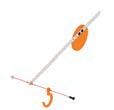
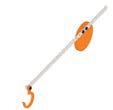
8 Now, connect the Big Spur Gear in the assembly from the previous step to the Axle in the assembly from step 5 using a Filler and an Axle Lock.
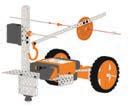
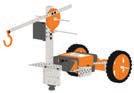
9 Connect the Touch Sensor to the Port S5 of the Brain using Connecting Cables. 10 Also connect the High Torque Motor to the Port M2 of the Brain
1. Click on the Control category from the Blocks panel.
2. Drag the My Program block to the workspace to begin your program. The execution of all the blocks inside this will occur step by step.
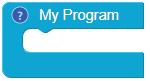
3. Click on the Variables category.
4. Click on the Create variable button. A pop-up box will appear asking you to enter a new variable name.
• Enter a suitable variable name, let us say “count”.
• Click on the OK button.
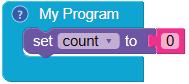
5. Drag the set to block from the Variables category and drop it inside the My Program block.
6. Then, drag the number block from the Math category and attach it to the set to block. By default, the number block is set to 0.
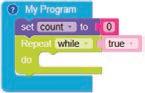
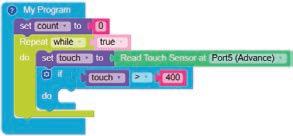
7. Drag the Repeat while block from the Loops category and drop it below the set to block to begin the infinite loop. By default, the loop value is set as true.
8. Now, create another variable by clicking on the Create variable button from the Variables category. A popup box will appear asking you to enter a new variable name.
• Enter a suitable variable name, let us say “touch”.
• Click on the OK button.
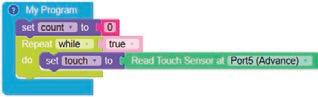
9. Drag another set to block from the Variables category and drop it inside the Repeat while block.
10. Drag the Read Touch Sensor at block from the Sensor category and attach it to the set to block. Select the “Port5 (Advance)” option from the drop-down menu of the Read Touch Sensor at block.
11. Drag the if block from the Control category and place it below the set to block.
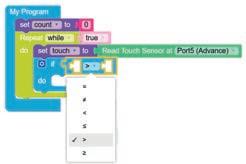
12. Drag the equal operator block from the Control category and attach it to the right of the if block.
13. Select the “>” option from the drop-down menu of the equal operator block.
14. Drag the touch block from the Variables category and drop it in the left part of the greater than operator block.
15. Now, drag the number block from the Math category and drop it in the right part of the greater than operator block. Type “400” for the text part of the number block. Now, if the value of the touch variable is greater than 400, i.e., the touch sensor is pressed, then the blocks under the if block will be executed.
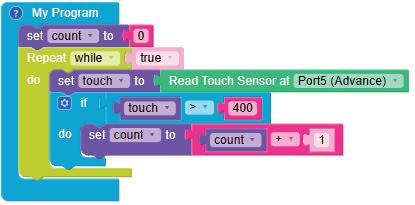
16. Drag and drop the set to block in the do part of the if block. Select the “count” option from the drop-down menu of the set to block.
17. Drag the add operator block from the Math category and attach it to the set to block.
18. Now, drag the count block from the Variables category and drop it in the left part of the add operator block. This will add a sum of 1 to the variable count every time the touch sensor is pressed.
19. Drag the Print Data block from the Display category and drop it below the set to block. Select “Row 3” from the drop-down menu of the block.
20. Drag the if block from the Control category and drop it below the Print Data block.
21. Click on the Settings icon of the if block. A pop-up box will appear.
22. Drag the else if block and drop it below the if block in the pop-up box twice. (Refer to the image below).
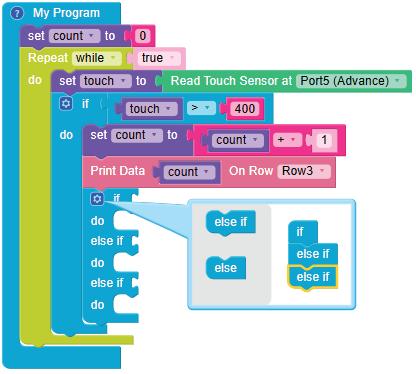
23. Click on the Settings icon again to hide the pop-up box.
24. Drag the equal operator block from the Control category and attach it to the if block.
25. Drag the count variable block and drop it in the left part of the equal operator block.
26. Drag the number block and drop it in the right part of the equal operator block. Type “1” in the text part of the number block.
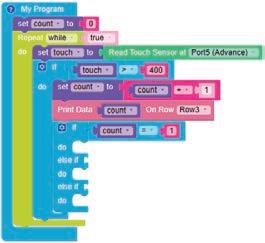
27. Drag the Print Data block and drop it in the do part of the if block.
28. From the Text category, drag the Text Box block and drop it in the empty space of the Print Data block.
29. In the Text Box block, type “Moving Forward”.
30. Drag two Move Motor at blocks from the Motor category and drop them below the Print Data block. Configure the motors at Port4 (Advance) as Anticlockwise and Port3 (Advance) as Clockwise.
31. Select “Medium” option for the Speed from the drop-down menu of the Move Motor at blocks. Drag and drop the Time block below the Move Motor at block. Type “2000” in the text part of the block. This will move the bot forward for 2000 milliseconds (ms) or 2 seconds.
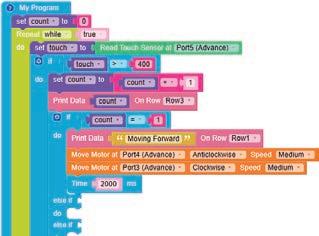
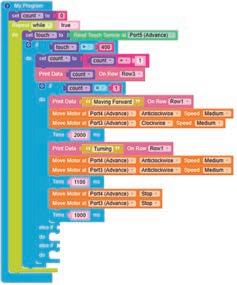
32. Similarly, drag and drop the blocks below the Time block to turn the bot to the left and then stop.
33. Similarly, set a condition for when the touch sensor is pressed twice or when the count variable becomes 2. This will enable the bot to lift an object for 3000 ms and then stop there for 2000 ms using the crane. After lifting, the bot will then move forward and stop.
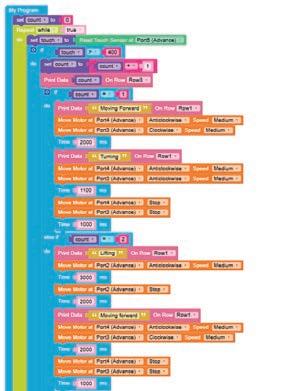
34. Similarly, set a condition for when the touch sensor is pressed three times or when the count variable becomes 3. This will enable the bot drop an object for 3000 ms and then stop there for 2000 ms using the crane. The bot will then move left and stop. After stopping for 1 second, the count variable will be reset to '0'.
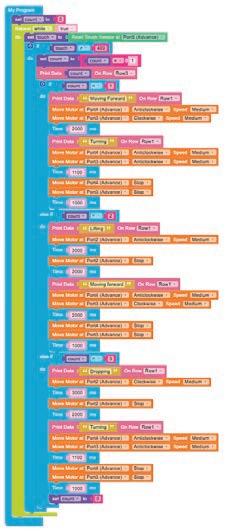
35. Give a name to your program, save it, and then compile it.
36. Now, the program is ready to burn on the RAK.
Scan QR code to view output
A. Tick () the Correct Option.
1 Which of the following sensors has been used in the experiment?
a Touch Sensor b IR Sensor
c Ultrasonic Sensor d Sound Sensor
2 Which of the following blocks is used to print data on the defined row of the LED display?

a b
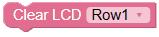
c d None of these
3 How do you stop a moving bot?
a By selecting the "Pause" option from the drop-down menu of the "Move Motor at" block.
b By selecting the "Stop" option from the drop-down menu of the "Move Motor at" block.
c By selecting the "Stop" block from the "Motor" category.
d By selecting the "Pause" block from the "Motor" category.
B. Answer the Following.
1 What is the use of the touch sensor in the experiment?
2 When does the message "Lifting" appear on the LED while conducting the experiment?
C. Apply Your Learning.
1 What is the primary function of a simple crane bot?
2 At a construction site, which machine is used to lift heavy materials like bricks and steel beams?
Objective
To learn about the launching mechanism in various gear-using ball shooters by programming those robots.
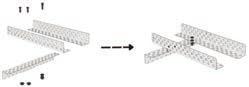
1 Connect three 7.5" L-Channels (two of them must be parallel to each other, while the third should be placed perpendicularly across the two parallel L-Channels). Use 12mm Bolts and K-Nuts as shown.
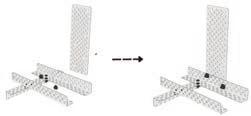
2 Connect the 7.5" Rectangle to one of the parallel L-Channels in the assembly using Nuts and Bolts
3 Connect the High Speed Motor to the 7.5" Rectangle using an Axle, an Axle Lock, and Bolts
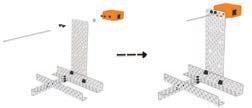
4 Insert the 3.5" Axle in the Big Spur Gear and fix the connection using Axle Locks as shown.
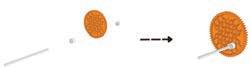
5 Connect the Big Spur Gear in the assembly from the previous step to the Axle from step 3 using K-Nuts and Fillers as shown.
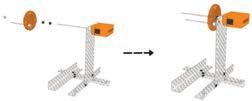
6 Connect the 3-Hole Connector to the 7.5" L-Beam using a Nut and Bolt.
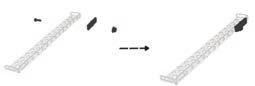
7 Connect the previous assembly to the Axle of the High Speed Motor in the assembly from step 5.
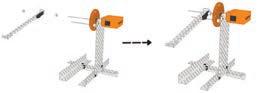
8 Connect the Touch Sensor to the 7.5" Rectangle using Bolts and then connect the 7.5" Rectangle to the L-Channel using Nuts and Bolts. Also, insert the Axle (which is connected to the High Speed Motor and Big Spur Gear) into the 7.5" Rectangle as shown.
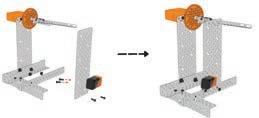
9 Connect the FULL 2.0 Brain to the 7.5" Rectangle in the assembly using Bolts. This will complete the assembly as shown.
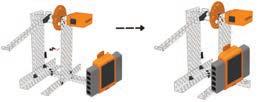
1. Click on the Control category from the Blocks panel.
2. Drag the My Program block to the workspace to begin your program. The execution of all the blocks present inside this occurs step by step.
3. Drag the Repeat while block from the Loops category and drop it inside the My Program block to begin the infinite loop. The loop value is set to true by default.
4. Click on the Variables category.
5. Click on the Create variable button. A pop-up box appears asking you to enter a new variable name.
• Enter a suitable variable name like "touch_sensor ".
7. Then drag the Read Touch Sensor at block from the Sensor category and attach it to the set to block. Let’s Code

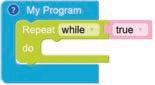
• Click on the OK button. This will create a variable to store the data of the touch sensor value received from the sensor.
6. Drag the set to block from the Variables category and drop it inside the Repeat while block.
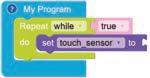
8. Set the value of the Read Touch Sensor at block to "Port5 (Advance)".
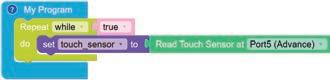
9. Drag the if block from the Control category and place it below the set to block.
10. Click on the settings icon of the if block. A pop-up box appears.
11. Drag the else block and place it below the if block in the pop-up box (refer to the image below).
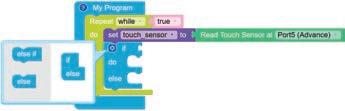
12. Again, click on the settings icon to hide the pop-up box.
13. Drag the equal operator block from the Control
14. Select the ">" option from the drop-down of the equal operator block.
15. Drag the touch_sensor block from the Variables category and drop it in the left value box of the greater than operator block.
16. Drag the number block from the Math category and drop it in the right value box of the greater than operator block.
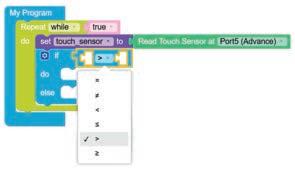
17. Type "400'' in place of "0" in the number block. If the value of the touch_sensor variable is greater than 400, i.e., the Touch Sensor senses the touch, and the blocks under the if block will be executed, otherwise the blocks under the else block will be executed.
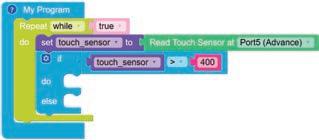
18. Drag the Move Motor at block from the Motor category and drop it in the do part of the if block.
19. Configure the motor at Port4 (Advance) as anticlockwise by selecting the Anticlockwise option from the drop-down.
20. Select the speed of the motor as High from the Speed drop-down.
21. Drag the Time block from the Control category and drop it below the Move Motor at block. Type "500" in the value box of the Time block.
22. Similarly, drag another Move Motor at block and drop it below the Time block.
23. Select the Port4 (Advance) as clockwise by selecting the Clockwise option from the drop-down.
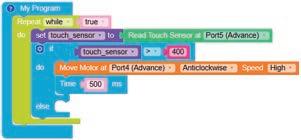
24. Select the speed of the motor as High from the Speed drop-down.
25. Drag the Time block from the Control category and drop it below the Move Motor at block. Type "500" in the value box of the Time block.
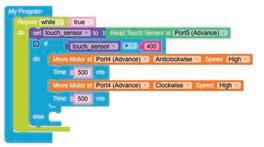
26. Now, drag the Move Motor at block and drop it inside the else block. Configure the motor at Port4 (Advance) to stop by selecting the "Stop" option from the drop-down.
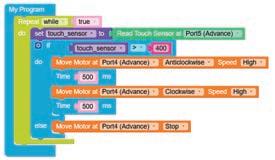
27. Give a name to your program, save and then compile it.
28. Now the program is ready to burn on the RAK.
Note: The RAK should be connected to your computer through a Bluetooth or USB cable for the experiment to run.
Scan QR code to view output
A. Tick () the Correct Option.
1 Which of the following sensors has been used in this experiment?
a Touch Sensor b Sound Sensor
c IR Sensor d Colour Sensor
2 Which block is used to create a continuous loop in this program?
a My Program b Repeat while
c If d Set to
3 In the experiment, the motor direction is set to which option for launching the ball?
a Forward
c Left
B. Fill in the Blanks.
b Backward
d Right
1 The program starts by dragging the 'My Program' block from the category.
2 The bot shoots the ball once the value of the touch sensor variable becomes more than .
3 The 'touch sensor ' variable stores data from the touch sensor set to Port .
4 The motor is configured to stop in the block if the touch sensor value is less than 400.
1 Does changing the motor speed setting affect the distance or force of the ball shot by the launcher? Explain.
2 Explain why a continuous loop is important in the ball-shooting program. How does it help the launcher mechanism?
To demonstrate how a simple crane functions as a lifting mechanism, where objects are lifted using a hook attached to a gear combination driven by a high-torque motor, and controlled through AI.
Artificial Intelligence or AI, is the field of computer science that deals with the study of the principles, concepts, and technology for building machines that can think, act, and learn like humans. Machines possessing AI should be able to mimic human traits like making decisions, recognising patterns, predicting outcomes based on certain actions, learning, and improving on their own.
NLP is a domain of AI that enables computers to understand human language and generate appropriate responses when we interact with them. It allows computers to talk to us in a way that feels natural to us. Popular examples of NLP applications include Google Assistant, Siri, Alexa, Google Translate, etc.
Computer Vision is a domain of AI which uses cameras to see and understand visual information.
Some of the real-life examples of NLP are:

1. Face Recognition in Smartphones 2. Self-driving Cars


Follow the given steps to add camera and speech plugins for AI experiments:
1. Click on the Project tab and choose the Plugins option.
2. Now click AI/ML option.
3. Select Camera Capture Mode or Speech Recognition Mode as per requirement.
4. A pop-up box with name 'AI/ML - Camera Capture Mode Plug-in' or 'Plugins - AI/ML - Speech Recognition Mode' appears based on your choice.
5. Click on Add Plug-in tab and then click on Plug-in Added tab.
6. A new category of blocks named AI will be added to the Blocks panel on the left and a new AI window will be added to the right panel.
In this experiment, the use of NLP in the RAK bot includes:
• Recognising spoken commands such as "lift", "drop", "forward", "back", "left", and "right".
• Converting spoken commands into actions that the RAK can execute.
• Detecting user input that is not clear and prompting the user to repeat the commands.
1. Click on the Control category from the Blocks panel.
2. Drag the My Program block to the workspace to begin your program. The execution of all the blocks present inside this will occur step by step.
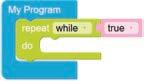
3. Drag the repeat while block from the Loops category and drop it inside the My Program block to begin the infinite loop. The loop value is set to true by default.
4. Click on the Variables category.
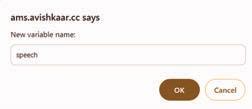
5. Click on the Create variable button. A pop-up box appears asking you to enter a new variable name.

• Enter a suitable variable name like "speech".
• Click on the OK button.
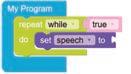
Drag the set to block from the Variables category and drop it inside the repeat while block.
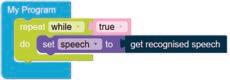
7. Then drag the get recognised speech block from the Speech Recognition category and attach it to the set to block.
8. Drag the if block from the Control category and place it below the set to block.
9. Click on the settings icon of the if block. A pop-up box appears.
10. Drag five else if blocks and one else block and place them below the if block in the pop-up box (refer to the image below).
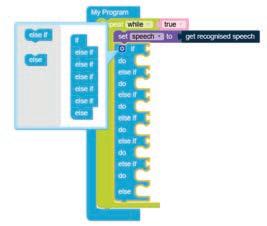
11. Click on the settings icon again to hide the pop-up box.
12. Drag the includes block from the Text category and attach it to the if block.
13. Drag the speech block from the Variables category and drop it in the left text box of the includes block.
14. Type "lift" in the right text box of the includes block.
15. Drag the Print Data block from the Display category and drop it in the do part of the if block.
16. Drag the Text Box block from the Text category and drop it in the empty part of the Print Data block. In the Text Box block, type "Lifting".
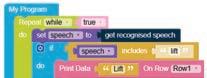
17. Drag the Move Motor at block from the Motor category and drop it below the Print Data block.
18. Configure the motor at Port2 (Advance) as anticlockwise by selecting the Anticlockwise option from the drop-down.
19. Select the speed of the motor as Medium from the Speed drop-down.
20. Drag the Time block from the Control category and drop it below the Move Motor at block.
21. Type "2000" in the value box of the Time block.
22. Now, set the motor to Stop by dragging and dropping the Move Motor at block below the Time block.
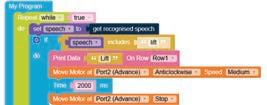
23. Similarly, set the conditions for "drop" in the first else if block as shown in the figure below.
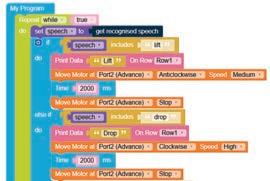
24. Similarly, set the conditions for "forward" in the second else if block as shown in the figure below.
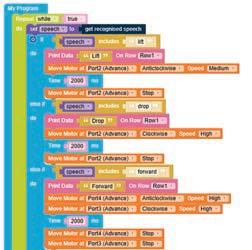
25. Similarly, set the conditions for "back" in the third else if block as shown in the figure below.
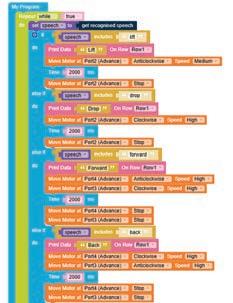
26. Similarly, set the conditions for "right" in the fourth else if block as shown in the figure below.
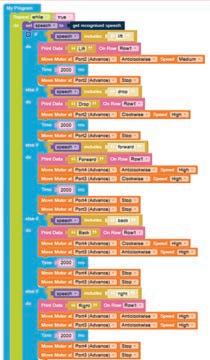
27. Similarly, set conditions for "left" in the fifth else if block as shown in the figure below.
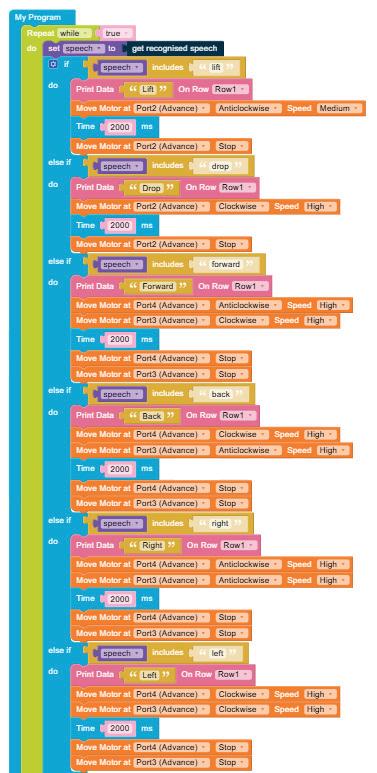
28. For the else part, set all the motors to stop.
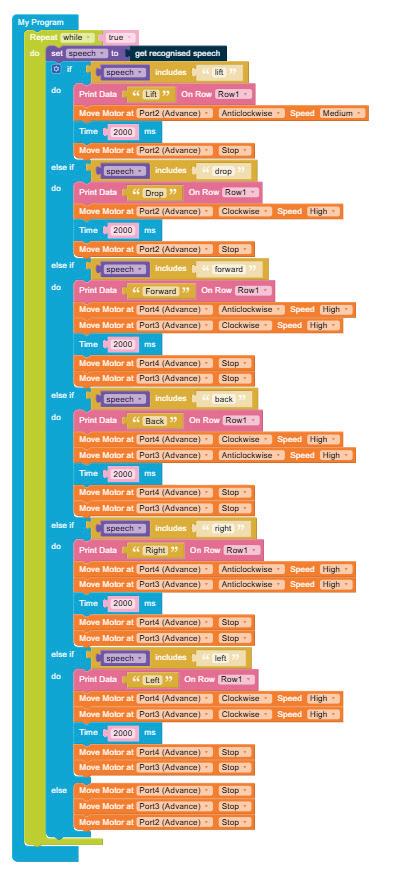
29. Give your program a name, save it and then compile it.
30. Now the program is ready to burn on the RAK.
Note: The RAK should be connected to your computer through a Bluetooth or USB cable for the experiment to run.
31. Click on the Run button in the AI window.
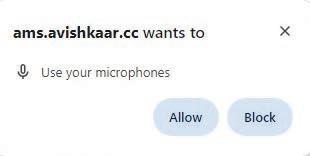
32. Allow the system to use your microphone to hear your commands.
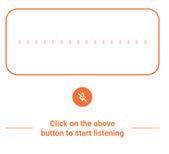
33. Click on the microphone button present in the AI window.
34. Give any command (lift, drop, forward, back, left or right). Here, the AI detects the voice as "forward".
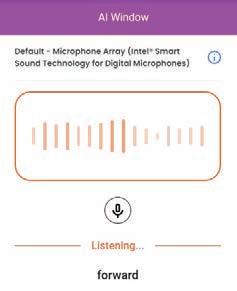
35. Click on the microphone button again and observe the output.
In this experiment, computer vision is used to recognise hand gestures through the use of camera.
• The AI model is trained to detect specific hand poses, such as palm, fist, one finger, two fingers, three fingers, four fingers, and no gesture.
• Once trained, the model can identify these gestures in real-time.
• Each gesture then triggers specific actions within the game, such as lifting, dropping, moving forward or backward, turning right or left, and stopping. This allows players to control the bot with their hand movements.
Instructions
Before we start writing the code, let us train our AI Model. Follow the given steps:
1. Allow the system to use your camera.
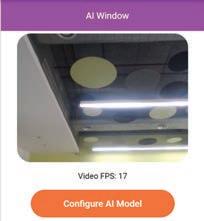
2. Click on the Configure AI Model button in the AI Window on the right of your screen.
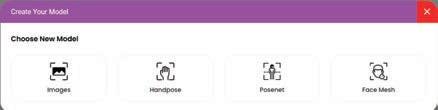
3. Choose your model by selecting Handpose from the Create Your Model pop-up window.
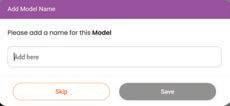
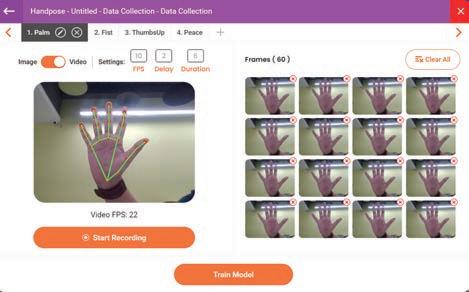
4. Add a name for your model and click on the Save button. You can also skip it.
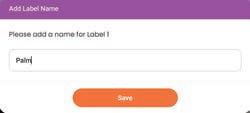
5. Now, add the label name as 'Palm' and click on the Save button.
6. Click on the Start Recording button and show your palm up to 60 frames on the camera.

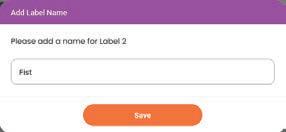
7. Now, click on the Plus sign on the top-left corner and add a name for Label 2. Here, the name of Label 2 is "Fist". Then, click on the Save button.
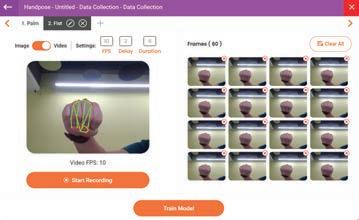
8. Similarly, record different fist postures up to 60 frames on the camera.
9. Similarly, add other labels such as 1 finger, 2 finger, 3 finger, and 4 finger
10. Now, click on the Train Model button to train the AI about the recorded handposes. It will take a few minutes.

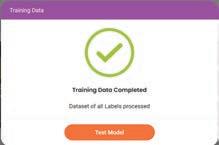
11. Add an appropriate model name and save it.
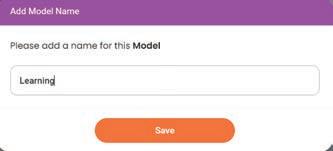
12. Test your model to check whether the AI is able to recognise the palm, fist, and different number of fingers postures correctly.
13. Now, click on the Download button.
14. You are now ready to write your code.
1. Click on the Control category from the Blocks panel.
2. Drag the My Program block to the workspace to begin your program. The execution of all the blocks present inside this occurs step by step.
3. Drag the repeat while block from the Loops category and drop it inside the My Program block to begin the infinite loop. The loop value is set to true by default.
4. Drag the if block from the Control category and place it inside the repeat while block.
5. Click on the settings icon of the if block. A pop-up box appears.
6. Drag six else if blocks and place them below the if block in the pop-up box (refer to the image below).
7. Click on the settings icon again to hide the pop-up box.
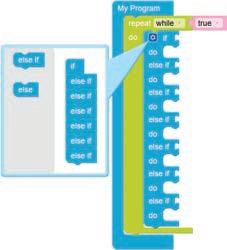
8. Define the condition for the if block by dragging the equal operator block from the Control category and attaching it to the if block.
9. Drag the get detected AI label block from the AI category and drop it in the left value box of the equal operator block.
10. Drag the Palm block from the AI category and drop it in the right value box of the equal operator block.
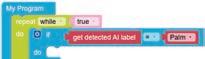
11. Drag the Print Data block from the Display category and drop it in the do part of the if block.
12. Drag the Text Box block from the Text category and drop it in the empty part of the Print Data block. In the Text Box block, type "Lift".
13. Drag the Move Motor at block from the Motor category and drop it below the Print Data block.
14. Configure the motor at Port2 (Advance) as anticlockwise by selecting the Anticlockwise option from the drop-down menu.
15. Select the speed of the motor as Medium from the Speed drop-down menu.
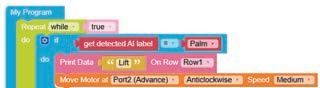
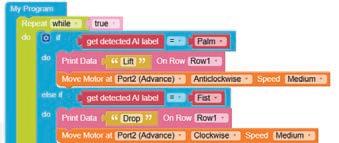
16. Similarly, set conditions for "Fist" in the first else if block as shown in the figure below. (For Fist block, you need to select the "Fist" option from the drop-down menu of the Palm block.)
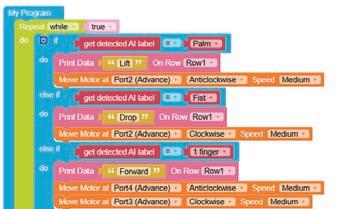
17. Similarly, set conditions for "1 finger" in the second else if block as shown in the figure below.
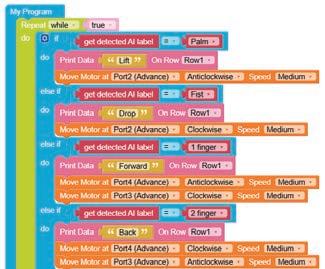
18. Similarly, set conditions for "2 finger" in the third else if block as shown in the figure below.
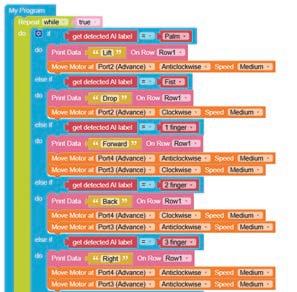
19. Similarly, set conditions for "3 finger" in the fourth else if block as shown in the figure below.
20. Similarly, set conditions for "4 finger" in the fifth else if block as shown in the figure below.
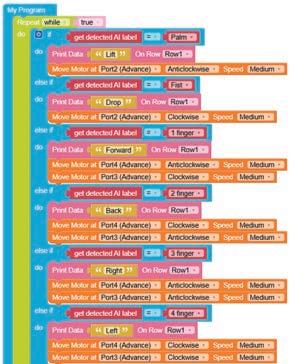
21. Similarly, set conditions for "None" in the sixth else if block as shown in the figure below.
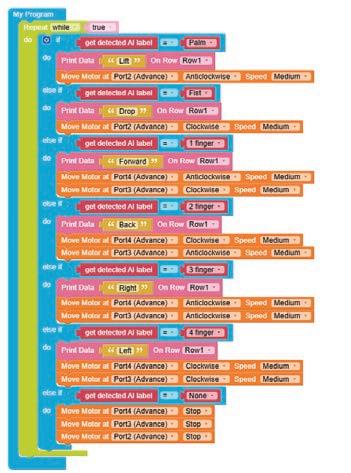
22. Give a name to your program, save it, and then compile it.
23. Now the program is ready to burn on the RAK.
Note: The RAK should be connected to your computer through a Bluetooth or USB cable for the experiment to run.
24. Click on the Run button on the AI window.
25. Show any hand pose (Palm, Fist, 1 Finger, 2 Finger, 3 Finger, 4 Finger or no pose) on the camera.
26. Observe the output.
Scan QR code to view output
A. Tick () the Correct Option.
1 Which block is used to create a continuous loop?
a My Program b repeat while c If d set to
2 In the experiment, the motor is set to turn in which direction to lift the crane hook?
a Clockwise b Anticlockwise
c Both directions d Stop
3 In the experiment, what gesture is used to move the bot in the left direction?
a Fist b Palm
c 4 Finger d None of these
B. Fill in the Blanks.
1 The program begins by dragging the block.
2 In the experiment, the variable "speech" stores the command received from recognition.
3 The crane will when the AI detects no hand pose.
C. Apply Your Learning.
1 Describe how voice commands can make controlling the crane more efficient than using manual controls.
2 If the motor speed is increased when lifting the crane, how could this affect the crane’s performance? Consider stability and control.



















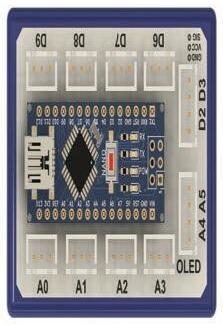









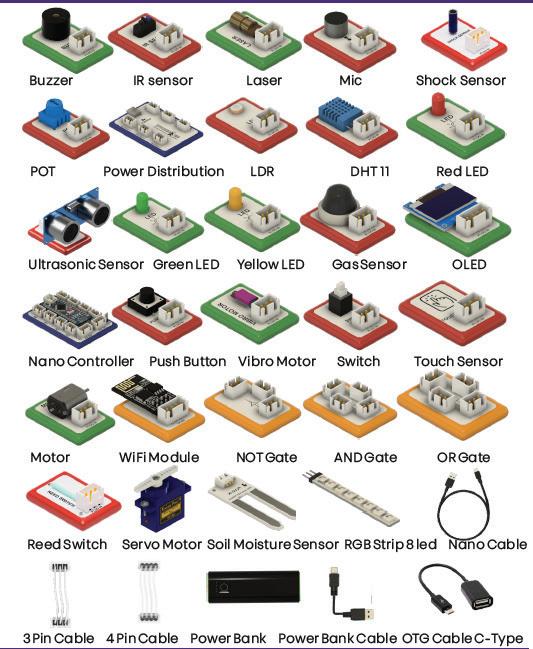
The Tinker Orbits Kit is an innovative, hands-on STEM learning platform designed to ignite curiosity and creativity in young learners. This kit provides playful and practical introduction to electronics, circuits, sensor integration, and the Internet of Things (IoT) through engaging, student-friendly DIY projects.
Follow the given steps to login on AI Connect:
1. Click on the Go to Practice button to start the practice. You will be directed to the AI Connect web page as shown.

2. Click on Tinker Orbits Coding box or click on the Create button in the box to create a new project.
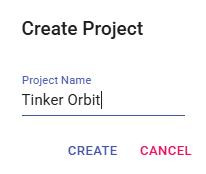
3. A Create Project pop-up box appears. Type the name of the project, here, we have typed ‘Tinker Orbit’. and then click on the CREATE tab.
4. Click on the “Yes, Show Me!” button to take a quick demo of the workspace. Otherwise, click on “No, I’m Good” to proceed further.

5. You will be directed to the workspace.
a. Click on the Installation tab and then click on the Download EXE tab and download the .exe file provided.
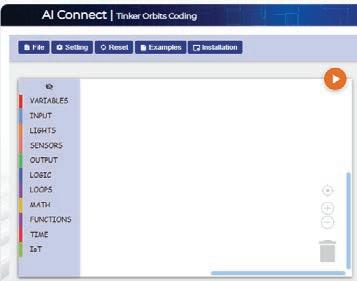
b. Locate and run the setup package (probably in your Downloads folder) and follow the instructions of the setup wizard. Do not change the default installation path.
c. Click Finish to complete the installation.
Note: Make sure to run the agent file every time before logging in to AI Connect. This file must always run in the background while using Tinker Orbits.
6. You can now start building your code.
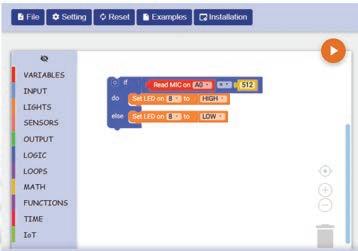
The coding interface serves as the central hub for your kit, acting as an Integrated Development Environment (IDE) that enables you to write code for all of your experiments. This code is then transferred to the hardware. The coding interface consists of the following components:
1. Workspace Area: This is the area where you drag blocks for the code you want to write.
2. Blocks Panel: The blocks from the Blocks Panel help make your code.
3. Upload Button: The Upload button uploads the code.
4. Menu Bar: In the menu bar on the top, you can see options like:
• File: Allows you to open, save, or download your coding projects. You can also export your blocks or code or describe activity (in the About option under this menu).
• Setting: Adjust configuration (ports, devices, etc.).
• Reset: Clears the workspace to start fresh.
• Examples: Opens ready-made sample Tinker Orbits coding activities.
• Installation: Helps install Tinker Orbits Agent.
Burning means loading your code into the hardware. Once you have arranged the blocks to create the code, follow the given steps to burn your code.
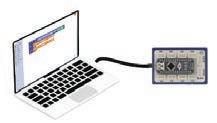
1. Connect the brain module to the computer/laptop through the USB cable.
2. Click on the Setting option from the menu bar, then select Refresh.
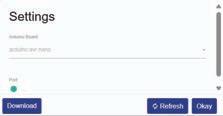
3. Choose the visible COM port from the list and click Okay.
4. Click on the Upload button on the top of the workspace.

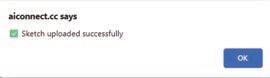
5. After a while, “Sketch uploaded successfully ” prompt will be displayed indicating that the code has been successfully uploaded to the microcontroller.
Objective
To understand how an LDR senses changes in light and how this information can be used by a brain module to control a buzzer, creating a simple light-activated alarm system.
Many devices around us, such as alarm clocks and automatic night lights, respond to changes in light. An LDR is a simple sensor that detects how bright or dark the surroundings are. In this experiment, you will see how an LDR sends this information to a brain module, which then controls a buzzer. This helps you understand how light-based systems work in real life.
Some of the real-life examples are:
Circuit
• Connect the LDR module to A0 pin on the brain module using a 3 pin wire.
• Connect the Buzzer module to D8 pin on the brain module using another 3 pin wire.
• Connect the Power bank to the brain module using a USB cable to supply power.

1. Drag the if block from the LOGIC blocks panel and drop it in the workspace.

2. Click the settings icon of the if block, then drag and drop the else block below the if block in the pop-up box.
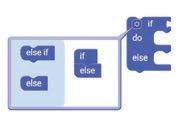
3. Click on the settings icon again to hide the pop-up box.
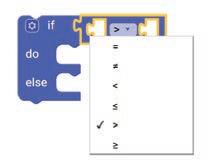
4. Drag the equal operator block from the LOGIC category and attach it to the if block.
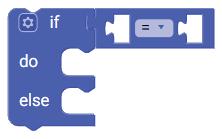
5. Select ‘>’ from the drop-down of the equal operator block.
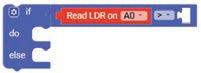
6. Drag the Read LDR on block from the SENSORS category and drop it in the left part of the greater than operator block. This block is set to pin ‘A0’ by default.
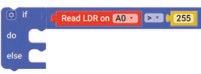
7. Drag the number block from the MATH category and drop it in the right part of the greater than operator block. Type ‘255’ in the text part of the block.
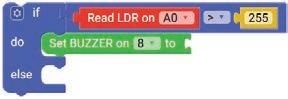
8. Drag the Set BUZZER on block from the OUTPUT category and drop it in the do part of the if block. Set its pin to ‘8’.
9. Drag the HIGH block from the OUTPUT category and attach it to the Set BUZZER on block.
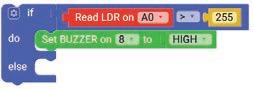
10. Similarly, drag another Set BUZZER on block with pin ‘8’ and drop it in the else part of the if block.
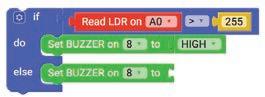
11. Drag the HIGH block from the OUTPUT category and attach it to the Set BUZZER on block. Select LOW from the drop-down of the block.
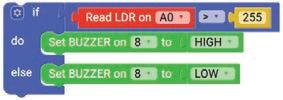
12. When the LDR detects light above a certain threshold, it sends a signal to the brain module. The buzzer produces a sound, indicating that light has been detected.
Note:
• Make sure to run the agent file every time before logging in to AI Connect. This file must always run in the background while using Tinker Orbits.
• After completing each experiment, remember to burn (upload) your code by connecting the brain module to your computer/laptop, selecting the correct COM port, and clicking the Upload button. Wait for the “Sketch uploaded successfully” message to confirm.
Scan QR code to view output
A. Tick () the Correct Option.
1 What component is used to detect light intensity in this experiment?
a LED b Resistor
c LDR sensor d Buzzer
2 What should you select in the Set BUZZER block to turn the buzzer off?
a HIGH b LOW
c 225 d A0
3 Which block is used to compare the LDR value with a number?
a Read LDR block
c If block
B. Answer the Following.
1 What role does the buzzer play in this experiment?
b Number block
d Greater than operator block
2 How does the if–else block help in controlling the alarm?
C. Apply Your Learning.
1 What real-life system works like this experiment?
2 Rohan’s buzzer is not turning on even in bright light. What could be the issue in the circuit?
To understand how an ultrasonic sensor measures distance and how the brain module uses this information to control an LED and a buzzer. The experiment also helps learners see how the brain module displays the detected distance on the OLED screen and activates outputs like the LED and buzzer when an object comes close.
1. Many modern cars use ultrasonic sensors and cameras to help drivers park safely by detecting objects nearby and giving warnings. In the same way, this experiment shows how an ultrasonic sensor measures distance and sends the information to a brain module, which then controls an LED, a buzzer, and an OLED display. By seeing how the system reacts when an object comes close, learners can understand how simple sensor-based alert systems work in real life.
2. In robotics and automation, distance measurement is important for detecting nearby objects and avoiding collisions. An ultrasonic sensor helps achieve this by sending sound waves and measuring how long they take to bounce back after hitting an object.
The ultrasonic sensor has two important parts called TRIG and ECHO pins.
• TRIG (Trigger Pin): This pin sends a sound wave that we cannot hear.
• ECHO (Echo Pin): This pin receives the sound wave after it bounces back from an object.
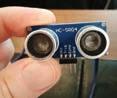
By checking how long the sound takes to go and come back, the sensor can find how far the object is.
Some things around us that relate to this experiment are:
1. Cars with Parking Sensors 2. Automatic doors

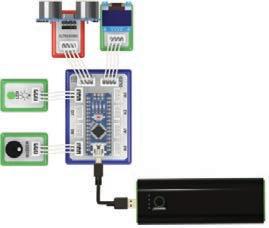
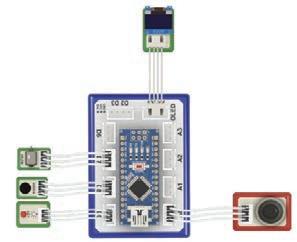
• Connect an ultrasonic sensor to D2 & D3 pin of the brain module using a 4 pin wire.
• Connect an OLED Display module to A4 & A5 pin of the brain module using another 4 pin wire.
• Connect an LED module to D6 pin of the brain module using a 3 pin wire.
• Connect a buzzer module to D9 pin of the brain module using a 3 pin wire.
• Connect the power bank to the brain module using a USB cable to supply power.
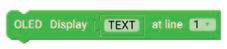
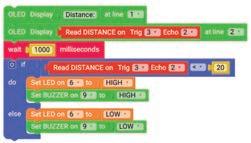
1. Drag the OLED Display block from the OUTPUT category and drop it to the workspace.
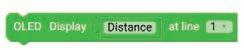
2. Type “Distance” in the TEXT part of the block.
3. Drag another OLED Display block and drop it below the previous OLED Display block. Select the line ‘2’ from the drop-down of the block.
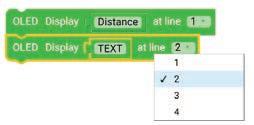
4. Select the TEXT block within the second OLED Display block and press the Delete button from the keyboard to remove the TEXT block.
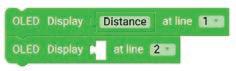
5. Drag the Read DISTANCE on block from the SENSORS category and drop it in place of the deleted TEXT block. Select the pin number ‘3’ for Trig and ‘2’ for Echo

6. Drag the wait milliseconds block from the TIME category and drop it below the OLED Display block. This block is set to ‘1000’ milliseconds by default.
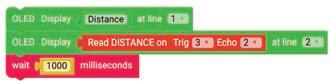
7. Drag the if block from the LOGIC category and drop it below the wait milliseconds block.
8. Click on the settings icon of the if block. Drag the else block and drop it below the if block in the pop-up box.
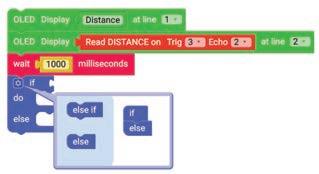
9. Click on the settings icon again to close the pop-up box.
10. Drag the equal operator block from the LOGIC category and attach it to the if block. Select ‘<’ option from the drop-down of the equal operator block.
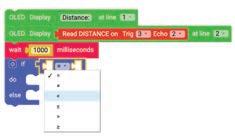
11. Drag the Read DISTANCE on block from the SENSORS category and drop it in the left part of the less than comparison block. Select the pin number ‘3’ for Trig and ‘2’ for Echo from the drop-down.
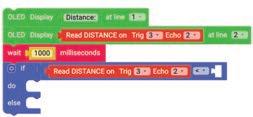
12. Drag the number block from the MATH category and drop it in the right part of the less than operator block. Type ‘20’ in the text part of the number block.
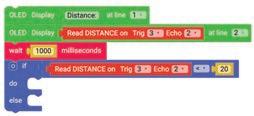
13. Drag the Set LED on block from the LIGHTS category and drop it in the do part of the if block. Select ‘6’ for pin from the drop-down of the block.
14. Drag the HIGH block from the LIGHTS category and attach it to the Set LED on block.
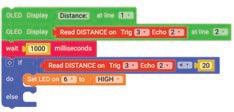
15. Drag the Set BUZZER on block from the OUTPUT category and drop it below the Set LED on block. Select ‘9’ for pin from the drop-down of the block.
16. Drag the HIGH block from the OUTPUT category and attach it to the Set BUZZER on block.
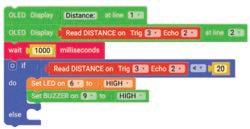
17. Similarly, set conditions in the else part of the if block using blocks as shown.
18. In this circuit, the ultrasonic sensor, OLED display, LED, and buzzer are all connected to a small controller called the brain module. The brain module reads the distance measured by the ultrasonic sensor and then decides how the other components should respond. When an object comes close, it displays the distance on the OLED screen, turns the LED on or makes it blink, and makes the buzzer beep to alert the user.
Note:
• Make sure to run the agent file every time before logging in to AI Connect. This file must always run in the background while using Tinker Orbits.
• After completing each experiment, remember to burn (upload) your code by connecting the brain module to your computer/laptop, selecting the correct COM port, and clicking the Upload button. Wait for the “Sketch uploaded successfully” message to confirm.
Scan QR code to view output
A. Tick () the Correct Option.
1 The ultrasonic sensor measures distance using:
a Light waves
c Heat waves
b Sound waves
d Water waves
2 Which component alerts the user with light when an object comes close?
a OLED Display
c Buzzer
b LED
d Brain module
3 Which component produces a beeping sound when an object is nearby?
a LED
c Brain module
B. Fill in the Blanks.
b Buzzer
d Charger
1 he ultrasonic sensor sends and receives signals through the TRIG and pins.
2 When something comes close to the sensor, the turns on or blinks.
3 The measured distance is shown on the display.
4 The module reads the distance and controls the outputs.
C. Apply Your Learning.
1 Why is distance measurement important in systems like parking sensors or automatic doors?
2 Name one situation in daily life where distance sensing can prevent accidents.
To understand how a gas sensor detects gas leaks and how the brain module controls components like the buzzer, LED, and motor to give real-time alerts. The experiment also helps learners see how different components work together to create a simple safety-based detection system.
Gas leaks can be dangerous and cause serious accidents if not detected early. To ensure safety in places like kitchens, factories, and vehicles, smart gas leakage detectors are used. These devices use gas sensors to detect the presence of harmful gases in the air. When a leak is detected, the sensor sends a signal to alert systems such as buzzers or LEDs, which warn people immediately. By integrating sensors with control modules and motors, these detectors can respond in real-time to hazardous situations, helping prevent accidents and protect lives.
Some real-life examples of things around us related to this experiment are:
1. Fire alarms and safety sensors
2. Smoke Detectors
• Connect the LED module to D9 of the brain module using a 3 pin wire.
• Connect the buzzer module to D8 of the brain module using another 3 pin wire.
• Connect the motor module to D7 of the brain module using 3 pin wire.
• Connect the OLED module to A4 & A5 of the brain module using a 4 pin wire.
• Connect the MQ6 module to A0 of the brain module using 3 pin wire.
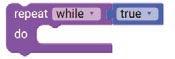
1. Drag the repeat while block from the LOOPS category and drop it to the workspace.
2. Drag the true block from the LOGIC category and attach it to the repeat while block.
3. Drag the if block from the LOGIC category and drop it inside the repeat while block.
4. Click on the settings icon of the if block. Drag and drop the else block below the if block in the pop-up box.
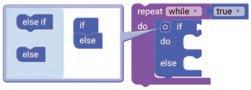
5. Click on the settings icon again to close the pop-up box.
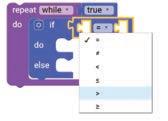
6. Drag the equal operator block from the LOGIC category and attach it to the if block.
7. Select ‘>’ option from the drop-down of the equal operator block.
8.
9.
10.
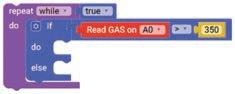
Drag the Read GAS on block from the SENSORS category and drop it in the left part of the greater than block. This block is set to ‘A0’ by default.
Drag the number block from the MATH category and drop it in the right part of the greater than block. Type ‘350’ in the text part of the block.
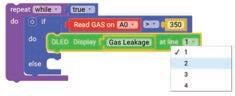
Drag the OLED Display block from the OUTPUT category and drop it in the do part of the if block. Select ‘2’ for line from the drop-down of the block.
11. Type ‘Gas Leakage’ in the TEXT part of the block.
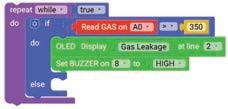
12. Drag the Set BUZZER on block from the OUTPUT category and drop it below the OLED Display block. Select ‘8’ for pin from the drop-down of the block.
13. Drag the HIGH block from the OUTPUT category and attach it to the Set BUZZER on block.
14. Drag the Set MOTOR on block from the OUTPUT category and drop it below the Set BUZZER on block. Select ‘7’ for pin from the drop-down of the block.
15. Drag the HIGH block from the OUTPUT category and attach it to the Set MOTOR on block.
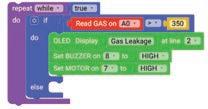
16. Drag the Set LED on block from the LIGHTS category and drop it below the Set MOTOR on block. Select ‘9’ for pin from the drop-down of the block.
17. Drag the HIGH block from the LIGHTS category and attach it to the Set LED on block.
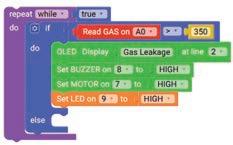
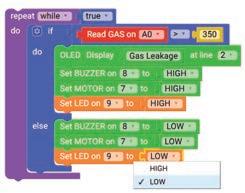
18. Similarly, set the blocks Set BUZZER on, Set MOTOR on, and Set LED on blocks to LOW by selecting the ‘LOW’ option from the drop-down of the HIGH block.
19. Drag the OLED clear block from the OUTPUT category and drop it below the Set LED on block.
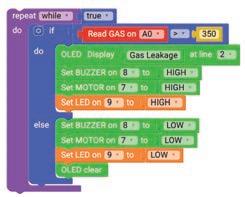
20. When the gas sensor detects a leak, it quickly sends a signal to the brain module. The brain module then activates the buzzer, LED, and motor to give an immediate warning.
Note:
• Make sure to run the agent file every time before logging in to AI Connect. This file must always run in the background while using Tinker Orbits.
• After completing each experiment, remember to burn (upload) your code by connecting the brain module to your computer/laptop, selecting the correct COM port, and clicking the Upload button. Wait for the “Sketch uploaded successfully” message to confirm.
Scan QR code to view output
A. Tick () the Correct Option.
1 Riya notices that the buzzer turns on in the experiment. What does this usually mean?
a The motor is not working
c The LED is broken
b The gas sensor has detected a leak
d The wire is loose
2 According to the experiment, which component reads the gas level?
a LED
c MQ6 sensor
3 What does the brain module do in this experiment?
a Stores water
b Sends gas into the air
c Reads the sensor ’s signal and controls other parts
d Works as a battery
B. Fill in the Blanks.
1 The MQ6 sensor detects the presence of .
b Buzzer
d Motor
2 The and LED turn on to give an immediate warning.
3 The OLED display shows the message “ ” when gas is detected.
4 The brain module receives a signal from the sensor.
C. Apply Your Learning.
1 Why is it important to detect gas leaks quickly in places like homes or factories?
2 If the LED does not turn on during the experiment, what is one thing you can check to find the problem?
Objective
Let’s learn how to create a rainbow light system using a touch sensor and LEDs. You will see how a touch sensor is used to turn on colourful lights. This helps you understand how sensors can control lights in smart systems.
Smart lighting systems often use touch sensors to make lights respond instantly with just a single tap. This type of setup is commonly used in home decor, smart toys, and interactive displays where colourful lights switch on or change patterns through simple touch controls. In this experiment, you will explore how a touch sensor can activate LEDs to create a rainbow lighting effect, similar to how modern smart devices use touch-based interactions.
Real-life application of the touch-controlled rainbow light system is: Home Decors

Circuit
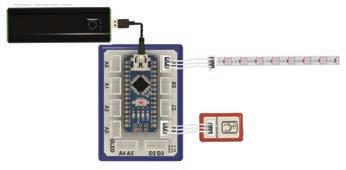
• Connect the touch sensor module to D6 pin of the brain module using a 3 pin wire.
• Connect a RGB strip module to D9 pin of the brain module using another 3 pin wire.
• Connect the power bank to the brain module using a USB cable to supply power.
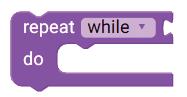
1. Drag the repeat while block from the LOOPS category and drop it to the workspace.
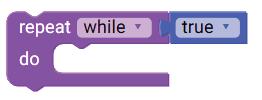
2. Drag the true block from the LOGIC category and attach it to the repeat while block.
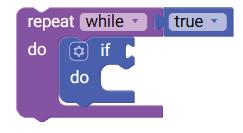
3. Drag the if block from the LOGIC blocks panel and drop it in the do part of the repeat while block.
4. Click the settings icon of the if block, then drag and drop the else block below the if block in the pop-up box.
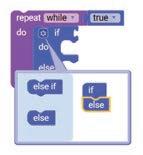
5. Click on the settings icon again to hide the pop-up box.
6. Drag the equal operator block from the LOGIC category and attach it to the if block.
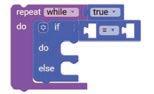
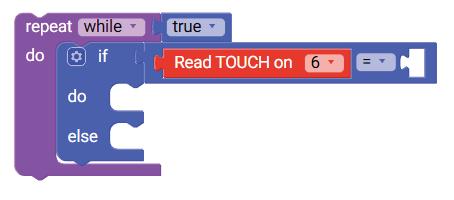
7. Drag the Read TOUCH on block from the SENSORS category and drop it in the left part of the equal to operator block. Set the pin number to 6.
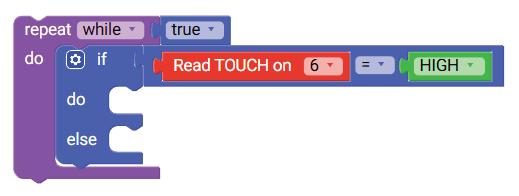
8. Drag the HIGH block from the OUTPUT category and drop it in the right part of the equal to operator block.
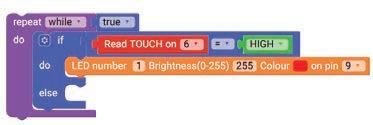
9. Drag the LED number block from the LIGHTS category and drop it in the do part of the if block. Select the LED number as 1, brightness as 255, and pin number as 9. You can choose any rainbow colours and arrange them in a sequence to create a proper rainbow effect. Here, we are starting with the red colour.
10. Drag and drop the same block seven times. Change the LED numbers and select different colours.
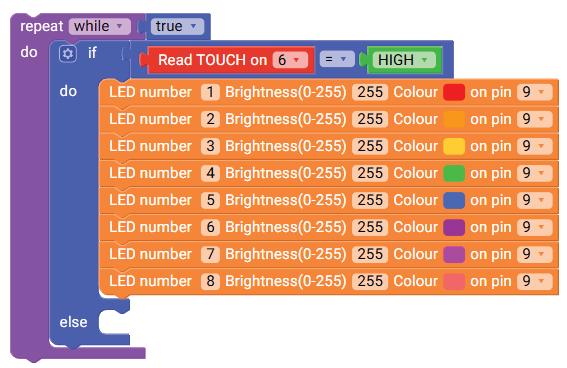
11. Similarly, drag another LED number block and drop it in the else part of the if block. Select the LED number as 1, brightness as 255, colour as black and pin number as 9.
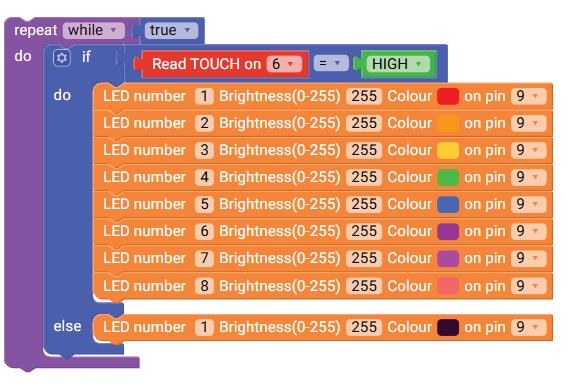
12. Drag and drop the same block seven times, change the LED numbers, and select the colour ‘black’.
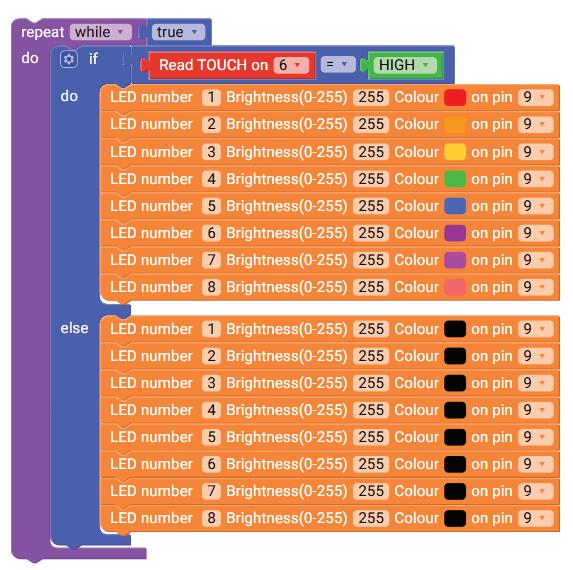
13. When the touch sensor is pressed, the RGB strip glows in different colours. When the sensor is released, all LEDs turn off.
Note:
• Make sure to run the agent file every time before logging in to AI Connect. This file must always run in the background while using Tinker Orbits.
• After completing each experiment, remember to burn (upload) your code by connecting the brain module to your computer/laptop, selecting the correct COM port, and clicking the Upload button. Wait for the “Sketch uploaded successfully” message to confirm.
Scan QR code to view output
A. Tick () the Correct Option.
1 What sensor is used in this experiment?
a LDR sensor b IR sensor
c Ultrasonic sensor d Touch sensor
2 Which block helps you compare two values?
a read touch
c equal operator
3 Which block category contains the if block?
a OUTPUT
c SENSORS
B. Answer the Following.
1 What is the main goal of this experiment?
b repeat
d turn LED on
b LOGIC
d MATH
2 Why do we use a touch sensor in this experiment?
C. Apply Your Learning.
1 Give a real-life example of where you can use the rainbow light effect.
2 Pihu wants to design a night-lamp that turns on colourful lights when someone touches it. Based on the experiment, which sensor should she use and why?
Objective
Let us design a buzzer melody system using the IR sensor and buzzer module. Through this activity, you will learn how an IR sensor can detect motion and trigger a buzzer to play a melody.
Have you ever noticed how some devices play a sound when they detect your presence? This happens because of a buzzer system. Buzzers are used in alarms to alert users during emergencies, such as fires, intrusions, or system failures.
Some of the real-life applications of the Buzzer system are:
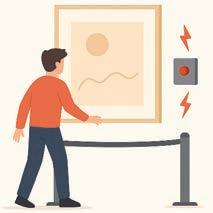
1. Art Gallery Displays
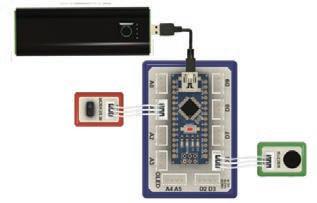
Circuit
2. Home Security Systems
• Connect an IR sensor module to pin A1 on the brain module using a 3 pin wire.
• Connect the Buzzer module to pin D6 on the brain module using another 3 pin wire.
• Connect the Power bank to the brain module using a USB cable to supply power.
1. Drag the repeat while block from the LOOPS category and drop it to the workspace.
2. Drag the true block from the LOGIC category and attach it to the repeat while block.
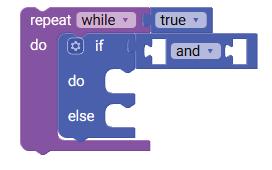
3. Drag the if block from the LOGIC blocks panel and drop it in the do part of the repeat while block.
4. Click the settings icon of the if block, then drag and drop the else block below the if block in the pop-up box.
5. Click on the settings icon again to hide the pop-up box.
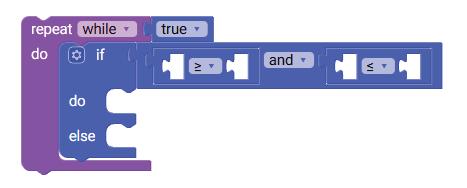
6. Drag the AND comparison block from the LOGIC blocks category and attach it to the if block.
7. Now, drag two equal operator blocks from the Logic category. Place one to the left of the AND comparison block and the other to the right of it.
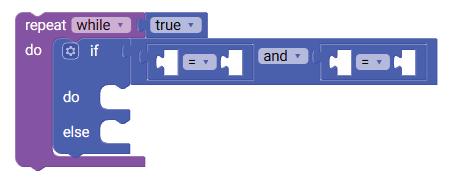
8. Select greater than or equal to (≥) option from the drop-down of the left side of the equal operator block and select less than or equal to (≤) option from the drop-down of the right side of the equal operator block.
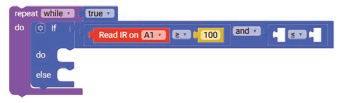
9. Drag the Read IR on block from the SENSORS category and drop it in the left part of the greater than or equal to operator block. Set the pin number to A1.
10 Drag the number block from the MATH category and drop it in the right part of the greater than or equal to operator block. Type ‘100’ in the text part of the number block.
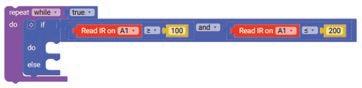
11. Again, drag the Read IR on block from the SENSORS category and drop it in the left part of the less than or equal to operator block. Set the pin number to A1
12. Drag the number block from the MATH category and drop it in the right part of the less than or equal to operator block. Type ‘200’ in the text part of the number block.
13. Drag the Set BUZZER on block from the OUTPUT category and drop it in the do part of the if block. Set its pin to ‘6’.
14. Drag the HIGH block from the OUTPUT category and attach it to the Set BUZZER on block.
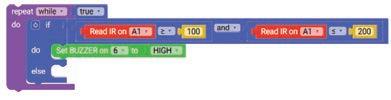
15. Drag the wait milliseconds block from the TIME category and drop it below the Set BUZZER on block. Set the wait time as 100.
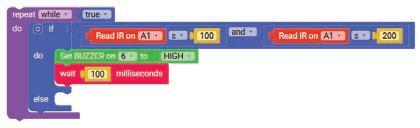
16. Repeat steps 13 to 15 four times and change the buzzer sound and wait time as shown below.
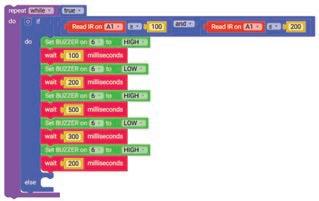
17. In the else part of the if block, set the buzzer to low.
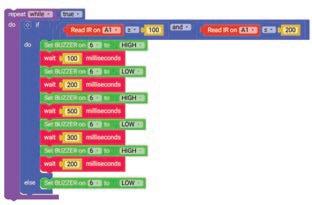
18. In this circuit, an IR sensor and a buzzer are connected to the brain module. When the IR sensor detects motion or an object, it sends a signal to the brain module, which then turns the buzzer on and off in a specific pattern to create a melody-like sound.
Note:
• Make sure to run the agent file every time before logging in to AI Connect. This file must always run in the background while using Tinker Orbits.
• After completing each experiment, remember to burn (upload) your code by connecting the brain module to your computer/laptop, selecting the correct COM port, and clicking the Upload button. Wait for the “Sketch uploaded successfully” message to confirm.
Scan QR code to view output
A. Tick () the Correct Option.
1 Which sensor is used to detect motion in this activity?
a LDR b IR Sensor
c Temperature Sensor d Ultrasonic Sensor
2 Which block is used to check two conditions at the same time?
a OR block b NOT block
c AND block d LOOP block
3 Which block is used to turn the buzzer ON?
a Set LED on b Set MOTOR on
c Set BUZZER on d Start Timer
B. Answer the Following.
1 Why do we use an IR sensor in this activity?
2 Why is the else block needed in the if-else structure?
C. Apply Your Learning.
1 Give one real-life application of this experiment.
2 What will happen if the buzzer pin is not correctly connected to D6?
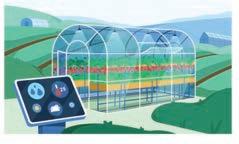
Let us learn how a soil moisture sensor works. When the soil is dry, the motor turns on to water the plant, and the buzzer and OLED display give alerts. This activity will help you understand how technology supports water conservation and smart agriculture.
In many modern farms, automatic watering systems help plants get the right amount of water at the right time. These systems use sensors to check how dry the soil is and then turn on devices like motors to provide water. Such smart technologies help reduce water wastage and ensure healthy plant growth. They show how sensors and simple machines can work together to support smart farming and make plant care more efficient.
Here are a few applications of smart farming systems:

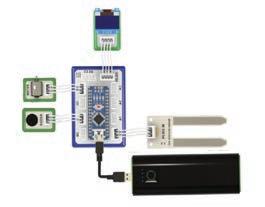
Circuit
• Connect the OLED display to A4&A5 pin of the brain module using a 4 pin wire.
• Connect the Buzzer module to D8 pin of the brain module using a 3 pin wire.
• Connect the Motor module to D6 pin of the brain module using a 3 pin wire.
• Connect the soil moisture sensor module to A0 pin of the brain module using a 3 pin wire.
• Connect the power bank to the brain module using a USB cable to supply power.
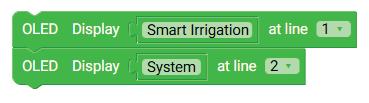
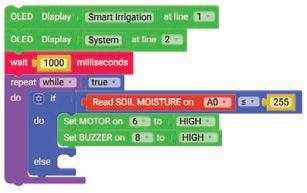
1. Drag two OLED Display blocks from the OUTPUT category and drop them to the workspace. The blocks are set to line ‘1’ by default.
2 Type ‘Smart Irrigation’ in the TEXT part of the first block, and ‘System’ in the second block. Set the line value for the second block to ‘2’ from the drop-down.
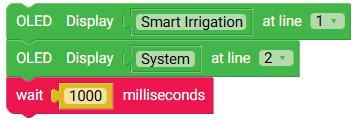
3. Drag the wait milliseconds block from the TIME category and drop it below the second OLED Display block. This block is set to ‘1000’ milliseconds (ms) by default.
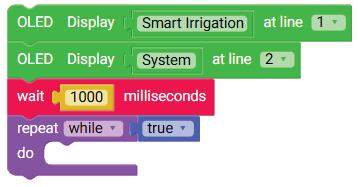
4. Drag the repeat while block from the LOOPS category and drop it below the wait milliseconds block.
5. Drag the true block from the LOGIC category and attach it to the repeat while block.
6. Drag the if block from the LOGIC category and drop it inside the repeat while block.
7. Click on the settings icon of the if block. Drag the else block and drop it below the if block in the pop-up box.
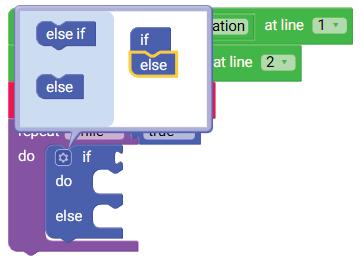
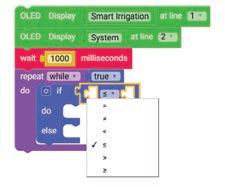
8. Click on the settings icon again to close the pop-up box. 9. Drag the equal operator block from the LOGIC category and attach it to the if block. 10. Select less than or equal to (≤) block from the drop-down of the if block.
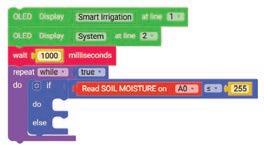
11. Drag the Read SOIL MOISTURE on block from the SENSORS category and drop it to the left of the less than or equal to (≤) block.
12. Drag the number block from the MATH category and drop it to the right of the less than or equal to (≤) block. Type ‘255’ in the text part of the number block.
13. Drag the Set MOTOR on block from the OUTPUT category and drop it in the do part of the if block. Select ‘6’ from the drop-down of the block.
14. Drag the HIGH block from the OUTPUT category and attach it to the Set BUZZER on block.
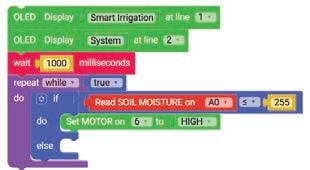
15. Drag the Set BUZZER on block from the OUTPUT category and drop it below the Set MOTOR on block. Select ‘8’ from the drop-down of the block.
16. Drag the HIGH block from the OUTPUT category and attach it to the Set BUZZER on block.
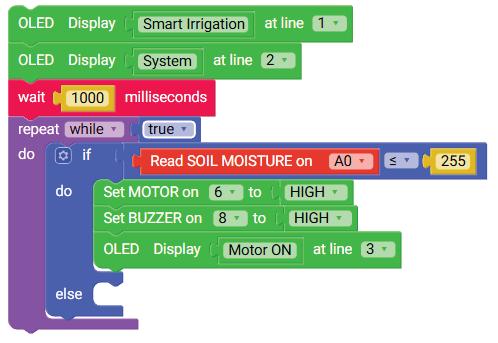
17. Drag the OLED Display block from the OUTPUT category and drop it below the Set BUZZER on block. Select ‘3’ for line from the drop-down of the block. Type ‘Motor ON’ in the TEXT part of the block.
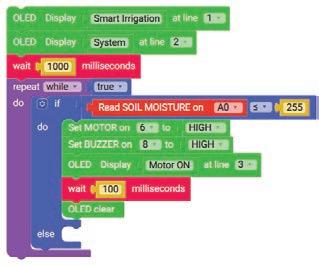
18. Drag the wait milliseconds block from the TIME category and drop it below the OLED Display block. Set the time to ‘100’ milliseconds (ms).
19. Drag the OLED clear block from the OUTPUT category and drop it below the wait milliseconds block.
20. Similarly, drag the Set MOTOR on block from the OUTPUT category and drop it in the else part of the if block. Select ‘6’ from the drop-down of the block.
21. Drag the HIGH block from the OUTPUT category and attach it to the Set BUZZER on block. Select ‘LOW’ from the drop-down of the HIGH block.
22. Drag the Set BUZZER on block from the OUTPUT category and drop it below the Set MOTOR on block. Select ‘8’ from the drop-down of the block.
23. Drag the HIGH block from the OUTPUT category and attach it to the Set BUZZER on block. Select ‘LOW’ from the drop-down of the HIGH block
24. Drag the OLED Display block from the OUTPUT category and drop it below the Set BUZZER on block. Select ‘3’ for line from the drop-down of the block. Type ‘Motor OFF’ in the TEXT part of the block.
25. Drag the wait milliseconds block from the TIME category and drop it below the OLED Display block. Set the time to ‘100’ milliseconds (ms).
26. Drag the OLED clear block from the OUTPUT category and drop it below the wait milliseconds block.
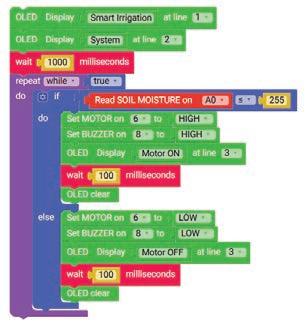
27. When the soil is dry, the sensor sends a signal to the brain module, which turns on the motor, buzzer, and displays 'Motor On' on the OLED screen.
Note:
• Make sure to run the agent file every time before logging in to AI Connect. This file must always run in the background while using Tinker Orbits.
• Afte completing each experiment, remember to burn (upload) your code by connecting the brain module to your computer/laptop, selecting the correct COM port, and clicking the Upload button. Wait for the “Sketch uploaded successfully” message to confirm.
Scan QR code to view output
A. Tick () the Correct Option.
1 What does the soil moisture sensor measure?
a Temperature of the soil b If the soil is wet or dry
c Colour of the soil d Weight of the soil
2 When the soil is dry, what turns on automatically?
a Fan
c Bulb
3 Which component gives a sound alert?
a OLED display
c Buzzer
B. Answer the Following.
1 How does the smart irrigation system help farmers?
b Motor
d Switch
b Motor
d Sensor pin
2 Why do we use an OLED display in this experiment?
C. Apply Your Learning.
1 Give one real-life application of this experiment.
2 Why is it better to use a sensor-based irrigation system instead of watering plants manually?
Let us learn how a smart parking gate operates by using an IR sensor to detect vehicles and a servo motor to open or close the gate automatically. This experiment will help us understand how sensors and motors work together to create an automated system.
As more people use vehicles, it is important to manage parking areas better. Manual gates can cause delays and need someone to watch them all the time. Smart parking systems use sensors and automatic gates to make it easier and faster for vehicles to enter and leave. This experiment helps us understand how these systems work.
Smart parking systems are commonly found at shopping malls, office buildings, residential complexes, public parking lots, etc.
1. Smart Parking Area with Automated Gate 2. Automatic Multi-Level Parking System
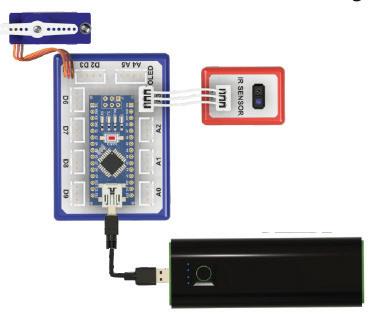
• Connect Servo motor to servo pin (D10) of the brain module using a connecting wire.
• Connect an IR sensor module to A3 pin of the brain module using a 3 pin wire.
• Connect the power bank to the brain module using a USB cable to supply power.
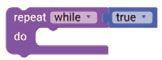
1. Drag the repeat while block from the LOOPS category and drop it to the workspace.
2. Drag the true block from the LOGIC category and attach it to the repeat while block.
3. Drag the if block from the LOGIC category and drop it inside the repeat while block.
4. Click on the settings icon of the if block. A pop-up box appears. Select the else block and drop it below the if block in the pop-up box.
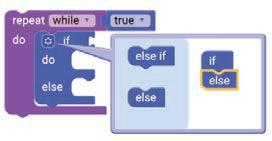
5. Click on the settings icon again to hide the pop-up box.
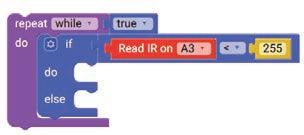
6. Drag the equal operator block from the LOGIC category and attach it to the if block.
7. Select ‘<’ (less than) operator from the drop-down of the if block.
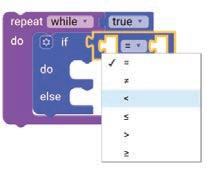
8. Drag the Read IR on block from the SENSORS category and drop it in the left part of the '<' (less than) operator block. Select A3 from the drop-down of the block.
9. Drag the number block from the MATH category and drop it in the right part of the '<' (less than) operator block. Type ‘255’ in the text part of the block.
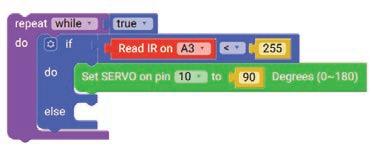
10. Drag the Set SERVO on pin block from the OUTPUT category and drop it in the do part of the if block. Select ‘10’ for the pin from the drop-down and type ‘90’ in the text part of the block for degrees.
11. Similarly, drag another Set SERVO on pin block and drop it in the else part of the if block. Select ‘10’ for the pin from the drop-down and type ‘0’ in the text part of the block for degrees.
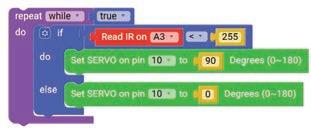
12. When the IR sensor detects an object (or a vehicle), it sends a signal to the brain module, which then instructs the servo motor to move and open or close the gate accordingly.
Note:
• Make sure to run the agent file every time before logging in to AI Connect. This file must always run in the background while using Tinker Orbits.
• After completing each experiment, remember to burn (upload) your code by connecting the brain module to your computer/laptop, selecting the correct COM port, and clicking the Upload button. Wait for the “Sketch uploaded successfully” message to confirm.
Scan QR code to view output
A. Tick () the Correct Option.
1 What does the IR sensor do in the Smart Parking System?
a Controls the brightness of lights b Detects vehicles near the gate
c Measures temperature d Displays messages
2 Which component is used to open or close the parking gate?
a Buzzer b LED
c Servo motor d Switch
3 What happens when the IR sensor detects a vehicle?
a The LED turns on
b The brain module stops working
c The servo motor moves to open the gate
d The display shows a message
B. Fill in the Blanks.
1 The IR sensor is connected to the pin of the brain module.
2 The servo motor is connected to the pin of the brain module.
3 The servo motor moves the parking open or closed.
4 An IR sensor helps the system detect a near the gate.
Apply Your Learning.
1 Riya notices long lines at her school’s parking gate because guards open the gate manually. How can a smart parking system help in this situation?
2 A man wants to automate the parking gate at his apartment building. Which components from this experiment will he need?
This book introduces learners to the captivating realm of robotics, with a learner-friendly, motivating, and hands-on approach. It combines theoretical understanding with practice, through insightful examples of real-world applications, while promoting creativity and coding skills. Emphasising a project-based learning methodology, the book provides a series of projects, each with detailed instructions. These instructions can be effortlessly executed using the accompanying robotics hardware kit. The assembly and programming of the robotics systems are done through block-based coding, and simulation environments; accelerating the experiential learning journey of the learners.
• Hands-on Experiments: Engaging experiments that allow students to build and test-run robots themselves.
• Detailed Coding Practice: Step-by-step coding instructions to program robots, making it easy for beginners to learn.
• Things Around Us: Each experiment connects robotics to real-world scenarios, showing how technology solves everyday problems.
• Comprehensive Background: Clear explanations of the concepts and the technology behind each experiment, helping students understand the "why" and the "how."
• Interactive Exercises: Exercises at the end of each experiment to reinforce learning and to challenge students to think critically.
Uolo partners with K-12 schools to provide technology-enabled learning programs. We believe that pedagogy and technology must come together to deliver scalable learning experiences that generate measurable outcomes. Uolo is trusted by over 15,000+ schools across India, Southeast Asia and the Middle East.