WORDPRESS ELEMENTOR
How to use and install “WordPress Elementor” in 2024?

Delve further here!


How to use and install “WordPress Elementor” in 2024?
Delve further here!
WordPress Elementor is a great website builder. It powers more than 10% of all known website CMS.
WordPress Elementor relieves the burden of the previously intricate site-building procedure.

Discover how to build a powerful website.
Elementor is a WordPress page builder that uses a drag-and-drop interface. A visual editor lets you make beautiful pages with this plugin. The goal is to help you quickly create interactive websites.
1. The first step is to Login to your WordPress dashboard
Access your WordPress Elementor dashboard with ease. Enter your username and password, then click 'Login' to unlock a world of intuitive design and content creation tools.


2. In the WordPress site, go to the Plugins Page
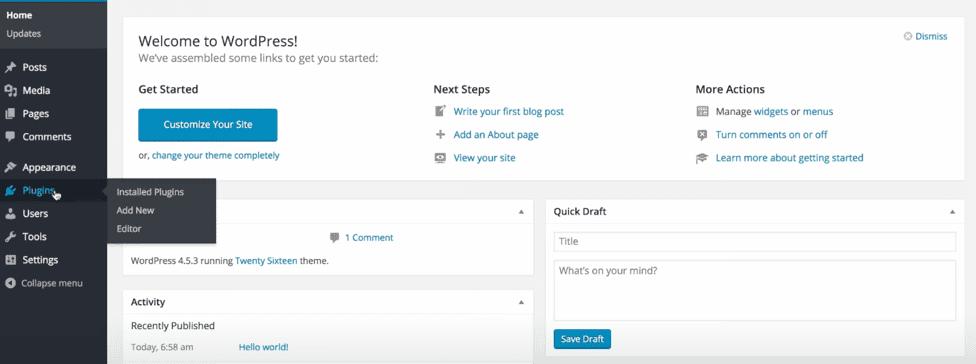
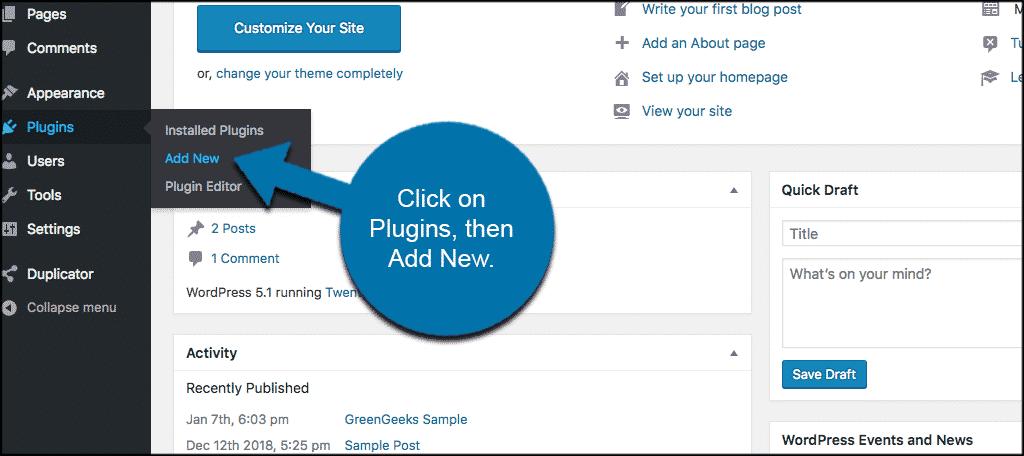

3. Click the “Add New” Plugin Button
The third step is to click on the “Add New” button that helps to add a new plugin.
4. Navigate to the “Search Plugins”
Bar
Now, you have to select the “Search Plugins” in the search bar.
5. In the Search bar, type “Elementor” and hit “Enter”
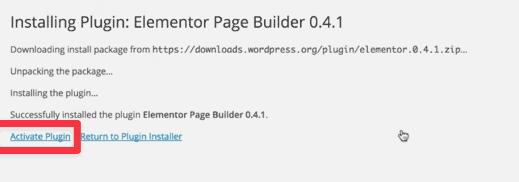
The fifth step is to simply type the name “Elementor” in the search box and type “Elementor”.

6. Find the WordPress Elementor Plugin and Click “Install Now” button
From the search, there would be plugins listed. Select the Elementor website builder plugin and click the “Install Now” button.
7. Wait for the plugin to download and Install
After clicking the install now button, it will download and install the plugin quickly on WordPress.
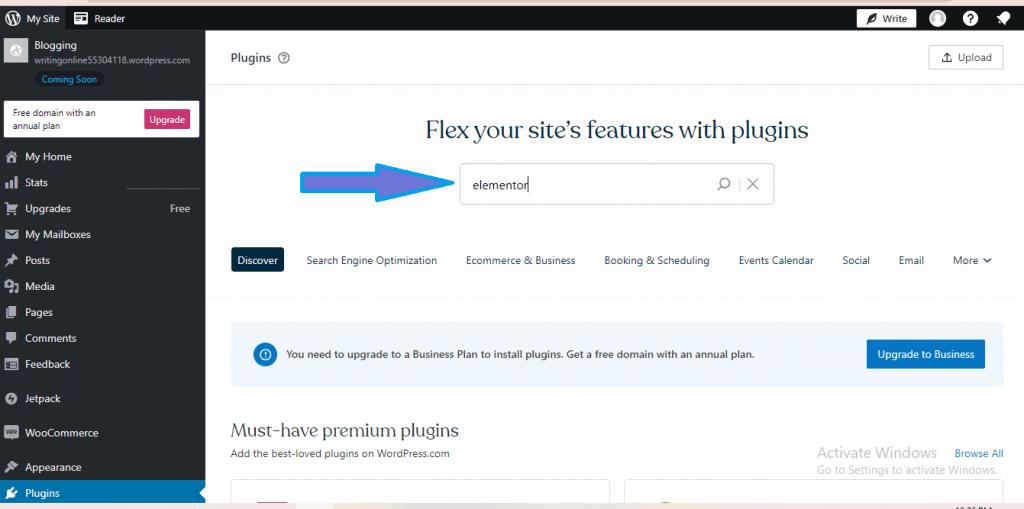
After installing the plugin, it is vital to activate it. Click on the Activate Plugin and click next.
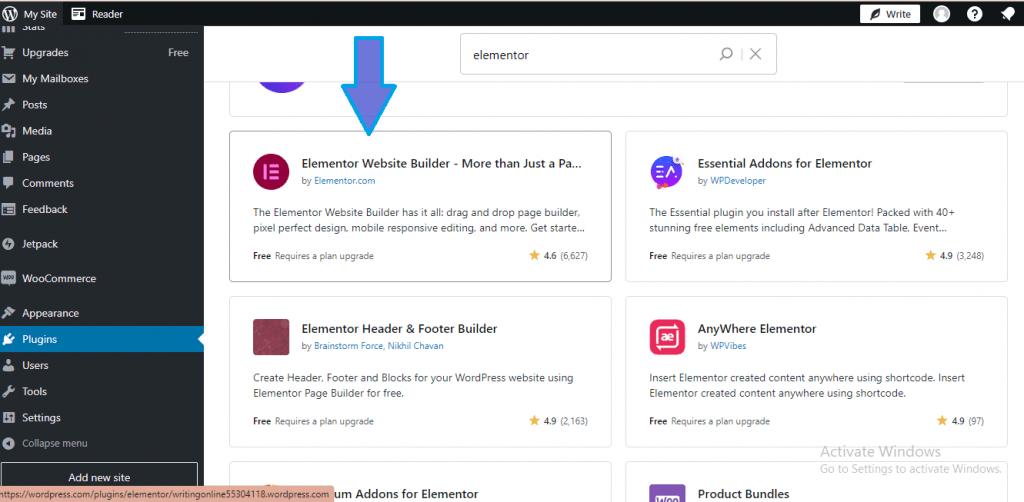
The WordPress Elementor is successfully installed in your WordPress website.




We have now installed the WordPress Elementor in our site. Let us analyse in how to use the WordPress Elementor site.


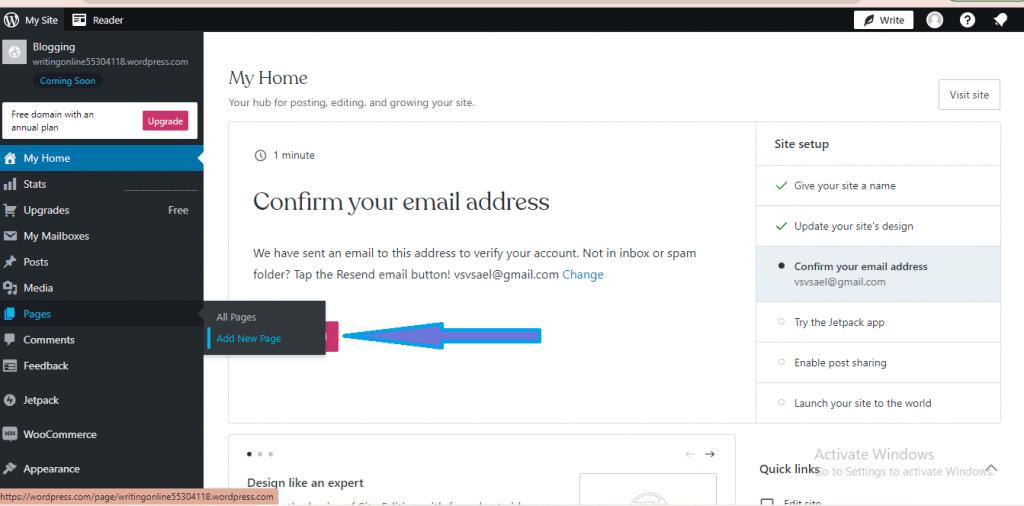
In your WordPress dashboard, go to “Add New” under posts.
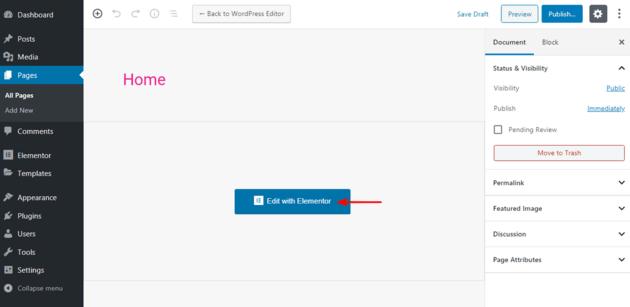
You can edit the page with default WordPress editor. If you want to edit with Elementor, click “Edit with Elementor”
The main page will be initially empty. You can pick and drag the elements that you need from the Elementor sidebar. If you want to create a heading for the page, Click on the “Heading” and hold down the mouse button and place it on the widget area.
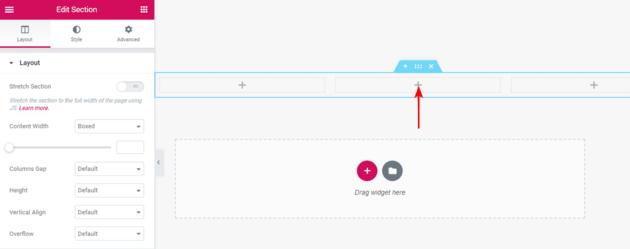
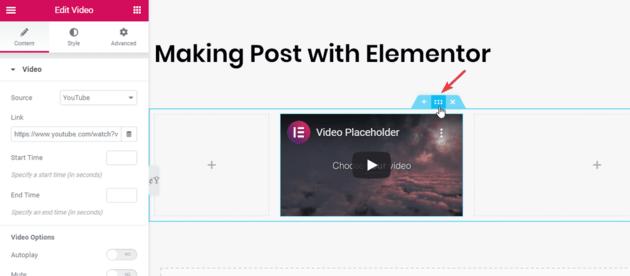
It's possible to make changes to every part or area of the page you add. Simply find the six dots.
After you're happy with the choices, you can see how the project turned out.
Even though we've seen this page in the editor, it looks the same when we look at the sample of the real page!
Easy to Use
Drop-and-Drop Editor
Pre-Made themes
Responsive Design
Compatible with Third-Party Plugins
Design Control
Global Widgets and Styles
Performance Optimised
Even though Elementor is easy to use, it can take some time to get good at it, especially if you want to use all of its features and design choices.
Being able to change every part of your website could lead to overdesigning, which is bad for the user experience.
To sum up, Elementor is a strong and easy-to-use page builder that can be a great choice for many WordPress website projects. However, it's important to think about the pros and cons in terms of your own needs and wants.
Go beyond!