

Here they are:
Press B to blur the current slide
Press C for confetti rain
Press D for a drumroll animation
Press M for a mic drop animation
Press O for floating bubbles
Press Q for quiet
Press U for a curtain call animation
Press any number (0-9) for a timer (1 for one minute, 2 for two minutes, etc.)
You can also press Shift + / or ? on your keyboard to open the Magic Shortcuts™ menu. Enjoy your presentation!

Spend less time planning & more time teaching.
Savetimewith ready-to-use classroom materials. Createand deliverlessons. Makelessons popwithAI.
Empoweryour learnerswith futureskills.
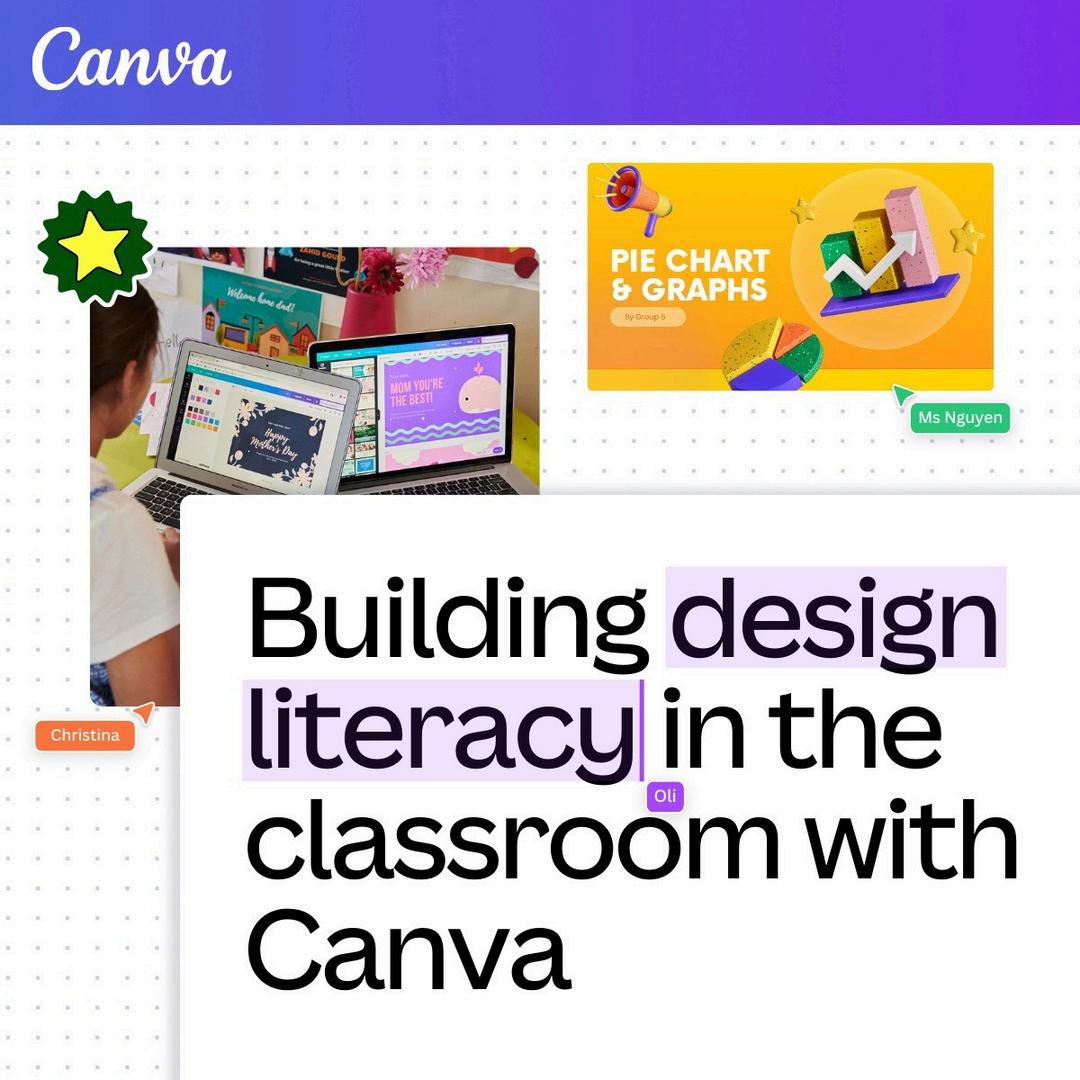
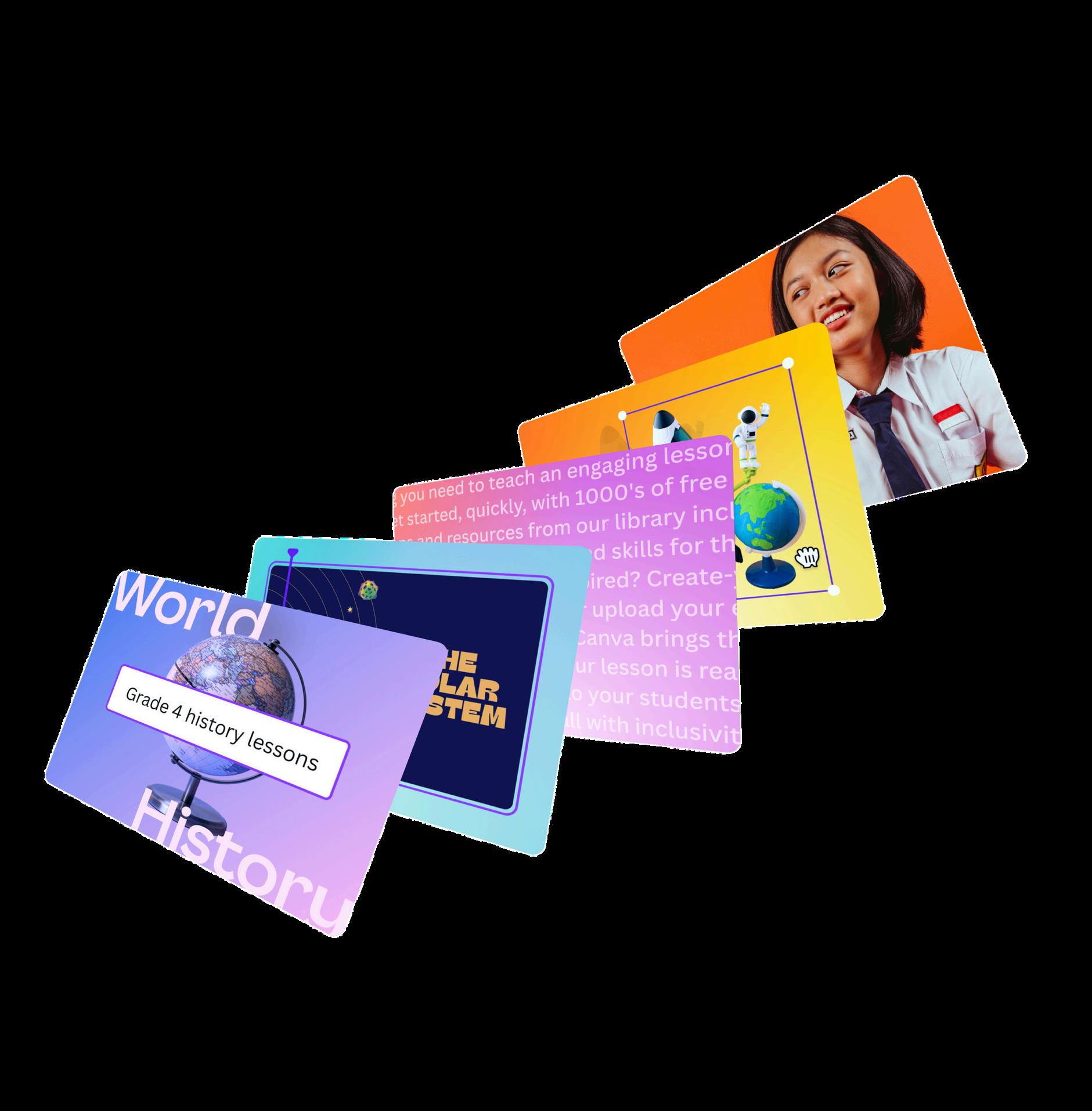
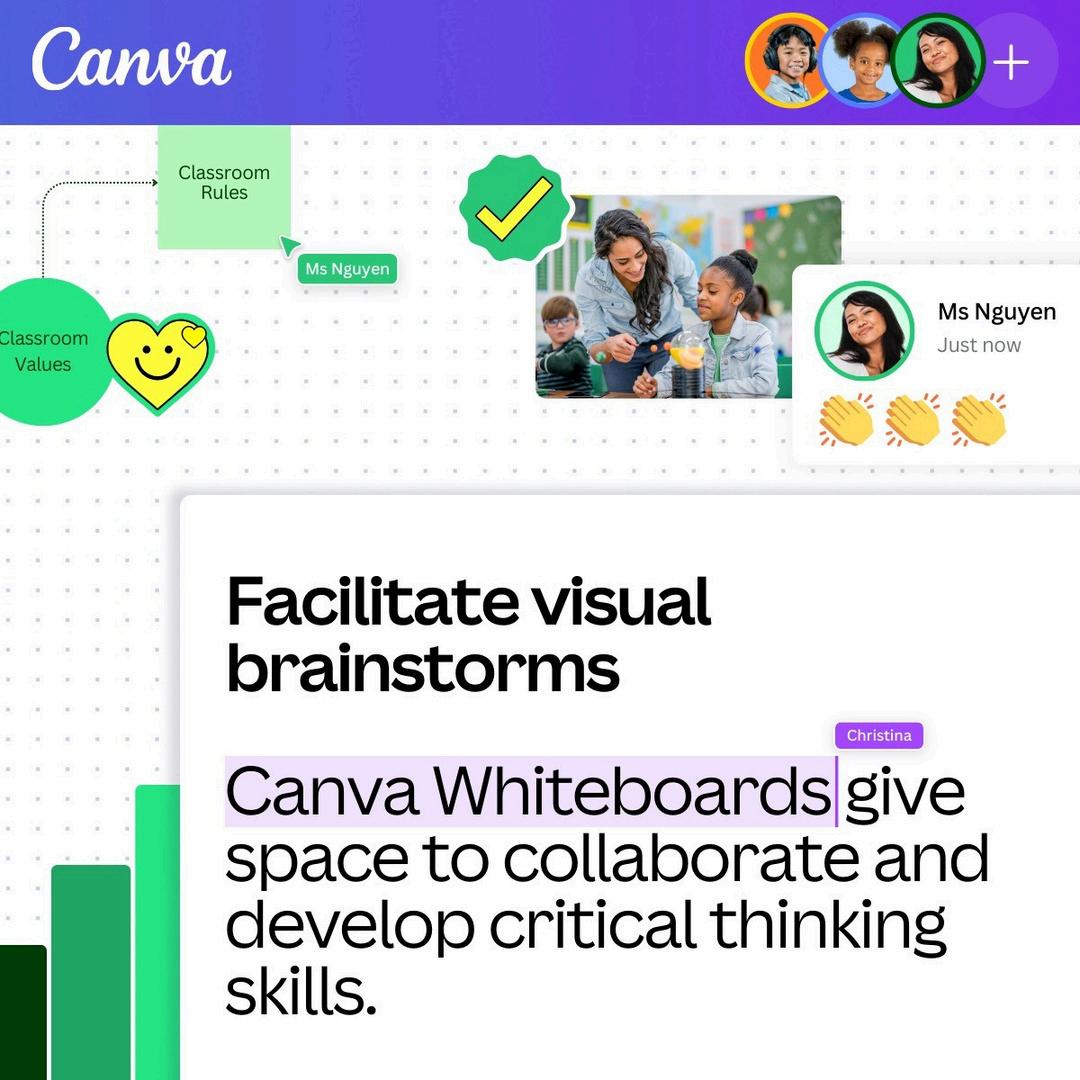
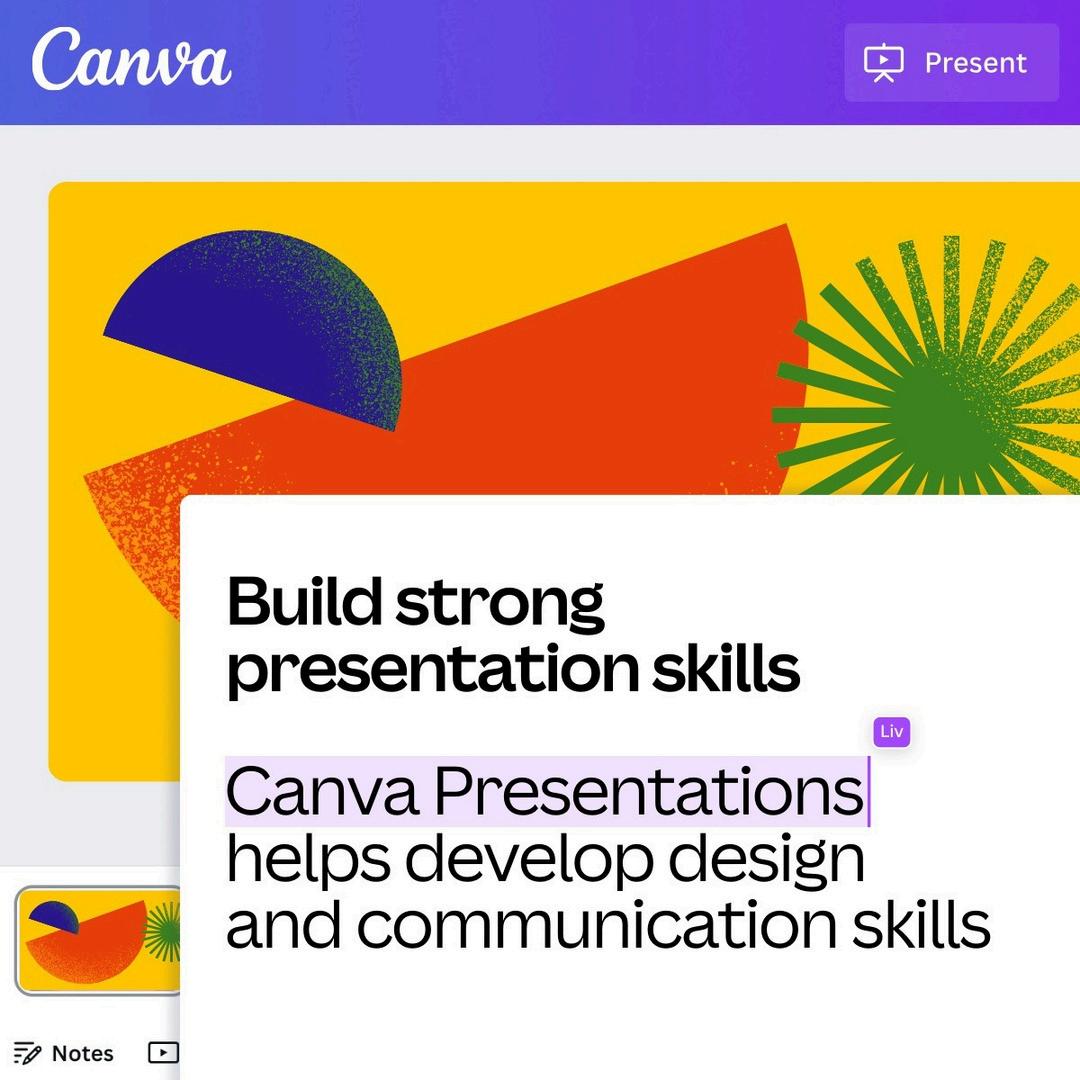
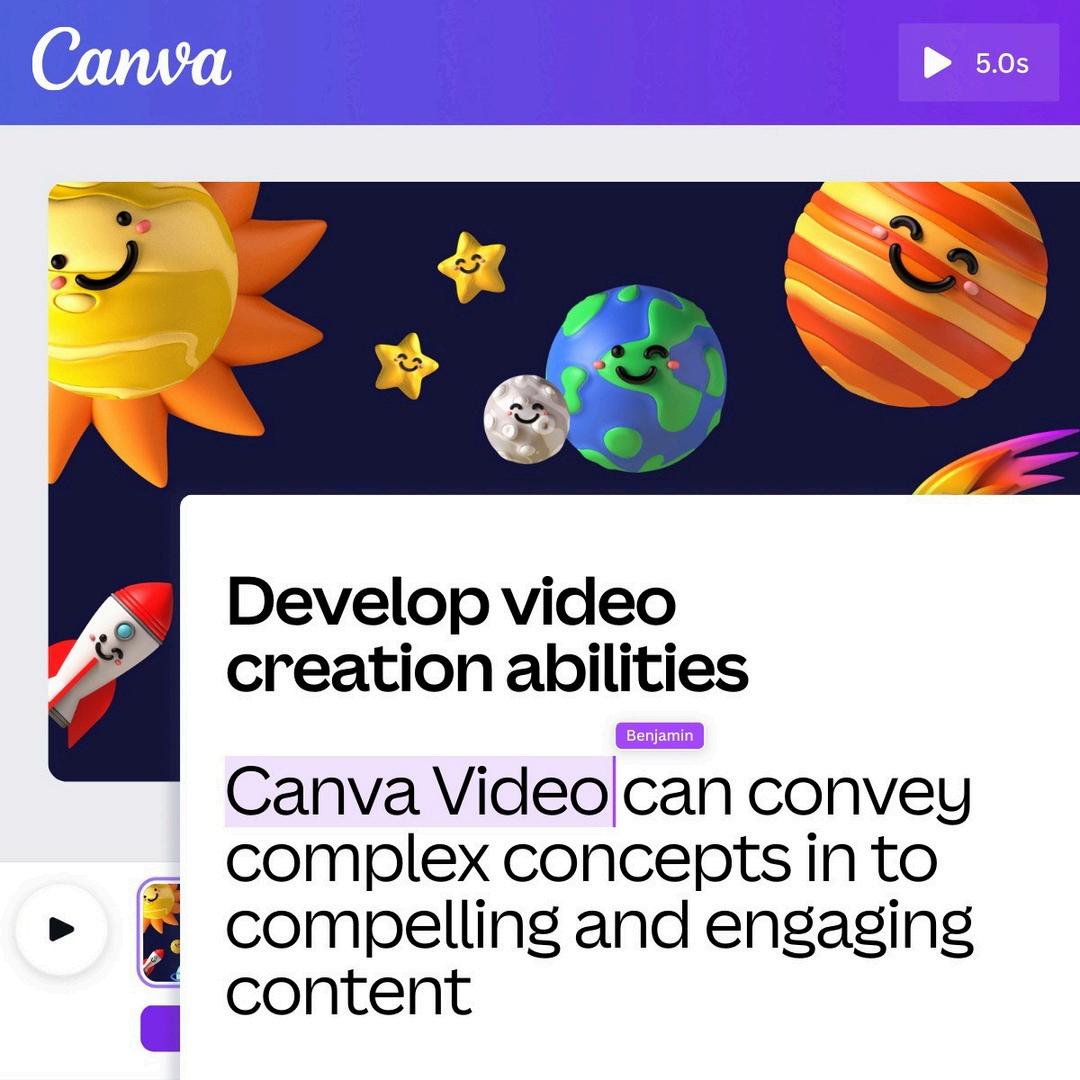
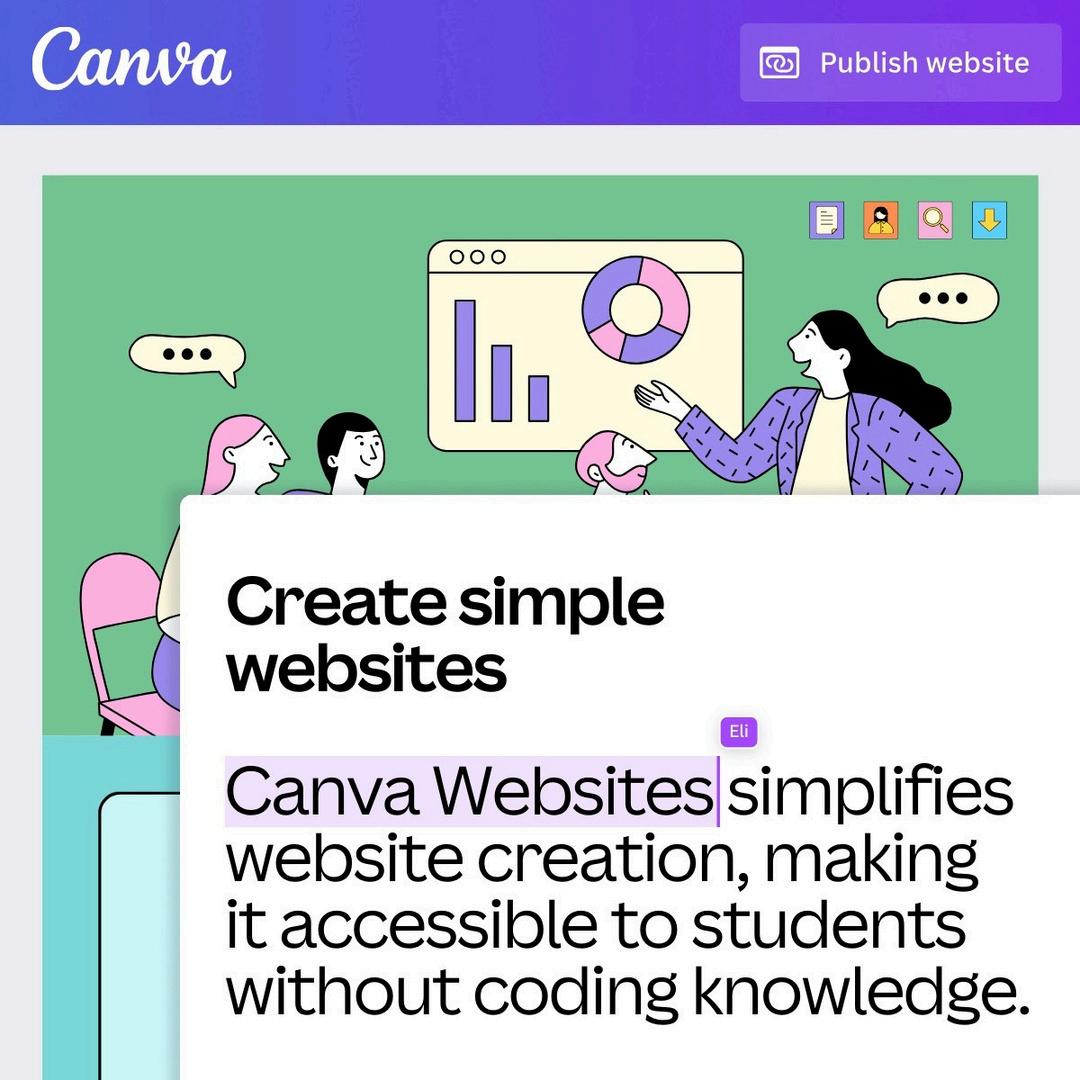
The Canva for Education school/district platform is an enterprise-level deployment for schools, districts, networks, or systems.
It includes a single team for single-school organizations, or a set of school-based Canva teams for larger systems. In those teams, everyone can collaborate and stay organized. The team is connected to the organization's single sign-on (SSO) provider; accounts are provisioned in real-time using a SAML connection or via a OneRoster data sync.
The transition for pre-existing Canva users to the new team is relatively seamless: no content is lost, users can toggle back to old teams, and content can be copied from old teams to the new enterprise team.
Is Canva for Education safe?
Canva’s dedicated education and district offerings are FERPA (Family Educational Rights and Privacy Act, protects the privacy of student education records, and COPPA (The Children's Online Privacy Protection Act) compliant, and we are also a signatory of the National Data Privacy Agreement. We are committed to GDPR compliance, and offer safe-for-school content.
https://www.canva.com/trust/education/
We also use a multi-layered set of safeguards to ensure that the content within our Canva for Education platform is safe for school and safe for students.
As well as a set of blocked search terms, we also leverage a best-in-class machine learning platform, which scans our existing collection of millions of photos and graphics to identify, flag, and remove access to “not safe for school” content for Canva for Education users. Our collections are reviewed by a human content moderator to check compliance with our “not safe for school” definitions.
Schools signed up to the district (as a school) can switch on or turn off the AI for students of 13+. When it’s turned on, it designed to be school safe.
https://www.canva.com/policies/ai-product-terms/

Don’t have a Canva for Educa Get verified here
Let’s find and customize a lesson for your students with these three steps:
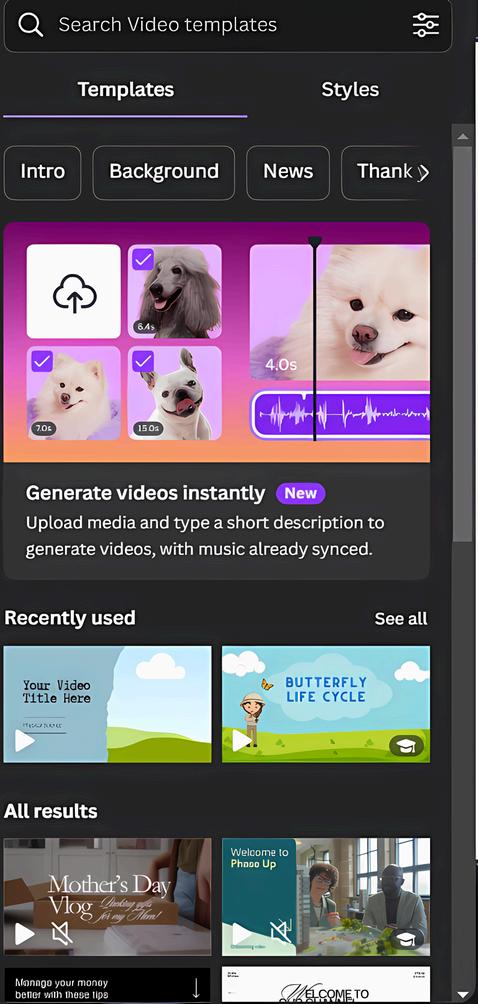
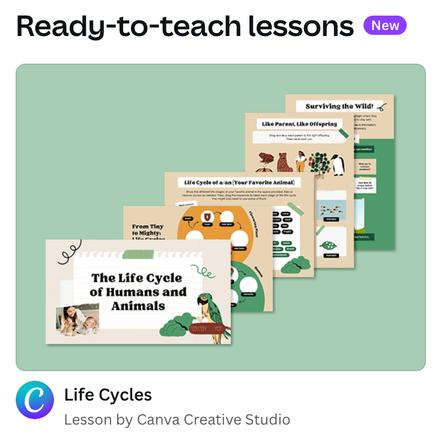
Open the Tem tab and look for th ready-to-teach le
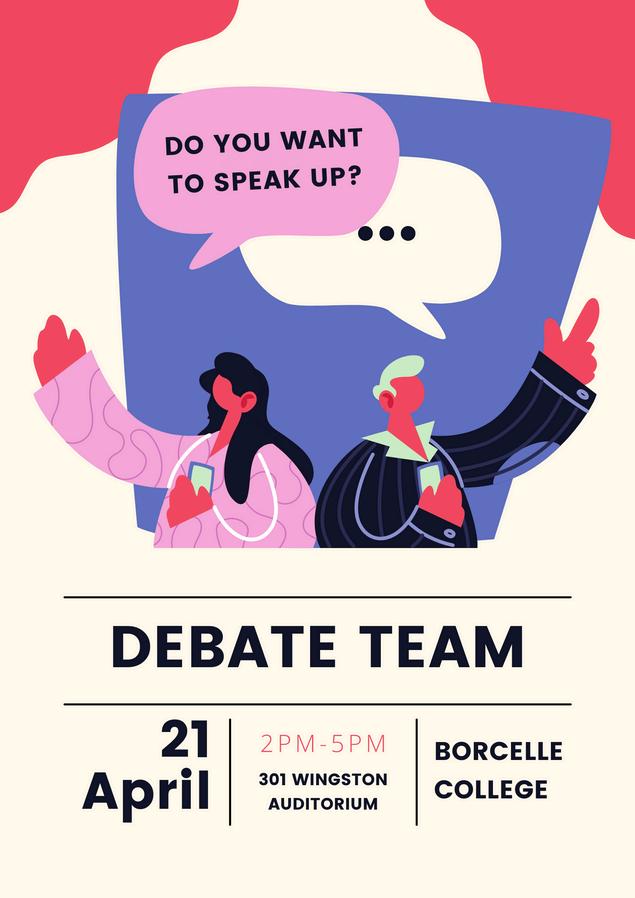
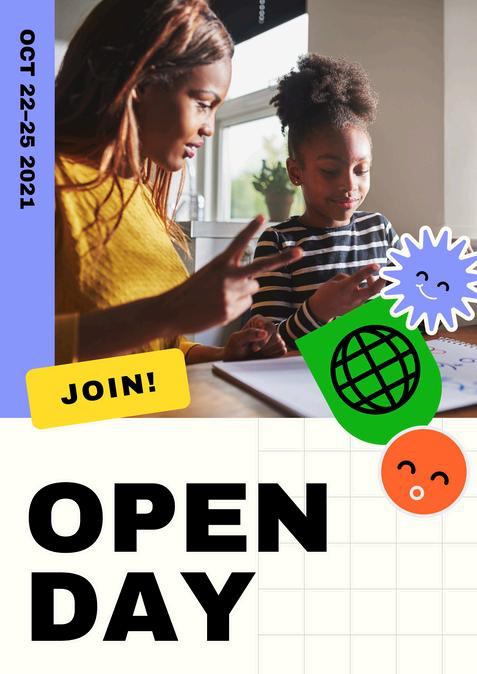
They’ll look like this
Then, click on the lesson you want to use and tap

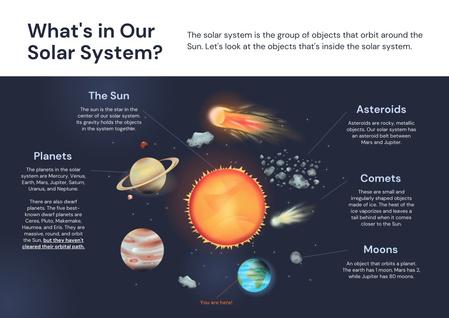

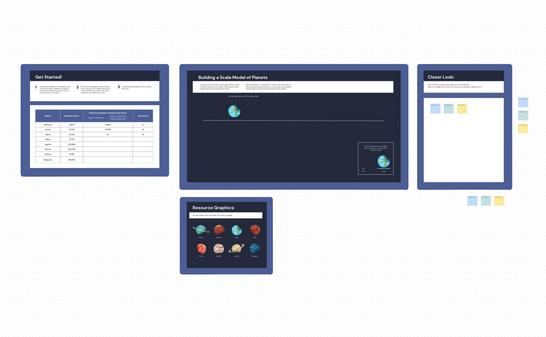
Rearrange, edit and customize the lesson to suit your student needs. Assign the lesson to students to complete.





Canva Design School for Educators
Magic AI
Magic AI for Teachers
Canva Teacher Resources
Create a Lesson in Canva
Canva: Schoolwide, MATs & Regional Hubs
Education Creator Programme
Canva Course Teach Essentials
Make Magic with Video PDF