Entering a License Key After receiving the license key from the ValveLink Registration Center, you must run License Wizard and enable or StepUp the license of the installed ValveLink Software. To enter your license Key: Step 1:
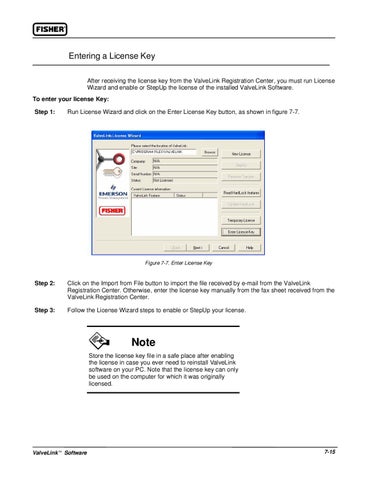
Run License Wizard and click on the Enter License Key button, as shown in figure 7-7.
Figure 7-7. Enter License Key
Step 2:
Click on the Import from File button to import the file received by e-mail from the ValveLink Registration Center. Otherwise, enter the license key manually from the fax sheet received from the ValveLink Registration Center.
Step 3:
Follow the License Wizard steps to enable or StepUp your license.
Note Store the license key file in a safe place after enabling the license in case you ever need to reinstall ValveLink software on your PC. Note that the license key can only be used on the computer for which it was originally licensed.
ValveLink Software
7-15