

Previous Screen
Product: COMPACT TRACK LOADER
Model: 249D COMPACT TRACK LOADER GWR
Configuration: 249D Compact Track Loader GWR00001-UP (MACHINE) POWERED BY C2.2 Engine
Operation and Maintenance Manual
Caterpillar Corporate Radio
Media Number -M0085473-03 Publication Date -01/02/2018 Date Updated -14/02/2018
Foreword
Literature Information
s02590205
This manual should be read carefully before using this product for the first time and before performing maintenance. This manual should be stored in the product literature holder or in the product literature storage area. Immediately replace this manual if lost, damaged, or unreadable. This manual may contain safety information, operation instructions, transportation information, lubrication information, and maintenance information. Some photographs or illustrations in this publication show details or attachments that can be different from your product. Guards and covers might have been removed for illustrative purposes. Continuing improvement and advancement of product design might have caused changes to your product, which are not included in this publication. Whenever a question arises regarding your product, or this publication, consult your dealer for the latest available information.
Safety
The safety section, if present, lists basic safety precautions. In addition, this section identifies the text and locations of safety messages used on the product. Read and understand the basic precautions listed in the safety section before operating or performing lubrication, maintenance, and repair on this product.
Operation
The operation section, if present, is a reference for the new operator and a refresher for the experienced operator. This section includes a discussion of gauges, switches, controls, attachment controls, transportation, and towing information (if applicable). Photographs and illustrations guide the operator through correct procedures of checking, starting, operating, and stopping the product. Operating techniques outlined in this publication are basic. Skill and techniques develop as the operator gains knowledge of the product and its capabilities.
Product Information
The product information section, if present, may provide specification data, product intended use, product identification plate locations, and certification information.
Maintenance
The maintenance section, if present, is a guide to equipment care. Proper maintenance and repair are essential to keep the equipment and systems operating correctly. As the owner, you are responsible for the performance of the required maintenance listed in the Owner Manual, Operation and Maintenance Manual, and Service Manual. The Maintenance Interval Schedule lists the items to be maintained at a specific service interval. Items without specific intervals are listed under the "When Required" service interval. The Maintenance Interval Schedule lists the page number for the step-by-step instructions required to accomplish the scheduled maintenance. Use the Maintenance Interval Schedule as an index or "one safe source" for all maintenance procedures.
Maintenance Intervals
Use the service hour meter to determine servicing intervals. Calendar intervals shown (daily, weekly, monthly, etc.) can be used instead of service hour meter intervals if they provide more convenient servicing schedules and approximate the indicated service hour meter reading. Recommended service should always be performed at the interval that occurs first. Under extremely severe, dusty, or wet operating conditions, more frequent lubrication than is specified in the maintenance intervals chart might be necessary. Perform service on items at multiples of the original requirement. For example, at every 500 service hours or 3 months, also service those items listed under every 250 service hours or monthly and every 10 service hours or daily.
Product Capacity
Additional attachments or modifications may exceed product design capacity, which can adversely affect product performance characteristics, safety, reliability, and applicable certifications. Contact your dealer for further information.
1993 - 2020 Caterpillar Inc.
Previous Screen
Product: COMPACT TRACK LOADER
Model: 249D COMPACT TRACK LOADER GWR
Configuration: 249D Compact Track Loader GWR00001-UP (MACHINE) POWERED BY C2.2 Engine
Operation and Maintenance Manual
Caterpillar Corporate Radio
i07214428
General Hazard Information
SMCS - 7606
Do not operate or work on this equipment unless you have read and understand the instructions and warnings in the Operation and Maintenance Manuals. Failure to follow the instructions or heed the warnings could result in injury or death. Contact your Caterpillar dealer for replacement manuals. Proper care is your responsibility.
Foreword
This document is a supplement to the Operation and Maintenance Manual for the equipment. Permanently attach this document to the Operation and Maintenance Manual for the equipment.
Introduction
This document provides information about the operation of the Caterpillar AM/FM Radio System.
Operation of the equipment and the maintenance of the equipment must not occur unless the instructions and warnings in the Operation and Maintenance Manual for the equipment have been read and the instructions and the warnings are understood. The contents of this document must be understood before the equipment that is equipped with the CaterpillarAM/FM Radio System is operated.
Warnings and Compliance
Thank you for purchasing this product, read the manual carefully before operating, and reserve manual for future reference.
Precaution
• Use only in a 12-volt DC negative- ground electrical system.
• Disconnect the vehicles negative battery terminal while mounting and connecting the unit.
• When replacing the fuse, be sure to use one with an identical amperage rating.
• Using a fuse with a higher amperage rating may cause serious damage to the unit.
• Make sure that pins or obstacles do not get inside the unit, pins and obstacles may cause malfunctions, or create safety hazards such as electrical shock.
• If you have parked the vehicle for a long time in hot or cold weather, wait until the temperature in the vehicle becomes normal before operating the unit.
Before Operation
Do not raise the volume level too high. Keep the volume at a level at which you can hear outside warning sounds (horns sirens, and so on).
Stop the vehicle before performing any complicated operations.
Caution
Do not open the cover and do not repair. Ask your authorized dealer for help.
Note: According to models with different wiring harness to connect the definition of the specific content, refer to the model label.
Note: Specifications and the design are subject to change without notice due to improvements in technology.
Operation and Maintenance Manuals(OMM) are currently available at: www.cat.com/radio-owners-manual
For mobile equipment or equipment that is located in areas where direct internet access is not available while the product is in use, a paper copy of the OMM must be printed and kept with the product.
For more information or for a paper copy of the OMM contact your nearest Cat Dealer: www.cat.com/en_US/support/dealer-locator.html
Copyright 1993 - 2020 Caterpillar Inc.
All Rights Reserved.
Private Network For SIS Licensees. Wed Jun 24 09:37:03
Previous Screen
Product: COMPACT TRACK LOADER
Model: 249D COMPACT TRACK LOADER GWR
Configuration: 249D Compact Track Loader GWR00001-UP (MACHINE) POWERED BY C2.2 Engine
Operation and Maintenance Manual
Caterpillar Corporate Radio
Media Number -M0085473-03 Publication Date -01/02/2018 Date Updated -14/02/2018
Declaration of Conformity
SMCS - 7606
Table 1
CATERPILLAR®
EU Declaration of Conformity
This Declaration of Conformity is issued under the sole responsibility of the manufacturer.
The undersigned, representing the manufacturer:
Caterpillar, Inc.
100 N.E. Adams Peoria, IL 61629
USA
hereby declares that the product, object of this description:
Caterpillar DEA500 model entertainment radios
Brand: Caterpillar Model: DEA500
Part Numbers: 462-9618, 462-9619, 462-9620, 462-9621, 439-1562, 439-1563, 439-1564
Is in conformity with the relevant Union harmonization legislation: Directive 2014/53/EU
Conformity is shown by compliance with the applicable requirements of the following documents:
Conformity Assessment Procedure: ____Annex II, ___ X ___Annex III, _______Annex IV
2014/53/EU
LVD (Sec 3.1a):
EMC (Sec 3.1b):
EN 60950-1:2006 + A11:2009 + A12:2011 + AC:2011 + A2:2013
EN 62479:2010
EN 301 489-1 V2.2.0
EN 301 489-17 V3.2.0
EN 55020:2007+ A11:2011
EN 55032:2015
EN61000–3–2:2006 + A1:2009 + A2:2009
EN 61000–3–3:2008
RF (Sec 3.2)
EN 300 328 V2.1.1
Final Draft EN 303 345 V1.1.7
Table 2
Notified Body Name: Dekra Testing and Certification, S.A.U.
Notified Body Number: 1909
Examination Certificate #: 53627RNB.001 Illustration 1

Copyright 1993 - 2020 Caterpillar Inc. All Rights Reserved. Private Network For SIS Licensees. Wed Jun 24 09:37:43 UTC+0530 2020
Previous Screen
Product: COMPACT TRACK LOADER
Model: 249D COMPACT TRACK LOADER GWR
Configuration: 249D Compact Track Loader GWR00001-UP (MACHINE) POWERED BY C2.2 Engine
Operation and Maintenance Manual
Caterpillar Corporate Radio
Media Number -M0085473-03 Publication Date -01/02/2018 Date Updated -14/02/2018
Regulatory Compliance
SMCS - 7606
FCC Notice
The following notices are provided.
Modification Statement
Caterpillar has not approved any changes or modifications to this device by the user. Any changes or modifications could void the users authority to operate the equipment.
Interference
This device complies with Part 15 of the FCC Rules and Industry Canada license - exempt RSS standards. Operation is subject to the following two conditions: (1) this device may not cause interference, and (2) this device must accept any interference, including interference that may cause undesired operation of the device.
Radiation Exposure
This device complies with FCC/IC radiation exposure limits set forth for an uncontrolled environment and meets the FCC radio frequency (RF) Exposure Guidelines. RF Exposure guidelines can be found in Supplement C to OET65. The device also complies with RSS-102 of the IC radio frequency (RF) Exposure rules. Do not locate the transmitter near an antenna or operating with any other antenna or transmitter.
FCC Class B digital device notice
This equipment has been tested and found to comply with the limits for a Class B digital device, pursuant to part 15 of the FCC Rules. These limits are designed to provide reasonable protection against harmful interference in a residential installation. This equipment generates, uses, and can radiate radio frequency energy. if the equipment is not installed and used in accordance with the instructions, may cause harmful interference to radio communications. However, there is no guarantee that interference will not occur in a particular installation. If this equipment does cause harmful interference to radio or television reception, which can be determined by turning the equipment off and on. The user is encouraged to try to correct the interference by one or more of the following measures:
• Reorient or relocate the receiving antenna. Increase the separation between the equipment and receiver.
• Connect the equipment into an outlet on a circuit different from that to which the receiver is connected.
• Consult the dealer or an experienced radio/TV technician for help.
Changes or modifications to this device without the express approval may void the users authority to use this device.
CAN ICES-3 (B) / NMB (B)
This Class B digital apparatus complies with Canadian ICES-003.
Simplified EU Declaration of Conformity/RED 2014/53/ EU Directive
This device has been evaluated against the essential requirements of the 2014/53/EU Directive.
Radio Frequency Range
The following Driver Safety System communication device specifications are provided to aid in conducting any related hazard assessment and to ensure compliance with all local regulations:
Table 1
Bluetooth
Frequency Range: 2402–2480 MHz carrier frequencies
Maximum RF output power: +4dBm
Modulations:
Channel Spacing: 1 MHz
Number of channels: 79
Channel bandwidth: 1 MHz for GFSK,
Type of Antenna: Brand Amotech part number: AL.A321C3 chip antenna/Gain 2.3dbi
Antenna gain: +2.3dBi Max
Note: The DEA 500 radio can operate in Belgium without infringing on applicable requirements on the use of Belgiums radio spectrum.
Table 2
AM
Frequency Range: 531 kHz to 1602 kHz
Maximum RF output power: +/- 6dBi typical
Modulations: Amplitude modulation
Channel Spacing: 9kHz
Type of Antenna: 0.75m typical monopole
Antenna gain: 0dBuV to 130dBuV
Table 3
FM
Frequency Range: 87 MHz to 108 MHz
Maximum RF output power: +/- 6dBi typical
Modulations: Frequency modulation
Channel Spacing: 100 kHz
Type of Antenna: 0.75m typical monopole
Antenna gain: 0dBuV to 130dBuV
Table 4
English Hereby, Caterpillar declares that this DEA500 is in compliance with the essential requirements and other relevant provisions of Directive 2014/53/EC.
To satisfy the essential requirements of 2014/53/EC Directive, the product is compliant with the following standards:
Caterpillar declares on our sole responsibility that the following product is in compliance with Directive 2014/53/EU and the essential requirements of Car Radio.
Type Designation:
• DEA500
• HW Rev A SW Rev B Services
• Frequency range and max output power: Bluetooth 2402 - 2480 Mhz 4dBm (2.5 mW) EIRP
• AM 531–1602 kHz
• FM 87.5–108.0 MHz
The conformity assessment per Directive 2014/53/EC has been followed with the involvement of the following Notified Body: DEKRA Testing and Certification no: 1909, S.A.U. Parque Technologico de Andalucla C/Servero Ochoa 2 29590 Campanillas - Malaga SPAIN performed an EU type examination and issued the certificate: 53627NRB.001.
Table 5
3.1 (a): Health and Safety of the User EN 60950-1:2006 + A11:2009 + A12:2011 + AC:2011 + A2:2013
3.1 (b): Electromagnetic Compatibility EN 301 489-1 V2.2.0, EN 301 489-17 V3.2.0, EN 55020:2007+ A11:2011
3.2: Effective use of spectrum allocated EN 300 328 V2.1.1, EN 303 345 V1.1.1
There is no restriction for the commercialization of this device in all the countries of the European Union.
Copyright 1993 - 2020 Caterpillar Inc. All Rights Reserved. Private Network For SIS Licensees.
Wed Jun 24 09:37:30 UTC+0530 2020
Previous Screen
Product: COMPACT TRACK LOADER
Model: 249D COMPACT TRACK LOADER GWR
Configuration: 249D Compact Track Loader GWR00001-UP (MACHINE) POWERED BY C2.2 Engine
Operation and Maintenance Manual
Caterpillar Corporate Radio
Media Number -M0085473-03 Publication Date -01/02/2018 Date Updated -14/02/2018
Radio - Entertainment If Equipped
SMCS - 7338
i07316460
When driving, always keep your eyes on the road and hands on the steering wheel, paying careful attention to normal driving tasks. As always, the driver is responsible for safe vehicle operation. Not keeping your eyes on the road and hands on the wheel while driving could result in injury to you or others.
Introduction
Information included in this owners manual was accurate at the time of publication. Caterpillar, however, reserves the right to and performance without prior notice. Check with your dealer for details regarding changes that may have occurred since time of printing.
The Radio system is controlled by using the buttons, RSA, or steering wheel controls.
Stereo Receivers
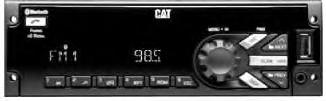
Illustration 1
MP3/USB/iPod/Aux/Bluetooth Receiver
g03566500
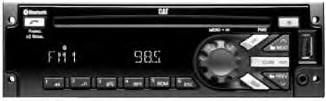
Illustration 2 g03566527
MP3/USB/iPod/Aux/Bluetooth/CD Receiver
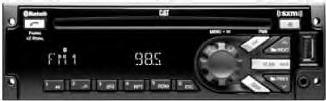
Illustration 3
g03566571
MP3/USB/iPod/Aux/Bluetooth/CD/SAT Receiver
Radio Pin out
Radio pinout is shown below
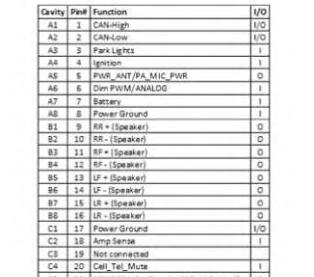
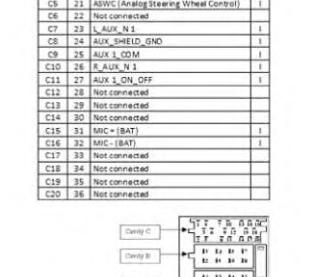
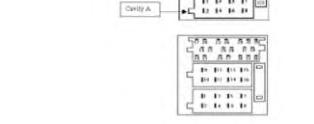
Illustration 4 g03566584
General Radio Receiver Functions
This is the sample of the manual Click on the download link for complete Manual
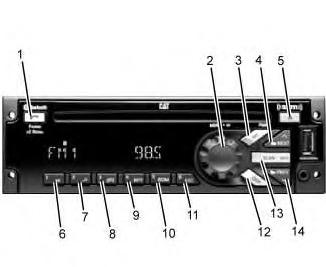
Illustration 5
(1) Phone
(2) Knob
(3) SRC/PWR (Source/Power) (4) Next (5) Eject (6) Play/Pause (7) Browse (8) Clock/Alarm (9) RPT (Repeat)
(10) RDM (Random) (11) ESC (Escape) (12) DISP (Display) (13) SCAN/ASCN (Scan/Autoscan) (14) PREV (Previous)
Options
• An AM band with 6 AM presets
• Three FM bands with a total of 18 FM presets
• One weather band with six WX presets
SRC/PWR (Source/Power)
Press to switch to FM -> AM -> WX -> SXM -> CD -> USB/iPod ->AUX -> Bluetooth Audio (if equipped) and to turn Radio ON. Press and hold to turn radio OFF.
One Hour Timer
With the ignition off, pressing the SRC/PWR button will turn on the receiver and activate the receivers onehour timer. The receiver will turn off after 1 hour or by pressing and hold the SRC/PWR button.
VOLUME KNOB/OK
Press for less than 3 seconds to display Audio Control Menu. Press for more than 3 seconds to show the user menu. Rotate to increase/decrease volume or during a menu for navigation. Press while in a menu to confirm the selected action.
PREV (Previous/Reverse)
Press to select previous track or station. Press and hold for FR or Tune Down
NEXT (Next/Forward)
Press to select next track or station. Press and hold for FF or Tune Up
EJECT
Press to eject the CD
Phone (if equipped)
Press the Phone button for more than 3 seconds to show the Bluetooth Menu. When Bluetooth is enabled, press the button to display the Dial Menu or to accept an Incoming Call (if a Phone is paired). During a call press the button for more than 3 seconds to transfer the call from the radio to the Phone.
CLOCK/ALARM
Press during Alarm activation to cancel the Alarm.
SCAN/ASCAN
Scans stations/CD tracks/MP3/WMA files and folder and in tuner, stores stations to presets
PLAY/PAUSE
Press to pause / un pause current Media.
RPT (Repeat)
Press to repeat current track. Press again to stop repeat. Look for the RPT icon in the radio display to turn this feature ON or OFF.
BROWSE
Press to navigate on the device and select a specific song or play context (Applicable to USB sticks, CD MP3 discs and iPod).
RDM (Random)
Press to play the tracks randomly. Press again to stop random mode. Look for the RDM icon to turn on in the radio display.
ESC (ESCAPE)
Press to exit one Menu Level.
If the system is equipped with Bluetooth, press the ESC button during Bluetooth call operation to reject or cancel a call.
DISP (DISPLAY)
If vehicle ignition is ON: Press to change source display
Press for more than 3 seconds to show the Clock for a short time.
Radio (Audio source)
To access AM, FM, WX, SXM (if equipped), iPod, USB, Rear Aux, Front Aux, CD, or BT Audio do one of the following:
1. Press the SRC radio button to scroll through the options and select desired option.
2. Press the SRC radio button and then scroll the source menu by knob rotation or NEXT/PREV short presses and then select by short-pressing the knob.
The CD/MP3, USB/iPod, Front AUX, and BT Audio shall be accessed only if the radio model supports those options and a device is connected/inserted for that specific source.
Note, if a device is connected through different sources at the same time, the functionality cannot be guaranteed (Device Dependent). Example: Device connected through Front Aux and Bluetooth or USB and Bluetooth at the same time.
AM-FM-WX Radio
Tuning: Set the desired "Tuner Configuration" following the steps in the Menu section.
If the radio is set to manual, the radio will allow for execution of the following functions:
• Execute manual tuning when the NEXT or PREV buttons are short pressed.
• Execute Seek when the NEXT or PREV buttons are long pressed.
If the radio is set to Auto, the radio will allow for execution of the following functions:
• Execute Seek when the NEXT or PREV buttons are short pressed.
• Execute manual tuning when the NEXT or PREV buttons are long pressed.
Manual tuning
The current frequency will be increased/ decreased by 1 step of 0.2MHz (USA FM mode), 10 kHz (USA AM mode) and one channel (25 kHz) in WX mode.
Seeking a Station
When the Seek function is activated, the radio increments/decrements the frequency until a tunable station is found.
If a tunable station is not found, the radio will display "NO STATION FOUND".
Presets
Storing Radio Station Presets:
1. Tune the desired frequency, and then long press any of the Preset(1-6) buttons until the radio produces a beep.
Tuning Radio Station Presets
1. Short press any of the Preset(1-6) buttons. The frequency stored at the preset location is tuned when the button is released.
Scan
To initiate the Scan function, short press the SCAN/ASCN button. When SCAN is initiated, the radio seeks up in frequency and stops on the next strong frequency for 8 seconds before continuing to seek for the next strong station.
If no station is found in two passes through the band, the radio will display “NO STATION FOUND” and then tune to the starting frequency.
Autoscan
This function temporally stores the strongest 6 stations of the current band in the presets until the radio is powered off or the source is changed.
AUTOSCAN does not store the frequencies on the presets on numerical order. Frequencies are stored based on the order they were found and on the quality of the frequency.
To initiate the AUTOSCAN function, long press the SCAN/ASCAN button until the radio performs a beep. Then the "AUTO SCAN" icon will blink while the radio is storing the temporary presets.
When the Autoscan process finishes, the radio will tune to the station stored in Preset 1 and the "AUTO SCAN" icon shall be illuminated while the mode is active.
To tune any of the 6 frequencies or to store new presets, follow the steps defined in the Presets section.
To exit this mode and return to the original presets execute any of the following actions:
1. Press and hold the SCAN/ASCAN button
2. Press the SCR/PWR button.
3. Turn off the radio.
4. Perform an ignition cycle
5. Disconnect the battery.
WX
The WX band is for the Governmental weather radio services frequencies. The radio can tune to the seven weather channels following the steps in Tuning, Presets, and SCAN sections.
SXM (If Equipped)
Vehicles with a valid SiriusXM® satellite radio subscription can receive SiriusXM programming. SiriusXM satellite radio has a wide variety of programming and commercial-free music, coast to coast, and in digitalquality sound.
SiriusXM®
SXM Display
When SiriusXM is active, the channel number, channel name, artist name/content info, song title, or category name could be displayed on the screen. SiriusXM may update the information at any time.
To change the current display view, short press the DISP button.
When a new channel is selected, a song change occurs, SXM source is selected (from power-up or source change) or the information is updated, all the elements will be displayed using paging. The paging can be stopped by short pressing the DISP button.
Display labels
To recognize the displayed text, the radio uses the following convention :
• Channel Number: CH
• Channel Name: CH
• Artist Name: ART
• Content Info: INFO
• Song Title: SONG
• Category name: CAT
SXM Categories
SiriusXM stations are organized in categories.
The category list for SXM is in the following webpage: "http://www.siriusxm.com/sxm/pdf/sirius/channelguide.pdf"
To change the current category, long press the NEXT/PREV button and the radio will tune the first channel on next or previous category.
Category mode Enable/Disabled
Category Search Mode Enabled means that only channels in the current Category are searched. When enabled, the CATEGORY icon is turned on.
Category Search Mode Disabled means that all channels are searched. When disabled, the CATEGORY icon is turned off.
To enable/disable the category browse mode, follow the steps in the User Menu section
The default after a power-up is Category Disabled.
SXM Channel Selection
Presets and SCAN functions work the same as defined in the SCAN subsection of AM-FM-WX Radio.
NEXT button
While in SXM the radio will scroll to the next channel available in numerical order.
PREV button
While in SXM the radio will scroll to the previous channel available in numerical order
Note: If the SXM service is not activated, only the free-to-air channels will be present.
SXM Radio ID
If tuned to channel 0, "RADIO ID" label alternates with the SXM radio eight-digit code. This code is needed to activate the service.
DISP button does not work in channel 0. Channel 0 is not available in category mode enabled.
SXM Messages
SXM BUSY - The audio system is acquiring and/or processing audio and/or text data. No action is needed.
ART UNAVAIL - There is not Artist Name related with the current song.
SONG UNAVAIL - There is not Song Title related with the current song.
CHAN UNAVAIL - There is no Channel Name related with the current channel.
CHECK ANTENNA - SXM antenna or antenna cable is not connected to the radio or the antenna is shorted.
NO SIGNAL - SXM tuner module reports the No Signal condition. Under this condition only Channel 0 will work as stated in this manual.
CHAN UNSUB - Active channel has become unsubscribed or the requested channel is not unsubscribed.
SUBSCRIPTION UPDATED - PRESS OK TO CONTINUE - The subscription of the radio was updated. To remove the message and return to the previous state pres "OK" (Knob).
CH UNAVAIL - Requested channel is reported unavailable for a newly selected channel or the currently selected channel. Unavailable channels are in the legal channel range but are not currently available for display or subscription as a broadcast service. After 3 seconds the previous channel (if available) or channel 1 will be tuned.
iPod
This radio supports the following iPod models:
• iPod classic (sixth generation)
• iPod nano (6G)
• iPod touch (4G)
• iPhone (3G, 3GS, 4, and 4S)
Other iPods may be played, but functionality is not guaranteed.
Radio provides up to 1A of charge, so any device connected to the USB that requires less than 1 A will be charged.
There may be problems with the operation and function in the following situations:
• When, connecting an iPod on which a more recent version of the firmware is installed than is supported by the Radio
• When, connecting an iPod with firmware from other providers is installed