Why Ignoring Dataverse Cleanup Is Costing Your
Organization
Thousands Every Month

Overseeing the storage of Microsoft Dataverse is most often overlooked, yet managing it can increase the overall health and performance of the Power Platform environment. As your apps, flows, and integrations develop, unnecessary data accumulates, which increases the cost of storage and decreases overall performance.
In this guide, you’ll learn exactly how to analyze, clean, and optimize Dataverse storage to reclaim space and boost performance instantly.
Understand Dataverse Storage Types First
To begin the process of cleanup, you must first understand what the storage of Dataverse consists of. Dataverse categorises its storage into three categories:
Database Storage:
This includes:
Tables (formerly entities)
Rows (records)
System tables (audit logs, plug-in logs, async jobs)
File Storage:
Used for:
Attachments
Notes (.txt, .pdf, images)
Email attachments
File columns
Log Storage: Includes:
Audit logs
Plug-in trace logs
System logs – which can often be very large and overlooked
Understanding and identifying which area of storage is most used by you is the first step in effective cleanup.
Why Dataverse Storage Cleanup Matters
Neglecting storage can degrade Power Platform performance in subtle ways: slower queries, delayed app loading, and even throttled API calls. Cleanup matters because:
Gains in performance: Clutter reduction enhances the speed of data retrieval and processing, resulting in app performance improvement.
Saving Costs: The storage in dataverse is priced based on the storage utilized in the database, the files, and the logs. Therefore, creating free space helps avoid additional expenses because overs and purchases will be needed.
Security and Compliance: Duplicates and old logs could be a source of a problem. Regular cleanup is needed to align data retention policies with good practice.
Flexibility: A clean environment will allow growth without reaching the limits, which could cause problems in sensitive areas such as finance and healthcare.
Transforming Power Platforms speed with cleanup.
Analyze Your Current Storage Usage
Your first step is to analyse your current storage utilization on your Admin center.
Where to check:
Power Platform Admin Center → Licensing → Dataverse
You’ll see:
Storage breakdown on each environment.
Storage breakdown by Database, File, and Log.
If you click on environment where you can see the Table wise breakdown
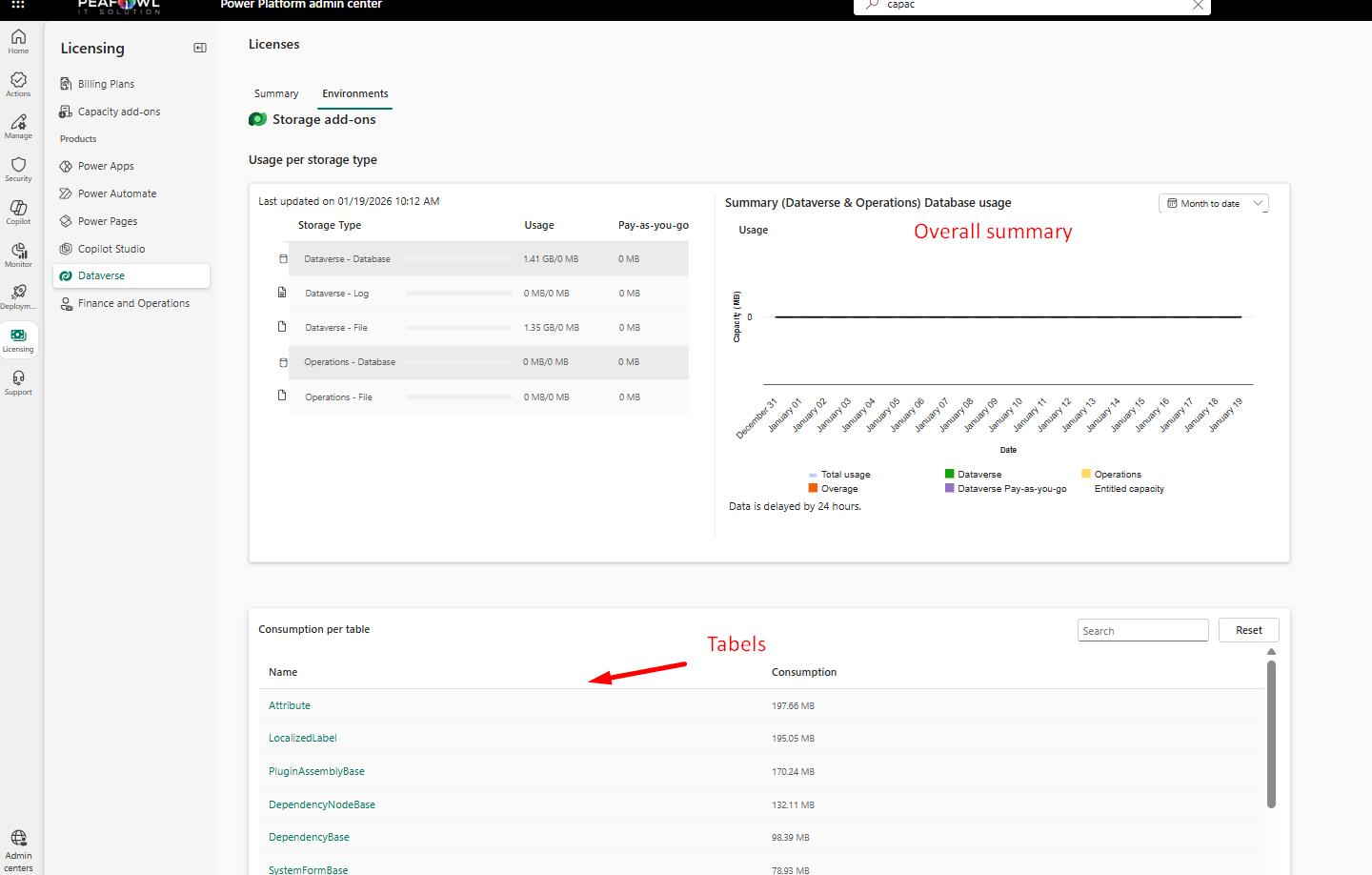
Identify key problem areas:
Are audit logs consuming large amounts of data?
Are files and file storage consumed by notes and attachments?
Are custom tables escalating in size?
Are logs being consumed by system jobs (async operations)?
This helps you decide what needs to be prioritized for cleaning.
How to Do a Bulk Delete
If you need to delete a lot of records quickly, doing a bulk delete is a great option.
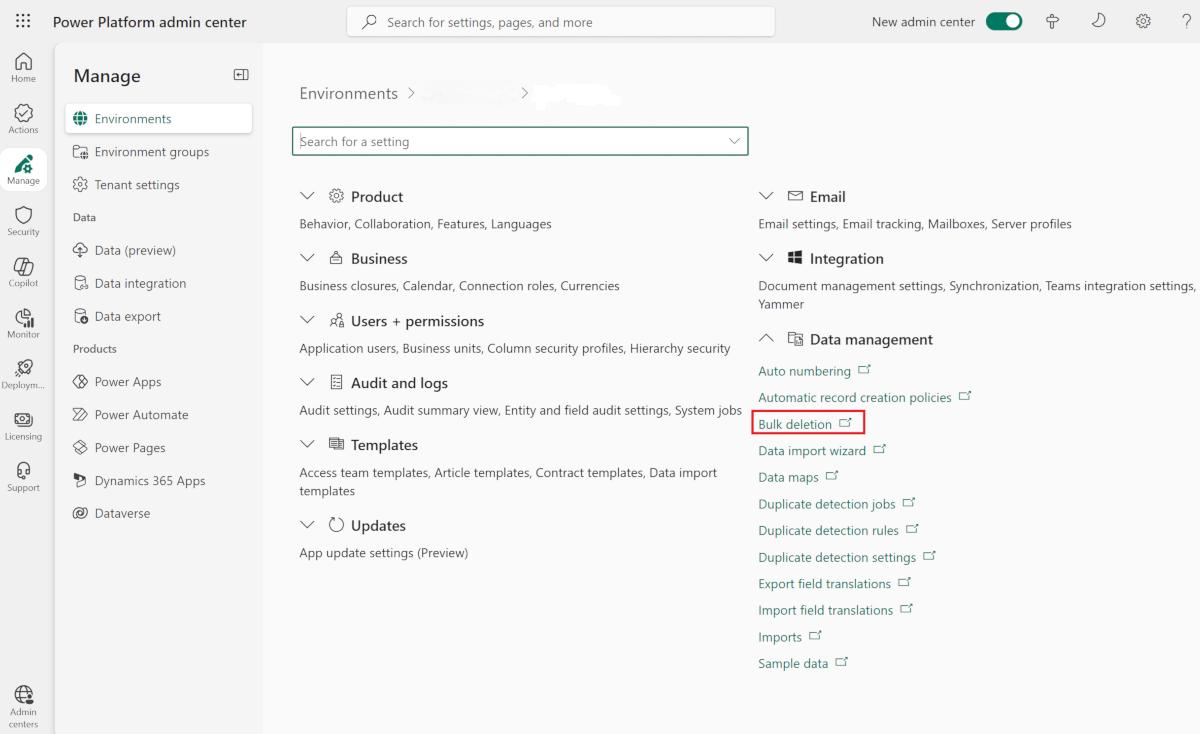
Steps:
1. Go to Advanced Settings → Data Management → Bulk Record Deletion
2. From the menu, select the option to create a new bulk deletion job
3. Decide some filter criteria. For example, you can filter to only records modified more than 365 days ago.
4. Schedule it (once or recurring)
5. Decide some filter criteria. For example, you can filter to only records modified more than 365 days ago.
Some records you might consider deleting are:

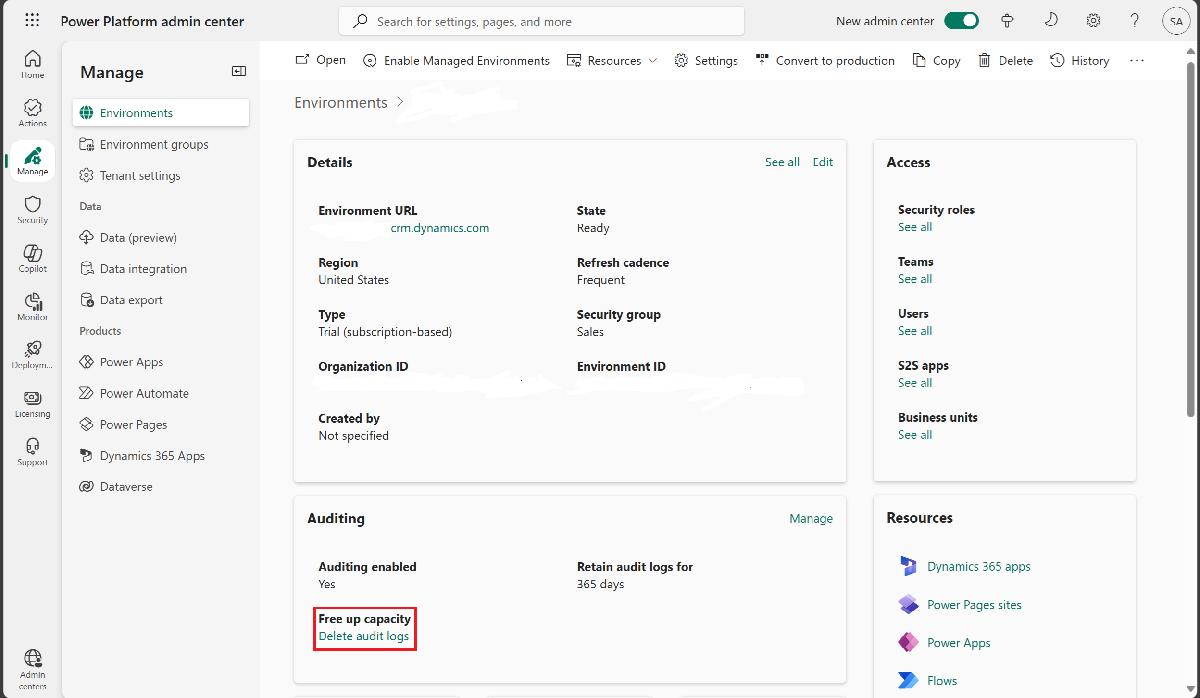
Old audit logs
Completed system jobs
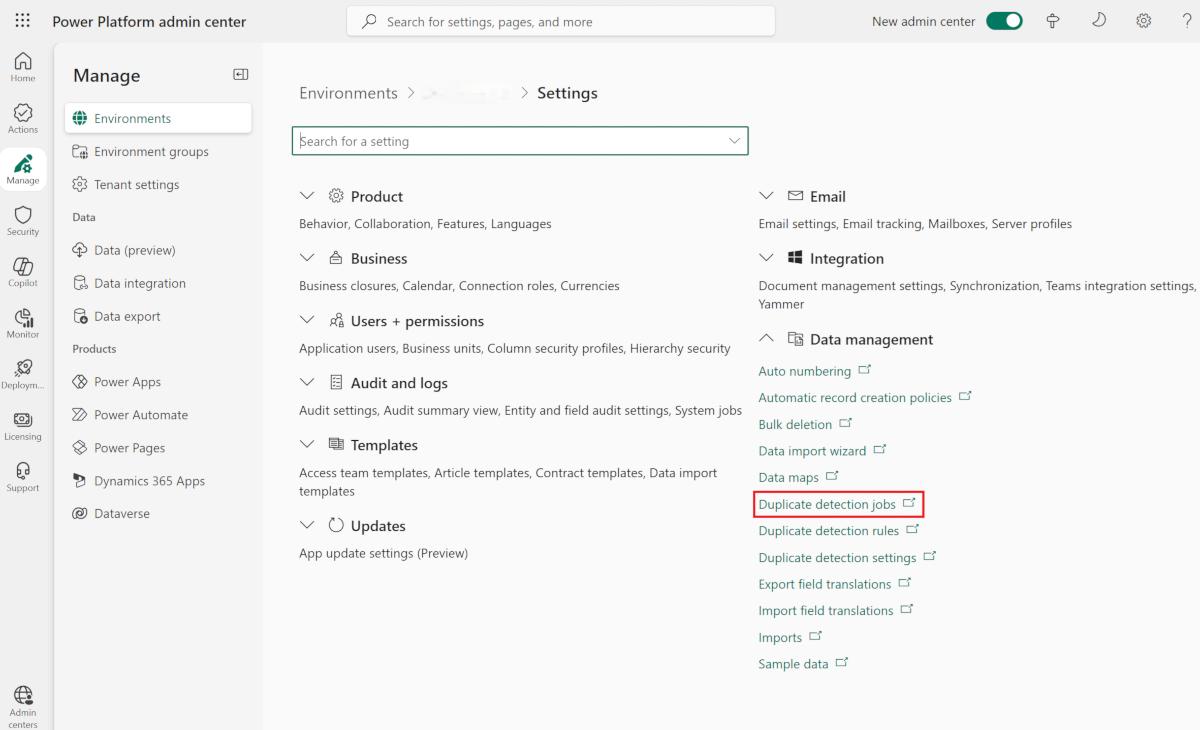
Duplicate records
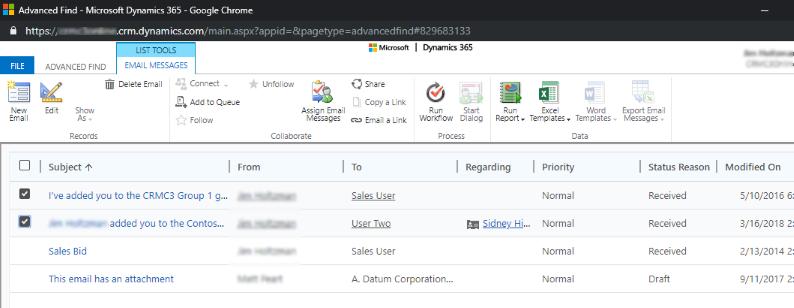
Email records that are older and not needed anymore
Log records that are obsolete (these include plug-in trace logs and workflow logs)
All of this can be done without affecting users, as bulk delete jobs run in the background.