






Purpose
This is a step by step guide for people who want to book themselves a vaccine appointment online. If you need to book an appointment for someone else, please follow this guide Booking an appointment on behalf of someone else
Step 1
After you have registered your interest for the COVID-19 vaccine, you will receive an email with the subject line Invitation to receive the COVID-19 vaccination.
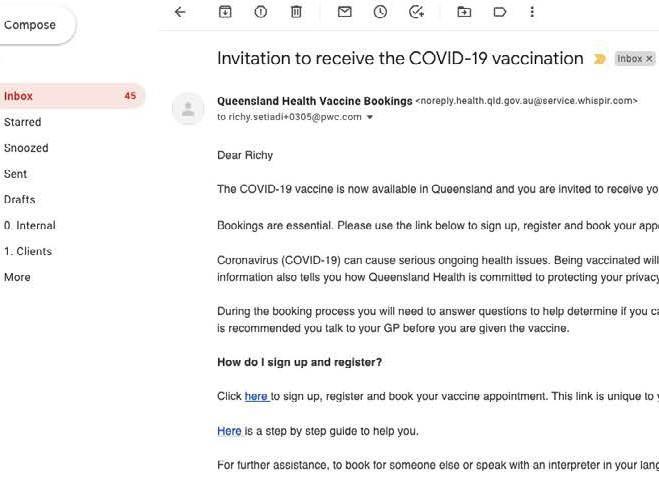
This may take several weeks. If you do not receive the email in four weeks, please check your email spam or junk folder.
Step 2
Open the email and right click on Click here to sign up and copy the hyperlink.
Step 3
Paste the hyperlink into a web browser Edge and Chrome are the recommended web browsers for computers, tablets and mobile phones (Internet Explorer is not recommended).
vaccine booking system
Step 4
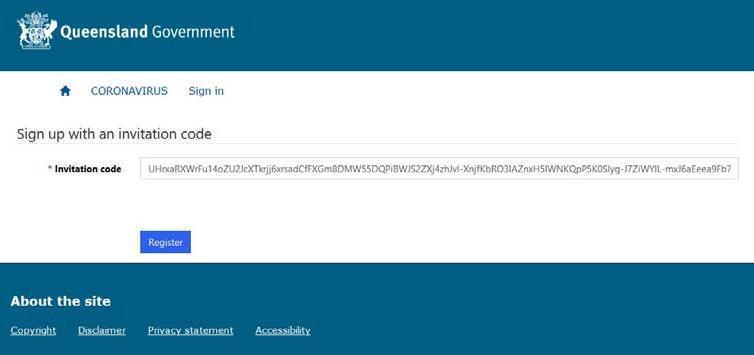
The webpage below will show your unique invitation code. The code will be filled in, as below Click Register.
Step 5
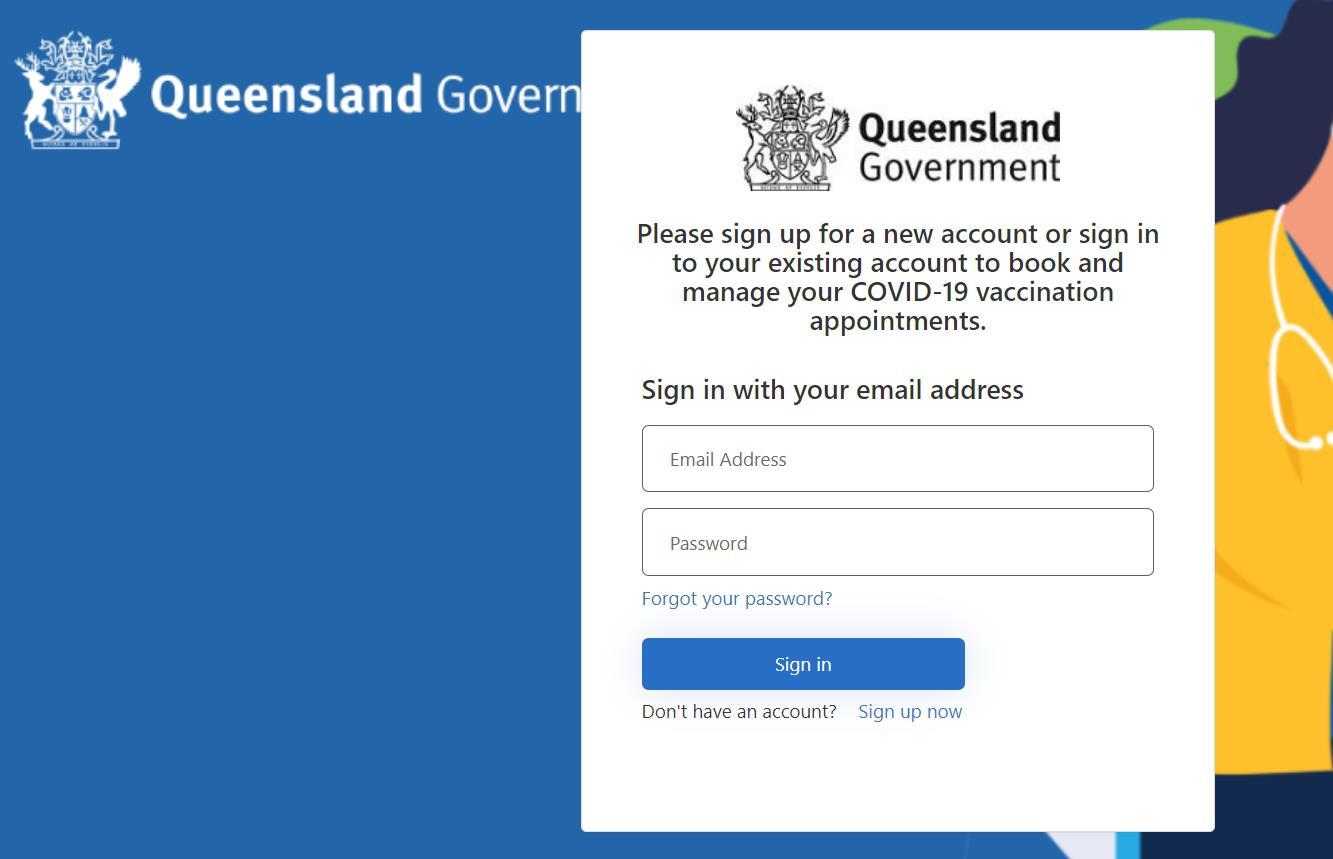
You will be taken to a new webpage. Click Sign up now. You do not need to complete any other boxes
Step 6
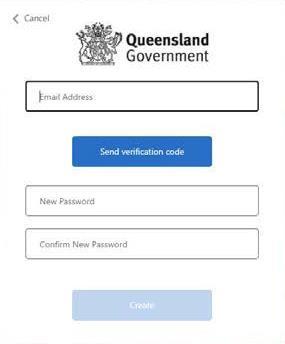
Add your email address and click Send verification code. The verification code will be sent by email. Please check your spam or junk folder.
Step 7
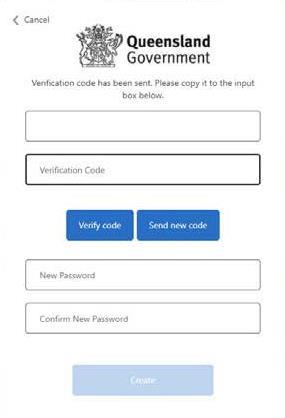
Copy the verification code from your email and paste it into the Verification Code box Click Verify code.
Step 8
Your code should now be confirmed You can now set up a password. For security reasons your password needs to be a at least eight characters and needs to to meet three of the following criteria:
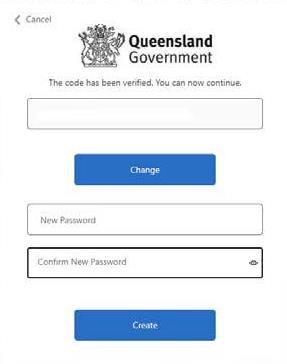
a. Uppercase letter e.g A, B, C
b. Lowercase letter e.g. a, b, c c. Number e.g. 1, 2, 3 d. Special character e.g. *, !, @
Once complete, click Create.
Step 9
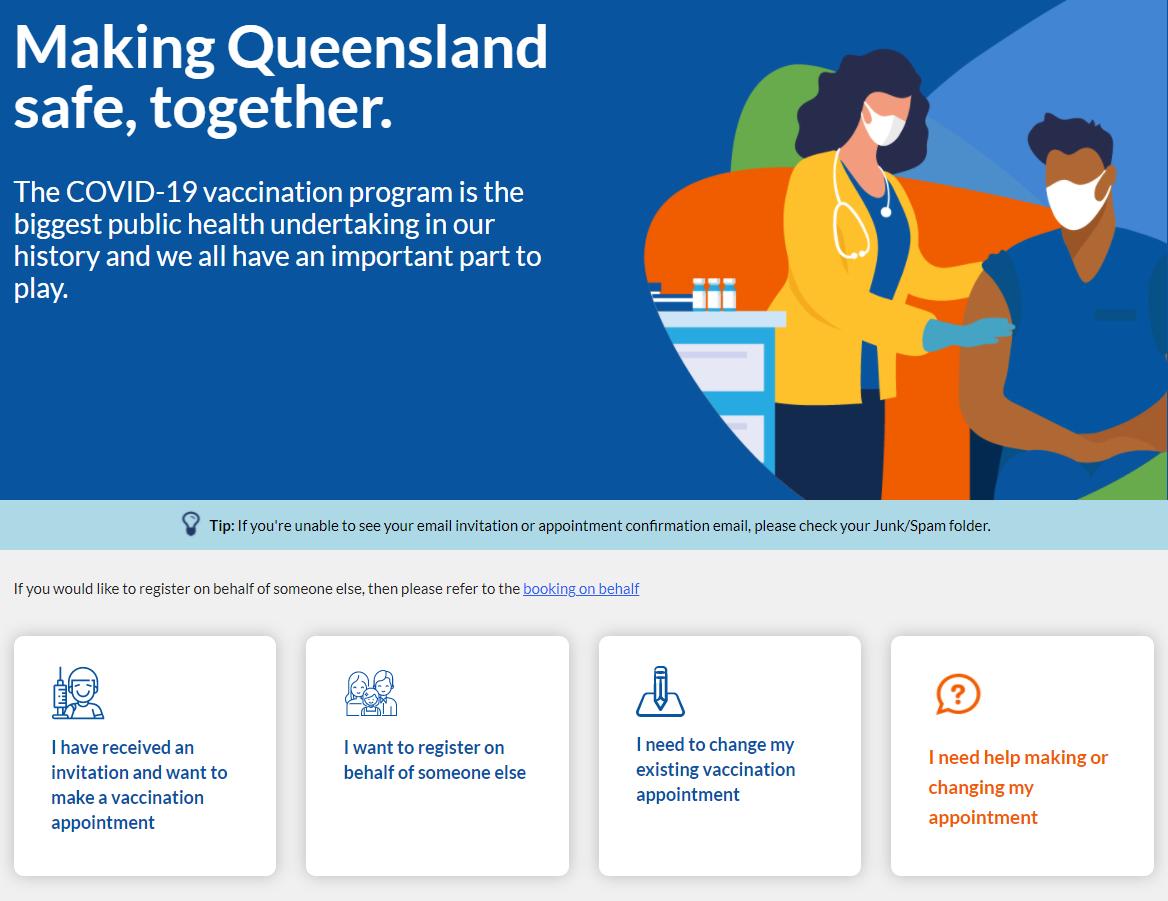
The following webpage will now appear. You can now begin to book your vaccinee appointment by clicking I have received an invitation and want to make a vaccination appointment.
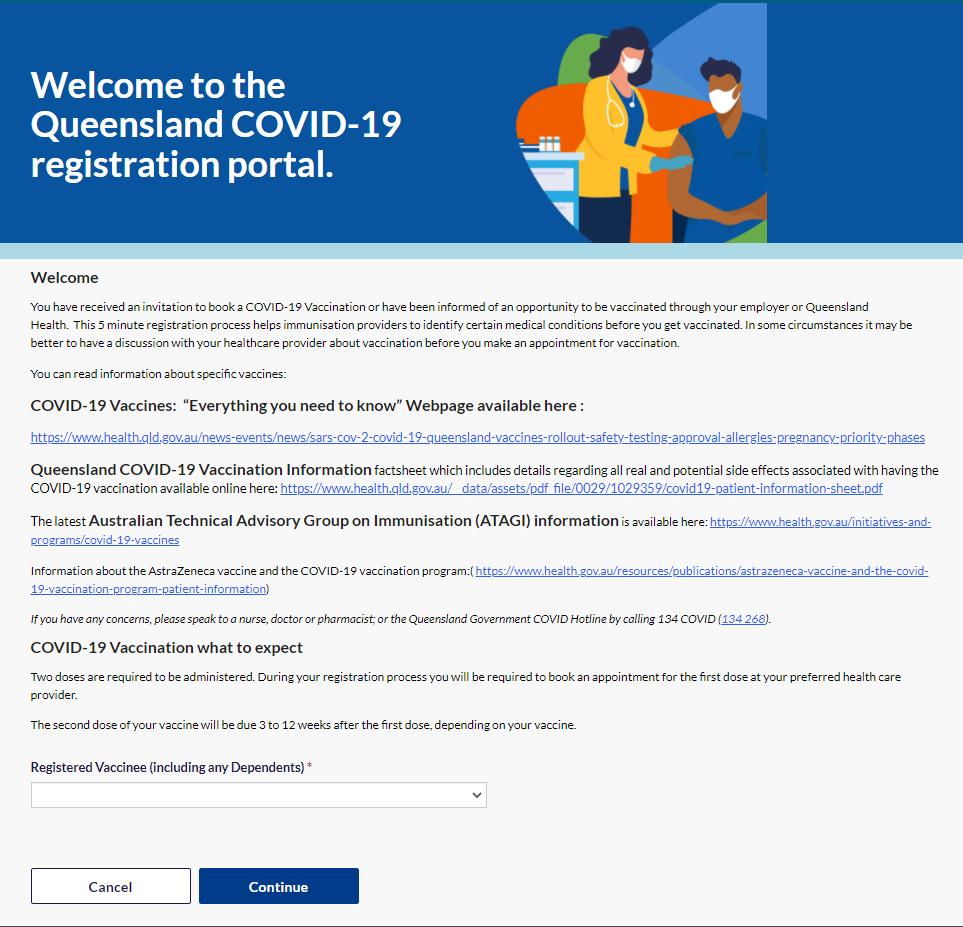
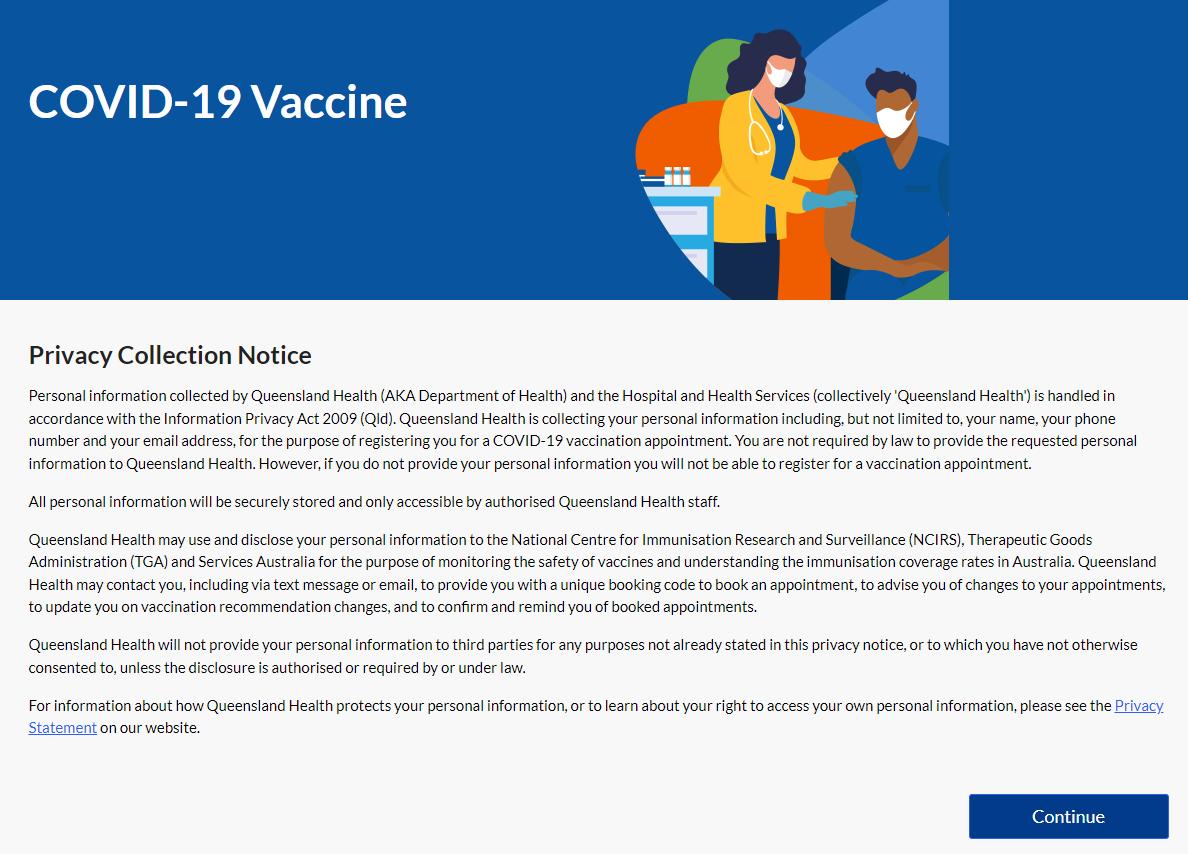
Complete your personal details and click Confirm
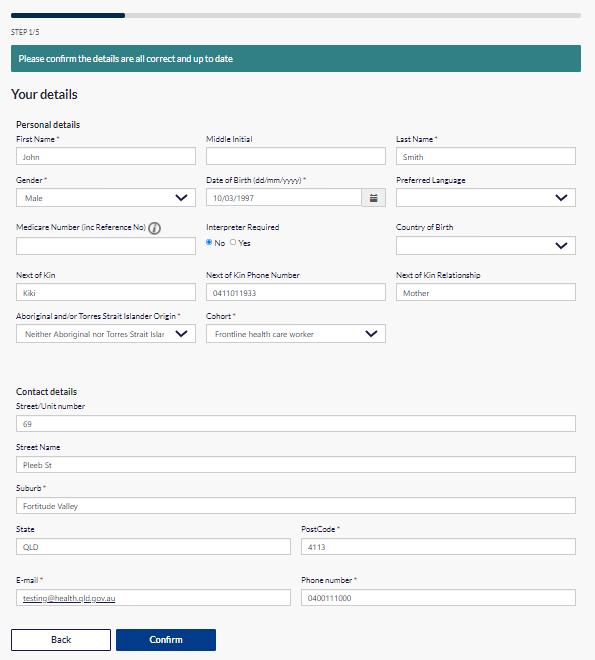
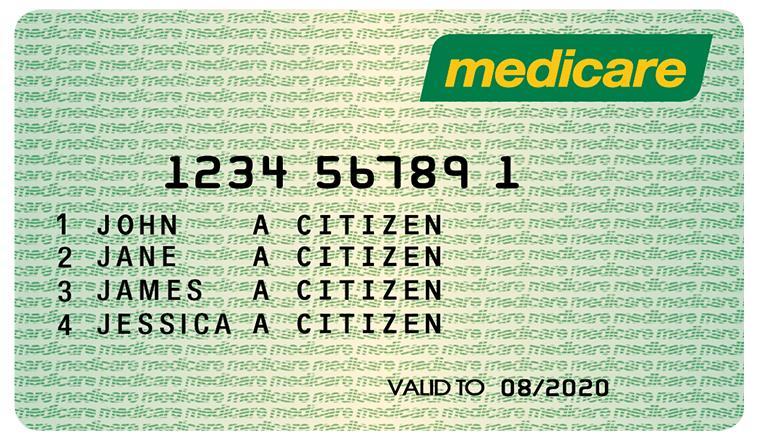
1-digit in front of your name
10-digit Medicare Number
Note: The Medicare Number (inc Reference No) requires 11 with no spaces = 10 digits in the Medicare number + 1 digit in front of your name. You can leave it blank if you do not have a Medicare card.
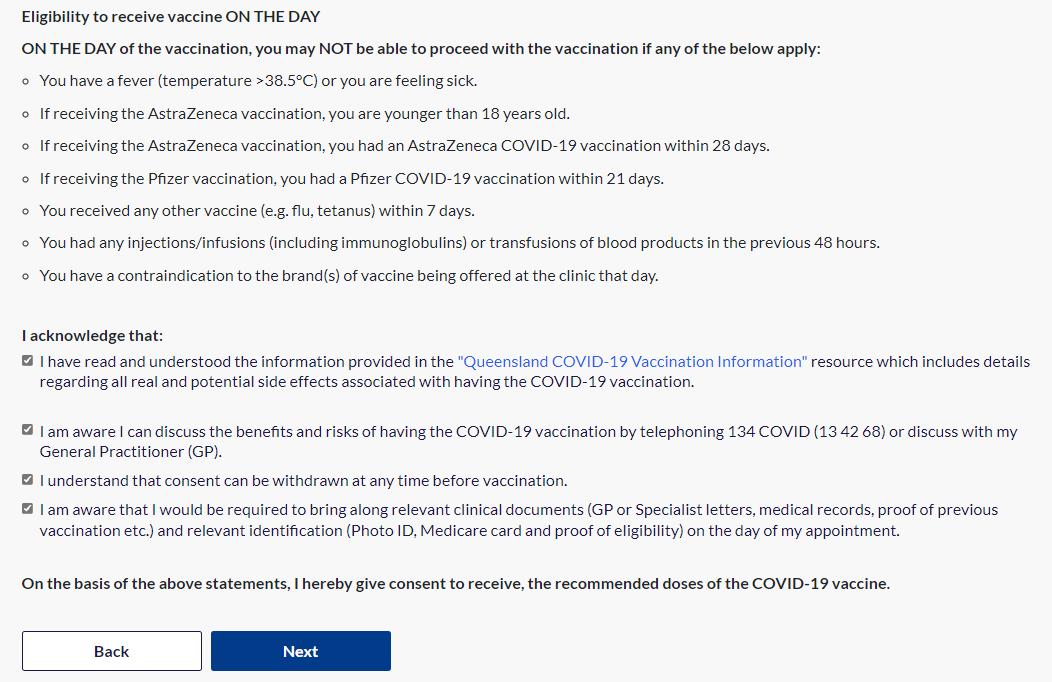
Complete the pre vaccination assessment. Answer each question before you select Next.

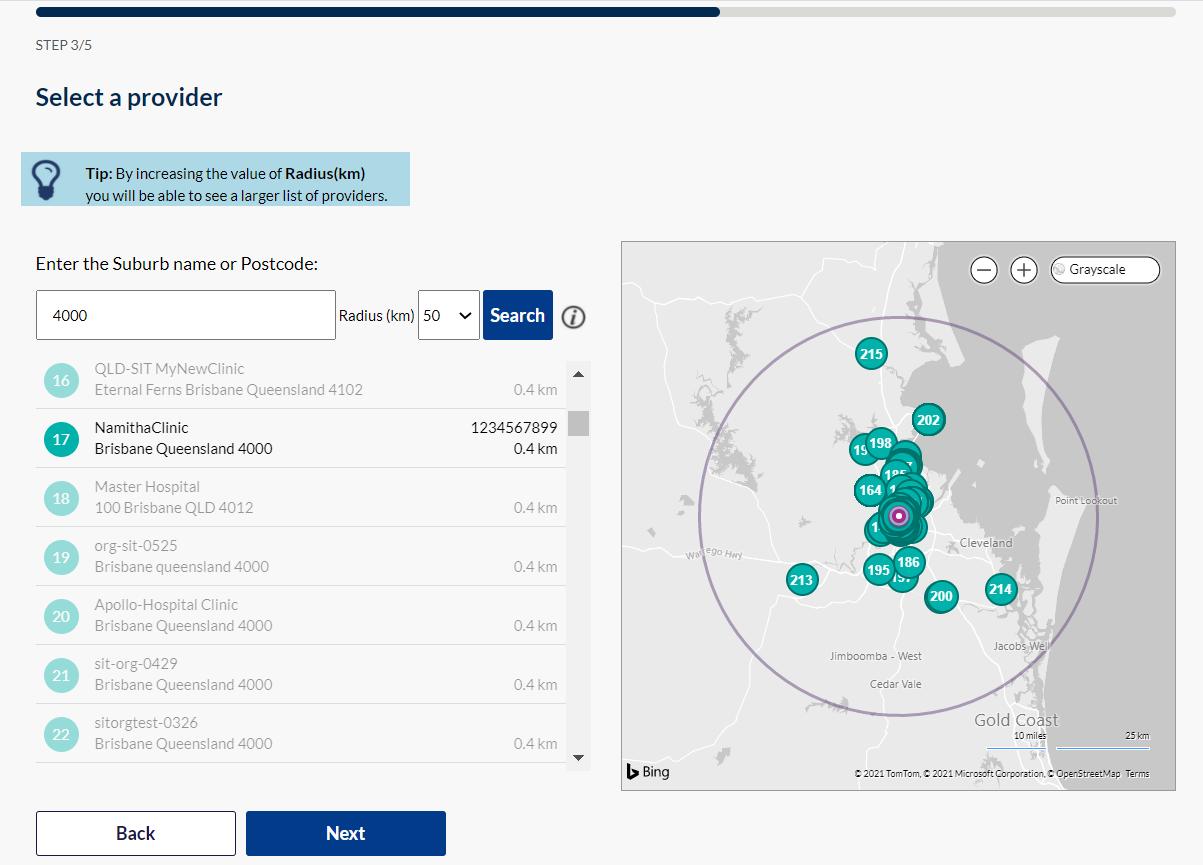
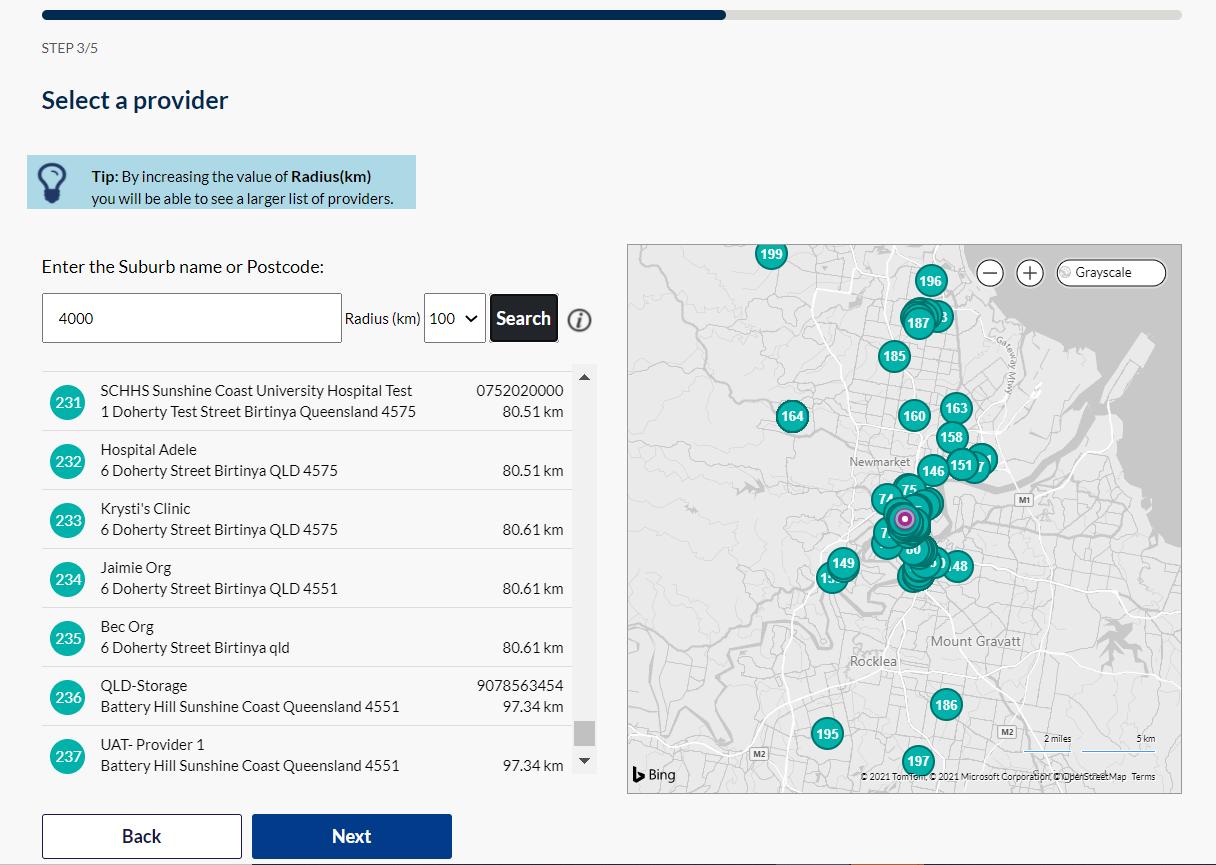
Step 15
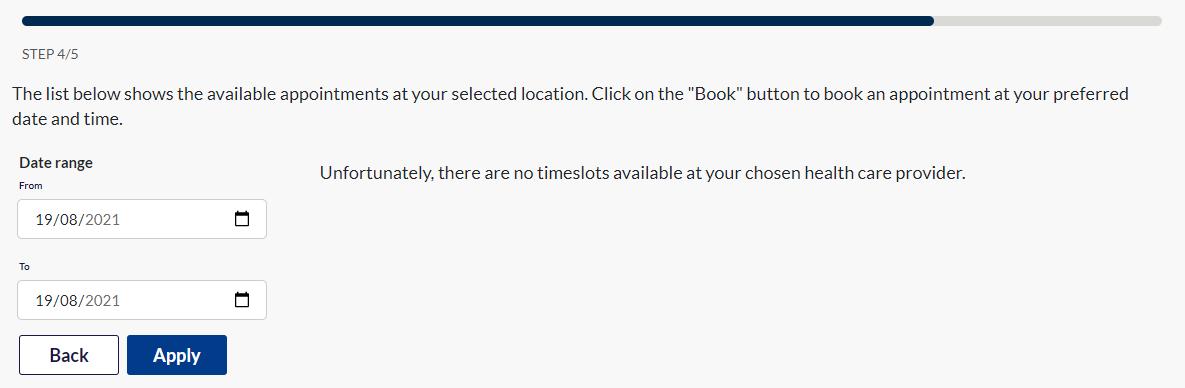
Enter a date range for your vaccine appointment and click Apply
Note: If there are no times available at your chosen vaccine location, you can click Back and find a new location.
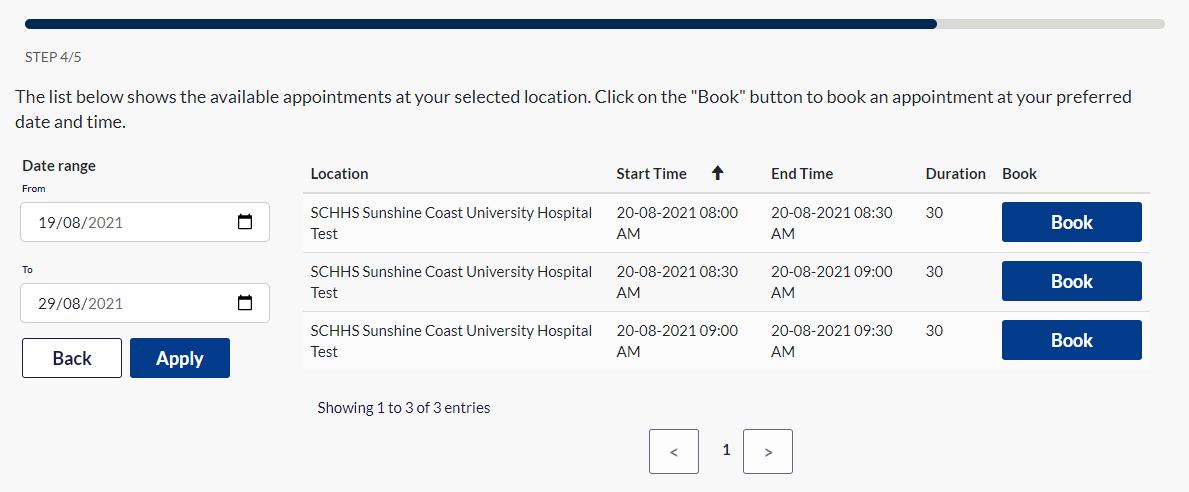
Step 16
Your appointment options will appear. Click Book for your preferred date and time.
Note: A ‘Sorry! This session is no longer available. Please select another time.’ message will appear at the top of the screen if an appointment is no longer available. If this happens, you will need to select another appointment.
vaccine booking system
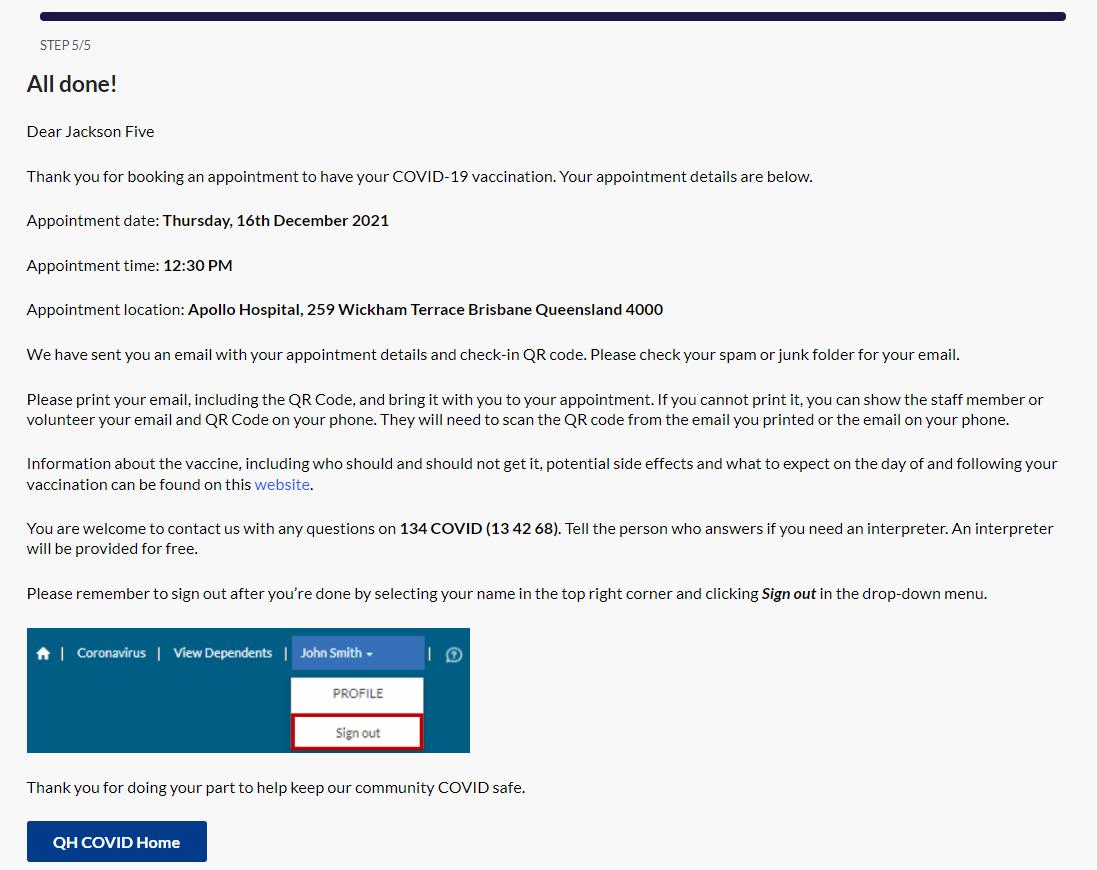
You will now see an All done! webpage confirming your vaccine appointment.
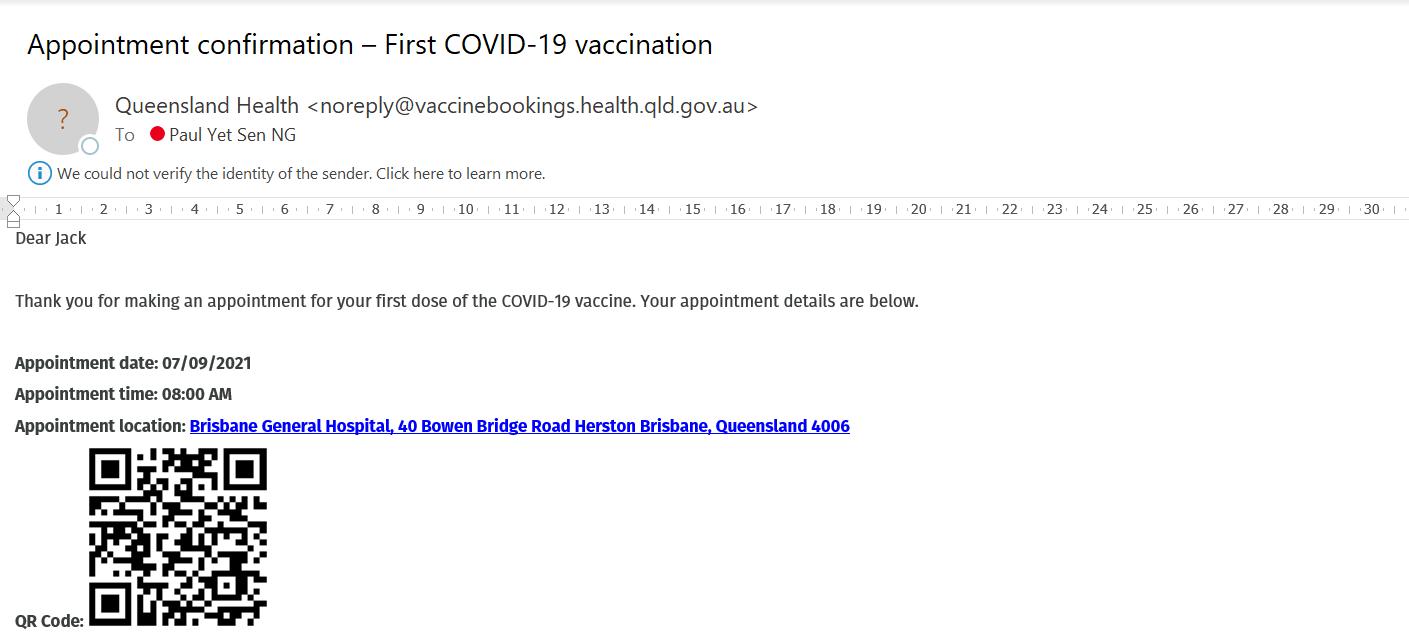
You will also receive a confirmation email. Please check your spam or junk folder.
Information on your second appointment
When you receive your first dose, a second dose appointment will be made for you This booking will be sent to your email. If the booking date or time does not work for you, please change your booking by following this guide Change or cancel a COVID 19 vaccine appointment for yourself or on behalf of someone else.