Setting Up Your Yearbook-Theme
Select a Yearbook Theme Overview
Themes include coordinating borders, backgrounds and embellishments as well recommended cover based on the selected theme.
Selecting a Theme 1.
From the Menu, hover over Book Builder and select Themes. a. The Themes page displays. b. If you do not want a theme for your yearbook, select the theme No Theme Applied at the bottom of the theme list.
2.
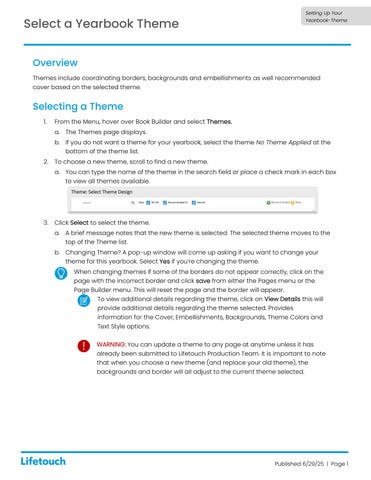
To choose a new theme, scroll to find a new theme. a. You can type the name of the theme in the search field or place a check mark in each box to view all themes available.
3.
Click Select to select the theme. a. A brief message notes that the new theme is selected. The selected theme moves to the top of the Theme list. b. Changing Theme? A pop-up window will come up asking if you want to change your theme for this yearbook. Select Yes if you’re changing the theme. When changing themes if some of the borders do not appear correctly, click on the page with the incorrect border and click save from either the Pages menu or the Page Builder menu. This will reset the page and the border will appear. To view additional details regarding the theme, click on View Details this will provide additional details regarding the theme selected. Provides information for the Cover, Embellishments, Backgrounds, Theme Colors and Text Style options. WARNING: You can update a theme to any page at anytime unless it has already been submitted to Lifetouch Production Team. It is important to note that when you choose a new theme (and replace your old theme), the backgrounds and border will all adjust to the current theme selected.
Published 6/29/25 | Page 1