Building Your Yearbook Styles
Create Heading and Body Styles Overview
Capability to create new, edit, preview or apply styles to Yearbook pages which gives a creative
Types of Styles There are 4 types of Styles: •
Headline Style-Main heading usually used at the top of an article or page.
•
Sub Headline Style-A smaller, secondary headline that usually elaborates on the main headline above it.
•
Caption Style-A title or brief explanation appended to an article, image, or embellishment.
•
Body Copy Style-Main text part of a yearbook article or page.
Create a Custom Style This process will be used to create a Custom Style for any of the styles (headline, sub headline, caption and body copy). 1.
From the dashboard under Book Builder drop down select Styles.
2.
Click on any Create Custom Style button to begin creating the specific style.
3.
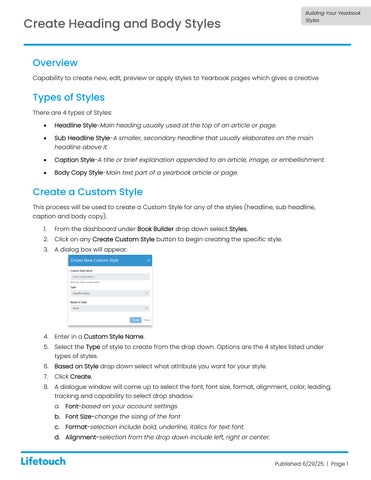
A dialog box will appear.
4.
Enter in a Custom Style Name.
5.
Select the Type of style to create from the drop down. Options are the 4 styles listed under types of styles.
6. Based on Style drop down select what attribute you want for your style. 7.
Click Create.
8. A dialogue window will come up to select the font, font size, format, alignment, color, leading, tracking and capability to select drop shadow. a. Font-based on your account settings b. Font Size-change the sizing of the font c.
Format-selection include bold, underline, italics for text font.
d. Alignment-selection from the drop down include left, right or center.
Published 6/29/25 | Page 1