Building Your Yearbook Page Upload
Upload Canva Page Overview Properly setting up your Canva design to be exported to the Lifetouch Yearbook website.
Requirements Setting up proper page size based on your Yearbook size. •
8x10.5” Custom page size for Size 7 book Pixels: 2550x3303 High Resolution Pixels: 2200x2850 Low Resolution
•
8.5x11” Custom page size for Size 8 book Pixels: 2550x1623 High Resolution Pixels: 2350x3000 Low Resolution
•
9x12” Custom page size for Size 9 book Pixels: 2700x3564 High Resolution Pixels: 2500x3300 Low Resolution
Page Set Up 1.
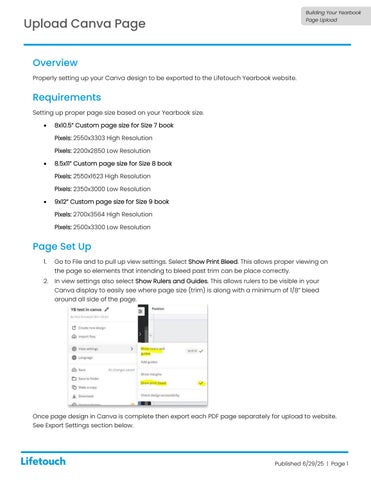
Go to File and to pull up view settings. Select Show Print Bleed. This allows proper viewing on the page so elements that intending to bleed past trim can be place correctly.
2.
In view settings also select Show Rulers and Guides. This allows rulers to be visible in your Canva display to easily see where page size (trim) is along with a minimum of 1/8” bleed around all side of the page.
Once page design in Canva is complete then export each PDF page separately for upload to website. See Export Settings section below.
Published 6/29/25 | Page 1