INTERFACE

FEBRUARY 2026
FEBRUARY 2026
In this guide you will learn how to use and get the most out of the new teacher interface of The KWL Hub.
Here, you will find a summary of our platform’s main features, as well as step by step guides on everyday tasks such as grading assignments, navigating the Gradebook, and much more.
It also shows how to implement connections with Learning Management Systems, and recommended use of the tools to monitor your students’ performances on every aspect of their learning. We hope that you find this guide useful, and we thank you for choosing The KWL Hub.
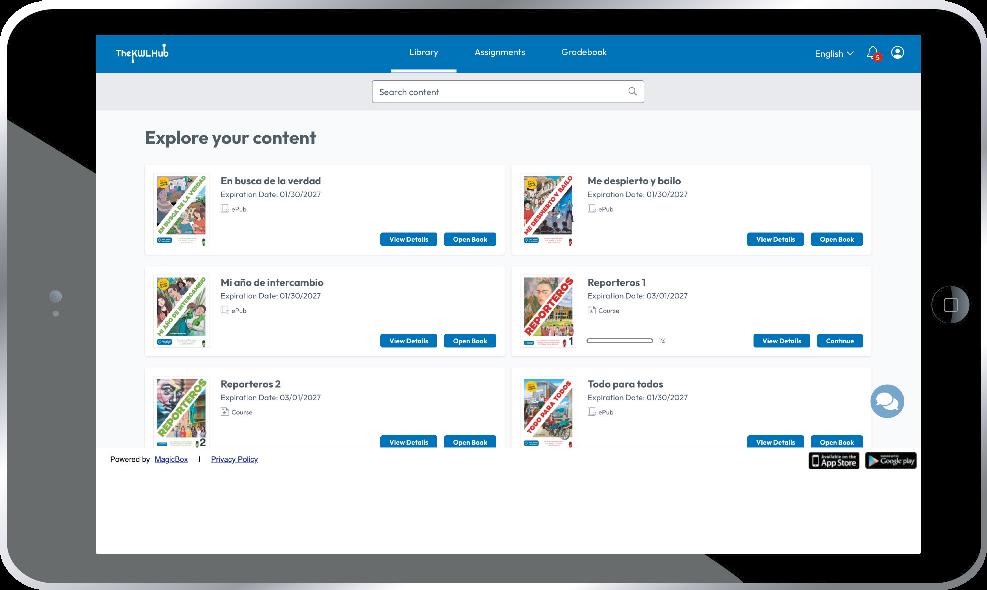
The Library is the landing page of The KWL Hub. Here you will find all the eBooks and courses you have registered on the platform, along with a side menu—available in every view—that lets you access the rest of the platform’s features. The Library is a central part of The KWL Hub, and its design has been updated to provide a more modern and intuitive experience.
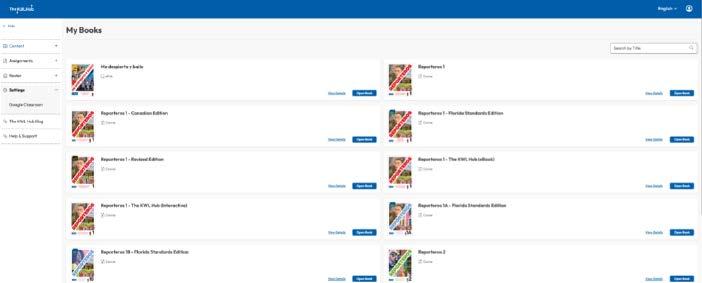
Key features of the Library include:
SEARCH
From the Library, you can search for any book by typing its title or ISBN.
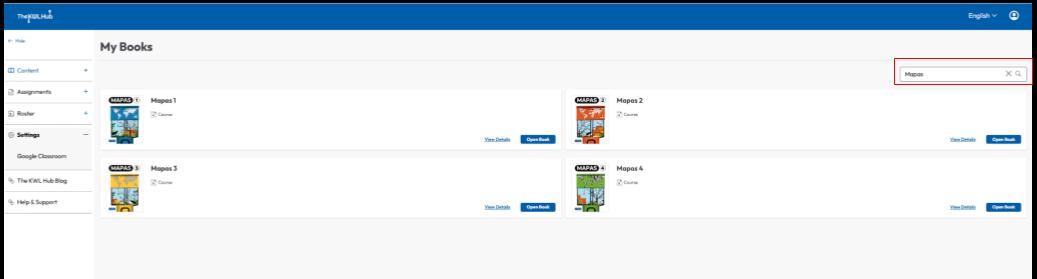
When you click the “View Details” button for any book, you can see key information such as the expiration date, file type, and additional details.
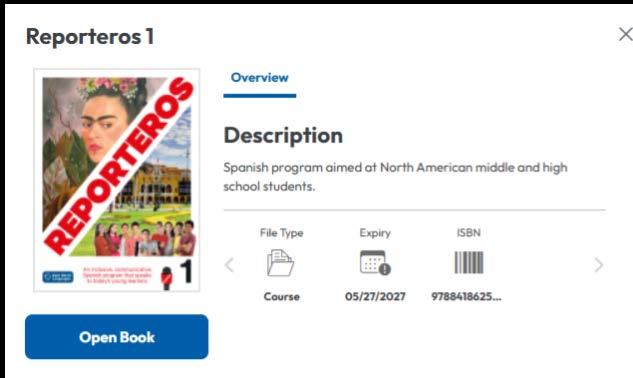
To open a book, click on the “Open Menu” button here, or the one in the book card, and the corresponding eBook will launch.

You can assign content (books, courses, etc.) to your students by following these simple steps:
From the sidebar menu, open the “Content” tab and select “Assign Books”.
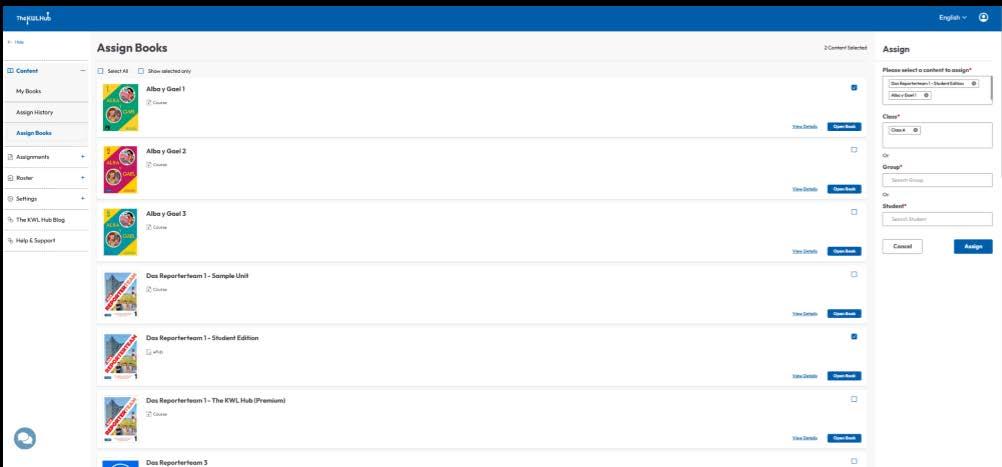
From there, select the books you wish to assign to your students. A new window will appear where you can choose which student(s), class(es), or group(s) you want to assign the book to. Once you’re done, click on “Assign”.
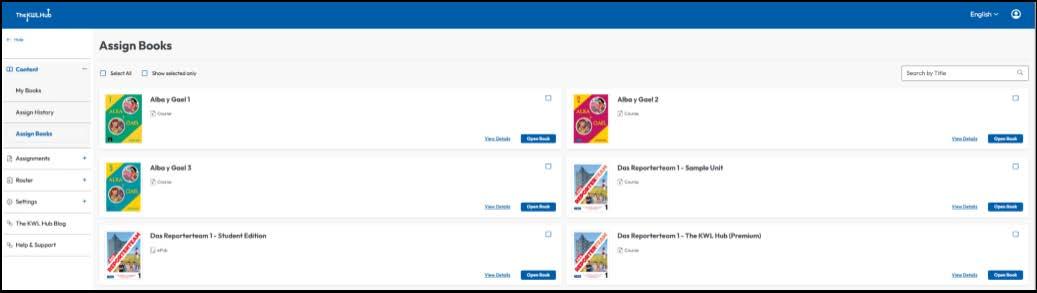
With our new user interface, we aimed to provide a smoother and more intuitive experience when navigating eBooks on the platform, enhancing existing features and adding new functionalities for greater ease of use.
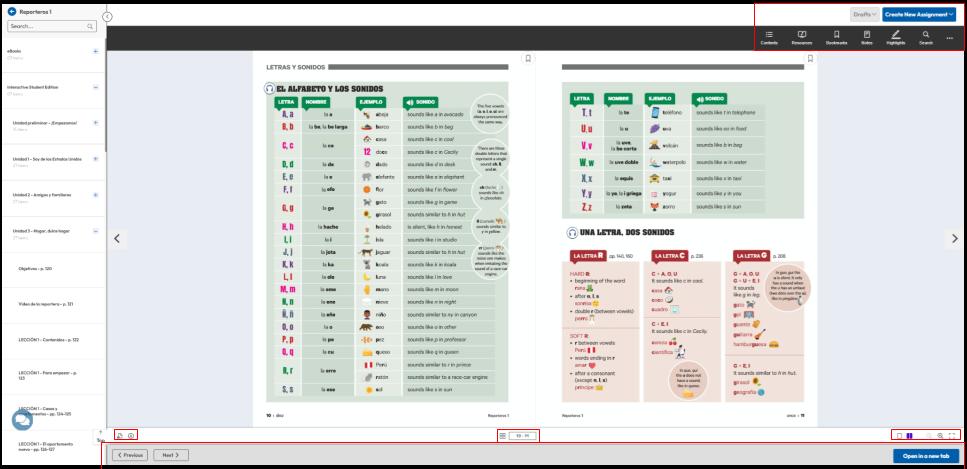
SECTION 1:
Options at the top right of the page:
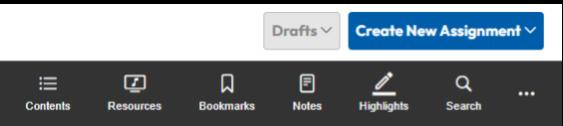
Drafts: Displays any assignments saved as drafts instead of published assignments. Create new assignment: Allows you to create an assignment directly from the activity you are currently viewing in the book. Both of the options above will be explained in further detail in the section on assignments.
Contents: Displays a menu of the book’s content and allows quick navigation between sections.
Resources: Provides access to multimedia content, such as websites or audio files.
Bookmarks: Shows any pages you have previously bookmarked, allowing faster access to important topics.
Notes: Displays any notes you have created.
Highlights: Shows all text highlighted in the eBook.
Search: Enter any keyword or phrase to view the pages of the book that contain it.
Three-dot icon: Provides additional options, such as “Share” or “Help.”
SECTION 2:
Options on the bottom left:
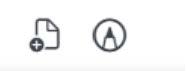
Add Note (left): Allows you to create a note anywhere on the page you are currently viewing. To create a note, click the icon and then click anywhere on the page. A popup will appear, allowing you to enter text.
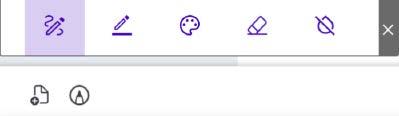
Highlighter (right): Enables the highlighter tool, which allows you to highlight text that will later appear in the “Highlights” menu mentioned earlier.
SECTION 3:
Options on the middle-bottom:
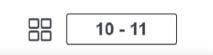
Thumbnail page view: Opens a pop-up displaying thumbnails of all pages.. Page number: Shows which page you are currently viewing. You can also click on it to navigate to a different page.
SECTION 4:
Options on the bottom-right.
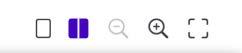
Single/Double-page view: Switches the view from single-page to double-page, or vice versa.
Zoom in/out: Zooms in or out on the page. Full-screen: Toggles full-screen mode.
SECTION 5: Other options:
Use these options to navigate from book to book or to open the current book in a new browser tab.
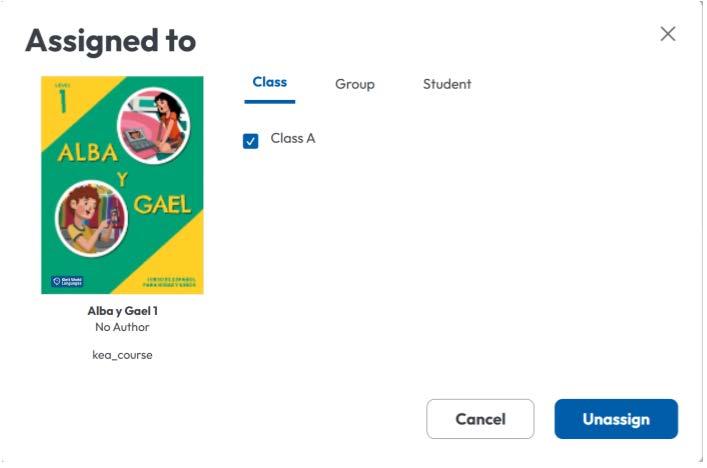
On this page, you can view all previously assigned content, see which students the content was assigned to, and unassign content whenever it is no longer required.
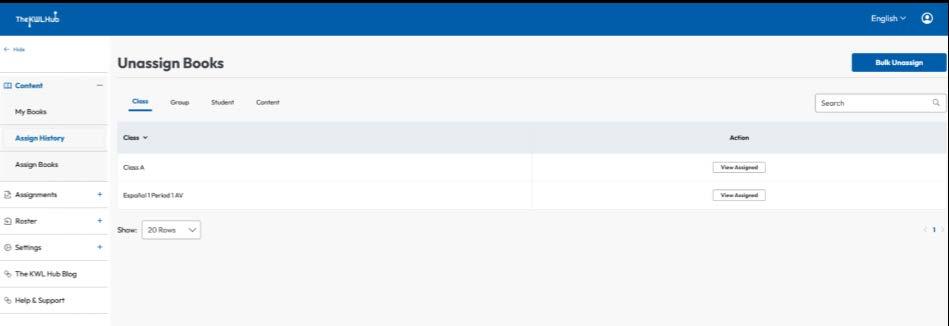
Here, the system will display a list of each class, group, or student to which content has been assigned in the past, or each book or course that has been assigned, depending on the tab selected. When you click “View Assigned,” a menu will open showing every previous assignment for the selected item.
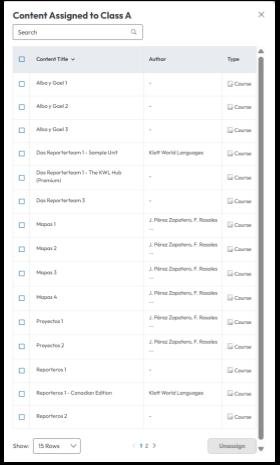
To undo an assignment, select the assignment you wish to remove and then click the “Unassign” button at the bottom of the pop-up.
Another feature of this page is the “Bulk Unassign” button. This option allows you to remove multiple assignments at once, without needing to select them from each individual book.
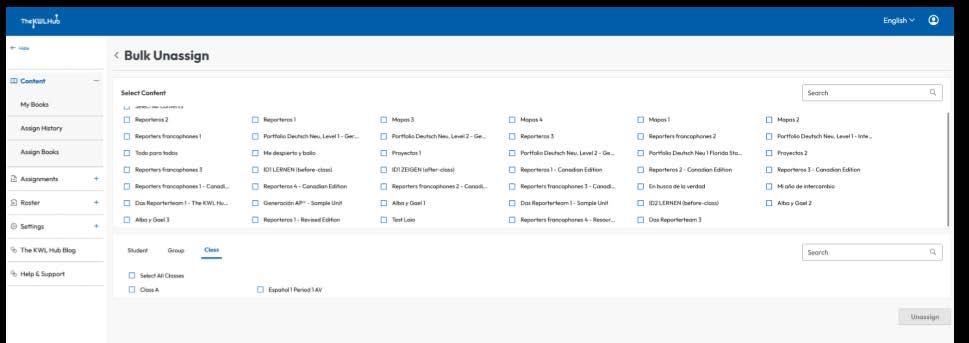
From here, you can select any number of assignments you wish to revoke and then click “Unassign” to remove them all.
Creating and managing assignments is one of the core features of our site, so we improved its design to make it more intuitive and user-friendly. To begin using this feature, navigate to “Assignments” in the left sidebar and then click on “Create Assignment” to access this page.
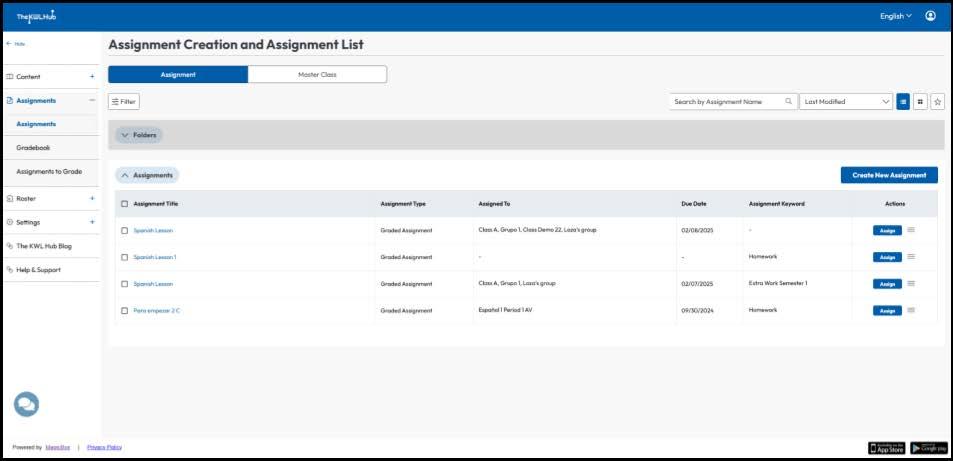
Here’s what you can find on this page:
• A list of all previously created assignments.
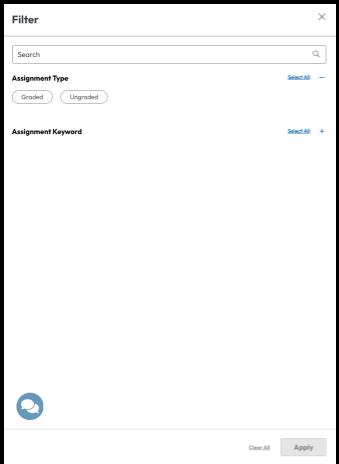
• The “Filter” button, which allows you to display only assignments of a certain type or containing a specific keyword.
• A search bar, where you can search for an assignment by keyword, word, or full name.
• Options to switch between grid view and list view.
• An option to show only favorite assignments.
On an assignment card, you can find all relevant information, such as the assignment type, the students it is assigned to, the selected due date, and more. You can also access the assignment options, as well as the “Assign” button.
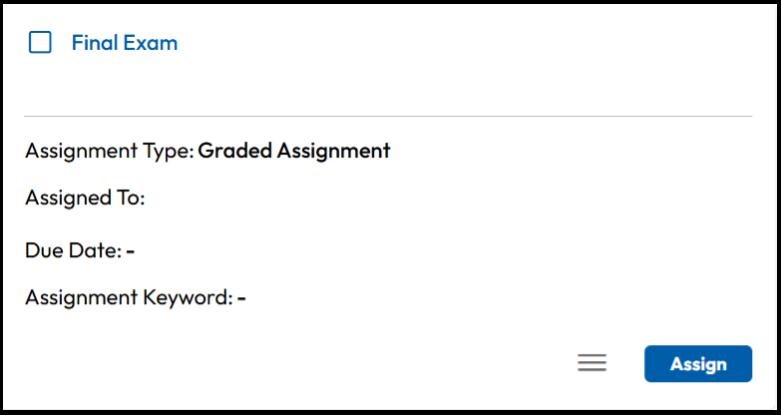
To assign an assignment to one or more students, click the “Assign” button on the assignment card.
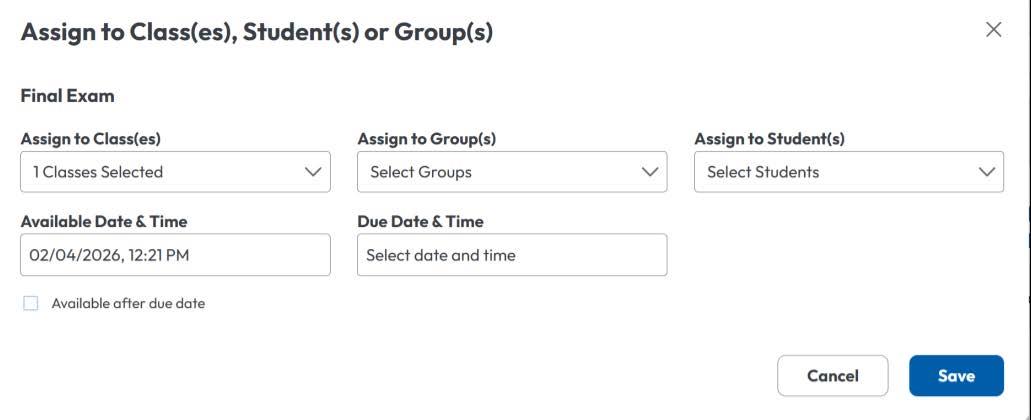
A pop-up will appear showing to whom the assignment will be assigned, the available and due dates, and the option to allow submission after the due date. Once you are satisfied with these settings, click “Save” to complete the process.
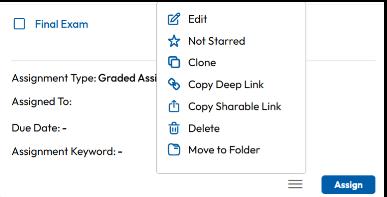
In addition to assigning, the hamburger menu includes other useful options, such as editing the assignment, starring it, or sharing it.
To create an assignment, click the “Create new assignment” button at the top of the page. You will be redirected to the following page:
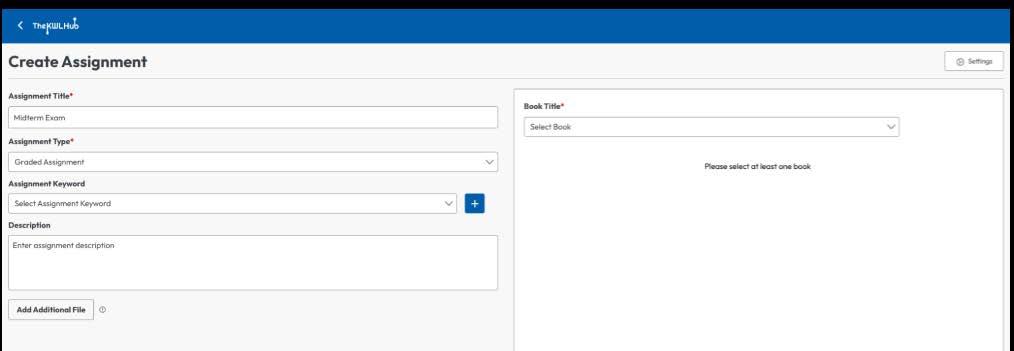
Here you can edit the assignment’s parameters:
• Assignment title: The name and identifier of the assignment.
• Assignment type: Can be either graded or ungraded.
• Assignment keyword: You can add keywords to the assignment, which can later be filtered on the main page.
• Description: A brief text description of the assignment.
• Add additional files: Allows you to attach any extra documents that may be required or useful for students. Students can view and download these files when the task is assigned. Many file types, such as .doc, .pdf, or .jpeg, are supported.
• Settings: Allows you to adjust specific settings for the assignment, as shown below:
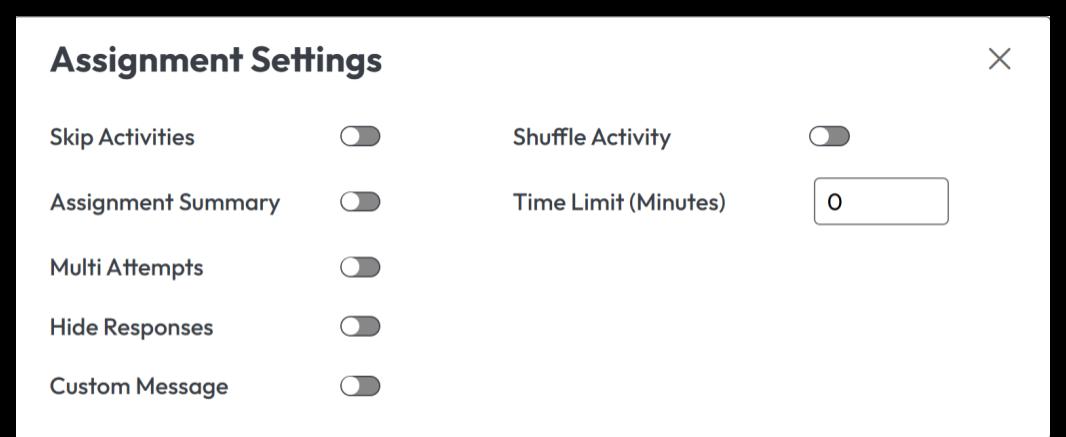
Keep in mind that only graded assignments can have settings.
On the right panel, you can select any book you currently have access to in order to add activities to the assignment. Any checked activities will be added to the assignment.
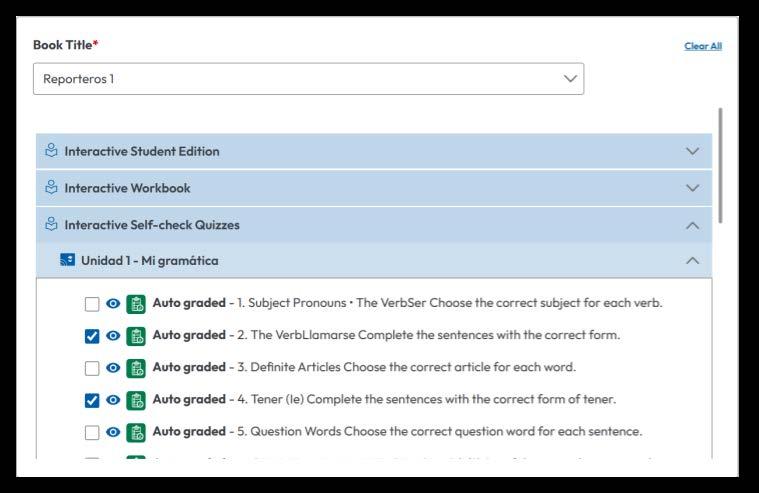
To finish creating the assignment, click “Create Assignment” at the bottom of the page to save it.
We’ve added the option to create and manage groups of assignments using folders. This option is available through the “Create Assignment” menu in the left sidebar.
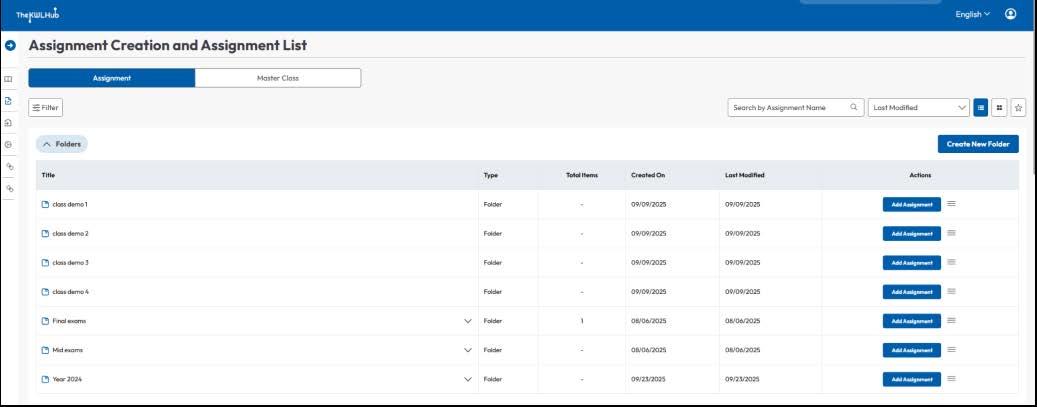
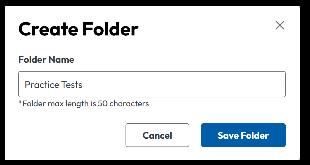

Here’s everything you can do with folders:
ADD ASSIGNMENT TO FOLDER:
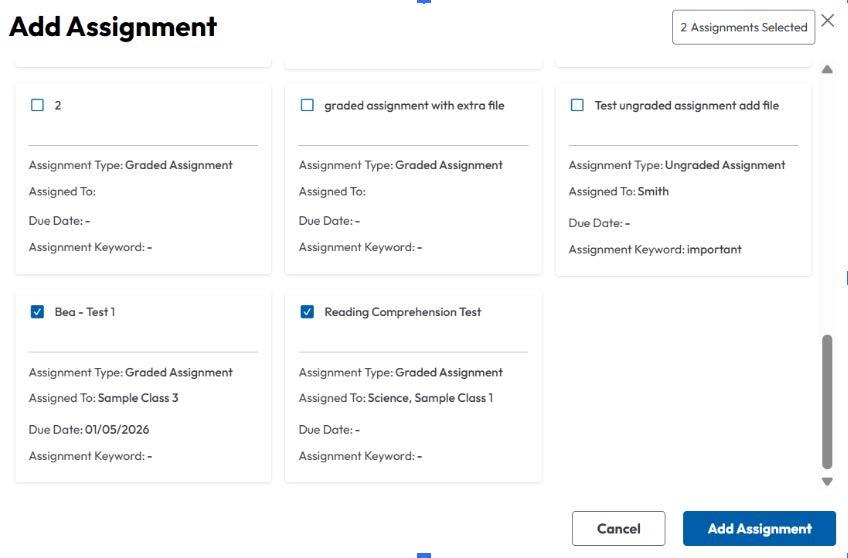
To add an assignment to a folder, click the “Add Assignment” button to the right of the folder where you want to place it. When you click, a pop-up will appear showing all assignments available on the platform. Select the assignments you wish to add, and then click the “Add Assignment” button at the bottom.
To remove an assignment from a folder, click the menu next to the assignment you want to remove and select the appropriate option. This menu also includes additional options, such as sharing the assignment or moving it to another folder.
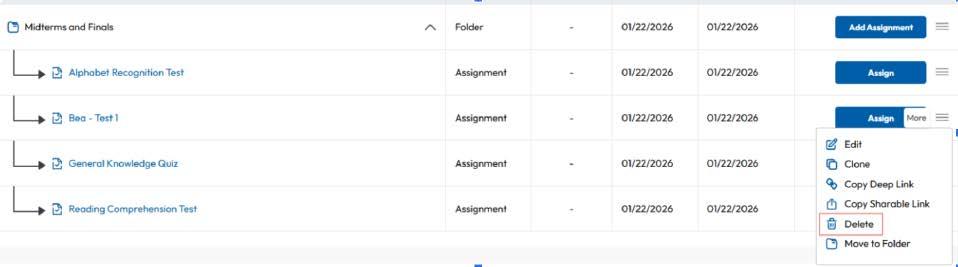
To edit or delete a folder, click the hamburger menu next to “Add Assignment” and select the appropriate option. From there, you can create a new subfolder, edit the folder name, or delete the folder.
One of our main new features is the addition of the “Gradebook” tab; a dashboard for sections that need to be accessed frequently. To open it, navigate to “Assignments” and click on “Gradebook.”
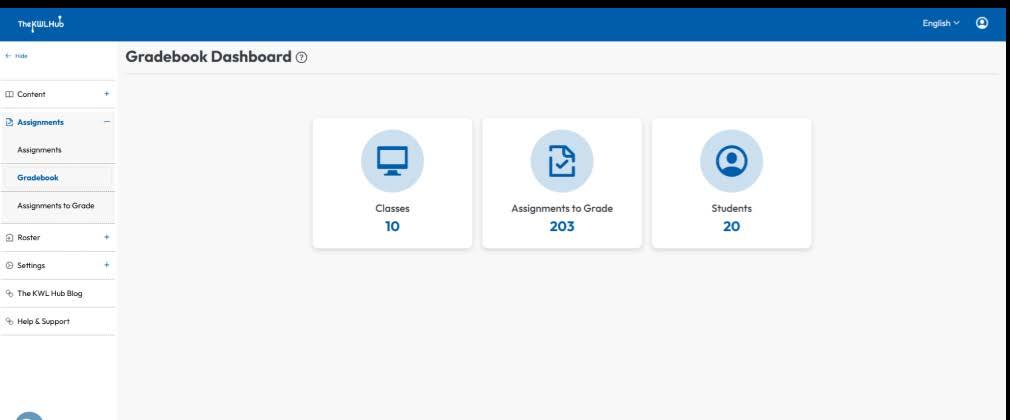
From this page, you can access class performance reports, assignments that currently require grading, and a list of all students enrolled in your classes.
After a student submits an assignment, it is time to grade it. The KWL Hub includes features designed to make this process seamless, fast, and efficient. To access assignments that require grading, navigate to “Assignments” and click “Assignments to grade.” This section can also be accessed from the “Gradebook.”
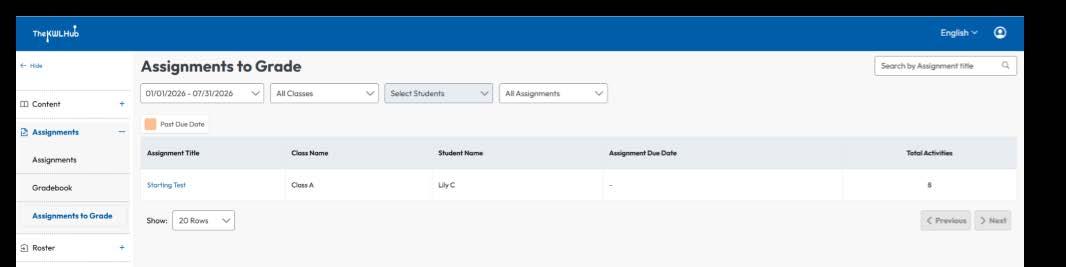
Here you can view all ungraded assignments within a selected timeframe. Using the filters at the top, you can modify the date range, select the classes or students who submitted the assignments, or search for a specific assignment.
To grade an assignment, click its name. You will be redirected to the assignment page, where you can review the student’s answers and provide a grade or feedback.
Once you finish grading each activity, you will see the bottom menu.
Here you can provide feedback for the entire assignment and submit it. If additional assignments are pending grading, you can move to the next one. You also have the option to reassign it to the same student if needed.:
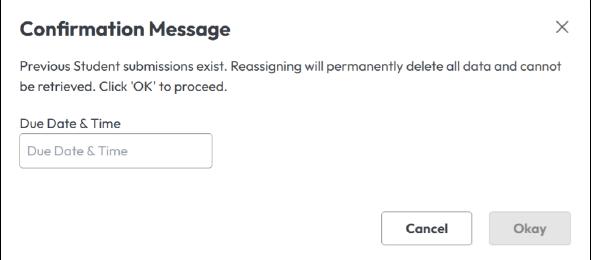
After you submit a correction or reassign the task, the student will receive a notification on their home page.
Our new design makes roster management easier. We have divided rostering into three sections:
To view and manage the classes you are currently associated with, navigate to “Roster” and click on “My classes.”
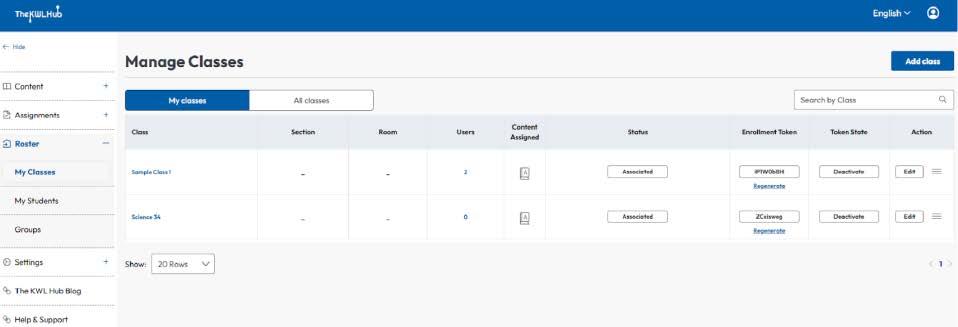
Here you can see each class you are assigned to, as well as all other classes. A search bar is available for quick access. For each class, you can view:
• Its physical location (Section and Room).
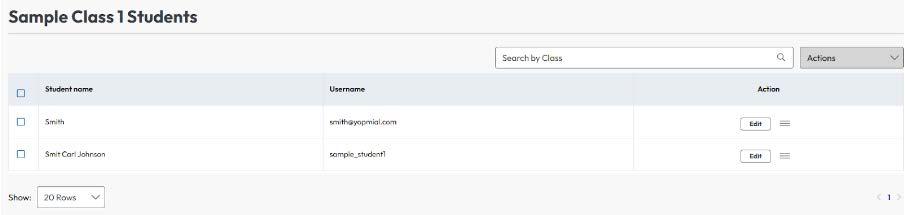
• The number of users. You can also click on the number—or on the class name— to see a detailed list of all students enrolled in the class, along with basic information about them.
• The content currently assigned to the class.
• The option to associate or disassociate yourself from the class.
• A token that students can use to enroll in the class, as well as the status of that token. You must provide this code to each student you wish to enroll in your class.
• Additional options, such as sharing the class, editing it, or sending a notification to all students in the class.
The final option available is the creation of a new class. To access it, click the “Add Class” button above the table. When you do, a pop-up will appear asking you to enter a class name. Once you’re done, click “Confirm,” and the class will be created.
Here you will find information about all of your students. To access this menu, navigate to “Roster” and click on “My Students.”
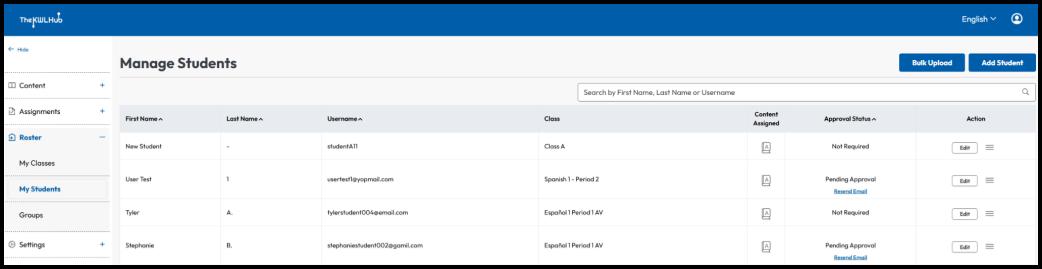
On this page, you can view information about each student, such as full name, username, assigned content, and the class they are enrolled in. You can also perform useful actions, such as impersonating a student, which allows you to see the platform from their perspective as if you were logged into their account. You can also search for a specific student by entering their name or username.
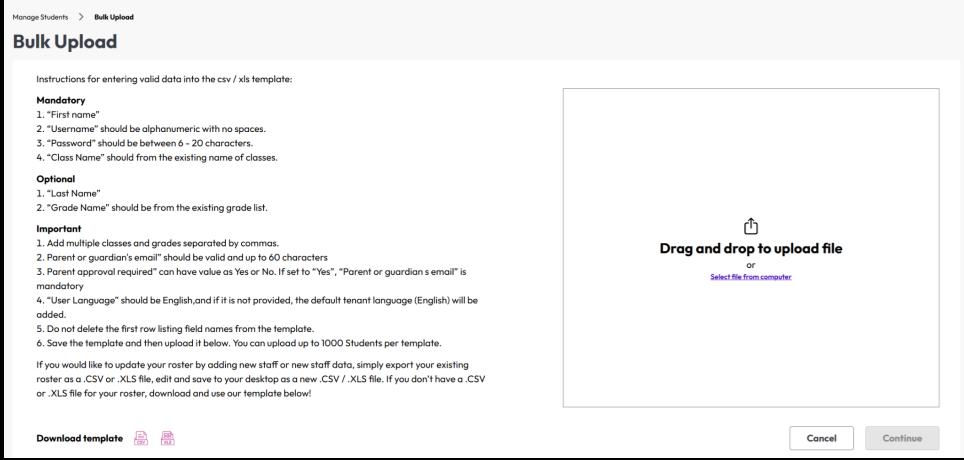
The two buttons at the top are used to add new students. If you select “Bulk Upload,” you will be able to quickly add multiple students to the platform. The steps are explained on the page, and a template is provided to help minimize errors.
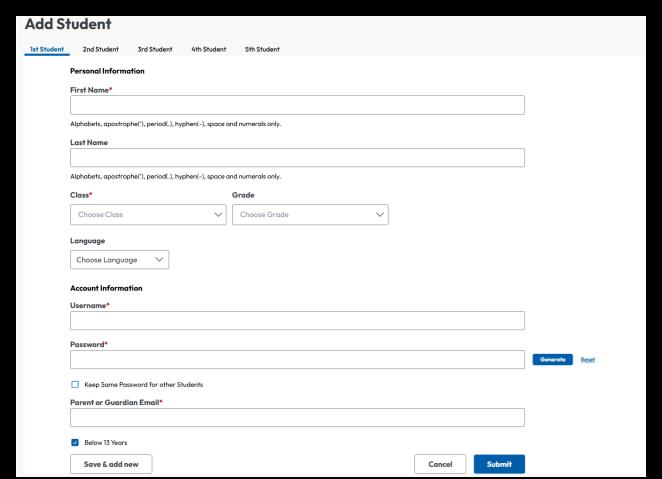
If you need to add individual students, you can use the “Add Student” feature. When you select it, a page will display a form with fields to complete. Once you’re done, click “Submit” to add the student to the system, or “Save and add new” if you need to manually add multiple students.
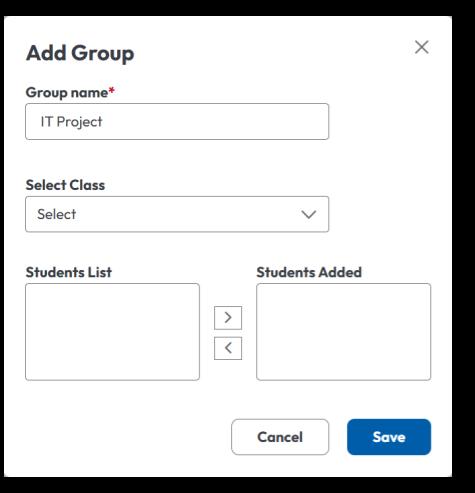
Groups are selections of students, not necessarily from the same class, that you can notify and assign content to as a unit. To access your groups, navigate to “Roster” and click on “Groups.”
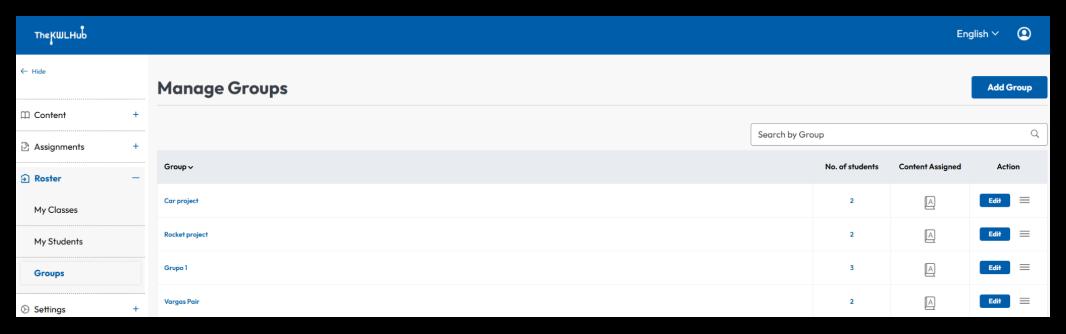
Here you can see the groups you’ve created, the number of students in each group, the content assigned to each group, and the options to edit, notify, or delete a group.
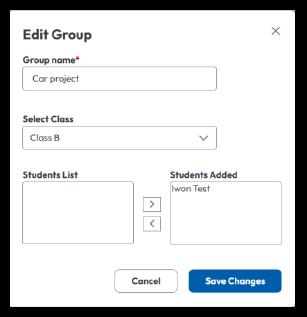
To create a new group, click the “Add Group” button. A prompt will appear asking for a name and the students you want to add to the group. Once you have added all the students, click “Save” to create the group.
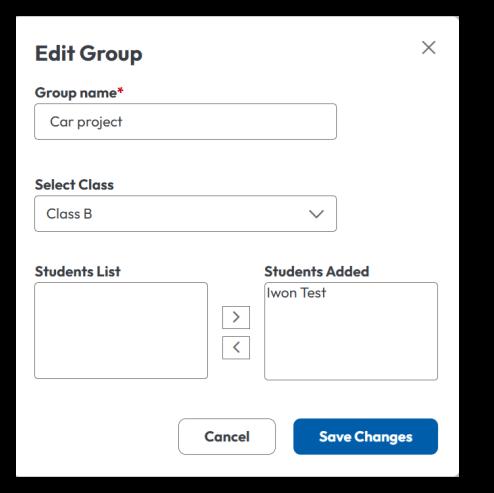
Editing a group works in a similar way. When you click “Edit Group,” you can change the group name or modify the list of students in it.
The most significant feature introduced with the new user interface is the Performance Report*, a tool that allows teachers to view detailed information about each student’s performance, organized by the key aspects of every completed assignment. This powerful tool helps teachers identify the areas in which students excel and those that may require additional support
ASSIGNMENT
To access this feature, navigate to “Skills Report” and click the first option. The following window will appear:
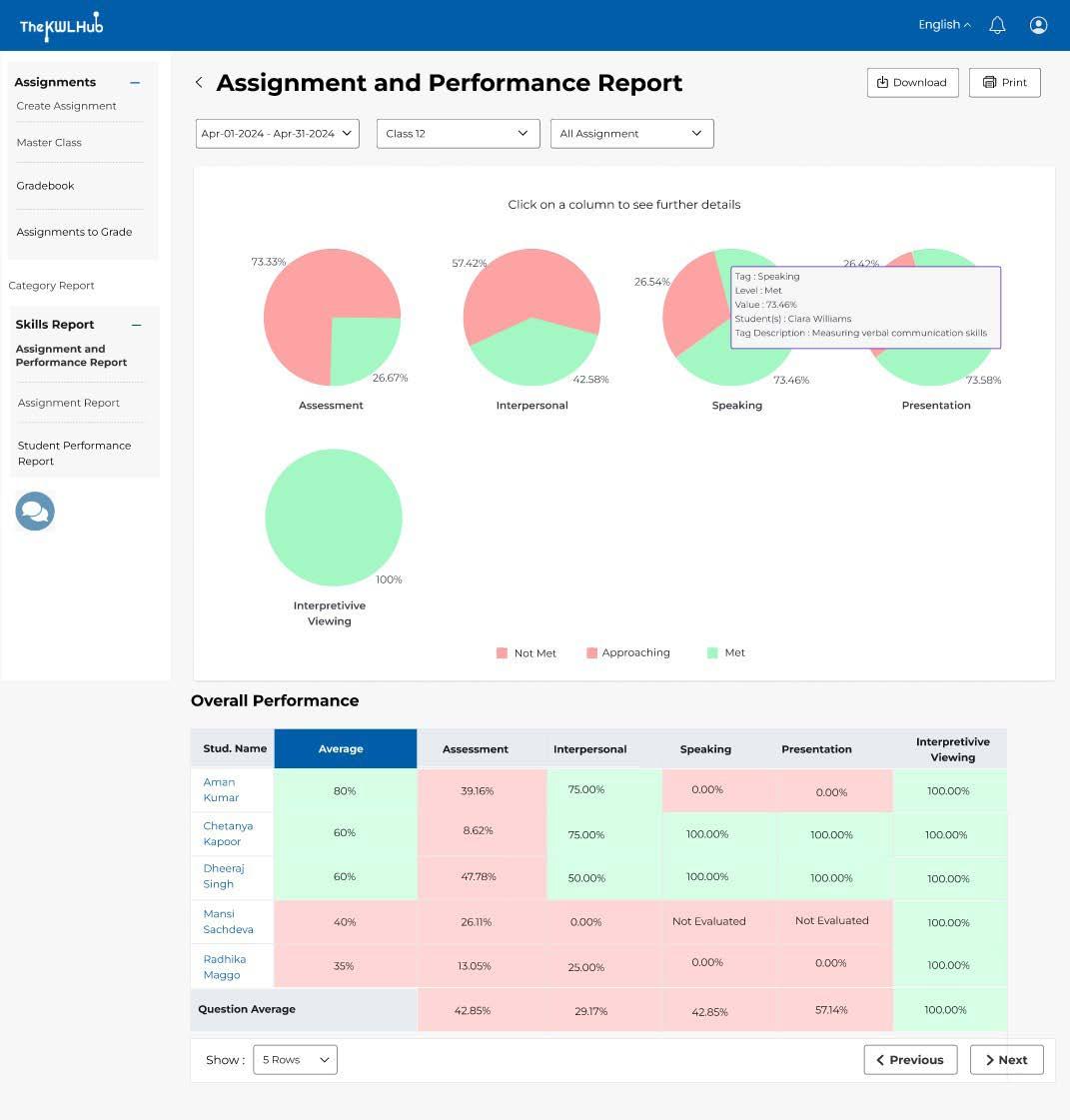
Here you can see a summary of the skills being tracked, each accompanied by a pie chart showing what percentage of students have met the criteria set for that skill. You can make this search more precise by specifying a certain timeframe, class, or assignment. Below the pie charts, you will find a summary table that connects students with their performance in each area.
If you click on a pie chart, you will see a breakdown of that skill. This will take you to a page called Assignment Report, which can also be accessed through the menu on the left.
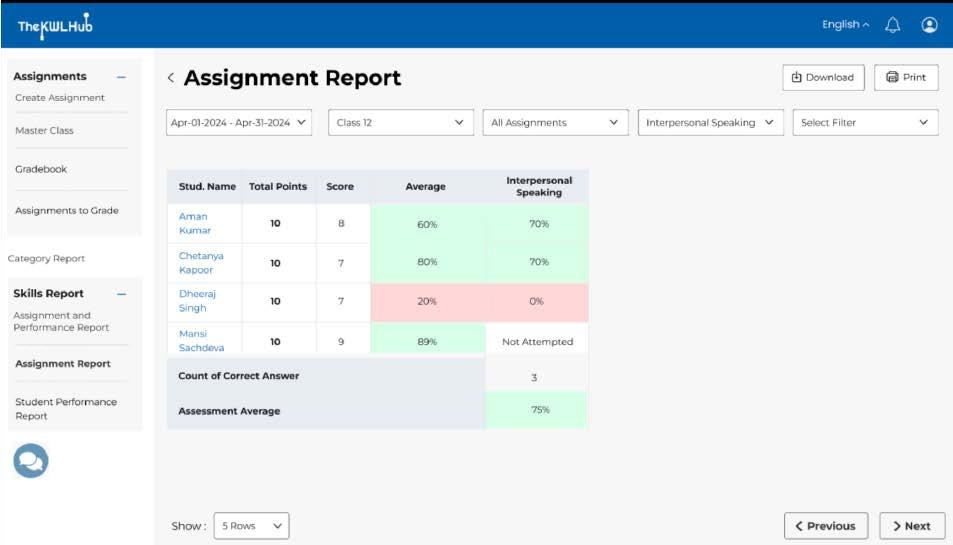
This report shows which assignment led to the score and how each student performed on the assignment.
You can also click on a student’s name to view their individual performance. This is the same as selecting them through the “Student’s Performance Report.”
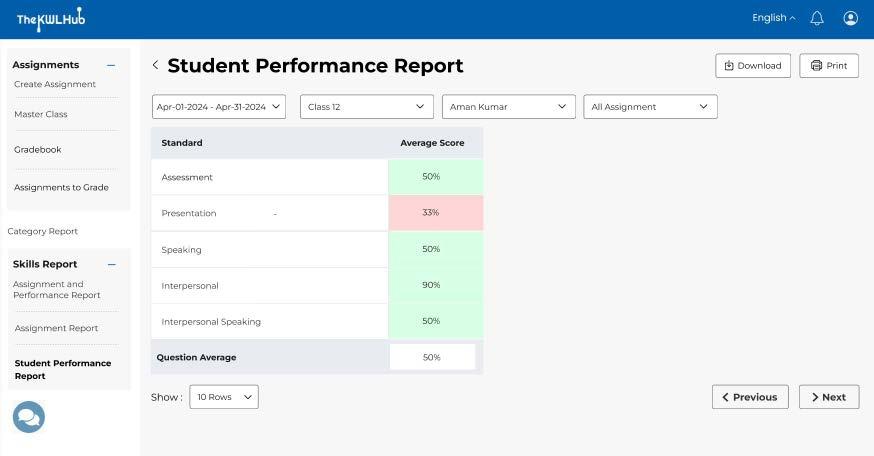
Here you can see the average scores of the selected student in each tracked category. You can refine the search by specifying a timeframe, a class, or a specific set of assignments.
The KWL Hub can connect to other learning platforms, such as Canvas or Google Classroom. For a more detailed guide on how to connect to these platforms, please refer to: https://kwlhub.elevio.help/en/categories/39-admin-guides
This is the end of the walkthrough of the new Teacher Interface of The KWL Hub. We hope that this guide has been useful. If you need further help while exploring, here are some additional resources you can refer to:
NEED ADDITIONAL SUPPORT? WE’VE GOT YOU COVERED!
• Technical Support: For immediate assistance, visit our support page or contact us directly–we’re happy to help!
• Elevio Support Articles: Explore our KWL Hub Support Page