
Step 1: Register or Log in
https://www.employeenavigator.com
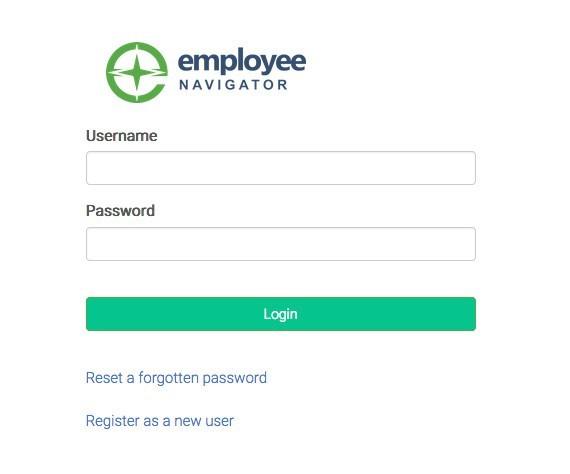
Returning Users: Log in with the username and password you selected. If you have forgotten either, click Forgot Username? or Forgot Password?
First Time Users: Click on your Registration Link in the email sent to you by your admin or click Register as a new user. Create an account by creating your own username and password.
Company Identifier: MyBenefits!
Step 2: Welcome!
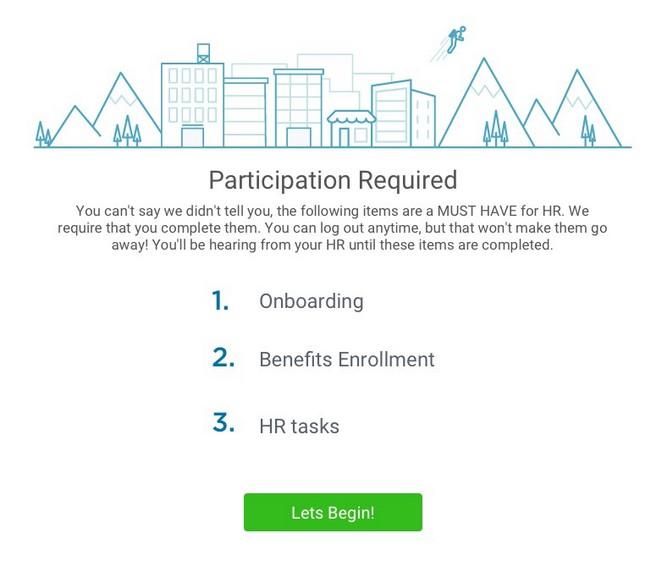
After you login click Let’s Begin to complete your required tasks.
Step 3: Onboarding (For first time users, if applicable)
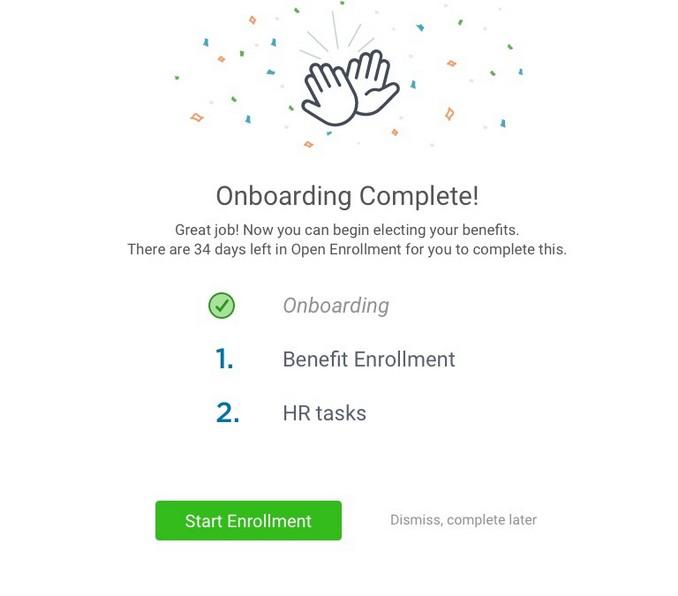
Complete any assigned onboarding tasks before enrolling in your benefits. Once you’ve completed your tasks click Start Enrollment to begin your enrollments.
T I P
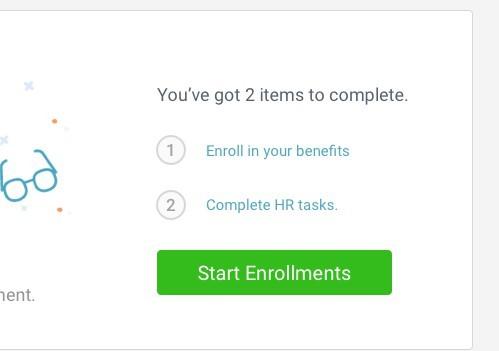
if you hit “Dismiss, complete later” you’ll be taken to your Home Page. You’ll still be able to start enrollments again by clicking “Start Enrollments”
After clicking Start Enrollment, you’ll need to complete some per- sonal & dependent information before moving to your benefit elec- tions.
T I P
Have dependent details handy. To enroll a dependent in coverage you will need their date of birth and Social Security number.
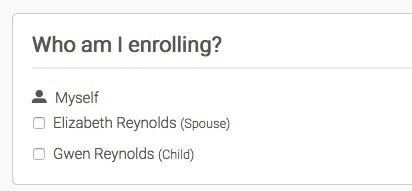
To enroll dependents in a benefit, click the checkbox next to the de- pendent’s name under Who am I enrolling?
Below your dependents you can view your available plans and the cost per pay. To elect a benefit, click Select Plan underneath the plan cost.
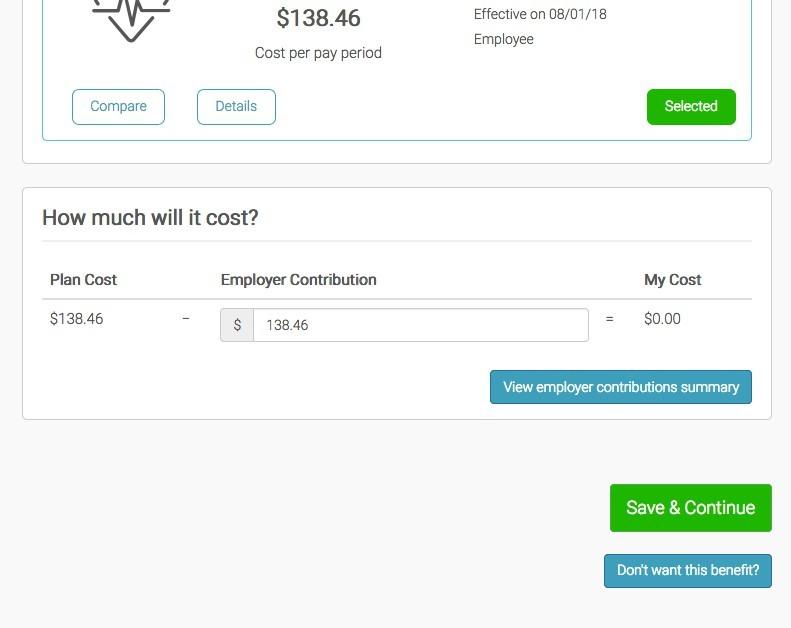
Click Save & Continue at the bottom of each screen to save your elections.
If you do not want a benefit, click Don’t want this benefit? at the bottom of the screen and select a reason from the drop- down menu.
If you have elected benefits that require a beneficiary desig- nation, Primary Care Physician, or completion of an Evidence of Insurability form, you will be prompted to add in those details.
Review the benefits you selected on the enrollment summary page to make sure they are correct then click Sign & Agree to complete your enrollment. You can either print a summary of your elections for your records or login at any point during the year to view your summary online.
T I P
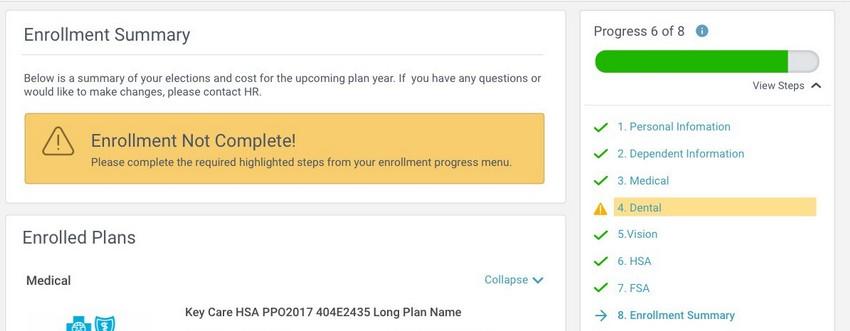
If you miss a step you’ll see Enrollment Not Complete in the progress bar with the incomplete steps highlighted. Click on any incomplete steps to complete them.
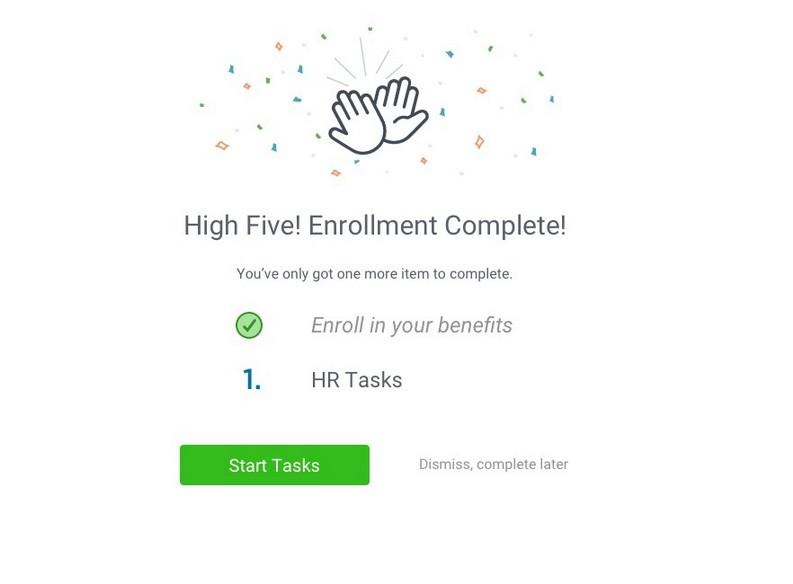
To complete any required HR tasks, click Start Tasks. If your HR department has not assigned any tasks, you’re finished!


Username, Password & Language
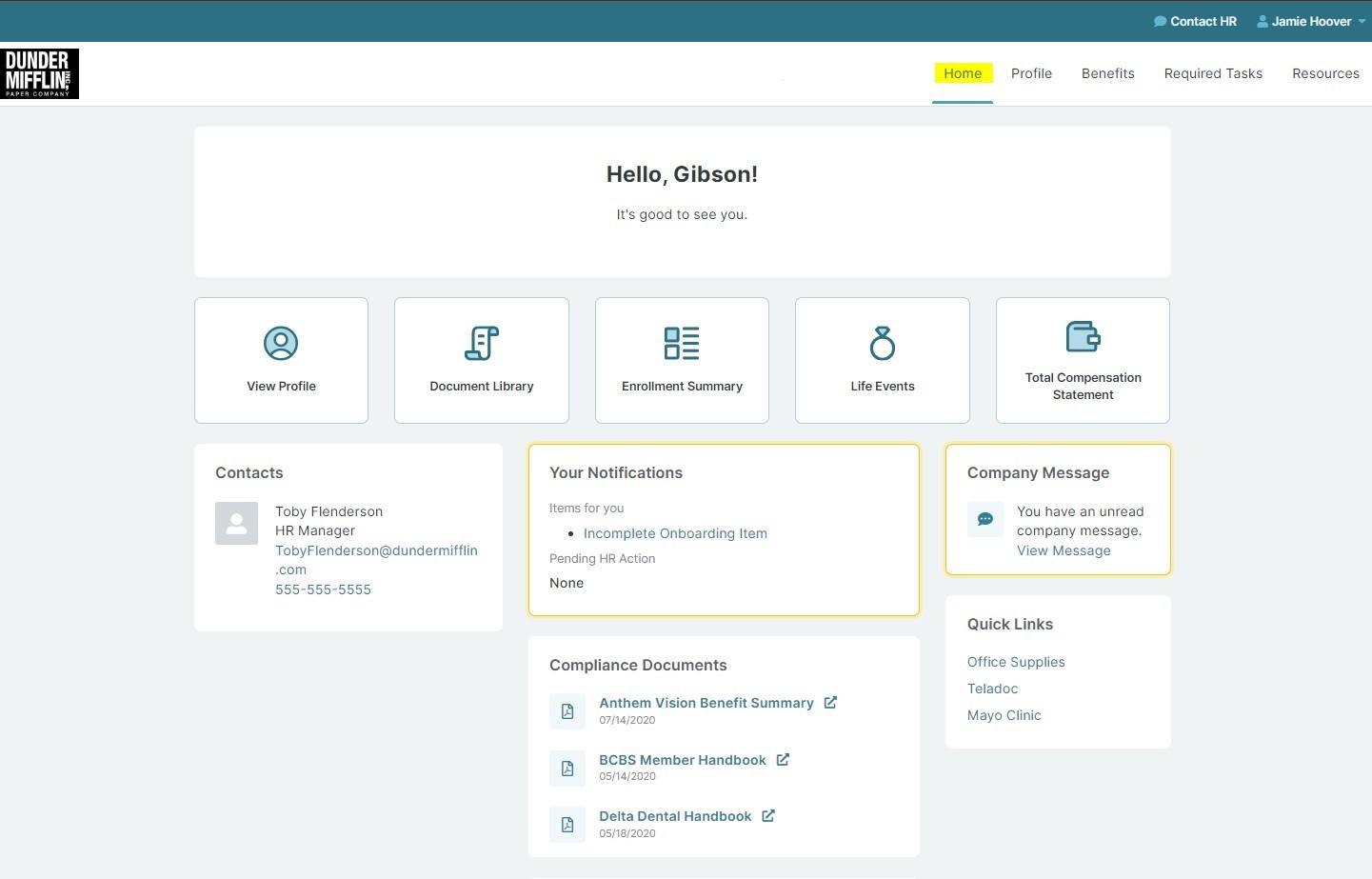
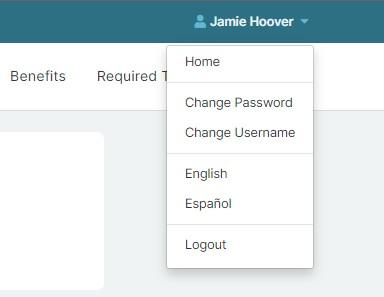
You can click the drop down arrow next to your name in the top right corner. Here you can
Change Password and Change
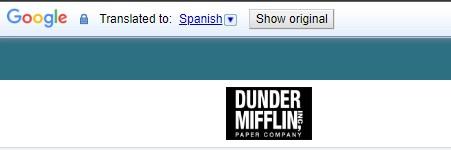
Username You can also change the language from English to Spanish. If Spanish is not your preferred language, once you click Español, Google Translate will populate in the top left corner and you can select another language from the drop- down menu
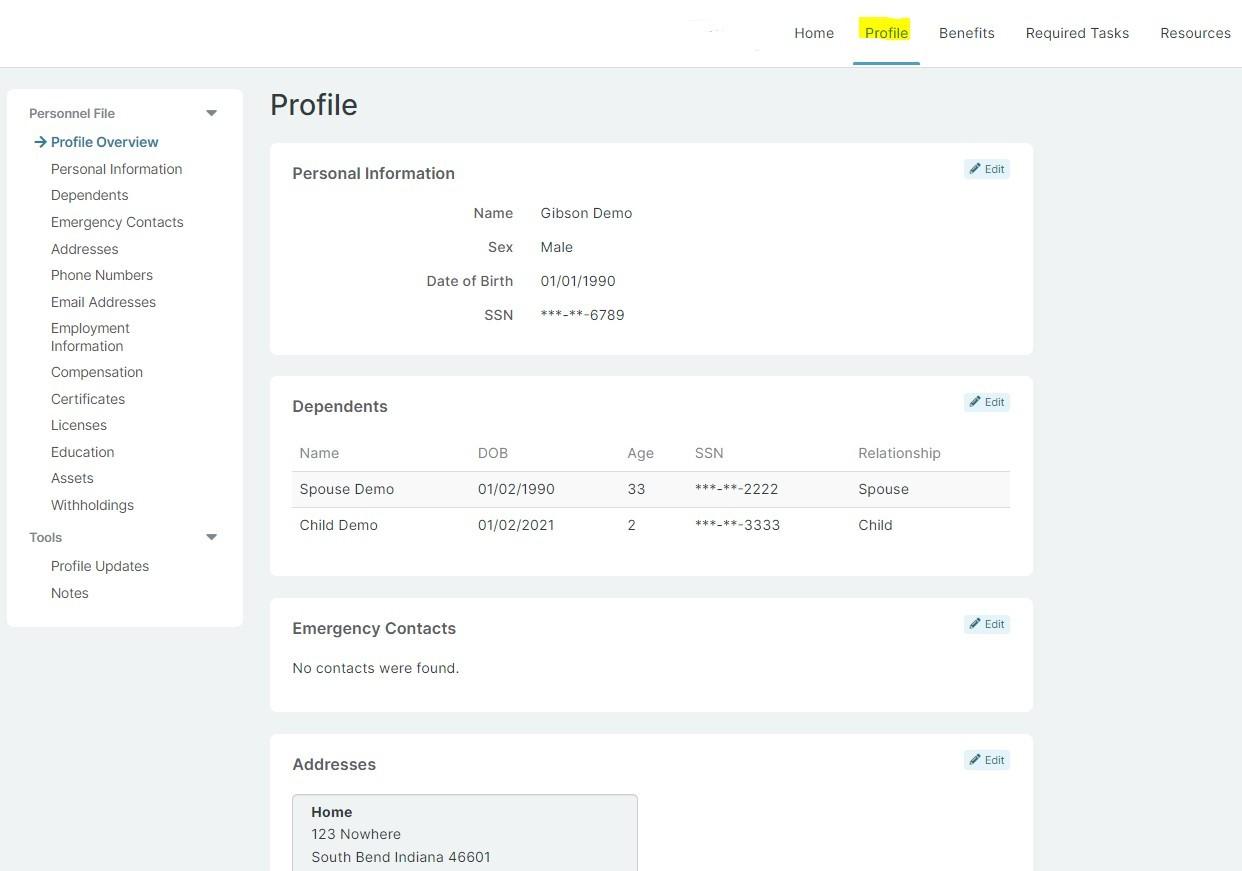
If your employer has given you access to update your demographic information, you can do that in your Profile tab. You will be able to update your demographic information and dependents. You will also be able to see some employment information but will be unable to to make any changes.
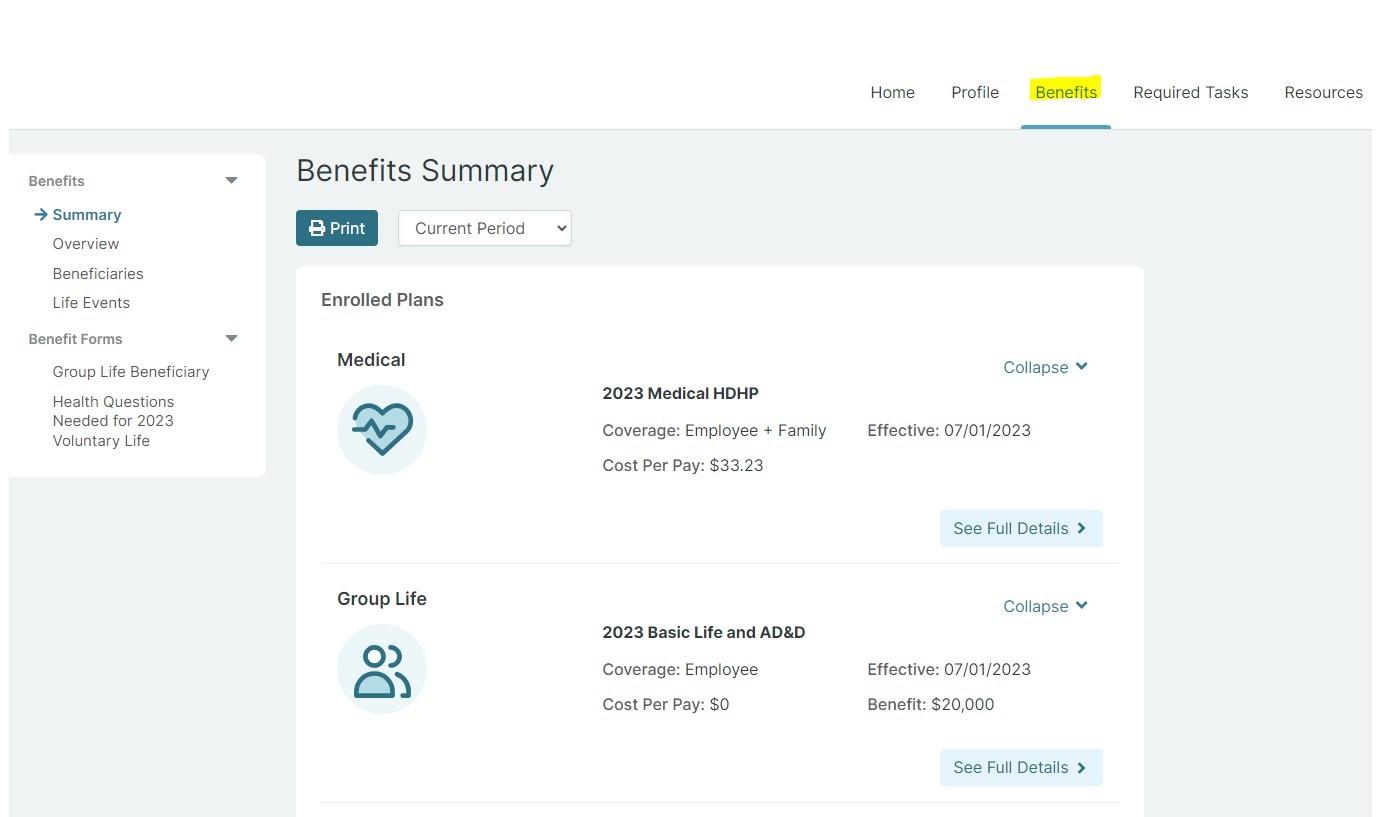
Summary: List of elected benefits, total cost per pay, and applicable dependents.
Overview: Summary of all company benefits, contact information, plan summaries, eligibility, and plan specific resources.
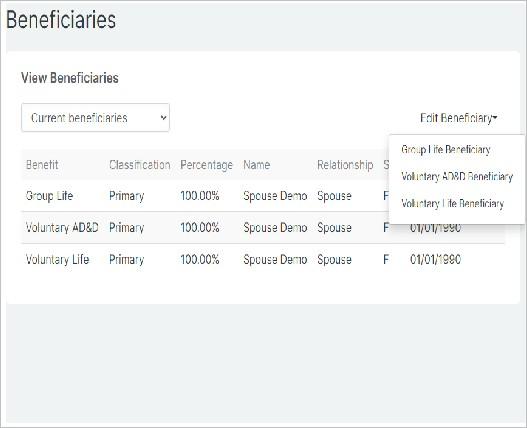
Beneficiaries: List of all beneficiaries (current and previous) and ability to edit current beneficiaries.
Life Events: Where Qualifying Life Events are submitted (i.e. marriage, newborn, loss of cover- age).
Plan Beneficiary: Plan specific beneficiary forms.
Health Questions Needed: If any elected amounts are over the carrier's guaranteed issue amount, EOIs will be required and provided here.
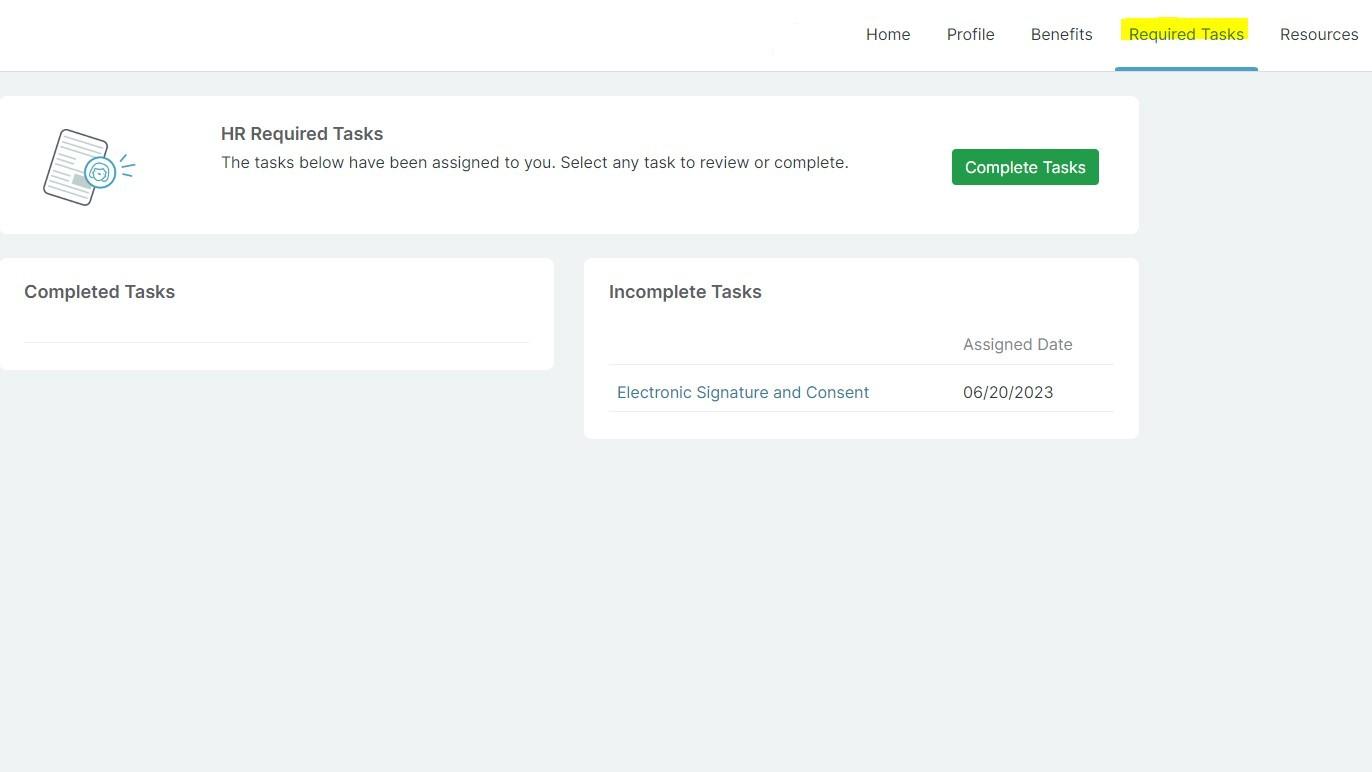
Click Complete Tasks to finish any tasks assigned by HR. Tasks can require you to either acknowledge a document or statement, electronically sign, review a website or video, or upload a document
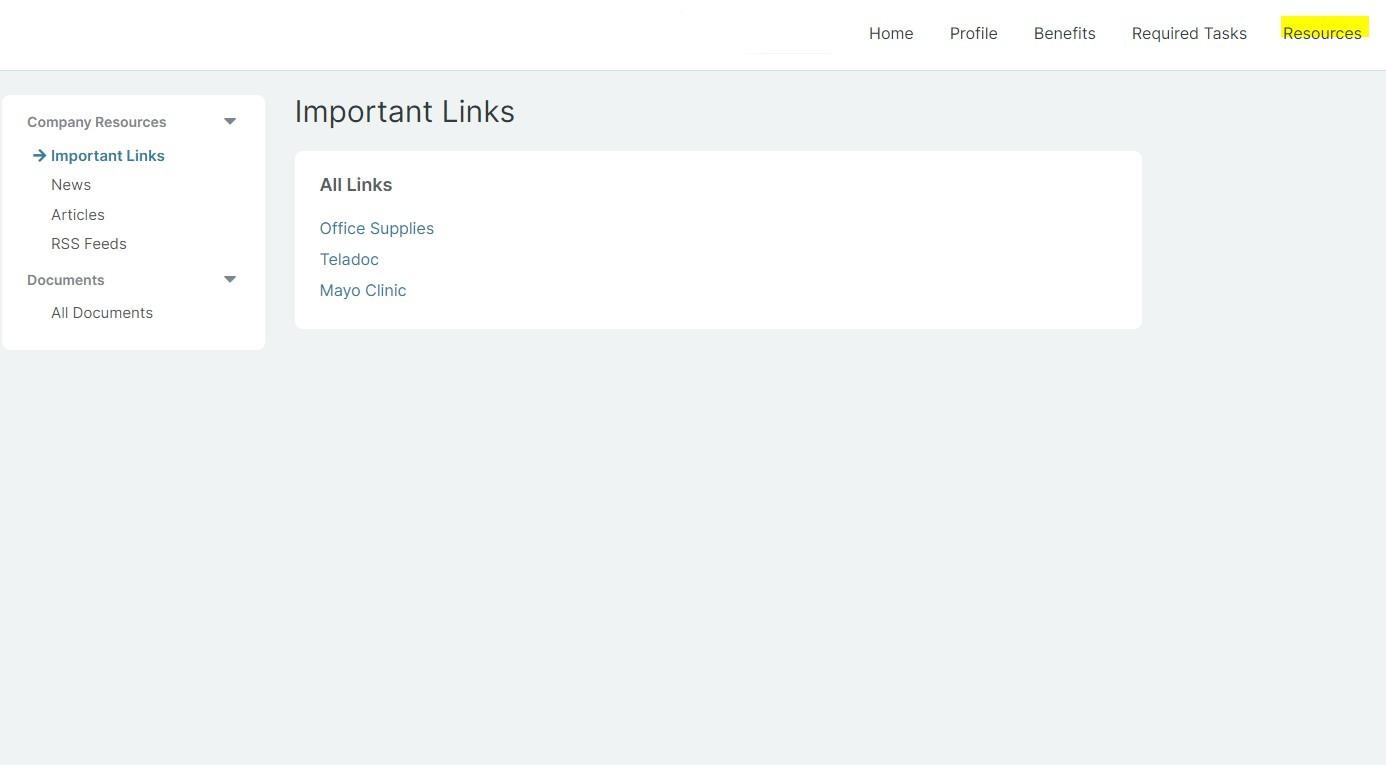
Important Links: Websites related to your benefits or any additional related to the company
News: Company news
Articles: Company articles
RSS Feeds: (Rich Site Summary) News-related websites, weblogs, and other online publishers
All Documents: Enrolled plan documents, HR documents, and plan documents
Step 1: Log in
http://www.employeenavigator.com
Returning Users: Log in with the username and password you selected. If you have forgotten either, click Forgot Username? or Forgot Password?
After you login click Benefits in the top right corner.
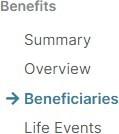
Then on the left side under Benefits select Beneficiaries
Step
Click Edit Beneficiary then select which benefit bene- ficiary you would like to edit.
Step
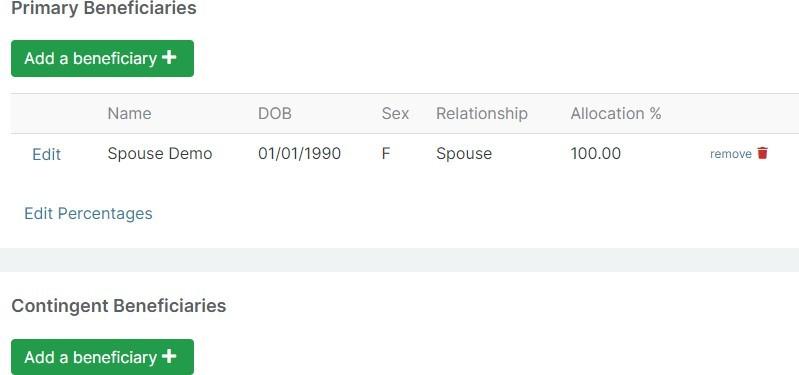
You can Edit current beneficiaries information, Edit Percentages or Add a beneficiary.
Primary beneficiaries are required, Contingent are optional.
Step 1: Log in
http://www.employeenavigator.com
Log in with the username and password you selected. If you have forgotten either, click Forgot Username? or Forgot Password?
Step 2: Qualifying Life Event
After you login click Change Benefits
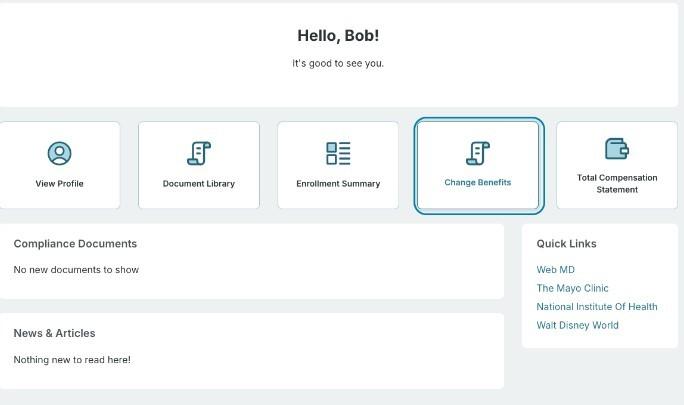
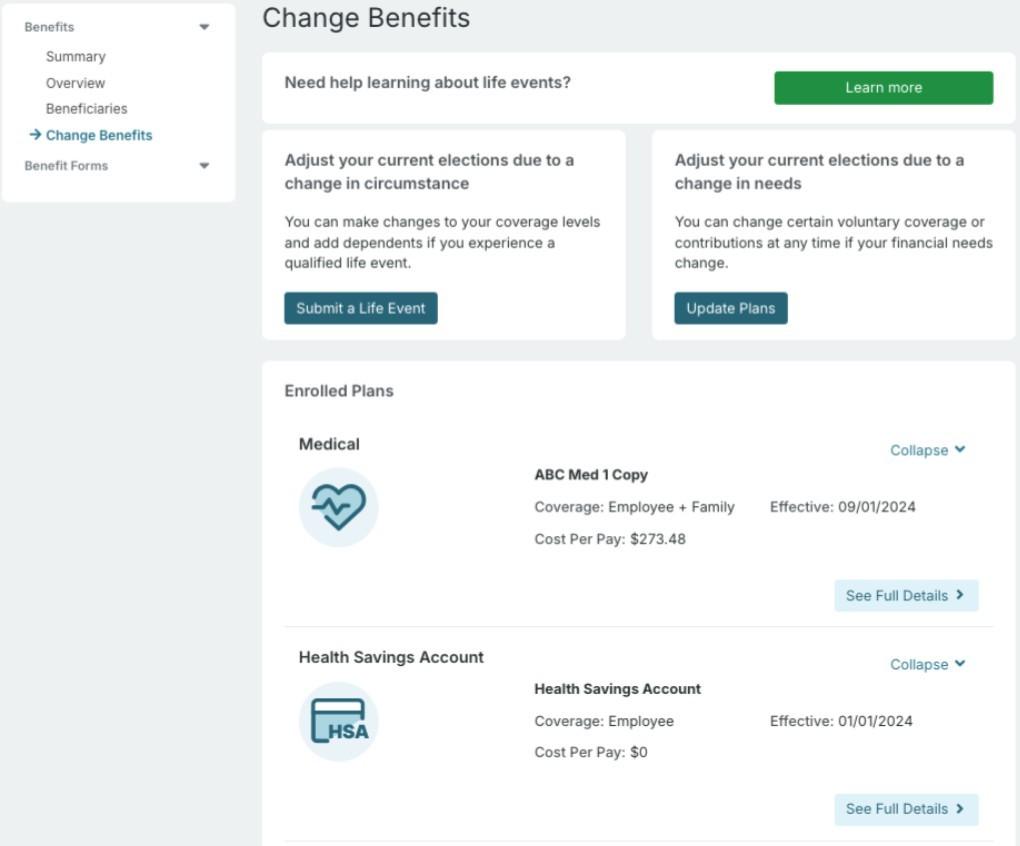
You will be redirected to the Change Benefits page to:
Learn more about life events
Submit a Life Event
Update Plans for a med-year contribution change
View enrolled plans
Costs per pay period
Covered dependents
Declined coverage
Life events are displayed for selection
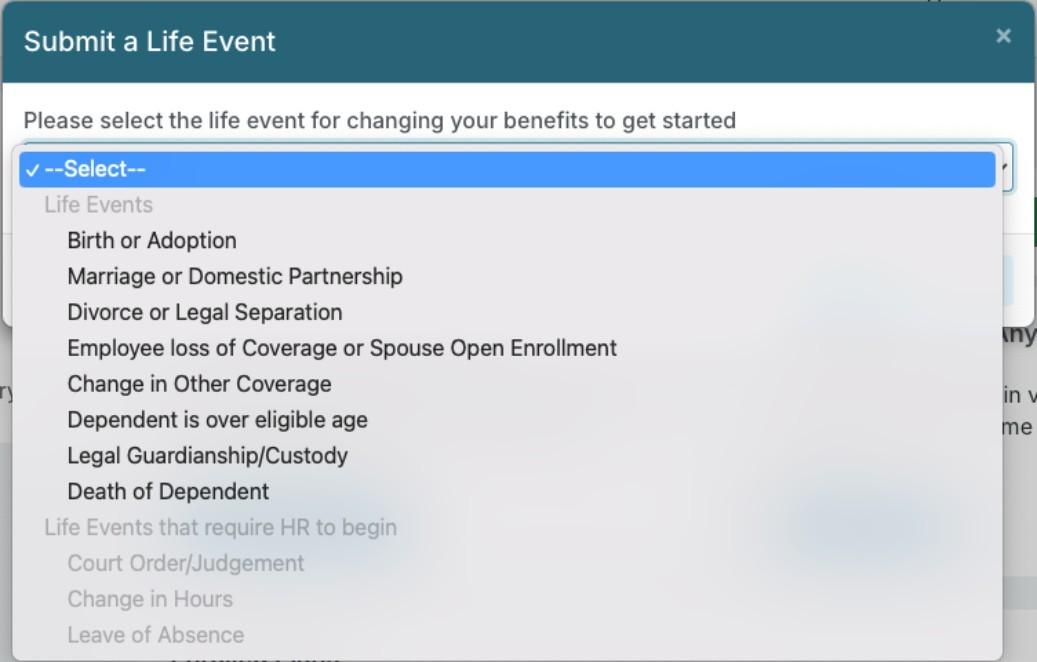
Step 5: Submit a Life Event
Life event information is displayed to begin the life event process
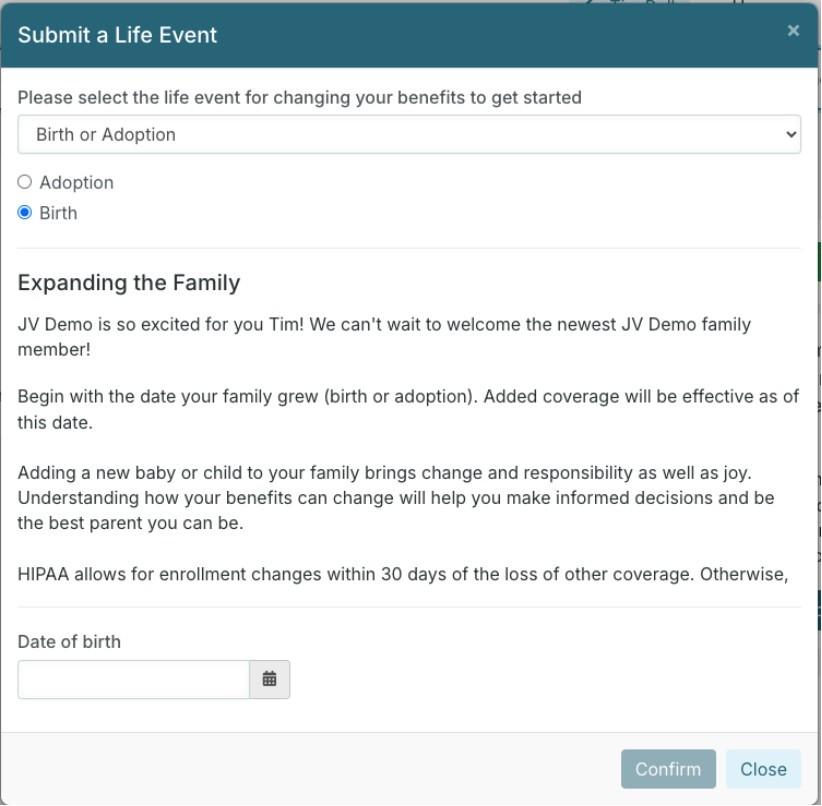
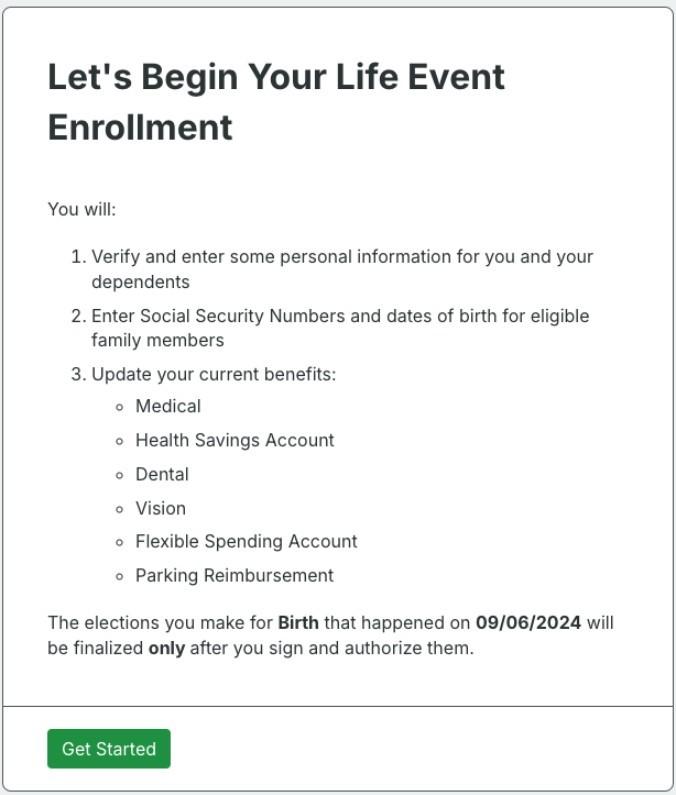
Step 6: Let's Begin Your Life Event
Overview of enrollment instructions
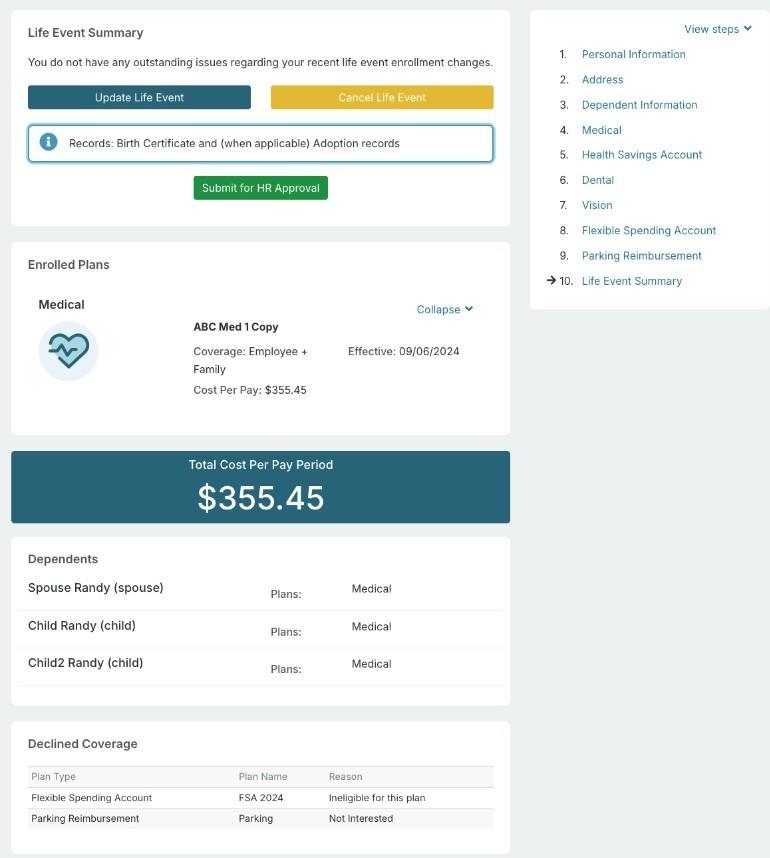
Flow Verify demographic information and make any enrollment changes to current benefits
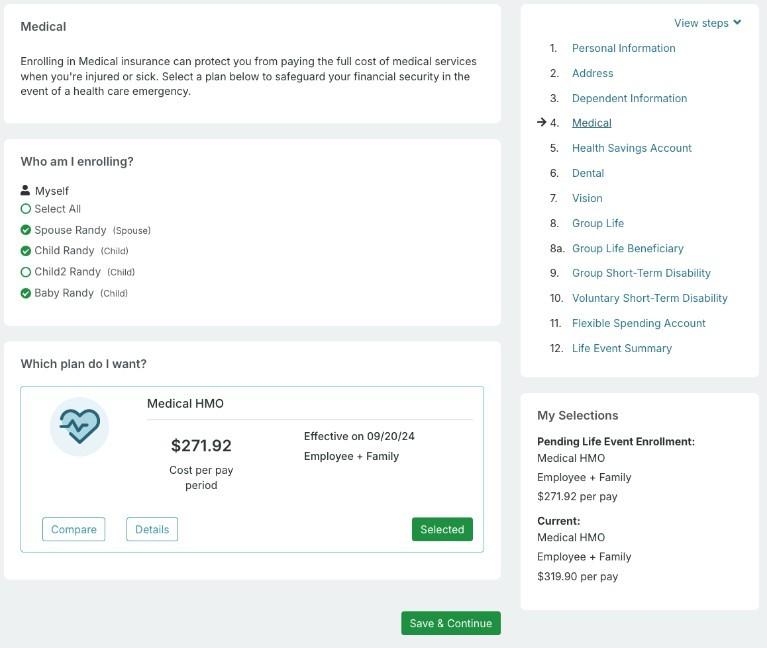
Review & Submit Changes
o Submit for HR Approval
o Update Life Event
o Cancel Life Event
Required documentation display
Pending Changes
Covered members