Key words
You can now press the backspace key to delete the selected text.
Menu: this is a box that opens on the screen that gives you a list of options to choose. Cut: this is when you store the text that you have selected to the clipboard. The text is also removed from the page you do this on. Clipboard: this is a special storage area on the computer where any text that you cut or copy is put until you need to paste it. Paste: this is when you put the text that you copied onto the clipboard back onto the page.
You can also select a whole word by putting the mouse pointer anywhere in the word and double-clicking the left mouse button.
Moving text
PL E
Sometimes you might have typed some text into your document, but then you decide that it is in the wrong place. You can move text easily if you do this.
SA
M
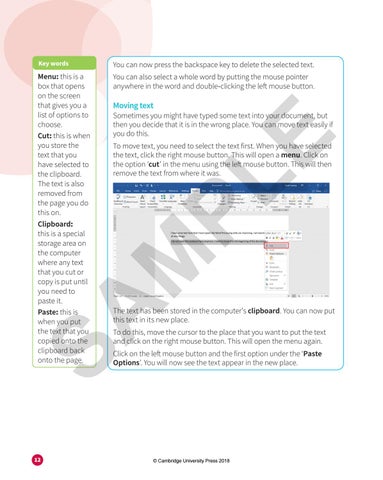
To move text, you need to select the text first. When you have selected the text, click the right mouse button. This will open a menu. Click on the option ‘cut’ in the menu using the left mouse button. This will then remove the text from where it was.
12
The text has been stored in the computer's clipboard. You can now put this text in its new place. To do this, move the cursor to the place that you want to put the text and click on the right mouse button. This will open the menu again. Click on the left mouse button and the first option under the ‘Paste Options’. You will now see the text appear in the new place.
© Cambridge University Press 2018