Cambridge IGCSE Programming Book
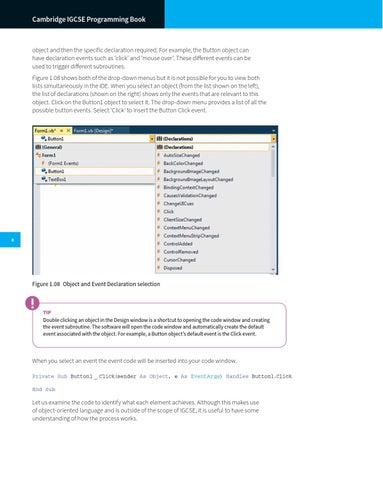
object and then the specific declaration required. For example, the Button object can have declaration events such as ‘click’ and ‘mouse over’. These different events can be used to trigger different subroutines. Figure 1.08 shows both of the drop-down menus but it is not possible for you to view both lists simultaneously in the IDE. When you select an object (from the list shown on the left), the list of declarations (shown on the right) shows only the events that are relevant to this object. Click on the Button1 object to select it. The drop-down menu provides a list of all the possible button events. Select ‘Click’ to insert the Button Click event.
8
Figure 1.08 Object and Event Declaration selection
TIP Double clicking an object in the Design window is a shortcut to opening the code window and creating the event subroutine. The software will open the code window and automatically create the default event associated with the object. For example, a Button object’s default event is the Click event.
When you select an event the event code will be inserted into your code window. Private Sub Button1 _ Click(sender As Object, e As EventArgs) Handles Button1.Click End Sub
Let us examine the code to identify what each element achieves. Although this makes use of object-oriented language and is outside of the scope of IGCSE, it is useful to have some understanding of how the process works.