We are working with Cambridge Assessment International Education towards endorsement of this title. Any references or material related to answers, grades, papers or examinations are based on the opinion of the author(s). 1 Visual Studio Community
Window
Description
Properties
Used to view and edit the configuration of selected objects. The Properties window shows the current properties of the current GUI object selected (for example, font type and size, colour, etc.). Changes to the properties of the object can be made by changing the options in the properties window.
LE
The properties of each element shown are those that are set before the program is executed. Any changes made during the execution of the program will be lost when the program is exited. For example, if a you wrote code to change the colour of a button when a user clicked on it, the button would return to the colour shown in the Properties window when the program was restarted.
NOTE: The name of the GUI object currently selected is shown at the top of the window. Ensure you have selected the required object before making changes. Solution Explorer
Displays the contents of a solution, which includes the forms and other project items. This is where you will find your forms and the program files that support them. It is possible to have multiple forms within one project; Solution Explorer will allow you to select individual forms.
Error List
Displays any errors, warnings or messages produced as you edit and execute code.
P
Table 1.3: Description of each window in the Windows Forms application programming interface
1.7 Make your first Windows Forms application 1 2
M
In a Windows Forms application, the ‘Hello World’ program will be achieved in two steps: design and construct the user interface code the program that will generate the required output.
S
A
NOTE: The code window is activated by double clicking on the form itself or any GUI object on the form. Soon we will deliberately activate the code window, but if you do this by accident, you can easily navigate back to the forms interface.
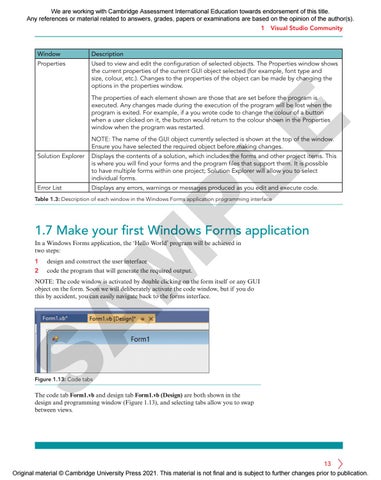
Figure 1.13: Code tabs
The code tab Form1.vb and design tab Form1.vb (Design) are both shown in the design and programming window (Figure 1.13), and selecting tabs allow you to swap between views.
13 Original material © Cambridge University Press 2021. This material is not final and is subject to further changes prior to publication.