EXISTING ACCOUNT LOGIN
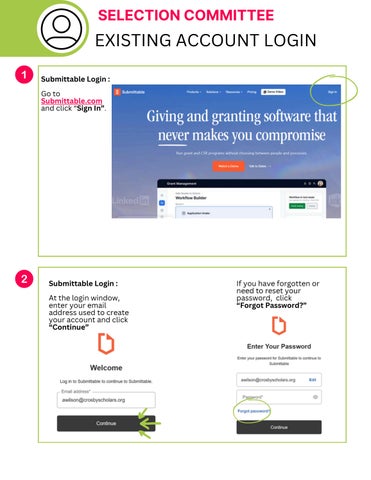
Submittable Login : Go to Submittable.com and click “Sign In”
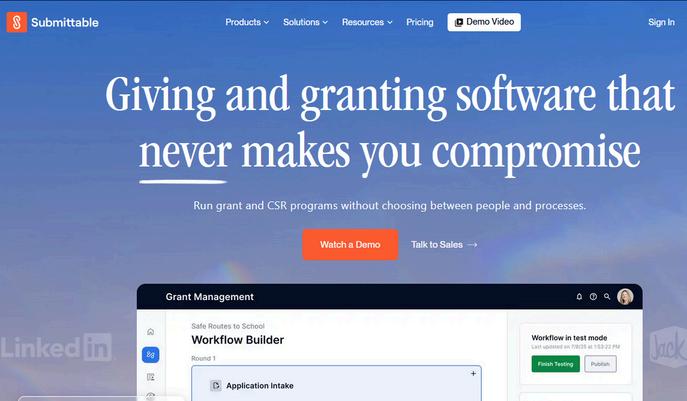
Submittable Login :
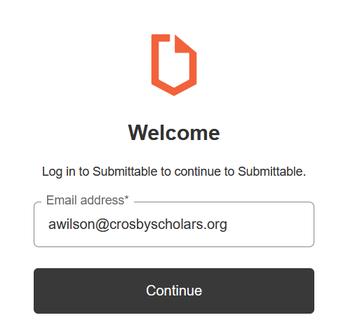
At the login window, enter your email address used to create your account and click “Continue”
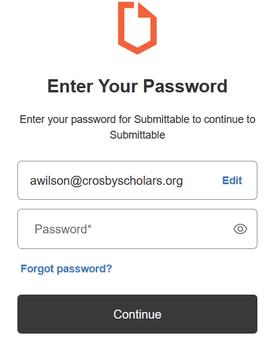
If you have forgotten or need to reset your password, click “Forgot Password?”
Please note: If it has been awhile since you last logged into your Submittable account, you may be asked to re-set your password or add two-factor authentication to secure your account. If asked, please follow the prompts shown below. If not asked, please proceed to the next page of instructions.
Account Setup | Verify your Email - Step 1
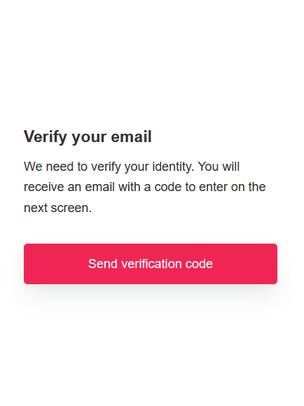
To verify your identity, click ‘Send Verification Code’
Account Setup | Verify your Email - Step 3
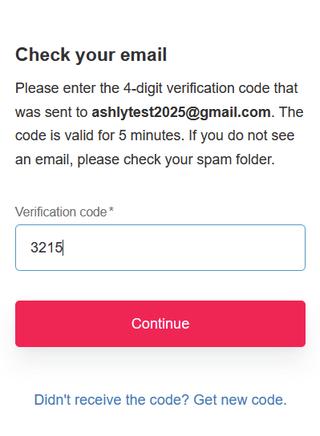
Enter the 4-digit verification code that was sent to your email into the Verification code box, then click ‘Continue’
Account Setup | Verify your Email - Step 2
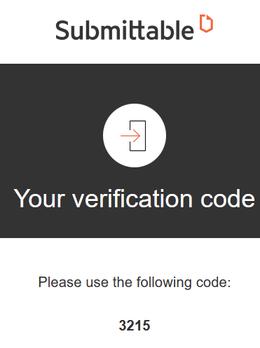
Check your email and make note of the 4-digit verification code
Account Setup Complete :
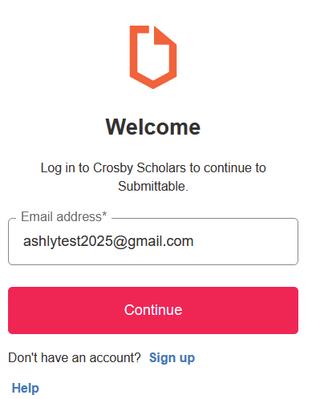
Now you may log into your newly created account by entering your email address and clicking “Continue”
Viewing applicants :
After you have successfully logged in to your account, click on your initial icon in the top right corner, then click “Crosby Scholars” which will show your list of applicants ready for review.
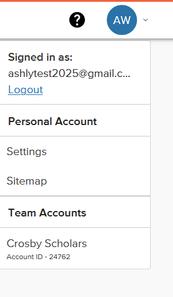
Well done! You are now ready to begin your evaluation process of each Scholarship applicant.
To begin your review, please follow the steps on the next page.
SCHOLARSHIPREVIEW INSTRUCTIONS
Click on the Submission Number to open each application for review.

Click on the Initial Form to review the Scholarship criteria, then scroll down to the required documents section. Click on the document name to open each document in the same window.
Please note: the Scholarship you are reviewing could have more or fewer documents than the example shown below.

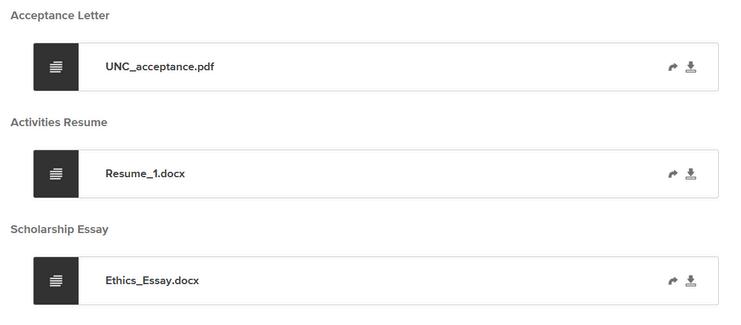
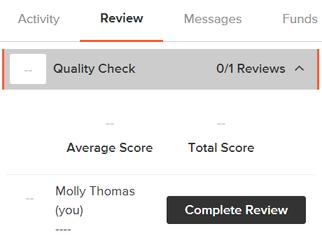
When you are ready to perform your evaluation of the applicant, click on “Review,” then “Complete Review” to begin.
Click on “Review,” then “Complete Review.”
Complete your review of the applicant based upon the questions provided in the rubric.
Check that you have made your desired selections. Once you’ve made your selections, click “Submit Review.”
Please note: if you would like to save your progress and return to the review at a later time , choose “Save Draft”.
If you are finished with your evaluation, choose “Submit Review.” You cannot change your review after you click “Submit Review.”

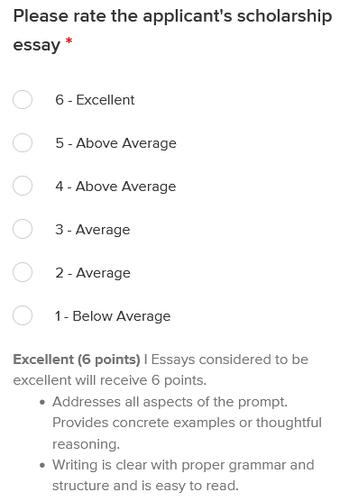
Please note: Some rubrics may have additional steps than the example shown above. If your rubric involves additional steps, instructions on how to proceed through those additional steps will be listed directly on the rubric.
To review the next application, click “Back to List.”

After clicking “Back to List”, your Submissions page will allow you to see which applicants you’ve successfully reviewed, and how many you have left to go.
Note the score tallied next to the application you have evaluated.
Note the green check mark showing your completed review. A green check mark and a score signify that you have completed your evaluation of the students application.
To begin reviewing the next applicant on your list, click on their Submission Number and refer to Step 1 of SCHOLARSHIP REVIEW INSTRUCTIONS

Questions? Contact Ashly Wilson at awilson@crosbyscholars.org