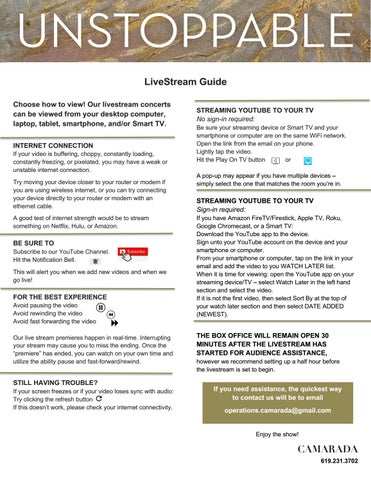
LiveStream Guide Choose how to view! Our livestream concerts can be viewed from your desktop computer, laptop, tablet, smartphone, and/or Smart TV. INTERNET CONNECTION If your video is buffering, choppy, constantly loading, constantly freezing, or pixelated, you may have a weak or unstable internet connection. Try moving your device closer to your router or modem if you are using wireless internet, or you can try connecting your device directly to your router or modem with an ethernet cable. A good test of internet strength would be to stream something on Netflix, Hulu, or Amazon.
BE SURE TO Subscribe to our YouTube Channel. Hit the Notification Bell. This will alert you when we add new videos and when we go live!
FOR THE BEST EXPERIENCE Avoid pausing the video Avoid rewinding the video Avoid fast forwarding the video Our live stream premieres happen in real-time. Interrupting your stream may cause you to miss the ending. Once the “premiere” has ended, you can watch on your own time and utilize the ability pause and fast-forward/rewind.
STILL HAVING TROUBLE? If your screen freezes or if your video loses sync with audio: Try clicking the refresh button If this doesn’t work, please check your internet connectivity.
STREAMING YOUTUBE TO YOUR TV No sign-in required: Be sure your streaming device or Smart TV and your smartphone or computer are on the same WiFi network. Open the link from the email on your phone. Lightly tap the video. Hit the Play On TV button or A pop-up may appear if you have multiple devices – simply select the one that matches the room you’re in.
STREAMING YOUTUBE TO YOUR TV Sign-in required: If you have Amazon FireTV/Firestick, Apple TV, Roku, Google Chromecast, or a Smart TV: Download the YouTube app to the device. Sign unto your YouTube account on the device and your smartphone or computer. From your smartphone or computer, tap on the link in your email and add the video to you WATCH LATER list. When it is time for viewing: open the YouTube app on your streaming device/TV – select Watch Later in the left hand section and select the video. If it is not the first video, then select Sort By at the top of your watch later section and then select DATE ADDED (NEWEST).
THE BOX OFFICE WILL REMAIN OPEN 30 MINUTES AFTER THE LIVESTREAM HAS STARTED FOR AUDIENCE ASSISTANCE, however we recommend setting up a half hour before the livestream is set to begin.
If you need assistance, the quickest way to contact us will be to email operations.camarada@gmail.com
Enjoy the show!
CAMARADA 619.231.3702