





1.3 01/11/2023
3.0 24/10/2024
4.0 21/10/2025
Operations Manager Formatted to align with ACA Style Guide, updated new processes
Operations Manager
Operations Manager
Major revision: Updated to reflect program improvements
Major revision: Format updated, addition of program improvements and event membership

As a Campdraft One Secretary, support is available in three ways:
1. During business hours: Monday–Friday, 8:30am–4:00pm via phone or email
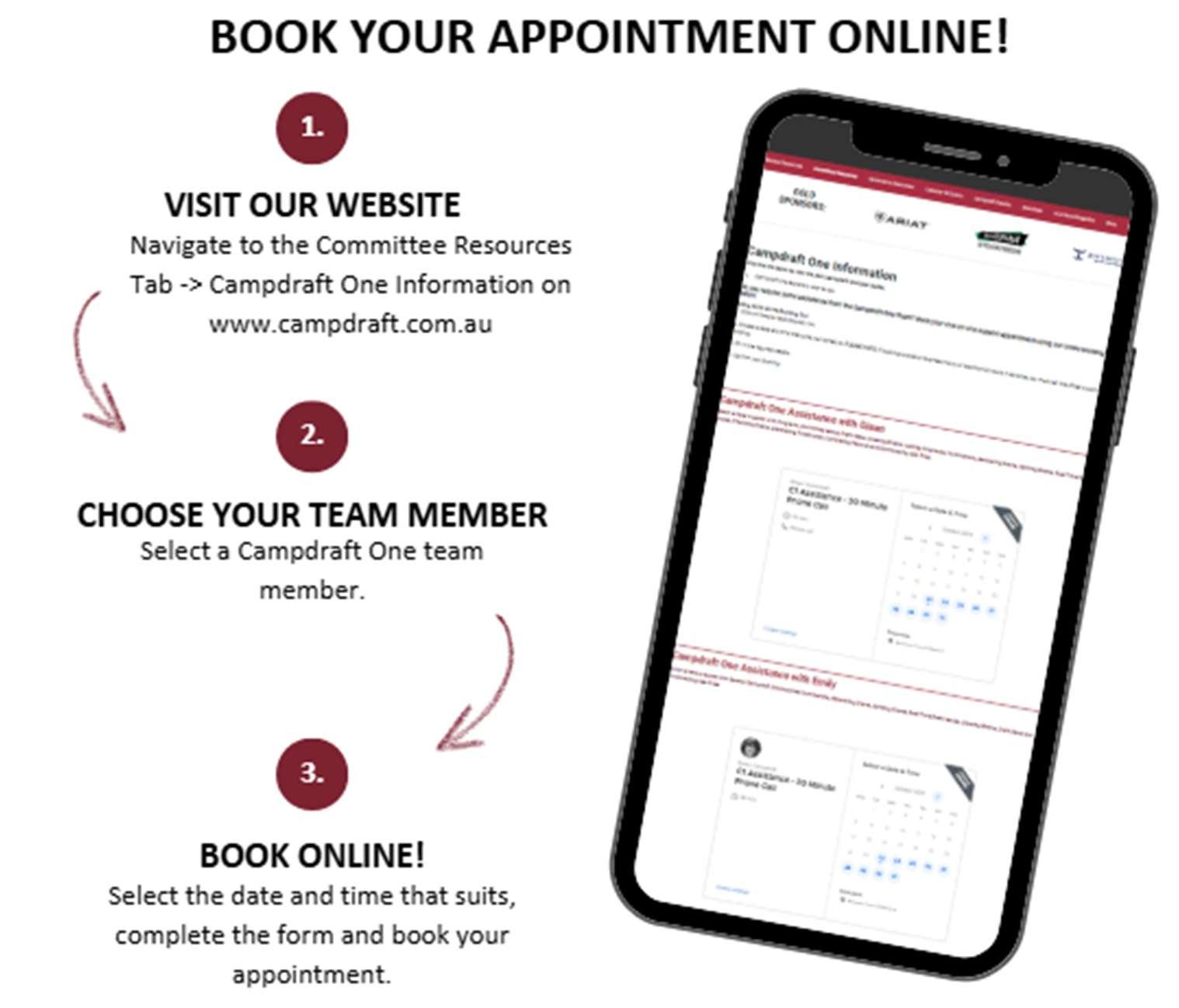
2. Outside of hours by appointment: Book at campdraft.com.au under “Committee Resources” → “Campdra One Informa on” Book Via Calendly by choosing either “Weekday” or “Weekend” appointments
3. On-call support: Available during your draft via the after-hours line. The after-hours line is only attended for the duration of your draft (i.e. draft start date to draft finish date), to contact the team prior or after your draft, please use the above (1. Or 2.) methods
Email: aca@campdraft.com.au
After Hours Line: 07 4622 7110
Glossary
ABA: Australian Bankers Association file for bulk payments. Requires APCA number for some banks
Additional Attachments: Optional docs for auto-generated programs (e.g. waivers, terms)
Committee Affiliation: Covers ACA events, liability, indemnity, and volunteer insurance
APCA: Australian Payments Clearing Association number (used in ABA files)
Auto Scratching: When a rider double-nominates into two overlapping drafts, the first one keeps them, and the second auto-scratches
Biosecurity Form: Optional form that can be completed online or emailed. Appears in ‘My Nominations’ until the status is ‘closed’
Combined Event: Shared round with another event, but a separate final (e.g., Maiden/M4M)
Committee Credit (CC): Used to mark payments as paid for certain roles like Judges or Donors
CSV: Downloadable Excel format
Draft Status:
Closed: Competitors can no longer change nominations
Finalise: Sends invoices to ‘accepted’ & ‘unpaid’ competitors. Waitlists open
Open: Accepts nominations based on date/time in setup
Draws: Must be generated before editing or publishing. Modify freely before publishing
Envelope Icons:
Green: Invoice sent
Red: Invoice not sent
Eyeball Icon: Opens overview of event and nomination details (cost, type, rounds, restrictions, etc.)
Fork in the Road Icon: Splits events A/B while finalised
Green Star: Indicates Committee Member, Sponsor, or Donor. They appear in all nominations
Invoice Download: Lets you view and export invoices
Judges: Only ACA-endorsed Judges can be entered. External judges need ACA approval
Linking Horse/Rider: Must be linked in the horse profile or rider can't nominate
Mandatory Vehicle Report: Required if enabled in draft setup. Blocks competitors without one
Online Payments: Invoices have “Pay Now” buttons. Auto-marked paid after card success
Section 1: Committee Setup
1.1 Secretary Access to Committee Profile
Glossary
Pencil Icon: Edit items wherever the pencil appears
Primary Member: Main account holder. Shows up in dashboards and reports
Prize Money Summary: Lets you review and edit payouts for each round before finalising
Publish Draws: Sends text alerts and makes draws public, and later edits notify competitors
Reassign Nominations: Can be reassigned by horse or competitor
Red Person Icon: Shows when nomination becomes ineligible due to rule change (e.g., age)
Refund Full Amount: Full refund given — typically scratched more than 7 days before the event or extenuating circumstances approved
Refund Less Stock Levy: Committee refunds but keeps the stock levy to offset costs. Refunds automatically populate this way when a competitor scratches 7-4 days before the draft starts
Retain Full Amount: No refund issued — usually for scratches 3 days or less before draft starts without valid excuse
Secretary Users: Committee Members granted access to Campdraft One (e.g., Secretary, Treasurer, President)
Spacings: Blank runs inserted every X entries in a draw (e.g., every 50 runs) to allow flexibility.
Volunteer: Covered by ACA volunteer insurance, any person who is providing unpaid help to the committee
Yellow Exclamation Icon: Indicates a restriction change affecting horse/rider eligibility since nomination. Competitor must choose which events to drop or keep
Section 1: Committee Setup
1.1 Secretary Access to Committee Profile
Section 1: Committee Setup
This section explains how to set up your committee profile and complete ACA affiliation documentation.
Tip: Complete this process early in the financial year (1 Jan – 31 Dec) to ensure insurance coverage and timely event approval.
⚠ Programs cannot be approved without completed affiliation in Campdraft One.
1.1 Secretary Access to Committee Profile
If your committee hasn’t yet affiliated with ACA, or if you're a new secretary, contact the ACA Office to set up your Campdraft One profile.
This will:
Give you access to your committee dashboard
Allow you to pay affiliation fees
If you see an error like “not approved by Admin,” you're not properly linked. Contact ACA for help and mention any other committee members needing access.
Once approved, you'll gain access to the Nominations Dashboard and Committee area.
1.2
Committee
Details Page & Paying Affiliation
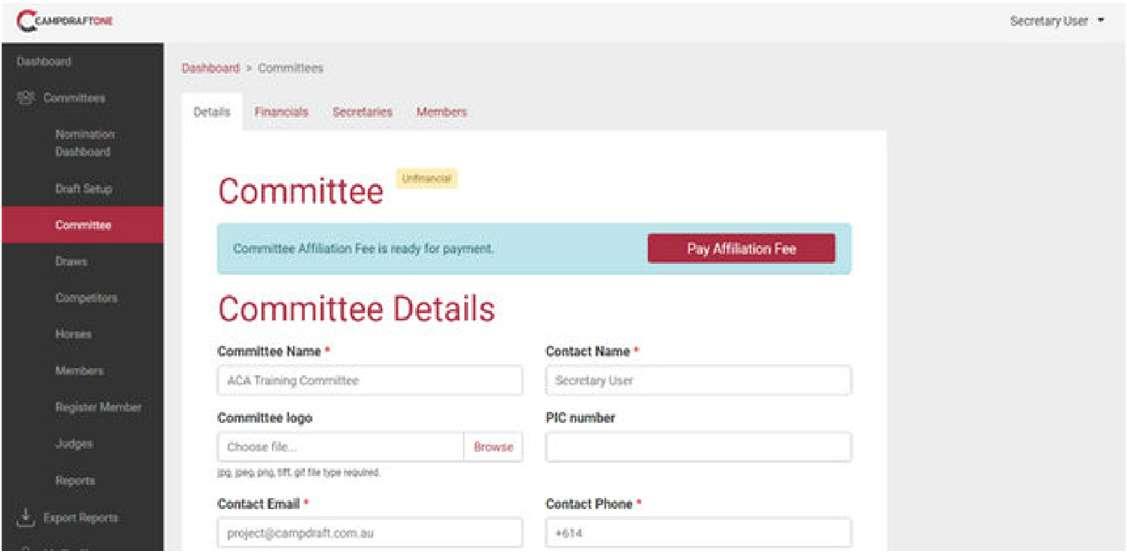
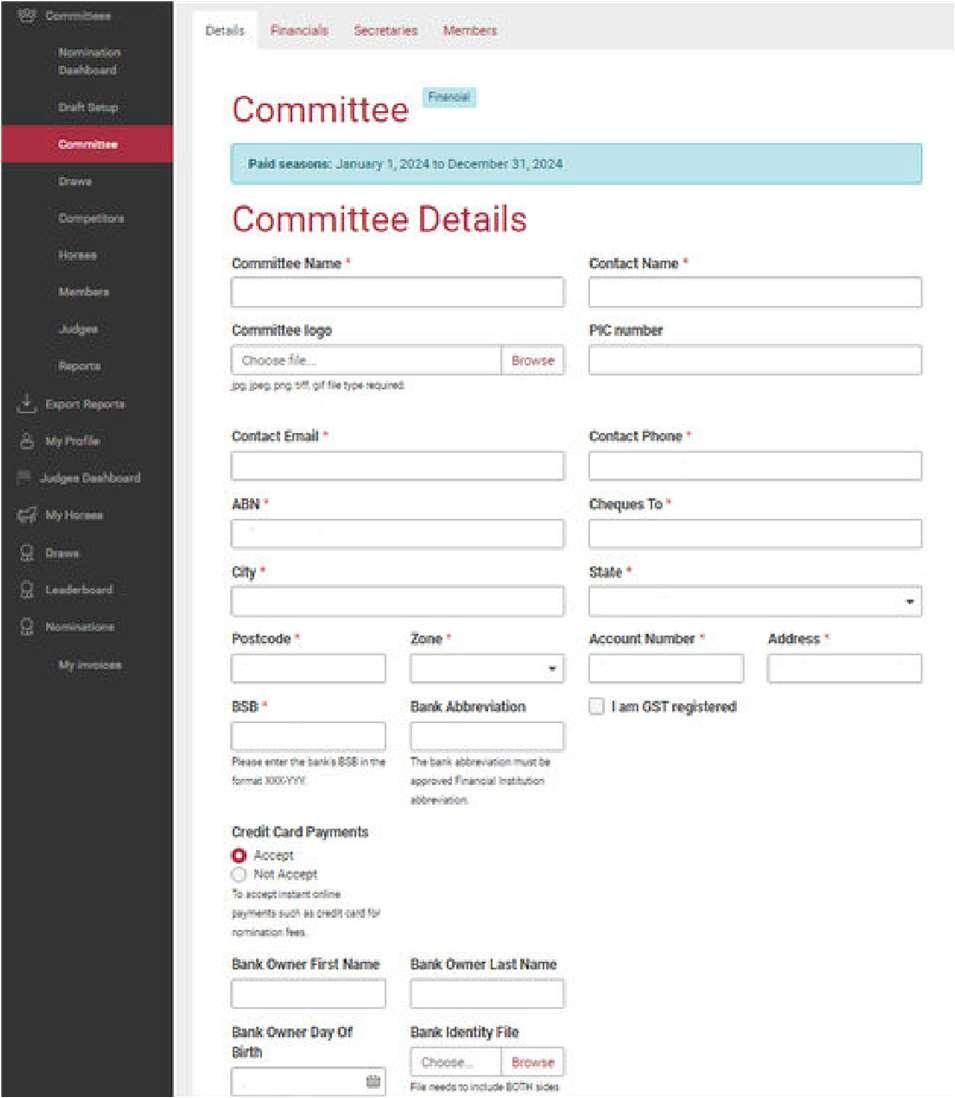
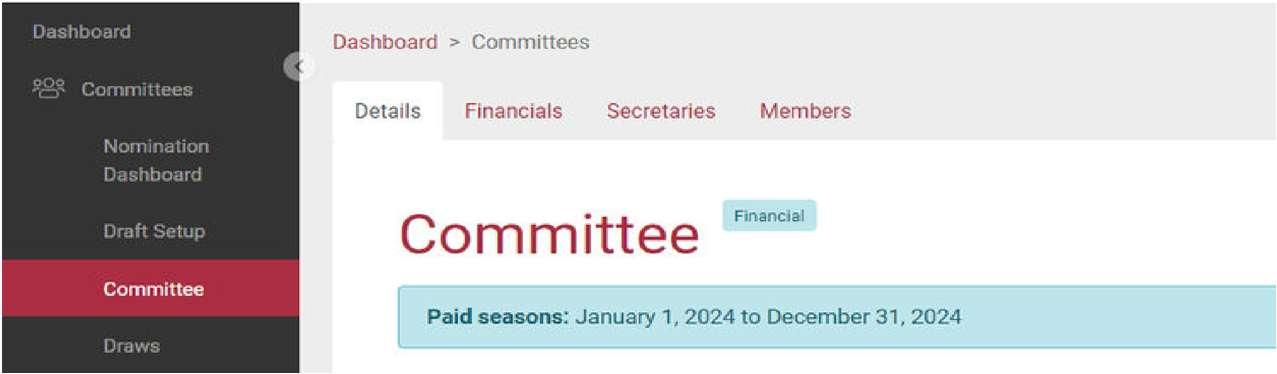
Navigate to the Committee tab on the left-hand side of the screen, then click on the Details tab.
Section 1: Committee Setup
1.1 Secretary Access to Committee Profile
Important Notes for Completing the Form:
Uploading a committee logo is optional but encouraged
Avoid using special characters (e.g., &, ., -, _, /, ', ;, %, *)
Format phone numbers like this: (+61)
Contact email must be unique (not used in another Campdraft One profile)
If enabling online payments, refer to Setting Up Online Payments for Nominations
If GST registered, refer to GST Registered section
Once all required fields are complete, you're ready to proceed to payment.
Once your details are saved, you’ll see a green confirmation banner at the top of the screen.
To continue:
1. Click the Pay Affiliation Fee button
2. Complete the Committee Affiliation Form:
o Fill in all required details accurately
o Indicate whether your grounds have internet and/or phone service
o Optionally, add multiple proposed event dates
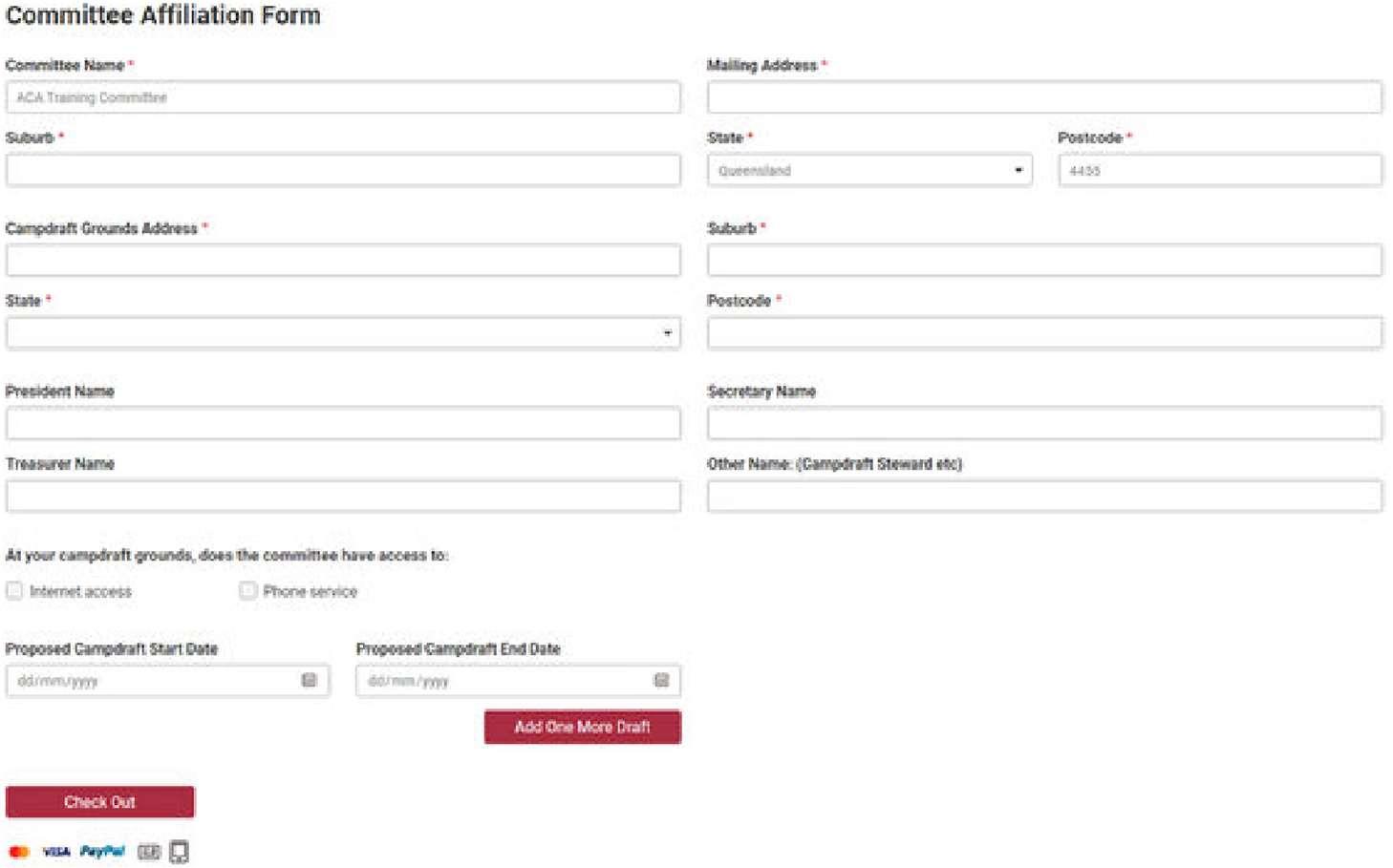
Once done, click Check Out to submit the form and proceed with payment.
When affiliating, a confirmation box appears asking you to confirm the season.
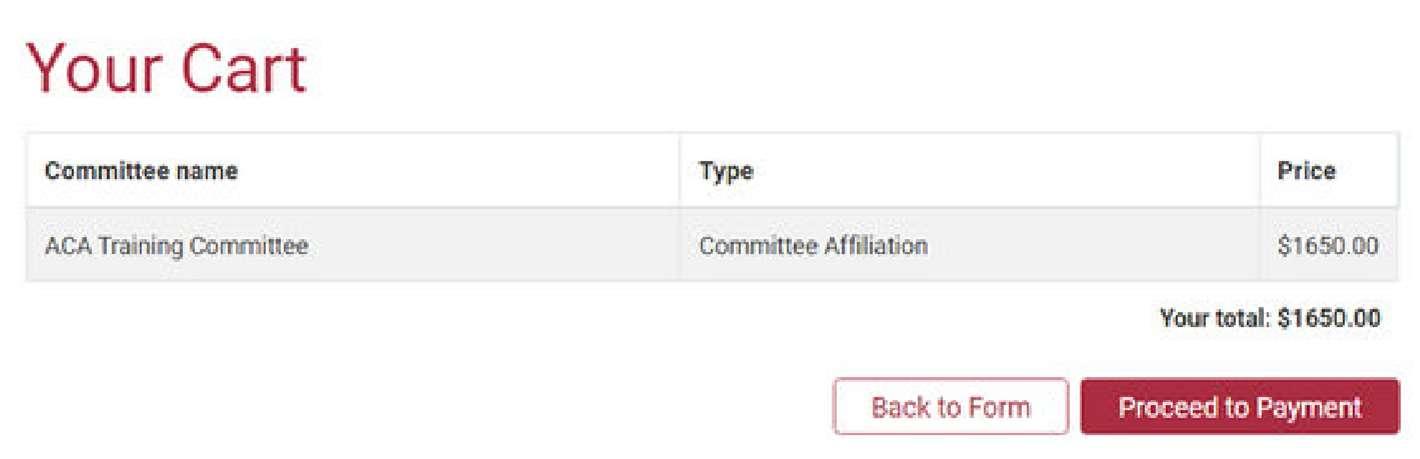

Example: Committee: ACA Training Committee
Type: Committee Affiliation Price: $100.00
Click Proceed to Payment
Section 1: Committee Setup
1.2 Committee Details Page & Paying Affiliation
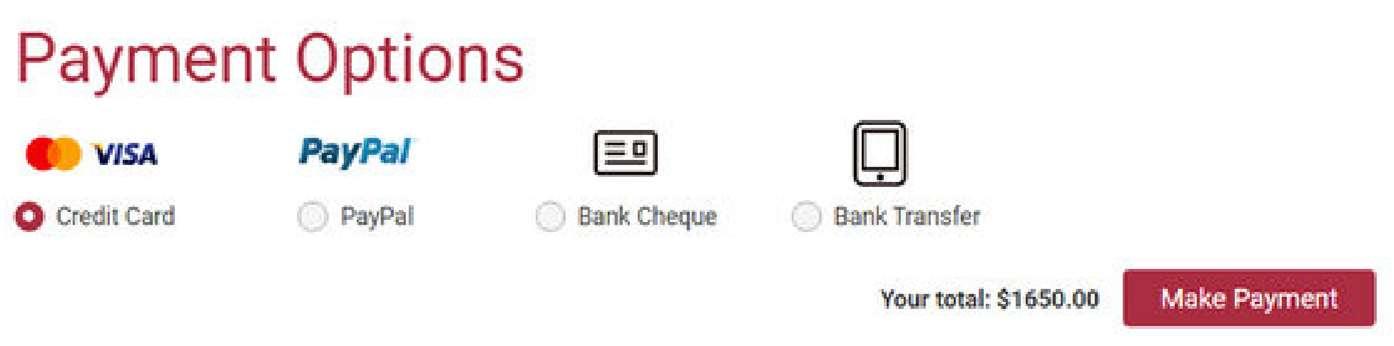
Payment Options:
Credit Card
PayPal
Bank Cheque
Bank Transfer
Notes:
Credit Card / PayPal: affiliation is processed immediately
Bank Cheque / Transfer: must clear first; your committee is not financial until then
Use your committee name as the reference in a bank transfer
After selecting a method, click Make Payment.
Once payment is processed:
Credit Card / PayPal: confirmation appears
Bank Cheque / Transfer: you'll see a “Waiting for payment” message
If paying via Bank Transfer, use:
Account Name: Australian Campdraft Association
BSB: 034 171
Account Number: 171 918
Reference: Your Committee’s Name
If you choose Bank Transfer, an unpaid invoice will be sent to your committee inbox
1.3 Setting Up Online Payments for Nominations (Optional)
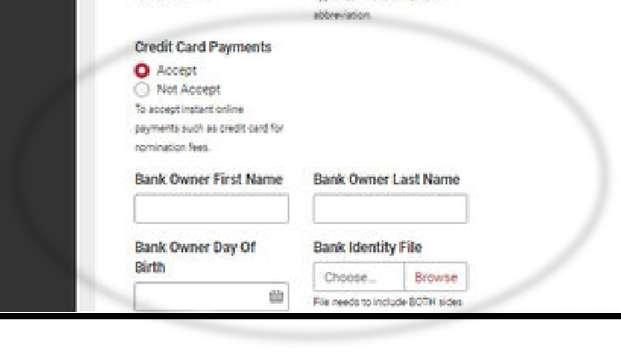
To accept online payments:
1. Go to the Committee tab
2. Click Accept Online
3. Enter required details:
Section 1: Committee Setup
1.3 Setting Up Online Payments for Nominations (Optional)
o Full name, DOB, etc.
o Upload front/back photo ID (under 1MB)
ACA will follow up with Stripe to verify the details.
Once verified, two options:
Online Payments: Includes bank details
Online Payments Only: Excludes bank details from invoice
Stripe Fees: Stripe updates their fees periodically, so please check with the office for the exact fees. Typically, the fee is around 3% per transaction. The committee may choose to absorb this cost or increase nomination fees slightly to offset the impact of the fees to the committee.
1.4 Financials, Secretaries & Members Tab in Committee Profile
Financials Tab:
View and download current and previous paid invoices.
Secretaries Tab:
Shows accounts that have been linked to your committee with secretary access. If the person you want to add isn't listed, contact the ACA Office.
Section 1: Committee Setup
1.4 Financials, Secretaries & Members Tab in Committee Profile
Members Tab:
Lets you add committee members, sponsors, and/or cattle donors. They will display with a green star in the Nominations Dashboard.
1.5 GST Registered
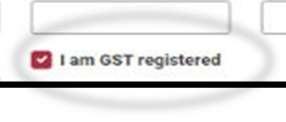
If your committee is GST registered, competitor invoices will include a GST column.
On the Committee Details page:
Tick the box for “I am GST registered”
GST applies to nomination fees only
It does not get added on top of fees entered — it's included in the total

Section 1: Committee Setup
1.4 Financials, Secretaries & Members Tab in Committee Profile
Important Note:
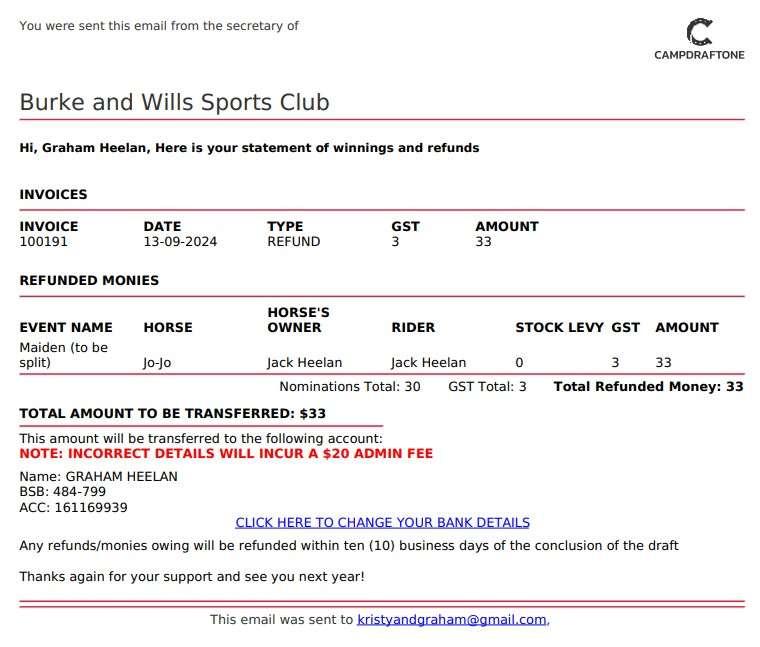
Campdraft One allocates 10% of nomination fees as GST — it does not add GST on top of the fee.
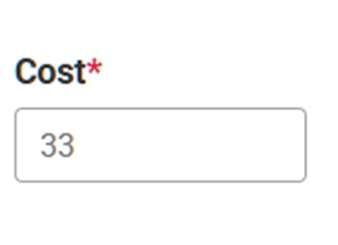
(Left) How the “cost” is entered in your event setup (Below) how the cost appears on invoices




Section 1: Committee Setup
1.4 Financials, Secretaries & Members Tab in Committee Profile
2.0 Campdraft One Setup
This section explains how to set up your committee’s draft on the Campdraft One Platform, ready for nominations to open.
This should be done after submitting the program for approval, unless you're using the Auto-Generated Program function.
In that case, refer to the Auto-Generated Programs section and contact the ACA Office.
2.1 Draft Setup
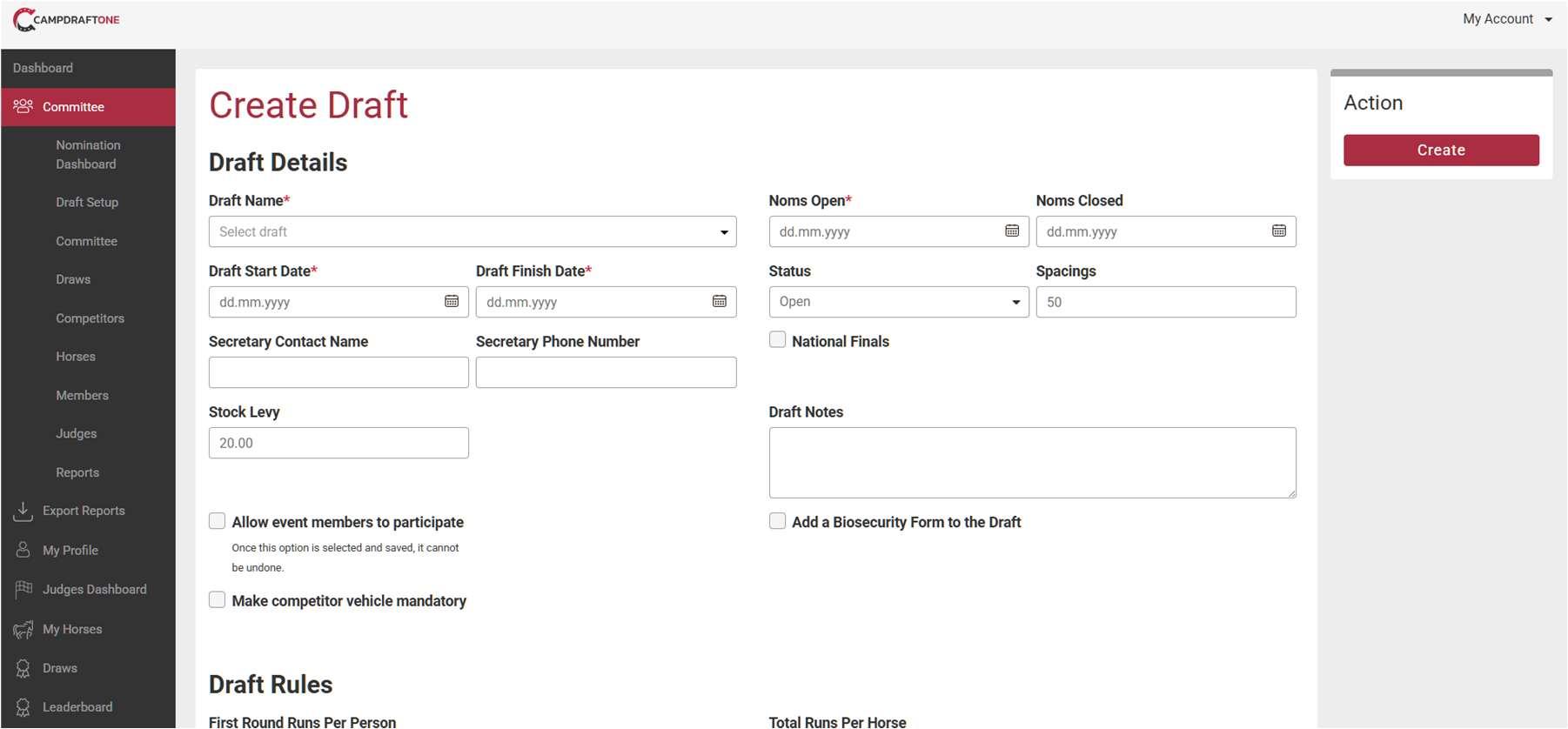
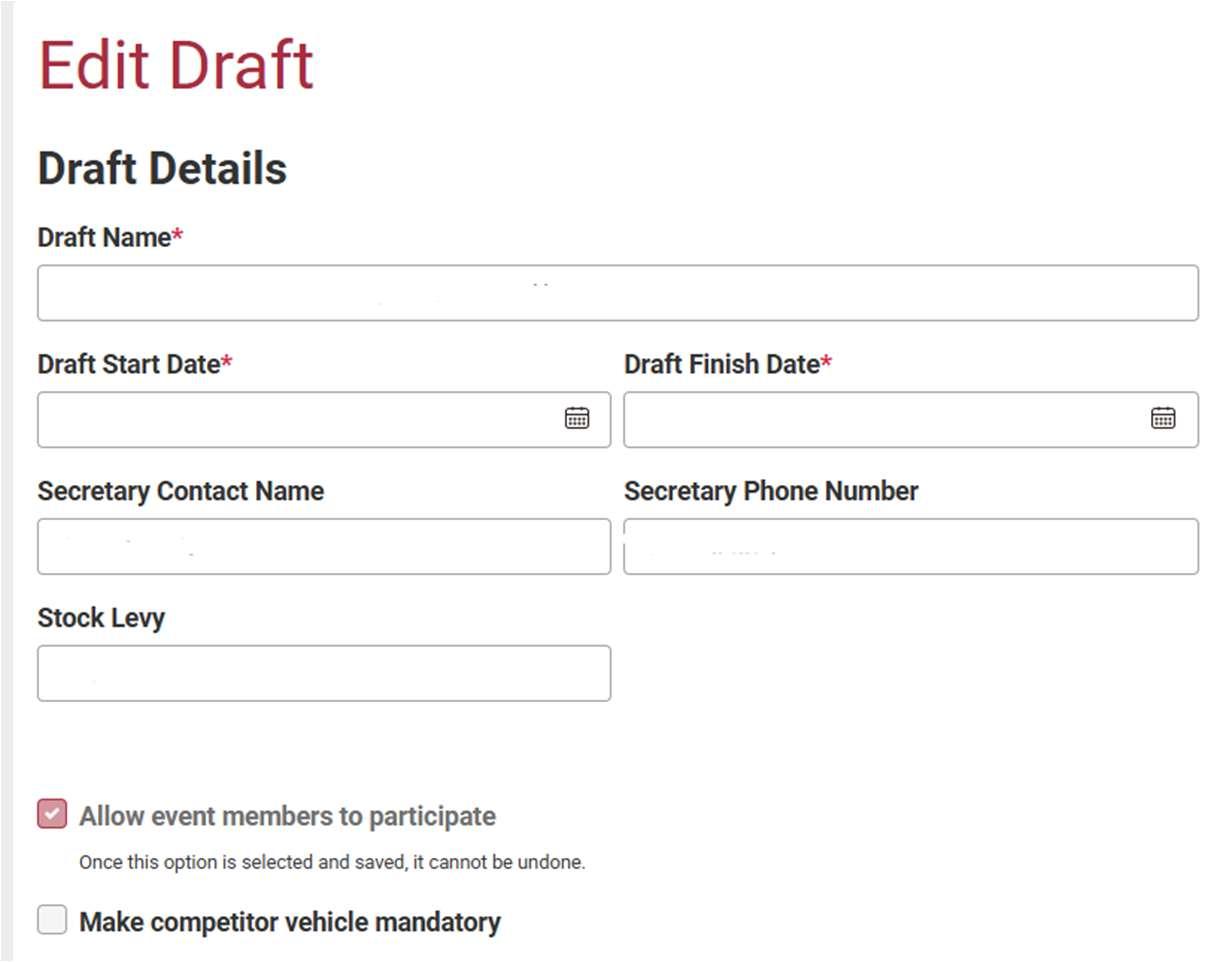
Navigate to the Draft Setup tab on the left-hand side. This opens the Create Draft page, which has five key sections.
This page must contain only information from your approved program.
1. Draft Details
Draft Name:
o Dropdown shows all events listed on the ACA Calendar
o If your draft is missing, call ACA at 07 4622 3110 or email aca@campdraft.com.au
Nominations Open/Close:
o Use the calendar icon or enter the date manually
o Use the time selector (above “Done”) to set open/close times (AEST only)
2.0 Campdraft One Setup 2.1 Draft Setup
Status:
o Defaults to “Open” — no need to change until you’re ready to issue invoices
Allow event members to participate:
o Once you check the box, it can’t be undone. Be sure your committee is accepting event members, and you have indicated as such in your Approved Program
Spacings:
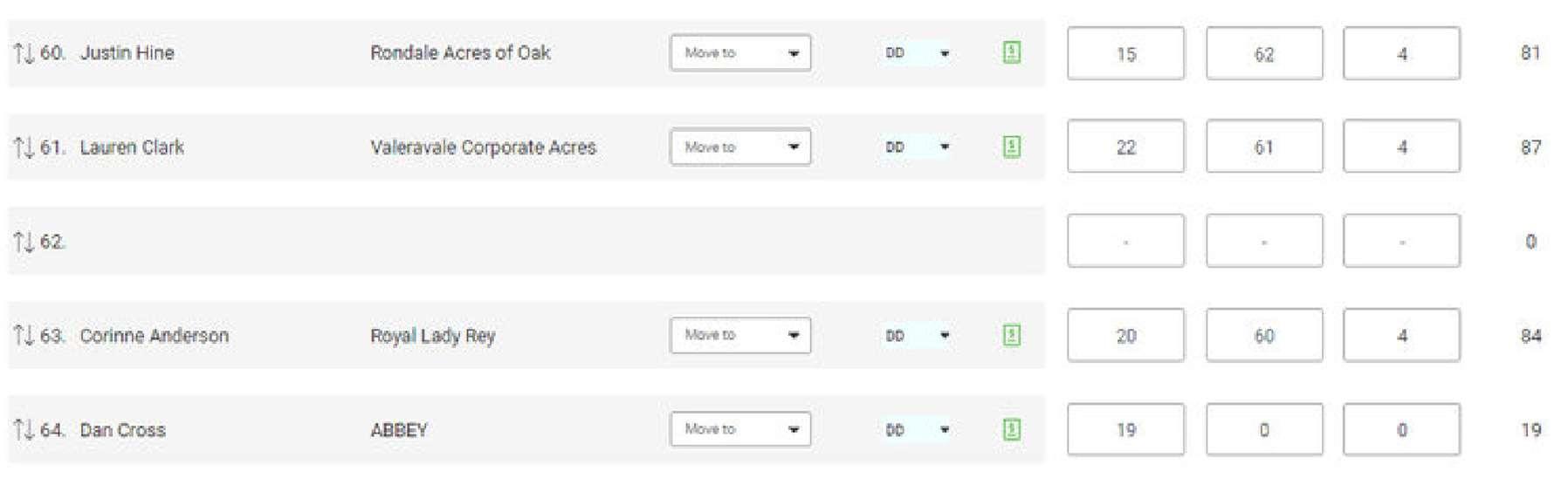
After a set number of runs, a blank run is inserted. Example: if spacings = 30, then runs 31, 62, etc., will be blank in your draw.




Draft Rules:
Enter any rider or horse restrictions as per your approved program.
Medical Services:
These fields are mandatory and must be completed.
Additional Attachments:
Used only with the Auto-Generated Programs function.
Payment Details:
Payment Due:
o This is the due date displayed on invoices
o It also triggers an automatic reminder to unpaid nominations 1 day before the due date
Online Payments Only:
2.0 Campdraft One Setup 2.1 Draft Setup
o Only applies if your committee has set up online payments
o Restricts invoices to credit/debit card payment only
Once completed, scroll to the top and click the red Create button.
If the committee is accepting Casual/Event Members, please see section 10.1
2.2 Creating Events
After completing draft setup, you will be taken to the Create Event screen.
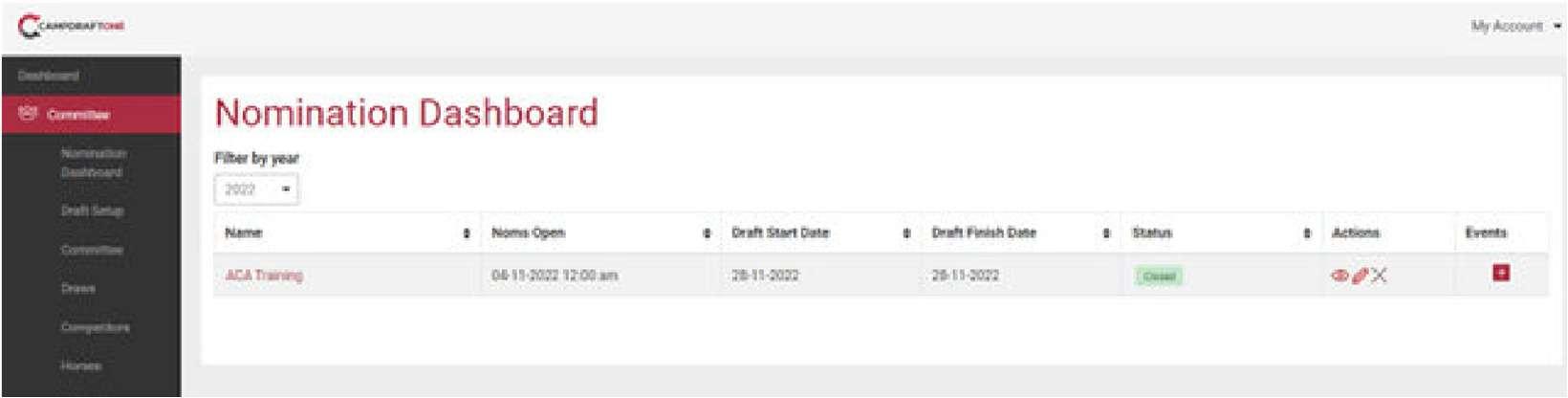
If you need to create additional events later:
1. Go to the Nominations Dashboard
2. Click the red Eyeball icon
3. Then click Add New Event

Tip: Start with the Type field to auto-fill many fields. Then complete left to right, top to bottom.
⚠ Once your draft is set up, notify the Campdraft One team at least 72 hours before nominations open for approval. (Next page)
2.0 Campdraft One Setup 2.2 Creating Events
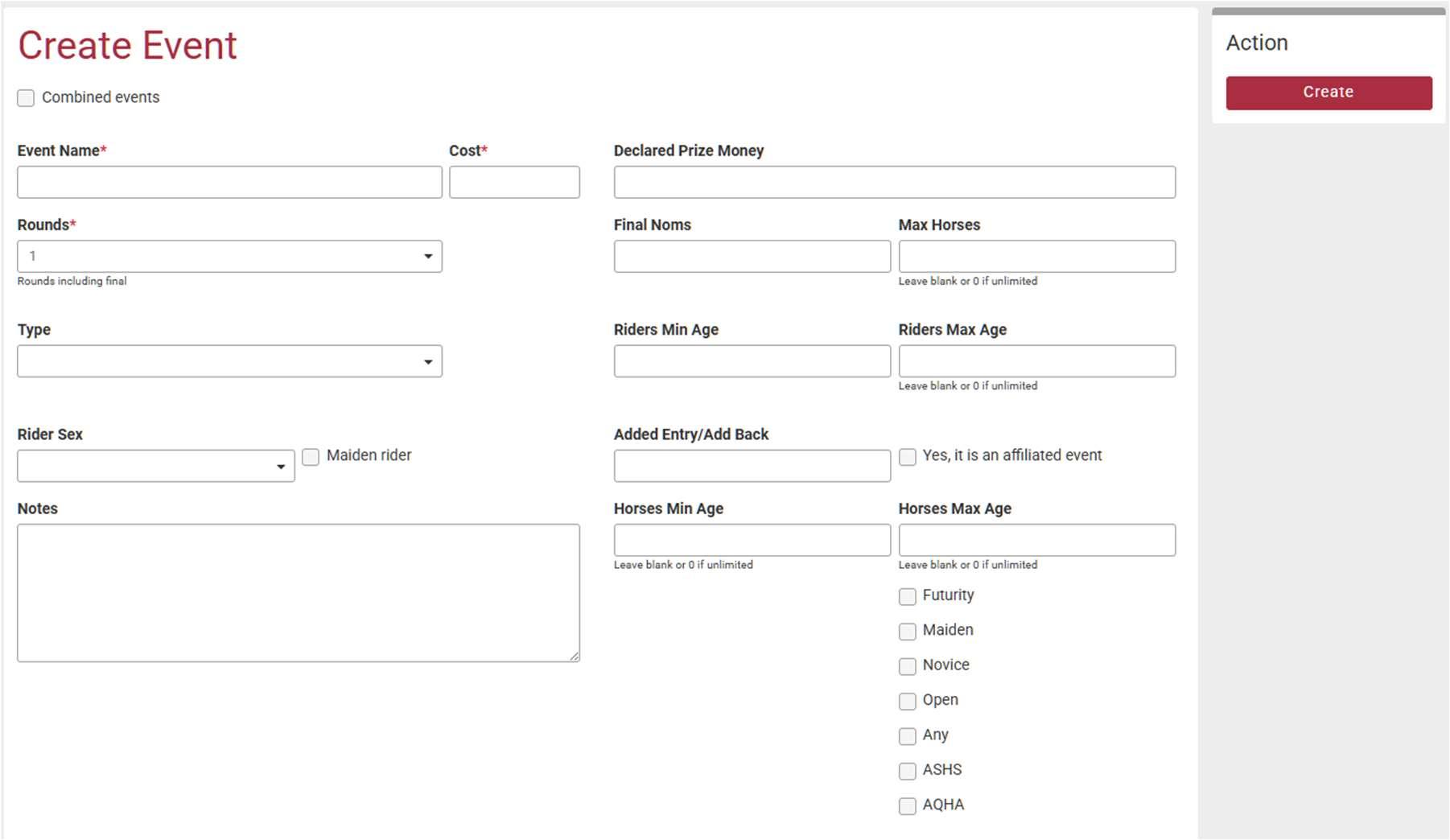
Key fields on the Create Event screen:
Event Name:
Avoid sponsor or memorial names to prevent confusion in SMS messages.
Cost:
As per approved program
Declared Prize Money: As per approved program If the event is split A/B, this amount will be split unless doubled.
Rounds:
Number of rounds, including finals
Final Nominations:
Visual aid for nomination processing
Max Horse: Restricts number of horses (only in Ladies, Juvenile, Junior, Mini)
Type:
Pre-set tool — DO THIS FIRST or your previous choices may be overridden
2.0 Campdraft One Setup 2.2 Creating Events
Riders Min/Max Age / Sex: Defaults from “Type” but can be edited
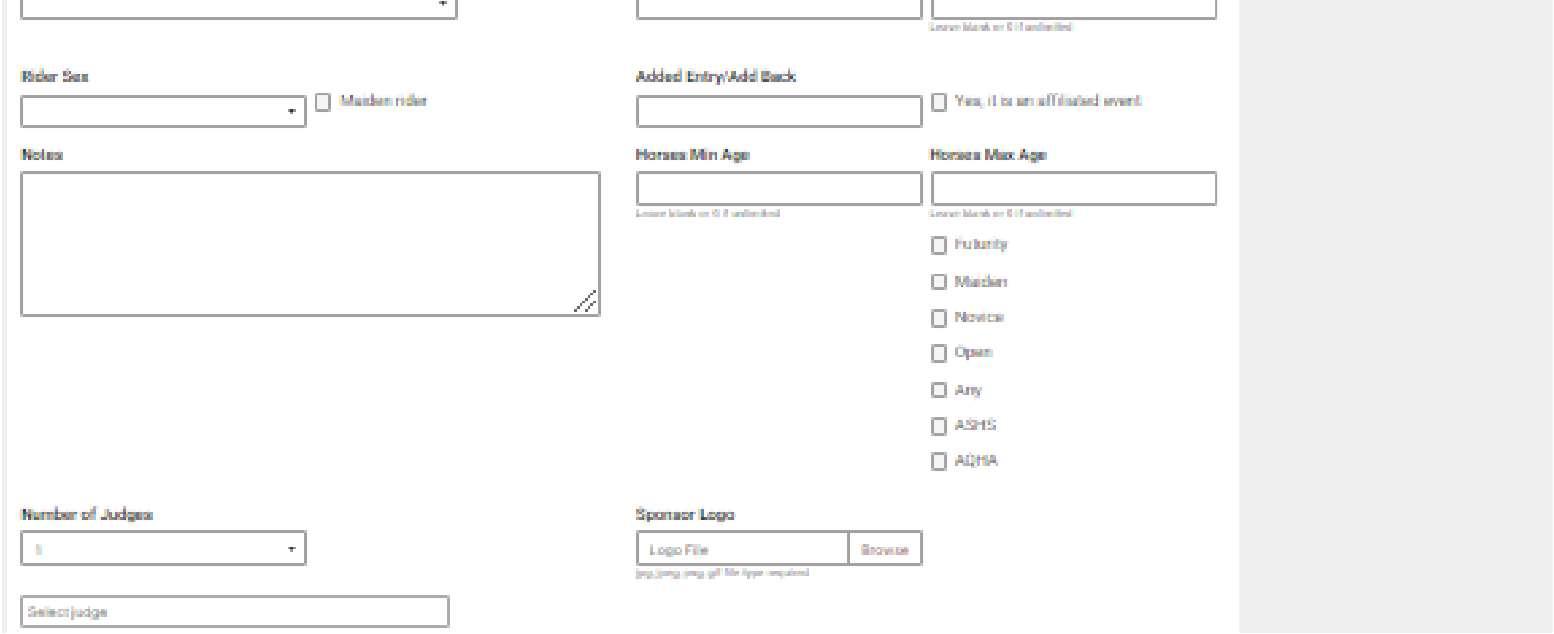
Maiden Rider Checkbox:
Restricts to riders with “Maiden” status
Added Entry / Add Back: Goes to prize pool. Not invoiced unless included in “Cost” field
Affiliated Event Checkbox:
o Don’t worry too much about this box as staff will change it at the publishing stage if required
o Points: Maiden, Novice, Open, Restricted Open, Ladies, Juvenile
o Status: M4M, Maiden, Novice, Open, Restricted Open
Notes:
Internal only (unless using Auto-Generated Program)
Horse Min/Max Age / Status: For Futurity & Challenge events
Number of Judges / Select Judge: Type name and select from dropdown (contact ACA if judge missing)
Sponsor Logo: Only for Auto-Generated Programs
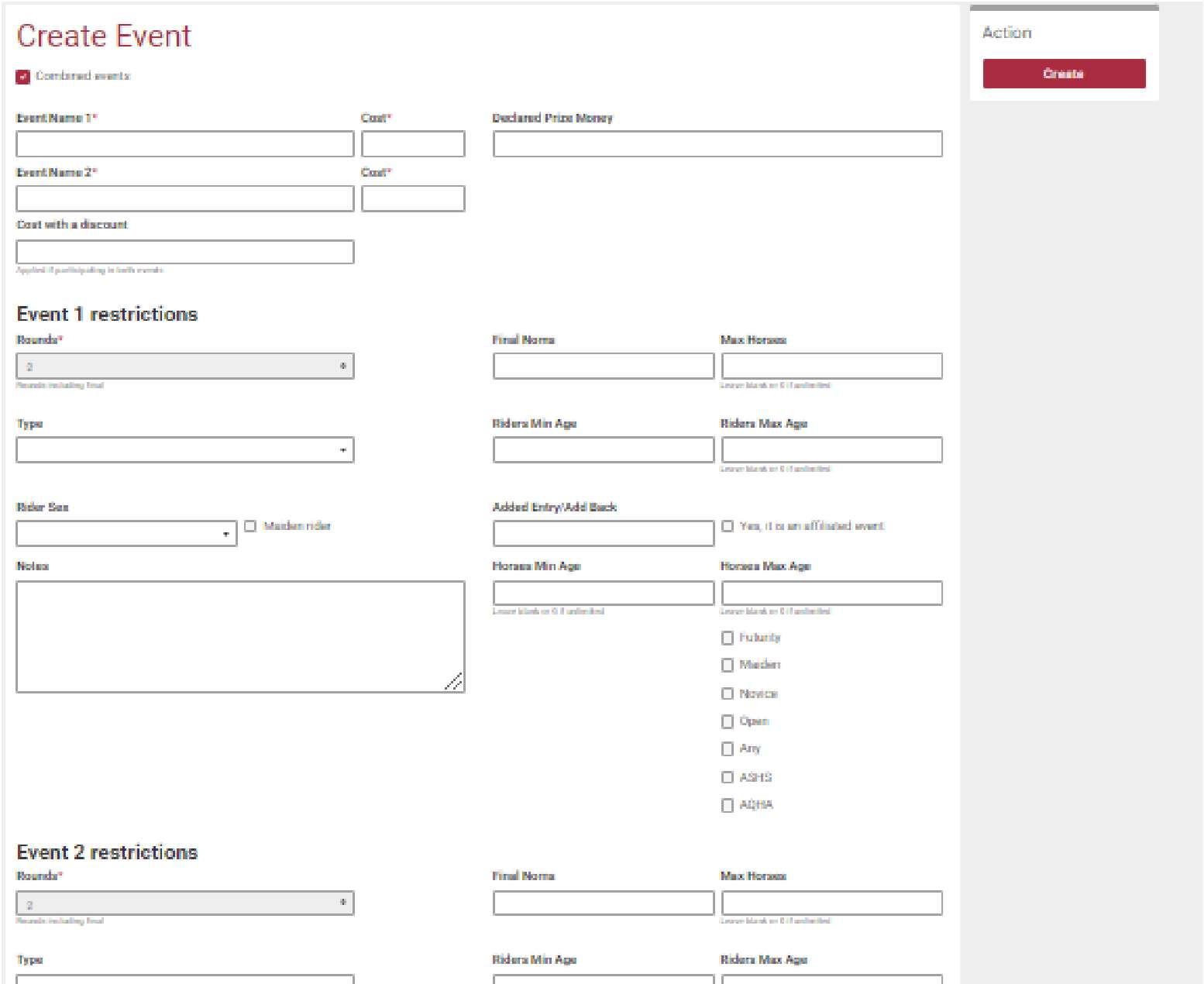
Combined Event Checkbox:
o Use for events with shared rounds
o Allows Event Name 1 & 2 and allows the option for a discount if nominating in both
o Examples would be Maiden combined with a M4M, an Open combined with an ASHS incentive, or a combined Maiden and Novice.
o AS OF SEPTEMBER 2025 cannot be split A/B – please check with the office as this is likely to be updated
Click red Create button for each event.
2.0 Campdraft One Setup 2.2 Creating Events
2.3 Excluding Events from Restrictions
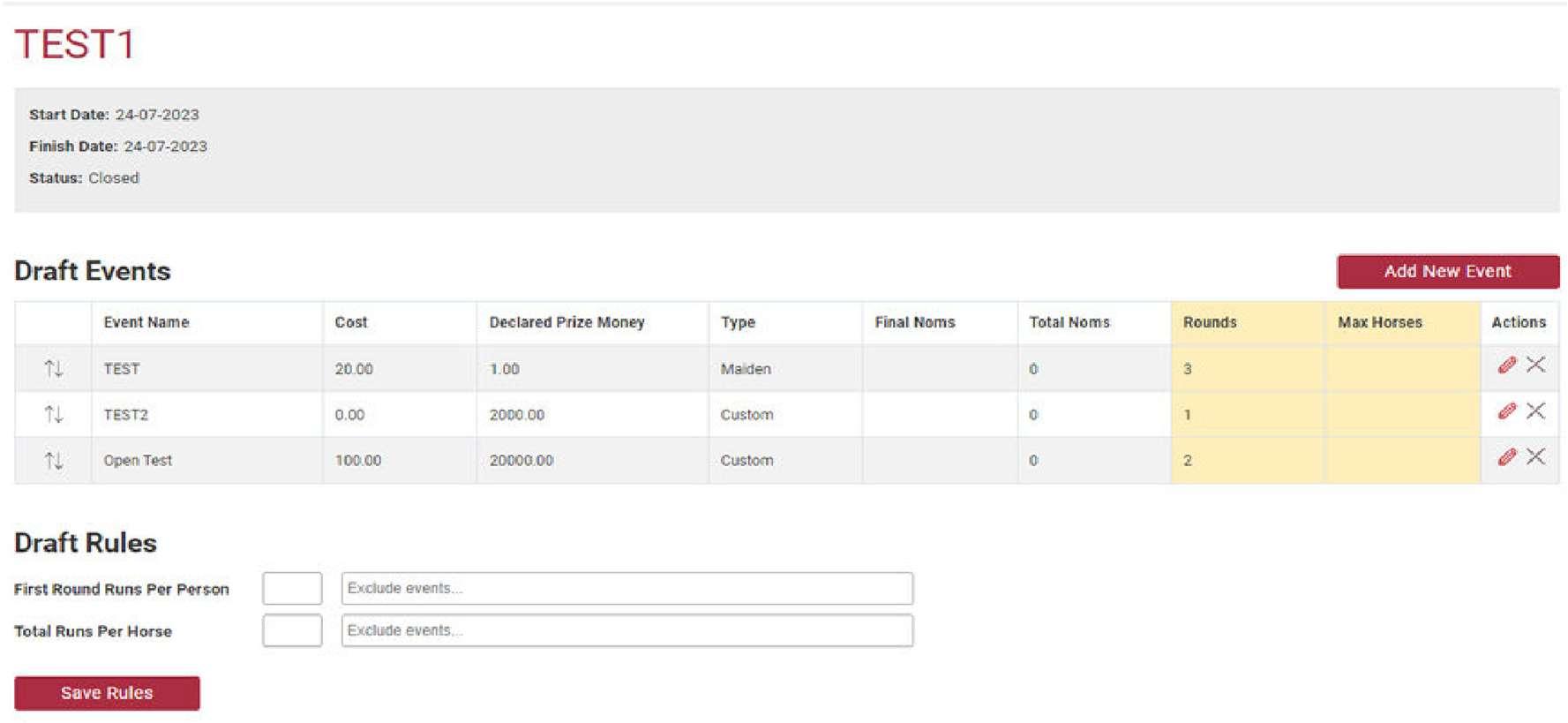
Navigate to the Nominations Dashboard and click on the red Eyeball icon.
Scroll down to Draft Rules.
In the applicable fields, select all events to be excluded from:
Maximum number of runs
Or to apply run restrictions, as per your approved program
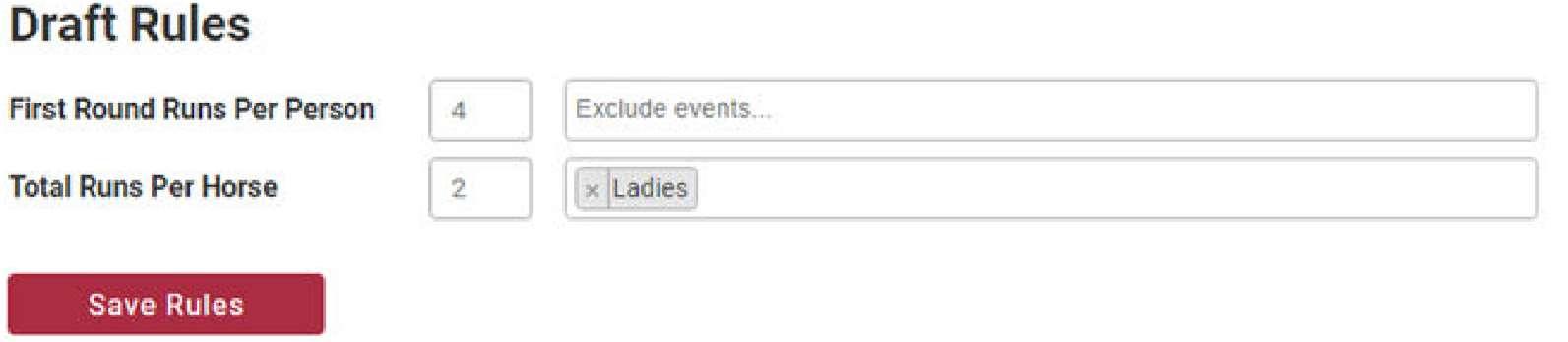
Click the red Save Rules button to apply.
NOTE: Maiden 4 Maiden Events typically need to be included here if the first round is run with another event (typically a Maiden)
2.4 Auto-Generated Program
If your committee is using Campdraft One’s Auto-Generate Program feature, complete all steps up to this point.
Steps:
1. Go to the Nominations Dashboard
2. Click the Pencil icon
3. Under Autogenerated Program:
o Select an Accent Colour
o Click Review Auto-Generated Program
o Once satisfied, click Submit Program (red button)
Notify the ACA Office after submitting your auto-generated program
2.0 Campdraft One Setup
2.3 Excluding Events from Restrictions
2.5 Event Membership
IF the committee is accepting event memberships, please be aware of the process for this.
New Members: Must ring in the office and pay the $25 for a Casual Membership profile
Existing or Previous Members: Login and pay the $25
Once this is done, they will be permitted to nominate. If this hasn’t been done, they will not be able to nominate
If they are accepted to your draft they will receive two invoices, one for nominations and one for the $100 Event Membership Fee. The Event Membership is non-refundable for change of mind scratching
Once the competitor has been accepted and paid their $100 Event Membership Fee, ACA will use the competitors list to count how many Event Memberships will be used at the draft
It is the committee’s responsibility to collect the $100 Event Membership fee for each competitor that uses one over the weekend. No Event Membership fees should be taken over the weekend for those who have not yet registered their Casual Membership profile
After the draft ACA will invoice the committee for Event Membership fees that the committee collected
For more information, please see section 10.1
3.0 Process Nominations
This section explains how to accept and process nominations after nominations have automatically closed.
3.1 Nominations Dashboard Explained
The Nominations Dashboard layout is organized left to right, top to bottom.
Main Table:
Name: Click to expand the row (it turns red). This shows additional controls — wait a few seconds if it doesn’t appear.
Nominations Open: Shows date/time as per your Draft Setup (see section 2.1)
Draft Start/End: Event date range.
Status:
o Open: Accepting nominations — closes automatically.
o Finalised: Invoices sent to ‘accepted’ & ‘unpaid’ competitors. Waitlist open.
o Closed: No more nominations; you can publish draws. Waitlist closed.
o On Hold: There should be no need to use this option.
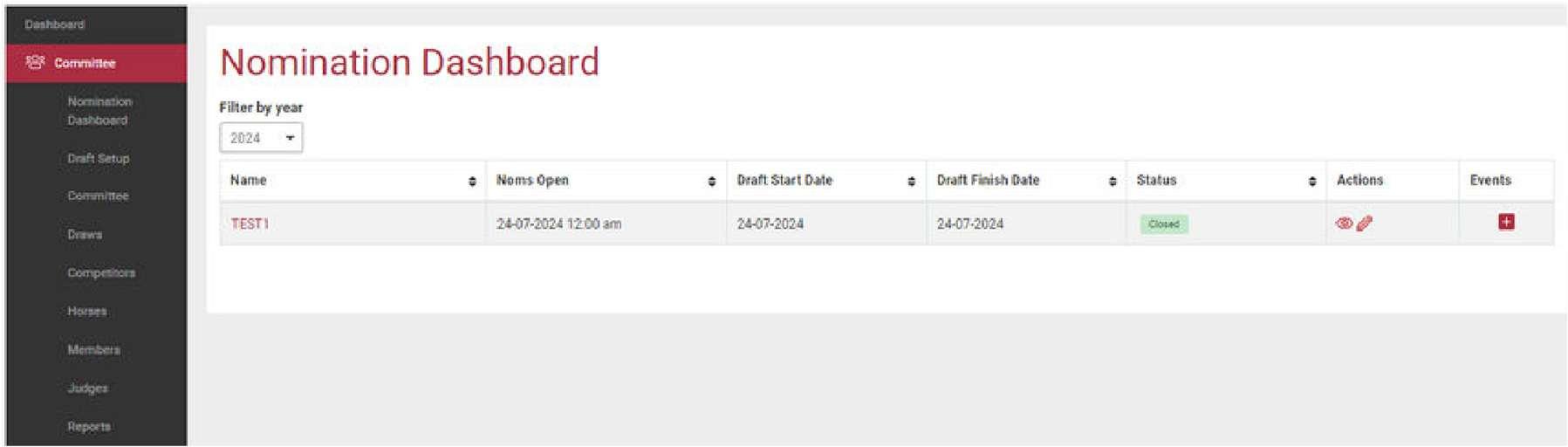
Actions:
Eyeball icon: Opens the Event Editor screen
o Manage restrictions
o View total runs per horse (after accepting nominations)
3.0 Process Nominations
3.1 Nominations Dashboard Explained
o Filter nominations out of events
Pencil icon: Opens Event Setup (see Chapter 2)
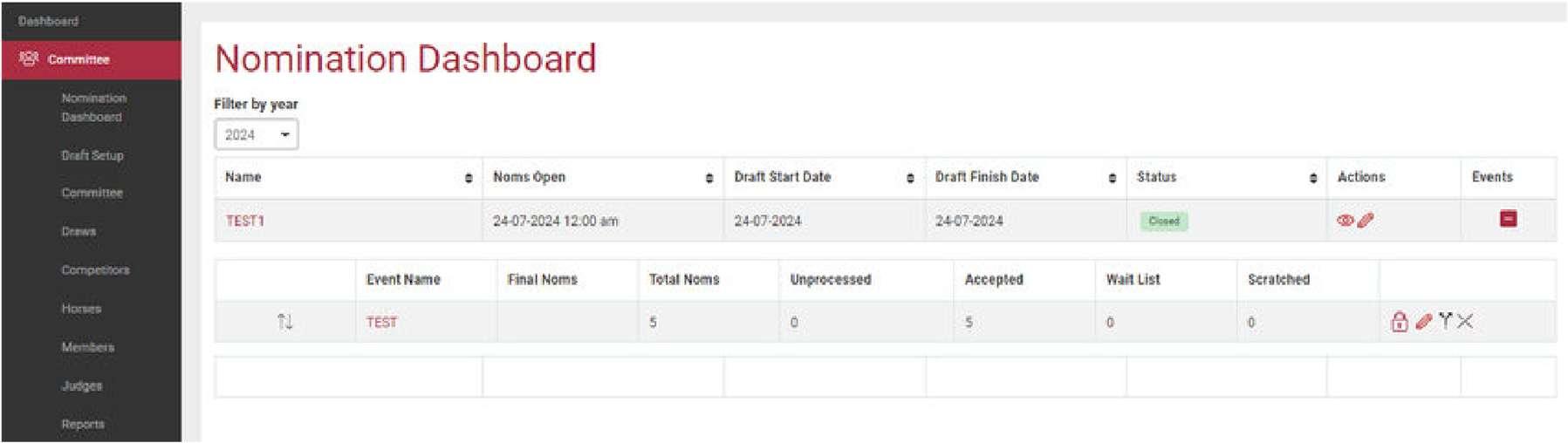
Events (+): Clicking this expands the event table and reveals:
Final Nominations: A visual aid for number of finals nominations. Only if entered into the event set up
Total Nominations: Equals all nominations in the following 4 rows:
o Unprocessed: not yet processed
o Accepted: approved nominations
o Waitlist: Nominated after the draft status was changed to ‘finalised’ or secretary has made this their status due to high number of nominations
o Scratched: Scratched by competitor or secretary
Icons:
Lock: Red = unlocked. Click to lock (turns grey). Locked events can’t be processed.
Pencil: Opens Event Setup
Fork in road: Once clicked in Finalised status, splits event into A/B
3.0 Process Nominations
3.1 Nominations Dashboard Explained
X (Cross): Deletes the event row (and deletes the entire event - think hard before you click this one)
Bulk Processing:
Go to the Nominations Dashboard and click your draft’s name. The row turns red and new functions appear.
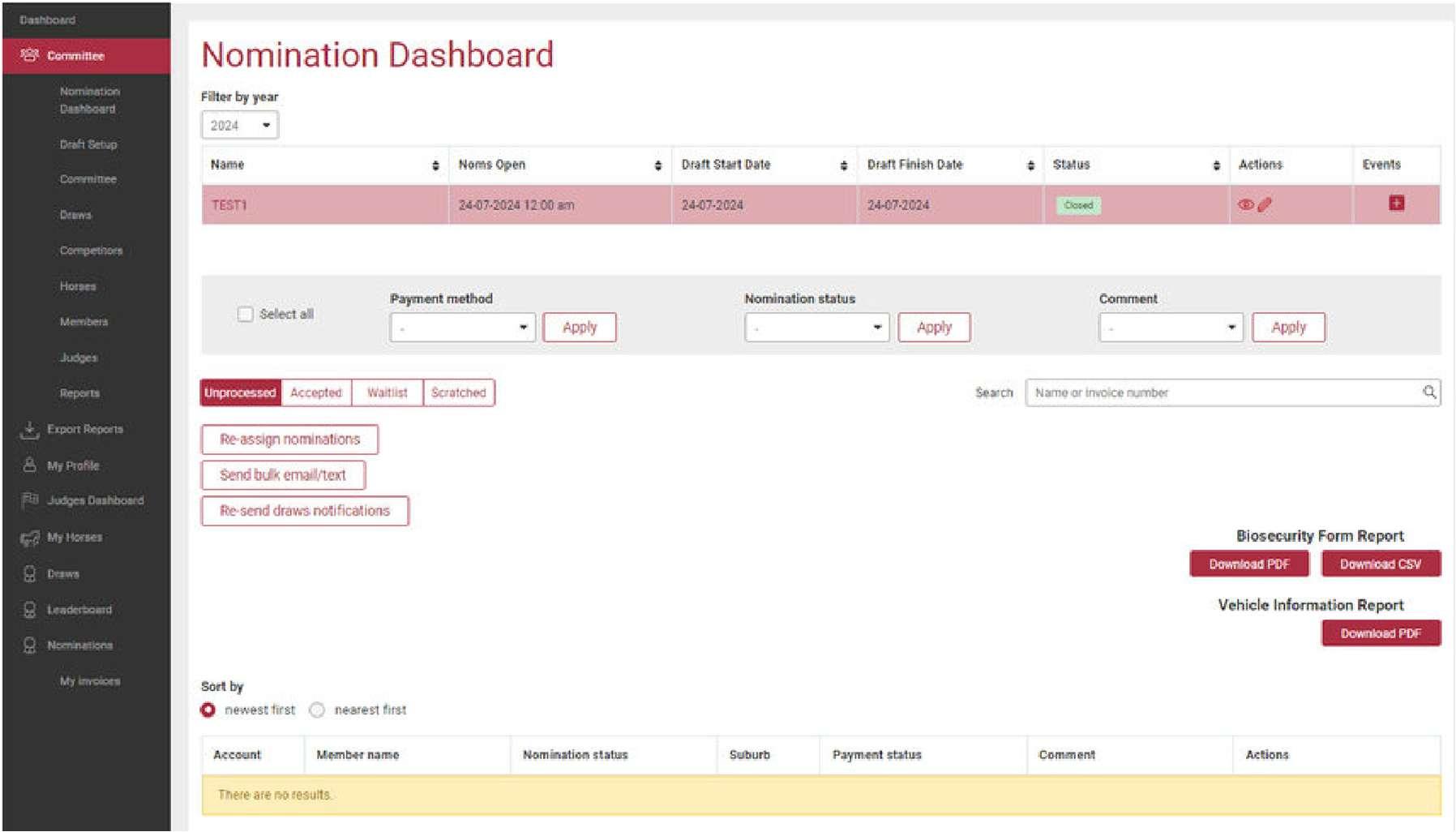
Nominations Dashboard, when draft name clicked, functions are explained left to right, top to bottom.
Select all:
Selects all rows (competitors). This function can be used in every Nomination Status.
3.0 Process Nominations
3.1 Nominations Dashboard Explained
Payment Status:
Options: Unpaid or Paid
Nominations status:
Options: Unprocessed, Accepted, Waitlist, Scratched.
Comment:
Options: Cash, Direct Debit (DD), Bank Cheque (cheque), Committee Credit (CC), Credit Card (EFTPOS)
Nomination status:

Unprocessed:
Used to view all competitors with nomination status of ‘Unprocessed’. All initial nominations will be categorised as ‘Unprocessed’
Accepted:
As a secretary you must accept a nomination before it will move to the ‘Accepted’ tab
Waitlist:
Scratched
Used to view all competitors with nomination status of ‘Waitlist’
Any initial nominations committee cannot accept should be placed on waitlist
Once invoices are sent, waitlist will open. Any nominations from this point will appear here
Used to view all competitors with the nominations status ‘Scratched’.
NOTE: Competitors can manage (change horse/rider and scratch) nominations up until the draws are created.
Search Bar:
Use to search nomination by name or invoice number
3.0 Process Nominations
3.1 Nominations Dashboard Explained
Reassign Nominations:
Directs to a new screen that facilitates reassigning of nominations by horse or rider
Send Bulk Email/Text:
Directs to a new screen that facilitates sending bulk email or test or both to competitors
Resend Draws Notifications:
Select which event to resend draw notifications to
Show Event Members in Draft:
IT IS ESSENTIAL to check this area and ensure your event members have been marked as paid or they will not appear in the draw
Biosecurity Form Report:
Only applicable if this option was selected in the setup of your campdraft
With this function, secretaries can download a consolidated biosecurity form report for their campdraft in PDF or Excel format
Vehicle Information Report:
Only applicable if this option was selected in the setup of your campdraft
With this function, secretaries can download a consolidated vehicle form report for their campdraft in PDF or Excel format
3.2 Processing Nominations
After nominations close:
1. Go to the Nominations Dashboard
2. Click on your draft’s name (row turns red)
3. All entries start under Unprocessed
Sort Options:
Sort by newest or closest competitor (by location)
Column Headings:
Account: ACA member number (primary account holder)
3.0 Process Nominations
3.2 Processing Nominations
Member Name: Primary member name, secondary members underneath + number of runs
Nomination Status: Dropdown to accept, waitlist, or scratch
Suburb: Competitor’s location per their account
Payment Status: Blank until nomination status is ‘Accepted’
Comment: Blank until nomination status is ‘Accepted’
Actions:
o Pencil icon: Once clicked, will display a pop-up containing all individual runs under that account, grouped by person or by event
o Checkbox: Used to select a competitor for the purpose of accepting multiple competitors at once
There are three (3) methods of processing nominations:
1. Nominations Status Dropdown – change individually
2. Bulk – select multiple boxes
3. Select All
1. Nominations Status Dropdown:
Note that the primary account holder always shows under member name, then the secondary accounts underneath. The primary’s name shows even if they don’t have nominations. Click the pencil to see which competitors have which nominations.
Filter through each account one by one
Changes status for all runs under that account (Next Page)
3.0 Process Nominations 3.2 Processing Nominations
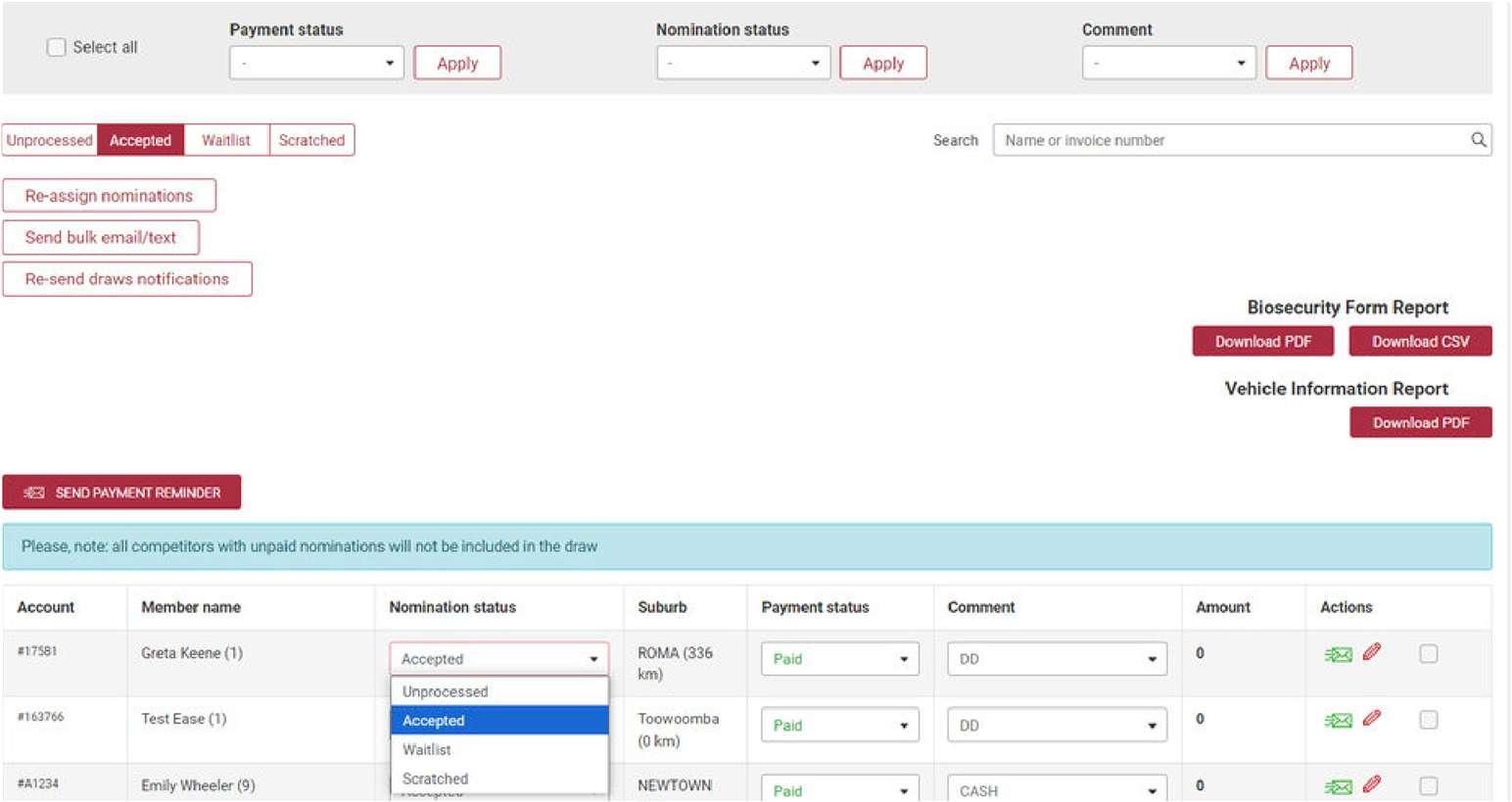
2. Bulk – Selecting Multiple Boxes:
Find the Nomination Status dropdown
Select desired status (e.g., Accepted, Waitlist, Scratched)
Click the Apply button
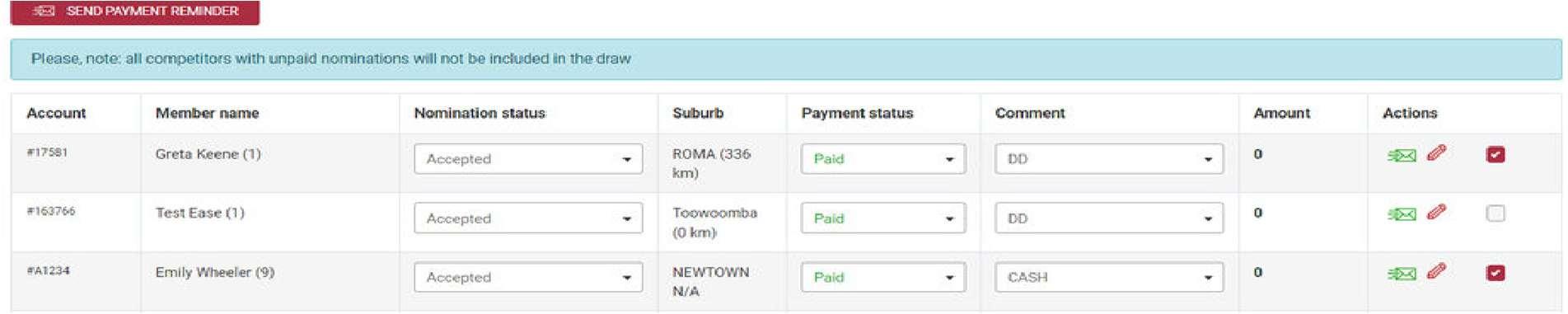
3. Select All: (This may take a few moments to load)
Click the Select All checkbox at the top
Choose the Nomination Status from dropdown and select the desired status (accepted)
Click the Apply button to update (Next page)
3.0 Process Nominations
3.2 Processing Nominations
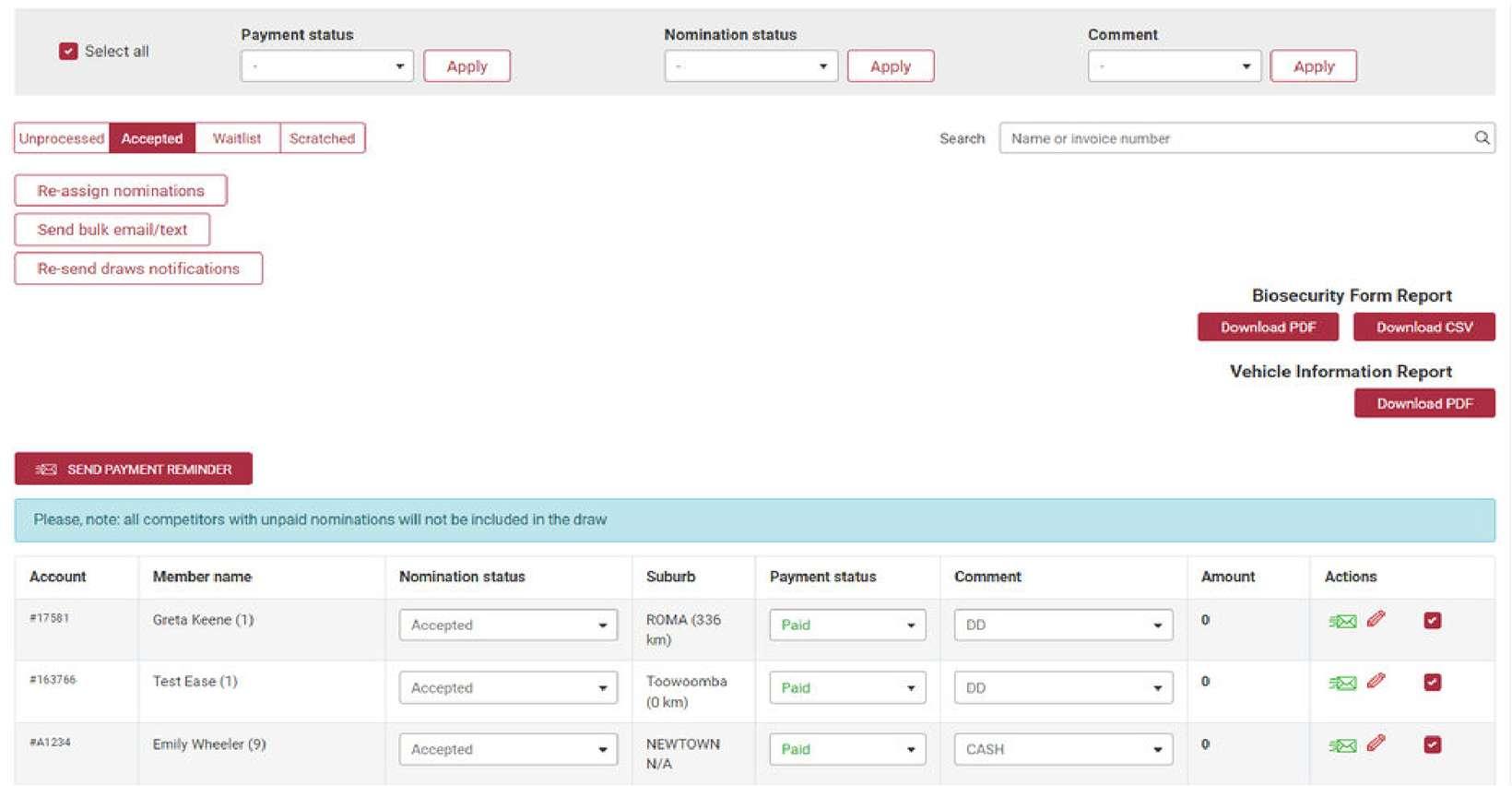
Reminder: Competitors with unpaid nominations will NOW BE INCLUDED in the draw. This the new process as of 2025.
3.0 Process Nominations
3.2 Processing Nominations
4.0 Issue Invoices
This section covers the process of issuing invoices. It should be done after all nominations have been processed.
4.1 Issuing Invoices
Once all competitors have the status of Accepted or Waitlist, and you're ready to issue invoices. Please check your bank details are correct in the Committee tab and all nomination fees are correct first, then:
1. Go to your Nominations Dashboard
2. Click the Pencil icon
3. Find the Status dropdown
4. Select Finalise
5. Scroll down and click the red Save Details button
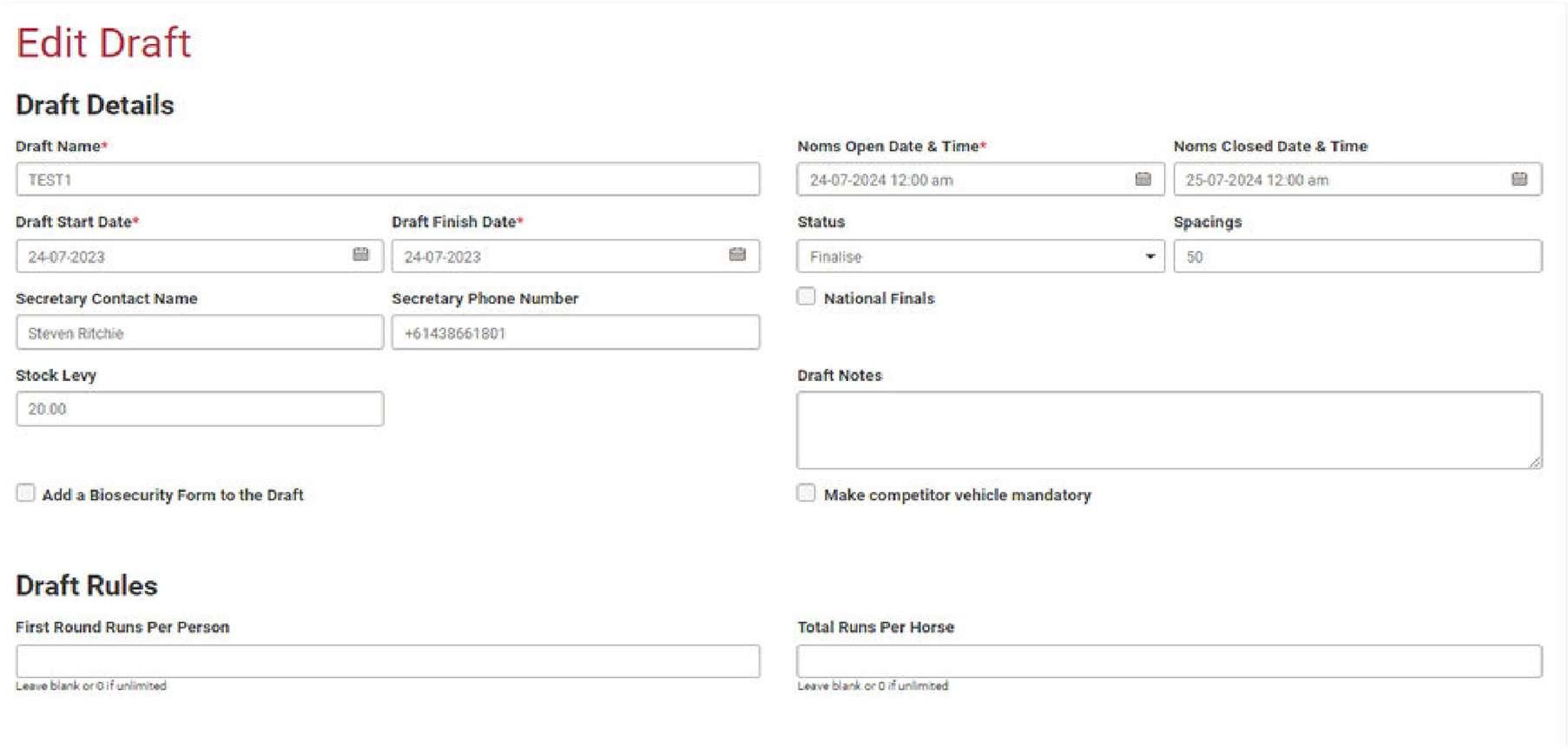
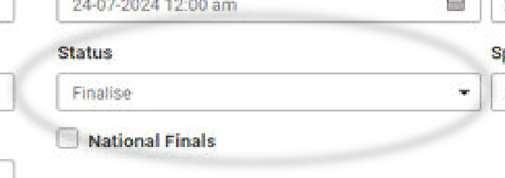
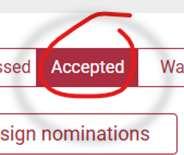
Return to your Nominations Dashboard and click on your draft’s name (row turns red). Scroll down and filter by Accepted (Next page)
4.0 Issue Invoices 4.1 Issuing Invoices
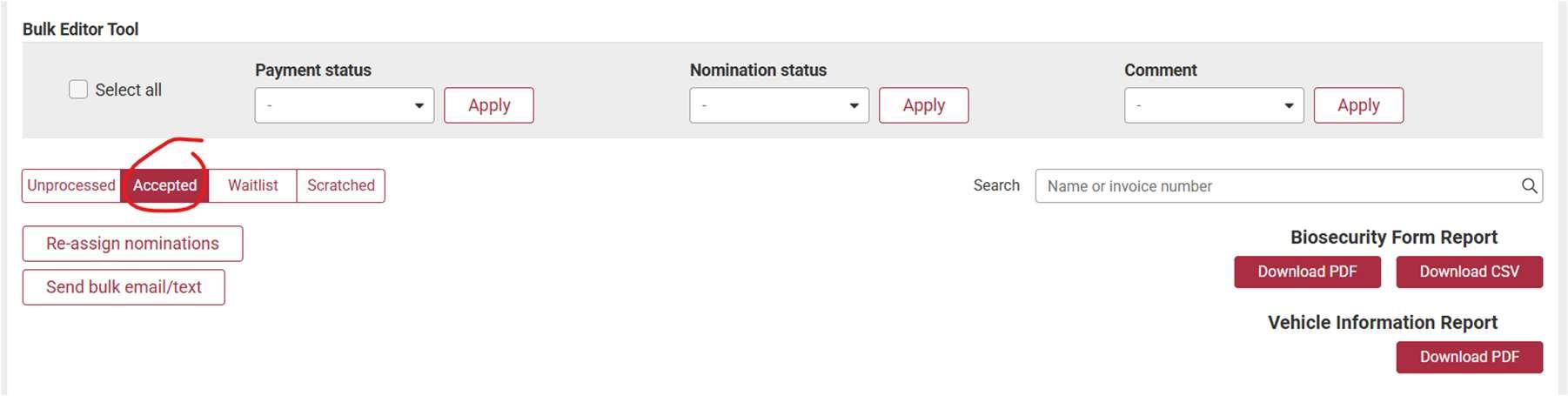
Payment Status Options:
Paid
Unpaid
Partially Paid
Note: A comment (e.g., payment method) must be selected before changes are accepted.
Comment Field:
Choose payment method: Direct Debit, Committee Credit, Cheque, Cash, Credit Card
o Committee credit is used to imply that the owed amount hasn’t actually been paid into the committee account – rather it been “covered” by the committee. This keeps your incoming money report straight by allowing you to filter out amounts paid by “Committee Credit”
Amount:
Based on the cost entered in Draft Setup (as per approved program)
Envelope Icons:
Red = invoice not yet sent (this can take 10 minutes)
Green = invoice sent
Pencil Icon:
Opens a pop-up menu:
o Resend Invoice
o Download all invoices linked to that account
4.0 Issue Invoices 4.1 Issuing Invoices
4.2 Waitlist
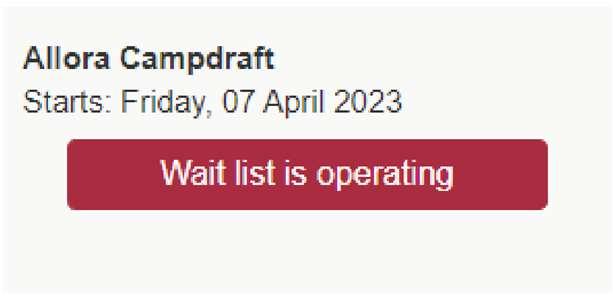
Once the draft status is set to Finalised, the Waitlist feature becomes active. It stays active until the draft status changes to Closed
You are not required to accept or move competitors off the waitlist
Waitlisted competitors will only receive invoices if manually moved to Accepted and the draft is still Finalised
Note:
Anyone who hasn't paid by the due date should be moved to SCRATCHED before generating draws if you do not wish them to be in the draw.
4.0 Issue Invoices 4.2 Waitlist
5.0 Process Payments
This section explains how to process payments after invoices are sent, and how to mark competitors as paid.
5.1
Processing Payments
If using Online or Online Only payments, this step is not needed — nominations will be marked as paid automatically with EFTPOS noted in the comment. Please see section 10.1 for the essential step of marking Event Members as Paid
To mark payments manually:
1. Go to the Nominations Dashboard
2. Click your campdrafts name (row turns red)
3. Filter by Accepted
4. Use the search bar for name or invoice number
5. Select the Comment (e.g., DD, Cheque, Cash)
6. Select the Payment Status

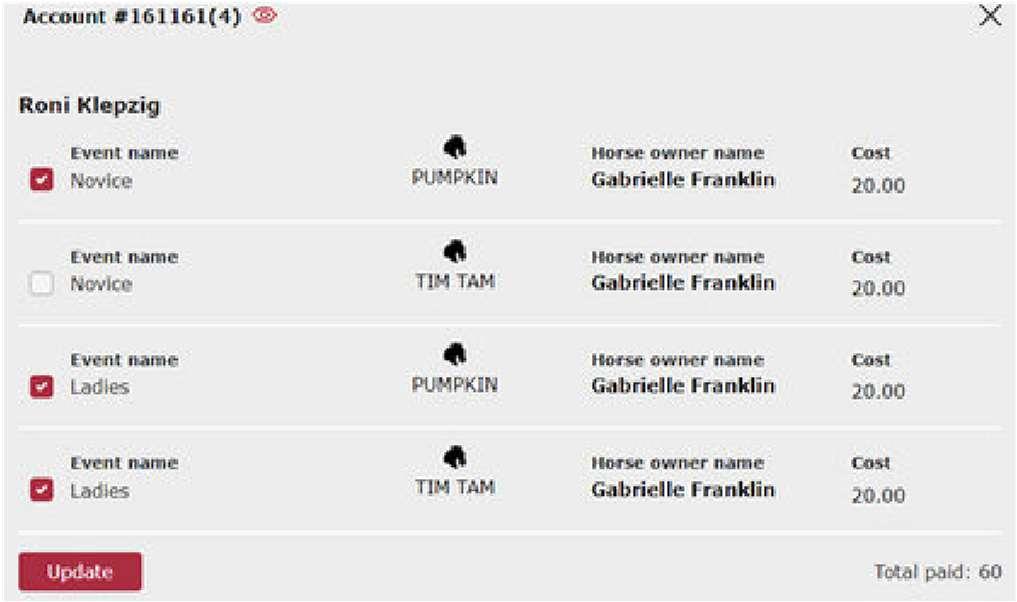
If partially paid:
Choose Partially Paid
A popup will show all runs
Tick the runs that have been paid
Remaining unpaid runs will display their amounts (Next page)
5.0 Process Payments
5.1 Processing Payments
5.2 Reports Explained
To view a report of all competitors/invoices marked as paid:
1. Select Reports from the menu on the left-hand side
2. Use the Drafts dropdown to choose your draft
This displays all paid competitors/invoices in a table format.
For more information, see section 9.1
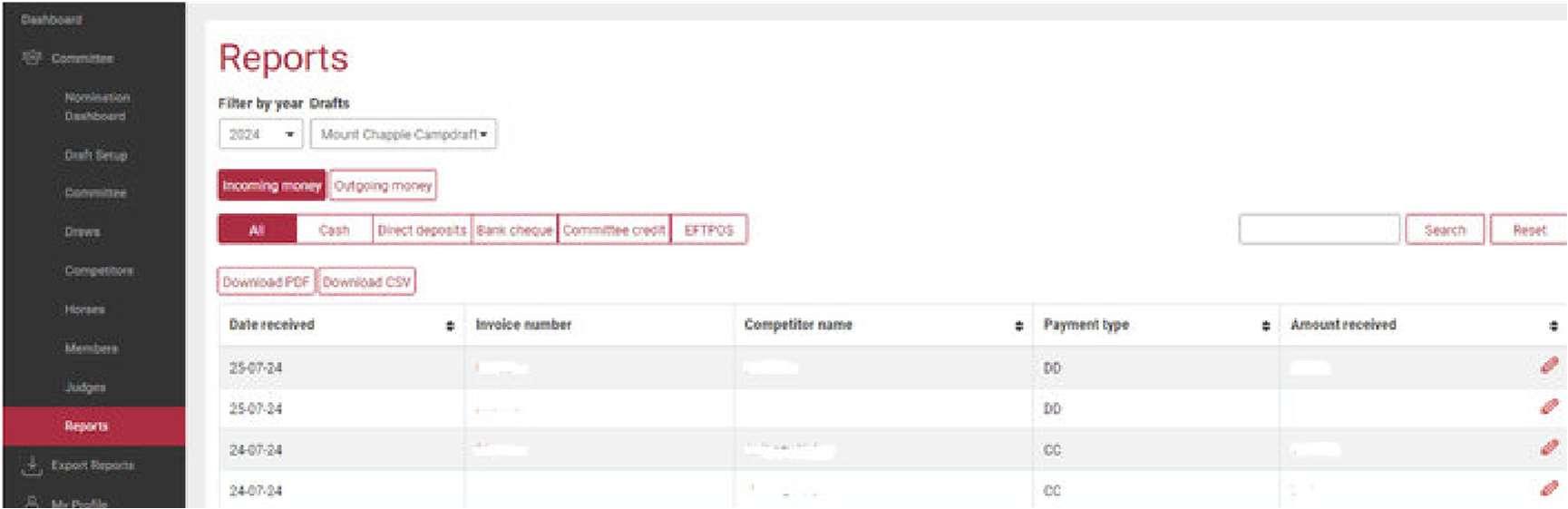


Functions (left to right, top to bottom):


Filter by Year: View all paid invoices from one year
Drafts: Select from drafts tied to the chosen year
Incoming Money:
o Lists all paid invoices
o Includes amount breakdown by payment type and grand total
5.0 Process Payments
5.2 Reports Explained


Outgoing Money:
o Lists refunds (if any)
o ⚠ Refunds from draw scratchings do not appear here
Filter by Payment Type:
o All, Cash, Direct Debit (DD), Bank Cheque, Committee Credit (CC), Credit Card (EFTPOS)
Search Bar: Search by invoice number or competitor name
Download PDF/CSV: Report by current filter
Date Received: Date invoice marked as paid
Invoice Number: Auto-generated
Competitor Name: Primary account holder
Payment Type: As selected during payment marking
Amount Received:
o Click Pencil icon to edit
o Click Save to apply changes
5.0 Process Payments 5.2 Reports Explained
6.0 Generate Draws
This section covers the process of generating draws and associated requirements. It is to be completed after nominations have been sorted.
6.1 Crucial Steps Prior to Generating Draws
It’s crucial to confirm the following points have been completed prior to generating draws:
Split Events:
o If you have split events on your program, ensure they are split before generating the draws. (See Section 10.13)
Check Event Members Payment Status:
o Your Event Members need to be marked as Paid for their Event Membership
o THIS IS A DIFFERENT INVOICE FROM THEIR NOMINATIONS
o Event Membership must be marked as paid in the SEPARATE EVENT MEMBER AREA or they WILL NOT appear in the draw
(View from nominations dashboard below)
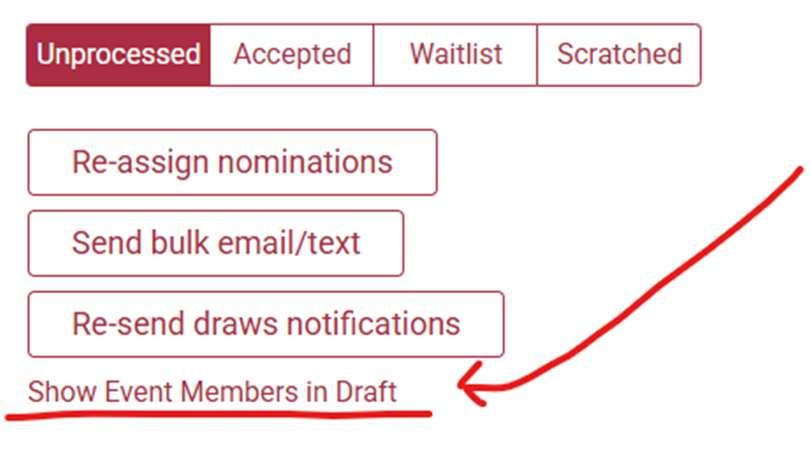
Change Draft Status to Closed:
o In the nominations dashboard, click the pencil by the draft name, change the status from finalise to closed
6.2 Generating Draws
After confirming the three points from the previous page, follow these steps:
1. Go to the Nominations Dashboard
6.0 Generate Draws
6.1 Crucial Steps Prior to Generating Draws
2. Click the Pencil icon
3. Change Status to Closed
4. Confirm spacing settings are appropriate
5. Click Save Details
Then:
6. Go to the Draws tab in the left menu
7. Click Generate Draws
8. A popup will confirm:
“Events have been successfully added to the queue for generating draws”
Refresh the page periodically. Draws can take up to 45 minutes. When ready:
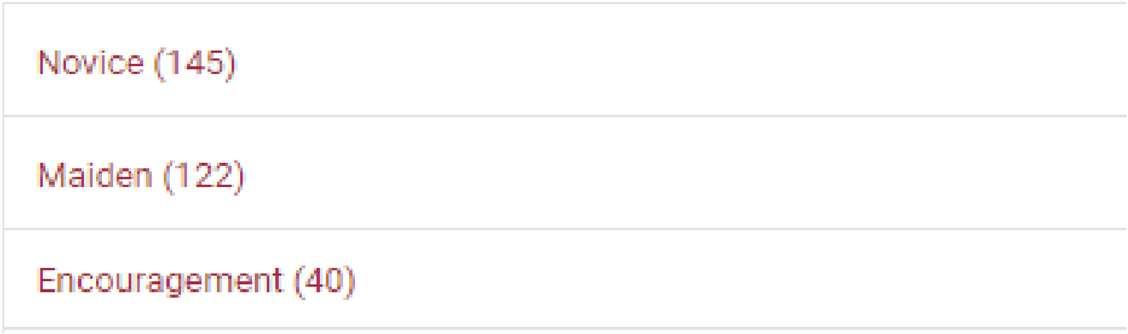
Event names appear in red
Number of runs is displayed in brackets (e.g., Novice (145)
Repeat until all draws are generated. This can take up to 45 minutes.
6.0 Generate Draws
6.2 Generating Draws
7.0 Publish Draws
This section explains how to publish draws and key considerations.
7.1 Publishing Draws
Before publishing:
Review each draw
Ensure judges/committee members aren’t placed inconveniently
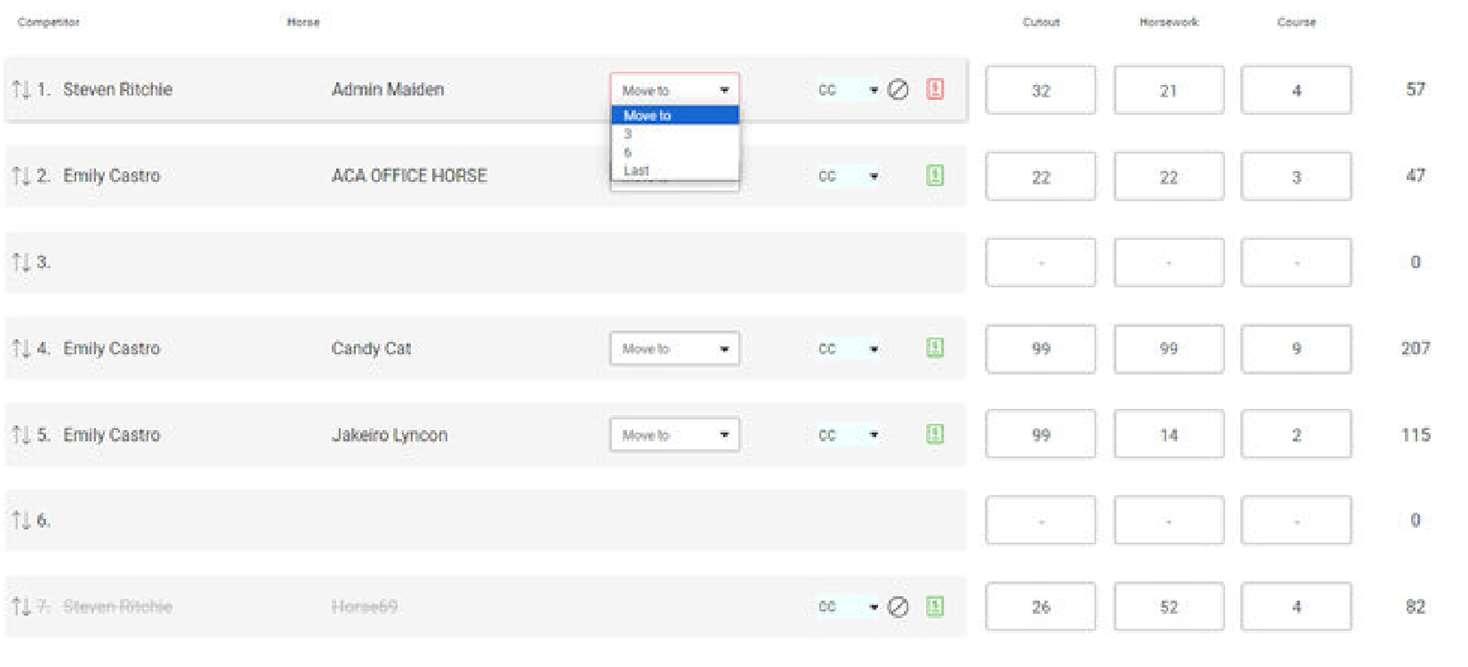
If adjustments are needed, use:
1. Drag and Drop (before publishing only)
Allows reordering of run numbers for most competitors
2. Move To (before and after publishing)
Click Move To, select a vacant run from the dropdown
The original run becomes vacant after the move
Once finalized:
Go to Draws tab
Click Publish All Draws – this sends draw notifications to competitors
Competitors are notified by text.
After this, all changes (e.g., scratches or new runs) must be done via the Draws menu. Do not make changes from the Nomination Dashboard, they will not carry through.




7.0 Publish Draws
6.2 Generating Draws
8.0 ‘On the Day’ Conduct
This section covers the functions within the Draws sub-menu and event draws that will be used on the day
IMPORTANT NOTE: When a competitor misses their call or is a no-show PLEASE scratch them from the draw, do not leave the score blank or put 0. Accurate number of starters is vital to allocating points correctly for ACA and Future Stars Futurity Series.
8.1 Draws Screen Explained
After clicking Draws in the menu, the screen will display all created events. Click on the event you wish to view.
Functions of the Draws screen:
Name of Event: e.g. Maiden, Novice, Open
PDF Icon:
o Click inside an event to view/download/print draw for selected round
CSV Icon:
o Click inside an event to view/download/print an Excel file of the draw
Select Round: e.g. First, Second, Final Round
Search Bar: Find by competitor name
Re-Generate Draw:
o Regenerates the draw
o Any entered scores are lost. This should only be done before a round has started
Minimum Score to Go to Final:
o Set qualifying score (from Live Leaderboard)
Re-Assign Nominations:
o Change nominations by horse or rider
7.0 Publish Draws
8.1 Draws Screen Explained
Refund:
o Moves scratched runs to Outgoing Money for potential refund
Add New Nomination:
o Opens boxes to add a new entry
Swap Nominations:
o Allows two runs to be exchanged. Example: 51 Emily Wheeler on Mojo and 101 Jane Smith on Roany once swapped is 51 Jane Smith on Roany 101 Emily Wheeler on Mojo
Runs column title: Sort by number
Round Score column title: Sort by score
Printer Icon: Download scoresheet/announcer sheet
8.2 Printing Draws, Scoresheets & Announcer Sheets
To print draws, scoresheets, and announcer sheets:
1. Select Draws from the menu
2. Click the required event name
Draws:
Click the PDF icon beside the event title
In the PDF viewer:
o Choose Print or Download
o Set Page Layout to Fit to Printing Area
This ensures the last runs are not cut off
Scoresheet/Announcer Sheet:
Click the Printer icon beside the Round Score title
Choose:
o Print
7.0 Publish Draws
8.2 Printing Draws, Scoresheets & Announcer Sheets
o Download Again, set Fit to Printing Area in print settings

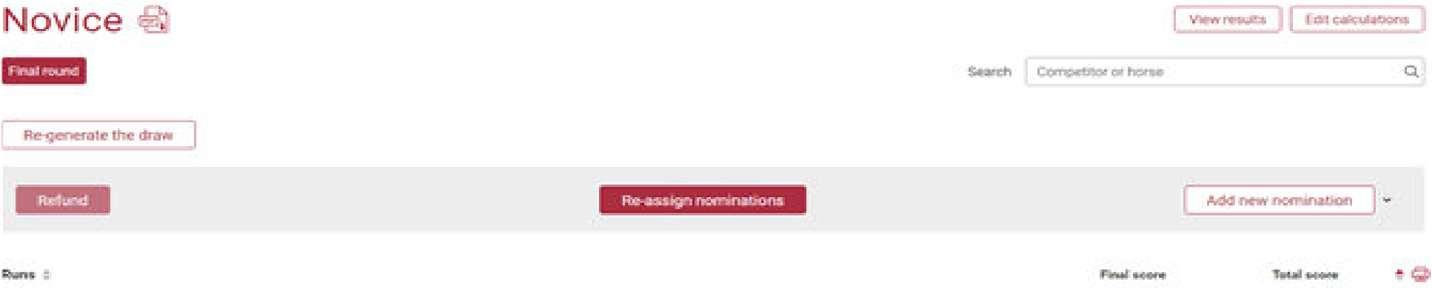


8.3 Entering Scores
To enter scores:
1. Select Draws on the left-hand menu
2. Click on the required event name
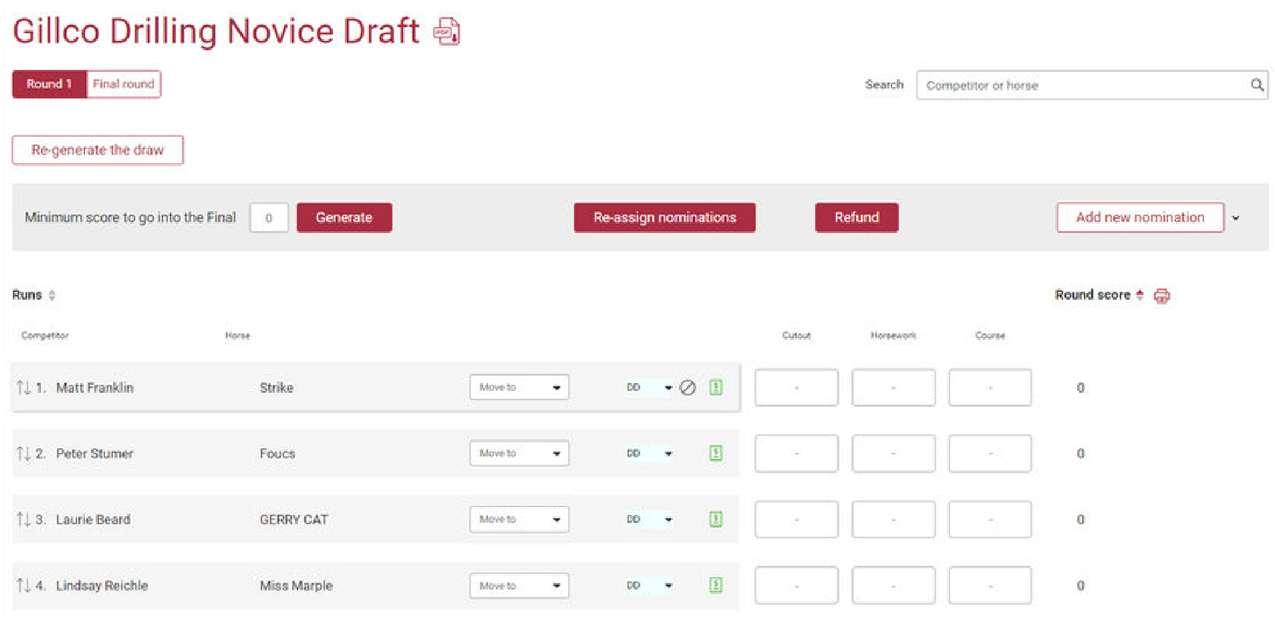
3. Click into the desired score field, enter the score, then press Tab, Enter, or click the next field
4. If you can’t add scores to the next round, the draw may not be published — this is common after generating the final. Be sure to click the Publish button at the top of the page for each round
5. Note: The total score won't update until you press Tab or Enter
6. Note: For a cracked-off competitor, enter zeroes (0) in all three scoring fields
IMPORTANT NOTE: If a competitor misses their call – PLEASE SCRATCH THEM so the number of starters in the draft is accurate. This is important for ACA and Future Stars Points.

7.0 Publish Draws
8.3 Entering Scores
8.4 Reassigning Nominations
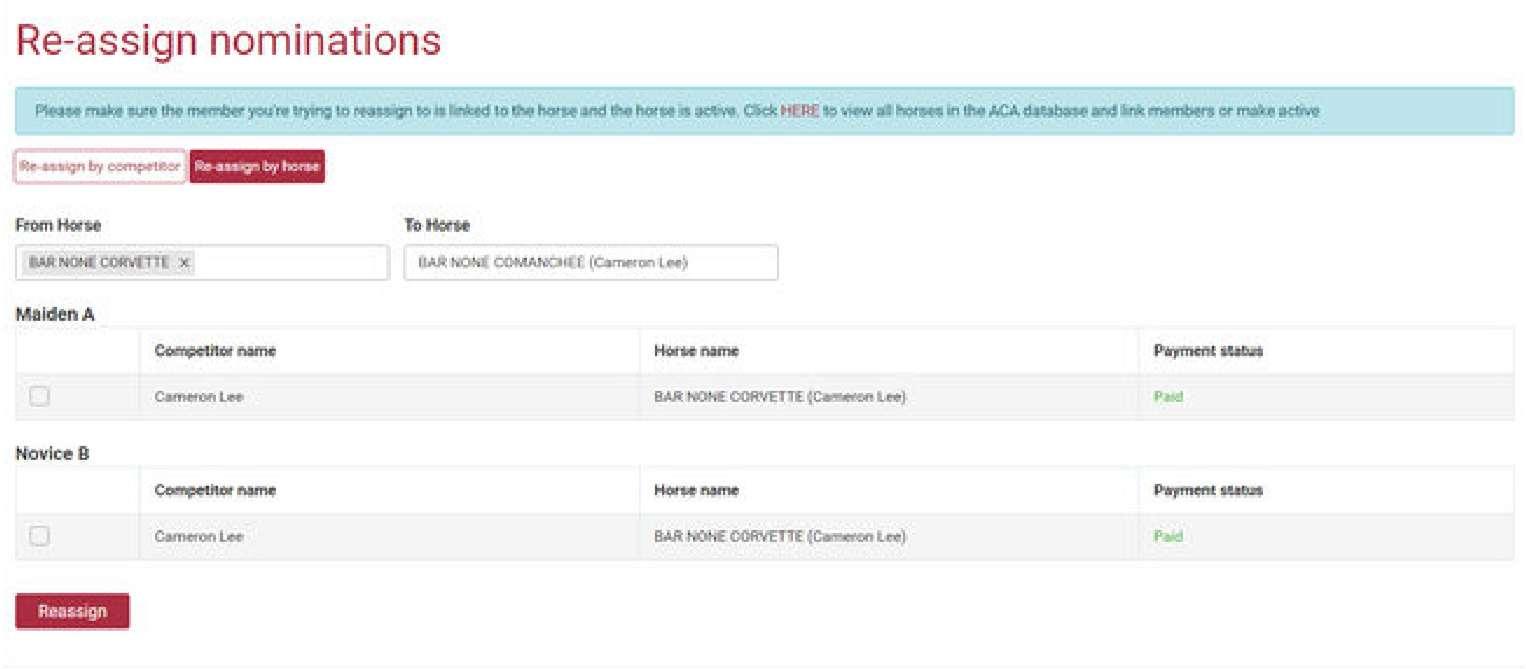
There are two options when reassigning nominations:
By Horse
By Rider
It is important to confirm the involved horse’s profile contains all riders names (involved in the change) in the Rider/s field, otherwise the system will show an error.
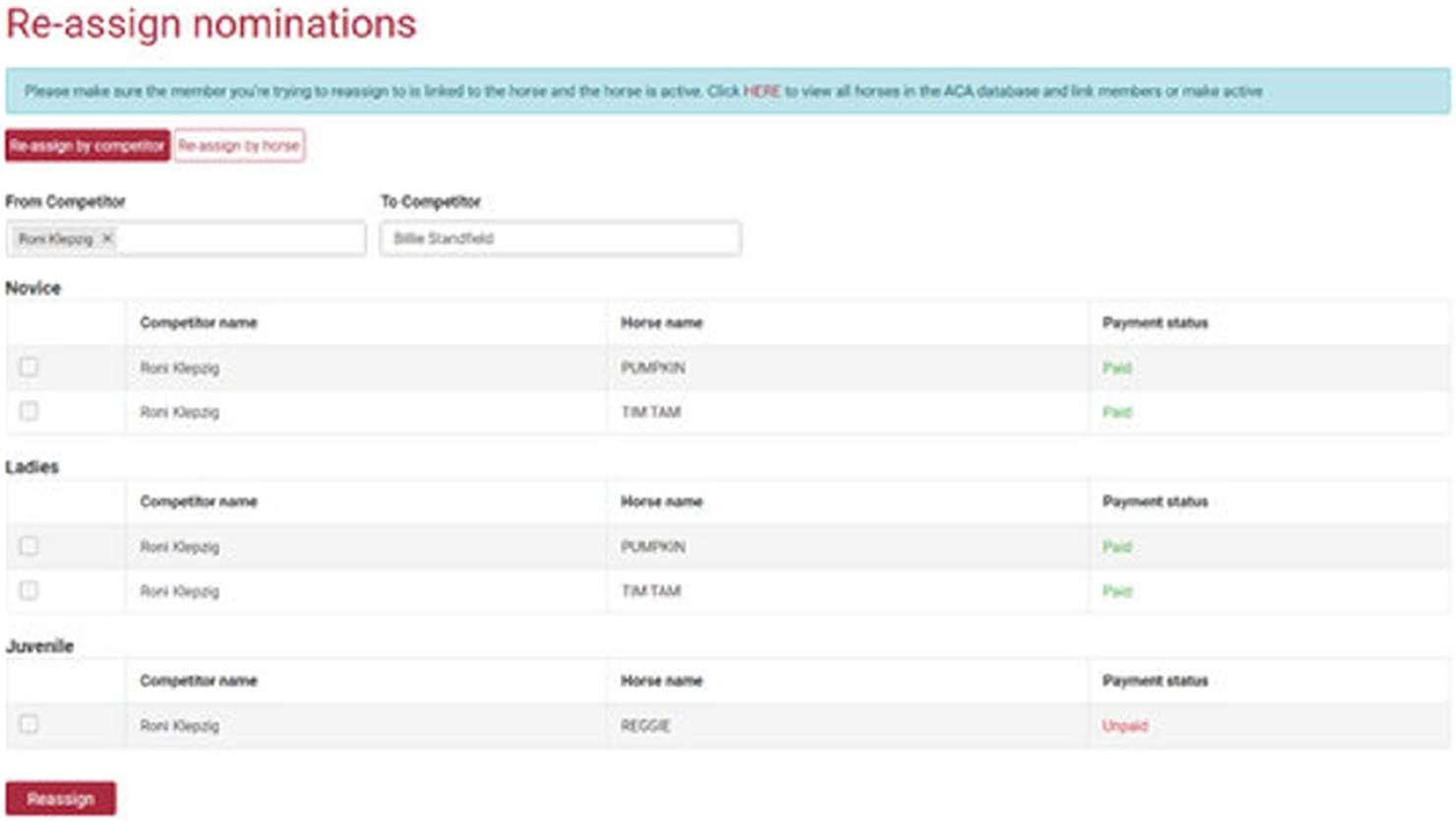
Steps:
1. Select Draws in the left menu
2. Click the desired draw
3. Click the red Reassign Nominations button
4. Select either By Competitor or By Horse

Image:Re-assignNominationsButton.

From Competitor/Horse Field:
Enter the name currently in the draw
All their runs appear below, sorted by event
7.0 Publish Draws
8.4 Reassigning Nominations
Use checkboxes to select the correct runs
To Competitor/Horse Field:
Enter the name taking over the run
Tick the checkboxes of runs being reassigned
Click the red Reassign button
Status Message:
Green: Change applied successfully
Red: Error occurred; message explains issue (Next page)
7.0 Publish Draws 8.4 Reassigning Nominations
8.5 Scratchings
Once draws have been generated, all scratchings are done through the applicable draw.
Steps:
1. Select the relevant draw
2. Search for the rider or horse to find the run(s) to scratch
3. Hover over the run — a circle with a strike-through will appear between the comment box and receipt symbol

Competitor Horse

Image:Nominationbeforescratching
4. Click the strike-through icon
5. A pop-up will ask if you’d like to notify the competitor
6. Click Yes or No as needed
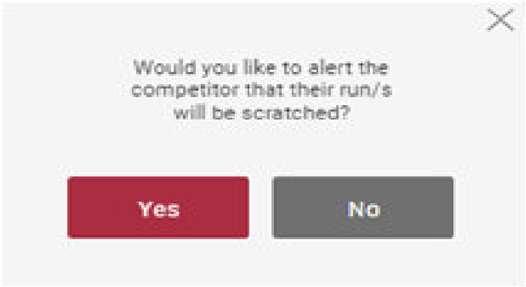
The run line will be vacated, and the scratched entry appears at the end of the draw with strikethrough text.
Competitor Horse

To undo a scratch, click the strike-through icon again.
⚠ Note:
The unscratch action does not return the run to its original number, but you can reposition it using the Move To dropdown.
7.0 Publish Draws
8.5 Scratchings
8.6 Adding Nominations
To add a nomination after the draw is generated:
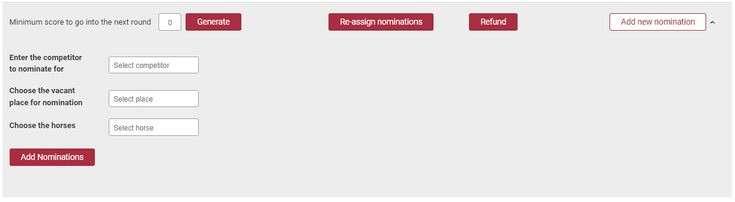
1. Select the applicable draw
2. Click Add New Nomination
3. Three input fields will appear below:
o Enter Competitor
Type and select the competitor’s name
If not showing, check if the competitor is unfinancial, ineligible, or has reached limits
o Choose Vacant Place
Can be placed in spacing or at the end
o Choose Horse
Type and select a valid horse
Horse must exist, rider must be authorized, and meet event/run restrictions
Once all 3 fields are complete, click the red Add Nominations button.
8.7 Live Leaderboard
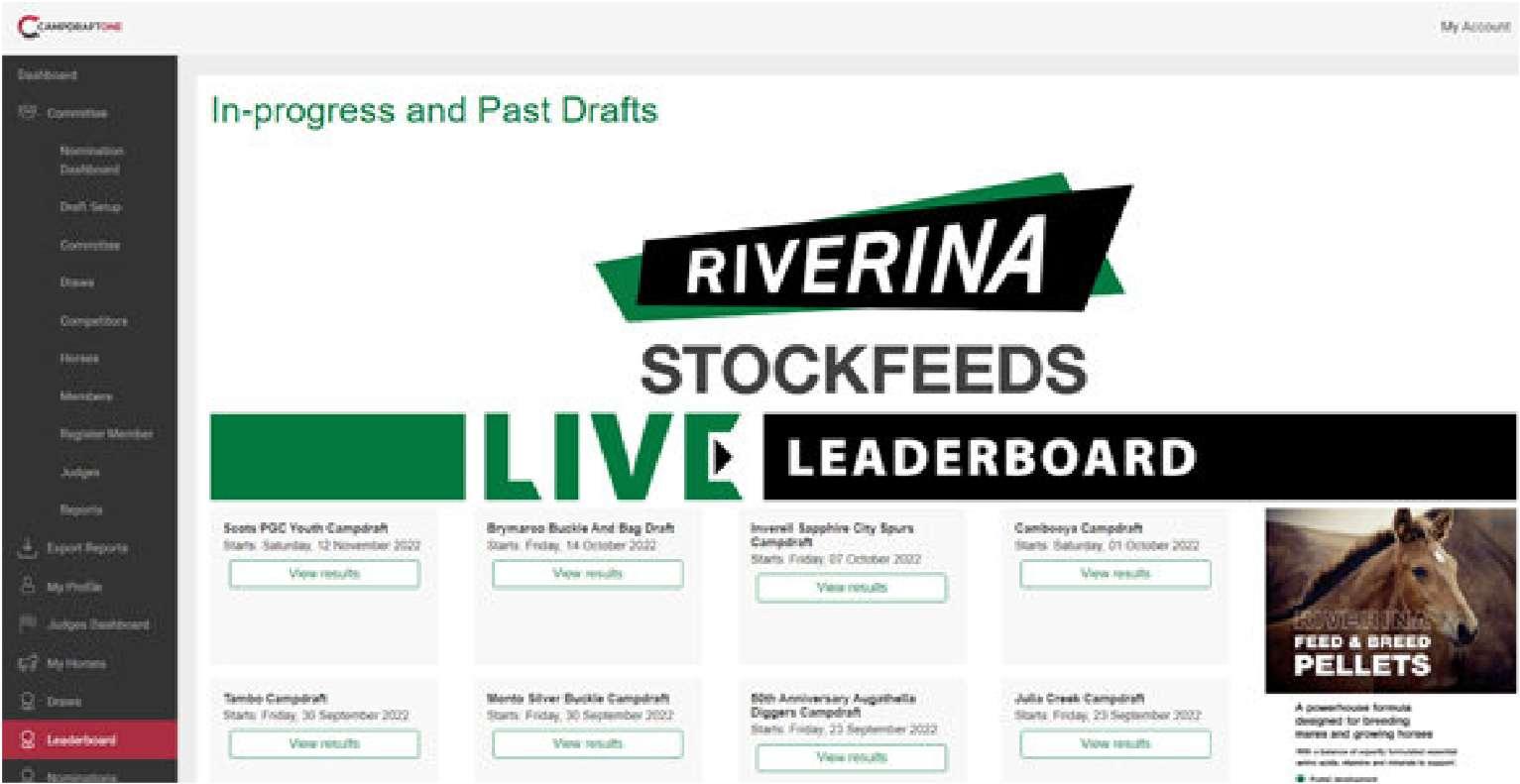
The Live Leaderboard displays scores in real time.
Steps to access:
1. Select Leaderboard from the left menu
2. Select your draft (Next page)
7.0 Publish Draws
8.6 Adding Nominations
Tip: Click column headers (e.g., run, rider, score) to filter or sort results
Once your draft is selected, it displays a preview of all events, including details of:
Each round.
Number of starters Judge
A summary of scores by how many on that score
Top 10 riders for that event
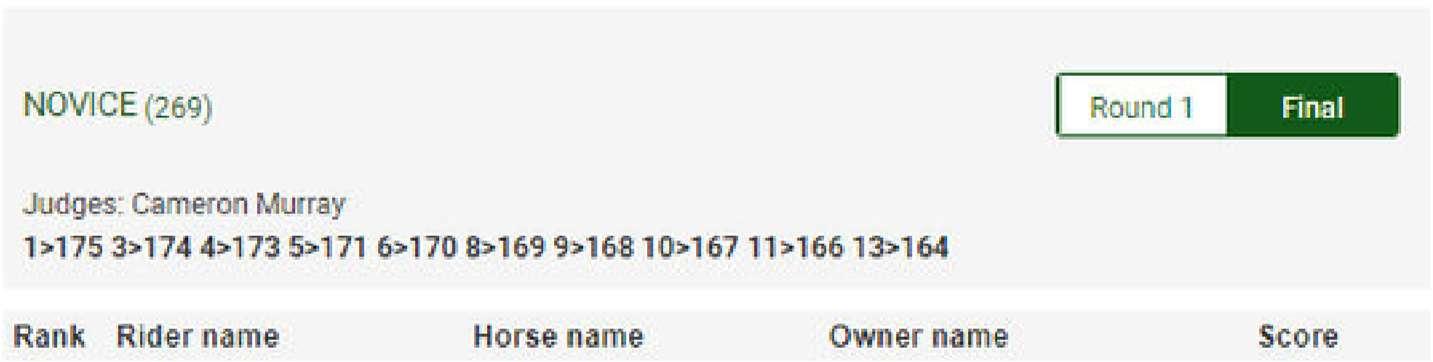
A summary of scores by how many on that score (explained):
This feature is used to identify how many riders have achieved the highest scores. 1>90 = 1 rider has a score greater than 90
Top 10 riders for that event (explained):
To view more than top 10, click on the title of the event
Once clicked, you can filter through multiple rounds (if applicable)
Filter applicable columns with the arrow icons (run, rider name, cut out score or round) from highest to lowest or alphabetically
8.8 Generating Consecutive Rounds / Final
To generate a consecutive round or final:
1. Use the Riverina Stock Feeds Live Leaderboard to identify how many riders achieved a specific score
2. Navigate to the required draw
3. Find the Minimum score to go into the next round/final field
4. Enter the identified score
5. Click the Generate button
6. The system will refresh into the newly generated round/final
7. Confirm the correct number of competitors
8. You can drag and drop if you need to reposition competitors
NOTE: you can process this as many times as you wish prior to publishing the draw for the consecutive round or final.

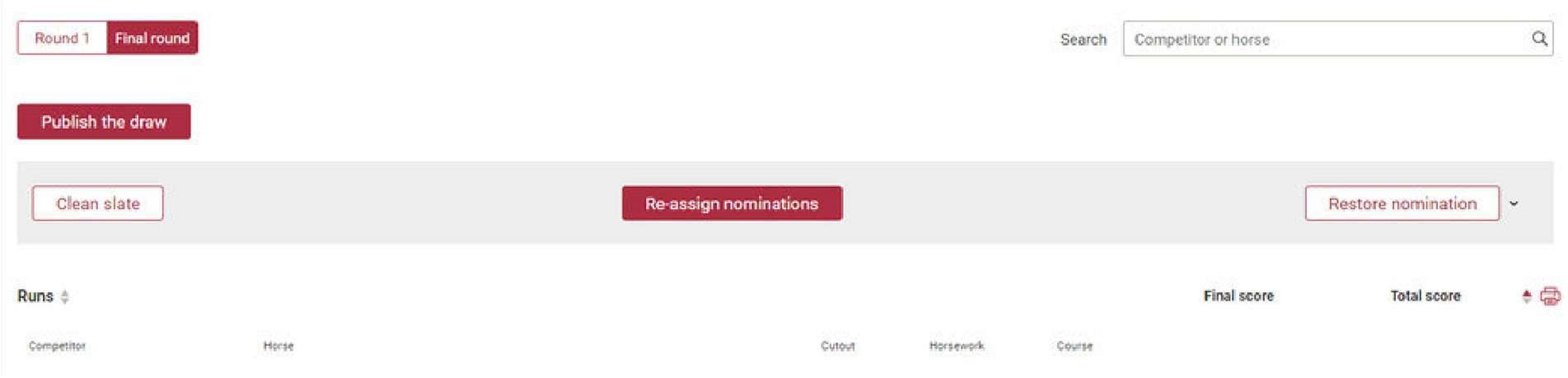
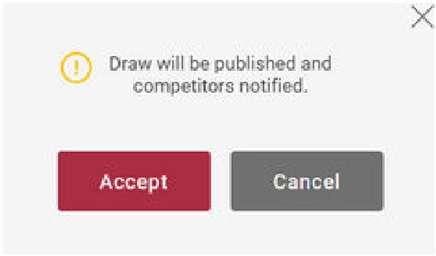
Once satisfied, click the Publish button to notify competitors.
8.9 Restoring Nominations from Previous Rounds
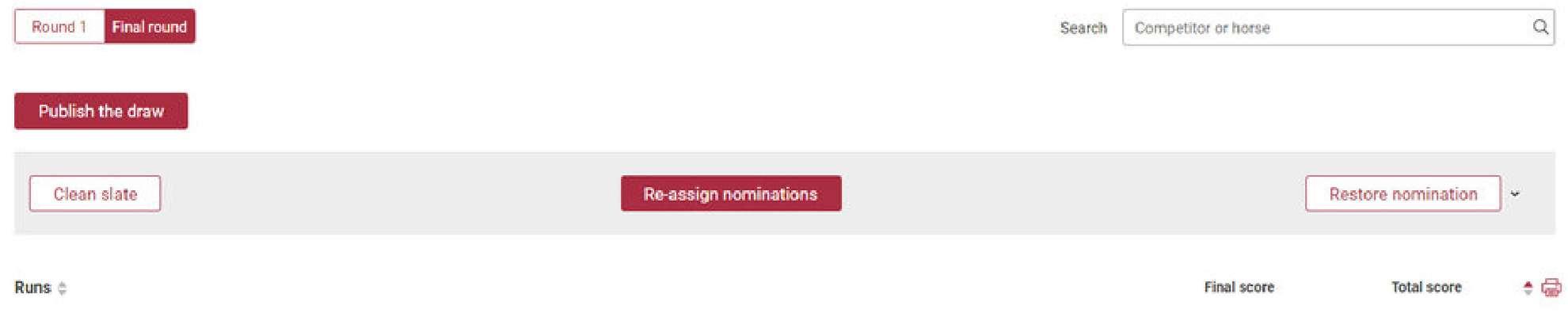
You can manually restore competitors using the Restore Nomination button in any round following the first.
This is useful if:
A competitor doesn’t appear in the final unexpectedly
There’s an eligibility or operator error
A competitor rode horses out of order
A score was incorrectly applied
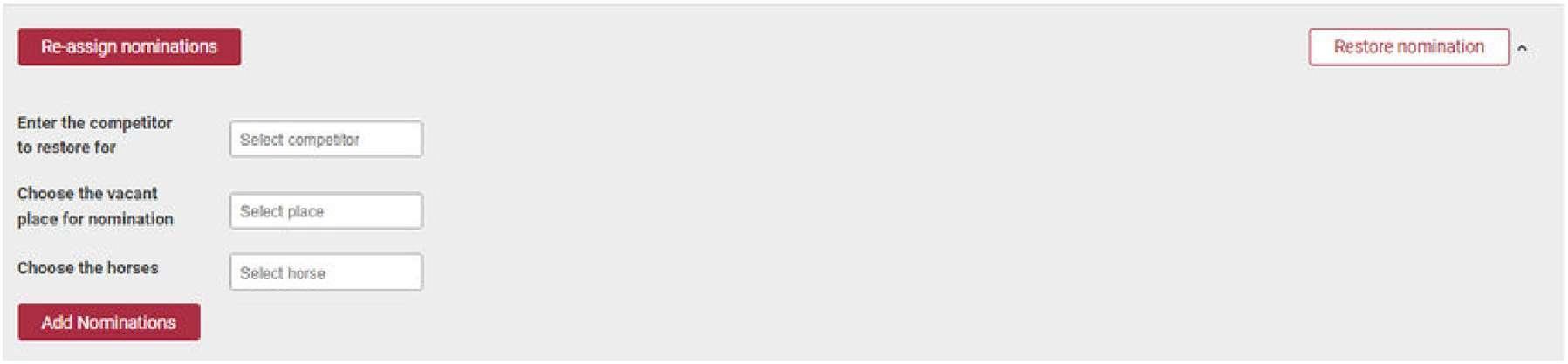
When restoring:
1. Enter the Competitor to restore
o Must have competed in a previous round
2. Choose a Vacant place
o From spacings or at the end
3. Choose the Horse
o Must have run previously Click the red Add Nominations button.
8.10 Clean Slate Final
If a Clean Slate Final is required:
Before publishing, click the Clean Slate button
This will disregard all previous round scores for the final
7.0 Publish Draws
8.9 Restoring Nominations from Previous Rounds
8.11
Adding a Run-Off
A run-off is required when, in the final round, all scores have been entered and there is a tie for first place.
You will be prompted to add a run-off.
Steps:
1. Select the Add a run-off button
2. A new tab RUN-OFF will appear (top left)
3. The round will populate with the tied competitors
4. While in the RUN-OFF round, select Publish Draws
o ⚠ Failure to publish the draws will result in an inability to enter scores
Repeat this process as needed for multiple ties

8.12 Finalising Events
After all scores are entered, the system will refresh and return to the top of the draw.
1. Click the Finalise event and calculate prize money button (top right)
7.0 Publish Draws 8.11 Adding a Run-Off
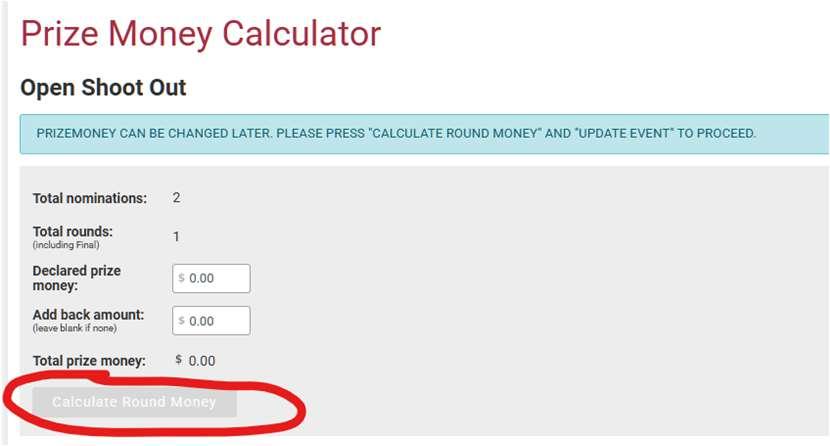
Add back amount: Add-back amount (if any) entered initially
You must click Calculate Round Money to finalize your event. Prize money can be changed later, and the public cannot see it
A table will appear for each round/final (defaulted to ACA rules R.6–R.9 in CORO12)
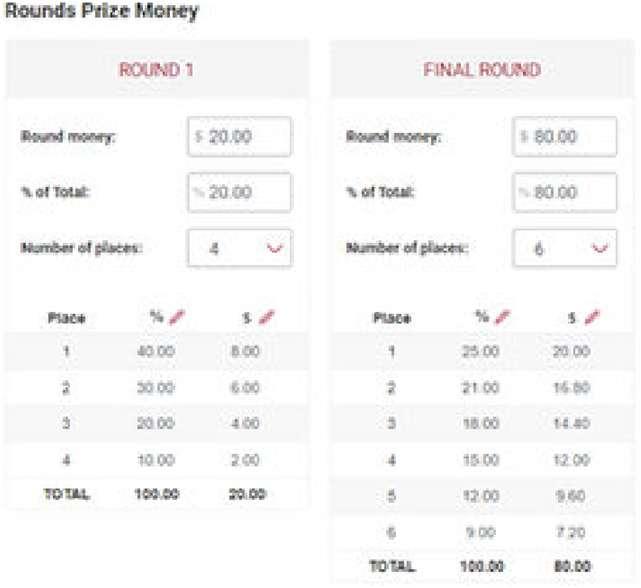
You can:
Adjust round totals by value or %
Set how many places are paid
Edit % or $ values per placing using the red pencil icon
YOU DO NOT NEED TO CONFIRM THESE AMOUNTS DURING THE DRAFT – ALL PRIZE MONEY CAN BE EDITED LATER
Once edits are made, click the Update Event button (top right) to apply and return to the draws menu.
⚠ Note: All prize money can be edited later if needed.
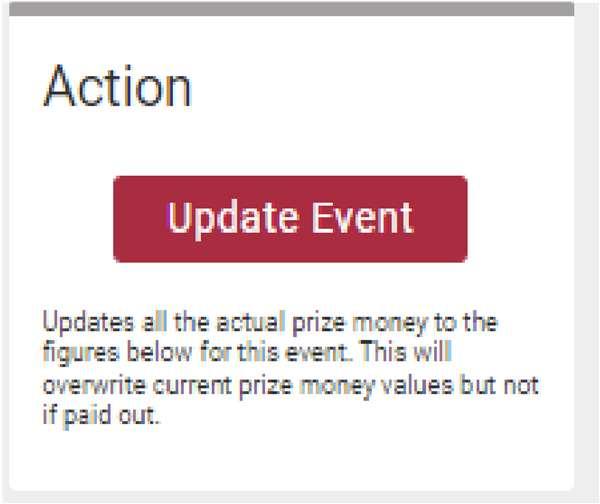
�� Action – Update Event:
7.0 Publish Draws 8.12 Finalising Events
Saves all values entered
Overwrites current values (if not already paid out)
If an event has no prize money or pays cash on the day:
1. Set Declared Prize Money to $1
2. Click Calculate Round Money
3. Change the amount in round money to $0
4. Repeat for other rounds if needed
5. Click Update Event to save (See images and further instructions on the next page)
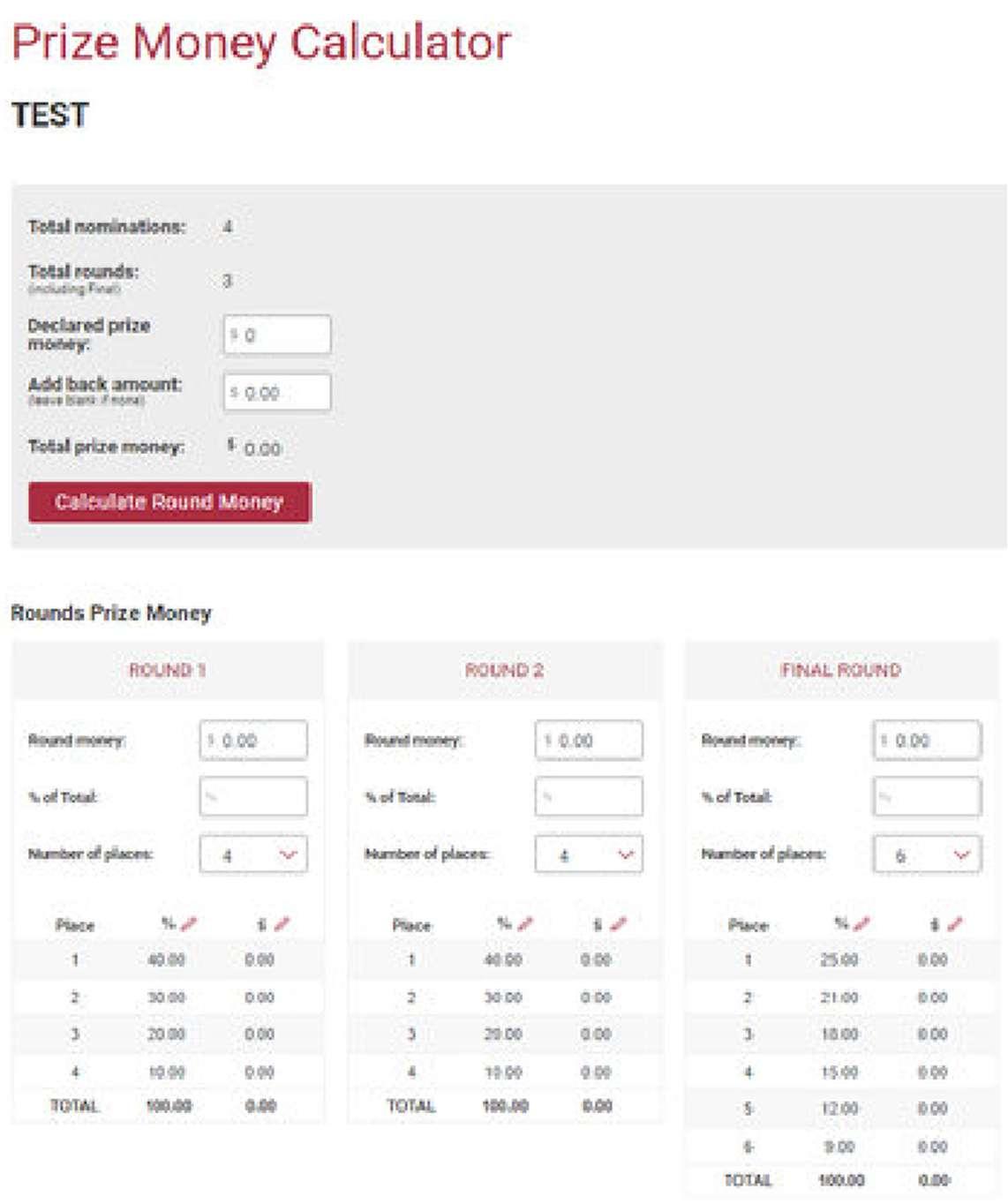
If any event’s prize money is to be paid in cash on the day, or does not have any prize money, you should zero the values to avoid double payments. In the Edit Calculations screen:
Steps:
7.0 Publish Draws 8.12 Finalising Events
1. Set the Declared Prize Money to $1
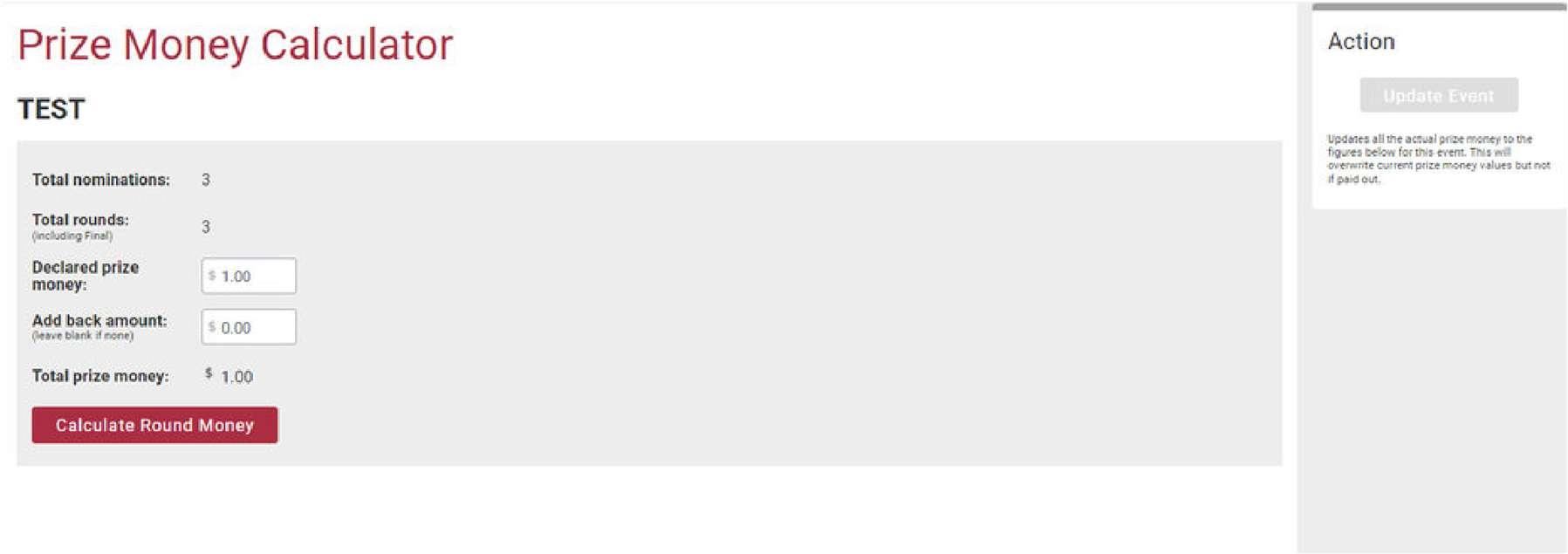
2. Click Calculate Round Money
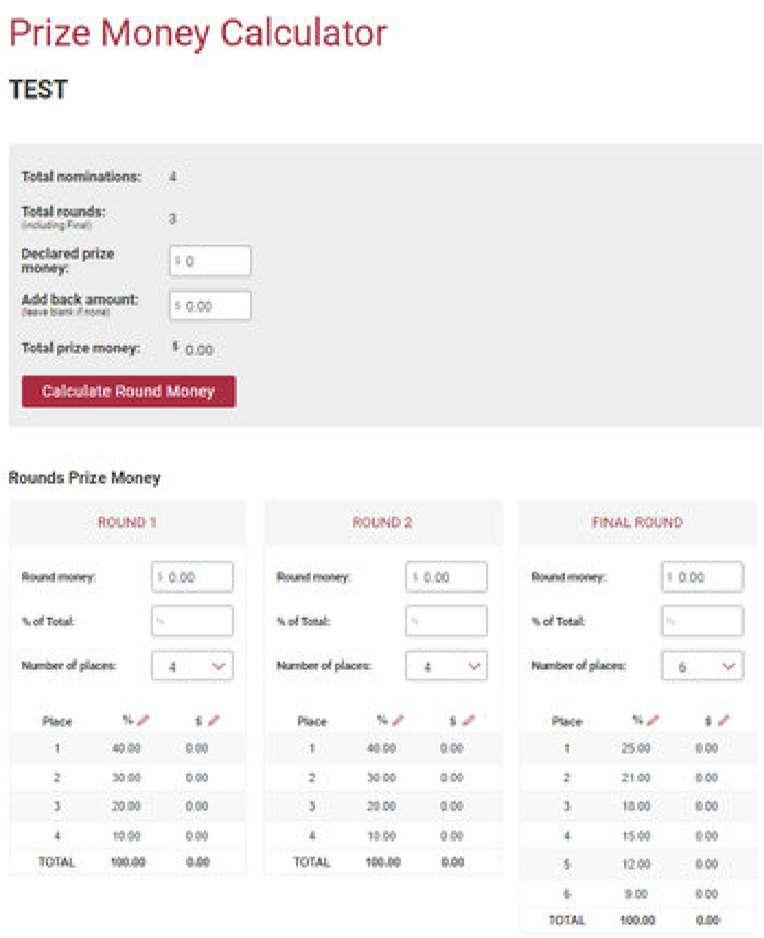
3. Highlight the amount in Round Money and type 0
4. Repeat for any other rounds as needed
5. Click Update Event to save and exit
8.13 Determining a Cut-Out Winner
From the Draws menu, after finalising your event, the View Results button becomes visible.
Steps:
1. Click View Results
2. On the Event Results screen, scroll down to the cut-out section
3. Competitors tied for highest cut-out will be shown
4. Click Make Winner next to the appropriate competitor
8.14 Printing Winners and Placegetters
From the Event Results screen:
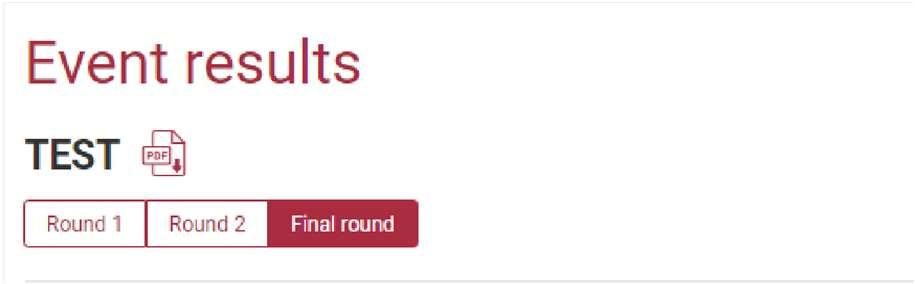
1. Tabs at the top-left will show each round
o ⚠ You must select a Cut-Out Winner before moving into later rounds or the Final
2. Select the Final Round tab
3. Above the round tabs and beside the event title, click the PDF icon
o This opens a print preview for the final placings
7.0 Publish Draws
9.0 Processing Rounds/Prize
Money Payouts
This section covers payouts, including refunds and prize money, which are primarily conducted following the completion of the campdraft.
9.1 Reports Submenu Explained
Navigate to the Reports sub-menu on the left-hand side of your screen. (Next page)
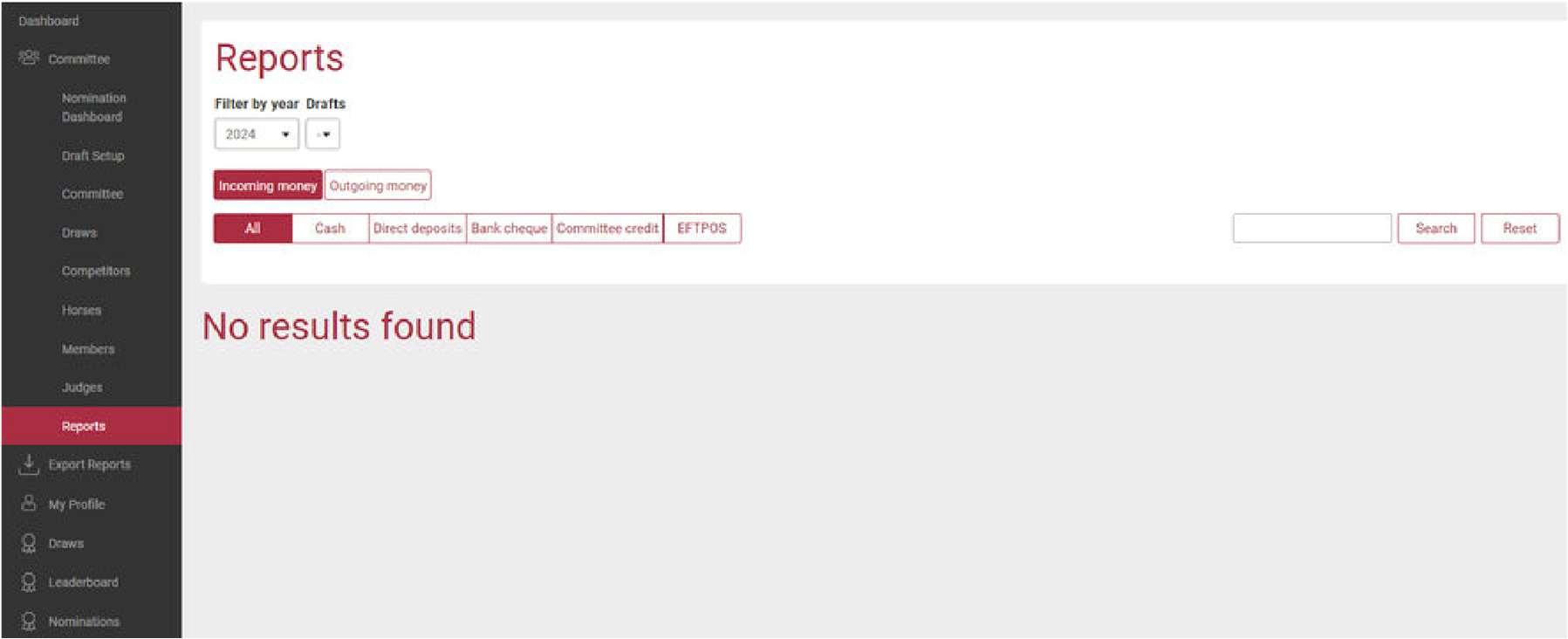
Functions (top to bottom, left to right):
Filter by Year
o Select the year of your draft
Drafts
o Displays drafts based on the year selected
Incoming Money Tab
o Shows all payments marked as paid via the Nomination Dashboard
o Filter by payment types (e.g., Cash, Direct Debit, CC, EFTPOS)
Search Bar
o Search by competitor name or invoice number
o Click “Search” to execute; use “Reset” to clear
7.0 Publish Draws 9.1 Reports Submenu Explained
Download Reports
o PDF or CSV format
Date Received
o When payment status was changed
Invoice Number
o Matches dashboard invoice number
Competitor Name
o Primary account holder only
Payment Type
o Only the first selected method is recorded
Amount Received
o Click pencil icon to edit
Sub Totals & Grand Total
o Listed beneath the table, grouped by payment type
Outgoing Money Tab:
Shows all refunds & prize payouts
Refunds display here only if the competitor was marked paid and scratched before draws were generated
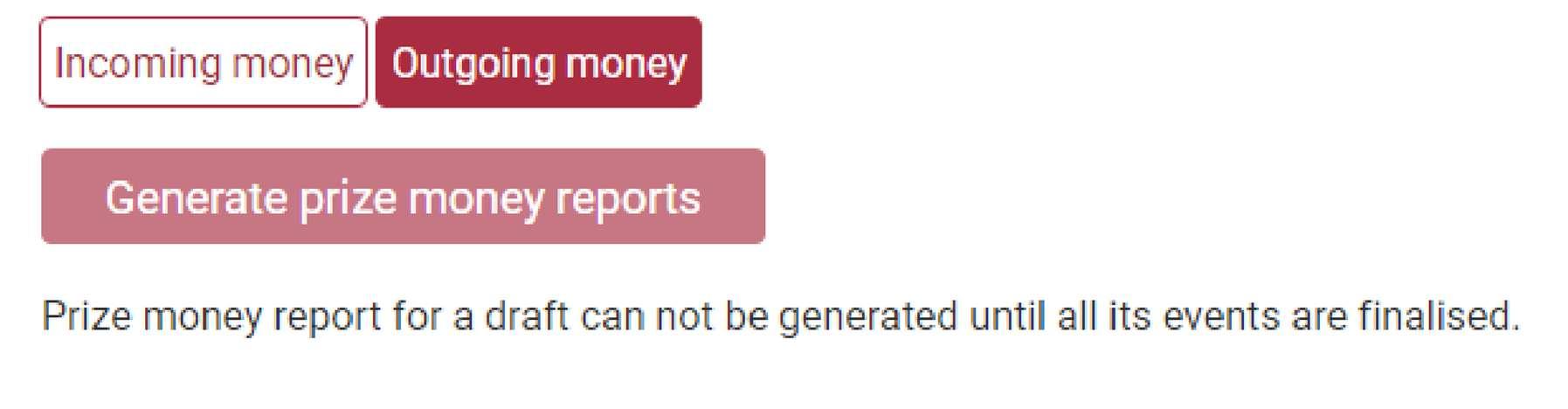
7.0 Publish Draws 9.1 Reports Submenu Explained
Generate Prize Money Reports Button:
Pulls prize money recipients (based on what is entered into the prize money calculations in Draws menu)
Two States:
Greyed Out: Some events are still not finalised
o Tooltip: “Prize money report for a draft cannot be generated until all its events are finalised.”
Filled Red (Active): All events finalised — click to import prize money data into the “Unpaid” tab
Filter by Payment Status:
All
Paid
Unpaid
Use the search bar to locate competitors. Click Reset to clear the search.
Bulk Action Row:
Select All Checkbox:
o Checks all the competitors displayed on the page, readying them for batch actions.
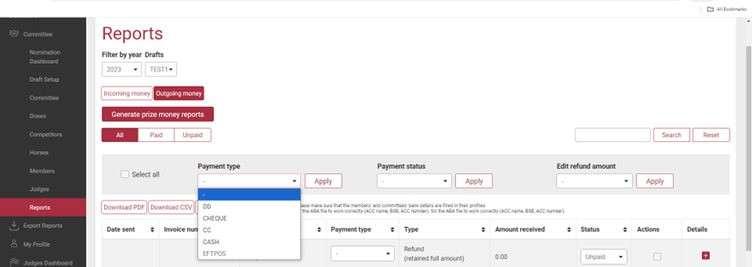
Payment Type:
o Use the dropdown to select a payment method
o Click Apply to update all selected competitors
7.0 Publish Draws 9.1 Reports Submenu Explained
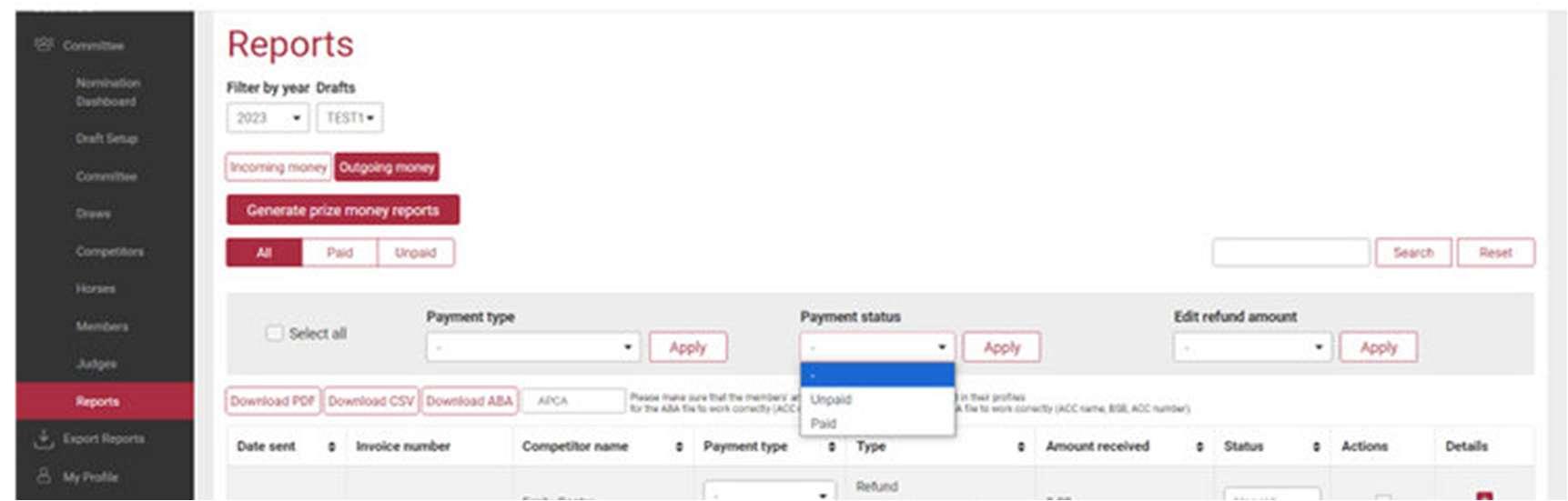
Payment Status:
o Use the dropdown to select Paid or Unpaid
o Click Apply to update all selected competitors
Edit Refund Amount:
Select various refund types from the dropdown
Click Apply to apply the refund type to selected competitors (Next page)
7.0 Publish Draws 9.1 Reports Submenu Explained
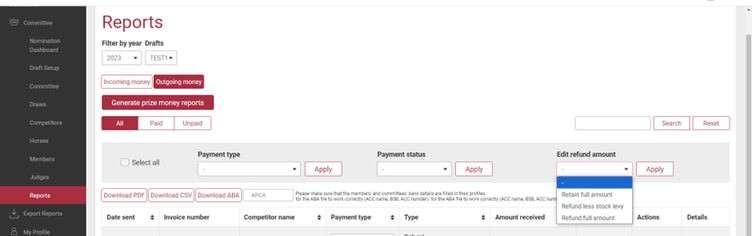
Download Reports of Outgoing Money:
Export as PDF or CSV
Download ABA:
Generates a .ABA file for bulk banking uploads
APCA:
Enter committee's APCA number to include it in the ABA file. This number comes from your bank; they will let you know if its required
Date Sent:
When Payment Status is changed to Paid and the amount is greater than $0, an invoice is emailed
Invoice Number:
Click red invoice number to preview the breakdown to be sent
Competitor Name:
Primary account holder is shown
Click the invoice number to view members under that account who are due refunds or prizemoney
Payment Type Options:
DD (Direct Debit)
CC (Committee Credit)
7.0 Publish Draws 9.1 Reports Submenu Explained
EFTPOS
Cash
Bank Cheque
Type Options:
Refund: Paid & scratched before draws generated
Refund (Stock Levy Retained): Deducts stock levy
Refund (Retained Full Amount): Full amount retained by committee
Status:
Reflects payment status
Determines which tab the row appears in
Actions:
Use checkboxes to select rows for batch updates via bulk action row
Details:
Click the + icon to reveal bank details
Total:
Displays subtotal per payment type and overall grand total
Show Entries:
Choose up to 150 entries per page (helpful for ABA file formatting)
9.2 Organising Refunds
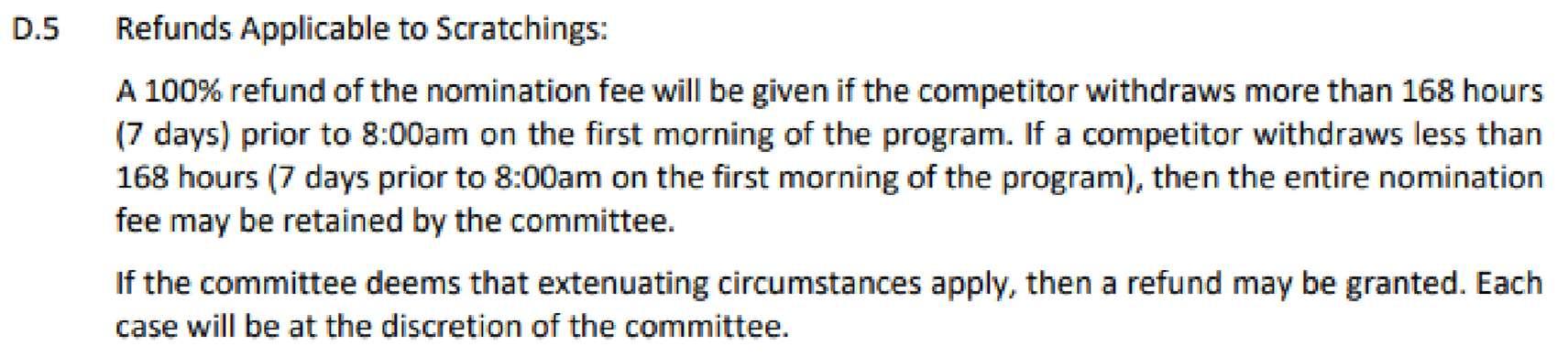
As per ACA’s ‘CORO12 General Information Competition Rules and Guidelines’:
Full Refund: If scratching occurs more than 7 days (168 hours) prior to 8:00am on Day 1
Partial/No Refund: If within 7 days, the nomination fee may be retained
Discretionary Refunds: Committees may grant refunds in special cases (Next Page)
7.0 Publish Draws
9.2 Organising Refunds
How to Organise Refunds:
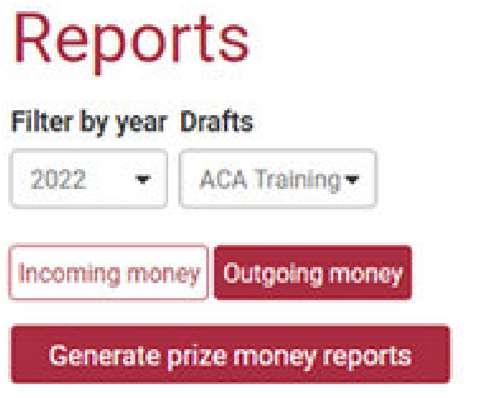
1. Go to Reports > select correct Year and Draft
2. Click Outgoing Money > then Unpaid
3. Scroll down and choose Show 150 Entries
4. Pending refunds appear if:
o Competitor was marked paid before scratching
Refund Types:
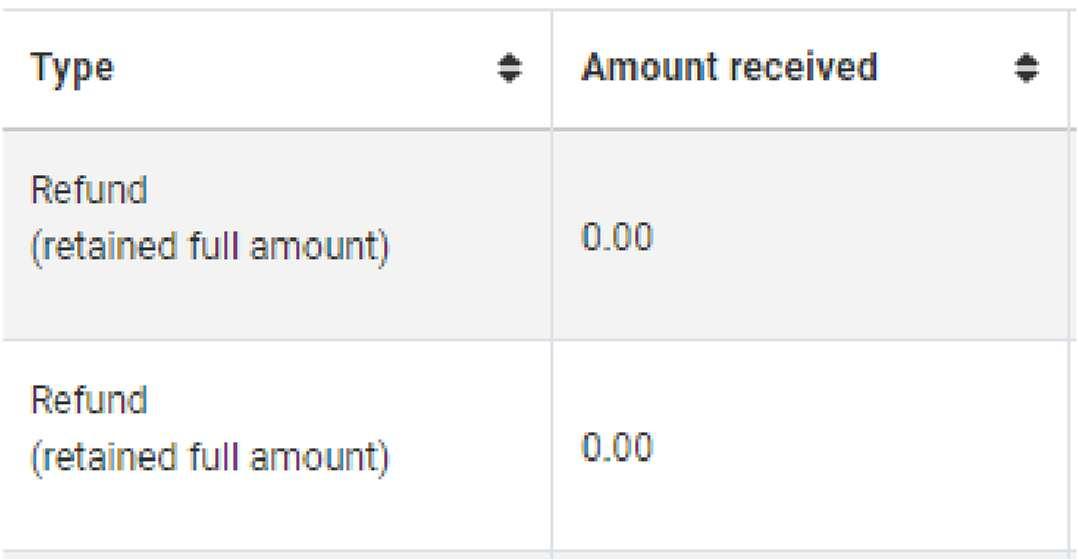
Refund: Standard refund
Refund (Retained Full Amount): $0 refund, committee keeps full amount
Refund (Stock Levy Retained): Refund minus levy
⚠ If not marked as paid prior to scratching, it won’t appear in Outgoing Money
⚠ All $0 amounts must be marked as paid to avoid issues when generating the ABA file
7.0 Publish Draws 9.2 Organising Refunds
To Apply Refunds:
1. Tick the checkbox beside the competitor
2. Choose refund type using Edit Refund Amount dropdown
3. Click Apply beside the dropdown
Repeat until all refunds display correct type and amount
Before Generating Prize Money Reports:
Go to the Draws sub-menu and confirm:
All events are finalised
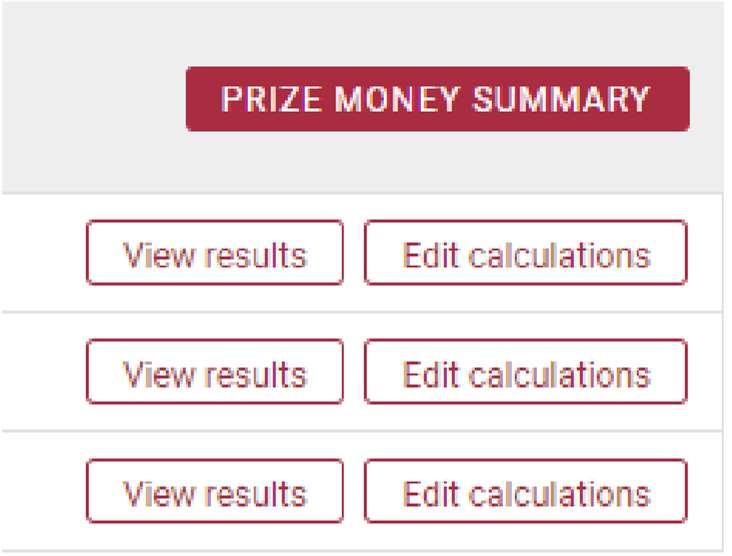
Prize Money Summary button is visible
Use this to confirm amounts for each event
7.0 Publish Draws 9.2 Organising Refunds
9.3 Generating Prize Money Report
Once all refund types and amounts are accurate, and all events are finalised:
1. Go to Draws and review Prize Money Summary – check that all prizemoney is being paid out per your program
2. Go to Reports > Outgoing Money
3. Click Generate Prize Money Reports

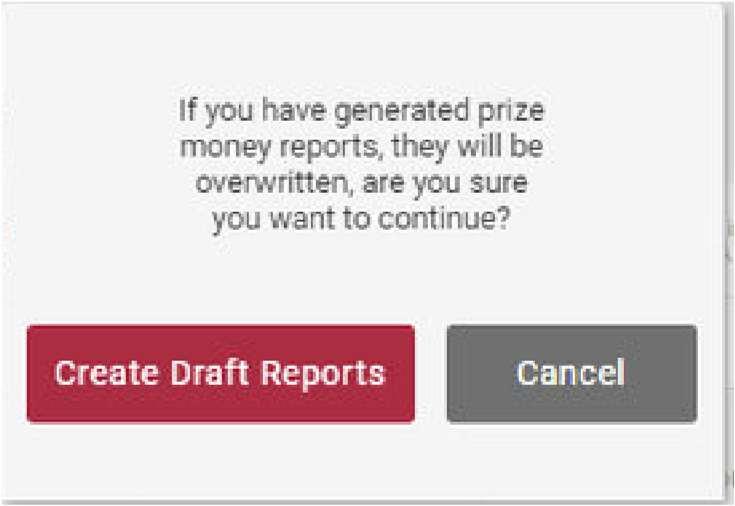
A warning box will appear:
“If you have generated prize money reports, they will be overwritten. Are you sure you want to continue?”
Click Create Draft Reports
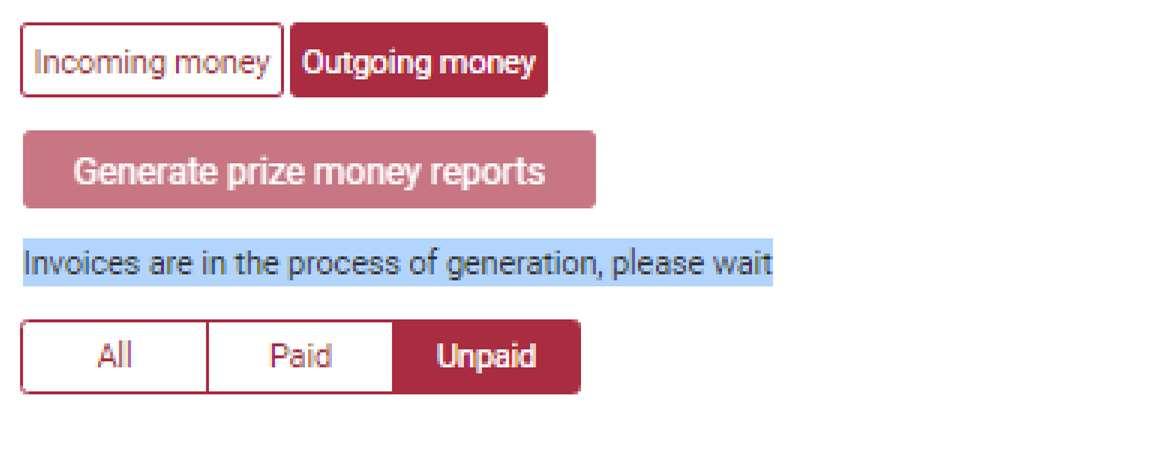
A progress message will appear:
“Reports have started to be generated, please wait for a while” (Next page)
7.0 Publish Draws
9.3 Generating Prize Money Report
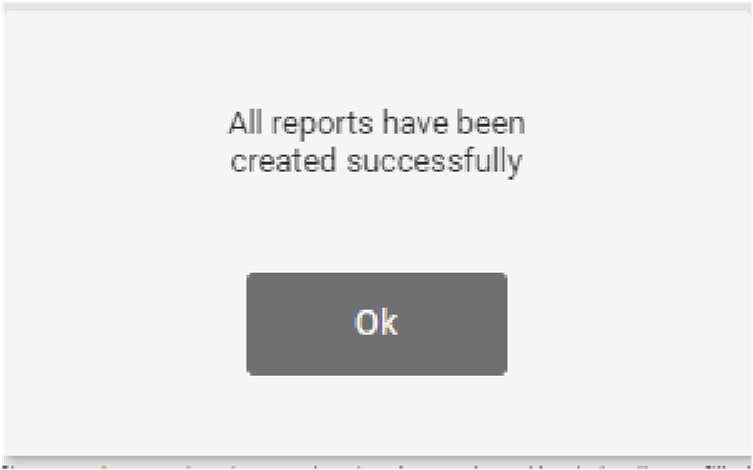
After some time, the system will confirm that report generation is complete with a pop-up window:
“All reports have been created successfully”
9.4 Generating/Downloading ABA File
To generate an ABA file:
1. Go to the Reports tab
2. Select the Draft Name and Year
3. Click the Outgoing Money and Unpaid tabs
4. Scroll to the bottom and select Show 150 entries
⚠ Critical: All recipients must appear on the same page. Use Show 150 to ensure visibility.
With APCA Number:
Select All
Enter APCA Number in the provided field
Click Download ABA
Ensure bank details (Account Name, BSB, Account Number) are correctly filled for both members and committees.
7.0 Publish Draws
9.4 Generating/Downloading ABA File
Without APCA Number:
Select All
Click Download ABA
Tip: Search your bank’s ABA FAQ for upload instructions (e.g. “ABA FAQ Westpac”)
9.5 Marking Refunds and Prizemoney as Paid
Once bank transfers are complete, mark competitors as paid in Campdraft One:
Steps:
1. Go to Reports sub-menu
2. Select Year & Draft
3. Open Outgoing Money > Unpaid
4. Scroll to bottom and choose Show 150 entries
5. Scroll back to top and tick Select All
6. Choose DD in the Payment Type dropdown
7. Click Apply (to the right)
8. Choose Paid in the Payment Status dropdown
9. Click Apply
Once done, go to the Paid tab
The Date Sent column will show today’s date
Indicates invoice was sent with refund/prizemoney breakdown
9.6 Troubleshooting if Bank Rejects File
If the bank rejects the ABA file during upload:
The bank will provide an error code or reason
Take a screenshot of the message
7.0 Publish Draws
9.5 Marking Refunds and Prizemoney as Paid
Call your bank and inquire what the error code means
If you are unsure of how to fix the error code the Campdraft One team may be able to assist, but your financial institution should be your first point of contact
Common Errors:
Incorrect Account Name:
o May be misspelled or improperly formatted in the competitor’s Campdraft One profile
o Error will typically indicate the affected line
Incorrect Value:
o Indicates a $0.00 value is being processed
Incorrect APCA Number:
o Indicates the committee’s APCA number is missing
7.0 Publish Draws 9.6 Troubleshooting if Bank Rejects File
10.0 Miscellaneous Functions
This section outlines commonly used miscellaneous functions that may be needed at any stage of the draft.
10.1
Accepting Casual Members
When you create your draft, you can tick “Allow event members to participate” if you would like to allow them to nominate. It is a committee decision to take or not take event members.
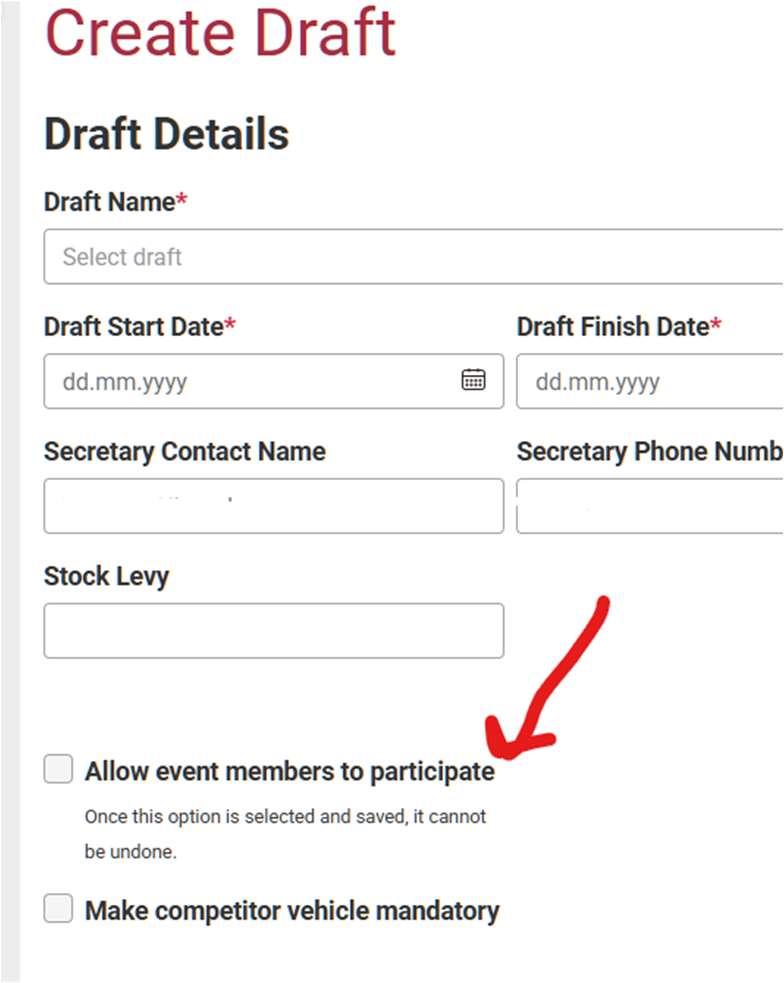
Event members can also be identified in Campdraft One by the (EM) or (CM) suffix. If you committee only wants to allow certain event members, tick allow to participate, then only accept the desired competitors.
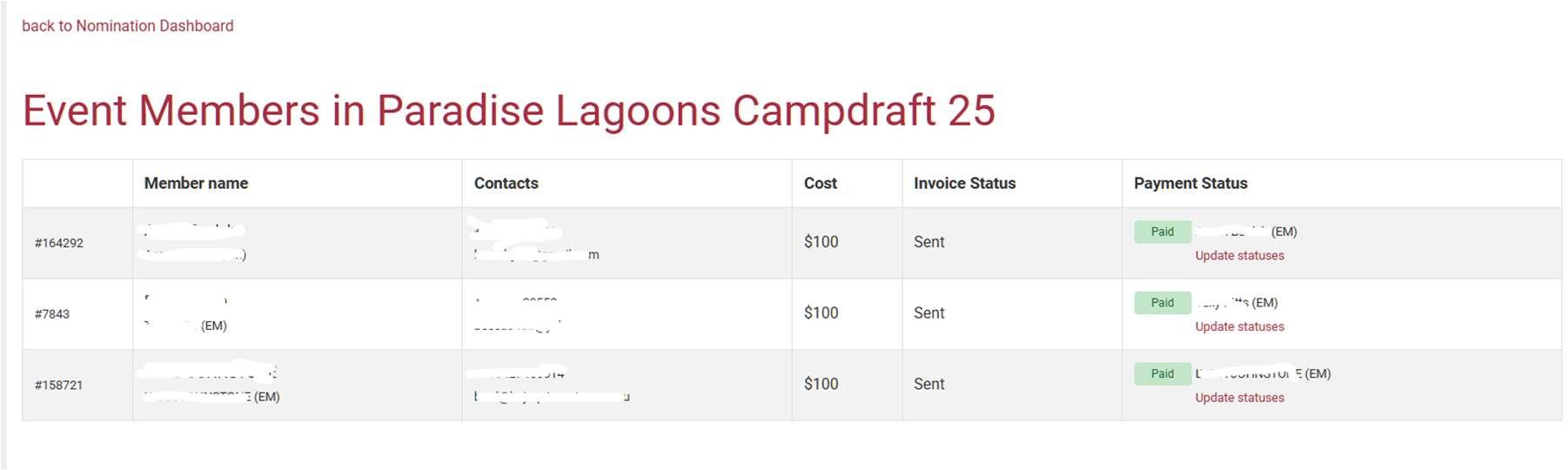
IT IS OF THE UPMOST IMPORTANCE TO MARK YOUR EVENT MEMBERS AS PAID FOR THEIR EVENT MEMBERSHIP This is not the same as marking their nominations as paid.
On the Nomination Dashboard, click the name of your draft. Scroll down to find “Show Event Members in Draft”
10.0 Miscellaneous Functions
10.1 Accepting Casual Members
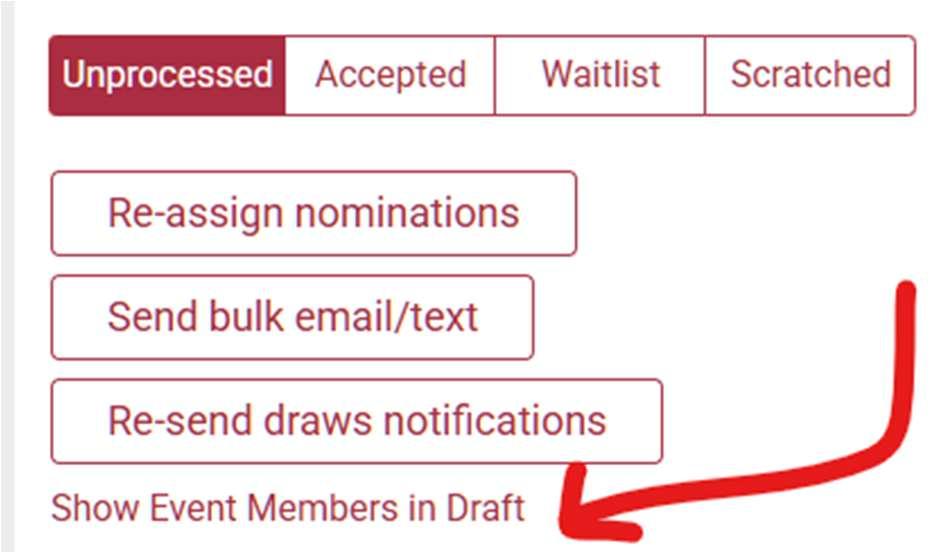
YOU MUST MARK THESE INVOICES AS PAID OR THE COMPETITOR WILL NOT BE ALLOWED IN THE DRAW
To mark them as paid click update statuses, click the paid box, pick a comment, and click update
ACA will invoice the committee for every event member in attendance
Below are the instructions for competitors wishing to use event membership: Casual Memberships & Event Fees
If you don’t have a Campdraft One profile:
Go to the ACA website → Contact Us tab → New Member Application Form
Or call the ACA Office (07 4622 3110) during office hours to create a profile
If you already have a Campdraft One profile:
Pay $25 Casual Membership (GST included)
o This makes you a financial member until 31 December
Select the member, choose Casual Membership, checkout, and pay
10.0 Miscellaneous Functions
10.1 Accepting Casual Members
After Becoming a Casual Member
You can nominate for ACA affiliated events that accept Casual/Event Memberships (committees must advertise this on their program).
If nominations are accepted, you’ll receive an invoice for the $100 Event Membership (GST included), along with your nominations invoice.
Membership Fees
$25 Casual ACA Membership Fee
o Annual membership
o Lets you nominate for events that accept casual memberships
o Cannot be upgraded/prorated to another membership type during the year
$100 Event Membership Fee
o Payable to the Committee once your nominations are accepted.
Important Note
All ACA membership types are non-refundable.
10.2 Combined Events
To create a new Combined Event in the Nomination Dashboard:
1. Click the red eye icon in the actions column
2. Select Add New Event
3. Tick the Combined Events checkbox
4. Enter:
o Primary Event Name (1) and its cost
o In-Conjunction Event Name (2) and its cost
5. Fill in other required fields
6. In most cases you will leave cost with a discount BLANK. This is mainly used for combined Maiden/Novice drafts
10.0 Miscellaneous Functions
10.2 Combined Events
7. Click Create
10.2 Combined Events
When a combined event is created, competitors see three nomination options:
Maiden (full cost)
Novice (full cost)
10.0 Miscellaneous Functions
10.2 Combined Events
Combined (discounted)
Changes to a combined nomination apply to both events. For example:
Scratching from event one will also scratch the event two run
Draws Dashboard:
Shows two draws
The first round is identical for both and syncs automatically
Minimum Scores:
Enter minimum score to qualify for:
o Event one final in event one’s draw
o Event two final in event two’s draw
10.3 Maiden 4 Maiden
There are multiple ways to run a Maiden 4 Maiden in Campdraft One. Please contact the ACA Office to discuss which method will suit your draft best.
10.4 Exporting Competitor List (Logistical Estimates)
Exporting a competitor list helps determine the total number of competitors (primary and subaccount holders) for:
Catering
Parking
Auditing
Other logistics
Steps to Export:
1. Navigate to the Competitor submenu
2. Select the relevant draft from the dropdown
10.0 Miscellaneous Functions
10.3 Maiden 4 Maiden
3. Click Download CSV In Excel:
1. Open the CSV
2. Delete all columns except Competitor
3. In cell B2, type: =UNIQUE(A2:A5000)
4. The resulting list in column B shows all unique competitor names
10.5 Catering Expressions of Interest / Orders & Booking Stables
While setting up for campdraft events, you may add an event for stables or catering to collect expressions of interest (EOIs) from competitors.
Important Notes:
Exclude this event from event restrictions, if any are active for your draft
Set the event as a Custom Event in the Type field
Must allow:
o Any horse
o Any age
o Any status
A draw must be generated and published. All events must be finalized to conduct payouts.
10.6 Challenges
Campdraft One can facilitate your challenge events, whether they are ACA-affiliated or otherwise.
If you wish to run a challenge event through Campdraft One, please contact the ACA Office Team
10.0 Miscellaneous Functions
10.5 Catering Expressions of Interest / Orders & Booking Stables
10.7 Judges Expression of Interest (Optional)
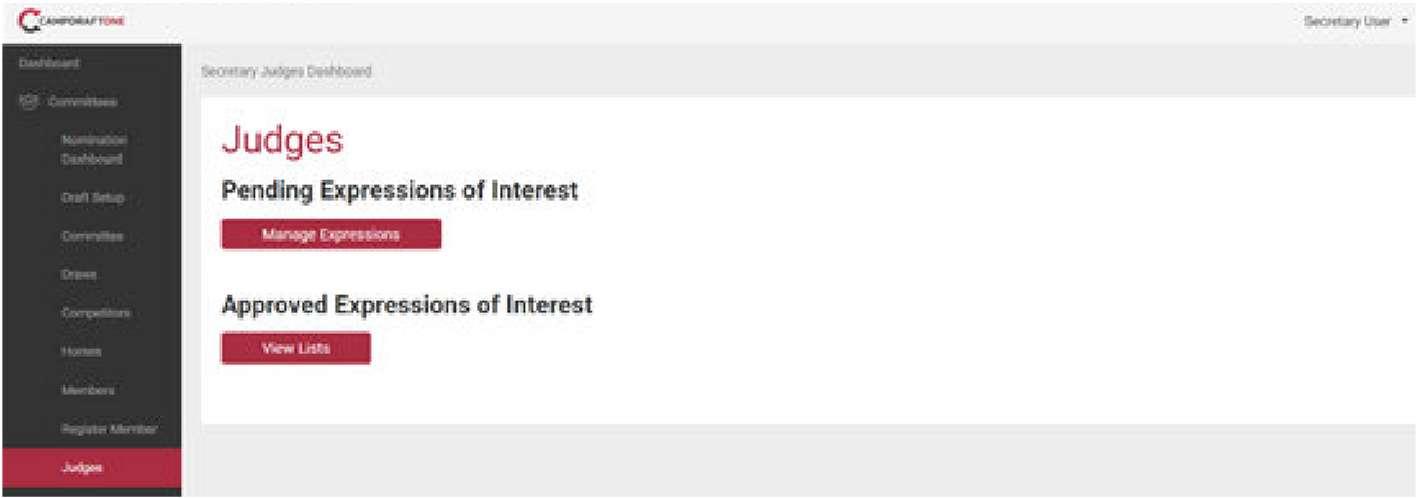
To locate Judges who have expressed interest (EOI):
1. Visit the Judges tab
2. Click on Manage Expressions
3. Scroll through the Pending Expressions of Interest page
o You will see any Judges who submitted EOIs for your draft
4. For each entry, select either Approve or Deny
5. If approved, contact the Judge using the phone number on their profile
10.8 Linking or Adding New Horses
To nominate a competitor, ensure they are linked to the correct horse(s). If not linked, you won’t be able to nominate on their behalf.
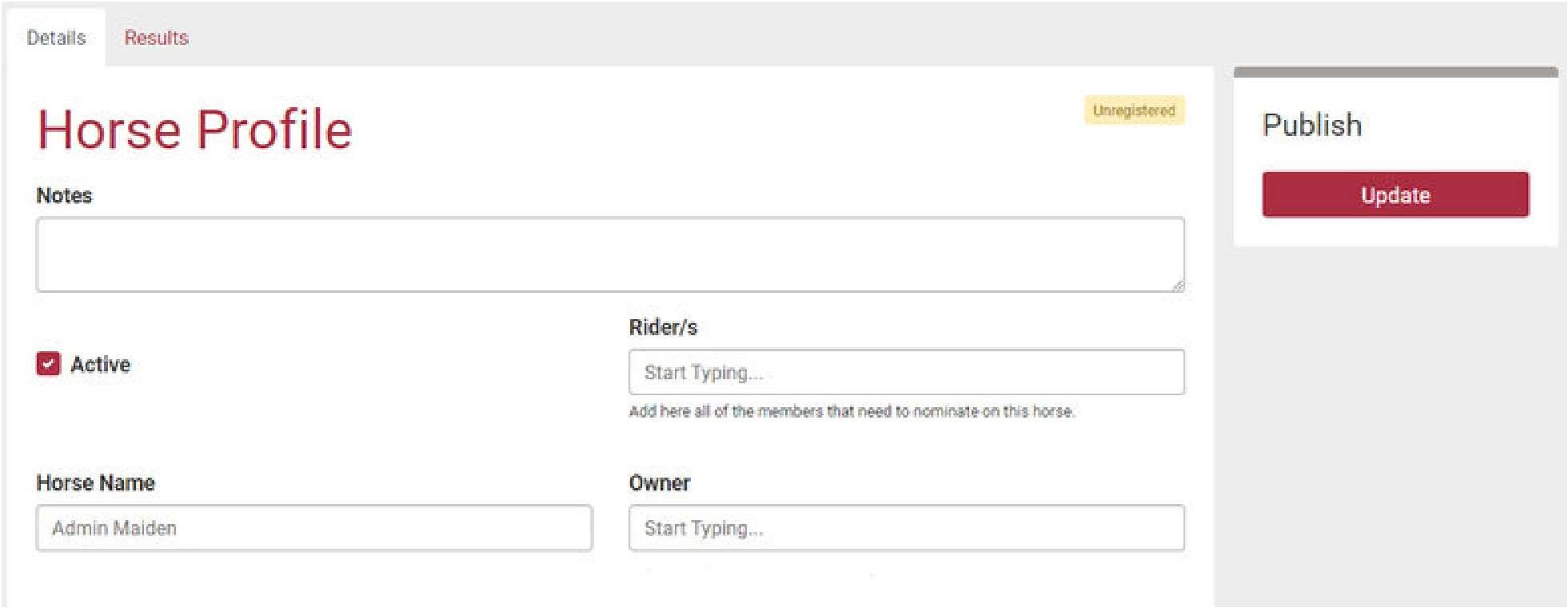
To add a rider to an existing horse:
1. Visit the Horses submenu
2. Search for and select the required horse
3. Type the competitor’s name in the Rider/s box
4. Click Update (top right) to save (Next page)
10.0 Miscellaneous Functions
10.7 Judges Expression of Interest (Optional)
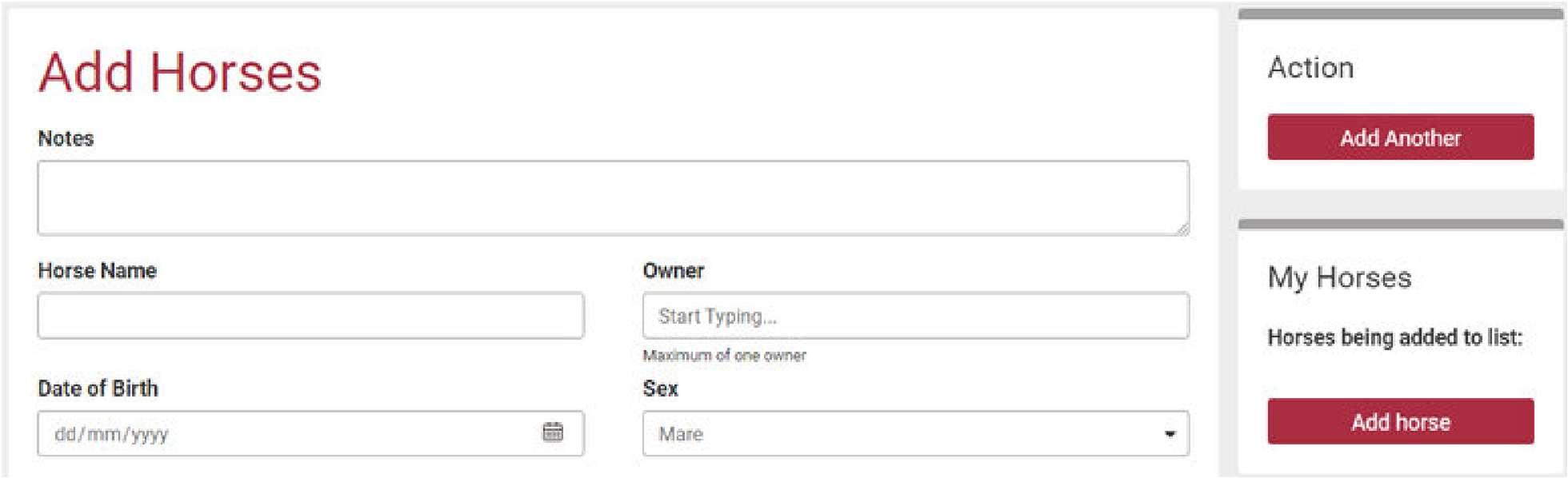
To add a new horse:
1. Go to the Horses tab
2. Click Add Horse if it’s not already in the database
3. Fill in required fields
4. Click Add Horse to complete
10.9 Changing Restrictions (Optional)
To change restrictions:
1. Go to the Nomination Dashboard
2. Click the eyeball icon beside the draft
10.0 Miscellaneous Functions
3. Edit the restrictions under Draft Rules
4. Click Save Details
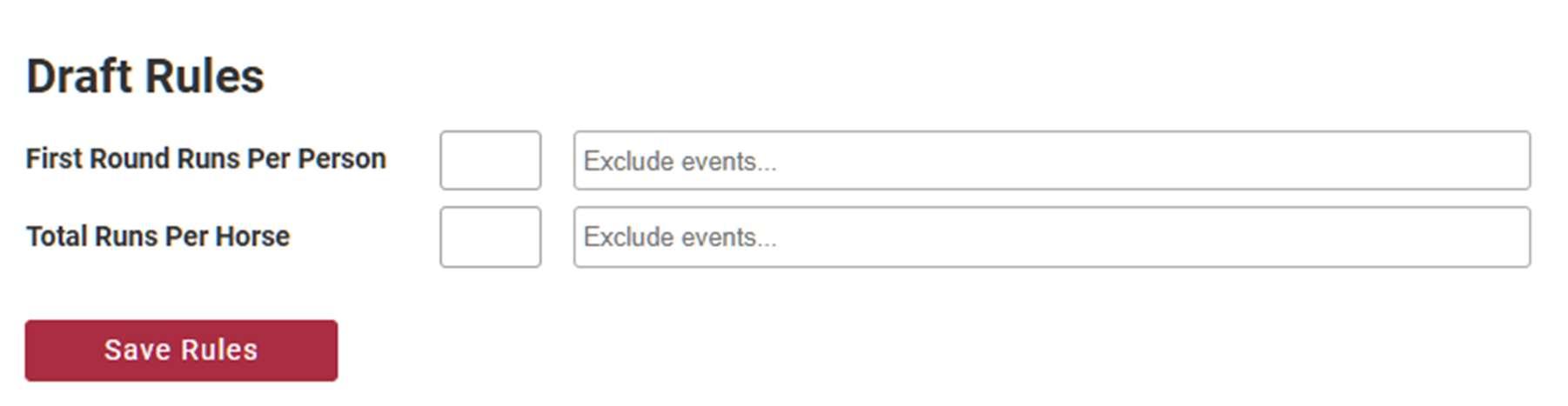
Once saved:
Competitors who no longer meet the restrictions will be notified
A yellow exclamation mark appears next to names with conflicting runs
Once scratched, the warning disappears
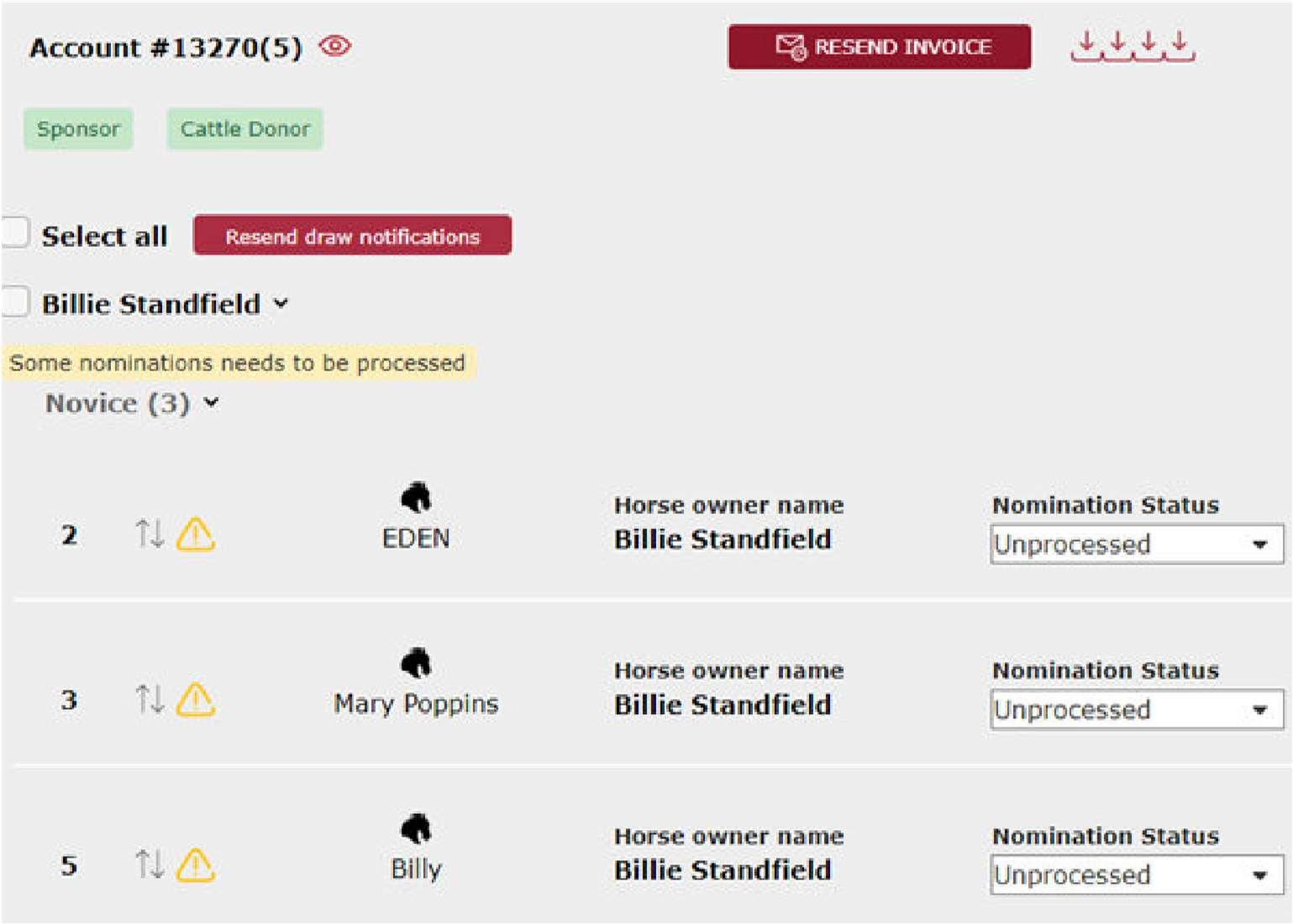
10.10 Sending Bulk Messages
To send bulk messages (email or SMS):
1. Go to the Nomination Dashboard
2. Click on your Draft Name
3. Click Send Bulk Email/Text
4. Enter your message (max 500 characters)
5. Click Send


You can also:
Resend draw notifications
Filter by nomination/payment status before sending
10.11 Extending Nominations
You can extend nominations if invoices haven’t been sent and the draft status is still Open.
Steps:
1. Go to the Nomination Dashboard
2. Click the pencil icon for the draft
3. Change the Noms Closed Date & Time to the new deadline
4. Click Save Details
10.0 Miscellaneous Functions 10.10 Sending Bulk Messages
Once nominations are closed:
Go to the Dashboard and click on the Waitlist to manage further entries
10.12 Pulling Refunds from Draws
To process a refund after the draws have been generated, wait until the draft is concluded, then follow these steps:
1. Visit the Draws submenu
2. Select the relevant event
3. While in the first round of the event, note everyone who has scratched from the event
o All scratched competitors will be transferred into the Refunds tab
4. Click the Refund button
5. Choose the refund type:
o Retain the stock levy
o Refund full amount
o (Note: You can edit this later in the Outgoing Money tab under Reports)
6. Follow the steps in the Organising Refunds section of this User Guide
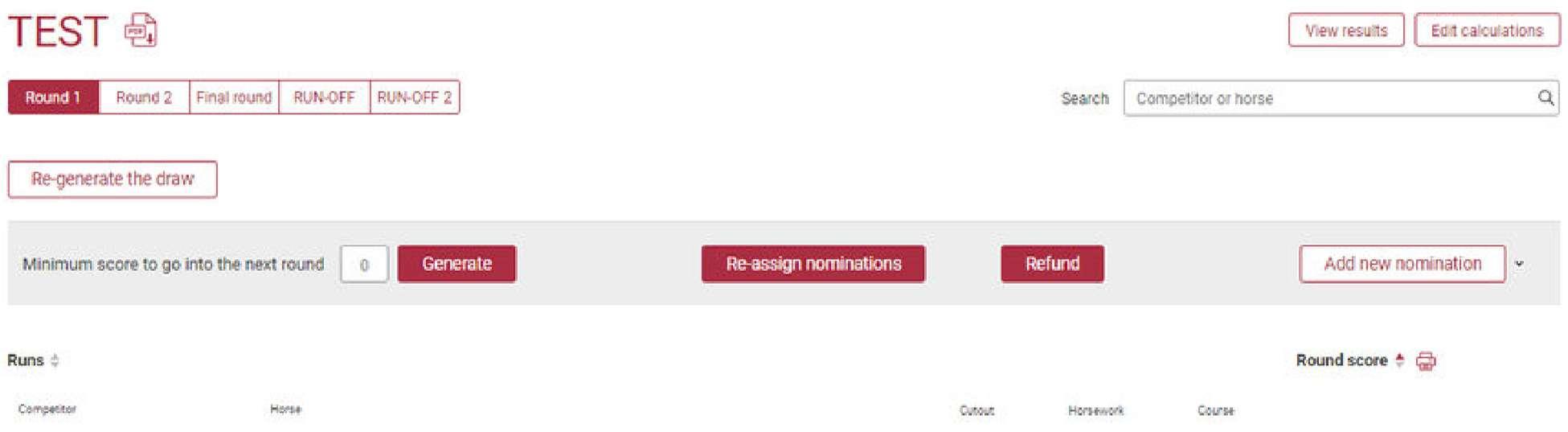
10.0 Miscellaneous Functions
10.13 Splitting A/B Events
There are two ways to facilitate spit events.
1. When setting up your events, create one event named (for example) Maiden A and a second event called Maiden B.
a. Competitors will be able to nominate into whichever Maiden they wish, eliminating the need for you to make many changes from A to B or B to A.
b. You may find that this makes the drafts uneven in number of starters. In this case you can scratch people from the larger draft and add them to the other event.
2. When setting up your events, create one event named (for example) Maiden (to be split) and allow all competitors to nominate into the single event.
a. Before generating draws, click the fork in the road button in the nominations dashboard.
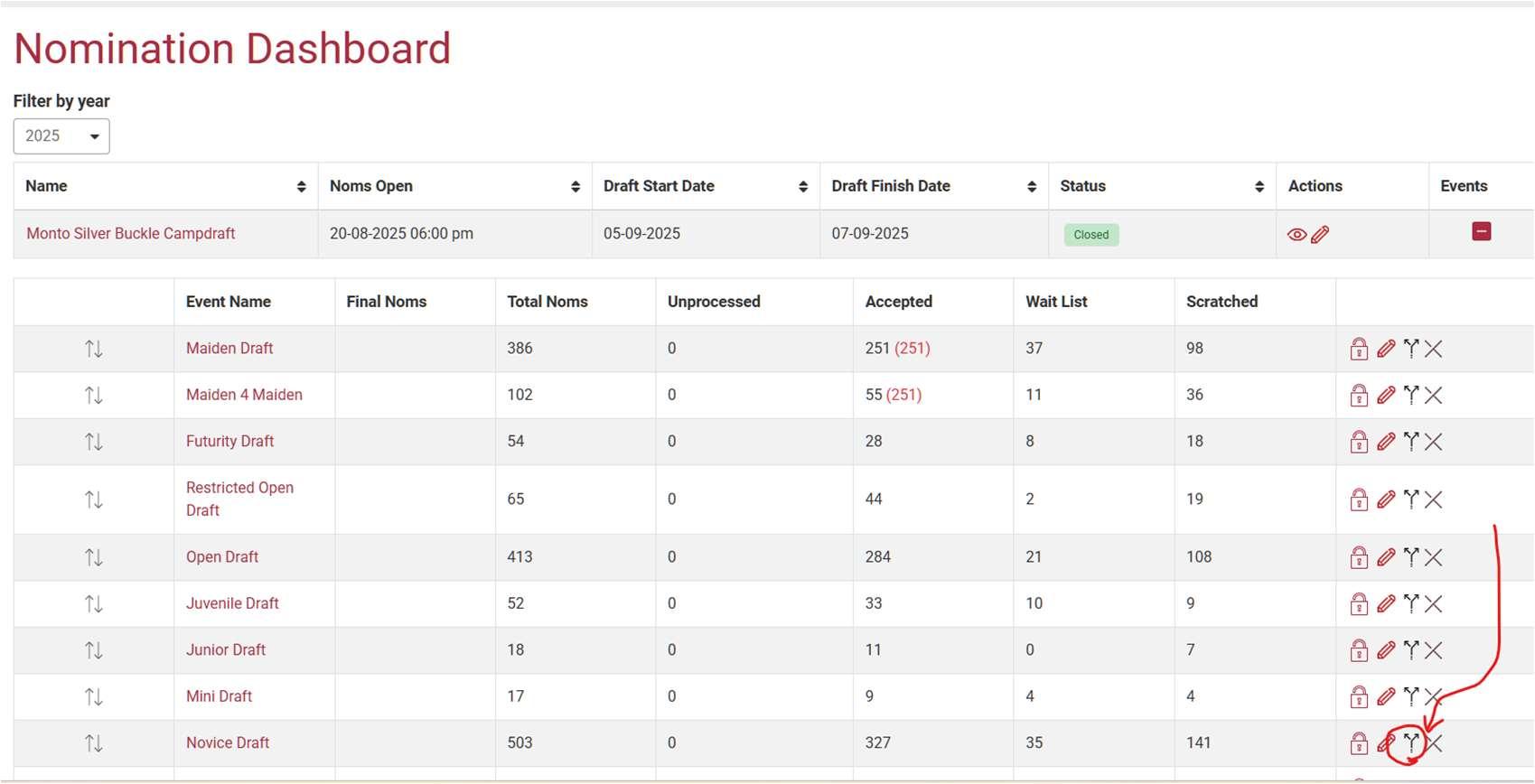
b. Once you have clicked the fork in the road, an A and B version of the event will appear.
c. Click the name of the event, for example, Maiden A and scroll down to see who is in it.
d. If someone needs to be moved to the other event, click the pencil by their name.
e. If you are in Maiden A, you will see a button in the pop up that says “Move to Maiden B” similar to the photo below: (Next page)
10.0 Miscellaneous Functions
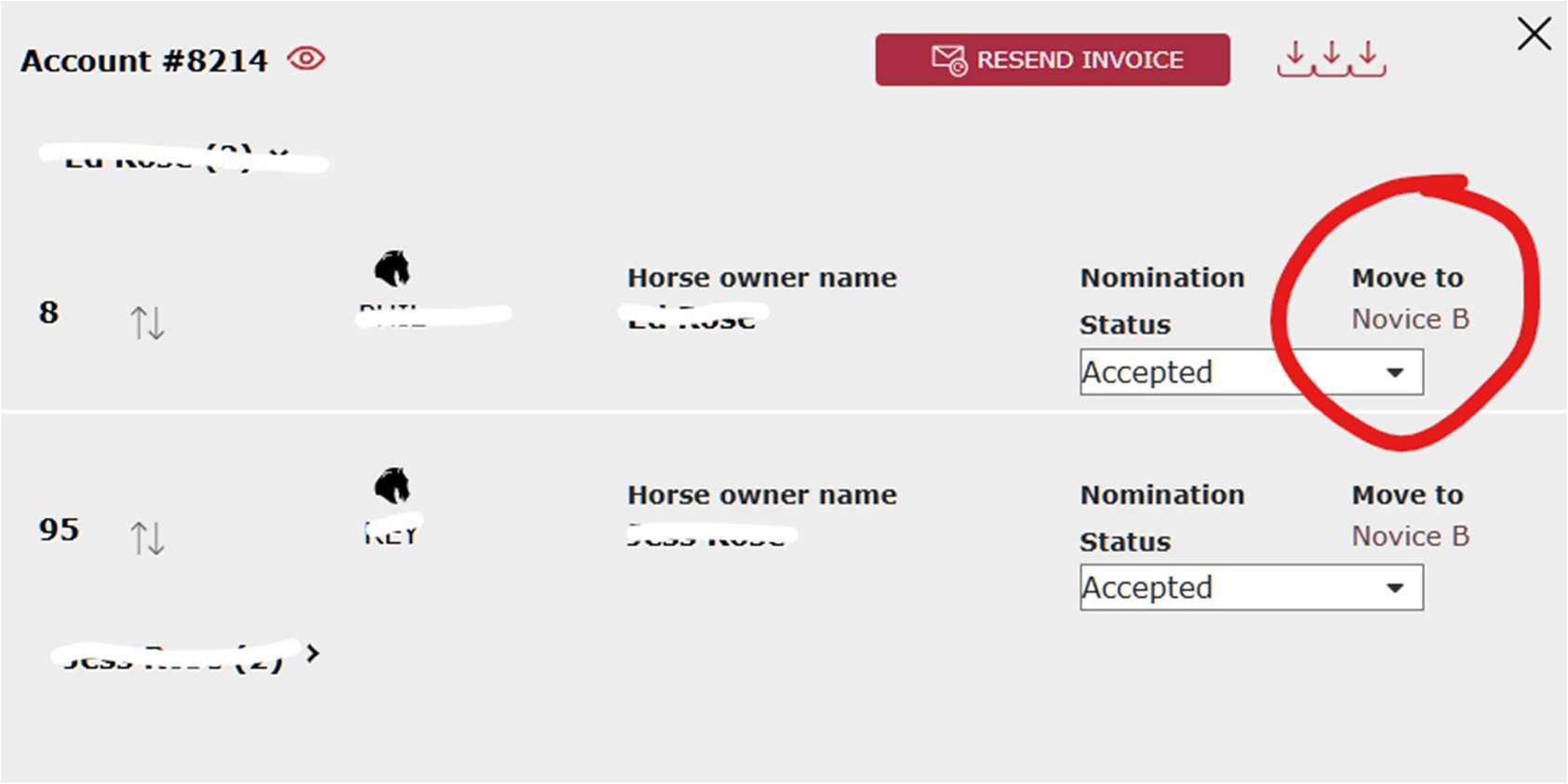
f. You can swap people from A to B like this until the draws are generated.
g. Once the draw is generated, this function will not work. You will need to scratch them from A and add a new nomination to B if a swap is required.
h. Once the draws are generated, the program sees A/B events as totally separate.
10.0 Miscellaneous Functions 10.13 Splitting A/B Events