
Insights

AUGI Members Reach Higher with Expanded Benefits
AUGI is introducing three new Membership levels that will bring you more benefits than ever before. Each level will bring you more content and expertise to share with fellow members, plus provide an expanded, more interactive website, publication access, and much more!
Basic members have access to:
• Forums
• HotNews (last 12 months)
• AUGIWORLD (last 12 months)
DUES: Free
Student members have access to:
• Forums
• HotNews (last 24 months)
• AUGIWORLD (last 24 months)
• AUGI Educational Offerings
DUES: $2/month or $20/year
Professional members have access to:
• Forums
• HotNews (full access)
• AUGIWORLD (full access and in print)
• AUGI Library
• ADN Standard Membership Offer
DUES: $5/month or $50/year

Letter from the Editor

And just like that…it’s another year gone by. This is going to be a short letter from me.
First, I want to touch base on this month’s topic, Industry Insights. Industry insights refer to deep, data-driven knowledge and analysis about a specific sector or market. These insights help businesses understand:
• Trends shaping the industry (e.g., emerging technologies, shifting consumer behavior)
• Competitor strategies and market positioning
• Opportunities and risks for growth or disruption
• Customer needs and evolving expectations They’re often used to guide strategic decisions, improve products or services, and stay ahead of the competition. Think of them as the “intel” that turns raw data into smart moves.
Understanding these trends helps AEC professionals:
• Make smarter investments in tech and training
• Align with client expectations and regulations
• Improve project delivery and profitability
• Stay ahead of competitors in a fast-evolving market
If you’re working in or with the AEC industry, these insights are your compass for navigating change.
And lastly, I want to thank each and every one of you for making AUGI the leader in CAD and BIM User’s groups. Thank you to all the authors, the volunteers, and last but not least, we thank you and love you Donnia Tabor-Hanson for your many years of service to us. You have made a deep impact on us and this industry. We will miss you dearly. Enjoy your retirement and go VOLS!!


AUGIWORLD
www.augi.com
Editors
Editor-in-Chief
Todd Rogers - todd.rogers@augi.com
Copy Editor
Miranda Anderson - miranda.anderson@augi.com
Layout Editor
Tim Varnau - tim.varnau@augi.com
Content Managers
3ds Max - Brian Chapman
AutoCAD - Tracy Chadwick
AutoCAD Architecture - Melinda Heavrin
BIM/CIM - Stephen Walz
BricsCAD - Craig Swearingen
Civil 3D - Shawn Herring
Electrical - Mark Behrens
Manufacturing - Kristina Youngblut
Revit Architecture - Jonathan Massaro
Revit MEP - Jason Peckovitch
Tech Manager - Mark Kiker
Inside Track - Rina Sahay
Advertising / Reprint Sales
Nancy Tanner - sales@augi.com
AUGI Executive Team
President Eric DeLeon
Vice-President
Frank Mayfield
Treasurer
Todd Rogers
Secretary Kristina Youngblut
AUGI Board of Directors
Eric DeLeon
Chris Lindner
Frank Mayfield
Todd Rogers
Shelby Smith
Scott Wilcox
Kristina Youngblut
AUGI Advisory Board of Directors
Gil Cordle
Jason Peckovitch
Rina Sahay
Jeff Thomas III
Publication Information
AUGIWORLD magazine is a benefit of specific AUGI membership plans. Direct magazine subscriptions are not available. Please visit www.augi.com/account/register to join or upgrade your membership to receive AUGIWORLD magazine in print. To manage your AUGI membership and address, please visit www.augi. com/account. For all other magazine inquires please contact augiworld@augi.com
Published by:
AUGIWORLD is published by AUGI, Inc. AUGI makes no warranty for the use of its products and assumes no responsibility for any errors which may appear in this publication nor does it make a commitment to update the information contained herein.
AUGIWORLD is Copyright ©2025 AUGI. No information in this magazine may be reproduced without expressed written permission from AUGI.
All registered trademarks and trademarks included in this magazine are held by their respective companies. Every attempt was made to include all trademarks and registered trademarks where indicated by their companies.
AUGIWORLD (San Francisco, Calif.)
ISSN 2163-7547
Bright Ideas for a Bright Future

AUGIWORLD brings you the latest tips & tricks, tutorials, and other technical information to keep you on the leading edge of a bright future.
Craig
What’s New in BricsCAD V26

BRICSCAD® V26: THE TRUE CAD ALTERNATIVE ELEVATING DESIGN-TOPRODUCTION
In October, Bricsys® unveiled BricsCAD® V26, the latest evolution of its native DWG CAD platform.
Hosted by Cliff Brown, Head of Product, and Executive Industrial Solutions Manager Keith Perrin, the launch highlighted a range of new features and enhancements across general design, industry-specific tools, and interoperability. The central message: BricsCAD continues to be “the True CAD Alternative”, offering high-speed performance, open licensing, AI-powered features, and advanced collaboration, all at a significantly lower total cost than traditional platforms. This does not begin to cover everything, but see all 60+ features, breakout sessions, and more at Bricsys.com.
ACCELERATING GENERAL DESIGN: OPEN, SMART, AND FAST WITH FLEXIBLE LICENSING = VALUE
Cliff Brown introduced us to V26 and emphasized BricsCAD is “purpose-built” to deliver streamlined workflows, improved editing, block management, and enhanced documentation for general design,
all under flexible and transparent licensing. BricsCAD is built on the open DWG standard and engineered with a familiar interface to streamline adoption and reduce training overhead, providing general designers with granular control over the entire design-to-production pipeline. So, let’s focus on working in 2D drafting or 3D modeling environments, and see how users benefit from a unified platform that accelerates concept development and documentation through intelligent automation, minimizing repetitive tasks, and enforcing standards for consistent output.
Interface and Interaction Upgrades
• Look From Widget: Redesigned on both
Windows and Mac, the “Look From” cube now offers smoother view control, dynamic repositioning, and better feedback, making 3D navigation in design space faster and more intuitive.
• QT Status Bar: Now the default interface, improving familiarity and streamlined navigation.
• Command Previews: Trim and Extend commands now include real-time visual feedback, letting users see the outcome before committing, reducing guesswork.
• Workspace Launcher & Display Scaling: A new launcher simplifies workspace selection, and display scaling now supports fractional DPI setups, essential for modern high-resolution monitors.
• Customizations for Settings dialog box: Intuitive, easy process to configure and personalize BricsCAD through the Settings dialog box.
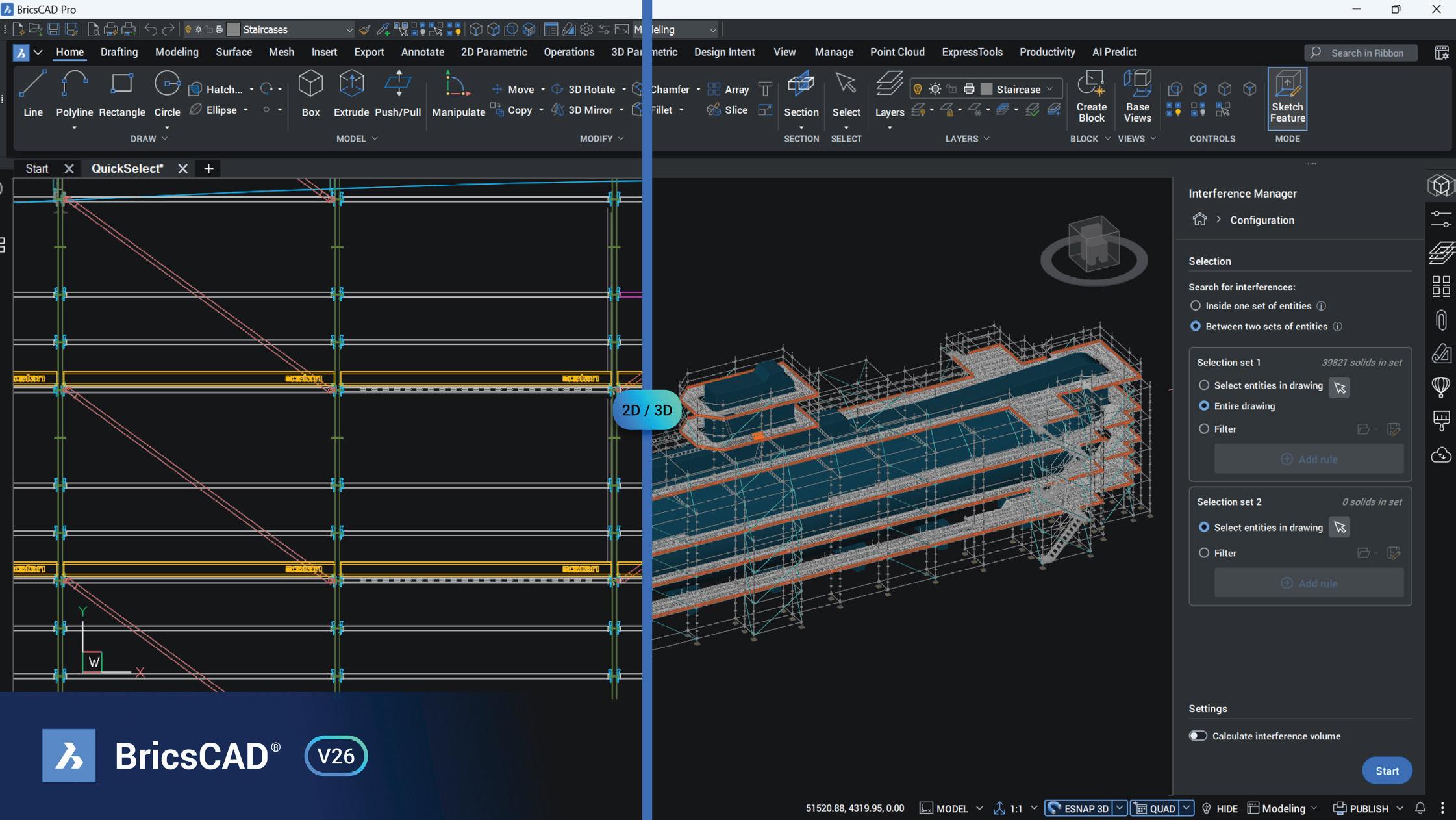
“What’s New” BricsCAD Lite/Pro V26 (2D) – Breakout Session
Block and Dynamic Block Enhancements
One spotlight area in the launch demonstration was dynamic blocks:
• Dynamic Blocks Support: BricsCAD V26 enables both editing and creation of AutoCAD® -
style dynamic blocks (outside the U.S.), marking a significant compatibility leap.
• Block Classification & Editing: Blocks are now classified as static, parametric 2D/3D, or dynamic—bringing smarter editing, a searchable Drawing Explorer, and mode-specific command availability.
• Blockify Integration: The “Create Block” dialog now integrates Blockify to detect and reuse existing blocks, avoiding duplication and streamlining drawing organization.
3D Editing & Sectioning
• 3D Grip Enhancements: Manipulate solids more intuitively via grips—scale, reshape, and edit directly without numeric input.
• Section Planes & Slice Views: New controls enable real-time section slicing, thickness control (modifiable via arrow keys), and visibility toggles, greatly improving design verification.
• Fillet Solid: “Fillet solid” now adds fillets or chamfers to all edges of a solid in a single step.
• SurfPatch: A new command to patch surface gaps, repair open boundaries or damage on solids, and an efficient way to prep models for fabrication.
“What’s New” BricsCAD Lite/Pro V26 (3D) – Breakout Session
INDUSTRY-SPECIFIC IMPROVEMENTS
Keith Perrin and the product teams led deep dives into enhancements across Mechanical, BIM, and Survey workflows, each tailored to professionals’ unique needs.
BRICSCAD MECHANICAL: BETTER FOR MANUFACTURERS
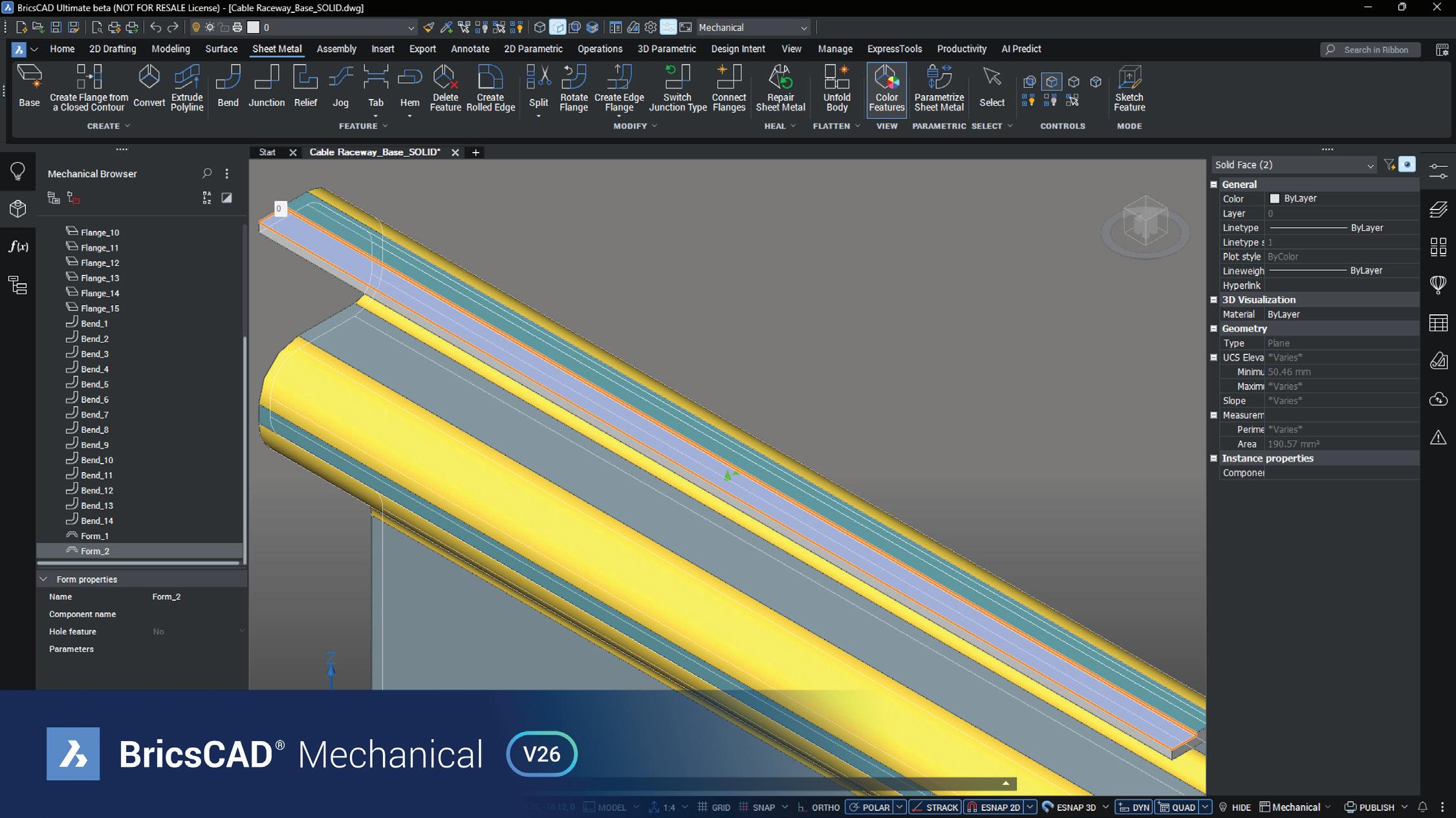
• Sheet Metal Robustness +80%: For one large user base (~800 engineers), sheet-metal form recognition is 80% more reliable, improving classification of edge forms such as extrusions.
• Smart Detailing: Associative dimensions and chamfer tools streamline documentation. Users reported up to a 50% productivity improvement in manufacturing drawing creation.
• Weld Improvements: Updated dialogs support four global welding standards, merging selection and configuration into a streamlined UI.
• Navigating Large Assemblies: Zoom/ highlight tools make managing big models simpler. Users noted 50–70% better quality and standardization, and a 30% improvement in efficiency for assembly work.
• Quality Focus: The team emphasized 3× more effort in issue resolution during development, aiming for consistent, reliable production experiences.
“What’s New” BricsCAD Mechanical V26 – Breakout Session
BRICSCAD ULTIMATE (BIM): COLLABORATION & IFC ENHANCED
• Project Data System: A new central “bsyslib” database ensures project-level data (site location, story heights, IFC classes, materials) is synchronized across team members and drawings.
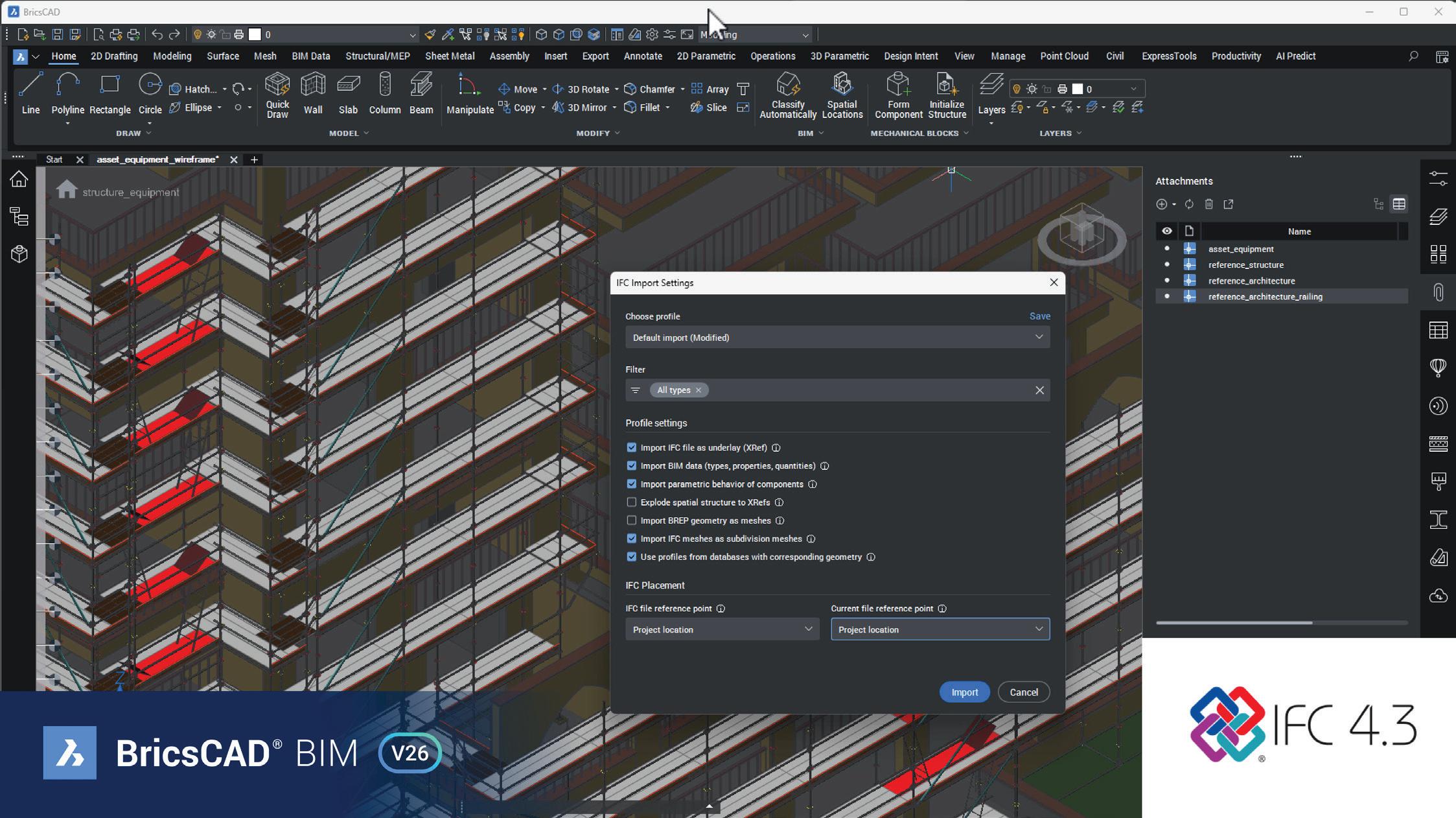
• IFC as XREF: Import IFC models as DWG external references, slashing file size (e.g., from ~8 MB to ~2.5 MB—a 2/3 reduction). Easy BIM underlay updates via the BIMUPDATE command streamline coordination.
• IFC 4X3 Compliance: Supports both import and export, including civil definitions—aligning with global BIM standards.
“What’s New” BricsCAD BIM V26 – Breakout Session
BRICSCAD SURVEY: SMARTER, AUTOMATED FIELD TOOLS
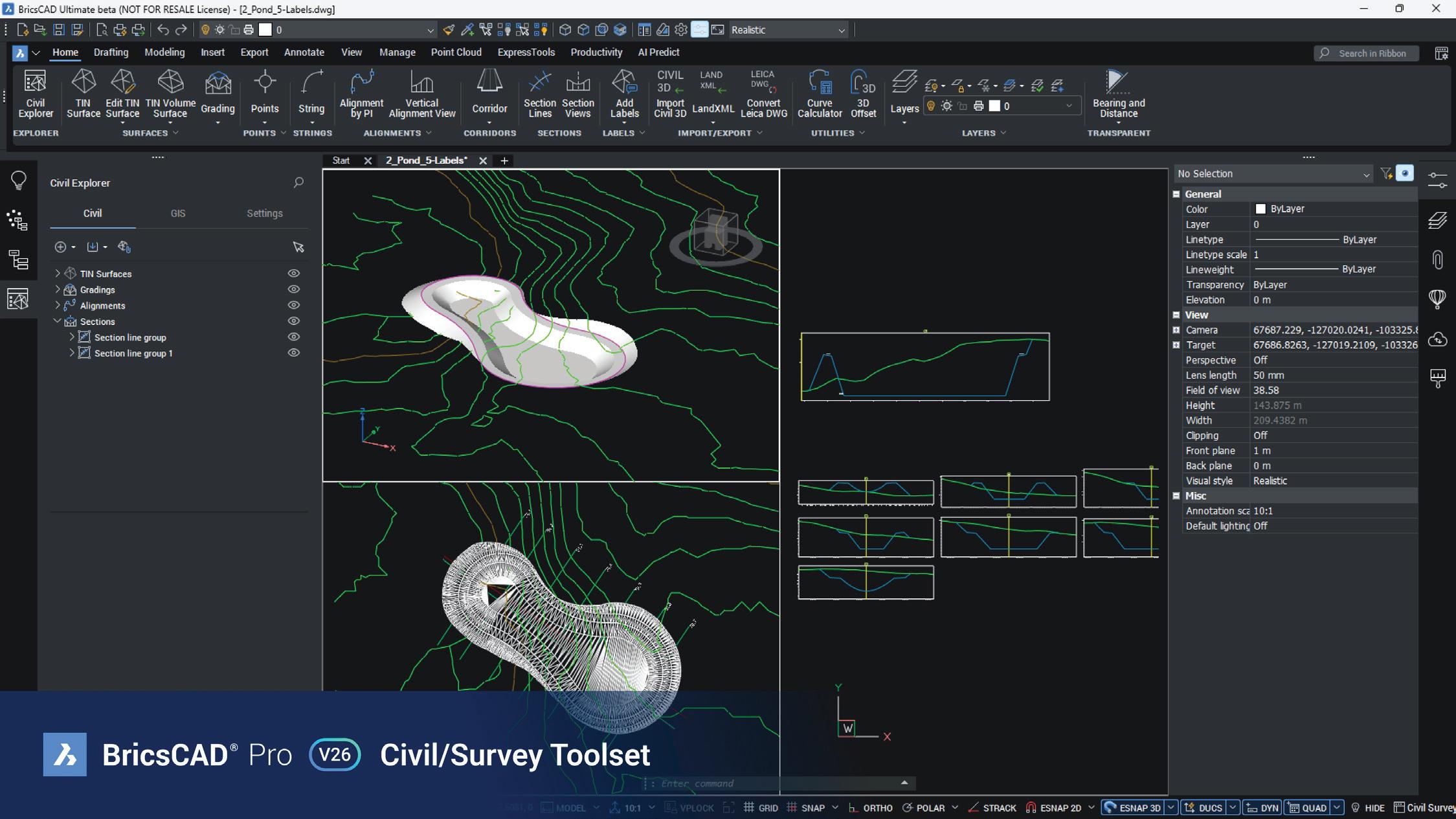
• Section Creation (Cross-Sections): Answering the top user request, V26 adds a dynamic, associative sectionview tool that generates cross-sections from TIN surfaces, alignments, strings, and solids. These update automatically when source geometry changes.
• 24× Faster Workflow: Users found sectionview
creation to be 24 times faster than previous manual methods, showing huge efficiency gains.
• Civil Point Auto-Mapping: As points are imported from files, V26 can auto-assign codes, attributes, and styles based on embedded data—dramatically reducing manual cleanup.
• GML Support & GIS Labels: Expanded integration of OGC-compliant Geography Markup Language allows surveyors to import GIS data with attribute-driven labeling.
“What’s New” BricsCAD V26 for Land Surveyors–Breakout Session
CONCLUSION: WHY BRICSCAD V26 MATTERS
BricsCAD V26 marks a decisive step forward. This release delivers across-the-board improvements in speed, interoperability, automation, and usability.
• General Design: Select model-based edits in 3D (like grip adjustments and section slicing) were noted to be up to 25x quicker than V25, smarter block tools, and UI refinements. 2.7× to 2.8× faster DWG file operations. Opening over 500 DWG files and running complex LISP routines are up to three times quicker than before. The Blockify tool can shrink file sizes by up to 90% by replacing repeated geometry with blocks.
• Mechanical: 80% more robust sheet-metal
recognition, 50% documentation time savings, and 30–70% boosts to project quality and efficiency. By strengthening interoperability and refining process automation, V26 empowers manufacturers to work faster, with greater confidence in every detail—from concept to production-ready deliverables.
• BIM/Ultimate: Centralized project data, efficient IFC handling, and regulatory-grade compliance. These V26 upgrades aren’t just “features,” they’re business enablers. They help subcontractors deliver projects faster, improve accountability, and ensure quality without compromising agility.
• Survey: GML support, automated civil-point styles, and a revolutionary 24× faster, dynamic section tool. By embedding surveying intelligence directly into a familiar DWG-based platform, V26 gives surveyors the tools they need to deliver accurate results quickly and consistently.
Whether you’re manufacturing complex assemblies, coordinating building projects, or managing field data, V26 brings the tools to work smarter, faster, and more collaboratively, while seriously reducing your software costs and IT overhead. Read more about BricsCAD delivering on our promise to give professionals the true CAD
alternative and see the entire 60+ features and more at Bricsys.com.
MORE ABOUT BRICSCAD®
Bricsys® BricsCAD is the true CAD alternativeoffering a familiar, high-performance 2D and 3D platform that delivers the fastest path from initial design to complete and accurate production deliverables. Built on industry standards with native .dwg support, BricsCAD ensures full compatibility with existing files and workflows, making switching smooth while reducing costs from day one. With flexible licensing options, powerful automation tools, and significantly lower total cost of ownership, BricsCAD delivers everything you expect from a professional CAD platform.
Download the free, 30-day trial of BricsCAD at Bricsys.com. Would you like free lessons? We have that available with Bricsys Learning. Ready to migrate to BricsCAD? Download the Migration Guide. The latest version of BricsCAD improves the tools and features users love, as well as new functionality and UI that supercharge productivity. Around the world, professionals are joining a growing BricsCAD community - backed by a platform that evolves, and a company that puts its users first. Follow us today on LinkedIn and YouTube.

Mr. Craig Swearingen is a Senior Implementation and Customer Success Specialist at Bricsys. Currently, Craig provides migration and implementation guidance, management strategies, and technical assistance to companies that need a true CAD alternative. Craig spent 19 years in the civil engineering world as a technician, Civil 3D & CAD power user, becoming a support-intensive CAD/ IT manager in high-volume production environments. Craig is a longtime AUGI member (2009), a Certified Autodesk® AutoCAD® Professional, and he enjoys networking with other CAD users on social media.




List Dealing with the
Part Two
Lists are good. I make them all the time. After I have made them, I follow them, checking things off as I go. When I am done with them, I get a satisfied feeling of accomplishment. Sounds good, huh? But sometimes the list missing things. These are the “Un’s”. The things I forgot to list and then forgot to do. They sometimes can bite me.
You might have a list also. From the last article, the top of the list included the Unknown, the Unassigned, the Unavailable, the Unspoken, the Unacceptable, the Undelivered and the Untested. These are all things that don’t make it on to your task list. Now I turn to things that are not tasks, as such, but the things that might impact you or your team. Things that might be forgotten or overlooked. Like reading the prior article in this series. If you did not get a chance to read the last article, go back and check it out. Don’t leave it “unread”.
THE UNAPPRECIATED
There are times when praise should be given, but in the heat of a project, it just does not happen. Staff that do not feel appreciated are less motivated. Always try to take the time to pass out thanks and praise when someone helps or get something done. It takes only a few words, and it encourages folks who help or achieve something. Think about
how you felt when no one thanked you for your contributions in the past. Don’t let others go unappreciated.
THE UNDESERVED
The flip side of forgetting to praise is having the praise go in the wrong direction. Someone gets credit for something they did not do. You need to step in and spread the praise out. Don’t let the focus of appreciation get narrowed down if others helped just and much. Or it may be blame. Someone might take the brunt of false assumptions. Don’t let the blame weigh on one person if they really could not have avoided the troubles or stopped the difficulties. If it was not all their fault, explain how the issue could not have been avoided and don’t let people think that one person’s mistake made progress or success disappear.
THE UNRELIABLE
When someone depends on you, a process, or a hardware or software tool, the worst thing that can happen is when a failure occurs. But just shy of failure, being unreliable is almost as bad. You never know when something will fail. You don’t know if project is going to make it through without a hiccup. You want reliable tools and people on the team, but that is not always possible. When things become unreliable, contingency plans need to be
in place in case of failures. You may have no choice and must work in unreliable scenarios, but you should keep your options open and allow for some squishy delivery dates.
THE UNFUNDED
We have all been there. Get things done with little or no funds to do it. The unfunded demands can have you scrambling to find money to spend on items that break (remember the unreliable?), or when new employees need equipment. It might be when your firm heads in a new direction and top management did not realize the need for technology would cost so much. First, your boss needs to know that the unexpected will happen and that your budget is a planning tool for the known and not the unknown. This means that the money for unexpected things may need to come from outside your budget. But you can build in a budgetary cushion that can provide some relief. I always round up on my budget numbers. If something costs $1000, I put in $1200. That would cover increases in cost and taxes/shipping and the like. But it also allows some breathing room. I always add in some R&D money for new ventures, and I plan my spending on worst case eventualities. Sure, some of that gets squeezed out when the boss says to lower my numbers, but I keep as much as I can. Then I juggle the purchases and forgo some planned maintenance to cover the unfunded.
THE UNTRAINED
When staff go untrained, it will impact your product. The things that people do, that they don’t know were not the best, will cause issues. Training needs to happen, both formal or informal. You should have some formal training in the pipeline for new hires and make sure they attend. You need to get information to the team any way you can. Informal meetings on the floor, lunch and learn, memos, emails, intranet postings, anything is better than nothing. Keep the training and information flow going.
THE UNREPORTED
I know that I don’t know everything that happens related to tech use in my office. I know that people don’t tell me things. They think I will get mad, or blame them, or that they will get in trouble or look bad. I have no idea what the reason is, but they keep their mouth shut. I try to have an encouraging atmosphere of honest, open sharing, but there are still things I never hear about. When news related
to breaks, delays or mistakes is not shared, fixes cannot be applied. When fixes are not applied, things get derailed. Staff needs to know that they should inform you of glitches that they have. See something, say something – it applies to technology too.
THE UNUSED
I will end this two-part series with this one; The Unused. This one really bothers me. When technology goes unused, it wastes money. I am more than willing to buy the newest tech that comes along. But I hate buying things that end up not being used. Sure, there is some R&D efforts that might end in abandoned tools (the R&D money is in my budget for just that), but when tech is unused, it really annoys me. And that includes underused tools also. There are so many features in today’s tools, and we end up using a small percentage of them. I try to remind people of some feature that is not being used much so they can rethink its use. If a feature is not adopted in the early rollout, I circle back around a few months later and try to see if it sparks the desire to use new things.
As I mentioned, some of these are things that we forget, some are things that we have to put up with, some are things we wish we found out about sooner, but they all can have a debilitating impact on productivity and progress. No one actually keeps an “Un List”, but we sure know when they undo our best efforts.

Mark Kiker has more than 30 years of hands-on experience with technology. He is fully versed in every area of management from deployment planning, installation, and configuration to training and strategic planning. As an internationally known speaker and writer, he was a returning speaker at Autodesk University for twenty years. Mark has served as Draftsman, Principal Designer, CAD/BIM Manager, IT Director, CTO, CIO and AUGI Board President. He can be reached at mark.kiker@augi. com and would love to hear your questions, comments, perspectives and ideas for future topics.
Civil 3D TrainingHow the Pandemic Accelerated Training Changes
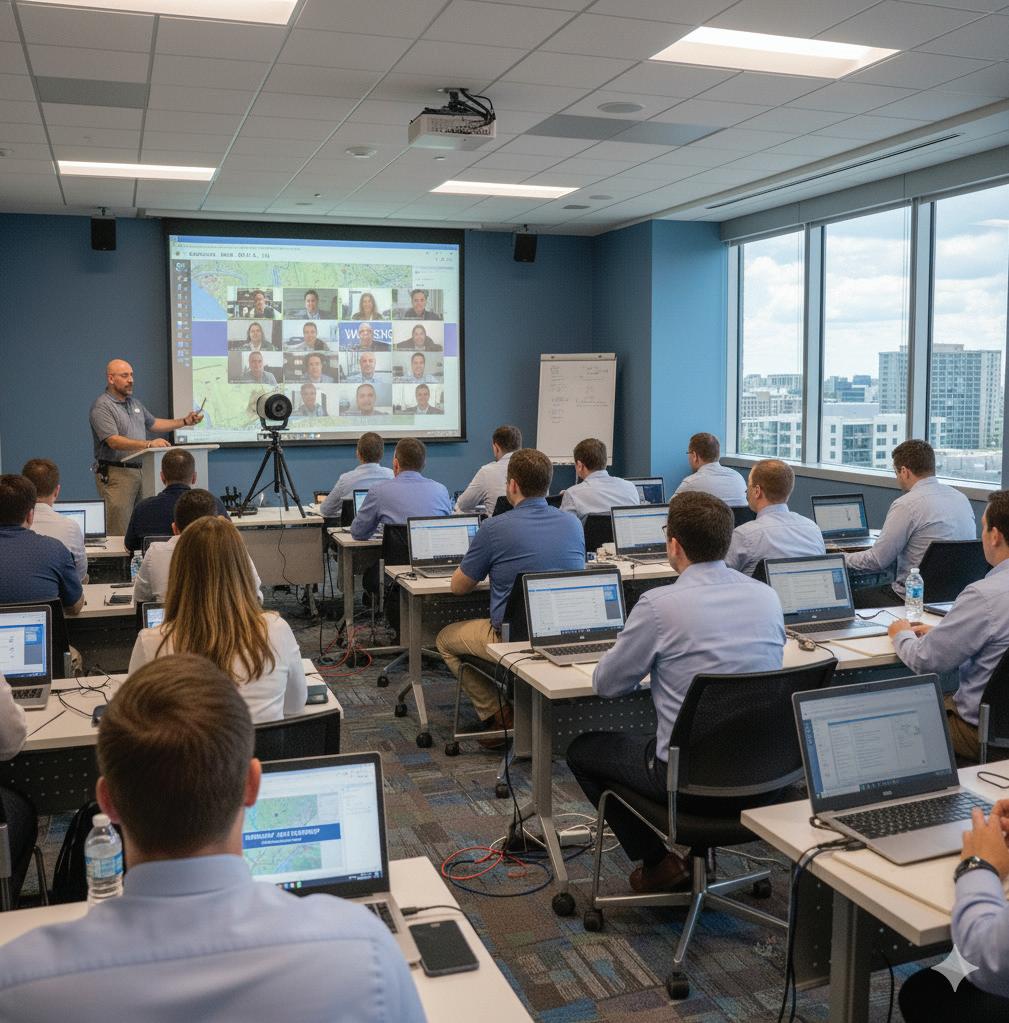
I’ve been training and consulting now for almost 20 years!! Which sounds crazy! I traveled the world doing instructor-led training on anything Autodesk, and anything infrastructure. But I remember the exact day it all changed for me! I just wrapped up a 4-day Intermediate to Advanced Civil 3D training and was sitting in a Chicago airport when the news broke that the first cases of Covid were confirmed in the US and we were entering “pandemic mode”.
Since the COVID-19 pandemic, in-person Civil 3D training has undergone a significant transformation. What was once a hands-on, classroom-based experience focused on face-to-face collaboration and instructor-led guidance has evolved to incorporate new technologies, hybrid learning models, and enhanced digital tools. The consultants and trainers who wanted to survive have adapted their methods to balance safety, flexibility, and efficiency — often blending traditional instruction with online resources and virtual demonstrations. As the industry continues to adjust to post-pandemic expectations, in-person Civil 3D training now looks different, emphasizing smaller class sizes, interactive digital integration, and a renewed focus on practical, project-based learning. 5-6 years ago, I would have said the ROI on virtual training was really poor, and in person training was the only real way to be successful. Now, over the past few years, I’ve completely changed my mind on what makes a successful training. This article mentions Civil 3D, but you can replace Civil 3D with just about any design software and the training methods have changed. Let’s discuss how.
Shift Toward Hybrid Learning
• Pre-COVID: Most Civil 3D courses were conducted entirely in classrooms or training labs with on-site computers.
• Post-COVID: Training now often blends virtual prep sessions or self-paced modules with shorter in-person workshops.
• Example: Participants complete basic AutoCAD or interface lessons online before the in-person Civil 3D lab.
• Result: In-person time is spent on complex, project-based tasks rather than fundamentals.
Smaller, More Customized Groups
• Class sizes have become smaller (often 4–8 people rather than 10–15).
• Instructors can now tailor exercises to a firm’s workflows (e.g., roadway design, grading, or pipe networks) rather than using generic examples. Even utilizing customer datasets and live projects, which I highly recommend.
• This customization increases engagement and retention — something clients expect more of since the move away from generic online webinars.
Enhanced Use of Technology in the Classroom
• In-person sessions now integrate digital collaboration tools:
• QR codes or tablets for accessing datasets or lesson files.
• Live model sharing (e.g., via BIM 360 or Autodesk Docs) to demonstrate real-time design coordination.
• Polls and screen-sharing apps to gauge understanding and engagement.
• Trainers often encourage participants to connect laptops to the company’s own Civil 3D environment, creating a smoother transition to real projects. Or, as I mentioned above, use a real project!!
More Focus on Applied, Project-Based Learning
• Rather than walking through menus and commands, instructors now focus on workflow and outcome-based training:
• Designing a subdivision from survey data through to grading and sheets.
• Managing data shortcuts, surfaces, corridors, and pipe networks in a real project context.
• This shift responds to the demand for practical, job-ready skills — a lesson learned during the remote learning boom.
Expanded Focus on Collaboration and Cloud Workflows
• Since many engineering teams now work hybrid, in-person Civil 3D training emphasizes collaborative project management through:
• Autodesk Docs / BIM 360 integration
• Data shortcuts and references in shared environments
• Best practices for multi-user coordination
• Trainers often include lessons on version control, cloud storage, and interoperability — topics that were rarely covered pre-pandemic.
Continuous Learning Culture
• Instead of one-off, multi-day bootcamps, many
Civil 3D
firms now adopt modular, ongoing training programs.
• Example: A two-day in-person course followed by monthly 2-hour virtual followups.
• This approach helps reinforce learning, track adoption, and accommodate hybrid work schedules.
RETENTION CHALLENGES IN CIVIL 3D TRAINING
At the end of the day, it’s all about retention. People learn and retain info in so many different ways, it’s hard to create a one size fits all training program. It depends on the structure of the online training and the learner’s engagement, but on average, people retain less from purely online Civil 3D training compared to well-run in-person or hybrid sessions. And sitting in a 3-day class doing a beginning to end type of training following a manual, has all but died out!! Hsiung and Ritz are researchers who have collaborated on a lot of academic work, notably in the field of engineering education using distance learning. Some of their research compares how well engineering students retained CAD concepts after online and in-person training. They found that blended learning models (a mix of online and in-person training) produced the highest retention rates, as learners could revisit materials digitally while still benefiting from inperson demonstrations and Q&A.
Here’s a breakdown of why — and what helps improve retention:
Hands-on Skill Loss
• Civil 3D is a spatial, command-intensive, and workflow-based tool.
• Without an instructor physically nearby to correct mistakes or demonstrate steps in real time, or in real world scenarios which tend to be overlooked in a lot of online/manual led training courses, learners often miss subtle but critical setup steps (like data shortcuts, surface definitions, or style/label management).
• This leads to lower skill retention even if participants understand concepts during the session. And most trainers have all sorts of tips and tricks, not just everyday picks and clicks! Those are easily missed when learning virtually.
Screen Fatigue and Distraction

• Learners are more likely to multitask or mentally drift, especially during repetitive modeling exercises.
Limited Peer Interaction
• In-person labs allow participants to observe others’ screens, ask spontaneous questions, and share tips.
• Online settings reduce these micro-interactions, which are actually key to deeper learning and memory.
FACTORS THAT IMPROVE RETENTION ONLINE
When designed intentionally, online Civil 3D training can still be highly effective. The following features dramatically boost retention:
Modular, Microlearning Format
• Splitting content into short (1–2 hour) modules with focused objectives improves retention and prevents overload.
• Example: Separate sessions for surfaces, alignments, and corridors rather than one long workshop.
• Long online sessions lead to cognitive overload and fatigue for not only the learner, but the instructor. 2–4-hour online sessions seem to be the sweet spot for most.
Guided Practice and Follow-Along
• Retention increases when learners actively reproduce tasks instead of just watching demos. In all trainings I do, I follow the tell, show and do method. I first TELL them about the features and methods we’re about to do, I then request their attention to SHOW them what was discussed, and then turn the time over to them to DO it themselves.
• According to Autodesk’s 2022 Learning Partner Insights Report, learners who practiced Civil 3D tasks on actual project data retained 35–45% more knowledge after three months compared to those who only observed or followed static exercises.
Interactive Tools
• Use of polls, breakout rooms, quizzes, and annotated screen sharing helps recreate inperson engagement.
• Tools like GoToTraining, Zoom’s annotation features, or Miro boards allow for feedback and collaboration.
Ongoing Reinforcement
• Short follow-up Q&A or refresher sessions every few weeks greatly improve long-term retention.
• Recording sessions for review also helps participants revisit complex topics. All screensharing tools anymore record and even transcribe the session.

COMPARATIVE RETENTION (BASED ON INDUSTRY TRENDS)
While exact numbers vary, here’s a general pattern from training providers and Autodesk Learning Partners:
Notes
In-person
Hybrid
Online (lecturestyle)
High engagement, hands-on correction
Best balance of flexibility and practice
~40–55% Often too passive or fatiguing
Online (interactive, modular) ~70–80% ~60–70% Strong results when well designed
(These figures are based on aggregated findings from post-training assessments reported by Autodesk-authorized training centers and adult learning studies, not formal academic experiments.)
STRATEGIC PLANNING
I was recently asked by a national engineering firm, “How should we structure the demand for hands on training versus web-based training?
That’s a very strategic question — and it’s exactly the kind of balance most engineering firms are trying to strike post-COVID.
For an engineering firm using Autodesk Civil 3D, the key is to structure training demand based on skill type, role, and project phase — using handson (in-person) training where tactile learning and collaboration matter most, and web-based (online) learning where flexibility and scalability matter most.
Here’s a proven framework firms are using successfully:
Start with a Skills Matrix
Before deciding delivery methods, map out your team’s skills vs. responsibilities:
• Entry-level / junior designers: Need deep, handson exposure.
Intermediate users: Need targeted skill
Civil 3D
upgrades and workflow efficiency.
• Senior engineers / project managers: Need conceptual understanding of workflows, data management, and collaboration, but not deep command-level work.
Divide Topics by Delivery Type
Training
Core Skills / Fundamentals
Advanced Workflows / Troubleshooting
Conceptual / Theoretical Topics
Hands-On, In-Person Learners need tactile practice and instructor guidance.
Small Group, HandsOn (Lab)
Web-Based (Live or Self-Paced)
Refresher or Update Sessions
Web-Based
Cross-Discipline Collaboration Hybrid
Requires instructor correction and iterative design.
Command-level detail less critical; great for flexible access.
Short sessions maintain skills without major disruption.
Combines online coordination with in-person alignment.
Survey data import, surface modeling, corridor creation
Intersection design, pipe networks, grading optimization
BIM workflows, Civil 3D data shortcuts, project standards
New Civil 3D release features, style management tips
Civil 3D + Revit + InfraWorks data exchange
Use a Tiered Training Strategy
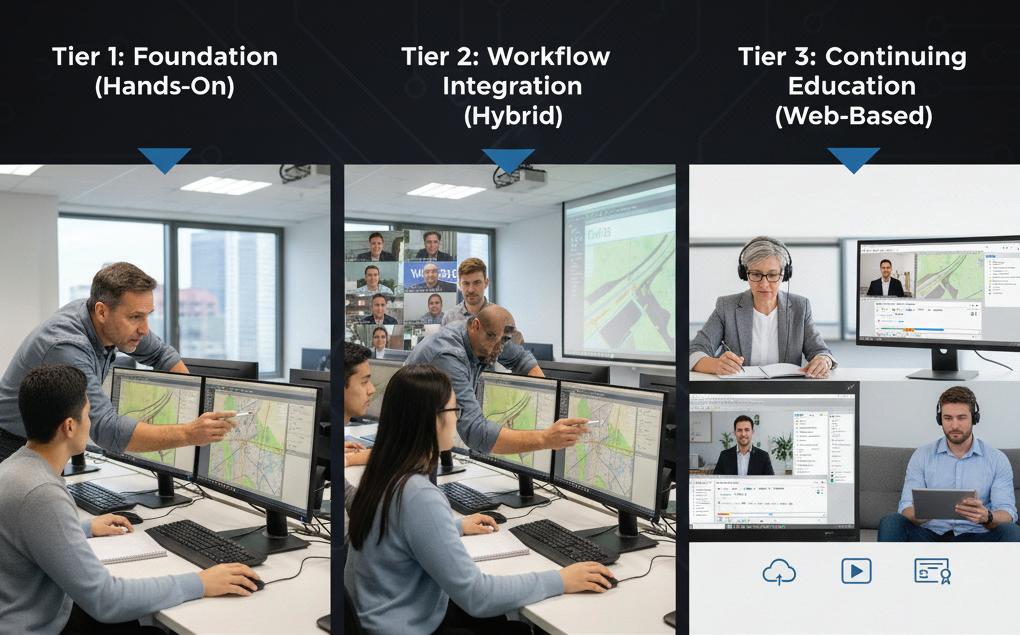
Tier 1: Foundation (Hands-On)
• Audience: New users, interns, or role transfers.
• Delivery: Multi-day, in-person or hybrid lab.
• Focus: Building surfaces, alignments, corridors, pipe networks.
• Frequency: Quarterly or semi-annually.
Tier 2: Workflow Integration (Hybrid)
• Audience: Practicing designers and CAD leads.
• Delivery: Online workflow briefings + short inperson project sessions.
• Focus: Standardization, data management, quality control.
Tier 3: Continuing Education (Web-Based)
• Audience: All staff.
• Delivery: Recorded microlearning or lunch-andlearns.
• Focus: Software updates, efficiency tips, and cross-disciplinary coordination.
Align with Project Cycles
• Before major projects: schedule hands-on refreshers for core users.
• During project delivery: emphasize on-demand web training for troubleshooting and updates.
• After delivery: run debrief sessions (hybrid) to capture lessons learned and update internal Civil 3D standards.
Practical Ratios Used by Top Firms
Many successful engineering firms follow a training mix such as:

• Maintain a Civil 3D skill library or LMS with modules for self-paced refreshers.
• Use experienced trainers or internal “super users” to lead small-group sessions. Track training ROI via reduced rework, improved model quality, or shortened project setup time.
As the needs of the engineering and design industry continue to evolve, training providers have adapted their methods to keep pace. Civil 3D instruction has moved beyond traditional classroom delivery to embrace flexible, interactive, and technology-driven approaches. By incorporating online platforms, self-paced learning modules, and practical, project-based exercises, training providers can offer more engaging and effective programs. This evolution not only enhances learner outcomes but also ensures that Civil 3D training remains relevant and aligned with industry advancements.
This balance keeps costs manageable while
Some Final Best Practices
• Build all training plans around project relevance — real company templates, datasets, and deliverables.

Shawn has been a part of the design engineering community for roughly 20 years in all aspects of design, construction and software implementations. He has implemented and trained companies across the Country on Civil 3D and other infrastructure tools and their best practice workflows. Shawn can be reached for comments or questions at sherring@ prosoftnet.com.
AutoCAD Architecture Display Themes

Display Themes is a feature that will work with any ACA object you have created. Manual properties of an object – such as a wall’s fire rating or a door’s manufacturer – are not typically visible in a drawing.
Display Themes let you incorporate such nongraphic data in your drawing (both 2D and 3D) by using certain colors, fills or hatches to highlight objects that meet the criteria or theme rules that you have established in a display theme style. For example, you could define a property named Function for room objects and then set up a theme rule that specifies that rooms with a Function value equal to “storage” will be displayed with a solid cyan fill.
A Display Theme can be activated in a drawing by using a display theme tool to insert a display theme
legend, which explains the meaning of color, fills or hatches specified in the theme.
CREATING DISPLAY THEMES
Display Themes are an effective way to present information during the conceptual design phase of a project or when working with construction documents. With display themes you can identify changes to a project that are not in the contract, identify the staging of a project and identify objects that meet or do not meet specific standards.
If you use the drawing as an external reference (xref) in a project, the display theme is imported into the host drawing by default. If the host drawing already contains a display theme, then the display theme in the host drawing overrides the display theme in the xref. A marker appears over the disabled display theme legend.
There is a simple five-step process that you can follow to create a display theme:
1. Create property data formats that you will use in your theme. The formats you create will determine how your data is displayed in the display theme legend.
2. Create property set definitions for objects in your drawing. Here you will incorporate formats from step 1.
3. Create a display theme style. This will specify the format for the legend of your display theme as well as what objects will be highlighted in your drawing. The legend is a key that will incorporate property set definitions from step 2. It will specify which visual indicator will be applied to which objects in a drawing and what the content will be.
4. Attach property set data to the objects for inclusion in your display theme.
5. Activate the display theme by adding the legend to the drawing.
Now, let’s look at each of these steps in a little more detail.
AutoCAD Architecture
PROPERTY DATA FORMATS
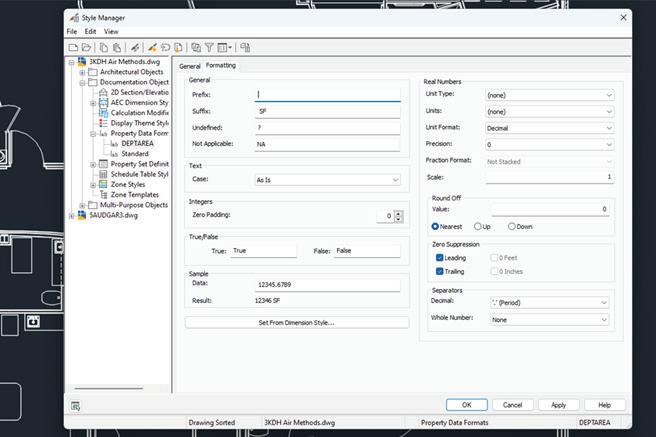
The criteria for the display theme are based on the property data attached to the objects or object styles. The property data overrides the display properties to produce the visual effects produced by inserting a display theme. Property data formats are created and edited in the Style Manager under the Manage tab of the ribbon, Style & Display panel. You can also enter the command AECSTYLEMANAGER. To create a new one, expand Documentation Objects, right-click Property Data Formats and click New. Enter a name for the new format and click Enter. If you wish, you can also select an existing Property Data Format, right-click and copy, then paste and rename.
Now you will click on the Formatting tab (see Figure 1). Here, you need to specify how you want the formatting to appear. For example, if you want text to appear in all capital letters, you would select Upper under the Case drop down. Fill in all information pertinent to the format you are creating. Click Apply and then OK when you are finished.
AutoCAD Architecture
PROPERTY SET DEFINITIONS
Property set definitions are created and edited in the Style Manager under the Manage tab of the ribbon, Style & Display panel. You can also enter the command AECSTYLEMANAGER. To create a new one, expand Documentation Objects, rightclick Property Set Definitions and click New. Enter a name for the new definition and click Enter. If you wish, you can also select an existing Property Set Definition, right-click and copy, then paste and rename.
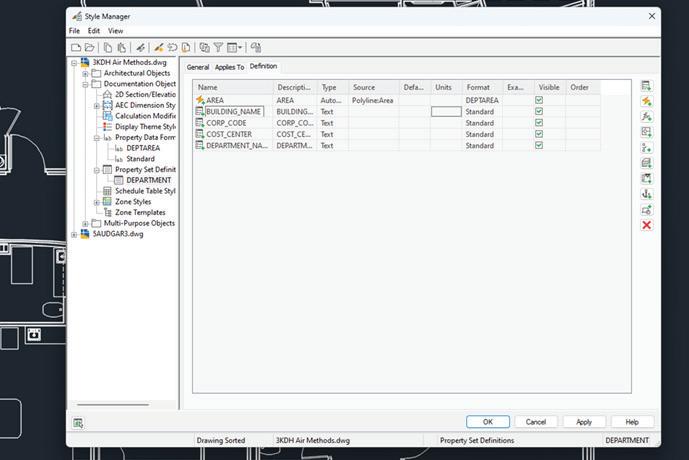
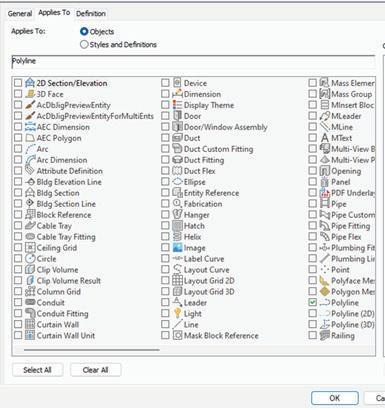
Select the Applies To tab and check the box next to each Object or Style and Definition to which this Property Set Definition will apply. Now you will want to click on the Definition tab (see Figure 2) and add Property definitions as needed. Using the buttons along the right side of the dialog box, you can choose to add manual definitions, formula definitions, automatic definitions, etc.
The Automatic Property Definitions button is unique in that it brings up a dialog box of preset definitions from which to choose. The values for
each of these properties are obtained directly from an object or its style. The properties available to select is dependent upon objects or styles selected on the Applies To tab (see Figure 3).
DISPLAY THEME STYLES
Display theme styles control the visual change to the objects as well as the content and appearance of the display theme legend in the drawing. A drawing must contain a display theme style to affect the visual changes or to add a display theme legend. When you copy a display theme style into a drawing, property set definitions and data formats specified in the style are also copied. Display theme styles are created and edited in the Style Manager under the Manage tab of the ribbon, Style & Display panel. You can also enter the command AECSTYLEMANAGER. To create a new style, expand Documentation Objects, right-click Display Theme Styles and click New. Enter a name for the new style and click Enter. Enter a description for the Display Theme Style. If you wish, you can also select an existing Display Theme Style, right-click and copy, then paste and rename.
AutoCAD Architecture
Next, click on the Design Rules tab and click the Add Component button to the right side of the dialog box to create a new theme setting (see Figure 4). This will create an unnamed theme setting with an index number of one. Now you can create the settings for the display theme, which will control the type of highlighting in the style.
Next, you can create theme rules for each theme setting, which will determine specifically which objects will be highlighted using each setting. When you create a theme rule, you will see an index number that corresponds with the theme setting. If you wish, you can create multiple rules for each theme setting. For each theme rule you create, you can select a property set definition, a property that is contingent upon the property set definition you selected, and a condition that is contingent upon the property set definition and property you selected. Then you will enter a value appropriate to the condition you selected and select an operator appropriate to the formula you are creating for the theme rules.
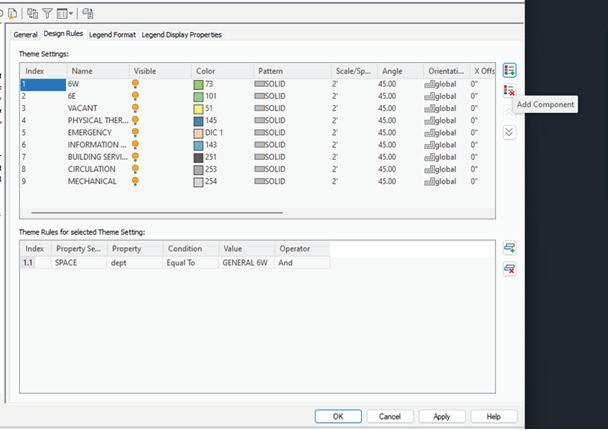
Figure 3 – Automatic Property Definition
Figure
AutoCAD Architecture
Next, you will specify the format for the design theme legend by clicking on the Legend Format tab. Enter the information that is pertinent to your style.
Last, you will specify the display properties for the display theme legend by clicking on the Legend Display Properties tab. You will then select the display representation on which to display the changes and select the Style Override. The display representation in bold is the current display representation. Click the Layer/Color/Linetype tab, select the component to change, if any, and select a different setting for the property. Once everything is finished, click OK twice.
Once your display theme style is created, you can drag and drop it onto the tool palette for future use. Doing this creates a display theme tool. Once it is placed on the tool palette, you can right-click on it and click on properties to add a description, change the scale of the legend, and so on.
ATTACH PROPERTY SET DATA
Now that you have created everything you need for your display theme, you will need to attach property set data to objects in your drawing. Select the objects to which you will be attaching property
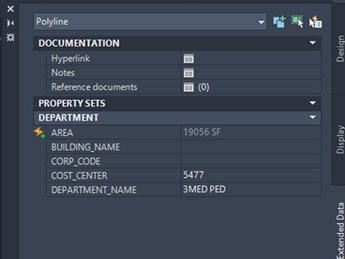
set data, right-click and select Properties. On the Properties Palette, click the Extended Data tab (see Figure 5). Next, click the button at the bottom of the palette to add property sets. Select the property sets to attach to the object and click OK.
The property set is now attached. You will find that the values for automatic properties are already filled in. At this point, you can enter data for manual properties for each object.
It is important to note that if you select more than one type of object, you can attach only the property set definitions that apply to all the selected objects. For example, if you select doors and windows, you can attach only those property sets that apply to both doors and windows.
DISPLAY THEME LEGEND
A display theme legend provides a key to the display theme, mapping specific colors, fills or hatches to properties of objects in a drawing. You insert a display theme legend into a drawing to activate a display theme and visually change the appearance of objects by overriding the current display properties.
The tools provided let you quickly place display theme legends by selecting a display theme tool with a specific display theme style and other predefined properties. When you place display theme legends using display theme tools, you can use the default settings of the tool or you can change settings for the display theme properties. You can also use display theme tools to apply the settings of a display theme tool to existing display themes.
The default Scheduling palette in the tool palette set contains three sample display theme tools you can use and customize as needed. Custom palettes created by your CAD Manager or other users may
Figure 5 – Properties Extended Data
also contain display theme tools with display theme styles and properties that are customized for your projects or office standards.
ACTIVATE DISPLAY THEME
The display theme legend activates the display theme in the viewport and identifies the meaning of the different colors, fills or hatches used in the theme. The data for the display theme legend is collected from the property set data attached to the objects or object styles, as specified in the display theme style. When you add new objects to a drawing, data is added to the legend if it meets the criteria you specified in the display theme style.
At this point, you are ready to add the theme you created into your drawing. The display theme is added to the drawing through either the scheduling tool palette or the command DisplayThemeAdd.
Open the tool palette that contains the display theme tool you want to use and select the tool. In the drawing area, specify the insertion point for the upper-left corner of the display theme legend. Then specify the lower-right corner of the legend
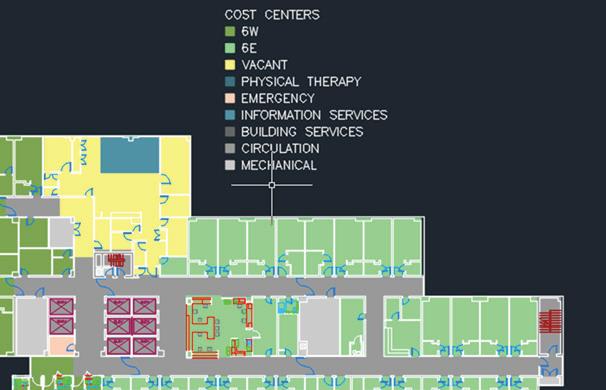
or press Enter to scale the display theme legend to the current drawing scale. The display theme is now activated (see Figure 6). At this point, you will notice that the objects affected by the display theme visually change in the drawing as indicated by the legend.
You can add more than one display theme to your drawing: however, only one theme at a time can be active. If you add a display theme to a drawing and there is already a display theme there, the older one will automatically be disabled when you add the new one. If new data is added to your drawing that meets the criteria of your display theme style, it will be added to the legend.

Melinda Heavrin is a CAD Coordinator & Facility Planner in Louisville, Kentucky. She has been using AutoCAD Architecture since release 2000. Melinda can be reached for comments and questions at melinda.heavrin@ nortonhealthcare.org.
Figure 6 – Display Theme Activation
Establishing a Shared Coordinate System in Revit: A Comprehensive Workflow for Model Alignment

Wait, I know what you are thinking.
“Massaro didn’t you do this article TWO times before?”
Yes, yes, I have, but it occurred to me that I have never really covered the way the Overlords at Autodesk have intended. So, let’s begin at the top as if you never read those other articles.
In building information modeling (BIM), accuracy in spatial positioning across disciplines is essential for effective coordination and construction documentation. As the complexity of projects increases and as models are shared across architecture, civil engineering, structural, mechanical, and other disciplines, establishing a
reliable shared coordinate system becomes integral to maintaining model integrity.
This article outlines a comprehensive and formalized workflow for setting up a Building Coordination Model (BCM) using Autodesk Revit. The steps involve linking a civil site file (typically a DWG file), importing XML-defined coordinate data, aligning and verifying geometry, and then transferring that coordinate data across all project models. This ensures that all BIM models reference a unified coordinate origin and orientation an essential component for accurate construction documentation, federated model coordination, and external reference integration (e.g., civil data platforms).
The structured approach presented here includes three key stages:
1. Establishing the Building Coordination Model
2. Sharing the Coordinates with Scenario-specific Models
3. Verification of Coordinate Integrity via CAD Export
Let us explore these phases in depth.
I. ESTABLISHING THE BUILDING COORDINATION MODEL (BCM)
The Building Coordination Model serves as the foundation upon which all other disciplinespecific models will align. It incorporates the civil background drawing and defines the shared coordinate system against which all geometry will be referenced.
Step 1: Starting the Revit Coordination File
Initiate the process by opening the designated Revit starter file and saving it into the project’s collaboration environment (e.g., Autodesk BIM 360 or ACC).
Step 2: Configuration of Project Units
To maintain consistency and prevent discrepancies in unit interpretation across platforms or file exchanges:
• Access the Manage tab, select Project Units.
• Set Length Units to Feet
• Under Rounding, choose Custom with a rounding increment of 0.0001.
• Confirm the changes to ensure that all geometry and coordinate inputs adhere to standardized measurement precision.
Step 3: Site Link and Orientation
Create a site plan view to use as your main view where your work for this takes place. This becomes your “source of truth” as I call it normally, I name it “Coordination Site Plan” then adjust the view orientation to True North. This will allow you to align the site geometry with the project (screen) orientation.
Link the civil DWG file into the project with the following parameters:
• Positioning: Auto – Origin to Internal Origin
• Layers/Levels: All
• Insertion Elevation: Level 1
• Import Units: Auto-Detect
• Orient to View: Enabled (Checked)
• Correct lines that are slightly off axis: Disabled (Unchecked)
This step puts the civil base in alignment with Revit’s internal coordinate system.
Step 4: Initial Geometry Alignment
Now it’s important to note before doing this step you need to make sure that you have two coordination points with northing and eastings given to you by your civil engineer. This allows you to input that same data which then becomes your civil coordination points and where we place our survey and project base points. I like getting this information accurate to the 4th decimal place to make sure that we have everything dialed in and as accurate as possible.
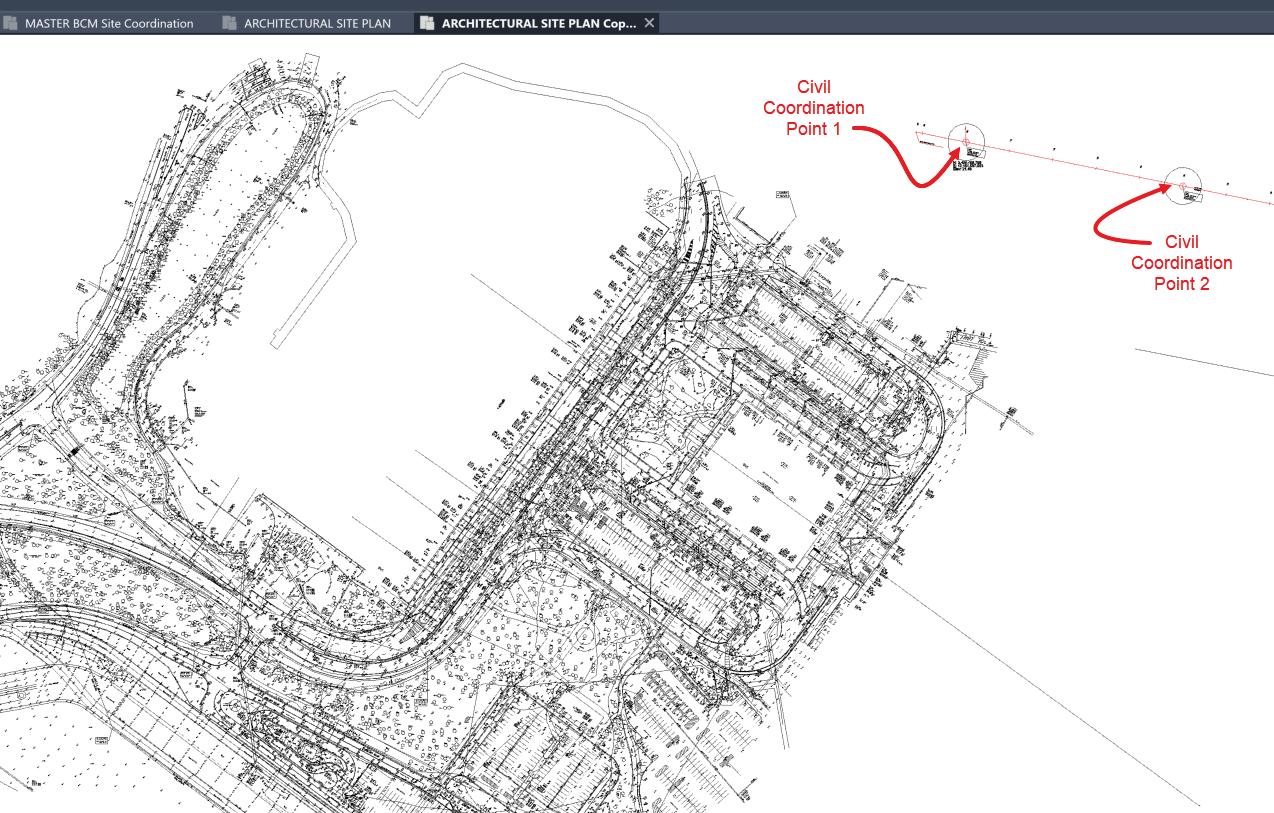
Once linked, unpin the civil file to allow repositioning. Manually move the CAD geometry so that all relevant geometry remains in the positive quadrant, up and to the right of Revit’s internal origin. This positioning is preferred for Revit performance and historical compatibility reasons. Use Revit Model Lines to draw:
• A circle around each civil-provided reference point (usually property corners or control points).
• A vertical line representing True North for visual validation.
Step 5: Establishing Survey and Base Points
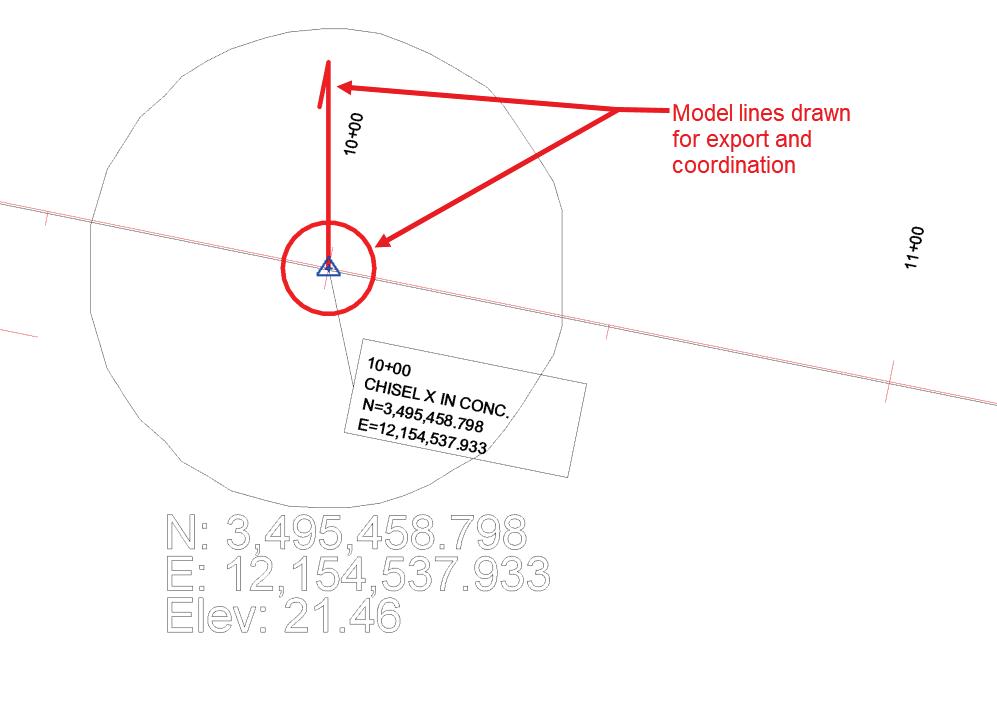
Unclip and place the Survey Point at the first civil coordination point. Then, adjust the Project Base Point to the second referenced location. This mimics the known setup provided by the civil engineer and sets a future framework for orientation and elevations. Now you are going to manually specify coordinates by activating
the Manage tab > Project Location > Specify Coordinates at Point. Input the coordinates observed from your civil drawing.
Next, find the civil reference points in the cad file and use Revit Model Lines to draw:
• A circle around each civil-provided reference point (usually property corners or control points).
• A vertical line representing True North for visual validation.
Step 6: Verification of Point Accuracy
Using the Properties panel, verify that:
• The Survey Point and Project Base Point display valid X, Y (and optionally Z) coordinate values that match inputs from the DWG.
Once validated:
• Clip both points back in place.
• Pin them to prevent unintended action or movement during later modeling stages.
Step 7: Create and Define a Custom Site
This is crucial for distinguishing between internal coordinates and shared coordinates when managing multidisciplinary links.
• Navigate to Manage > Project Location > Location tab.
• Under Site, duplicate the default option (Internal).
• Name the duplicated entry to reflect the project (e.g., “ProjectXYZ_Site01”) and mark it as Current.
This site will later be used in linked models to acquire coordinates.
II. VERIFYING COORDINATE ACCURACY VIA DWG EXPORT
Before propagating coordinates to additional models, it is best practice to validate the accuracy of the defined coordinates through downstream file exchange.
Step 8: Create a Site Export View
• Duplicate the active site plan. Rename the view (e.g., “Site Export”).
• Hide all elements except:
• Civil coordination point circles
• Vertical true north direction line
This simplifies the validation and avoids clutter during export.
Step 9: Export to AutoCAD Format
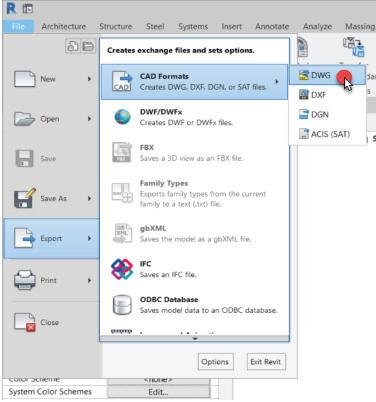
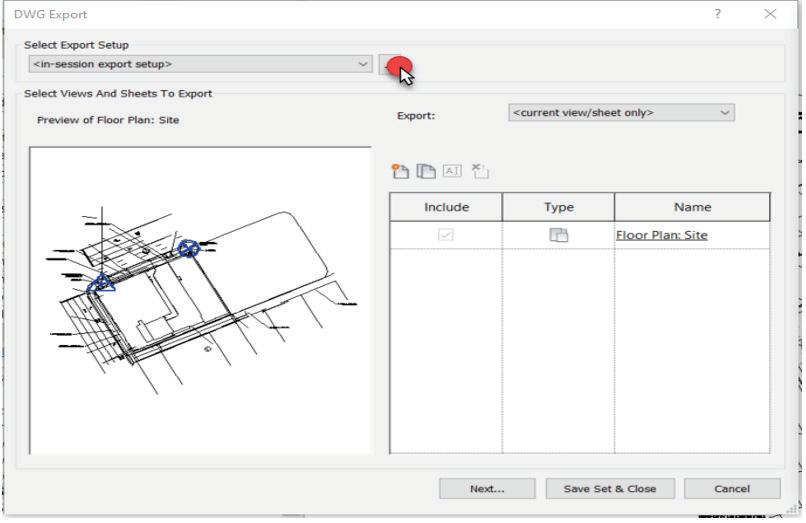
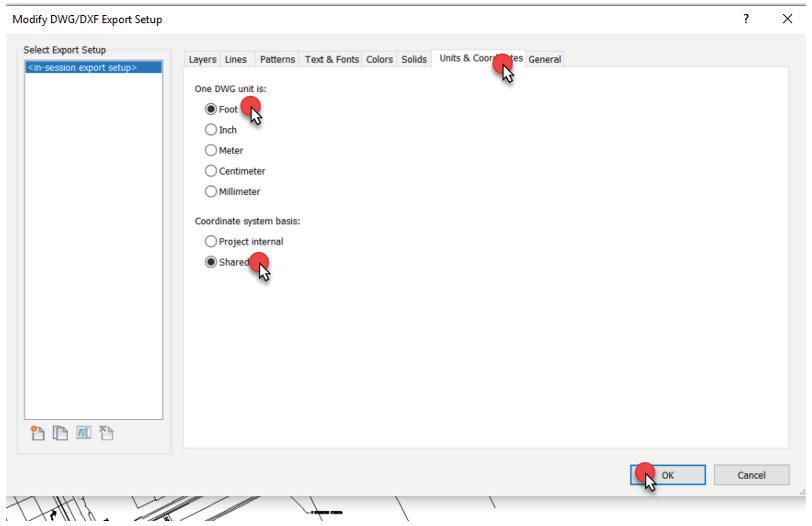
Export the view to DWG using the following configuration:
• Go to File > Export > CAD Formats > DWG
• Under the “DWG Export Setup” dialog:
• Units tab:
• DWG Unit: Foot
• Coordinate base: Shared Coordinates
Save the file to a predefined location on your local or network workspace.
Step 10: Open and Configure AutoCAD for Comparison
Open the exported DWG in AutoCAD for validation:
Use command DDUNITS to configure:
• Length Type: Decimal
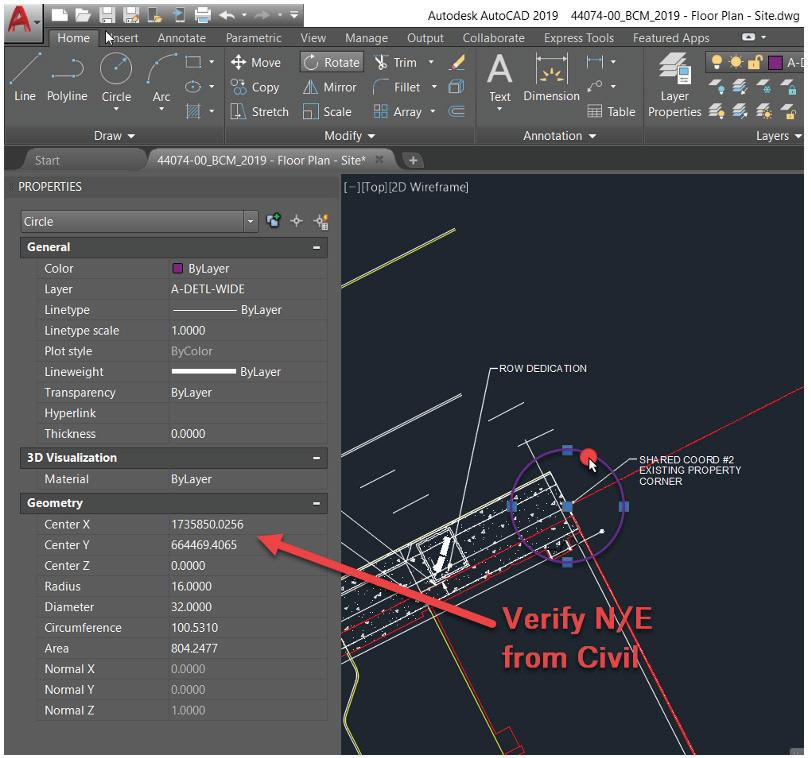
• Precision: 0.0000
• Insertion Scale: Feet
Once opened:
• Select the content (circle(s)) representing the civil coordination points
• Review the X and Y center coordinates via the Properties Palette
Step 11: Coordinate Validation
If the values shown correspond with the original civil-provided data, the coordinate system has been accurately embedded and is now suitable to be propagated to discipline-specific models.
III. COORDINATE SHARING WITH SCOPESPECIFIC MODELS
Once the BCM has been established, the next stage involves linking it into architectural, structural, mechanical, or other specialized models so that they inherit the shared coordinate system.
Step 12: Open Project Models
Open the target scope model (e.g., Architecture or Structural). Navigate to a Floor Plan view, ideally set to Project North for clarity and ease while linking.
Step 13: Link BCM File
Link the saved BCM file using:
• Auto – Internal Origin to Internal Origin positioning.
Ensure that visibility settings in this view allow for the site and reference geometry to be detected.
• Go to Visibility Graphics (VG).
• Under Revit Links > Display Settings, choose “By Linked View” and select the site view created earlier (“Site Export”).
• Confirm visibility of model lines and coordination tags.
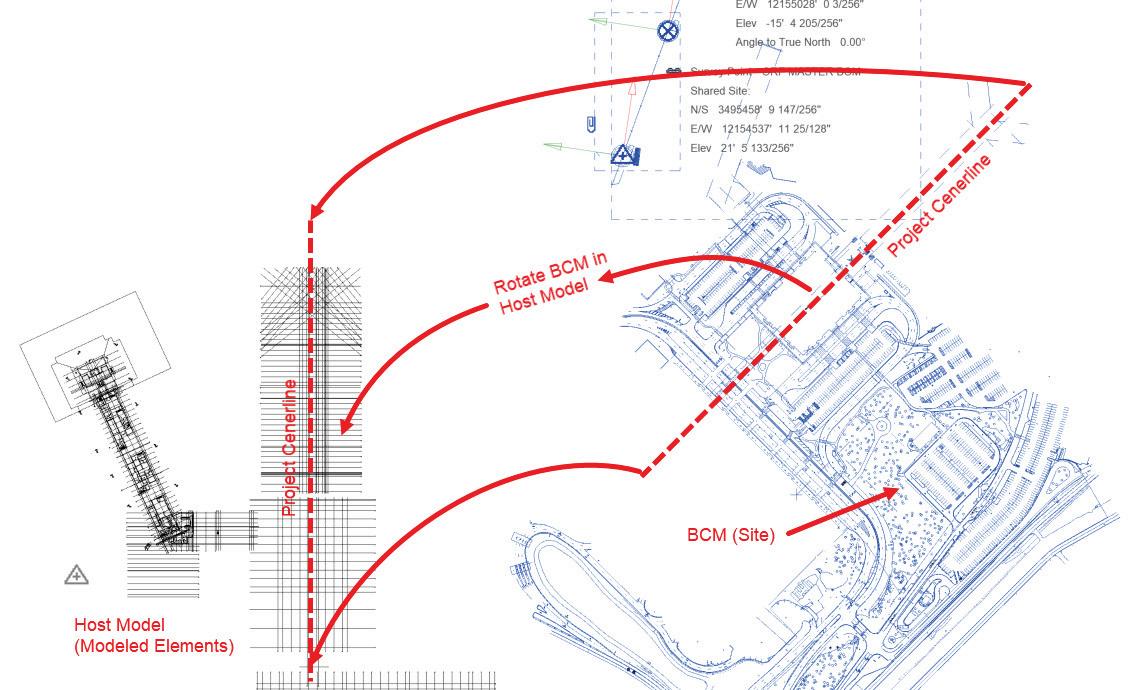
Once linked, unpin the civil file to allow repositioning. Manually move the BCM model (site) to align to your model. This is the most important part of the process. You are moving the site under your model and not moving your model on the site. Using this approach you do not impact the location of any existing views or geometry. So, make sure you move the site CAD in the x, y, and z axis. So that means you will need to adjust the location of the CAD from a section or elevation.
Step 14: Align Reference Points
In the active project model:
• Unclip the Survey Point and place it exactly over the matching coordination point used in the BCM.
• Relocate the Project Base Point to meet its counterpart from the BCM model.
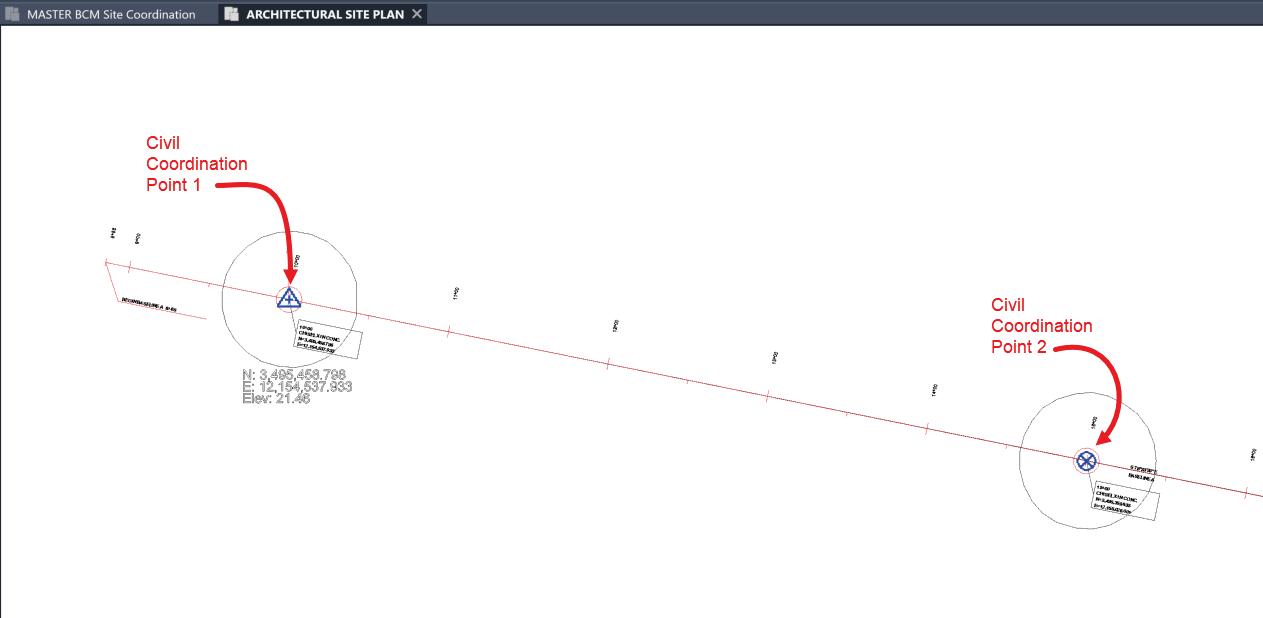
Using the Align tool or temporary dimensions, precisely match the two reference icons in plan view from your link to your working file.
Step 15: Acquire Coordinates
• Navigate to Manage > Coordinates > Acquire Coordinates.
• Select the linked BCM.
• When prompted, apply the named site definition established earlier (i.e., “ProjectXYZ_ Site01”).
This operation imports the shared coordinate system into your model.
IV. FINAL VERIFICATION AND MODEL INTEGRATION
Before proceeding to federate model links or detailed modeling inputs, it is highly advisable to
conduct a verification export process in the newly aligned project model.
Step 16: Repeat the DWG Export Process
Duplicate the site export process previously used in the BCM:
• Create a dedicated “Site Export” view in your model.
• Follow the same export configuration under File > Export > CAD Formats > DWG
• Ensure Shared Coordinates and Foot settings are retained.
• Export and open in AutoCAD.
Step 17: Final AutoCAD Validation
• Open DWG.
• Use DDUNITS for final verification.
• Check X/Y center values against civil file.
• Confirm that the shared coordinates are successfully importing across all project scopes.
VI. WHY VERIFYING COORDINATES IS ESSENTIAL
1. Ensures Spatial Accuracy Across Disciplines
When multiple design teams such as civil, architectural, structural, and MEP contribute models to a shared site, it’s vital that all models align in the same real-world location. Verifying coordinates helps confirm that:
• Your model is properly geo-located.
• Linked models will land in the correct position without manual adjustments.
Failing to verify can lead to misaligned models, inaccurate clash detection, or even on-site construction errors.
2. Confirms Successful Import of Shared Coordinates
Importing shared coordinate data does not guarantee success. Verification acts as a confirmation step to:
• Validate that the Survey Point and Project Base Point reflect expected Northing and Easting values.
• Detect any misapplied transformation, scale issue, or error in manual entry.
Think of it as a “checksum” step in the workflow.
3. Prevents Downstream Errors in Documentation and Collaboration
If coordinates are incorrect and go unnoticed, issues can compound, affecting:
• Site plans that might show incorrect building placement.
• Quantity takeoffs that reference wrong extents.
• Multidisciplinary model links that appear “lost” or incorrectly rotated when federated.
Verifying early limits these cascading problems.
4. Enables Accurate Interoperability with CAD and GIS Tools
Shared coordinates ensure that Revit models export correctly to AutoCAD, Civil 3D, GIS software, and survey equipment. Verifying the DWG export using DDUNITS in AutoCAD ensures that the coordinate origin and scale both match expectations—critical for:
• Construction layout preparation
• Site analysis
• Infrastructure integration
5. Supports BIM Execution Plan (BxP) Compliance
Many projects include BIM requirements or execution plans (BxP) that define specific geolocation standards and validation steps. Verification ensures:
• Compliance with these deliverables
• Avoidance of nonconformance issues during project reviews or handoffs
CONCLUSION
Establishing a robust and reliable shared coordinate system at the onset of a project is essential for ensuring consistency and avoiding errors in spatial alignment. This workflow presents a rigorous, reproducible method for creating a Base Coordination Model in Revit, importing standardized location data, and extending that spatial framework to all project models.
By following this methodology:
• You preserve accuracy between disciplines.
• Enhance coordination efficiency.
• Hold integrity across file transfers or third-party integrations (AutoCAD, GIS, etc.).
Moreover, this process enables future automation, quality control tools, and BIM execution plans to function properly across design, construction, and project lifecycle phases. Well, there you have it, my
third and final article on everyone’s favorite topic, Shared Coordinates. If you need some extra help with this process, you can view it here on YouTube: https://youtu.be/roThPY7zghQ
I have spent the last two years helping AUGIWorld with architectural Revit content-based articles. I have been able to highlight the cool stuff Gresham Smith is doing. Everything from how we use AI to help us do renderings and formulas in schedules to Model Management processes and mindsets.
It has been great to have this opportunity to share all this with you and I want to thank the management and staff at AUGI for allowing me to do that. It is time for me to move on and now it is your turn. Get involved and contribute to this great resource for our community and profession.

Jonathan Massaro is a Market BIM Leader and Associate in Gresham Smith’s Aviation Market, a leading multidisciplinary design and consulting firm for the built environment. He has worked in the architectural field for almost 30 years on projects of various size and type ranging from single family homes to airport terminals, and he began working in Revit in 2009. He was initially hired by Gresham Smith to work on the first Revit projects for the firm’s Healthcare market in Tampa back in 2011 and continued his work for the firms Aviation Market. In 2016 he relocated to the Nashville office to take a support role as a part of the Gresham’s Practice Technology group where he supported all the Architectural markets and worked to help streamline the firms Revit workflows and processes. At the beginning of 2025 Jonathan rejoined the Aviation Market in their new studio in Nashville where he manages the delivery of BIM services for the Aviation Market.

Disconnected but Not Disengaged: The Human Side of BIM
The Autodesk ecosystem never stops moving. Each year brings another wave of tools, updates, and integrations designed to make our projects more connected, coordinated, and efficient. Normally, I’d be right in the middle of it all, reading up on what Autodesk University sessions to view, testing the newest features in Revit or ACC, and talking shop on LinkedIn and various other platforms with other BIM professionals.
But a few months ago, the noise went quiet.
I didn’t get to attend Autodesk University. I lost access to my long-time Autodesk account thanks to SSO complications after leaving my previous firm. And, truth be told, after losing my job, I wasn’t active on LinkedIn or any other professional space other than some job hunting until a few weeks ago when I started posting my Weekly BIM Mastery tips. Life had shifted beneath my feet: the abrupt end of a 17+ year relationship, limited time with my kids after she took them from me, and the uncertainty of job loss all collided at once. Three or so months later, I still barely eat, I barely sleep because my brain won’t shut off, my mental well-being has gone out the window, and I lost nearly 25lbs. I even started seeing a therapist on a weekly basis. I do have the dogs to keep me company when I don’t have the kids but they may not be with me much longer if she has her way.
For the first time in years, I wasn’t plugged into the BIM world and that disconnection, as painful as it was, ended up teaching me more about this industry than any conference session ever could.
THE PRESSURE TO STAY PLUGGED IN
In our field, being “current” often feels like a badge of honor. BIM managers, coordinators, and modelers pride themselves on knowing the latest workflow, the new add-in, the clever Dynamo trick. We measure progress by updates installed and features mastered.
There’s an unspoken pressure to always be learning, to prove we’re keeping pace with a rapidly evolving industry. But when everything in life demands your attention at once, that constant connectivity becomes exhausting.
When I lost access to my Autodesk account, it felt like losing a part of my professional identity. More
than a decade of forum participation, certifications, and contributions gone behind a corporate login wall I couldn’t reopen. It was frustrating, yes, but it also forced me to pause. Without the usual stream of updates and notifications, I had to ask: *Why was I chasing all of this in the first place?*
The answer surprised me. Somewhere along the way, I had confused being connected with being effective.
THE HIDDEN BURNOUT BEHIND THE MODELS
Behind every model is a human being and yet, the culture of BIM often forgets that. We celebrate technical mastery and project delivery but rarely talk about the people behind the screen.
The truth is, many of us are exhausted, myself included. The long nights troubleshooting corrupted models. The relentless coordination meetings. The pressure to maintain standards across multiple teams while still producing billable work. The mental load of being the “BIM person” everyone turns to when something breaks can be daunting to say the least.
And that’s before life outside of work enters the equation.
This year, while I was dealing with personal upheaval, I realized that burnout doesn’t always come from the work itself, it comes from the belief that we can’t step away from it. We fear falling behind. We fear being forgotten. But sometimes the most valuable thing we can do is unplug long enough to remember who we are without the job title.
The toughest clashes I faced this year weren’t between ducts and beams, they were internal: balancing career identity against personal wellbeing, industry momentum against emotional exhaustion.
REDISCOVERING PERSPECTIVE
Now, as I prepare to start a new role with ACI Mechanical, I see the industry differently. I don’t feel the same rush to catch up on every announcement or master every new feature. Instead, I’m focused on bringing something the industry sometimes overlooks human perspective.
Technology is an incredible tool, but it’s the people who make it meaningful. I’m approaching this next chapter with a renewed appreciation for empathy, communication, and balance. My “industry insight” this year isn’t about a software update, it’s about sustainability of the humankind
We talk about model health all the time, but rarely about mental health. We maintain BIM execution plans, yet we often neglect personal execution plans, how to rest, how to recover, how to stay inspired. Reconnecting with those priorities has reminded me that innovation doesn’t come from exhaustion; it comes from clarity.
THE POWER OF PAUSE
Disconnection has a bad reputation. In reality, it can be one of the most productive things we ever do.
Stepping away gave me the space to reflect on the *why* behind my work. It reminded me that our industry isn’t defined by annual conferences or trending hashtags, it’s defined by the people solving problems day in and day out, often while quietly fighting their own battles.
I’m coming back into the fold not as someone scrambling to catch up, but as someone intent on showing up differently. My goal isn’t just to manage BIM systems, but to support the humans who rely on them. Because the best coordination model in the world doesn’t matter if the team behind it is burning out.
CLOSING THOUGHTS
We spend our careers perfecting how models connect to each other, how data, design, and construction come together in harmony. But
sometimes the most important connection is the one we rebuild with ourselves.
This year, I learned that it’s okay to step back. It’s okay to not know the latest feature list or attend the biggest event. The world keeps spinning, and that’s fine. What matters is what you bring when you return: perspective, gratitude, and a little more humanity.
Because sometimes the best way to understand the pulse of our industry is to lose the signal for a while — and listen to your own.

Jason Peckovitch, an AUGI Advisory Board Member, is an Autodesk Revit Certified Professional for Mechanical and Electrical Design located in SE Iowa. He is currently looking for his next company and role. His CAD/BIM career spans over 25 years, with over 18 years of experience in MEP coordination and Revit standards and content development. He writes regularly for AUGIWorld and shares weekly BIM Mastery insights across the AEC community. Jason is also the father of three children: Shelby (14), Blake (11) and Logan (8), a published photographer, gamer, and car/ tech guy. He can be reached at thatbimguy@gmail.com, found on X under the handle ThatBIMGuy, or connect with him on LinkedIn or several other user platforms like AUGI Community, CAD Manager’s School or BIM Heroes.






The First and Last Time I Spoke at AU

Just to give you a little insight into Autodesk University, for anyone who hasn’t heard of it, AU is the conference for Autodesk. It draws over 10,000 attendees, 200 exhibitors, and more than 500 classes and presentations packed into just a few days. The conference focuses on learning and collaboration, encouraging us to grow, share knowledge, and drive change across architecture, engineering and construction, product design and manufacturing, and media and entertainment. It’s a lot to take in.
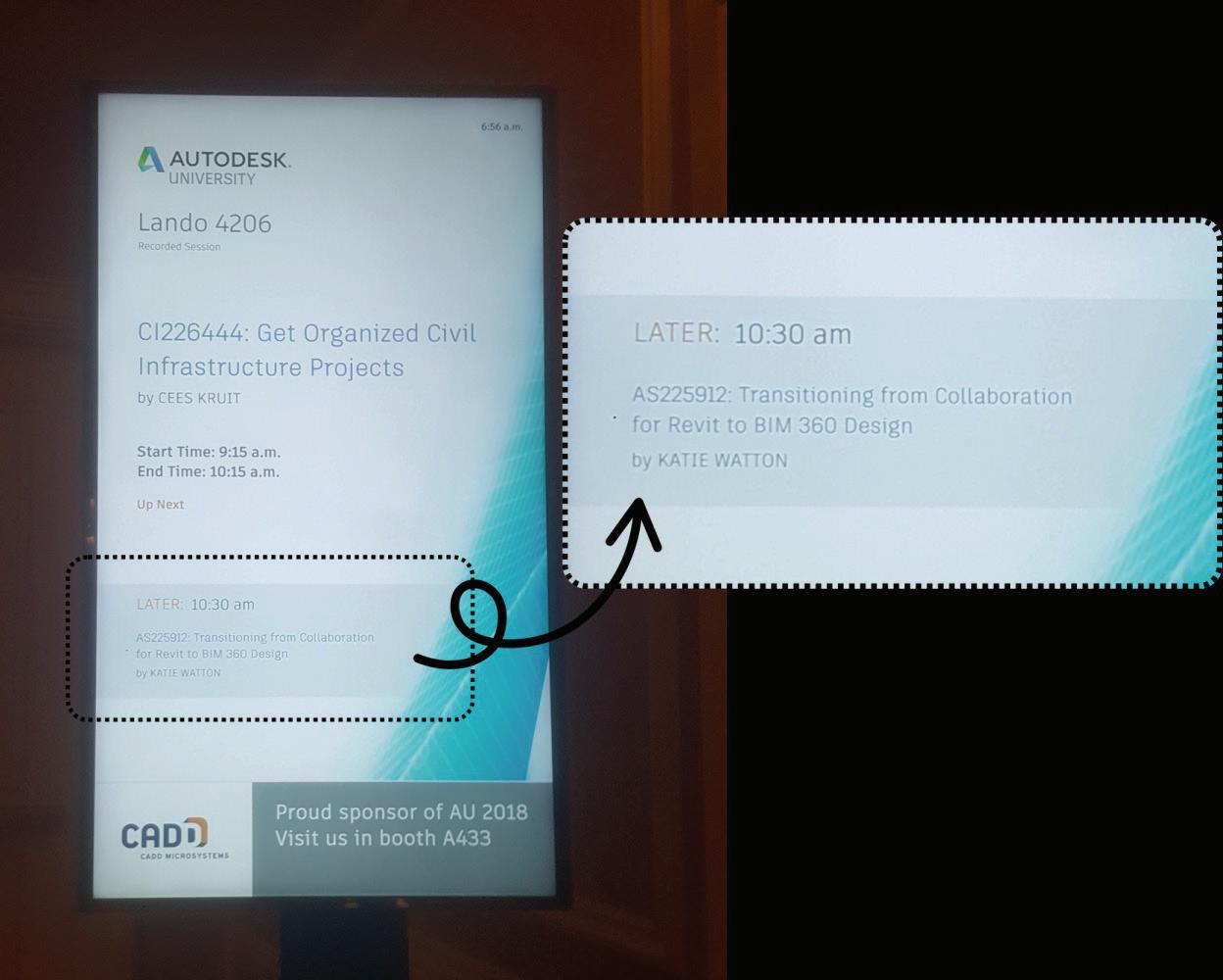
I’d been to AU a couple times before 2018. Once as a first-time attendee and once as a co-speaker and lab assistant. My first time, back in 2016, was completely overwhelming in the best way. I was still pretty new at Axoscape and just getting started with Revit. Most of the sessions flew right over my head, but I didn’t care. I couldn’t believe something like that even existed, let alone that I got to be part of it.
In 2017, I had just started with CADLearning, and the team encouraged everyone to submit proposals.
I don’t remember feeling pressured, maybe they knew I wasn’t quite ready yet. Lucky for me, I got to co-speak with Jason Boehning and assist in his Dynamo lab. It was the perfect way to get my feet wet without diving into the deep end.
THEN CAME 2018
Jason suggested I submit multiple proposals. He said it was tough for first-time speakers to get picked, so the more I submitted, the better my chances. Meanwhile, I told myself I’d submit one or two and let rejection do its thing.
So naturally… I submitted seven.
What the hell was I actually thinking?
Some of them covered the same content, just repackaged as lectures, roundtable discussions, and labs. I pretty much played AU roulette and threw everything out there, secretly hoping nothing would land. And then two did. Of course they did.
When I found out I got selected, not just for one session but two, I was shocked. Jason was thrilled. I was spiraling. I was genuinely confused that two got through. I thought it was supposed to be hard for first time speakers.
Oh, and I forgot to mention, my co-speaker session with my coworkers also got accepted. So now I had three sessions on my plate. And just my luck, they all ended up on the same day.
Most people submit because they’re excited to speak. I submitted because I was too afraid to say no and didn’t want my company to pay for my pass to attend. For anyone wondering, speakers get free entry and a stipend per accepted session. At the time, I think it was $300. So, I chose a topic I actually felt decent about. BIM 360. It was still fairly new, and I figured that it gave me a better shot at sharing something useful.
I didn’t know how to feel. All I could think about were the seasoned speakers, the ones who show up every year with 10, 20, 30 years of experience under their belts. Me? I had three. Two in consulting, one in content. What could I possibly bring to the table that those people didn’t already know?
I got so focused on the experienced crowd that I completely overlooked the people who were
just like me. The first timers. The beginners. The ones just trying to figure it all out. They weren’t looking for a polished expert. They were looking for someone relatable. Someone who remembered what it felt like to be in their shoes. Someone who could make the learning curve feel a little less like a brick wall.
In the months leading up to AU, I practiced here and there but never managed a full run-through until Jason asked me to do a mock session about a month before the conference. Even that was nerveracking. I was scared to present to one person. How was I going to face a full room? But as always, Jason gave solid, encouraging feedback that made me feel like maybe I wasn’t completely in over my head.
I’m not going to lie; I was freaking terrified. I don’t think I’ve ever felt that much anxiety in my life. Even just practicing felt overwhelming. I was so scared I barely rehearsed my presentations at all. Who does that? Maybe I was in denial. Or maybe I thought if I ignored it long enough, it would just… be over.
THE CURVEBALL
The day before my sessions, I still hadn’t practiced much. My plan was to get back to my room early and lock in for a marathon prep session. Instead, I came down with what felt like the flu around 2 p.m.
I took a nap, hoping to sleep it off. I woke up at 8 p.m. feeling even worse. Still hadn’t practiced. I dragged myself across Las Vegas Boulevard to Walgreens and grabbed anything that looked remotely helpful. Back at the hotel, I wrapped myself in a blanket on the bathroom floor with the shower running hot, hoping the steam would fix me. It didn’t.
I went to bed that night without running through either presentation once.
SHOWTIME
The next morning, I still felt awful. Our co-speaker session kicked off the day and ran for an hour and a half. My part lasted maybe five minutes, but it was terrifying standing up there next to my coworkers with so much experience. They’ve always been incredibly supportive and patient, though, and I’m genuinely grateful I got to share the room with them.
Yep, that’s me at the bottom of the sign. Enhanced for visibility (and pride).
Right after my co-speaker session, I had to run straight to my solo class, which meant I still didn’t have time to prepare. I was early enough to mic up, set up my slides, and step into the hallway to greet attendees. That’s when I saw people showing up. Like, a lot of people. Out of 100 registered, around 60 walked in. And suddenly, something flipped.
The nerves just disappeared. What was I going to do with them anyway?
Calm before the storm...
I don’t know if it was adrenaline or pure survival mode, but I went into autopilot. I got through the entire session without anyone walking out, and honestly, I counted that as a win.
The Q&A, however? Yeah… not my strongest moment. I hadn’t prepared for that part at all. Luckily, Jason was in attendance and jumped in to help answer a few questions.
LAST BUT NOT LEAST
I had about two hours before my next class and figured I’d finally have time to prepare for that one. But of course, Autodesk chose that exact morning to push a live update to the Model Coordination module. The same one I was about to teach. I thought Autodesk knew this was supposed to be my day. At that point, I was just trying to keep the train on track.
So instead of prepping, I spent most of that break trying to figure out if the update had completely derailed my content. Thankfully, it didn’t. If anything, it made me sound more up to date than anyone else in the room.
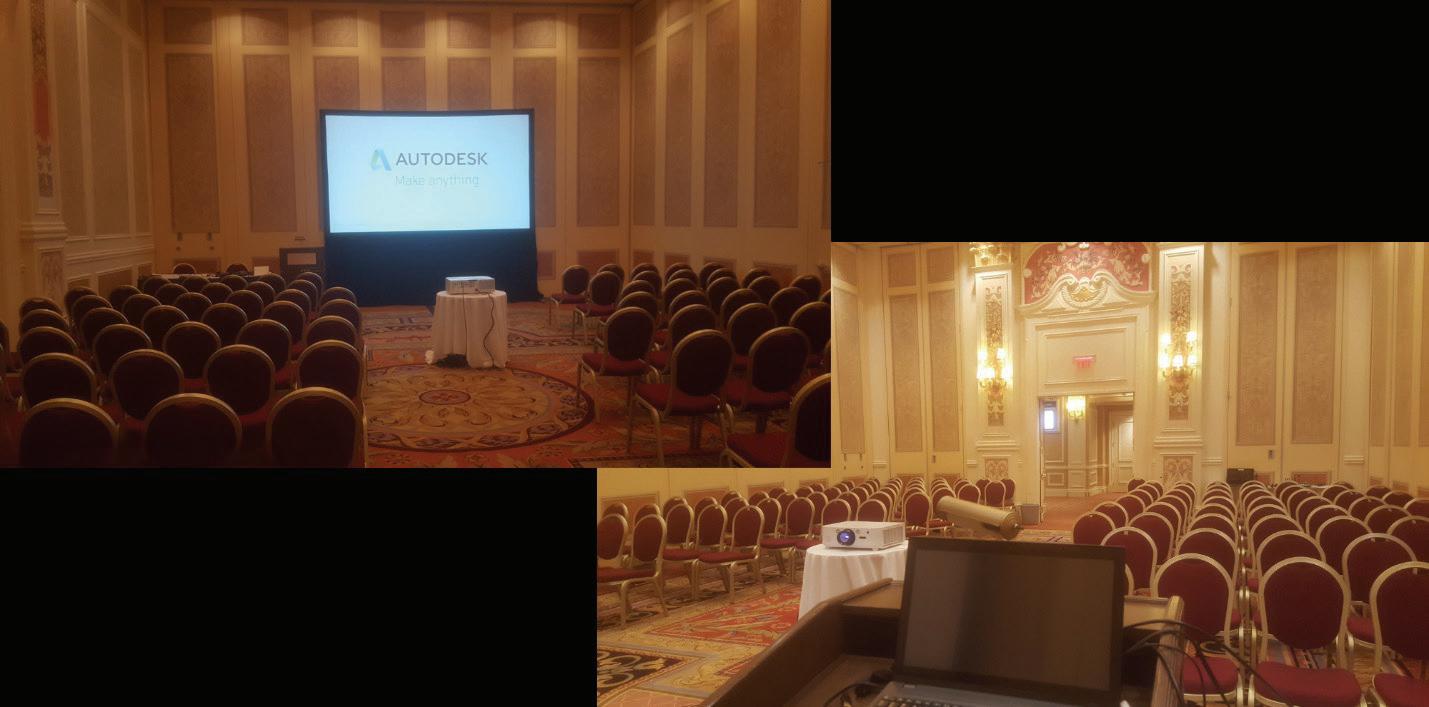
was all over, the flu disappeared. Gone. No chills. No headache. No congestion. Just... normal again. At that point, I realized it wasn’t a virus at all. Just a good old-fashioned stress flu.
WHAT I LEARNED
After my sessions and the years that followed, I told everyone I was never doing that again. I was proud I pushed through, but I’ve never carried that much stress in my life. Not before. Not since.
And if I’m really being honest, it wasn’t just the pressure of presenting. It was imposter syndrome, full blast. Even after submitting the proposals, getting selected, and preparing the content, I still felt like I didn’t belong up there. I second-guessed myself constantly. I told myself I wasn’t experienced enough or confident enough to be leading a class at AU.
But here’s what I’ve learned since: imposter syndrome doesn’t mean you’re not qualified. It just means you care. And just because something scares you doesn’t mean you’re not ready.
You don’t have to feel like you belong to show up. Sometimes you show up anyway and realize you belonged the whole time.
FINAL THOUGHT
If you’re on the fence about submitting a proposal to AU, or even just attending, I hope my experience sheds a little light. It’s not about how many years you’ve got under your belt. It’s about the growth
you walk away with. The sense of accomplishment you earn just by showing up. Even if someone gets up and walks out, they’re not the ones taking the risk. They don’t know what it takes to stand up there and put yourself out there. You do.
And if you do decide to submit and actually get selected, please practice. Don’t procrastinate. Because you too may end up on the bathroom floor, wrapped in a blanket, bargaining with the shower steam gods.

Katie Watton is a Project Manager at The Raymond Group, a framing, drywall, and specialty finishes contractor. Her background includes project engineering, metal and drywall prefabrication detailing, and BIM modeling. She has helped design firms implement Revit, streamline workflows, and adopt best practices across their teams. Katie also developed Autodesk learning content and training solutions under the CADLearning brand and has taught classes at Autodesk University. In her free time, she writes about career gambles, growth, and finding purpose in the AEC world through her blog, Life in Roulette Mode.
Expansion Joints vs. Construction Joints in Concrete Structures

Concrete behaves differently under loads, temperature variations, and timedependent factors such as creep and shrinkage. To control cracking, improve performance, and allow for practical construction sequencing, joints are introduced into the concrete system. Two major categories of joints are expansion joints and construction joints. Although they may seem similar, their functions, design details, and placement requirements are distinct.
1. EXPANSION JOINTS
Definition
Expansion joints are intentional gaps provided in concrete structures to allow for thermal expansion, contraction, or structural movement without inducing harmful stress or uncontrolled cracking.
Purpose
• To absorb movements due to temperature fluctuations (especially in exposed structures like pavements, bridges, and slabs-on-grade).
• To isolate structural components (e.g., separating a building slab from a retaining wall or a column).
• To prevent buckling, spalling, or joint crushing when concrete expands.
Design Details
• Full-depth separation: Expansion joints usually extend through the full depth of the slab or member.
• Filler material: Compressible materials such as rubber, cork, bituminous fiberboard, neoprene, or closed-cell foam are used.
• Sealants: Flexible sealants are often applied at the surface to prevent water infiltration.
• Spacing: Expansion joints in slabs are typically placed at intervals of 20–30 meters (depending on design code, climate, and material properties).
• Codes/Guidelines: ACI 224.3R, ASTM D1751 (for expansion joint fillers), and highway design manuals provide specific recommendations.
Applications
• Highway and airport pavements
• Bridge decks and approach slabs
• Long concrete walls and industrial floors
• Separations between building wings or between slabs and fixed structural elements
2. CONSTRUCTION JOINTS
Definition
A construction joint is the surface formed when concrete placing is interrupted and then
resumed. It does not allow movement but is designed to ensure structural continuity.
Purpose
• To divide large pours into manageable segments.
• To provide a bonded interface between previously hardened concrete and fresh concrete.
• To ensure load transfer across the joint where structural action continues.
Design Details
• Location: Should be located at points of minimum shear and bending stress, often at the mid-span of slabs or the mid-height of walls.
• Bonding: Surfaces are roughened or keyed to enhance mechanical interlock.
• Reinforcement continuity: Reinforcing bars are extended across the joint; sometimes dowel bars or shear keys are used for load transfer.
• Sealing: In water-retaining structures, waterstops (PVC or rubber) are often embedded to prevent leakage.
• Codes/Guidelines: ACI 301 and ACI 318 provide requirements for construction joints in structural elements.
Applications
• Large mat foundations or raft slabs
• Tall concrete walls and retaining structures
• Columns, beams, and multi-story frame construction
• Water tanks and reservoirs (with additional waterstop detailing)
CONCLUSION
• Expansion joints are used to accommodate movement and prevent stress buildup in large or exposed concrete structures.
• Construction joints are used for workability and structural continuity, allowing large pours to be executed in stages without loss of strength.
Both are essential in concrete design, but they serve different engineering purposes. Proper detailing according to standards like ACI 224.3R, ACI 301, and ACI 318 ensures durability, safety, and serviceability of concrete structures.
Joints in Concrete

Ali Al-Azzawi, P.E., ENV SP Civil Engineer | Site Development & Structural Systems Specialist | Educator
Ali Al-Azzawi is a licensed civil engineer specializing in site development, civil and site design, and the integration of structural systems for a wide range of projects. His diverse project experience spans municipal, commercial, educational, and transit sectors, where he delivers comprehensive solutions in site layout, grading, earthwork, and infrastructure design. Ali is particularly skilled in erosion control strategies and advanced stormwater management, including both static and dynamic modeling approaches.
In addition to his engineering practice, Ali is an active educator, teaching courses in Revit, Civil 3D, and construction management at Houston Community College. He brings real-world design and project management expertise into the classroom, preparing students for careers in the built environment.
Ali earned a Master of Science in Structural Engineering from the University of Houston, a Master of Science in Project Management from DeVry University, and a Bachelor of Science in Civil Engineering from Mustansriah University. He is a Licensed Professional Engineer in Texas and an Envision Sustainability Professional (ENV SP), demonstrating his dedication to delivering resilient, sustainable site and structural design solutions.