Chapter 12: Simulations with ADePT
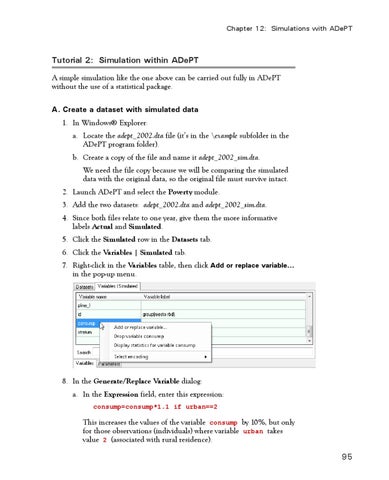
Tutorial 2: Simulation within ADePT A simple simulation like the one above can be carried out fully in ADePT without the use of a statistical package. A. Create a dataset with simulated data 1. In WindowsŽ Explorer: a. Locate the adept_2002.dta file (it’s in the \example subfolder in the ADePT program folder). b. Create a copy of the file and name it adept_2002_sim.dta. We need the file copy because we will be comparing the simulated data with the original data, so the original file must survive intact. 2. Launch ADePT and select the Poverty module. 3. Add the two datasets: adept_2002.dta and adept_2002_sim.dta. 4. Since both files relate to one year, give them the more informative labels Actual and Simulated. 5. Click the Simulated row in the Datasets tab. 6. Click the Variables | Simulated tab. 7. Right-click in the Variables table, then click Add or replace variable... in the pop-up menu.
8. In the Generate/Replace Variable dialog: a. In the Expression field, enter this expression: consump=consump*1.1 if urban==2
This increases the values of the variable consump by 10%, but only for those observations (individuals) where variable urban takes value 2 (associated with rural residence).
95