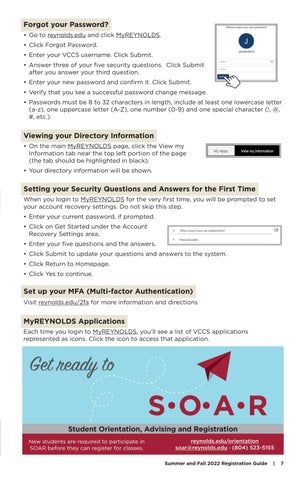
Forgot your Password? • Go to reynolds.edu and click MyREYNOLDS. • Click Forgot Password. • Enter your VCCS username. Click Submit. • Answer three of your five security questions. Click Submit after you answer your third question. • Enter your new password and confirm it. Click Submit. • Verify that you see a successful password change message. • Passwords must be 8 to 32 characters in length, include at least one lowercase letter (a-z), one uppercase letter (A-Z), one number (0-9) and one special character (!, @, #, etc.).
Viewing your Directory Information • On the main MyREYNOLDS page, click the View my Information tab near the top left portion of the page (the tab should be highlighted in black). • Your directory information will be shown.
Setting your Security Questions and Answers for the First Time When you login to MyREYNOLDS for the very first time, you will be prompted to set your account recovery settings. Do not skip this step. • Enter your current password, if prompted. • Click on Get Started under the Account Recovery Settings area. • Enter your five questions and the answers. • Click Submit to update your questions and answers to the system. • Click Return to Homepage. • Click Yes to continue.
Set up your MFA (Multi-factor Authentication) Visit reynolds.edu/2fa for more information and directions
MyREYNOLDS Applications Each time you login to MyREYNOLDS, you’ll see a list of VCCS applications represented as icons. Click the icon to access that application.
Get ready to
S•O•A•R Student Orientation, Advising and Registration New students are required to participate in SOAR before they can register for classes.
reynolds.edu/orientation soar@reynolds.edu · (804) 523-5155 Summer and Fall 2022 Registration Guide
|
7