REGISTRATION GUIDE | SUMMER AND FALL 2022
SIGN UP FOR SUMMER AND FALL CLASSES TODAY Summer and Fall 2022 Registration Guide
|
1
Interested in a career in Public Safety, Early Childhood Education, Healthcare, Information Technology, and Skilled Trades? Then you might be eligible for G3 at Reynolds. G3 is a tuition assistance program for any Virginia resident who qualifies for in-state tuition and whose family income falls below an identified threshold. It could mean you would pay little to no tuition.
Visit reynolds.edu/g3 today to learn more! To speak with a Reynolds representative email recruitment@reynolds.edu or call (804) 523-5789.
G3: GET SKILLED. GET A JOB. GET AHEAD. 2
|
Reynolds Community College
TABLE OF CONTENTS 6 Easy Steps to Get Started........................................................................................ 4 Step 1: Apply and log on.............................................................................................. 6 Step 2: Financial Aid..................................................................................................... 8 Step 3: Explore Careers................................................................................................ 10 Thinking about Transferring?...................................................................................... 12 Short-term Training....................................................................................................... 13 Step 4: Direct Enrollment............................................................................................ 14 Step 5: Get Advised...................................................................................................... 16 Step 6: Register and Pay.............................................................................................. 18 How to enroll at Reynolds........................................................................................... 19 Set yourself up for Success......................................................................................... 21 2022 Summer Academic Calendar............................................................................ 22 2022 Fall Academic Calendar..................................................................................... 22 Reynolds Community College does not discriminate on the basis of age, color, disability, family medical history or genetic information, military service, national origin, parental status, political affiliation, race, religion, sex (including pregnancy and gender identity), sexual orientation, or any other non–merit based factor. Reynolds offers programs under its open admissions policy. Admission to select vocational programs is based on a separate application process that is nondiscriminatory. For the full policy and a list of select programs, visit reynolds.edu.
Summer and Fall 2022 Registration Guide
|
3
6 EASY STEPS TO GET STARTED New students start here.
1
Apply and log on to MyREYNOLDS within 24 hours to activate your account.
Apply to Reynolds at reynolds.edu and receive your Empl ID (student ID) and username. Save this information! You will need both to log on and create a MyREYNOLDS account within 24 hours of applying. Time-sensitive information is sent here, and to your personal email account used on the application. It is important to check these often. To change your password • Visit reynolds.edu • Select MyREYNOLDS from the top bar • Choose Student Information System (SIS) • Select My Student Information Set up your MFA (Multi-factor Authentication) • Visit reynolds.edu/2fa for more information.
2
Apply for Financial Aid
Complete the Free Application for Federal Student Aid (FAFSA) at studentaid.gov by the priority deadlines: April 15 for fall semester, and Sept. 15 for spring semester. Use the Reynolds Federal School code: 003759. For more information visit reynolds.edu/financialaid. To be considered for financial aid, you must apply each year. The Reynolds Scholarship Office offers more than 100 private scholarships. Apply for any scholarship using the online common application. Applications are accepted between Dec. 1 and March 1. Visit reynolds.edu/scholarships. 4
|
Reynolds Community College
3
Explore career pathways to stay on track
4
Direct enrollment will maximize your success in college-level math and English classes.
Reynolds offers over 80 exciting programs and career paths. Check out the Navigate icon in your MyREYNOLDS account to see your path based on the program or major you selected. If you are undecided, or do not see your program in Navigate, go to reynolds.edu and view Majors A to Z. See Explore Careers on page 10.
Complete your college studies in less time, saving more money. Go to reynolds.edu/directenrollment and learn how to enroll in the math and English class/es best suited for you. Self-placement and enrollment criteria are based on things like how many years you’ve been out of high school, your GPA, and other transcript details.
5
Attend Orientation and Get Advised
New students get advised by registering for a live virtual Student Orientation And Registration (SOAR) session through our orientation website and will need to complete a virtual Go2Reynolds online orientation component prior to their SOAR session. Sign up at reynolds.edu/orientation and go2reynolds.com. Returning students start here. Returning students are advised by meeting with an advisor before registering for class. All students can set up advising appointments using Navigate in their MyREYNOLDS account. For more information on advising services, visit reynolds.edu/advising.
6
Register and Pay for Classes Register early to get the classes you want. Create your class schedule by:
• Logging on to MyREYNOLDS • Choose Student Information System (SIS). Register early to get the classes you need and the schedule you want. Pay for your classes. For the most current tuition and payment due dates, visit reynolds.edu/tuition. Pay online through MyREYNOLDS > SIS or in-person at any campus Business Office. To check your financial aid award status: • Log on to MyREYNOLDS • Choose Student Information System (SIS) For information about payment plans, refunds, or paying with a scholarship, savings plan, or other third-party sponsor, visit reynolds.edu/businessoffice. NOTE: You will receive a reynolds.edu email account after you register.
Summer and Fall 2022 Registration Guide
|
5
STEP 1: APPLY AND LOG ON Log On to MyREYNOLDS MyREYNOLDS provides a common point of entry to access Canvas, Navigate, Student Email, Student Information System (SIS), and to manage account information using one log on and one password. Users must look up their Username, Empl ID, and set their password the first time they access their accounts.
Forgot Username and EMPL ID? • Go to reynolds.edu and click MyREYNOLDS. • Click Forgot Username.
Enter User Information • Click the I’m not a robot box, click Continue. • Enter your first and last name, and date of birth. • Enter one of the following: your Empl ID or social security number. • Click Next. • C lick the correct button if you know or do not know your password and click Next.
If you can’t find your Username and Empl ID, need help with MFA (Multi-factor Authentication), or don’t know which semester to enroll, call the Reynolds Information Center at (804) 371-3000. For more information visit reynolds.edu and click Technology Support under Register for classes. 6
|
Reynolds Community College
Forgot your Password? • Go to reynolds.edu and click MyREYNOLDS. • Click Forgot Password. • Enter your VCCS username. Click Submit. • Answer three of your five security questions. Click Submit after you answer your third question. • Enter your new password and confirm it. Click Submit. • Verify that you see a successful password change message. • Passwords must be 8 to 32 characters in length, include at least one lowercase letter (a-z), one uppercase letter (A-Z), one number (0-9) and one special character (!, @, #, etc.).
Viewing your Directory Information • On the main MyREYNOLDS page, click the View my Information tab near the top left portion of the page (the tab should be highlighted in black). • Your directory information will be shown.
Setting your Security Questions and Answers for the First Time When you login to MyREYNOLDS for the very first time, you will be prompted to set your account recovery settings. Do not skip this step. • Enter your current password, if prompted. • Click on Get Started under the Account Recovery Settings area. • Enter your five questions and the answers. • Click Submit to update your questions and answers to the system. • Click Return to Homepage. • Click Yes to continue.
Set up your MFA (Multi-factor Authentication) Visit reynolds.edu/2fa for more information and directions
MyREYNOLDS Applications Each time you login to MyREYNOLDS, you’ll see a list of VCCS applications represented as icons. Click the icon to access that application.
Get ready to
S•O•A•R Student Orientation, Advising and Registration New students are required to participate in SOAR before they can register for classes.
reynolds.edu/orientation soar@reynolds.edu · (804) 523-5155 Summer and Fall 2022 Registration Guide
|
7
STEP 2: FINANCIAL AID Apply For Financial Aid at reynolds.edu/financialaid The financial aid process may take up to four to six weeks. Plan ahead and complete your FAFSA as soon as possible beginning Oct. 1. Students are encouraged to apply between October and April and follow up with Reynolds to ensure everything is completed by April. To view your Award Status • Select MyREYNOLDS from the top bar • Choose Student Information System (SIS) • Select Award Status FAFSAs (or VASA Applications) received after this April, 15, 2022 will be processed in date order after all priority applications have been reviewed. This means you may have to pay for tuition and books from personal funds while awaiting an award notification from the Office of Financial Aid regarding your eligibility for financial aid. You must apply annually at studentaid.gov. Submit your Federal Direct Loan Request form to the Financial Aid Office by: • Summer Semester recommended deadline: April 1, 2022 • Final Summer Semester deadline: July 1, 2022 • Fall Semester recommended deadline: July 1, 2022 • Final Fall Semester deadline: Dec. 1, 2022 Submit your form in person, email to finaid@reynolds.edu, or fax to (804) 371-3739. The form is located at reynolds.edu/financialaid. Click the Forms/Documents tab. 8
|
Reynolds Community College
Financial Aid FAQs How do I see my bill? Ensure that your preferences are set to J. Sargeant Reynolds CC. Log in to MyREYNOLDS to access SIS then navigate to My Student Information. Scroll down to Finances. If the community college listed is NOT J. Sargeant Reynolds CC, click on the User Preferences to change your preferences to J. Sargeant Reynolds CC. To ensure the proper balance is showing, click Account Inquiry. To view the status of your financial aid,scholarship, or third party sponsorship award, click Account Inquiry and then click Check Pending Aid Based on Actual Enrollment to see your balance. You may need to pay some or all of your outstanding charges based on your enrollment. When can I pay for my books with financial aid? Financial aid recipients may charge books to their aid from May 9 - July 5, 2022 for Summer classes and Aug. 8 - Oct. 25, 2022 for Fall classes. Visit reynolds.edu/bookstore. If I have a financial aid question, whom can I call? For 24-hour student account and financial aid support please call 1 (855) 874-6682 or visit reynolds.edu/24-HourHelp. Take advantage of one of our virtual events. See Financial Aid Workshops on the next page.
Don’t forget to check your MyREYNOLDS messages for financial award updates.
Financial Aid Workshops The Office of Financial Aid offers workshops in a variety of topics from FAFSA to financial literacy. Visit reynolds.edu/financialaid and choose Workshops in the left menu.
Apply for Scholarships Reynolds offers over 180 scholarships annually, with awards ranging from $100-$4,000. There is one common application that prospective and current students should complete to be considered for all available scholarships. The application window opens from Dec. 1 to March 1 every year. Additional information, including a list of available scholarships, can be found at reynolds.edu/scholarships. Scholarship Office Email: scholarships@reynolds.edu Phone (804) 523-5084
Summer and Fall 2022 Registration Guide
|
9
STEP 3: EXPLORE CAREERS Abbreviations AAS: Associate of Applied Science AA: Associate of Arts AS: Associate of Science C: Certificate CSC: Career Studies Certificate
T: Students interested in transferring to a four-year college in these programs are encouraged to meet with a transfer advisor, first, to ensure they are taking the right classes and can transfer successfully.
G3: Programs eligible for G3 tuition assistance. See page 2 for more information. Automotive Technology and Skilled Trades • Architectural & Engineering Technology AAS, G3 - Contemporary Technology for Design - Building Construction Management • Computer-Aided Design Specialist CSC, G3 • Toyota T-TEN AAS, G3 (see below) • Welding CSC, G3 • Welding - Advanced CSC, G3
Business Accounting AAS Accounting Support Functions CSC Accounting CSC Bookkeeping CSC Business Administration AS, T Business - Entrepreneurship in Small Business CSC • eCommerce CSC • Management AAS - Small Business Management - Retail Management • Payroll & Taxes CSC • • • • • •
• • •
Jump-start your Automotive Career with T-TEN This program provides state‑of‑the‑art, automotive diagnosis and repair training. When students graduate from the T-TEN program, they earn an associate degree and certified industry training with Toyota — cutting a seven-year training timeline to two years. Visit www.reynolds.edu/t10 to learn more.
10
|
Reynolds Community College
• • •
•
•
Communication, Education and Human Services American Sign Language CSC American Sign Language – English Interpretation AAS Early Childhood Development AAS, C, CSC G3 Early Childhood Education – Advanced CSC, G3 Human Services AAS, G3 Liberal Arts AA, T - American Sign Language/ Deaf Studies - Teacher Preparation Social Sciences AS, T - Pre-Social Work - Teach Preparation Substance Abuse Counseling Education CSC, G3
• • •
•
• • •
• •
• • • • • • • • • •
• •
• •
Culinary Arts and Sustainable Agriculture Culinary – Food and Beverage Operations CSC Culinary – Foundations of Culinary Technique CSC Culinary Arts AAS - Culinary Arts - Pastry Arts - Culinary Management Culinary Fundamentals CSC Health Professions Central Sterile Technician CSC Dental Assisting C, G3 Emergency Medical Services – Emergency Medical Technician CSC, G3 Emergency Medical Services – Paramedic AAS, G3 Health Information Management AAS (Partnership with Lord Fairfax Community College) Health Science I CSC, G3 Medical Laboratory Technology AAS, G3 Medical Records Coder CSC, G3 Advanced Medical Coder CSC, G3 Nursing AAS, G3 Opticianry AAS, G3 Opticians Apprentice CSC, G3 Practical Nursing C, G3 Release of Health Information Specialist CSC, G3 Respiratory Therapy AAS, G3
•
• •
• •
•
• •
Science, Technology, Engineering and Math Architectural & Engineering Technology AAS, G3 - Contemporary Technology for Design - Building Construction Management Computer-Aided Design Specialist CSC, G3 Engineering AS, T - Chemical/Biological Engineering - Electrical/Computer Engineering - Mechanical/General Engineering Horticulture Technology AAS Information Systems Technology AAS, G3 - Information Systems Technology - Cloud Computing CSC, G3 - Computer Applications Fundamentals CSC, G3 - Computer Applications CSC, G3 - Computer Programmer CSC, G3 - Cyber Security CSC, G3 - Network Fundamentals CSC, G3 - Web Development CSC, G3 Science AS, T - Computer Science - Mathematics - Math and Science Teacher Preparation - Science Sustainable Agriculture CSC Floral Design CSC
Law and Public Safety Criminal Justice AAS, CSC, G3 Emergency Medical Services – Emergency Medical Technician CSC, G3 Emergency Medical Services – Paramedic AAS, G3 Paralegal Studies AAS - General Practice - Litigation
Summer and Fall 2022 Registration Guide
|
11
THINKING ABOUT TRANSFERRING?
Reynolds has many guaranteed transfer agreements with four–year public and private colleges and universities. Students interested in this transfer opportunity, or transferring in general, should contact a Reynolds transfer advisor via email transfer@reynolds.edu or by calling (804) 523-5900 to make an appointment. Consult your transfer advisor upon program entry for further guidance. Business Administration AS Engineering AS
Sciences AS • Science specialization
• Chemical/Biomedical specialization
• Computer Science specialization
• Electrical/Computer specialization
• Mathematics specialization
• Mechanical/General specialization
• Mathematics/Science Teacher
General Education C General Studies AS Liberal Arts AA • American Sign Language/Deaf Studies specialization
• Preparation specialization Social Sciences AS • Pre-Social Work specialization • Teacher Preparation specialization
• Teacher Preparation Specialization
Contact a Transfer Advisor today by emailing transfer@reynolds.edu or by calling (804) 523-5900
The Writing Studio offers: • One-to-one virtual or in-person consultations in writing for students enrolled in any course. • Help with the writing process; brainstorming, drafting, revising and editing. • Writing resources, handouts and workshops. • On-campus working space that is quiet, focused and supportive.
The Writing Studio 12
|
Reynolds Community College
Visit reynolds.edu/writing-studio to learn more.
SHORT-TERM TRAINING
Reynolds Community College partners with the Community College Workforce Alliance (CCWA) to offer short-term training and workforce credentials that help move people into high-demand jobs quickly. For the person looking for a new job, nothing gives you a better chance of landing that job than having the required industry credential. CCWA offers many workforce credential programs, some at Reynolds and others at John Tyler Community College. These classes are delivered in an intensive, shortterm format, and focused on industries that may have a shortage of workers and high demand for new applicants. Known as FastForward, these programs have a goal to fasttrack individuals to earn a credential that results in a good paying job. Financial support is available through CCWA for the following programs: Programs with FastForward support
VDOT Certifications
• AWS Certified Solutions Architect (Associate)
• Bridge Preservation
• AWS Cloud Practitioner
• Central Mix Aggregate Plant
• Certified Logistics Associate (CLA)
• New Structures and Bridges
• Certified Logistics Technician (CLT)
• Intermediate Work Zone Traffic Control
• Clinical Medical Assistant
• Site Manager
• Commercial Driver’s License (CDL)
• Plan Reading
• CompTIA Security+
• Documentation & Record Keeping
• CompTIA Network+
• Surveying
• CompTIA Linux+
• Roadway & Drainage
• CompTIA A+
• Structures & Bridges
• Customer Service & Sales • Emergency Medical Technician (EMT) • Emergency Telecommunicator • Lean Practitioner • Manufacturing Technician 1 (MT1) • Medical Coding • NCCER* CORE Construction • NCCER* Electrical 1
Educate VA • Teacher Licensure National Center for Construction Education and Research
For more information contact careercoach@ccwa.vccs.edu or (804) 523-2292.
• NCCER* HVAC 1 • NCCER Heavy Equipment • NCCER Plumbing • Nurse Aide • Pharmacy Technician • Python Programming
Summer and Fall 2022 Registration Guide
|
13
STEP 4: DIRECT ENROLLMENT Why Direct Enrollment? Direct enrollment will maximize your success in college-level math and English classes. This will help you complete your college studies in less time, saving more money. To get started contact an advisor at advising@reynolds.edu or (804)523-5155 and learn how to enroll in the math and English class/es best suited for you. Self-placement or enrollment criteria are based on things like how many years you’ve been out of high school, your GPA, and other transcript details.
How do I enroll in English and Math? The graphic below describes the direct enrollment process. The questionnaire is not a test but rather a tool that your advisor will use to help you enroll in the correct course for your chosen major. You will need to know your MyREYNOLDS username and password to access the questionnaire, and we encourage you to save a copy or take a picture of your results to share with your advisor.
For more information visit reynolds.edu/directenrollment. 14
|
Reynolds Community College
WELCOME TO YOUR LIBRARY
Reynolds Libraries offer: • • • • • •
Thousands of print books, eBooks, DVDS and online films 165+ research databases that provide access to millions of full-text articles Research consultation in person, by phone, email, and via 24/7 live chat Premium computers with MS Office Suite and specialized software Laptop loaners Workshops and Library Instruction
Locations Downtown 700 E. Jackson St. Room 230
Goochland Building C20 Room 200
Parham Road Massey LTC Room 103
The Kitchens Career Resource Center, Room 215
Visit reynoldslibraries.org to learn more.
STUDENT ACCOMMODATIONS Students with disabilities may contact the Office of Accommodations. Deaf or hard of hearing students may use the 711 Relay system with any Reynolds phone number. Downtown (804)523-5628
Goochland (804)523-5290
Parham Road (804)523-5290
The Kitchens (804)523-5628
Summer and Fall 2022 Registration Guide
|
15
STEP 5: GET ADVISED Academic Advising is important to your success at Reynolds! Speak with an advisor before you register for classes or anytime during the semester to learn more about how you can connect with resources, plan your college experience, and achieve your goals!
Academic Advising | reynolds.edu/advising We are committed to providing you with a coordinated care advising experience that will strengthen your connection to Reynolds. To assist you in meeting your goals, Reynolds First-year Advisors and Faculty advisors work with intentional collaboration to ensure you have the resources to plan your academic, career, and transfer goals. For new and returning students, use the Navigate Student App to make a virtual or inperson appointment with an advisor and more! Available in the Apple and Google Play stores. You may also schedule appointments using MyREYNOLDS. Having trouble? Contact the Reynolds Help Desk at helpdesk@reynolds.edu or call (804) 523-6464.
Student Orientation, Advising and Registration (SOAR) If you are new to Reynolds, we recommend registering for SOAR. This orientation helps new students complete their required New Student Checklist and get connected to an academic advisor who can help register your for classes. For more information and to registered visit reynolds.edu/orientation. For assistance, email SOAR@reynolds.edu or call 804-523-5155.
Career Advising | reynolds.edu/career In addition to academic program advising, Reynolds provides advising to help you with career exploration. Career advisors offer assistance in career decision making, job searches, and on-site visits with employer visits. Make an appointment for career advising contact careers@reynolds.edu or (804) 523-5067.
You’ve served your country. Now let us serve you! Credits2Careers, Online Courses, Tuition Assistance, Advising, Certifications and more. Veterans Resource Center (804) 523-5656 • reynolds.edu/veterans • Veterans@reynolds.edu 16
|
Reynolds Community College
i ni s f to
h!
Want to graduate on time? Save money? Get better grades? Then you’re going to love 30. That’s the number of credits you need to take each year to graduate on time in 2 years! 30 is Flexible Students can split up credits however they want. And Reynolds makes it easy by offering classes in 15, 10, 12, 7, and 5-week sessions each spring, summer, and fall semester. So as long as your credits add up to 30 per year and are applicable towards your degree or certificate, you’re good! 30 is Brain Food Students who take 30 credits a year tend to get higher GPAs. So when it comes to getting better grades, taking 30 is sort of a no-brainer.
30 is a Cash Machine Extra years of college can cost you thousands, both in what you pay and what you lose from not having a job. So, taking 30 credits a year means spending less money and saving more. 30 is Your Ticket to Graduation Taking 30 credits a year increases your chances of reaching graduation. It’s all about momentum!
Talk with your advisor to get on track with 30 credits a year.
• • • •
FREE, convenient, and easy Connect with advisors Check class schedules Schedule advising and tutoring appointments • Explore career and transfer
The N a Stude vigate nt App is availab Apple le in the and G Play st oogle ores.
Summer and Fall 2022 Registration Guide
|
17
STEP 6: REGISTER AND PAY Summer 2022 Registration Dates
Fall 2022 Registration Dates
April 4: Registration opens May 23: Classes begin May 23-27: Add/Drop Period
April 4: Registration opens Aug. 22: Classes begin Aug. 22-26: Add/Drop Period
Session Lengths 5 and 10-week sessions
Multiple Starting Sessions In addition to the 15-week session, we offer classes in 5, 7, 10 and 12-week sessions.
Summer and Fall 2022 Payment Due Dates For the most up-to-date information on due dates, visit reynolds.edu/paydates. Your payment for tuition and fees for all of your classes must be made and settled in full. Payment is due by close of business if paying in person, or prior to midnight if paying by Nelnet® ePAY on MyREYNOLDS. Students may lose some or all of desired classes if their tuition and fees are not paid in full. Financial aid only covers courses within your major.
Online Payments MyREYNOLDS and NelNet® Payment Plan are available 24 hours a day seven days a week. The Nelnet® Payment Plan enrollment for Summer and Fall 2022 is available November 1, 2021 through April 7, 2022 . See page 20 for more information. Please note credit/debit card transactions are assessed a service fee of up to 2.70% by Nelnet Business Solutions. Nelnet® ePay payments using a checking or savings account are not assessed a service fee.
Student Support Services: Connecting Students To Support From Start To Finish Whether you need assistance getting through the week, the month, or the semester, our services can help you cross the finish line. Featuring Single Stop, a quick screening tool that can connect students to health coverage for adults, food, housing, mental health support, and more. Stop by any of our locations or visit reynolds.edu/student-support-services.
Locations: • Downtown Campus, The 105 • Goochland Campus Room 238 • Parham Road, Georgiadis Hall, Room 204
STUDENT SUPPORT
SERVICES
Contact: (804) 523-5005 and studentsupport@reynolds.edu
18
|
Reynolds Community College
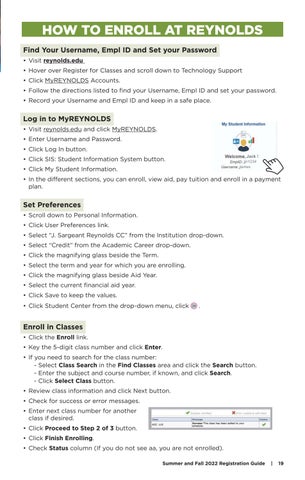
HOW TO ENROLL AT REYNOLDS Find Your Username, Empl ID and Set your Password • Visit reynolds.edu • Hover over Register for Classes and scroll down to Technology Support • Click MyREYNOLDS Accounts. • Follow the directions listed to find your Username, Empl ID and set your password. • Record your Username and Empl ID and keep in a safe place.
Log in to MyREYNOLDS • Visit reynolds.edu and click MyREYNOLDS. • Enter Username and Password. • Click Log In button. • Click SIS: Student Information System button. • Click My Student Information. • In the different sections, you can enroll, view aid, pay tuition and enroll in a payment plan.
Set Preferences • Scroll down to Personal Information. • Click User Preferences link. • Select “J. Sargeant Reynolds CC” from the Institution drop-down. • Select “Credit” from the Academic Career drop-down. • Click the magnifying glass beside the Term. • Select the term and year for which you are enrolling. • Click the magnifying glass beside Aid Year. • Select the current financial aid year. • Click Save to keep the values. • Click Student Center from the drop-down menu, click
.
Enroll in Classes • Click the Enroll link. • Key the 5-digit class number and click Enter. • If you need to search for the class number: - Select Class Search in the Find Classes area and click the Search button. - Enter the subject and course number, if known, and click Search. - Click Select Class button. • Review class information and click Next button. • Check for success or error messages. • Enter next class number for another class if desired. • Click Proceed to Step 2 of 3 button. • Click Finish Enrolling. • Check Status column (If you do not see aa, you are not enrolled). Summer and Fall 2022 Registration Guide
|
19
View Schedule • In the Enroll area, click the My Class Schedule tab.
Pay Tuition • On your SIS My Student Information page, under the Finances section, click the Make a Payment link. • From SIS you will be taken to the Nelnet® landing page. • Click the green Make a Payment button. • Available terms will display with the amount due for that term. • Enter the amount you want to pay to the desired term. • Click on Next - Payment Method. • The first time you make a payment in Nelnet® you will need to enter credit card or bank account information for the payment. You can choose to save that information for future use. • Once you have entered/confirmed the billing information, click on Pay $ Now. • When the payment is processed you will be taken to the Receipt page where a confirmation of your transaction will be displayed. • Exit Nelnet® to return to SIS and verify your student account balance due updated.
View Grades • In the Enroll area, click on Term Information. • Click Grades: View My Grades.
Print Unofficial Transcript • In the My Academics area, click View My Unofficial Transcript. • Select J. Sargeant Reynolds CC from the Academic Institution drop -down list. • Select Unofficial from the Report Type drop-down. • Click the Go button and review results.
Sign Out • Click Sign Out. Close the browser window to end session.
20
|
Reynolds Community College
SET YOURSELF UP FOR SUCCESS Tips for Preparing for The Semester Know your class schedule and add it to your calendar. This makes it easier to plan other commitments like job schedules or family time. To view your class schedule, follow these instructions: • Visit reynolds.edu • Select MyREYNOLDS from the top bar • Choose Student Information System (SIS) or Navigate Get or find your Reynolds ID. You will need your Reynolds ID if you are using your financial aid reward to pay for books. Visit reynolds.edu/id to learn how to get your Reynolds ID. Explore the tools found in your MyREYNOLDS. These tools can track your progress towards graduation, help organize your semester and help make advising appointments. Visit reynolds.edu/track for video tutorials.
Familiarize yourself with Canvas All students use Canvas to access course materials. You will find your Canvas account when you log on to MyREYNOLDS. One of the exciting features of Canvas is its easy to use app! The Canvas Student app allows you to access your course and groups through a mobile device. Students can view grades, due dates, and communicate through the app. It’s available for both Android and iOS devices. Be sure to download the Canvas app to your phone or tablet. Directions for using your Canvas app can be found at: reynolds.edu/canvasapp.
Learn about your free academic support services. Math Central+ Math Central+ provides coaching focusing mathematics, physics and engineering. Qualified faculty and peer math coaches offer a variety of techniques to support students through developmental and credit-level courses. To learn more visit reynolds.edu/mathcentral. Reynolds Peer Tutoring Our trained peer tutors look forward to helping you strengthen your understanding of course content and develop academic skills that will contribute to continued success. Tutoring is available by appointment and can take place online or in person. For more information please visit reynolds.edu/tutoring. Writing Studio The Reynolds Writing Studio offers one-on-one instruction with all kinds of writing, no matter the class or assignment. Visit reynolds.edu/writing-studio to learn more. Summer and Fall 2022 Registration Guide
|
21
2022 SUMMER ACADEMIC CALENDAR Important Dates
Last day to withdraw* from class with a grade of “W”
July 14
Classes end
Aug. 3
Make-up for Juneteenth Holiday
Aug. 2 Aug. 3
Open registration begins Summer 2022 and Fall 2022
April 4
Make-up for Independence Day holiday
Payment deadline for registered (reynolds.edu/businessoffice)
See Business Office
Classes begin
May 23
Add/Drop
May 23-24
Last day to add class
May 24
Last day to drop with refund
May 26
Last day to withdraw* from class with a grade of “W”
June 13
Classes end
June 28
Date to submit required Financial Aid documents to ensure payment by 1st due date Summer 2022
April 15
FAFSA submission priority date Fall 2022
April 15
First day to charge textbooks to Financial Aid Summer 2022
May 9
Employee Recognition and Awards Program
May 12
Memorial Day (college closed)
May 30
First Five-Week Session
Second Five-Week Session Classes begin
June 29
Add/Drop
June 2930
Last day to add class
June 30
Last day to drop with refund
July 5
Last day to return textbooks for full refund (with receipt, in original condition)
May 31
Last day for applications for F-1 visa students Fall 2022
June 1
July 20
Juneteenth Holiday observed (college closed)
Last day to withdraw* from class with a grade of “W”
June 20
Classes end
Aug. 3
Deadline for graduation applications Summer 2022
June 30
Make-up for Independence Day holiday
Aug. 3
Federal Direct Loan application submission date to ensure payment by 1st due date Fall 2022
July 1
Independence Day Holiday (college closed)
July 4
Last day to charge textbooks to Financial Aid Summer 2022
July 5
Date to submit required Financial Aid documents to ensure payment by 1st due date Fall 2022
July 15
Domicile appeals deadline Fall 2022
Aug. 1
Grades due
*Withdrawals must be done at Advising Services or by calling (804) 523-6464.
2022 FALL ACADEMIC CALENDAR Important Dates Open registration begins Fall 2022
April 4
Aug. 4
Payment deadline for registered (reynolds.edu/businessoffice)
See Business Office
Classes begin
May 23
FAFSA submission priority date Fall 2022
April 15
Add/Drop
May 23-26
Memorial Day (college closed)
May 30
Last day to add class
May 26
Last day for applications for F-1 visa students Fall 2022
June 1
Last day to drop with refund
June 2
Last day to withdraw* from class with a grade of “W”
July 6
Federal Direct Loan application submission date to ensure payment by 1st due date Fall 2022
July 1
Make-up for Independence Day holiday
Aug. 3
Independence Day observed (college closed)
July 4 July 15
Classes begin
June 14
Date to submit required Financial Aid documents to ensure payment by 1st due date Fall 2022
Add/Drop
June 14-16
Domicile appeals deadline Fall 2022
Aug. 1
Last day to add class
June 16
First day to charge textbooks to Financial Aid Fall 2022
Aug. 8
Last day to drop with refund
June 21
Regular Session (10 Weeks)
Seven-Week Session
22
|
Reynolds Community College
Last day to return textbooks for full refund (with receipt, in original condition)
Aug. 29
Labor Day (college closed)
Sept. 5
FAFSA submission priority date Spring 2023
Sept. 15
College-wide Convocation Day (no classes/no services)
Sept. 27
Deadline for graduation applications Fall 2022
Sept. 30
Last day for applications for F-1 visa students Spring 2023
Oct. 1
Federal Direct Loan application submission date to ensure payment by 1st due date Spring 2023
Oct. 15
Last day to charge textbooks to Financial Aid Fall 2022
Oct. 25
Election Day (college closed)
Nov. 8
Date to submit required Financial Aid documents to ensure payment by 1st due date Spring 2023
Nov. 15
Faculty Research Day (no classes/college closes at noon)
Nov. 23
Fall Break (college closed)
Nov. 23-26
First day to submit online applications for Reynolds scholarships 2022-23
Last day to drop with refund
Oct. 7
Last day to withdraw* from class with a grade of “W”
Nov. 9
Classes end
Dec. 12
Make-up for Election Day Nov. 8
Dec. 12
First Seven-Week Session Classes begin
Aug. 22
Add/Drop
Aug. 22-24
Last day to add class
Aug. 24
Last day to drop with refund
Aug. 26
Last day to withdraw* from class with a grade of “W”
Sept. 20
Classes end
Oct. 11
Second Seven-Week Session Classes begin
Oct. 19
Add/Drop
Oct. 19-21
Last day to add class
Oct. 21
Last day to drop with refund
Oct. 25, 2021
Last day to withdraw* from class with a grade of “W”
Nov. 17
Classes end
Dec. 12
Dec. 1
Make-up for Election Day Nov. 8
Dec. 12
Domicile appeals deadline Spring 2023
Dec. 1
Classes begin
Aug. 22
Grades due
Dec. 14 by 12pm
Add/Drop
Aug. 22-23
Last day to add class
Aug. 23
Winter Break (college closed)
Dec. 23 – January 2, 2023
Last day to drop with refund
Aug. 25
Last day to withdraw* from class with a grade of “W”
Sept. 12
Classes end
Sept. 26
First Five-Week Session
Regular Session (15 Weeks) Classes begin
Aug. 22
Add/Drop
Aug. 22-26
Last day to add class
Aug. 26
Last day to drop with refund
Sept. 6
Last day to withdraw* from class with a grade of “W”
Oct. 25
Classes end
Dec. 5
Examination period
Dec. 6-12
Twelve-Week Session
Second Five-Week Session Classes begin
Sept. 28
Add/Drop
Sept. 2829
Last day to add class
Sept. 29
Last day to drop with refund
Oct. 3
Last day to withdraw*from class with a grade of “W”
Oct. 18
Classes end
Nov. 1 Third Five-Week Session
Classes begin
Sept. 13
Add/Drop
Sept. 13-16
Classes begin
Nov. 2
Last day to add class
Sept. 16
Add/Drop
Nov. 2-3
Last day to drop with refund
Sept. 23
Last day to add class
Nov. 3
Last day to withdraw* from class with a grade of “W”
Nov. 2
Last day to drop with refund
Nov. 7
Classes end
Dec. 12
Last day to withdraw* from class with a grade of “W”
Nov. 28
Make-up for Election Day Nov. 8
Dec. 12
Classes end
Dec. 12
Make-up Day for Election Day Nov. 8
Dec. 12
Ten-Week Session Classes begin
Sept. 28
Add/Drop
Sept. 28 Oct. 3
Last day to add class
Oct. 3
* Withdrawals must be done at Advising Services or by calling (804) 523-6464.
Summer and Fall 2022 Registration Guide
|
23
reynolds.edu | (804) 371-3000 24
|
Downtown · Goochland · The Kitchens · Parham Road · Online Reynolds Community College