When you count the number of clicks and keystrokes, you’ll discover that can actually take up a lot of time. As far back as AutoCAD 2015, you can delete a polyline segment with as few as three clicks.
TOGGLE LASSO SELECTION METHODS
Here’s what to do:
You may already be aware about the crossing, window, and fence lasso selection methods where, when prompted to select objects, you can hold down your left mouse button to create a freehand selection method in and around objects.
1. Hold down the Ctrl key on your keyboard. 2. With your left mouse button, click on a polyline segment you want deleted. 3. Release the Ctrl key, then press the Delete key on your keyboard. The segment will be deleted leaving two plines behind (Figure 9).
In the previous trick, we explained how you can use crossing and selection windows.
For example, if you click and hold your left mouse button and drag it in a clockwise direction, you get a window lasso selection method; if you click and hold your left mouse button in a counterclockwise direction, you get a crossing lasso selection method.
PRODUCT FOCUS
AutoCAD
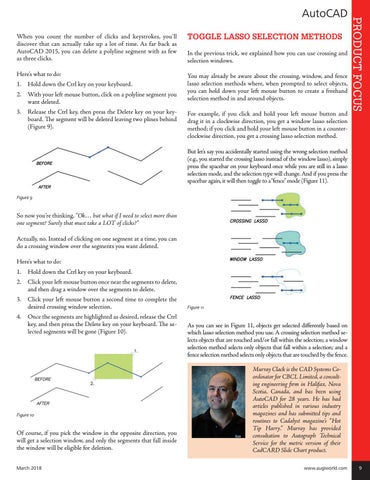
But let’s say you accidentally started using the wrong selection method (e.g., you started the crossing lasso instead of the window lasso), simply press the spacebar on your keyboard once while you are still in a lasso selection mode, and the selection type will change. And if you press the spacebar again, it will then toggle to a “fence” mode (Figure 11). Figure 9
So now you’re thinking, “Ok… but what if I need to select more than one segment? Surely that must take a LOT of clicks?” Actually, no. Instead of clicking on one segment at a time, you can do a crossing window over the segments you want deleted. Here’s what to do: 1. Hold down the Ctrl key on your keyboard. 2. Click your left mouse button once near the segments to delete, and then drag a window over the segments to delete. 3. Click your left mouse button a second time to complete the desired crossing window selection. 4. Once the segments are highlighted as desired, release the Ctrl key, and then press the Delete key on your keyboard. The selected segments will be gone (Figure 10).
Figure 10
Of course, if you pick the window in the opposite direction, you will get a selection window, and only the segments that fall inside the window will be eligible for deletion. March 2018
Figure 11
As you can see in Figure 11, objects get selected differently based on which lasso selection method you use. A crossing selection method selects objects that are touched and/or fall within the selection; a window selection method selects only objects that fall within a selection; and a fence selection method selects only objects that are touched by the fence. Murray Clack is the CAD Systems Coordinator for CBCL Limited, a consulting engineering firm in Halifax, Nova Scotia, Canada, and has been using AutoCAD for 28 years. He has had articles published in various industry magazines and has submitted tips and routines to Cadalyst magazine’s “Hot Tip Harry.” Murray has provided consultation to Autograph Technical Service for the metric version of their CadCARD Slide Chart product. www.augiworld.com 9