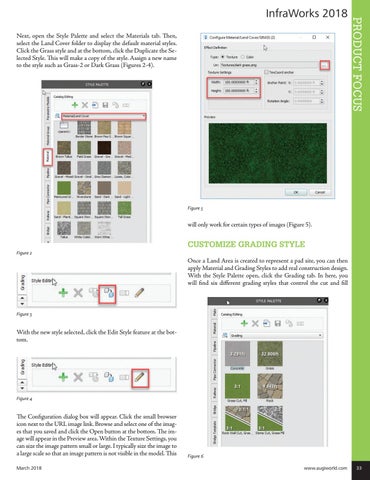
Next, open the Style Palette and select the Materials tab. Then, select the Land Cover folder to display the default material styles. Click the Grass style and at the bottom, click the Duplicate the Selected Style. This will make a copy of the style. Assign a new name to the style such as Grass-2 or Dark Grass (Figures 2-4).
PRODUCT FOCUS
InfraWorks 2018
Figure 5
will only work for certain types of images (Figure 5).
CUSTOMIZE GRADING STYLE Figure 2
Once a Land Area is created to represent a pad site, you can then apply Material and Grading Styles to add real construction design. With the Style Palette open, click the Grading tab. In here, you will find six different grading styles that control the cut and fill
Figure 3
With the new style selected, click the Edit Style feature at the bottom.
Figure 4
The Configuration dialog box will appear. Click the small browser icon next to the URL image link. Browse and select one of the images that you saved and click the Open button at the bottom. The image will appear in the Preview area. Within the Texture Settings, you can size the image pattern small or large. I typically size the image to a large scale so that an image pattern is not visible in the model. This March 2018
Figure 6 www.augiworld.com 33