Advertorial
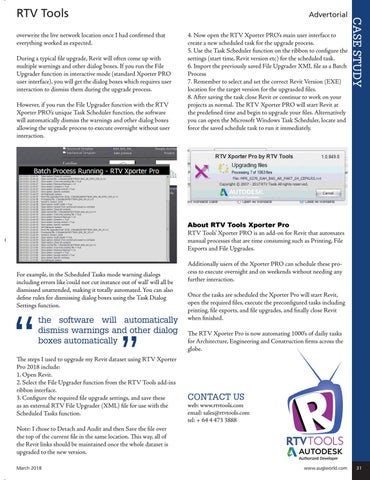
overwrite the live network location once I had confirmed that everything worked as expected. During a typical file upgrade, Revit will often come up with multiple warnings and other dialog boxes. If you run the File Upgrader function in interactive mode (standard Xporter PRO user interface), you will get the dialog boxes which requires user interaction to dismiss them during the upgrade process. However, if you run the File Upgrader function with the RTV Xporter PRO’s unique Task Scheduler function, the software will automatically dismiss the warnings and other dialog boxes allowing the upgrade process to execute overnight without user interaction.
4. Now open the RTV Xporter PRO’s main user interface to create a new scheduled task for the upgrade process. 5. Use the Task Scheduler function on the ribbon to configure the settings (start time, Revit version etc) for the scheduled task. 6. Import the previously saved File Upgrader XML file as a Batch Process 7. Remember to select and set the correct Revit Version (EXE) location for the target version for the upgrasded files. 8. After saving the task close Revit or continue to work on your projects as normal. The RTV Xporter PRO will start Revit at the predefined time and begin to upgrade your files. Alternatively you can open the Microsoft Windows Task Scheduler, locate and force the saved schedule task to run it immediately.
CASE STUDY
RTV Tools
About RTV Tools Xporter Pro RTV Tools’ Xporter PRO is an add-on for Revit that automates manual processes that are time consuming such as Printing, File Exports and File Upgrades.
For example, in the Scheduled Tasks mode warning dialogs including errors like ‘could not cut instance out of wall’ will all be dismissed unattended, making it totally automated. You can also define rules for dismissing dialog boxes using the Task Dialog Settings function.
“
the software will automatically dismiss warnings and other dialog boxes automatically
”
The steps I used to upgrade my Revit dataset using RTV Xporter Pro 2018 include: 1. Open Revit. 2. Select the File Upgrader function from the RTV Tools add-ins ribbon interface. 3. Configure the required file upgrade settings, and save these as an external RTV File Upgrader (XML) file for use with the Scheduled Tasks function.
Additionally users of the Xporter PRO can schedule these process to execute overnight and on weekends without needing any further interaction. Once the tasks are scheduled the Xporter Pro will start Revit, open the required files, execute the preconfigured tasks including printing, file exports, and file upgrades, and finally close Revit when finished. The RTV Xporter Pro is now automating 1000’s of dailiy tasks for Architecture, Engineering and Construction firms across the globe.
CONTACT US
web: www.rtvtools.com email: sales@rtvtools.com tel: + 64 4 473 3888
Note: I chose to Detach and Audit and then Save the file over the top of the current file in the same location. This way, all of the Revit links should be maintained once the whole dataset is upgraded to the new version. Authorized Developer
March 2018
www.augiworld.com 31