PRODUCT FOCUS
Revit MEP One important aspect of creating views that we don’t see in this script is setting the view template of the view. The reason behind this is we can set which view template is automatically applied to any created 3D views. It’s important that the view template is utilized as much as possible. When the automatic documentation workflow includes the creation of section views, dimensions, and many different categories, isolating elements or hiding elements in the view becomes extremely cumbersome for the graph to take care of. It’s ideal to always look to the view template before implementing view filters or anything related to view graphics.
Lastly, we should take advantage of project parameters in different stages of the process. Project parameters can be used for storing date/time stamp information, storing information if the assembly has already been processed by the documentation tool, and for having the graphs communicate with each other. This will allow processes of the workflow to become more modularized and have a more stepwise operation. By having information stored through project parameters in the different graphs, we can ensure quality control on graph reruns and make sure we keep a tight fidelity between the model and the final documentation output.
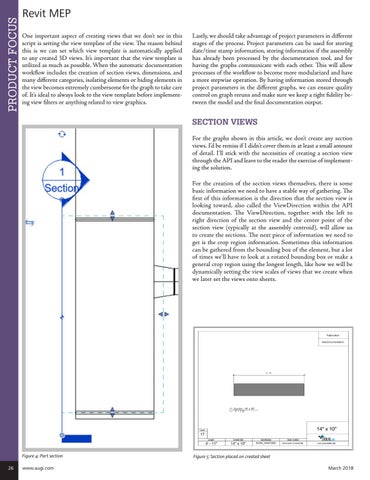
SECTION VIEWS For the graphs shown in this article, we don’t create any section views. I’d be remiss if I didn’t cover them in at least a small amount of detail. I’ll stick with the necessities of creating a section view through the API and leave to the reader the exercise of implementing the solution. For the creation of the section views themselves, there is some basic information we need to have a stable way of gathering. The first of this information is the direction that the section view is looking toward, also called the ViewDirection within the API documentation. The ViewDirection, together with the left to right direction of the section view and the center point of the section view (typically at the assembly centroid), will allow us to create the sections. The next piece of information we need to get is the crop region information. Sometimes this information can be gathered from the bounding box of the element, but a lot of times we’ll have to look at a rotated bounding box or make a general crop region using the longest length, like how we will be dynamically setting the view scales of views that we create when we later set the views onto sheets.
Figure 4: Part section 26
www.augi.com
Figure 5: Section placed on created sheet March 2018