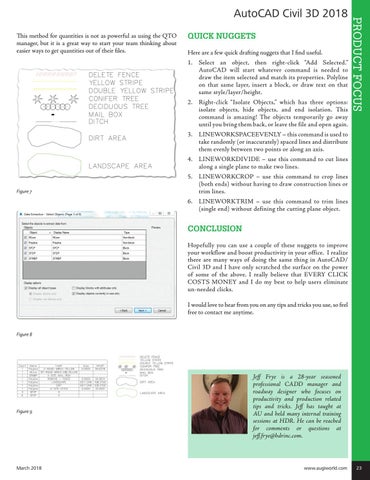
This method for quantities is not as powerful as using the QTO manager, but it is a great way to start your team thinking about easier ways to get quantities out of their files.
QUICK NUGGETS Here are a few quick drafting nuggets that I find useful. 1. Select an object, then right-click “Add Selected.” AutoCAD will start whatever command is needed to draw the item selected and match its properties. Polyline on that same layer, insert a block, or draw text on that same style/layer/height. 2. Right-click “Isolate Objects,” which has three options: isolate objects, hide objects, and end isolation. This command is amazing! The objects temporarily go away until you bring them back, or leave the file and open again.
PRODUCT FOCUS
AutoCAD Civil 3D 2018
3. LINEWORKSPACEEVENLY – this command is used to take randomly (or inaccurately) spaced lines and distribute them evenly between two points or along an axis. 4. LINEWORKDIVIDE – use this command to cut lines along a single plane to make two lines.
Figure 7
5. LINEWORKCROP – use this command to crop lines (both ends) without having to draw construction lines or trim lines. 6. LINEWORKTRIM – use this command to trim lines (single end) without defining the cutting plane object.
CONCLUSION Hopefully you can use a couple of these nuggets to improve your workflow and boost productivity in your office. I realize there are many ways of doing the same thing in AutoCAD/ Civil 3D and I have only scratched the surface on the power of some of the above. I really believe that EVERY CLICK COSTS MONEY and I do my best to help users eliminate un-needed clicks. I would love to hear from you on any tips and tricks you use, so feel free to contact me anytime. Figure 8
Figure 9
March 2018
Jeff Frye is a 28-year seasoned professional CADD manager and roadway designer who focuses on productivity and production related tips and tricks. Jeff has taught at AU and held many internal training sessions at HDR. He can be reached for comments or questions at jeff.frye@hdrinc.com.
www.augiworld.com 23