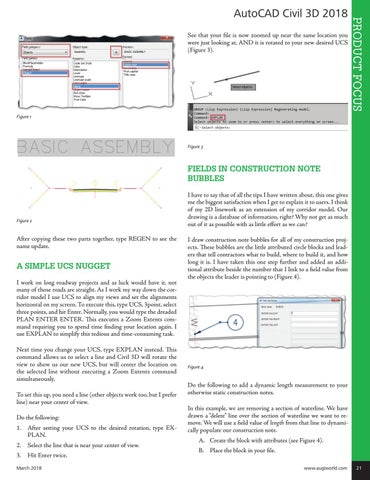
See that your file is now zoomed up near the same location you were just looking at, AND it is rotated to your new desired UCS (Figure 3).
PRODUCT FOCUS
AutoCAD Civil 3D 2018
Figure 1
Figure 3
FIELDS IN CONSTRUCTION NOTE BUBBLES
Figure 2
After copying these two parts together, type REGEN to see the name update.
A SIMPLE UCS NUGGET I work on long roadway projects and as luck would have it, not many of those roads are straight. As I work my way down the corridor model I use UCS to align my views and set the alignments horizontal on my screen. To execute this, type UCS, 3point, select three points, and hit Enter. Normally, you would type the dreaded PLAN ENTER ENTER. This executes a Zoom Extents command requiring you to spend time finding your location again. I use EXPLAN to simplify this tedious and time-consuming task. Next time you change your UCS, type EXPLAN instead. This command allows us to select a line and Civil 3D will rotate the view to show us our new UCS, but will center the location on the selected line without executing a Zoom Extents command simultaneously. To set this up, you need a line (other objects work too, but I prefer line) near your center of view. Do the following: 1. After setting your UCS to the desired rotation, type EXPLAN. 2. Select the line that is near your center of view. 3. Hit Enter twice.
I have to say that of all the tips I have written about, this one gives me the biggest satisfaction when I get to explain it to users. I think of my 2D linework as an extension of my corridor model. Our drawing is a database of information, right? Why not get as much out of it as possible with as little effort as we can? I draw construction note bubbles for all of my construction projects. These bubbles are the little attributed circle blocks and leaders that tell contractors what to build, where to build it, and how long it is. I have taken this one step further and added an additional attribute beside the number that I link to a field value from the objects the leader is pointing to (Figure 4).
Figure 4
Do the following to add a dynamic length measurement to your otherwise static construction notes. In this example, we are removing a section of waterline. We have drawn a “delete� line over the section of waterline we want to remove. We will use a field value of length from that line to dynamically populate our construction note.
A. Create the block with attributes (see Figure 4).
B. Place the block in your file.
March 2018 www.augiworld.com 21