PRODUCT FOCUS
3ds Max 2018
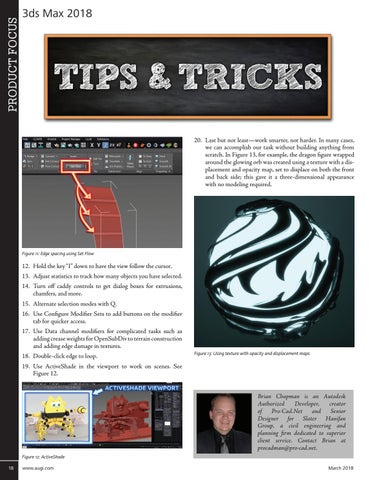
20. Last but not least—work smarter, not harder. In many cases, we can accomplish our task without building anything from scratch. In Figure 13, for example, the dragon figure wrapped around the glowing orb was created using a texture with a displacement and opacity map, set to displace on both the front and back side; this gave it a three-dimensional appearance with no modeling required.
Figure 11: Edge spacing using Set Flow
12. Hold the key “I” down to have the view follow the cursor. 13. Adjust statistics to track how many objects you have selected. 14. Turn off caddy controls to get dialog boxes for extrusions, chamfers, and more. 15. Alternate selection modes with Q. 16. Use Configure Modifier Sets to add buttons on the modifier tab for quicker access. 17. Use Data channel modifiers for complicated tasks such as adding crease weights for OpenSubDiv to terrain construction and adding edge damage in textures. 18. Double-click edge to loop.
Figure 13: Using texture with opacity and displacement maps
19. Use ActiveShade in the viewport to work on scenes. See Figure 12. Brian Chapman is an Autodesk Authorized Developer, creator of Pro-Cad.Net and Senior Designer for Slater Hanifan Group, a civil engineering and planning firm dedicated to superior client service. Contact Brian at procadman@pro-cad.net. Figure 12: ActiveShade 18
www.augi.com
March 2018