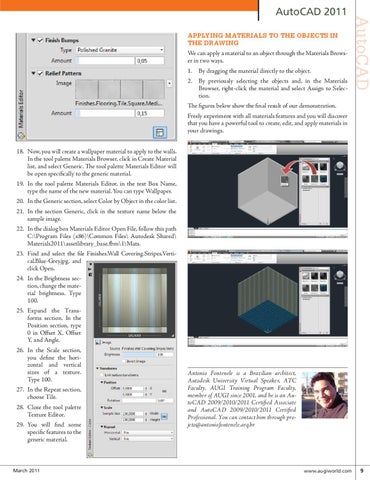
APPLYING MATERIALS TO THE OBJECTS IN THE DRAWING We can apply a material to an object through the Materials Browser in two ways. 1. By dragging the material directly to the object. 2. By previously selecting the objects and, in the Materials Browser, right-click the material and select Assign to Selection. The figures below show the final result of our demonstration. Freely experiment with all materials features and you will discover that you have a powerful tool to create, edit, and apply materials in your drawings.
AutoCAD
AutoCAD 2011
18. Now, you will create a wallpaper material to apply to the walls. In the tool palette Materials Browser, click in Create Material list, and select Generic. The tool palette Materials Editor will be open specifically to the generic material. 19. In the tool palette Materials Editor, in the text Box Name, type the name of the new material. You can type Wallpaper. 20. In the Generic section, select Color by Object in the color list. 21. In the section Generic, click in the texture name below the sample image. 22. In the dialog box Materials Editor Open File, follow this path C:\Program Files (x86)\Common Files\ Autodesk Shared\ Materials2011\assetlibrary_base.fbm\1\Mats. 23. Find and select the file Finishes.Wall Covering.Stripes.Vertical.Blue-Grey.jpg, and click Open. 24. In the Brightness section, change the material brightness. Type 100. 25. Expand the Transforms section. In the Position section, type 0 in Offset X, Offset Y, and Angle. 26. In the Scale section, you define the horizontal and vertical sizes of a texture. Type 100. 27. In the Repeat section, choose Tile. 28. Close the tool palette Texture Editor. 29. You will find some specific features to the generic material.
March 2011
Antonio Fontenele is a Brazilian architect, Autodesk University Virtual Speaker, ATC Faculty, AUGI Training Program Faculty, member of AUGI since 2001, and he is an AutoCAD 2009/2010/2011 Certified Associate and AutoCAD 2009/2010/2011 Certified Professional. You can contact him through projeto@antoniofontenele.arq.br
www.augiworld.com 9