by: Antonio Fontenele
Creating New Materials in AutoCAD 2011 A ➲
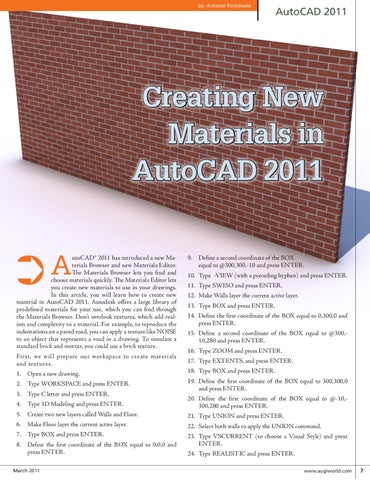
utoCAD® 2011 has introduced a new Materials Browser and new Materials Editor. The Materials Browser lets you find and choose materials quickly. The Materials Editor lets you create new materials to use in your drawings. In this article, you will learn how to create new material in AutoCAD 2011. Autodesk offers a large library of predefined materials for your use, which you can find through the Materials Browser. Don’t overlook textures, which add realism and complexity to a material. For example, to reproduce the indentations on a paved road, you can apply a texture like NOISE to an object that represents a road in a drawing. To simulate a standard brick and mortar, you could use a brick texture. First, we will prepare our workspace to create materials and textures. 1. Open a new drawing. 2. Type WORKSPACE and press ENTER. 3. Type C letter and press ENTER.
9. Define a second coordinate of the BOX equal to @300,300,-10 and press ENTER. 10. Type -VIEW (with a preceding hyphen) and press ENTER. 11. Type SWISO and press ENTER. 12. Make Walls layer the current active layer. 13. Type BOX and press ENTER. 14. Define the first coordinate of the BOX equal to 0,300,0 and press ENTER. 15. Define a second coordinate of the BOX equal to @300,10,280 and press ENTER. 16. Type ZOOM and press ENTER. 17. Type EXTENTS, and press ENTER. 18. Type BOX and press ENTER. 19. Define the first coordinate of the BOX equal to 300,300,0 and press ENTER.
4. Type 3D Modeling and press ENTER.
20. Define the first coordinate of the BOX equal to @-10,300,280 and press ENTER.
5. Create two new layers called Walls and Floor.
21. Type UNION and press ENTER.
6. Make Floor layer the current active layer.
22. Select both walls to apply the UNION command.
7. Type BOX and press ENTER.
23. Type VSCURRENT (to choose a Visual Style) and press ENTER.
8. Define the first coordinate of the BOX equal to 0,0,0 and press ENTER. March 2011
AutoCAD
AutoCAD 2011
24. Type REALISTIC and press ENTER.
www.augiworld.com 7