Autodesk
Revit Structure if(Value = 1, 85B, if(Value = 2, 90B, if(Value = 3, 100B, if(Value = 4, 105B, if(Value = 5, 110B, if(Value = 6, 120B, if(Value = 7, 125B, if(Value = 8, 130B, if(Value = 9, 140B, if(Value = 10, 145B, if(Value = 11, 150B, if(Value = 12, 170B, 10)))))))))))) Schedule Key Formula
This formula is another “If ” statement that tells the Schedule in Revit which formula to use.
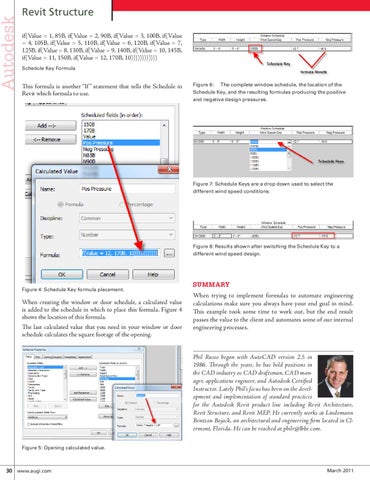
Figure 6: The complete window schedule, the location of the Schedule Key, and the resulting formulas producing the positive and negative design pressures.
Figure 7: Schedule Keys are a drop down used to select the different wind speed conditions.
Figure 8: Results shown after switching the Schedule Key to a different wind speed design.
Figure 4: Schedule Key formula placement.
When creating the window or door schedule, a calculated value is added to the schedule in which to place this formula. Figure 4 shows the location of this formula. The last calculated value that you need in your window or door schedule calculates the square footage of the opening.
SUMMARY When trying to implement formulas to automate engineering calculations make sure you always have your end goal in mind. This example took some time to work out, but the end result passes the value to the client and automates some of our internal engineering processes.
Phil Russo began with AutoCAD version 2.5 in 1986. Through the years, he has held positions in the CAD industry as CAD draftsman, CAD manager, applications engineer, and Autodesk Certified Instructor. Lately Phil’s focus has been on the development and implementation of standard practices for the Autodesk Revit product line including Revit Architecture, Revit Structure, and Revit MEP. He currently works at Lindemann Bentzon Bojack, an architectural and engineering firm located in Clermont, Florida. He can be reached at philr@lbbe.com. Figure 5: Opening calculated value.
30 www.augi.com
March 2011