property set definition and property you selected. Then you will enter a value appropriate to the condition you selected and select an operator appropriate to the formula you are creating for the theme rules. Next, you will specify the format for the design theme legend by clicking on the Legend Format tab. Enter the information that is pertinent to your style. Last, you will specify the display properties for the display theme legend by clicking on the Legend Display Properties tab. You will then select the display representation on which to display the changes and select the Style Override. The display representation in bold is the current display representation. Click the Layer/Color/Linetype tab, select the component to change, if any, and select a different setting for the property. Once everything is finished, click OK twice. Once your display theme style is created, you can drag and drop it onto the tool palette for future use. This creates a display theme tool. Once it is placed on the tool palette, you can right-click on it and click on properties to add a description, change the scale of the legend, and so on.
Figure 4: Display Theme Style Design Rules tab
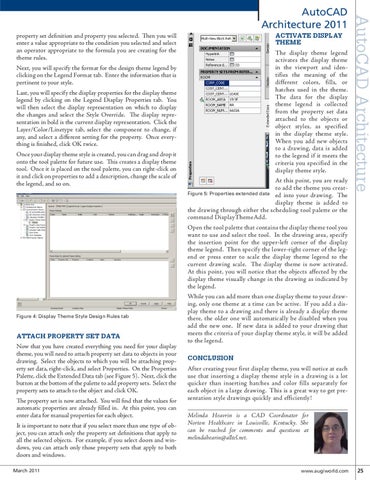
ATTACH PROPERTY SET DATA Now that you have created everything you need for your display theme, you will need to attach property set data to objects in your drawing. Select the objects to which you will be attaching property set data, right-click, and select Properties. On the Properties Palette, click the Extended Data tab (see Figure 5). Next, click the button at the bottom of the palette to add property sets. Select the property sets to attach to the object and click OK. The property set is now attached. You will find that the values for automatic properties are already filled in. At this point, you can enter data for manual properties for each object. It is important to note that if you select more than one type of object, you can attach only the property set definitions that apply to all the selected objects. For example, if you select doors and windows, you can attach only those property sets that apply to both doors and windows. March 2011
ACTIVATE DISPLAY THEME The display theme legend activates the display theme in the viewport and identifies the meaning of the different colors, fills, or hatches used in the theme. The data for the display theme legend is collected from the property set data attached to the objects or object styles, as specified in the display theme style. When you add new objects to a drawing, data is added to the legend if it meets the criteria you specified in the display theme style. At this point, you are ready to add the theme you creatFigure 5: Properties extended data ed into your drawing. The display theme is added to the drawing through either the scheduling tool palette or the command DisplayThemeAdd. Open the tool palette that contains the display theme tool you want to use and select the tool. In the drawing area, specify the insertion point for the upper-left corner of the display theme legend. Then specify the lower-right corner of the legend or press enter to scale the display theme legend to the current drawing scale. The display theme is now activated. At this point, you will notice that the objects affected by the display theme visually change in the drawing as indicated by the legend. While you can add more than one display theme to your drawing, only one theme at a time can be active. If you add a display theme to a drawing and there is already a display theme there, the older one will automatically be disabled when you add the new one. If new data is added to your drawing that meets the criteria of your display theme style, it will be added to the legend.
AutoCAD Architecture
AutoCAD Architecture 2011
CONCLUSION After creating your first display theme, you will notice at each use that inserting a display theme style in a drawing is a lot quicker than inserting hatches and color fills separately for each object in a large drawing. This is a great way to get presentation style drawings quickly and efficiently! Melinda Heavrin is a CAD Coordinator for Norton Healthcare in Louisville, Kentucky. She can be reached for comments and questions at melindahearin@alltel.net.
www.augiworld.com 25