AutoCAD Architecture
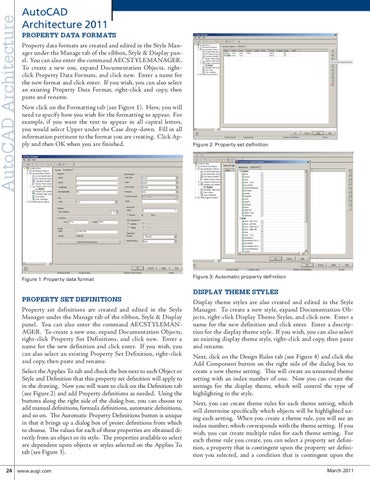
AutoCAD Architecture 2011 PROPERTY DATA FORMATS Property data formats are created and edited in the Style Manager under the Manage tab of the ribbon, Style & Display panel. You can also enter the command AECSTYLEMANAGER. To create a new one, expand Documentation Objects, rightclick Property Data Formats, and click new. Enter a name for the new format and click enter. If you wish, you can also select an existing Property Data Format, right-click and copy, then paste and rename. Now click on the Formatting tab (see Figure 1). Here, you will need to specify how you wish for the formatting to appear. For example, if you want the text to appear in all capital letters, you would select Upper under the Case drop-down. Fill in all information pertinent to the format you are creating. Click Apply and then OK when you are finished.
Figure 3: Automatic property definition
Figure 1: Property data format
PROPERTY SET DEFINITIONS Property set definitions are created and edited in the Style Manager under the Manage tab of the ribbon, Style & Display panel. You can also enter the command AECSTYLEMANAGER. To create a new one, expand Documentation Objects, right-click Property Set Definitions, and click new. Enter a name for the new definition and click enter. If you wish, you can also select an existing Property Set Definition, right-click and copy, then paste and rename. Select the Applies To tab and check the box next to each Object or Style and Definition that this property set definition will apply to in the drawing. Now you will want to click on the Definition tab (see Figure 2) and add Property definitions as needed. Using the buttons along the right side of the dialog box, you can choose to add manual definitions, formula definitions, automatic definitions, and so on. The Automatic Property Definitions button is unique in that it brings up a dialog box of preset definitions from which to choose. The values for each of these properties are obtained directly from an object or its style. The properties available to select are dependent upon objects or styles selected on the Applies To tab (see Figure 3). 24 www.augi.com
Figure 2: Property set definition
DISPLAY THEME STYLES Display theme styles are also created and edited in the Style Manager. To create a new style, expand Documentation Objects, right-click Display Theme Styles, and click new. Enter a name for the new definition and click enter. Enter a description for the display theme style. If you wish, you can also select an existing display theme style, right-click and copy, then paste and rename. Next, click on the Design Rules tab (see Figure 4) and click the Add Component button on the right side of the dialog box to create a new theme setting. This will create an unnamed theme setting with an index number of one. Now you can create the settings for the display theme, which will control the type of highlighting in the style. Next, you can create theme rules for each theme setting, which will determine specifically which objects will be highlighted using each setting. When you create a theme rule, you will see an index number, which corresponds with the theme setting. If you wish, you can create multiple rules for each theme setting. For each theme rule you create, you can select a property set definition, a property that is contingent upon the property set definition you selected, and a condition that is contingent upon the March 2011