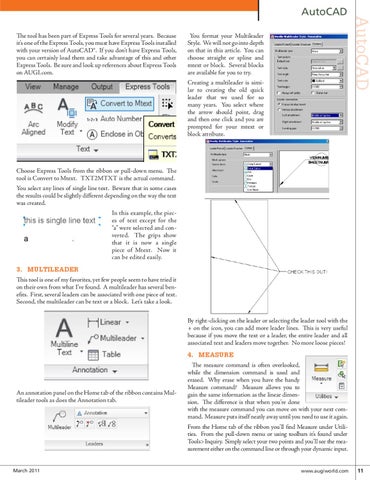
The tool has been part of Express Tools for several years. Because it’s one of the Express Tools, you must have Express Tools installed with your version of AutoCAD®. If you don’t have Express Tools, you can certainly load them and take advantage of this and other Express Tools. Be sure and look up references about Express Tools on AUGI.com.
You format your Multileader Style. We will not go into depth on that in this article. You can choose straight or spline and mtext or block. Several blocks are available for you to try. Creating a multileader is similar to creating the old quick leader that we used for so many years. You select where the arrow should point, drag and then one click and you are prompted for your mtext or block attribute.
AutoCAD
AutoCAD
Choose Express Tools from the ribbon or pull-down menu. The tool is Convert to Mtext. TXT2MTXT is the actual command. You select any lines of single line text. Beware that in some cases the results could be slightly different depending on the way the text was created. In this example, the pieces of text except for the “a” were selected and converted. The grips show that it is now a single piece of Mtext. Now it can be edited easily.
3. MULTILEADER This tool is one of my favorites, yet few people seem to have tried it on their own from what I’ve found. A multileader has several benefits. First, several leaders can be associated with one piece of text. Second, the multileader can be text or a block. Let’s take a look. By right-clicking on the leader or selecting the leader tool with the + on the icon, you can add more leader lines. This is very useful because if you move the text or a leader, the entire leader and all associated text and leaders move together. No more loose pieces!
An annotation panel on the Home tab of the ribbon contains Multileader tools as does the Annotation tab.
March 2011
4. MEASURE The measure command is often overlooked, while the dimension command is used and erased. Why erase when you have the handy Measure command? Measure allows you to gain the same information as the linear dimension. The difference is that when you’re done with the measure command you can move on with your next command. Measure puts itself neatly away until you need to use it again. From the Home tab of the ribbon you’ll find Measure under Utilities. From the pull-down menu or using toolbars it’s found under Tools>Inquiry. Simply select your two points and you’ll see the measurement either on the command line or through your dynamic input.
www.augiworld.com 11